
Reputation Management
Reputation Management
Click Reputation in the left-side navigation to access tools for monitoring and responding to your shop’s online reviews.
This section includes the following pages:
- Overview
- Connections
- Reviews
- Listings
Managing your online reputation helps build trust with customers and can influence whether new shoppers choose your business.
For more insight into the impact of online reviews, see this Forbes article:
20 Online Reputation Statistics That Every Business Owner Needs To Know
Overview
Select the Overview tab in the left navigation to see a summary of your BloomNation and Google reviews.
This page also displays the Review Rating Trend graph. Use the date filters to view reviews from:
- Last 3 months
- Last 6 months
- Last 12 months
- Lifetime
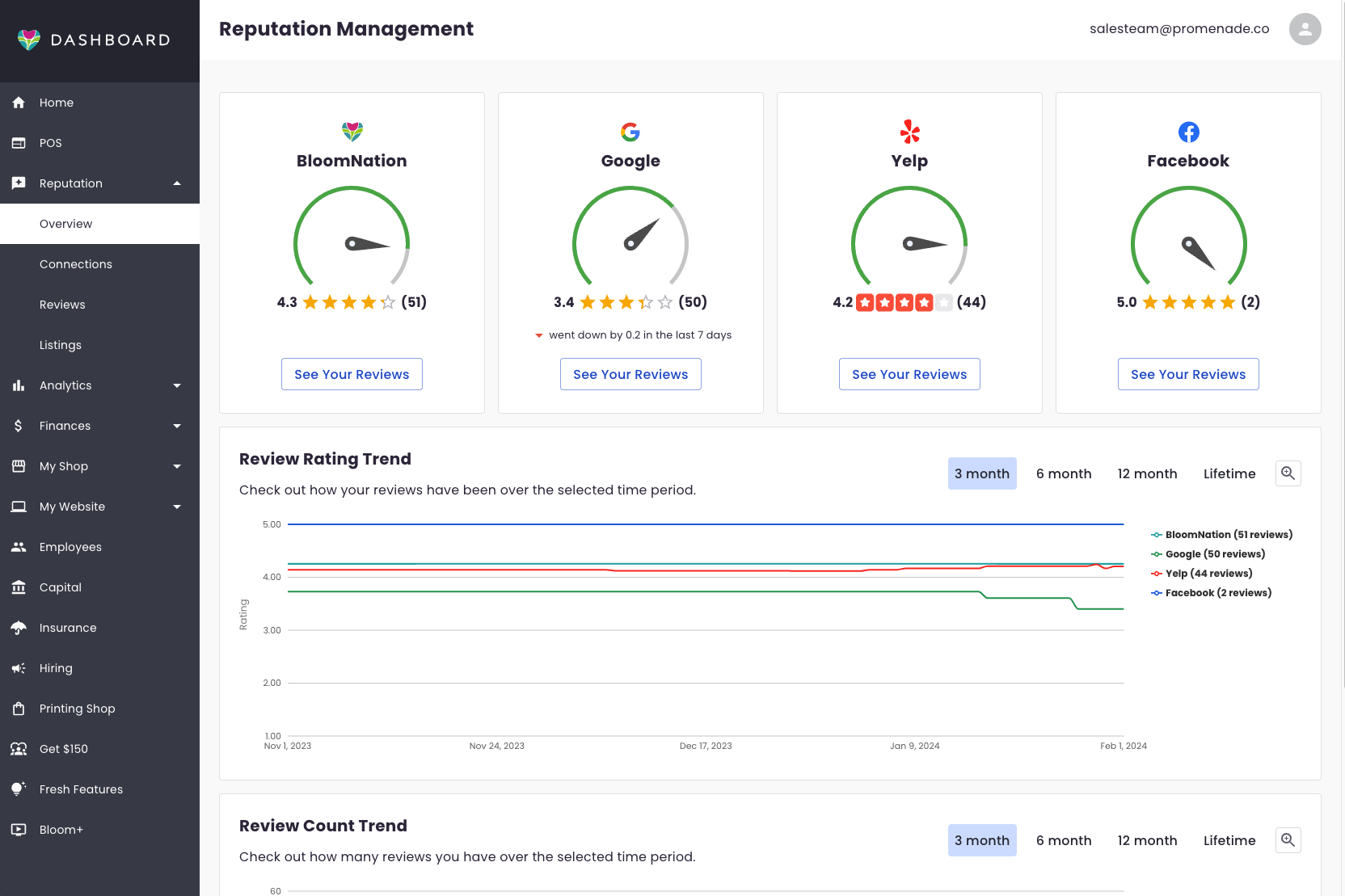
- Click See Your Reviews to open the Reviews page
- Adjust the date filter to change the Review Rating Trend graph
Connecting Yelp, Google and Facebook
-
From the Dashboard home screen, go to Reputation > Connections.
-
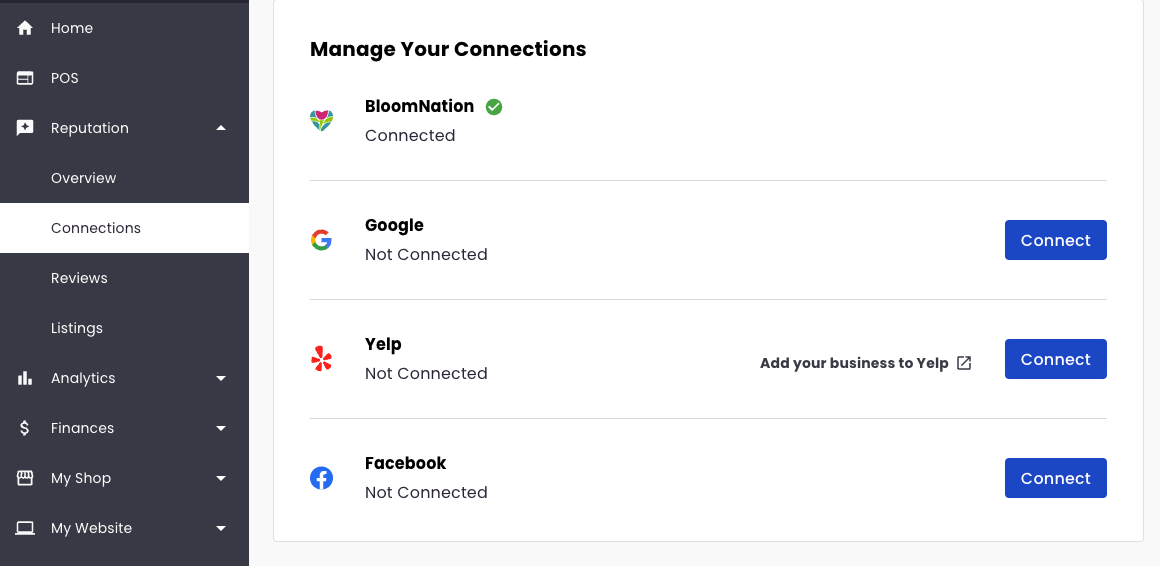
On the Connections page, you will see options to connect review platforms:
- If you do not have a Yelp account, click Add your Business to Yelp. This will guide you through claiming your Yelp listing before connecting it.
- If your business already has a Yelp page, click the blue Connect button.
-
To connect Google Reviews, click the blue Connect button next to Google.
Read and Filter Reviews
Open the Reviews tab in the left navigation, or click See Your Reviews from the Overview page.
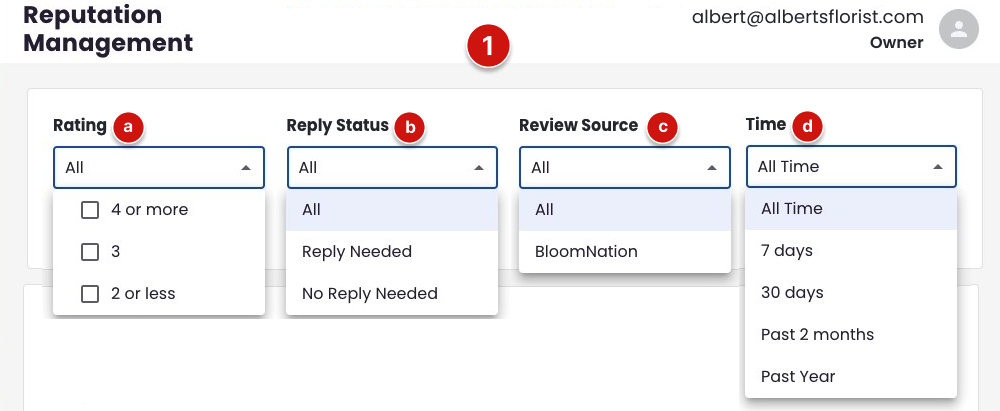
You can filter reviews by:
- Rating
- Reply Status
- Review Source
- Time
Viewing All Reviews
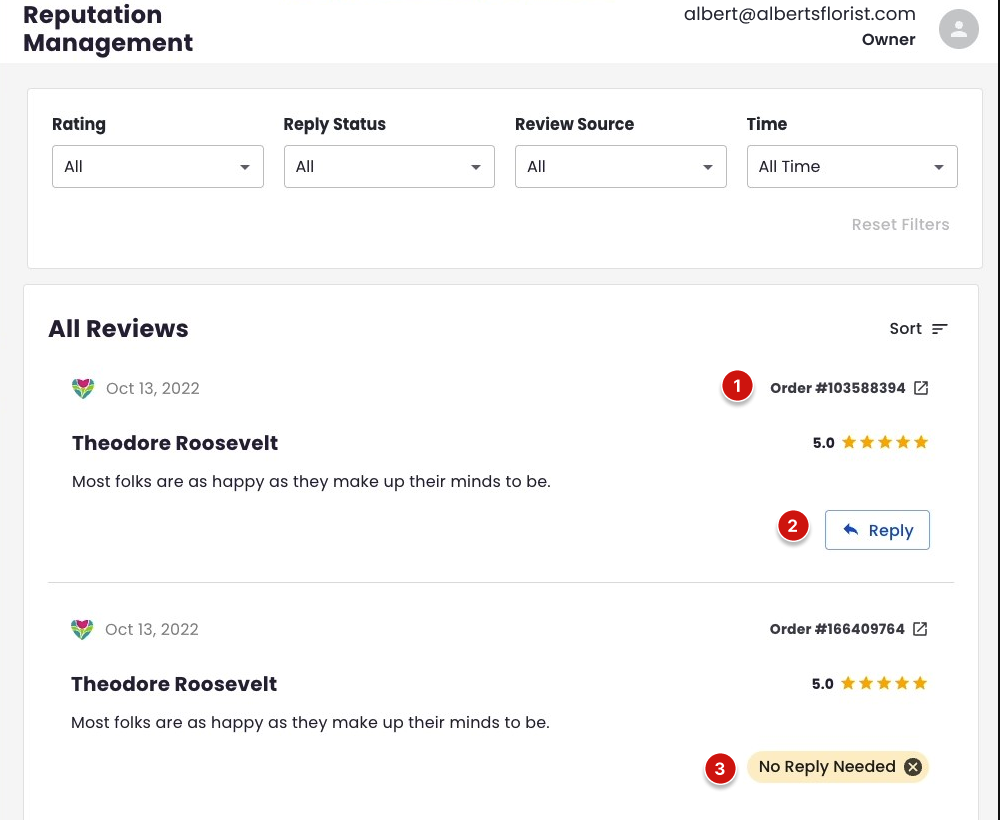
- Click Order #... to open the original order in your e-commerce dashboard
- Click Reply to respond to the review
- Click the X to remove the No Reply Needed status from a review
No Reply Needed Status - Editing
The No Reply Needed status helps you separate reviews that do not require a response from those that still need one.
Reviews that require a response will show the status Reply Needed.
You can remove the No Reply Needed label at any time. When removed, the status automatically changes to Reply Needed.
Example:
A loyal customer leaves a five-star review that says:
"I had a wonderful experience shopping at Albert’s Florist."
If this customer regularly leaves positive reviews, the florist may decide not to respond. Marking the review as No Reply Needed helps staff quickly see that no reply is required.
Replying to a Review
To respond to a review, click the Reply button next to the review.
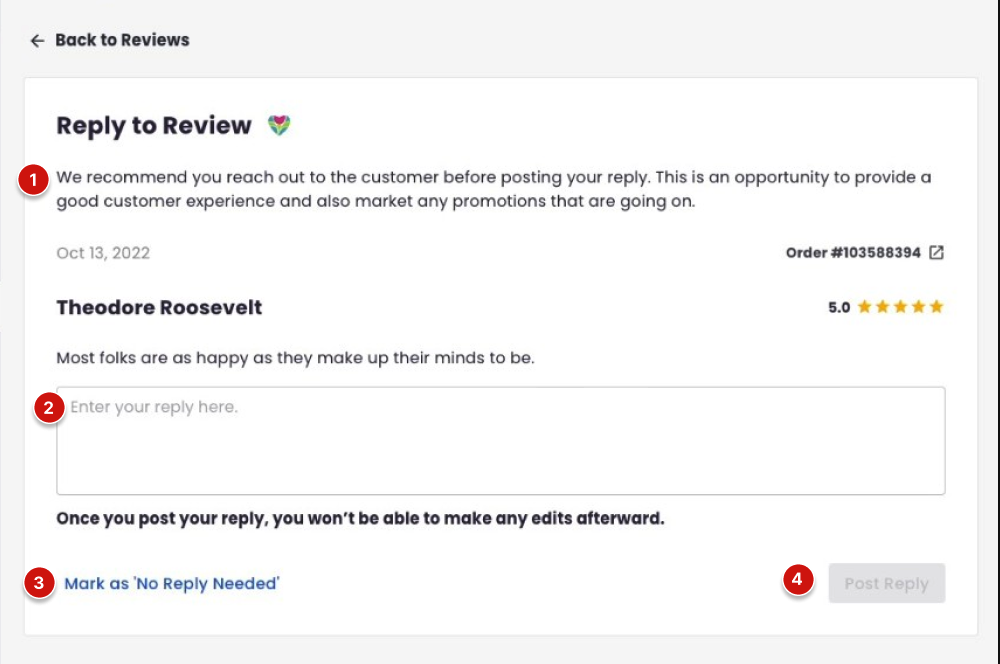
- Enter your reply
- Mark the review as No Reply Needed if applicable
- Click Post Reply
Note: Once a reply is posted, it cannot be edited.
Use Lili to Help Write Review Replies
When replying to a review, you may see an option to generate a suggested response using Lili, BloomNation’s AI-powered assistant.
Lili can draft a reply based on the content of the review. You can review the suggestion, generate another version, or edit the text before posting.
Learn more about using Lili for review replies:
Reply to Customer Reviews with Lili
Get Notifications of New Reviews by Email
-
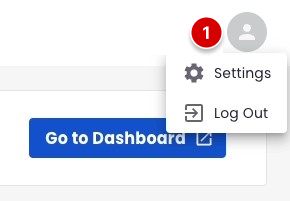
Click your profile image in the top-right corner of the dashboard
-
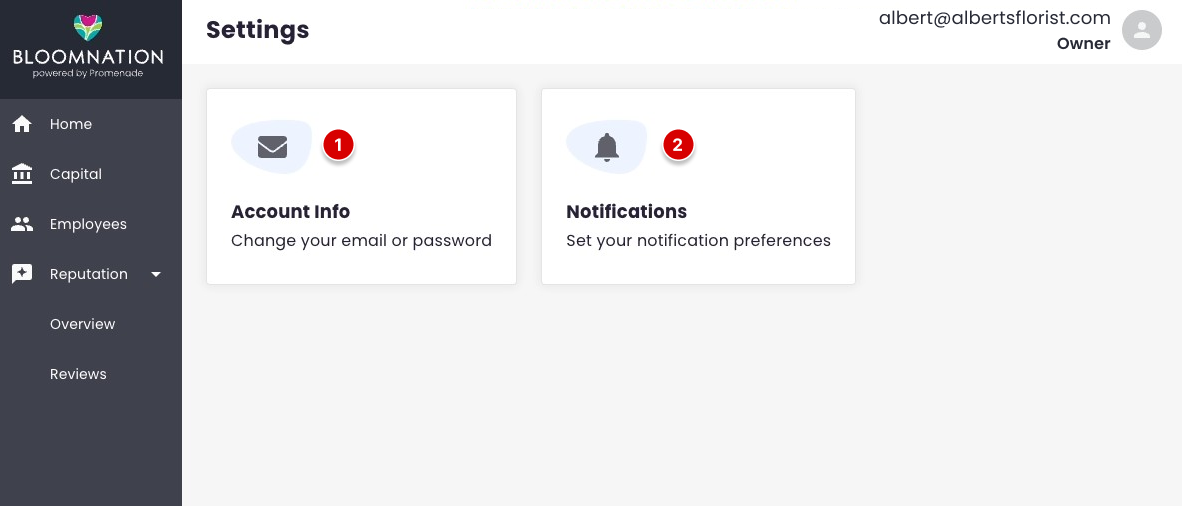
Select Settings
-
Select Notifications to manage email notification preferences
-
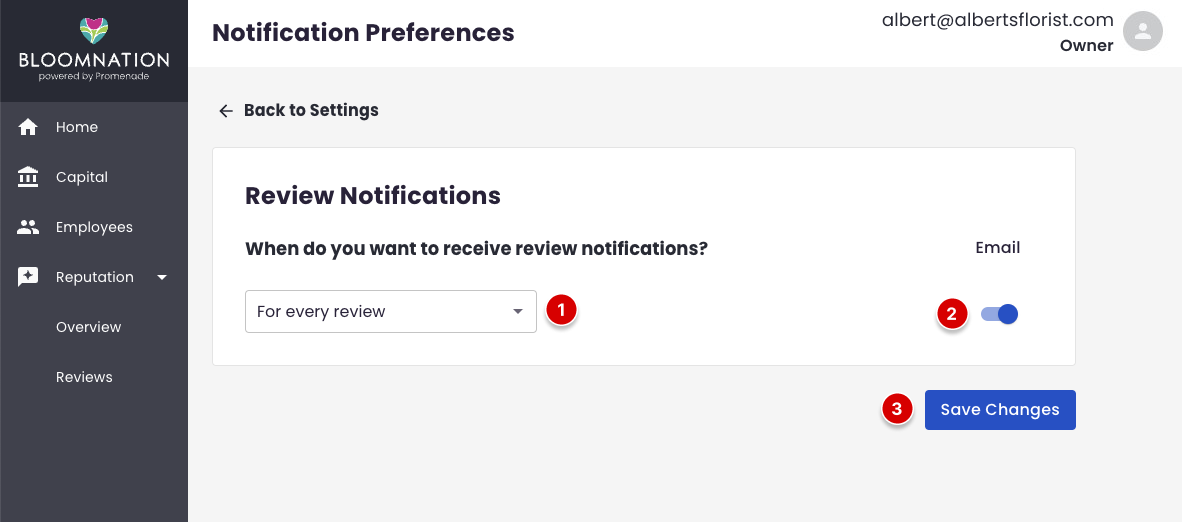
Choose either:
- For every review
- Only for low reviews (1–3 star reviews)
-
Enable or disable email notifications
-
Click Save Changes