
NEW! Website Manager
What is Website Manager?
Website Manager is a powerful new tool in your BloomNation dashboard that gives you more control over how your site looks, feels, and functions.
With Website Manager, you can:
- Customize colors, fonts, and layout
- Update your website navigation
- Create beautiful new pages and photo galleries
- Create and manage Blogs and blog posts
- Update banners and seasonal banners
For more information about specific Website Manager features, check out these related articles, or keep reading below!
Creating and Editing Galleries
Blogs & Blog Posts
Banner Management
Asset Manager
- Coming Soon!
Getting Started
How to Access
- Log into your BloomNation Dashboard
- Go to My Website → Website Manager
If you've already built custom pages, you’ll see them listed. If not, you’ll start with three options:
- View Website – See what your site looks like right now.
- Edit Theme – Update the look and feel of your site. (Watch the video walkthrough!)
- Edit Website – Add pages, organize your menu, and more. (Watch the video walkthrough!)
Edit Your Theme: Style Your Entire Website
Click Edit Theme to make changes that apply to every page of your website.
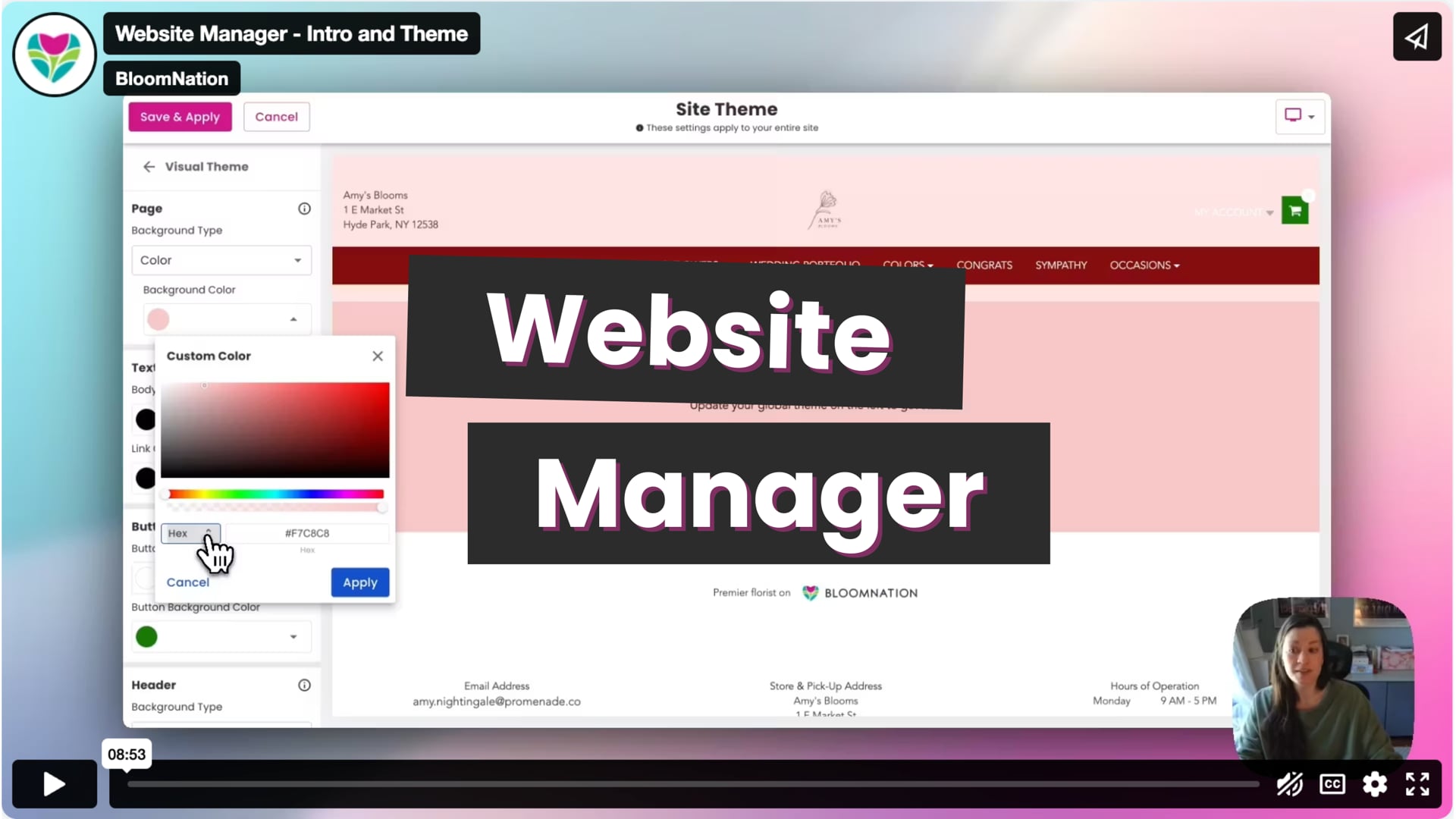 Website Manager - Intro and Theme
Text Theme
Choose your Primary Font (used across your whole site) and a Decorative Font for stylish headlines. You’ll see a live preview, and you can test out different fonts until you find one that fits your brand.
Tip: Stick with clear, easy-to-read fonts for the best shopping experience.
Visual Theme
Here’s where you bring your brand colors to life:
- Page Background: Solid, gradient, or image
- Text & Link Colors: Choose from a full color spectrum
- Buttons: Bright, bold buttons encourage clicks
- Header & Footer: Match your brand top to bottom
Layout and Spacing
Adjust the width of your site if you’d like. Default works great for most shops, but feel free to experiment.
When you're done, click Save and Apply — changes go live right away.
Edit Website: Control Your Menu and Pages
Click Edit Website to organize your site’s navigation and build new pages.
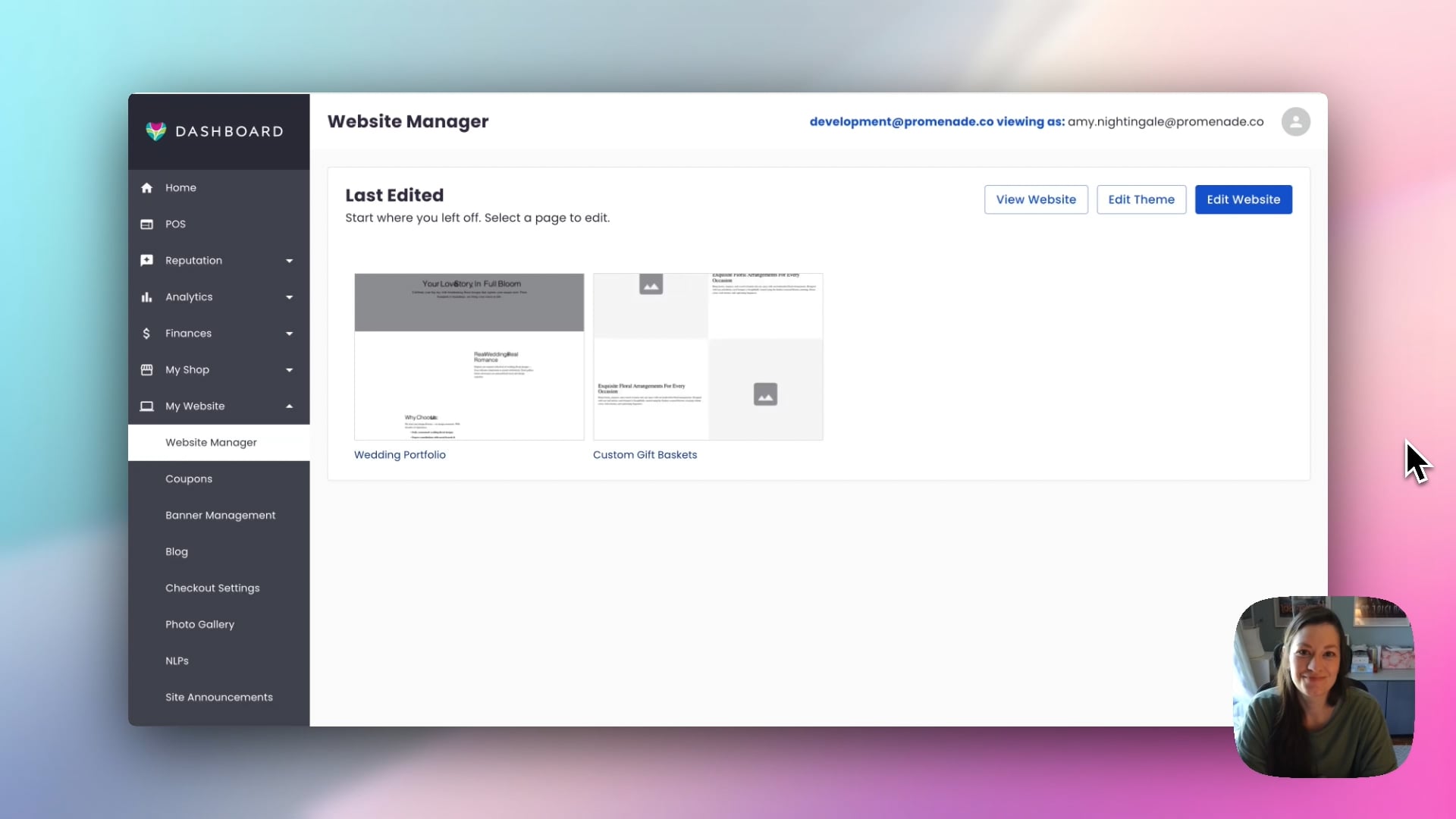 Edit Website
Navigation Menu
Drag and drop to reorder items. Rename links, hide them, or remove them entirely — and add new ones anytime.
Pro Tip: Keep your menu to 7 items or fewer for a clean, easy-to-use experience.
Adding to Your Menu
Click the + icon next to your navigation menu to add:
1. A Custom Page
- Use a template or start with a blank page
- Add banners, text, images, videos, buttons, and more
- Change background colors, upload floral images, and tell your story
- Save as a draft or publish live instantly
Ideas: Wedding Portfolios, Staff Bios, Delivery Zones, Holiday Specials
2. A Link
- Link to another site (external) or an existing page on your site (internal)
- Just type the menu name (e.g., “Wedding Portfolio”) and the link
Need help with internal vs. external links? Reach out to us anytime.
3. A Dropdown Menu
Perfect for grouping categories together. Create a dropdown like “Spring Flowers” and drag Easter, Graduation, or Pink Flowers underneath it.
4. A Category Dropdown + Pages
Automatically create a menu with product category pages from:
- Occasions
- Colors
- Sympathy Types
- Weddings
- And more
Just check the boxes for the ones you want, and Website Manager builds them for you.
Building a Custom Page
When you add a new editable page, choose a layout or start blank.
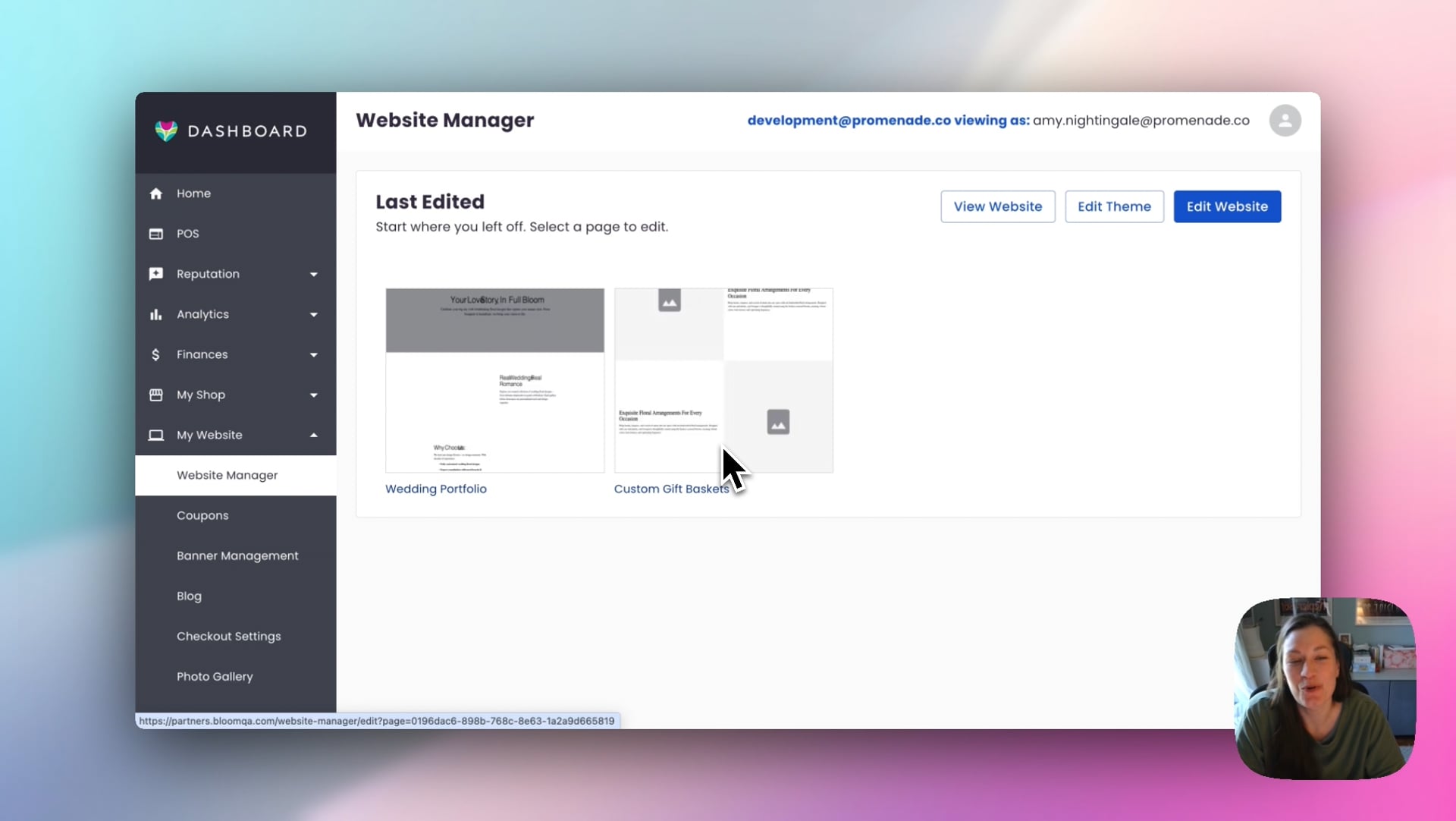 Website Manager - Custom Pages
Inside the page builder, you can:
- Upload floral images
- Change text color, alignment, and spacing
- Add text, images, buttons, video, dividers, and more
- See all your edits in a live preview
You can save as draft or publish when you're ready — the page will go live on your website right away.
Ready to Make Your Website Yours?
We’re excited to see what you’ll create. Website Manager was built to give you more control and creativity without needing a designer or developer.
If you ever need help:
Email: support@bloomnation.com
Phone: (210) 405-5050