
Creating Forms in Website Manager
Overview
Forms let you collect inquiries directly through your website. When a customer fills out a form, their details are sent to you by email. You can create multiple forms and add them to any page in Website Manager.
This feature is available on select plans. If you don't have access, contact us at getmore@bloomnation.com or (210) 405-5050 to learn more about upgrading.
Video walkthrough
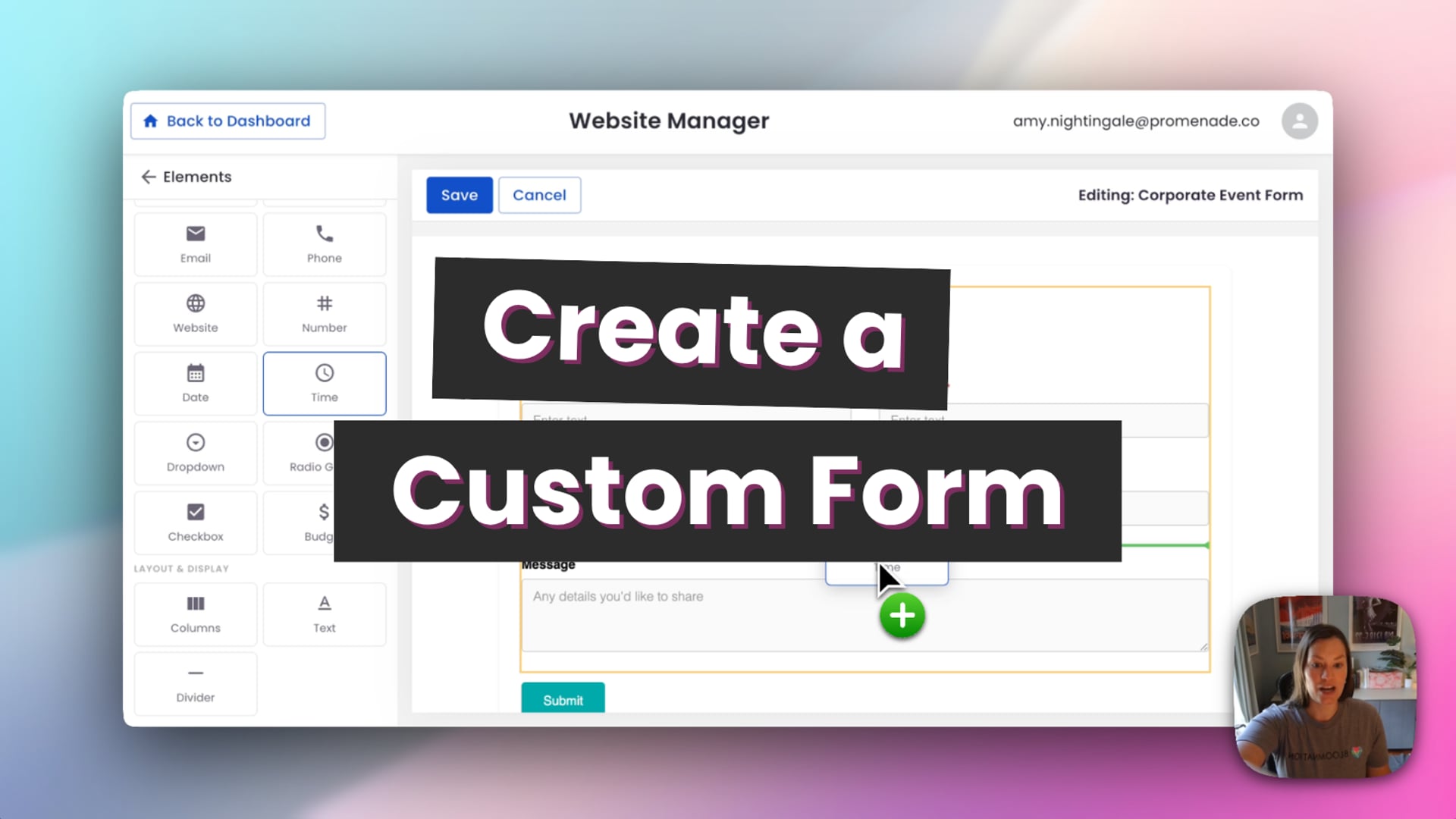 How to Create and Add Forms to Your Website
How to create a form
- Go to Website Manager.
- Select Forms from the shortcut on the main page, or click Edit Website and choose Forms from the dropdown.
- Click + Create New Form.
- Enter a name for your form. This is for your reference only — customers won't see it.
- Select a form type. The form type is used to categorize your leads in the Dashboard. Available types are: Contact, Wedding, Private Event, Corporate, Memorial/Funeral, Consultation, Custom Order, and Other.
- Click Create Form.
Edit your form
After creating your form, you'll land in the form editor. From here you can customize the form before adding it to your website.
Update the form title and description
Click directly on the form title or description in the preview to edit the text.
Add and remove fields
- To add a field, open Elements in the left sidebar and drag it onto the form.
- To reorder fields, use the drag handle on any field to move it to a new position.
- To remove a field, click it and select the trash icon.
- To make a field required, click it and toggle Required in the left sidebar. Required fields are marked with a star on the form.
Customize the appearance
Open Layout or Appearance in the left sidebar to adjust the form's structure, spacing, and colors.
Set a success message
Open Settings in the left sidebar to update the message customers see after submitting the form.
Set up email notifications
Open Email Notifications in the left sidebar to manage how you and your customers are notified when a form is submitted.
- Notify yourself — your shop's email address is added automatically. To notify multiple people, enter additional email addresses separated by commas. You can also customize the subject line of the notification email.
- Notify the respondent — optionally send the person who filled out the form a confirmation email.
When you're done, click Save.
Manage your forms
From the Forms section in Website Manager, you can manage any form you've created. Click the options menu on a form to:
- Edit — reopen the form editor to make changes
- Duplicate — create a copy of the form
- Delete — permanently remove the form
Add a form to a page
Forms are managed separately from your pages, so you can add the same form to multiple pages if needed.
To add a form to an existing page:
- In Website Manager, go to your navigation menu and open the page you want to edit.
- Click Edit on that page.
- Click the + icon to add a new element and in the list of Elements, select Form.
- Drag the Form element onto the page and drop it where you want it to appear.
- Click the form element and select the form you want to display.
- Click Save or Publish.
You can also create a new blank page and add a form as the only element on it.
Tips
- You can create multiple forms — one for weddings, one for corporate orders, one for general contact, and so on. Each is tracked separately in your leads.
- The form name is internal. Give each form a clear name so you can tell them apart when adding them to pages.
- If you want the same form on multiple pages, add the Form element to each page and select the same form. Any edits you make to the form will update everywhere it's used.
- Wedding is the only form type that currently offers a pre-built starting layout with fields already set up. For all other types, you'll start with a basic form and customize from there.
- If you have access to Leads, you can view all form submissions directly in your Point of Sale under Contacts > Leads.
Related articles
Need help?
If you have questions, our Partner Support team is here to help.
Phone: (210) 405-5050
Email: support@bloomnation.com