
Create a Multiple Gallery Page in Website Manager
Updated
A multiple gallery page lets you organize several galleries under one main page, making it easier to showcase different collections without cluttering your navigation.
Feature Walkthrough: Create a Multiple Gallery
Watch this video to learn how to create and manage multiple galleries.
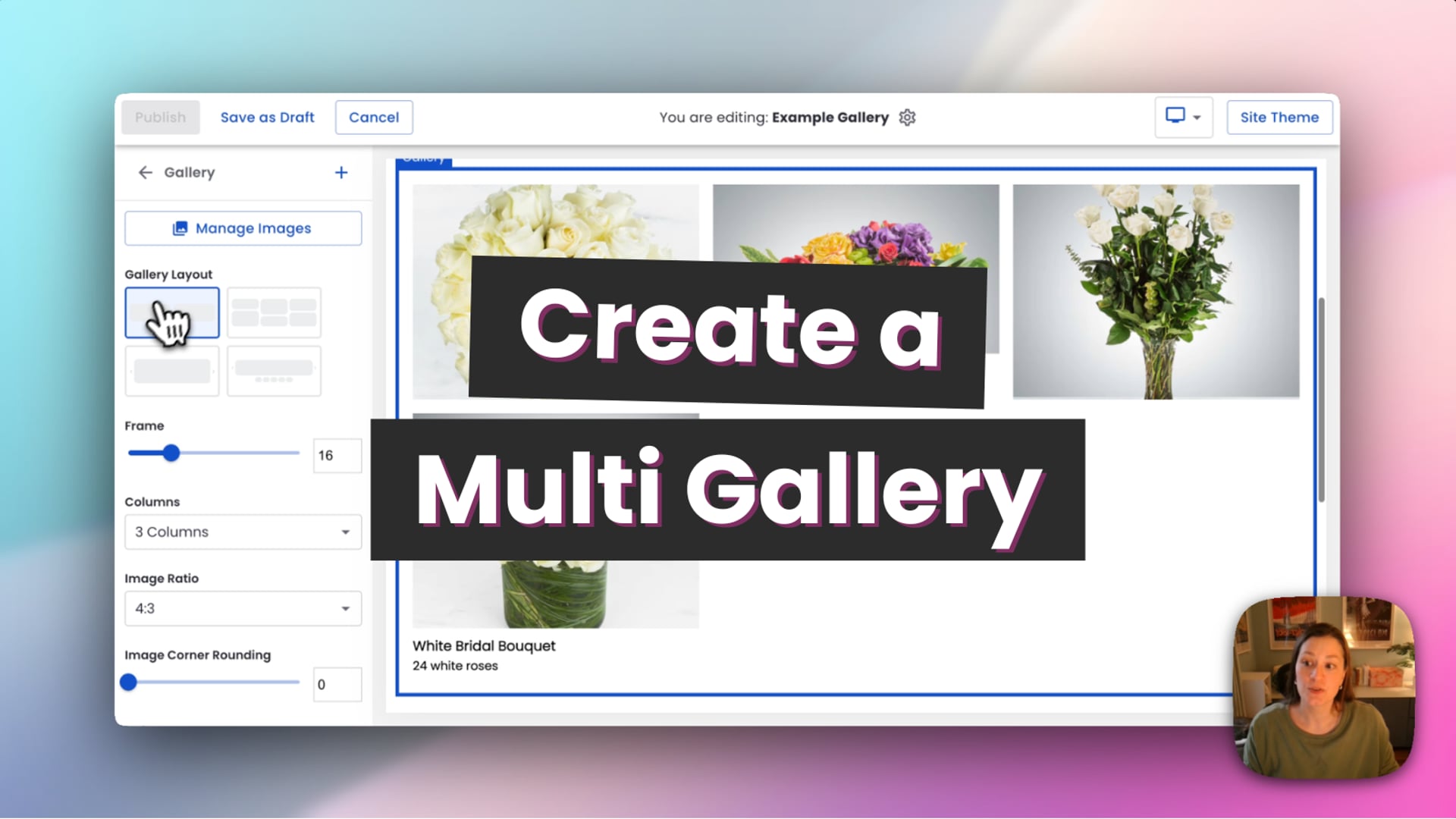 Multiple Page Gallery
When to Use a Multiple Gallery Page
- You have multiple collections, such as Spring, Summer, Fall, and Winter weddings
- You want one main page with multiple sub-galleries
- You want to keep your navigation clean and organized
A multiple gallery page creates one main page with several individual galleries inside it.
Create a Multiple Gallery Page
- Go to Website Manager.
- Click Edit Website.
- Click the + (plus) button.
- Select Custom Page, then choose Photo Gallery.
- Choose Multiple Gallery Page.
- Enter a name for your gallery page.
- Select a template.
- Click Add Page.
Edit the Main Gallery Page
The main gallery page acts as an overview of all your galleries.
- Edit text and headings
- Add keywords for SEO
- Customize the layout if needed
Edit an Individual Gallery
- Click into an existing gallery.
- Select Edit.
- Click Manage Images.
- Add or upload images using Asset Manager.
- Click Use Selected.
You can also change the layout for each individual gallery.
Customize Images (Optional)
- Reorder images with drag and drop
- Add titles and descriptions
- Add alt text for SEO
- Link images to other pages if needed
Add Additional Galleries
- Go back to your gallery overview page.
- Click the + (plus) button.
- Enter a name for the new gallery.
- Create the gallery.
Each new gallery will appear under your main gallery page.
Update Gallery Names and Settings
- Click the three-dot menu on a gallery.
- Select Page Settings.
- Update the gallery name or description.
Publish Your Galleries
- Publish the main gallery page first.
- Then publish each individual gallery page.
This ensures your full gallery structure appears correctly on your website.
Navigation Options
- Show the main gallery page in your navigation
- Hide it if you prefer to share the page with a direct link only
Tip
Use multiple galleries to organize your work by season, event type, or style so customers can browse your work more easily.