
Create a Single Gallery Page in Website Manager
You can create a single gallery page to showcase one collection of photos, such as a specific event, wedding, or seasonal work.
Feature Walkthrough: Create a Single Gallery
Watch this video to learn how to create and customize a single gallery page.
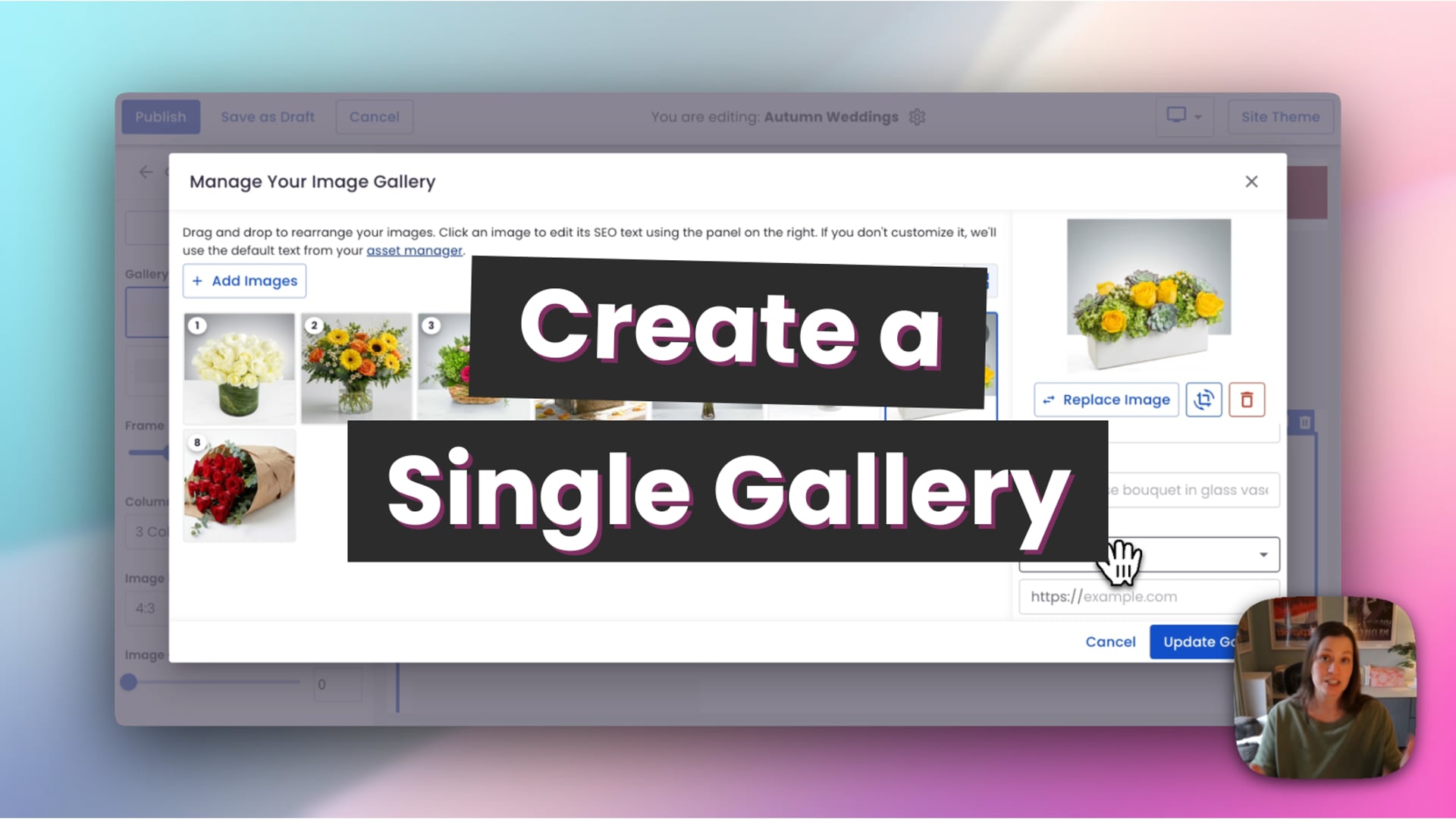 Single Page Gallery
When to Use a Single Gallery Page
A single gallery page is best when you want to display one group of images on a single page.
- One event or collection
- A single portfolio or theme
- A simple, focused gallery experience
Create a New Gallery
- Log in to your BloomNation dashboard.
- Go to My Website and select Website Manager.
- Click Edit Website.
- Click the + (plus) button.
- Select Custom Page, then choose Photo Gallery.
- Choose Single Gallery Page.
You can also click Add Photo Gallery directly from Website Manager homepage.
Set Up Your Gallery
- Enter a name for your gallery page.
- Select a gallery template.
- Click Add Page.
You can change the layout later if needed.
Add Images to Your Gallery
- Click into the gallery section.
- Select Manage Images.
- Click Add Images.
- Choose images from your Asset Manager or upload new ones.
- Click Use Selected.
Your selected images will now appear in your gallery.
Customize Your Images (Optional)
- Drag and drop to reorder images
- Add a title and description
- Add alt text for SEO
- Link an image to another page if needed
Depending on the layout you choose, titles and descriptions may appear directly on the gallery page.
Adjust the Gallery Layout
You can further customize how your gallery looks by adjusting:
- Layout style
- Number of columns
- Image ratios
- Rounded image corners
Save or Publish
- Save as Draft to keep working on your gallery later
- Publish to make your gallery live
You can also drag the page into your navigation to publish it.
Hide the Gallery from Navigation
If you want the gallery to stay live but not appear in your website menu:
- Click the three-dot menu.
- Select Hide from Menu.
Tip
Use titles, descriptions, and alt text to improve SEO and help customers better understand your work.