
Asset Manager
Asset Manager
The Asset Manager is your go-to location for all the pictures that showcase your shop's artistry and talent. You can keep all of the photographs organized in folders for easy access when creating new catalog items, new event proposals, or creating web pages in the website manager.
How to Use the Asset Manager
Browse
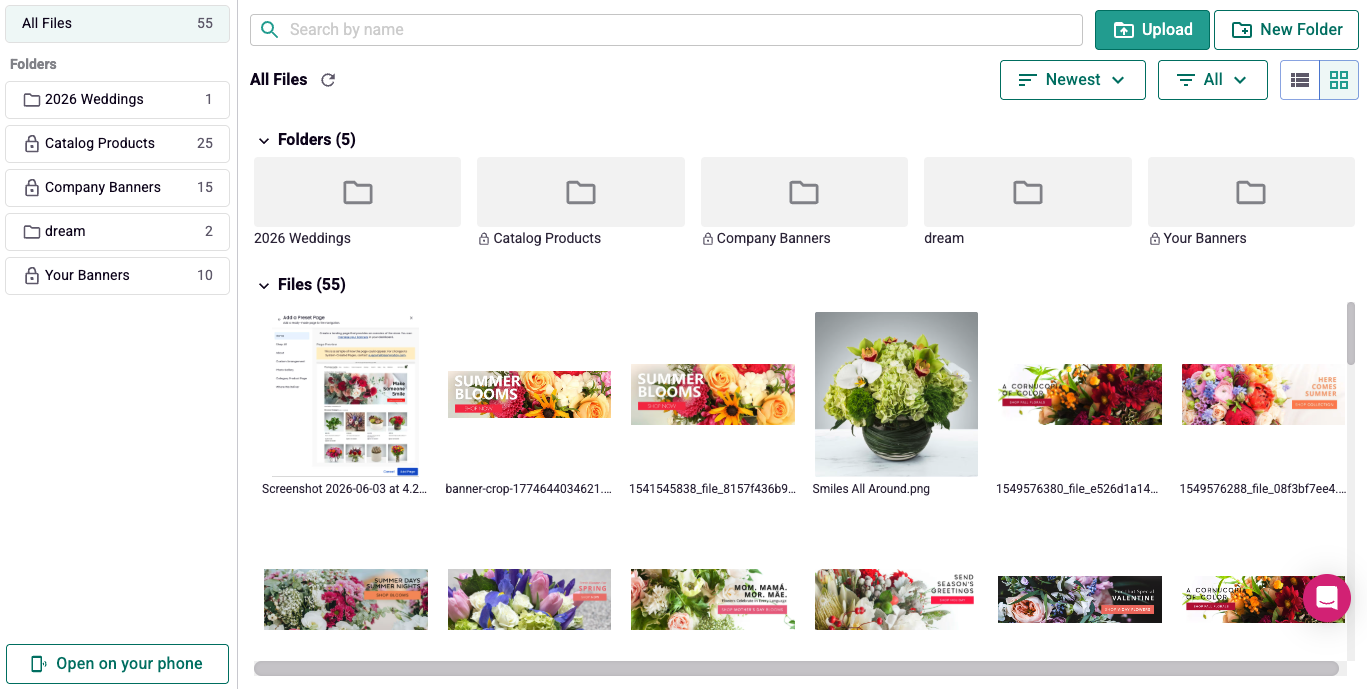
The Asset Manager shows all the uploaded photos from your account with BloomNation. All of the photos that have been uploaded to a product will appear in the file list.
Folders
There are three automatically created folders managed by BloomNation. These are the Banners Folder, Company Banners Folder, and the Product Images Folder. These folders have those images as their automatically updated content.
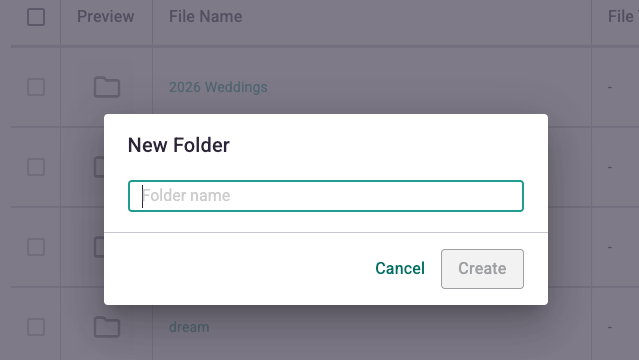
You can create your own folders to upload images to as well. This is a good way to stay organized for events that you are planning, or to upload a bulk set of images from a product photoshoot.
Folders can only be created at the base level of your Asset Manager. There is no way to create a nested folder structure using the Asset Manager. Any time a new folder is created, it will show up at the base level of the Asset Manager.
Sorting
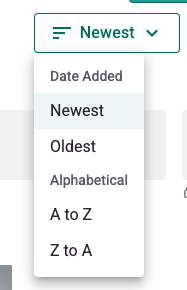
You can sort the items in the Asset Manager so that you can find the items you want. The sort options in the sort menu are Date Added (Newest or Oldest) and File Name (alphabetical A-Z or Z-A). If you change the view type to use the list view, you are also able to sort the table by File Type and File Size.
Viewing and Editing
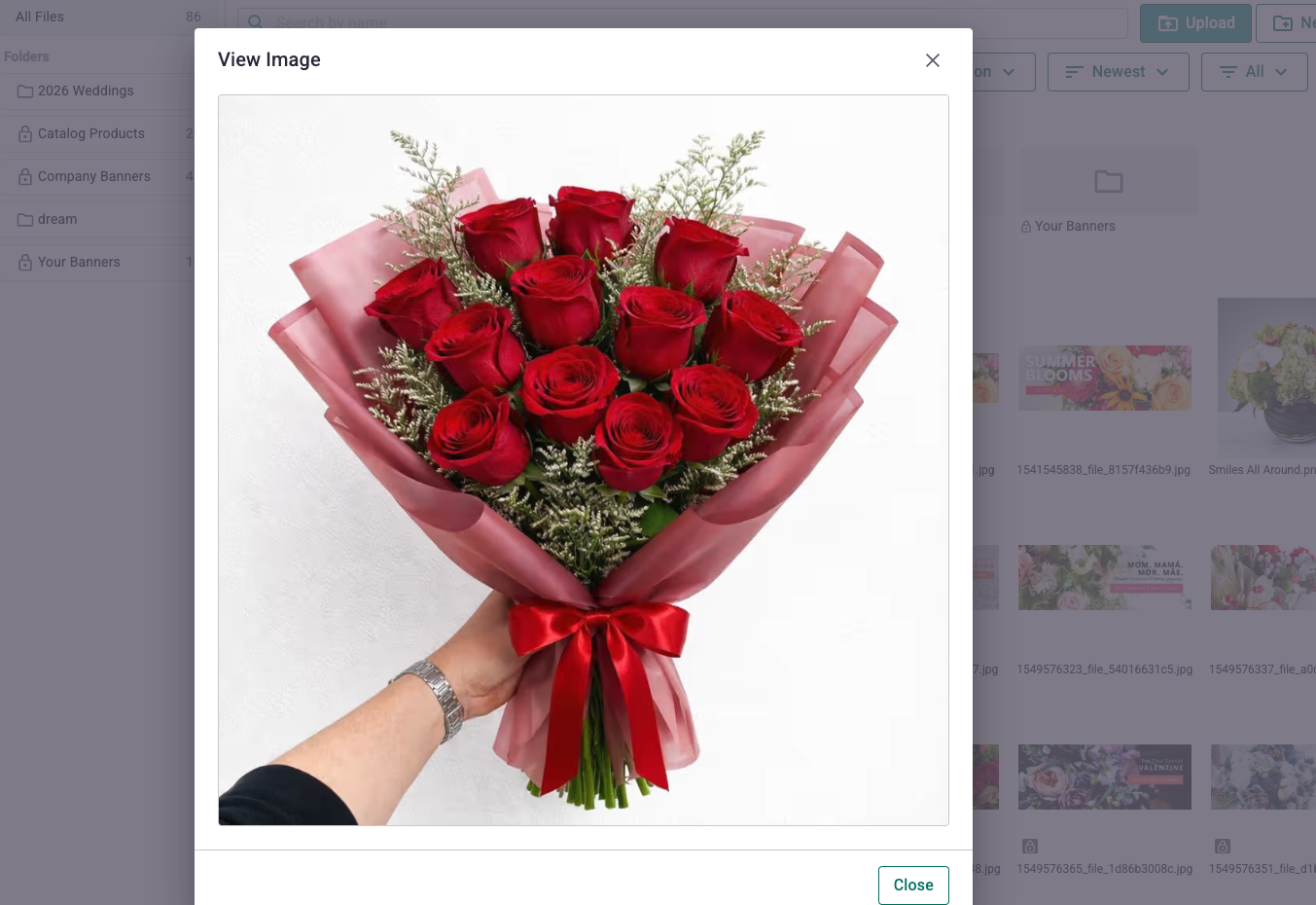
Images in the Asset Manager can be viewed, and images in unlocked folders can be edited or renamed. Clicking on the context menu in the upper right hand corner of the image will allow you to select only View Image for locked items. Clicking on the context menu will allow you to select View Image, Rename, Move Item, and Crop and Edit as options.
- View Image: This allows you to view the image in its full size.
- Rename: This allows you to give the file a different name.
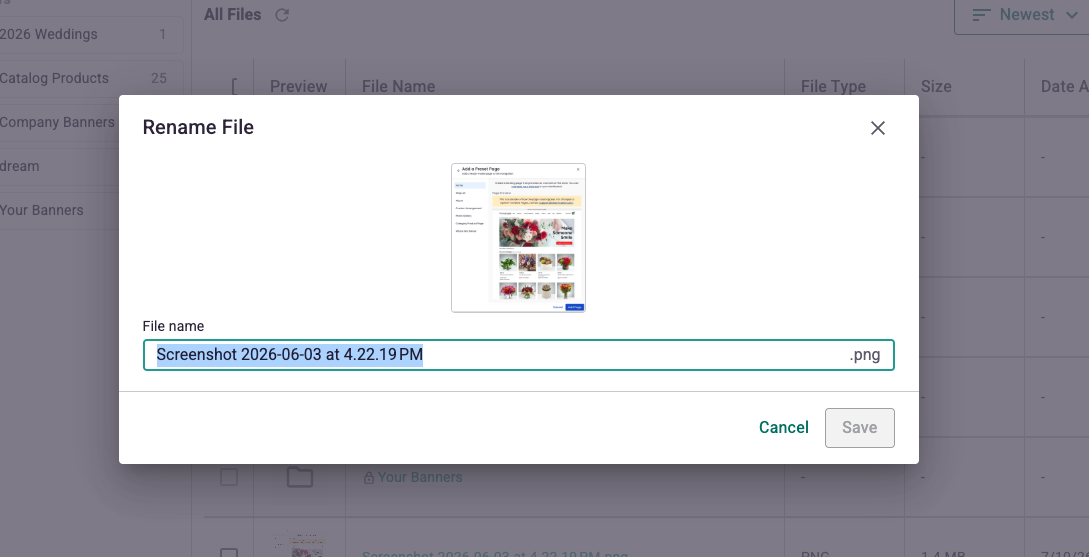
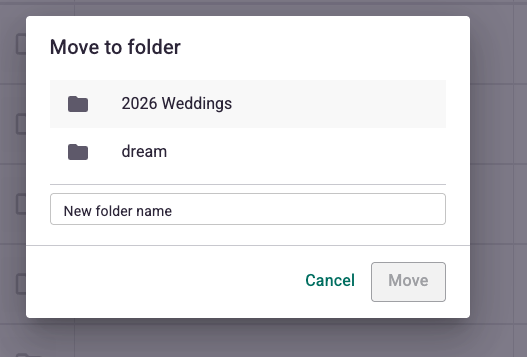
- Move Item: This allows you to change the folder an item is located in. You can also create a new folder from this menu to put an item in. If multiple items are selected in the list view, you can use the group actions button at the bottom to move eligible items to a folder all at once.
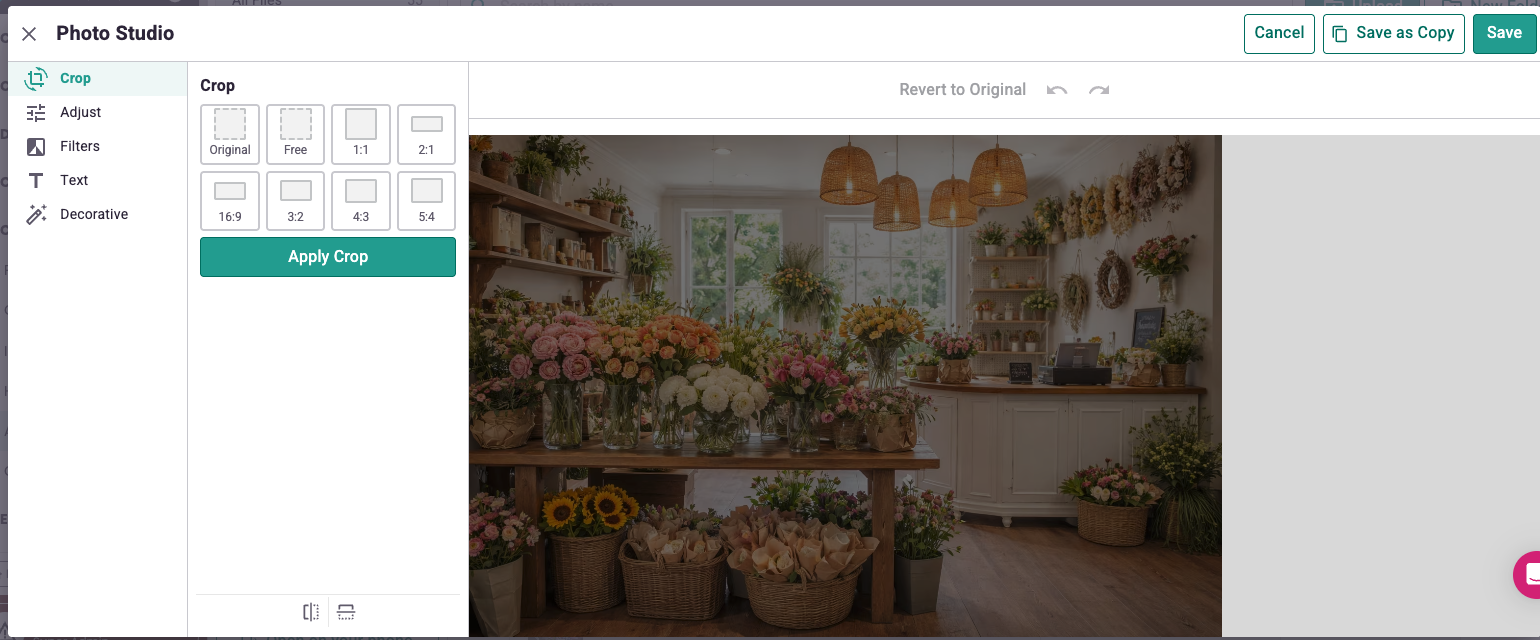
- Crop and Edit: Once you select Crop and Edit, the Photo Studio opens, and you can select from Crop, Adjust, Filters, Text, and Decorative.
Photo Studio Options
- Crop: There are multiple aspect ratios to choose from so you can crop the image how you desire, or you can freehand rectangular crop.
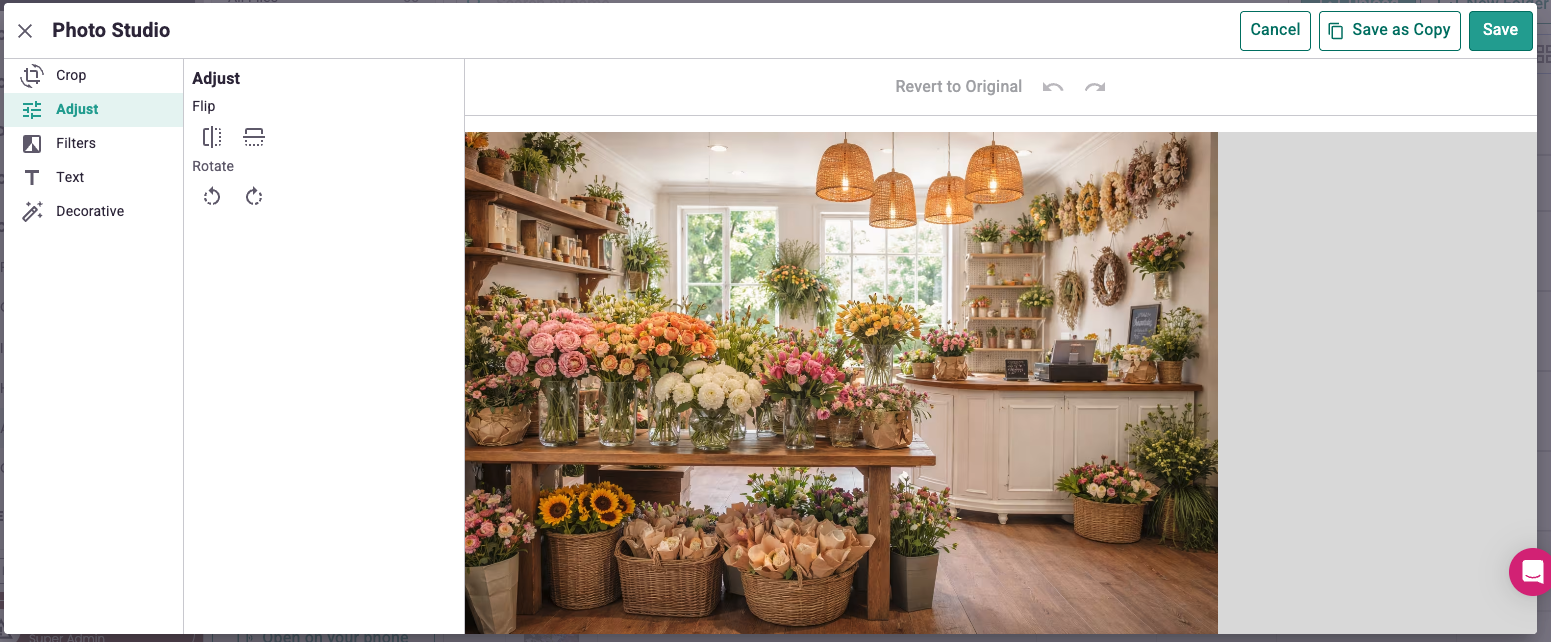
- Adjust: Adjust allows you to rotate or flip the item so that it can be put right side up. Flipping mirrors the image, and the rotation is done 30° at a time in either a clockwise or counter-clockwise direction.
- Filters: There are multiple filters that can be selected to add some artistic choices to your photo editing. Try them out to see what fits your images the best.
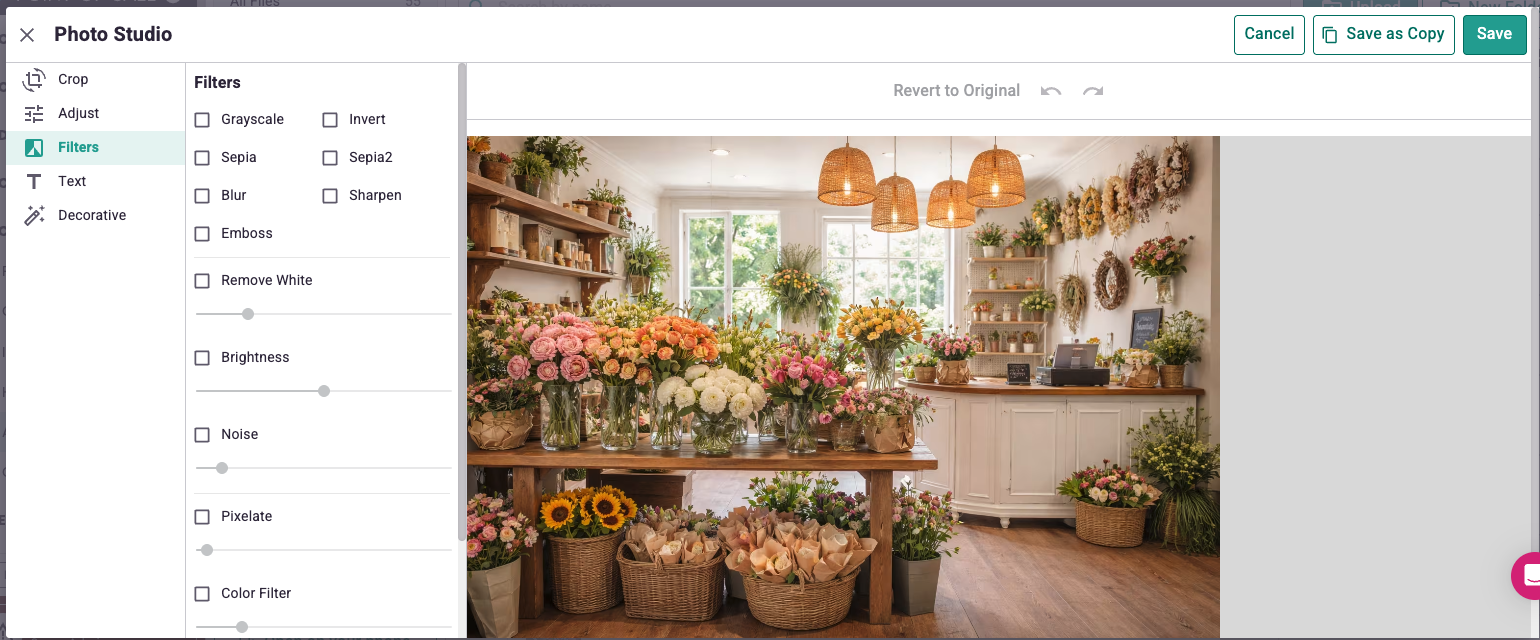
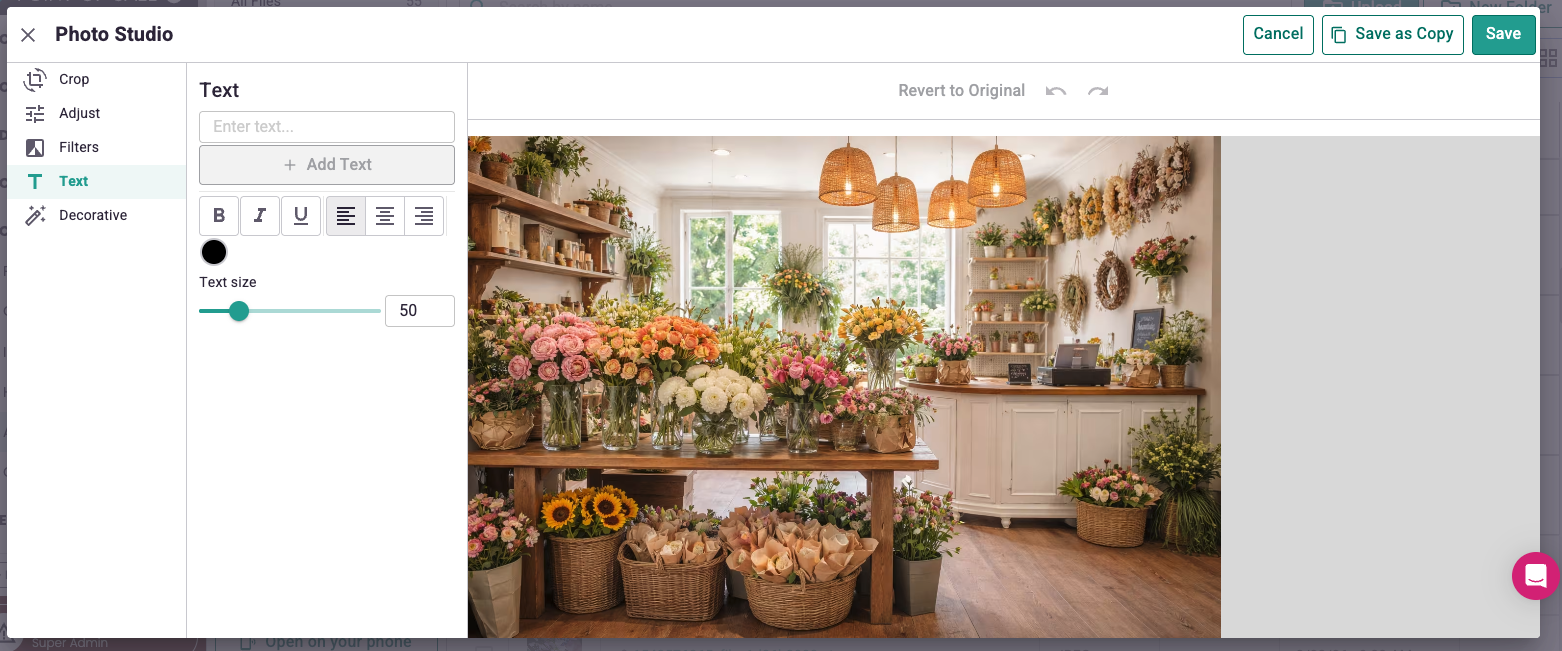
- Text: Text can be added and edited in the images on this tab.
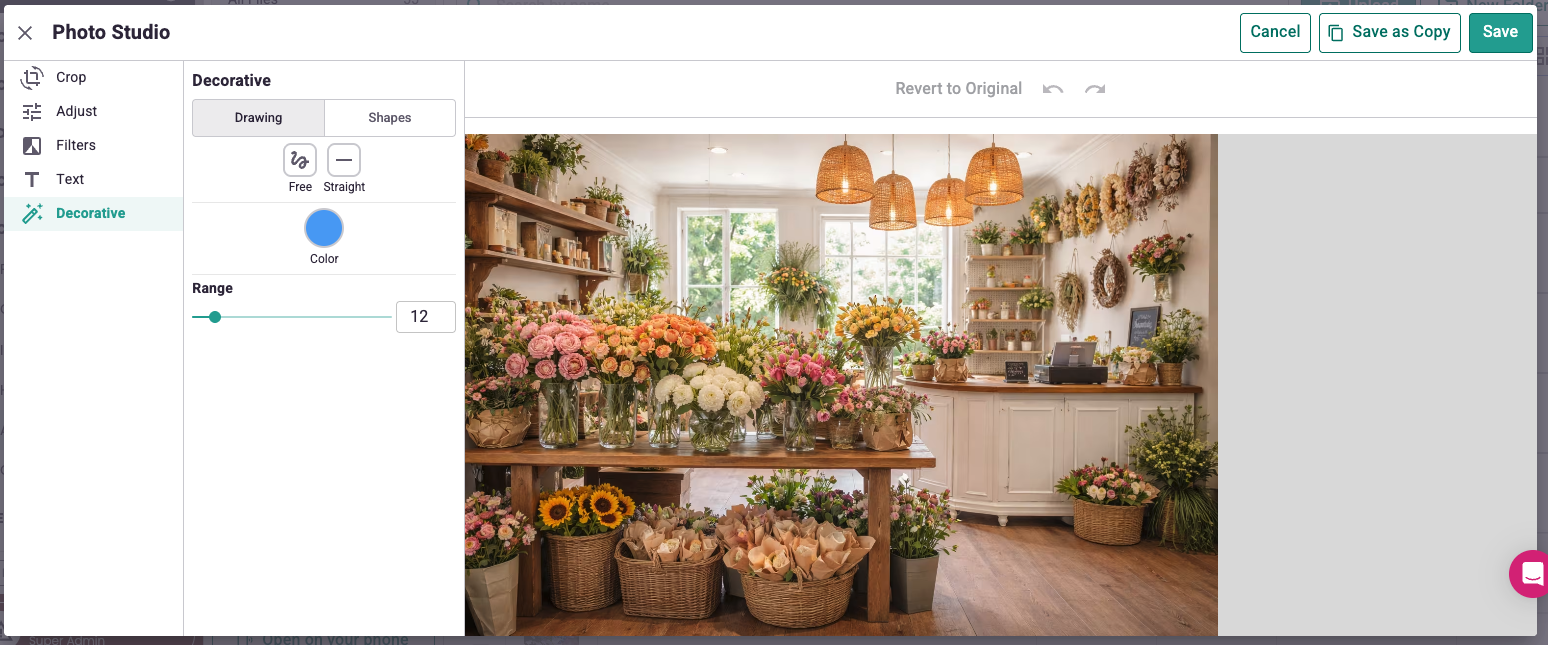
- Decorative: This area lets you draw on the image using your computer.
Upload
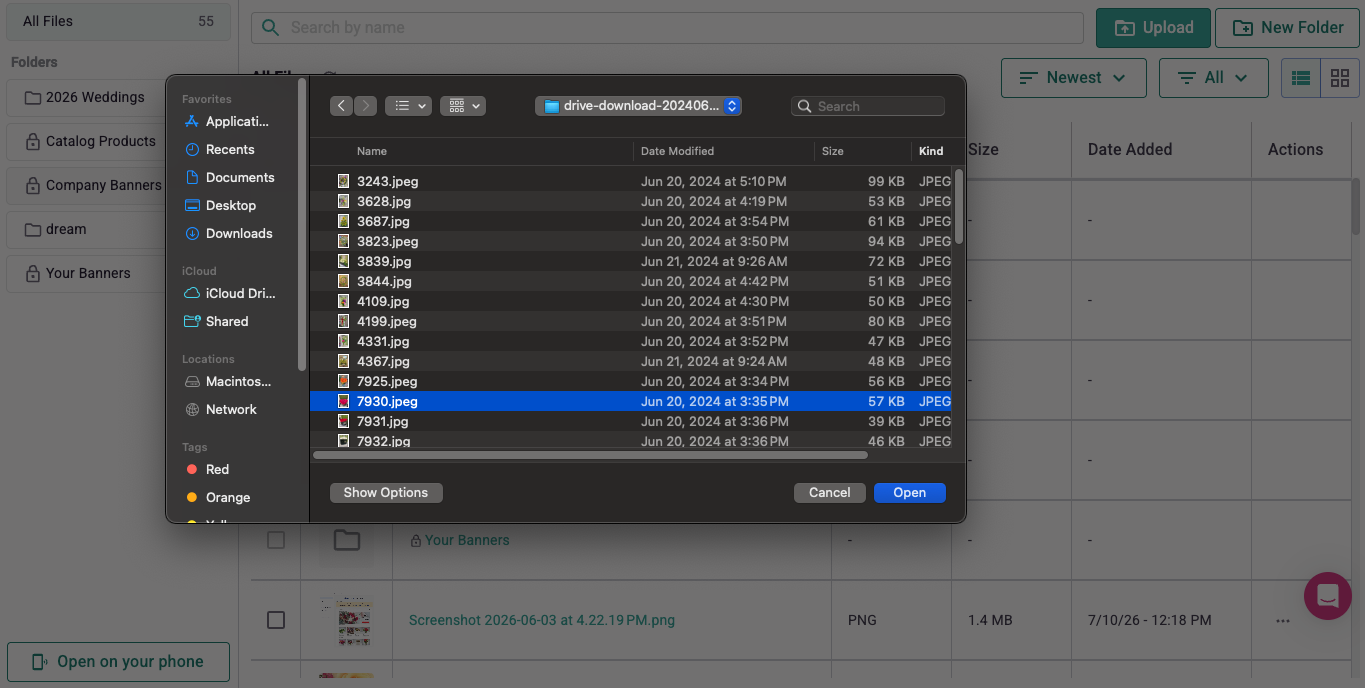
The upload button allows you to upload images to your Asset Manager. Clicking on it will open a modal that allows you to choose files from your computer to upload. Multiple items can be uploaded at once. Folders cannot be selected, but multiple items can be selected in one folder. Once the images are uploaded, they will exist in the currently selected folder in the Asset Manager.
Use from Phone
When accessing the Asset Manager from the Point of Sale, there is a button that allows the user to open the Asset Manager on their phone so they can upload items from there. Clicking on the Open on your phone button in the lower right hand corner generates a QR code that can be scanned to automatically log into the Asset Manager. This code will be live for 60 seconds once generated. Once on your phone, you can upload items to the Asset Manager directly where they were taken.
The Asset Manager is accessible from the Dashboard in the Website Manager, under the Catalog Tools in the Point of Sale, and in the Event Manager.