
Create and Manage Blog Posts
Create and Manage Blog Posts
Once your blog is set up, you can create and customize blog posts directly in Website Manager.
Feature Walkthrough: Create a Blog Post
Watch this video to learn how to create and edit a blog post in Website Manager.
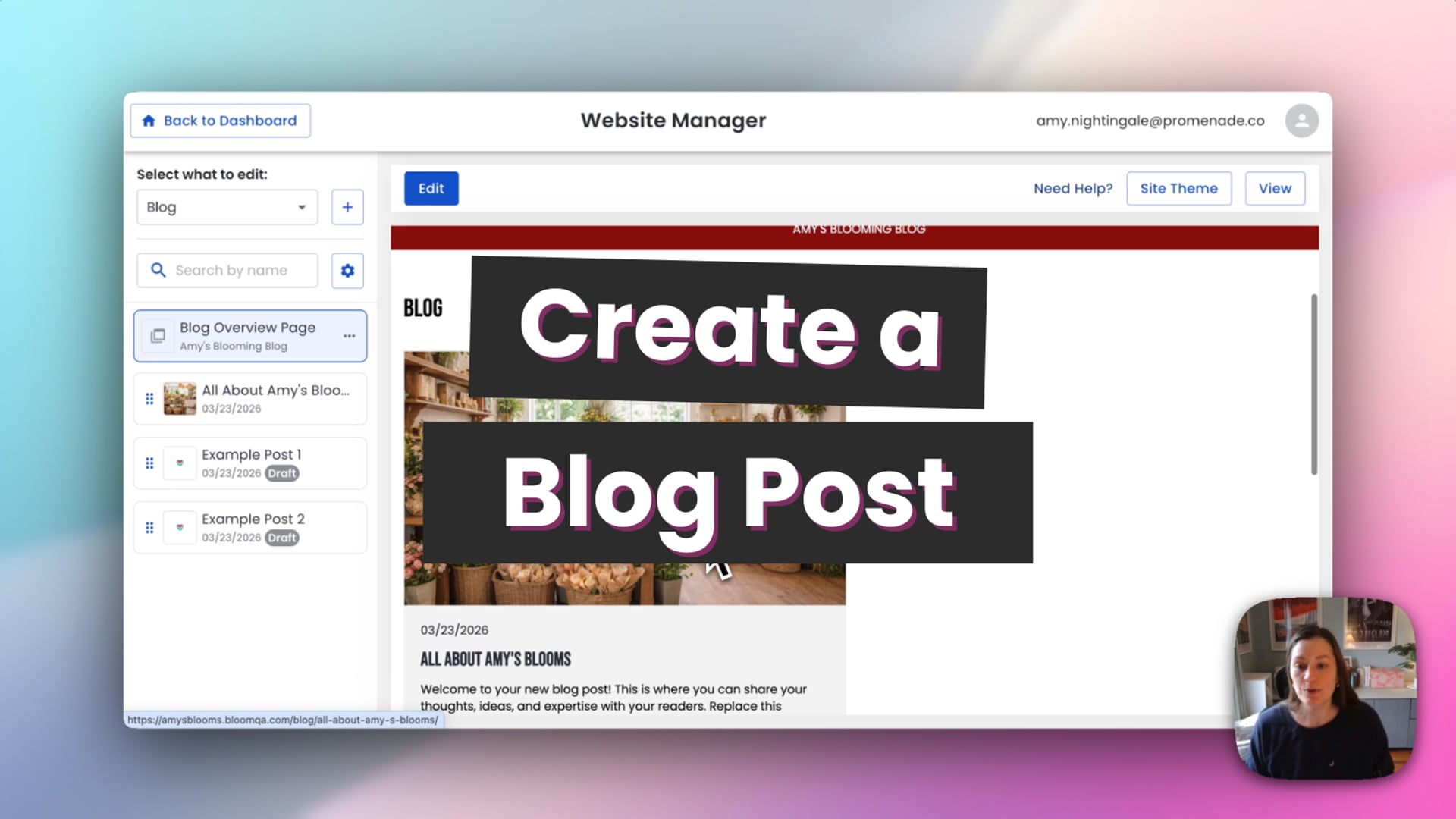 Add a Blog Post
Create a New Blog Post
- Go to Website Manager.
- Open your Blog section.
- Click the + (plus) button next to Blog.
- Enter a title for your new post.
- Click Add.
Your new blog post will open in the editor.
Edit Blog Content
Each blog post starts with a basic structure that includes your title, publish date, author, and text blocks. Click into any section to edit the content.
You can format text using the editing toolbar, including options like bold, italics, colors, and more. You can also paste text in from another source or type directly into the editor.
Add, Duplicate, or Remove Sections
- Edit text blocks: Click into any text area and update the content.
- Duplicate a section: Use the duplicate option to copy an existing block.
- Delete a section: Remove anything you do not need using the trash icon.
Add New Sections and Elements
- Click Add New Section.
- Choose a prebuilt section or select Blank Section.
- Click Add Element.
- Drag and drop elements like images, videos, or columns into the section.
You can reuse many of the same section types available elsewhere in Website Manager.
Add Images
When you add an image, the Asset Manager will open so you can choose an existing file or upload a new one.
- Select an image from Asset Manager
- Click Use Selected
- Add alt text
- Adjust styling or layout if needed
This makes it easy to reuse images you have already uploaded elsewhere in Website Manager.
Save as Draft or Publish
When you are ready, you can:
- Save as Draft to keep working later
- Publish to make the post live on your website
Update Blog Post Settings
From the three-dot menu, you can open Page Settings and update:
- Featured Image
- Excerpt
- SEO Title and Description
Your featured image, post title, date, and excerpt will appear on the main blog overview page after the post is published.
Tip
If you like the layout of a post, use Duplicate to create a copy and reuse the same structure for future blog posts. This is a great way to keep your blog looking consistent.