
Neighborhood Landing Pages (NLPs)
Neighborhood Landing Pages (NLPs) in Website Manager
Neighborhood Landing Pages (NLPs) are a powerful way to attract more customers from the neighborhoods and towns you serve. These SEO-optimized pages live on your website and help you appear in Google search results when customers are searching for flower delivery in their area.
Why Use NLPs?
Think of NLPs as little “mini-homepages” for the neighborhoods around you. They’re designed to help your business show up where local customers are searching, even in areas just outside your immediate location. Each page is built with SEO in mind, so it’s ready to go right away, but you still have the freedom to personalize it.
-
Expand your reach: Target customers in nearby towns or neighborhoods.
-
Boost SEO automatically: Pages are pre-filled with optimized headlines and content.
-
Save time: Each page generates in just 1–2 minutes.
-
Customize with your brand: Update images, text, and details to reflect your shop’s personality.
Access and start building your NLPs here!
Not seeing Website Manager? This upgrade may not be included in your package. Contact us at support@bloomnation.com or call (210) 405-5050 for help.
Video Walkthrough
Prefer to see it in action? Watch this quick video walkthrough to learn how to create and customize your Neighborhood Local Pages step by step.
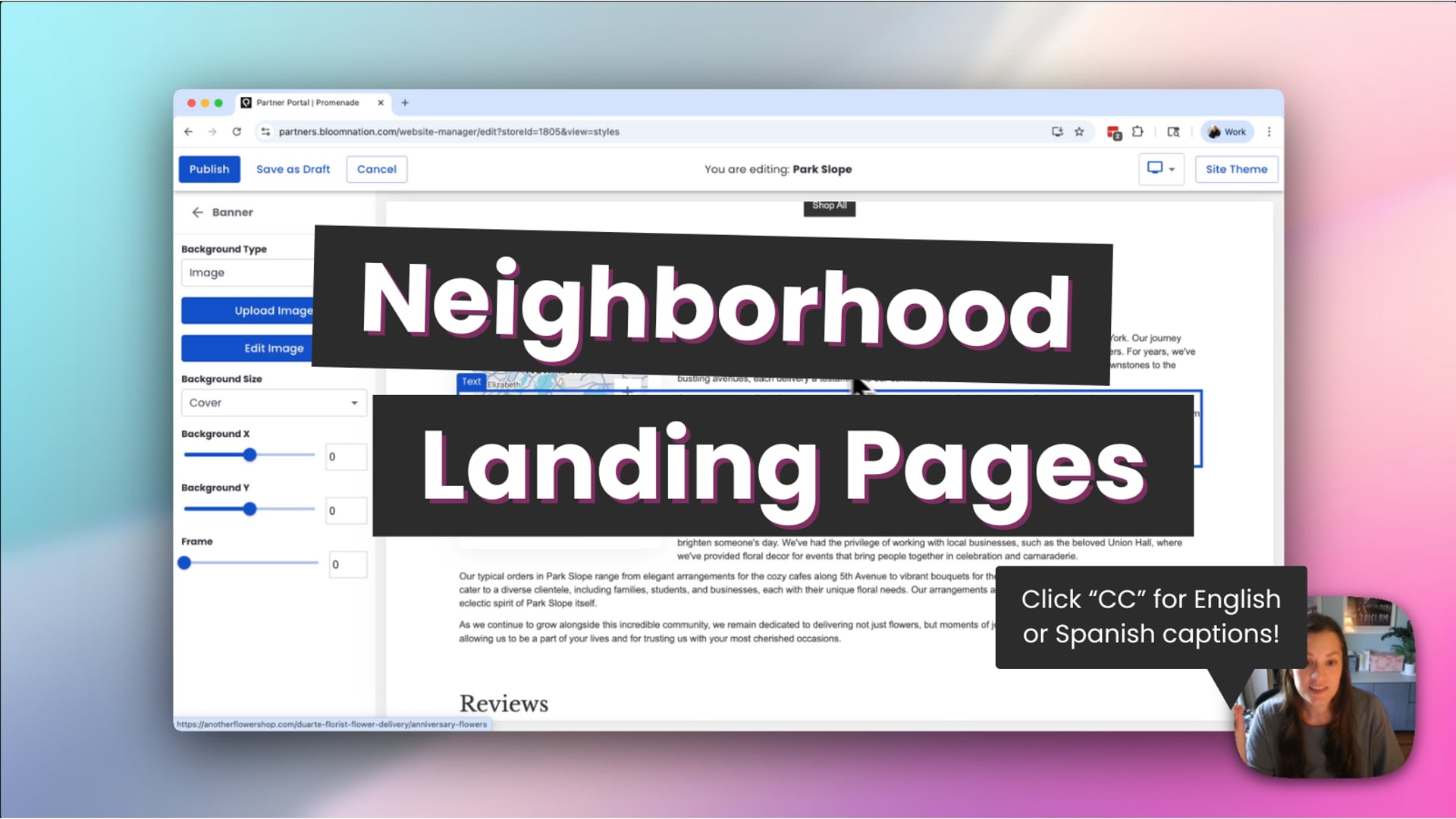 NLPs in Website Manager
How to Create a Neighborhood Local Page
Creating NLPs is quick and easy. It usually takes just a couple of minutes from start to finish.
-
Log in to your BloomNation Dashboard.
-
Go to My Website → Website Manager.
-
Click Edit Website.
-
In the “Select What to Edit” dropdown, choose Neighborhood Pages.
-
Here you’ll see your existing pages (published or drafts).
-
At the bottom of the left-hand panel, you’ll see how many pages you’ve created out of your current allowance.
-
-
Click the + Add Page button.
-
In the modal, type the neighborhood name.
-
As you type, you’ll see suggestions (neighborhood + city + state).
-
Select the correct option.
-
-
Click Add and wait while the system generates your page.
- Don’t refresh or close the screen during this step.
After 1–2 minutes, you’ll see a success message confirming your page is ready.
-
Click Continue to edit your new page.
What You Can Edit
We know every shop has its own voice and personality, so NLPs give you options to adjust things that matter most to your brand. You can swap in photos of your shop, fine-tune text, or make seasonal updates.
-
Banner image (upload your own photo of your shop, flowers, or a local landmark)
-
Main body text (make light adjustments to fit your brand voice)
-
Custom arrangement image & description
-
Address on the map
-
Some style settings (background colors, etc.)
These edits make your pages feel unique to your shop while keeping the core SEO structure in place.
What You Cannot Edit
Some parts of the page — like the SEO headline and certain content blocks — are intentionally locked. For example, the headline “Flower Delivery in Albany” is one of the strongest signals to Google, so we keep it fixed to maximize your visibility.
-
SEO headline (e.g., “Flower Delivery in Albany”)
-
Adding, deleting, or moving page sections
-
Certain SEO-critical text
This ensures your NLPs stay optimized and continue to drive new customers your way.
What’s Included in an NLP Page
Each page comes fully loaded with content and sections designed to help customers feel confident about ordering from your shop. You don’t need to start from scratch — it’s all done for you.
-
Banner with SEO headline (headline locked, image editable)
-
Best-selling products section
-
SEO content blocks (mix of editable and locked text)
-
Map of the targeted neighborhood (address editable)
-
Reviews section
-
Additional SEO-driven sections
Publishing Workflow
You’re in control of when your pages go live.
-
Save as Draft if you want to continue working later.
-
Publish to make the page live on your website.
-
You can always reopen a page to edit it later, or unpublish/delete it if you change your mind.
Best Practices for NLPs
Here are some simple tips to make the most of your NLPs:
1. Choose neighborhoods that matter most.
Start with the neighborhoods where you already receive a lot of orders or get frequent calls asking if you deliver there.
2. Highlight opportunities to grow.
Add pages for areas you’d like to expand into, such as nearby towns, business districts, hospitals, or universities.
3. Be specific.
Pages for exact neighborhoods (like Santa Monica Florist) are more effective than only broad ones. You can always add broader “hub” pages later if it makes sense.
4. Personalize the look.
Swap out generic images for real shop photos or recognizable local landmarks to build trust with customers.
5. Keep it accurate.
Double-check the map and address on each page, and refresh your text or images seasonally.
With just a few clicks, you can create powerful local landing pages that help your shop rank higher in search results, reach more customers, and grow your business.