
Service Areas
How to Use Service Areas
Service Areas help you improve local SEO by listing the neighborhoods and points of interest (POIs) your shop serves. These locations appear in your website footer and make it easier for customers to see where you deliver.
From the Service Areas page, you can:
- Pull locations from your delivery zones
- Add or remove neighborhoods and venues
- Create SEO-optimized landing pages for key locations
Check out this quick demo to see how it works!
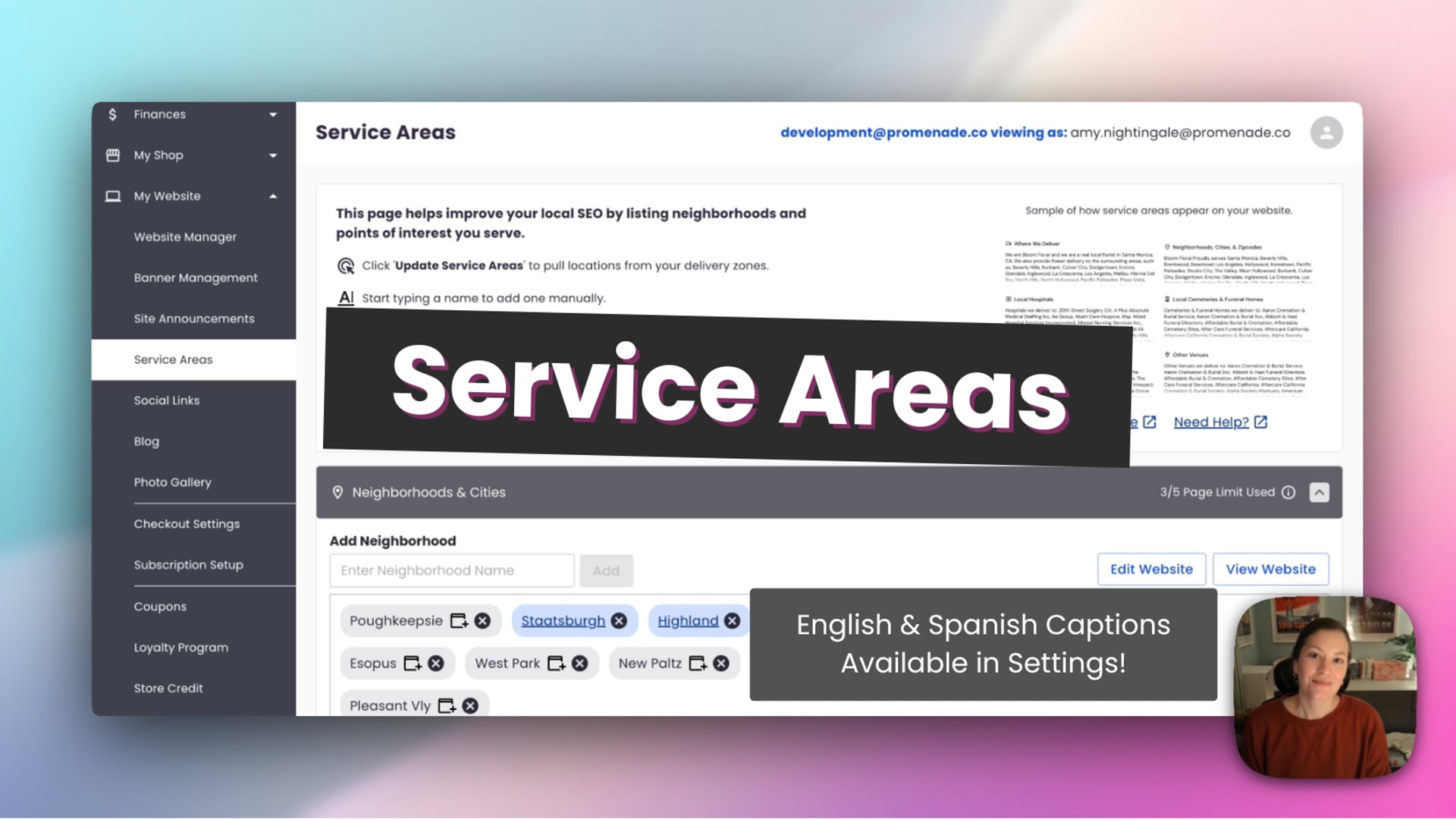 Service Areas
Where to Find Service Areas
- Log in to your BloomNation Dashboard.
- Go to My Website → Service Areas.
Update Service Areas from Your Delivery Zones
The Update Service Areas button adds locations based on your current delivery zones.
- After creating or changing your delivery zones, go to My Website → Service Areas.
- Click Update Service Areas.
- New neighborhoods and points of interest found within your delivery zones will be added to the list.
Note: Updating Service Areas is an additive action. It adds new locations but does not automatically remove ones that are now outside your zones (those are handled via the alert described below).
Add Locations Manually
You can add locations even if they are not found automatically.
- Scroll to the section where you want to add a location (for example, Neighborhoods & Cities or Wedding Venues).
- Type the name of the neighborhood or venue into the Add field.
- Select the correct option from the suggestions.
- Click Add to save it to your Service Areas.
Neighborhoods & Cities vs. Points of Interest
The Service Areas page is divided into two main sections:
Neighborhoods & Cities
- Includes neighborhoods, cities, and surrounding areas you deliver to.
- These locations appear under "Neighborhoods, Cities & ZIP Codes We Deliver To" in your website footer.
- You can create Neighborhood Landing Pages (NLPs) for these areas using the Add Page icon.
- Your current NLP page usage appears in the section header (for example, 3/5 Page Limit Used).
Points of Interest
-
Includes local venues such as:
- Hospitals
- Cemeteries
- Funeral Homes
- Wedding Venues
- Other Venues (churches, schools, attractions, etc.)
-
These locations appear under:
- Hospitals We Deliver To
- Cemeteries & Funeral Homes We Deliver To
- Wedding Venues We Deliver To
- Other Venues We Deliver To
-
You can create Points of Interest (POI) Pages for these venues using the Add Page icon.
-
Your POI page usage appears at the bottom of the Points of Interest section. POI limits are cumulative across all POI categories and depend on your membership package.
Create Landing Pages from Service Areas
You can generate SEO-optimized landing pages directly from the Service Areas list.
- Find the neighborhood or venue you want to highlight.
- Click the Add Page icon next to it.
- Once created, the location will appear with a blue label.
- Click the blue label to open and edit the page in Website Manager.
These landing pages are the same NLP and POI Pages you can see and edit under Website Manager → Edit Site.
Understanding Colors and Icons
- Blue items – This location already has a landing page. Click the blue label to open it in Website Manager.
- Yellow items – This location is currently outside your delivery zones and may need review.
- X icon – Removes the location from your Service Areas. Removing a location will also remove its associated landing page.
Out-of-Zone Alert Banner
If your delivery zones shrink or change, some existing Service Areas might fall outside your new coverage. When this happens, you’ll see a yellow alert banner at the top of the Service Areas list:
"Some local locations are outside your delivery zones."
The banner will show how many locations are affected and which categories they belong to (for example, 1 neighborhood and 1 wedding venue). Out-of-zone items are highlighted in yellow with a special icon.
To resolve this:
- Review the yellow items and decide whether you still deliver to those locations.
- Remove locations that are no longer in your delivery range using the X icon, or click Remove all in the banner to remove all out-of-zone items at once.
Important: Removing a location will also delete its related NLP or POI page.
How Service Areas Affect Your Website Footer
Service Areas power the location-based sections of your website footer. Depending on your setup, you may see:
- Where We Deliver
- Neighborhoods, Cities & ZIP Codes We Deliver To
- Hospitals We Deliver To
- Cemeteries & Funeral Homes We Deliver To
- Wedding Venues We Deliver To
- Other Venues We Deliver To
Locations you manage in Service Areas will appear in these sections. Creating landing pages is optional, but it provides additional SEO benefits and more information for customers.
Best Practices for Service Areas
- Review after changing delivery zones.
Whenever you change your delivery zones, visit My Website → Service Areas and click Update Service Areas to pull in any new locations. - Remove locations you no longer serve.
Use the yellow alert banner and color indicators to clean up out-of-zone areas so your footer stays accurate. - Create pages for high-value locations.
Use the Add Page icon to create landing pages for neighborhoods and venues that matter most to your business. - Check your limits.
Keep an eye on the page limits shown in the Neighborhoods & Cities and Points of Interest sections. If you outgrow your current plan, consider upgrading. - Keep things tidy and relevant.
Remove duplicate or rarely used locations so your footer is easy for customers to scan.
By keeping your Service Areas accurate and up to date, you’ll help customers quickly see where you deliver and improve your chances of appearing in local search results.