
Points of Interest (POI) Pages
How to Create Points of Interest (POI) Pages
Points of Interest (POI) Pages let you highlight important delivery destinations, such as hospitals, funeral homes, cemeteries, wedding venues, and other local landmarks, on your website. These pages help customers find you when searching for flower delivery to specific venues in your area, and they boost your local SEO.
Creating a POI Page is quick and easy, and you can manage all your POI Pages directly in your Website Manager.
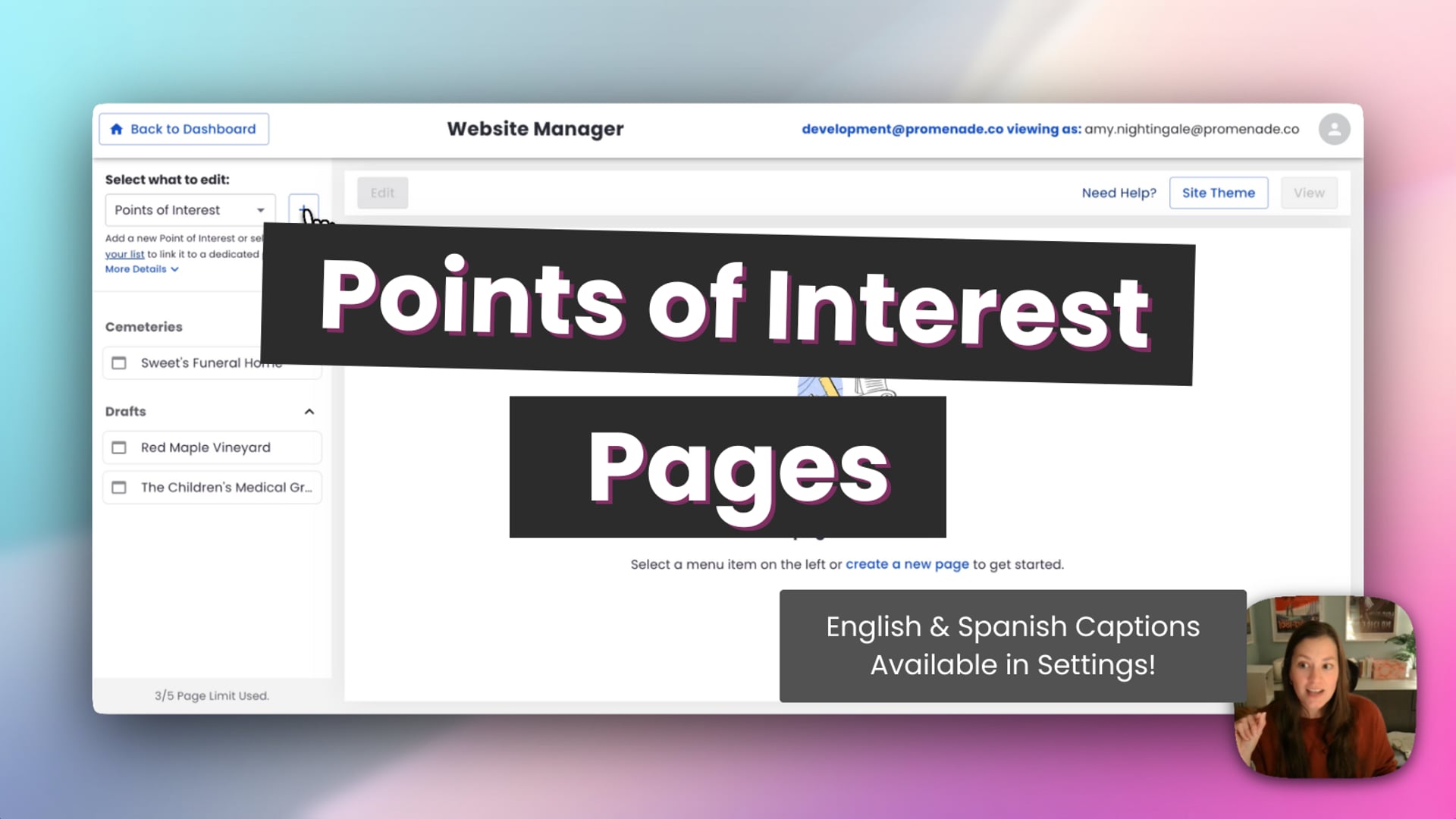 Points of Interest Landing Pages
Create POI Pages from Website Manager
-
Log in to your BloomNation Dashboard.
-
Go to My Website → Website Manager.
-
Click Edit Site.
-
In the “Select What to Edit” dropdown, choose Points of Interest.
-
Click the + Add Page button in the left-hand panel.
-
Select a category for your new page:
- Hospitals
- Cemeteries
- Funeral Homes
- Wedding Venues
- Other Venues
-
Choose the venue you want to create a page for. You can:
- Start typing the name and select from the suggestions, or
- Click Add from Existing Points of Interest to see a list of venues already in your Service Areas.
-
Click Add, then wait while the system generates your new page. Do not refresh or close the screen during this step.
-
Once your page is ready, you’ll see a success message.
-
Click Continue to begin editing your new POI Page.
This method gives you the clearest view of all your POI Pages, including drafts and published pages.
Create POI Pages from Service Areas
If you’re already reviewing your Service Areas, you can also create POI Pages directly from that list.
- Go to Dashboard → Website → Service Areas.
- Find the venue you want to create a page for.
- Click the Add Page icon next to it.
- Once generated, the venue will appear with a blue label.
- Click the blue label to open and edit the page.
This option is helpful when you discover new POIs while working inside Service Areas.
What You Can Edit in a POI Page
Your POI Pages are designed to feel personal to your shop while still staying SEO-optimized. You can customize:
- Banner image (add a local photo, your shop, or your work)
- Main body text (adjust tone, add helpful details)
- Recommended products (swap in your best-sellers or event-appropriate designs)
- Some style settings (colors, photos, layout options)
These edits help your page feel authentic to your brand while keeping the strongest SEO signals in place.
What You Cannot Edit
To help your page rank well in search engines, certain elements are intentionally locked.
- The SEO headline (e.g., “Flower Delivery to St. Mary’s Hospital”)
- Certain SEO-critical blocks of content
These locked elements ensure your POI Pages stay optimized and consistent across all location types.
What’s Included in a POI Page
Every POI Page comes preloaded with content, structure, and product suggestions designed to convert customers and boost SEO:
-
Banner with SEO headline
-
Venue-specific product recommendations
- Sympathy for funeral homes
- Wedding designs for venues
- Get-well arrangements for hospitals
-
SEO content blocks (mix of editable and locked text)
-
Map of the venue
-
Reviews section
-
Additional SEO-driven content sections
You can publish the page immediately or save it as a draft until you're ready.
Publishing Workflow
- Save as Draft if you want more time to make changes.
- Publish when you’re ready for the page to appear on your site.
- You can always reopen your page to make edits later.
- You may also Unpublish or Delete a POI Page at any time.
POI Page Limits
Your membership package determines how many POI Pages you can create.
- Your limit is cumulative across all POI categories.
For example, if your plan includes 10 POI Pages, you can create any mix of categories totaling 10 pages. - Your current POI Page count is shown at the bottom of the Points of Interest section.
- If you reach your limit, you’ll see an option to upgrade your plan.
Neighborhood Landing Pages (NLPs) have separate limits.
Where POIs Appear on Your Website
POIs appear in the footer under the following sections:
- Hospitals We Deliver To
- Cemeteries & Funeral Homes We Deliver To
- Wedding Venues We Deliver To
- Other Venues We Deliver To
These sections are powered by your Service Areas list. Creating a POI Page enhances your SEO but is not required for a venue to appear in the footer.
Automatic POI Page Generation for Existing Shops
To help you get started, some POI Pages may appear automatically based on the venues already listed in your Service Areas. You can edit, unpublish, or delete any auto-generated page at any time.
Best Practices for POI Pages
Here are some simple tips to get the most value from your POI Pages:
- Start with your most important venues.
Create pages for hospitals, funeral homes, and wedding venues where you frequently deliver. - Think about growth.
Add POI Pages for venues you want to target more, such as popular event spaces or community hubs. - Use meaningful images.
Swap out generic images for real photos of your arrangements or recognizable local landmarks. - Make sure details are correct.
Review the map location, spelling, and venue name before publishing. - Keep content fresh.
Update images seasonally or refresh text around major holidays or events.
POI Pages are an easy way to strengthen your local SEO, reach customers who are searching for venue-specific flower delivery, and showcase your expertise across your community.