
Banner Management in Website Manager
Your homepage banner is one of the first things customers see when they visit your website. With Website Manager, you can easily update your banner, promote seasonal arrangements, and keep your website looking fresh.
Feature Walkthrough: Homepage Banner Management
Watch this video to learn how to update and manage your homepage banner.
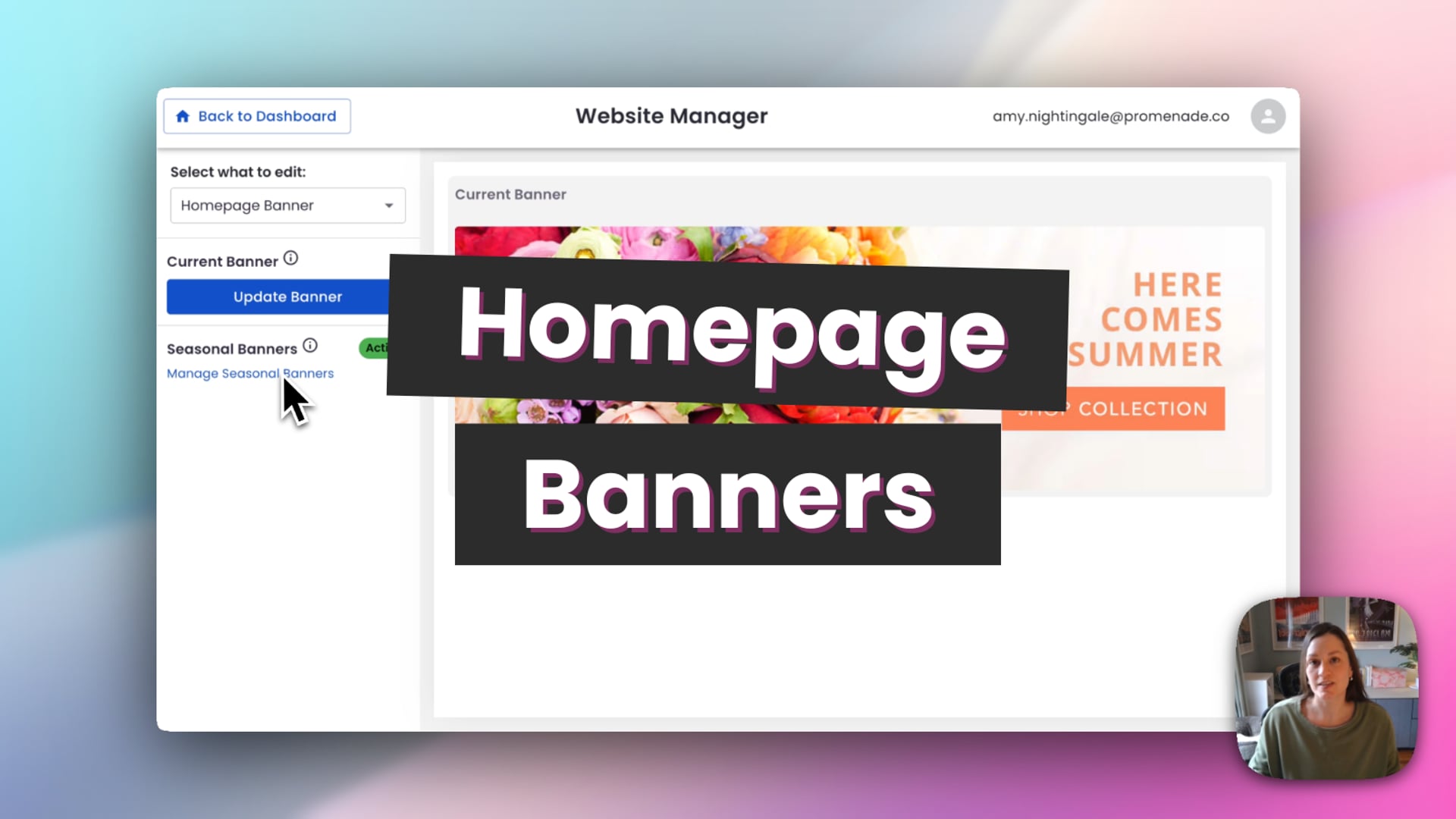 Updating and managing your homepage banner in Website Manager
Access Banner Management
- Log in to your BloomNation dashboard.
- Go to My Website → Website Manager.
You can open banner management in two ways:
- Click Banner Management from the homepage
- Or click Edit Website and select Homepage Banner
Update Your Current Banner
If you want to quickly swap out your homepage banner, you can do that in just a few clicks.
- Click Update Banner.
- Select Change to choose a new image.
- Pick an image from Asset Manager or upload your own.
- Click Use Selected and adjust the crop if needed.
- Choose where your banner should link (for example, a category or holiday collection).
- Click Save and Apply.
Your new banner will go live shortly after saving.
Choose the Right Banner Image
You can choose from two main sources:
- Your Banners: Custom or shop-specific banners
- Company Banners: Ready-to-use banners provided by BloomNation
NEW: You can also upload your own banner if you have something specific you’d like to feature.
Link Your Banner to Drive Sales
Your banner isn’t just visual, it’s a powerful way to guide customers.
Link your banner to:
- Seasonal categories (like Valentine’s Day or Mother’s Day)
- Best-selling arrangements
- Featured collections or promotions
Choose a Layout That Fits Your Style
You can display your homepage banner in two ways:
- Single banner: One large image across your homepage
- Dual banner: Two images side by side to highlight multiple promotions
If you’re using dual banners, make sure each image has its own link so customers can easily navigate.
Use Seasonal Banners to Stay Up to Date Automatically
Seasonal banner management helps keep your website current without needing to remember to update it.
When enabled, your banners will automatically switch based on upcoming holidays and events.
- Click Manage Seasonal Banners.
- Turn on Enable Seasonal Banners.
We recommend keeping this turned on so your site always reflects what customers are shopping for.
Edit Upcoming Seasonal Banners
You can customize any upcoming banner ahead of time.
- Find the banner you want to update.
- Click Edit.
- Update the image, link, or start date.
- Click Save and Apply.
If you adjust the start date, your current banner will continue running until the new one goes live, giving you full control over timing.
How Banner Scheduling Works
Your website will automatically update to the next scheduled banner on its assigned start date. All updates can be managed in the Seasonal Banner section of Banner Management.
Need a Custom Banner?
If you don’t see what you need, our team can help create a custom banner for you.
When submitting a request, include:
- The image you’d like to use (if you have one)
- What you want the banner to say
- Where the banner should link
Note: Most requests are completed within 7 business days. During busy seasons or for multiple revisions, this may take up to 14 business days.
Tips
- Use landscape images for the best fit
- Update your banner link to match current promotions
- Keep seasonal banners enabled to save time
- Plan ahead by updating upcoming banners in advance