
Checkout Experience
Updated Ver en español
Overview
A smooth checkout means more finished orders and and higher AOVs. Checkout Settings in your BloomNation Dashboard let you choose what customers see and fill in on your website checkout, from add-ons and delivery details to card messages and tips.
How to change your checkout settings
- In your Dashboard, go to My Website > Checkout Settings.
- Update the settings below.
- Click Save.
Additional settings
- Enable Cross-Sells: offer add-ons like candles, chocolates and balloons at checkout. Choose How Many Cross-sell products to display (up to 20). Three to five works best, since too many can lead to abandoned carts.
- Minimum Custom Arrangement Price: the lowest amount you'll accept for a custom or designer's choice order.
Fulfillment information
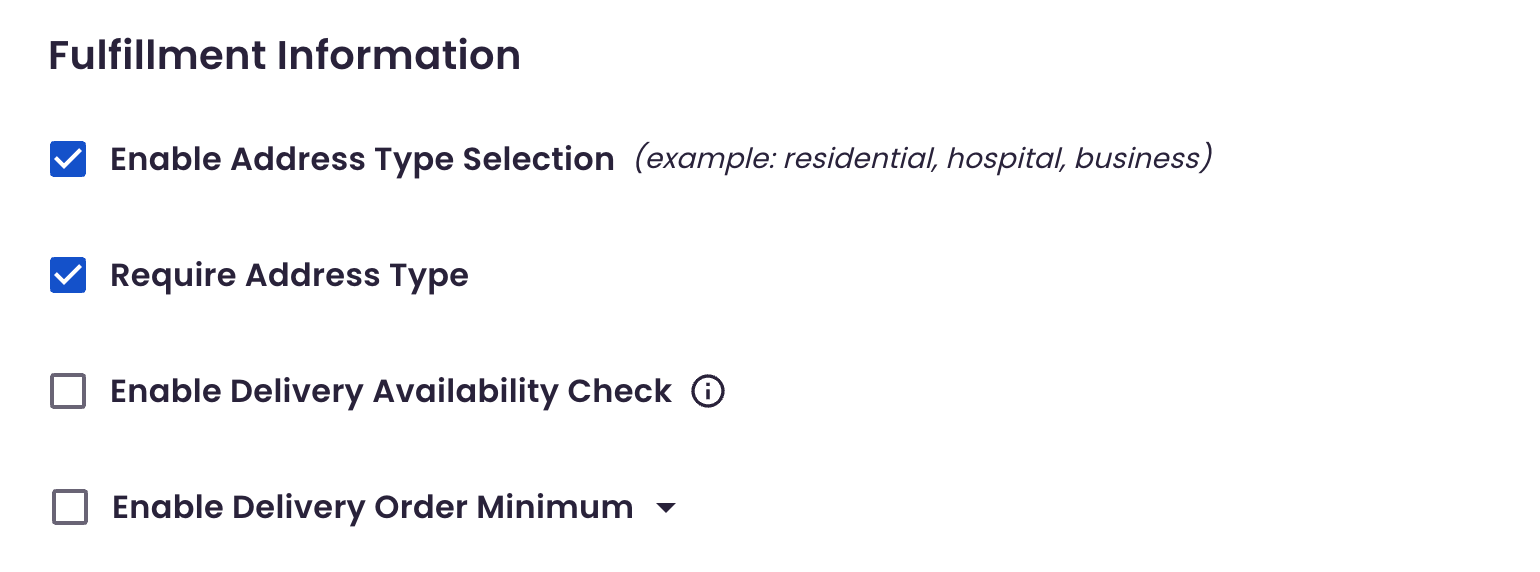
- Enable Address Type Selection: customers pick the type of delivery location, like residential, hospital or business, so your driver knows what to expect.
- Require Address Type: customers must choose an address type before they can check out.
- Enable Delivery Availability Check: shows a delivery check on product pages, so customers can see if you deliver to an address.
- Enable Delivery Order Minimum: set a minimum order amount for delivery orders.
- Label for the second address line: change the label, like Apartment, Suite or Unit.
- Address Line 2 required: customers must fill in the second address line.
- Hide company field: removes the company field from checkout.
- Auto-populate delivery address: fills in the delivery address for the customer.
Recipient information
- Enable Video Card Messages: customers can add a video message. See Video Card Message.
- Enable Card Signature: customers can sign the card. The signature is part of the card message, so it prints only once on the ticket.
- Enable Notes for Florist: customers can leave special instructions.
- Ask for Recipient Contact Permission
- Card Message Character Limit: the most characters a card message can have.
- Active Occasions: choose which occasions customers can pick. Occasions with a date range only show during those dates.
- Labels and placeholders: change the wording for recipient name and phone fields, the florist notes box, and the text shown above the card message and below florist notes.
Payment information
- Require Billing Address: ask customers for a billing address for extra verification.
- Enable Tipping on Checkout: let customers add a tip.
- Tip Mode: with Threshold (Dynamic), orders below your Threshold Amount show percentage tips, and orders at or above it show flat amounts.
- Suggested Tip Percentages and Suggested Flat Tip Amounts: set up to three of each.
- Tip Checkout Text: a short message encouraging customers to tip.
Tips
- Review your active occasions before each holiday season.
- If deliveries to hospitals or offices often go wrong, turn on Require Address Type.