
Reputation Management: Review Settings
Overview
Get more reviews on the sites that matter most to your shop, without extra work after every order. The Settings page in Reputation Management in your BloomNation Dashboard lets you decide where review requests go, share a review link with walk-in customers, show off customer photos and post your BloomSnaps to Google.
How to update your review settings
- In your Dashboard, click Reputation in the left-side navigation.
- Select Settings.
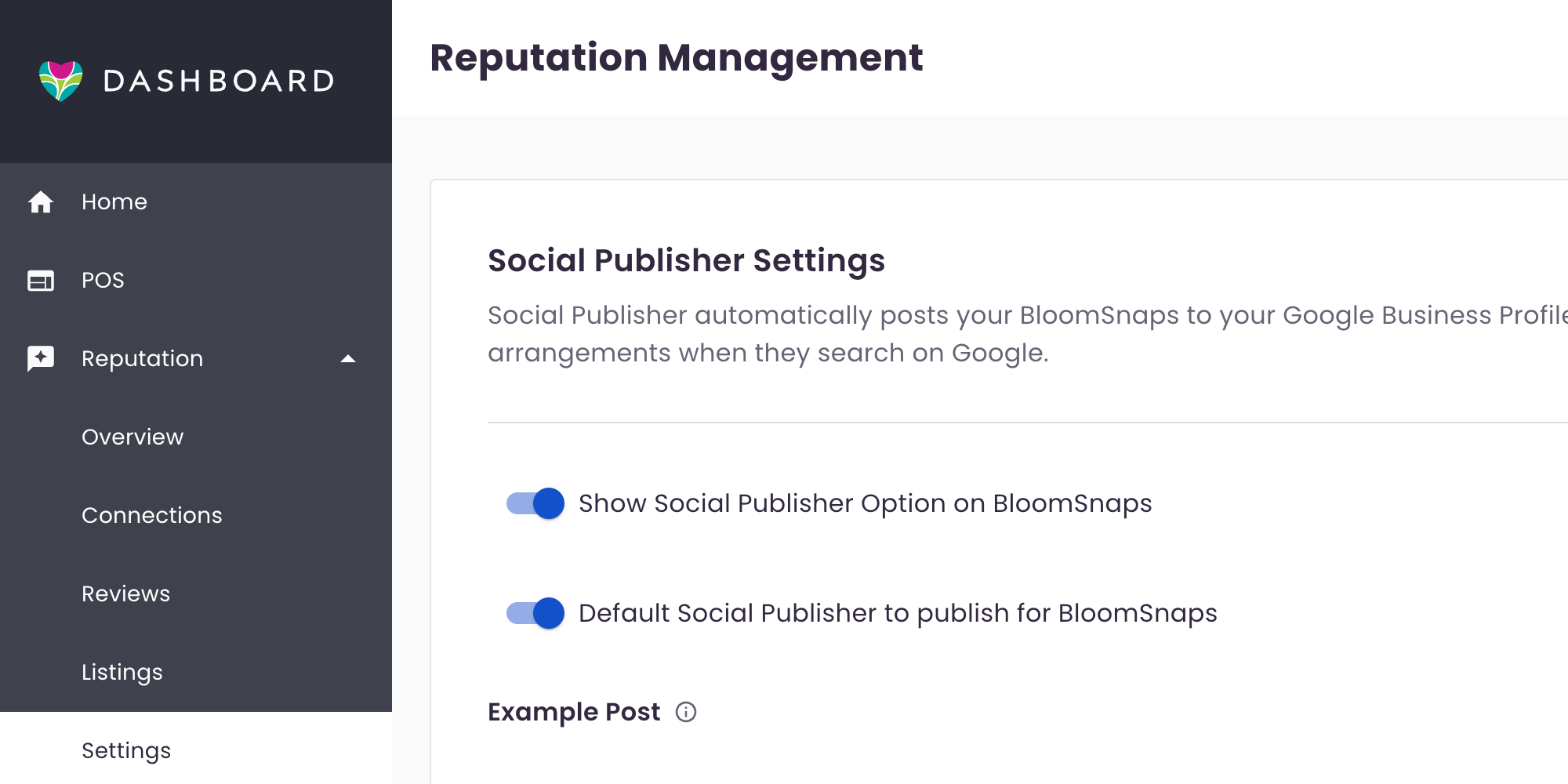
- Turn options on or off, or update the numbers in each section.
- Click Save Settings at the bottom of the page.
Choose where review requests go
After every order, we email your customer a review request. Each email links to one review site. Your percentages decide how those emails are split between:
- BloomNation: verified reviews from customers who ordered from you
- Yelp
For example, set BloomNation to 50% and Google to 50%, and about half your customers will be asked to review you on each site.
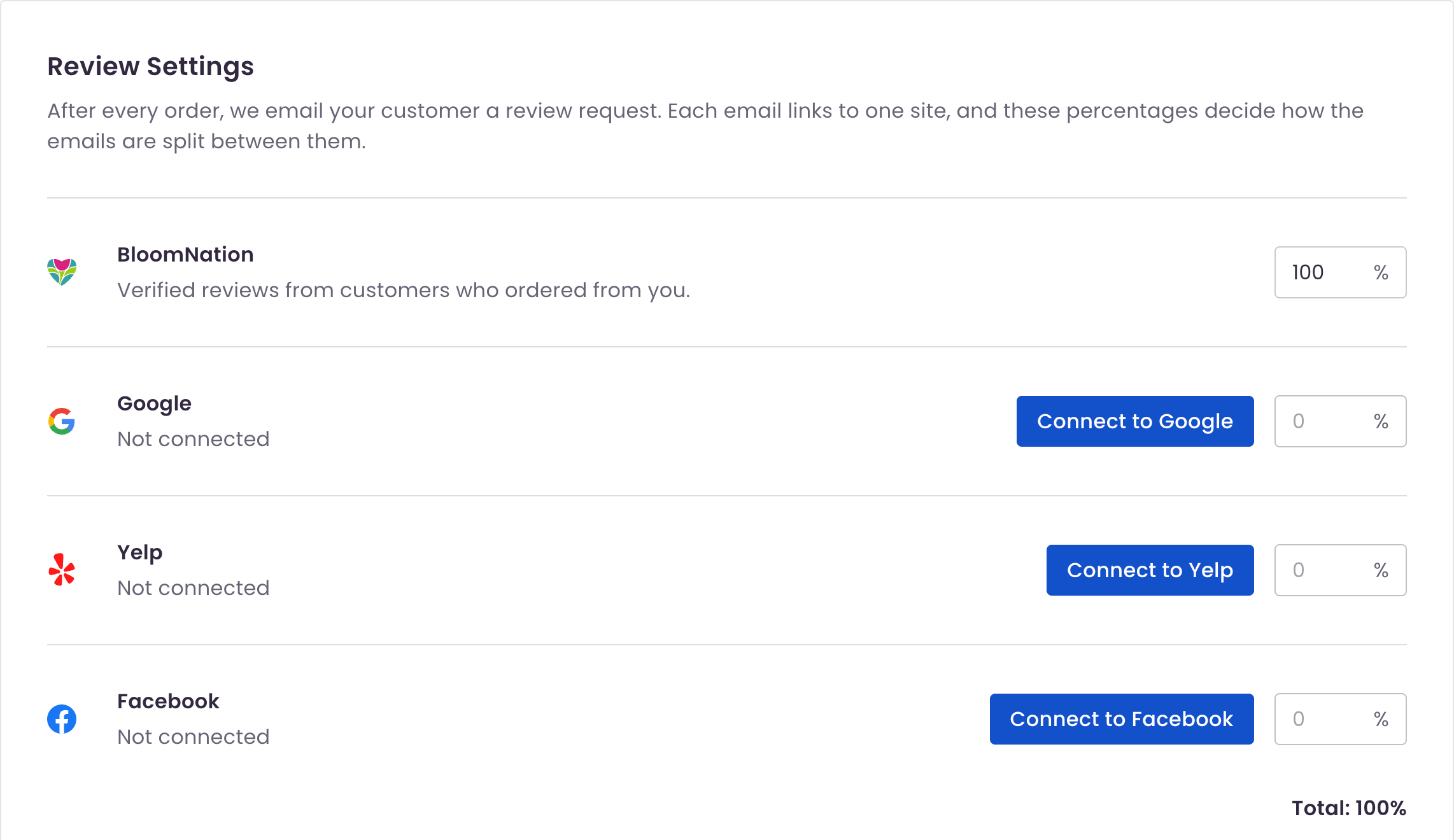
To give Google, Yelp or Facebook a percentage, connect it first. Click Connect to Google, Connect to Yelp or Connect to Facebook next to that site. Until a site is connected, its percentage stays at 0%.
The Total below the list shows your combined percentages. Make sure it adds up to 100% before you save.
Learn more about connecting review sites in Reputation Management.
Share your review link and QR code
Want reviews from customers who didn't place an order, like walk-ins? Share your review link or QR code on social media, cards, receipts or a sign in your shop.
The link sends customers to your connected review sites, like Google, Yelp or Facebook, based on your percentages above. BloomNation is skipped here, since BloomNation reviews are always tied to an order.
- Find Your review link at the bottom of the Review Settings section.
- Copy the link to share it online.
- Click Download QR code to print it or add it to your marketing.
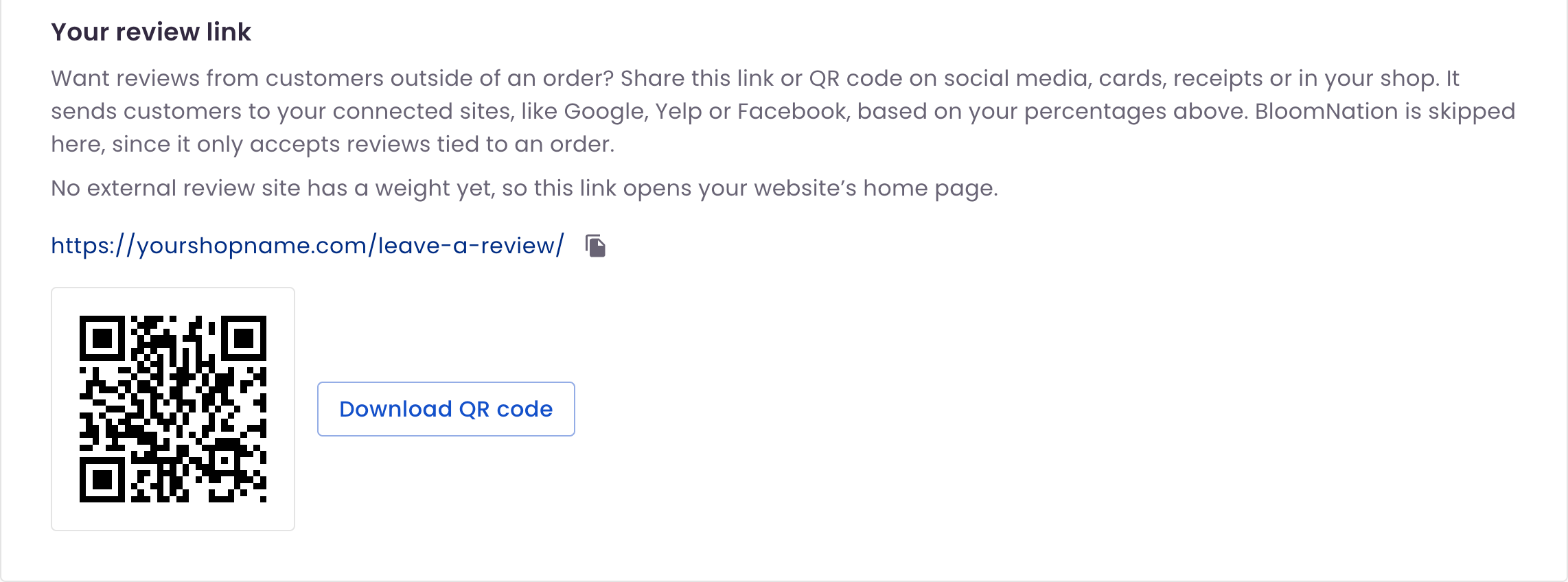
If none of your outside review sites has a percentage yet, the link opens your website's home page. Connect at least one site and give it a percentage so customers land on a review page.
Request reviews after events
Weddings and events are some of your biggest jobs. Event review emails ask those clients for a review automatically, so you don't have to remember to follow up.
- Turn on Event review emails.
- In Send review email, enter how many days after the event ends the email should go out. The default is 5 days.
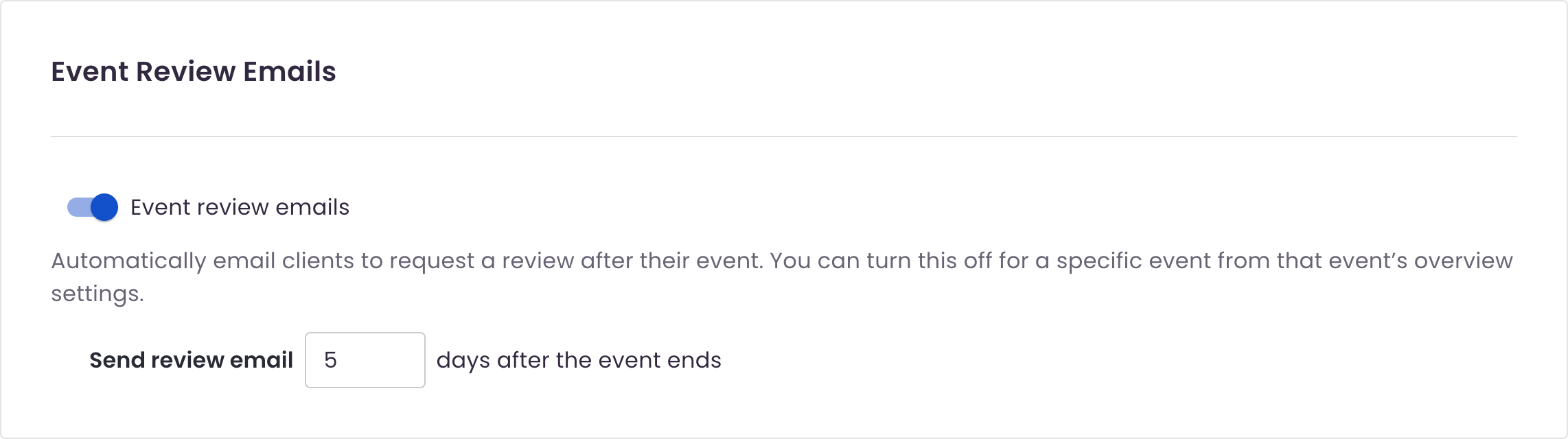
To skip the review email for one event, turn it off from that event's overview settings. Learn more in Events: Getting Started.
Show customer review photos
Photos from happy customers help new shoppers picture your work. With Show customer review photos on, review photos appear on your Premium Site and BloomNation Marketplace page, unless you hide a specific photo.
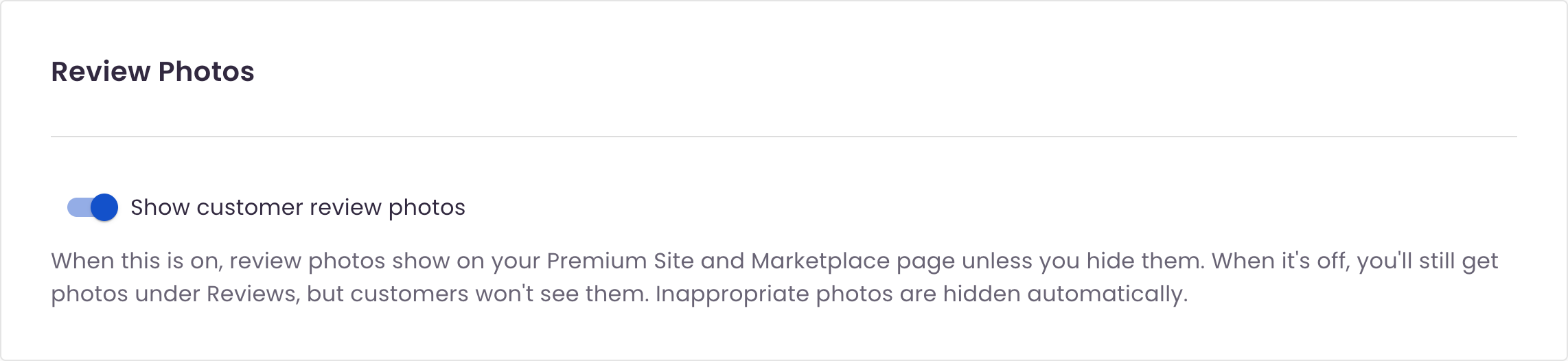
With it off, you'll still see customer photos under Reviews, but customers won't see them on your sites. Inappropriate photos are hidden automatically either way.
Post BloomSnaps to Google with Social Publisher
Get your latest designs in front of local customers searching on Google, using photos you're already taking. Social Publisher posts your BloomSnaps to your Google Business Profile.
- Show Social Publisher Option on BloomSnaps: shows the option to post to Google when you send a BloomSnap
- Default Social Publisher to publish for BloomSnaps: turns that option on by default for every BloomSnap, so you only need to turn it off for the ones you don't want posted
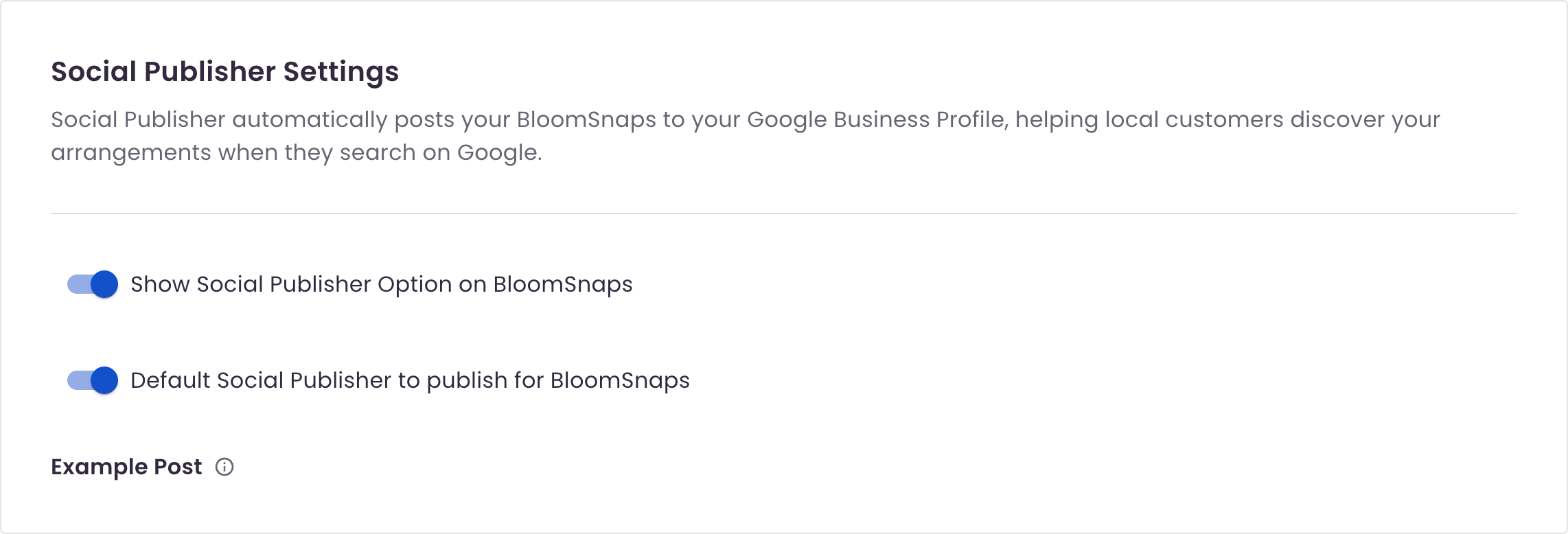
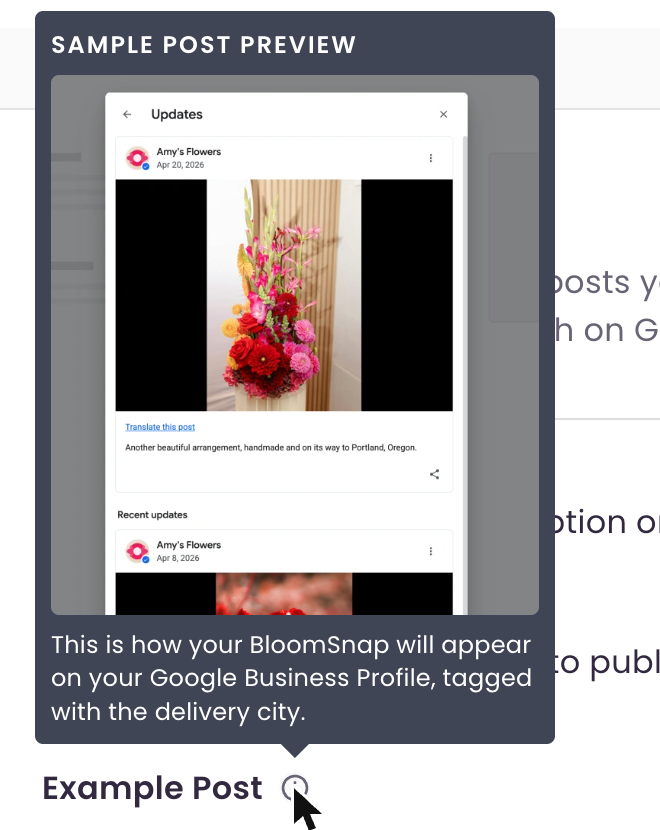
Click the info icon next to Example Post to see how a BloomSnap looks on your Google Business Profile. Each post is tagged with the delivery city, which helps you show up for local searches.
Learn more about BloomSnaps in BloomSnap.
Frequently asked questions
Why can't I change the percentage for Google, Yelp or Facebook?
That site isn't connected yet. Click Connect to next to the site, then come back and set its percentage.
Can I send every review request to Google?
Yes. Connect Google, set it to 100% and set the other sites to 0%. Keep in mind that BloomNation reviews come only from verified orders and also show on your BloomNation Marketplace page.
Why doesn't my review link include BloomNation?
BloomNation reviews always come from a real order, so the link only sends customers to your outside review sites.
Need help?
If you have questions, our Partner Support team is here to help.
Phone: (210) 405-5050
Email: support@bloomnation.com