
Reputation Management: Review Photos
Overview
Nothing sells your work like a photo from a happy customer. With review photos in BloomNation, customers can add photos of their flowers when they leave a review, and those photos show with the review on your Premium Site and BloomNation Marketplace page. You decide which photos, and which reviews, shoppers see.
Why review photos matter
- Social proof shoppers trust. A photo from a real customer shows your flowers arrived looking beautiful, not just how they look in your own product photos.
- Confidence to order. Shoppers can picture what they'll get, especially when they're sending flowers to someone far away.
- Your best reviews stand out. A five-star review with a photo catches the eye more than text alone.
- More examples of your work. Every photo is another real-life look at your designs, added by your customers.
How customers add photos
When a customer leaves a BloomNation review after their order, they can add up to 5 photos. Every photo is screened automatically, and inappropriate photos are hidden before anyone sees them.
How to see your review photos
- In your Dashboard, click Reputation in the left-side navigation.
- Select Reviews.
- Look for Customer photos under the review text.
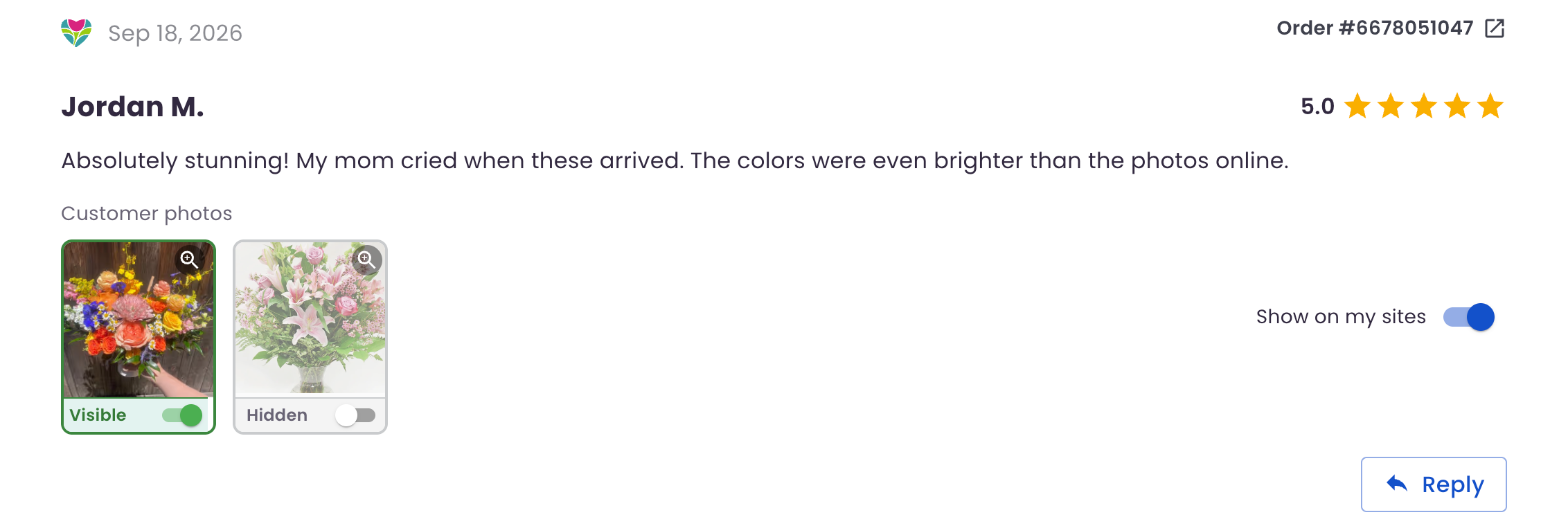
- Click the magnifying glass on a photo to see it full size.
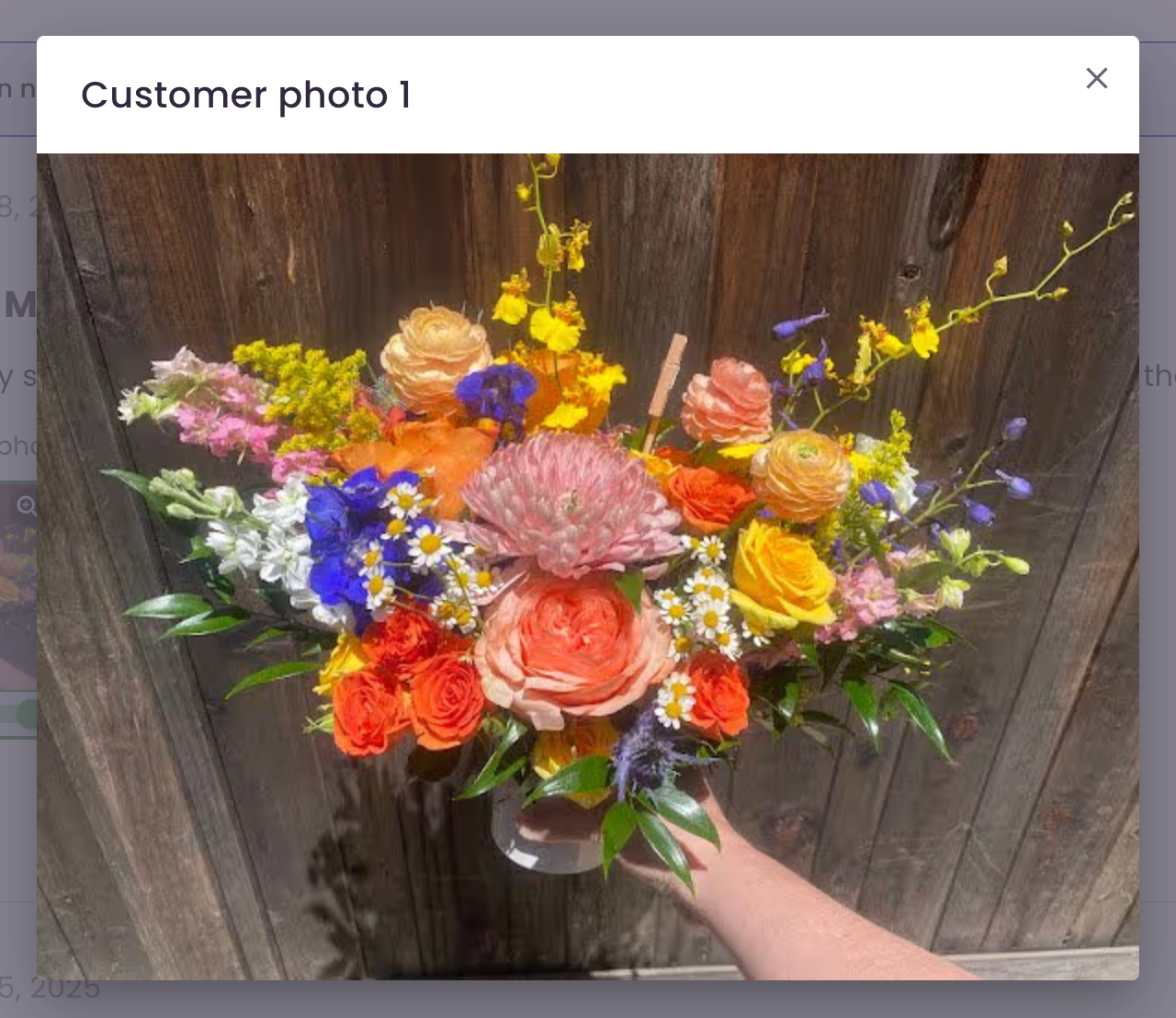
How to choose which photos show
Each photo has its own toggle underneath it.
- Visible: the photo shows with the review on your Premium Site and BloomNation Marketplace page
- Hidden: only you can see it, under Reviews
Turn the toggle off to hide a photo, or on to show it again.
Photos that our automatic screening flags as possibly unrelated start out hidden and blurred. Click a blurred photo to reveal it. If it's a good one, turn its toggle on to show it.
How to hide a whole review
Each BloomNation review has a Show on my sites toggle. Turn it off to remove that review, and its photos, from your Premium Site and BloomNation Marketplace page.
A review you hide still counts toward your star rating.
Turn off review photos for all reviews
To stop showing customer photos on your sites altogether, go to Reputation > Settings and turn off Show customer review photos.
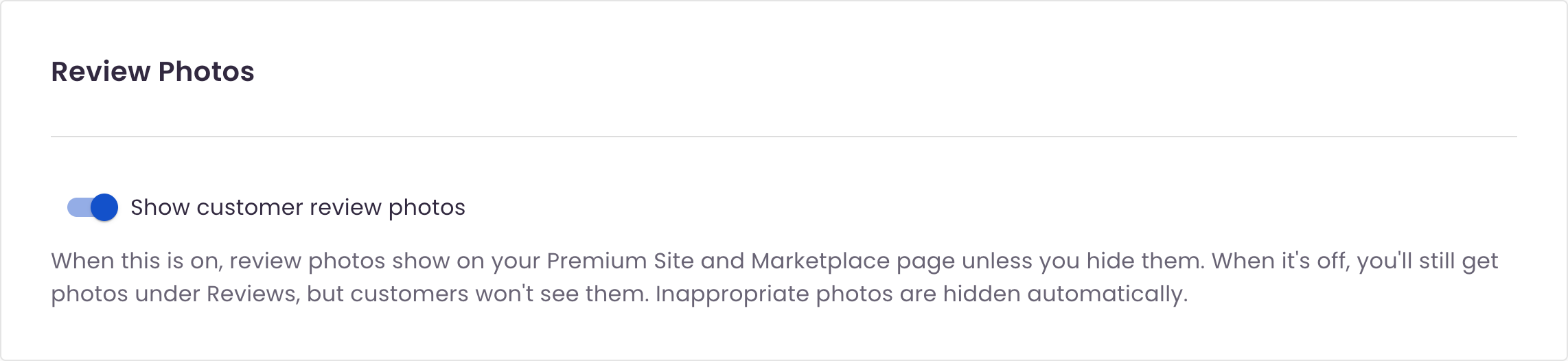
When it's off, customers won't see any review photos on your sites. You'll still see them under Reviews, so you can turn the setting back on anytime.
Learn more in Reputation Management: Review Settings.
Frequently asked questions
Does hiding a review change my star rating?
No. A review you hide with Show on my sites still counts toward your rating.
Why is one of my review photos blurred?
Our automatic screening flagged it as possibly unrelated to the order. It stays hidden unless you reveal it and turn it on.
Need help?
If you have questions, our Partner Support team is here to help.
Phone: (210) 405-5050
Email: support@bloomnation.com