
Creating a Quick Invoice
Creating a Quick Invoice
BloomNation’s Quick Invoice feature is designed to help florists send simple, professional invoices in just a few clicks—no need for a full event proposal. Whether it’s a last-minute client request or a straightforward billing need, Quick Invoice makes the process easy and efficient.
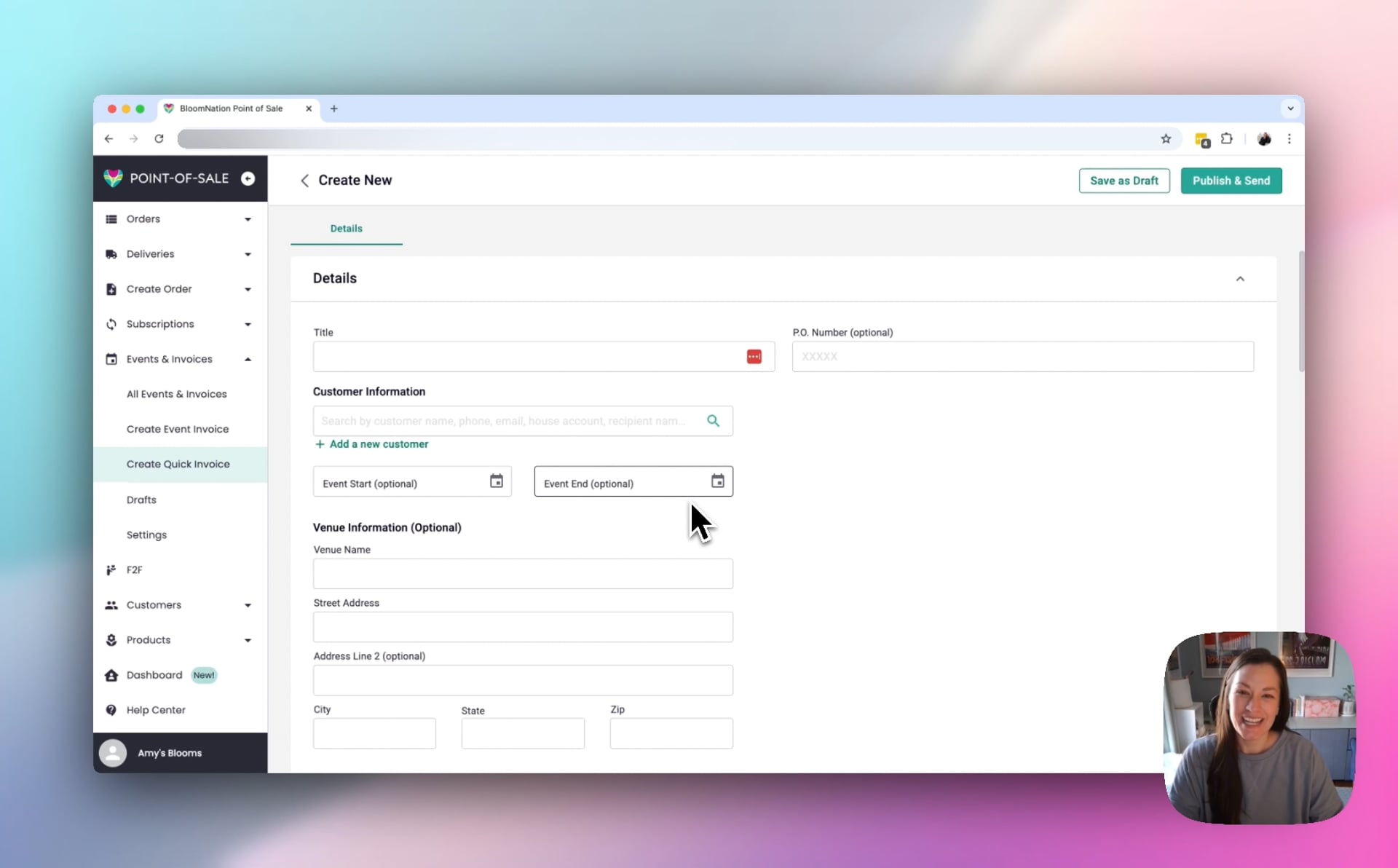 Quick Invoice Walkthrough
Where to Find Quick Invoice
- Events & Invoices Dashboard – Look for the shortcut labeled "Create Quick Invoice"
- All Events & Invoices – Click "Create Quick Invoice"
How to Create a Quick Invoice
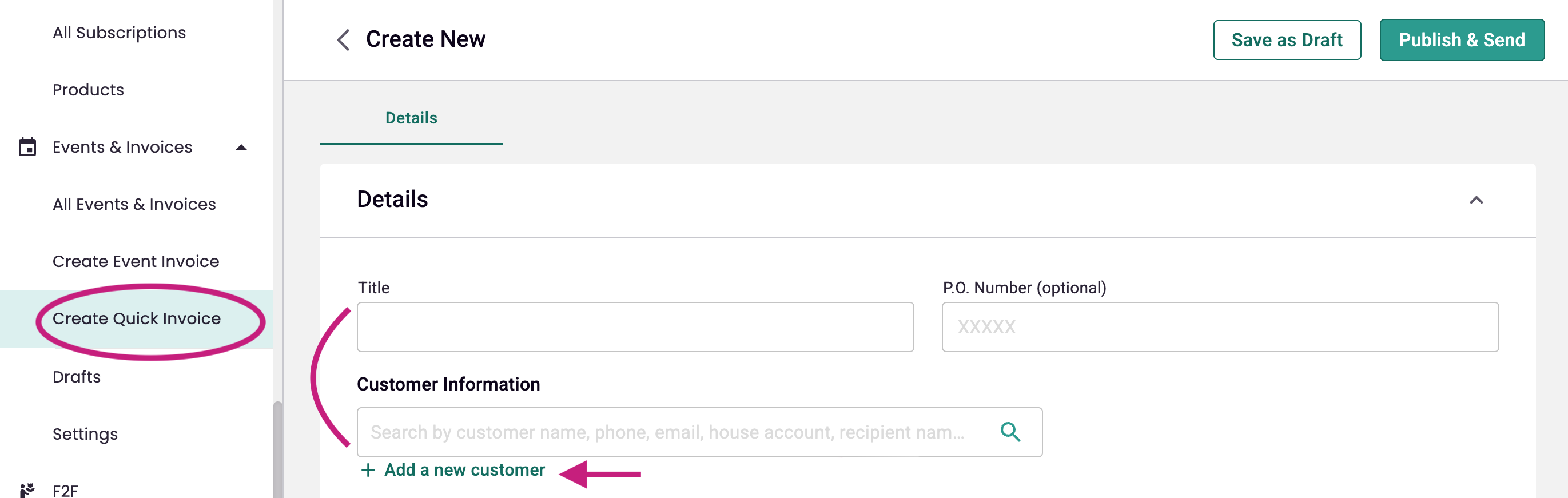
1. Add Invoice & Customer Details
Once you open a new Quick Invoice, start by entering:
- Invoice Title – Give it a clear name (e.g., "Spring Gala Invoice" or "Wedding Deposit").
- PO Number (Optional) – If the customer has provided one, you can enter it here.
- Existing Customers – Start typing their name or phone number, and they’ll pop up. Select the right match.
- New Customers – Click "Add New Customer" and fill in their details (name, email, phone, etc.).
2. Enter Event & Customer Details (Optional)
While Quick Invoice is designed to be fast, you still have the flexibility to add extra details if needed:
- Event Start & End Date
- Venue Name & Location
- Notes to the Customer – This could be special instructions, a thank-you note, or reminders about the order.
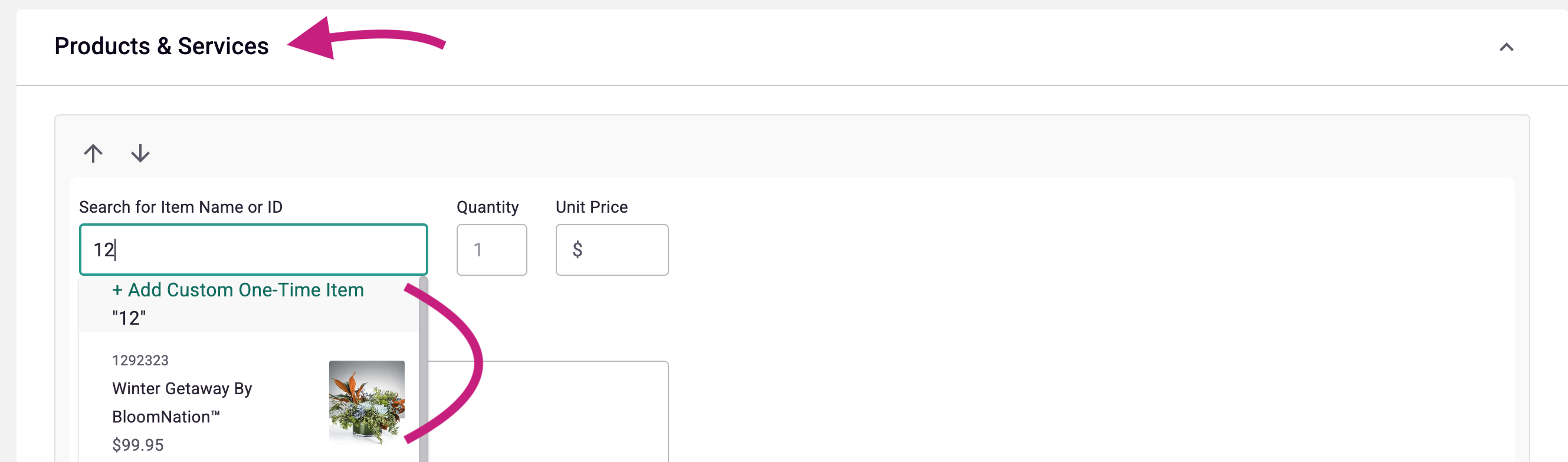
3. Add Products & Services
Now, it’s time to build the invoice! Adding products is simple:
- Start typing an item name to search your product catalog, or browse for one manually.
- You can also enter a one-time custom item.
- Select the item—it will auto-fill with pricing and details. Or, enter the details for your one-time custom item.
- Adjust quantity, pricing, or add notes (e.g., “Include white roses instead of pink”).
- 💡 Pro Tip: You can mark an item as tax-exempt if needed.
- Need to add more? Click "Add Another Item" to keep going.
4. Confirm Pricing & Apply Discounts
Check the invoice total and make any necessary adjustments:
- Add a percentage or dollar-amount discount
- Confirm tax rates and ensure the total reflects any changes
5. Set Up Payments
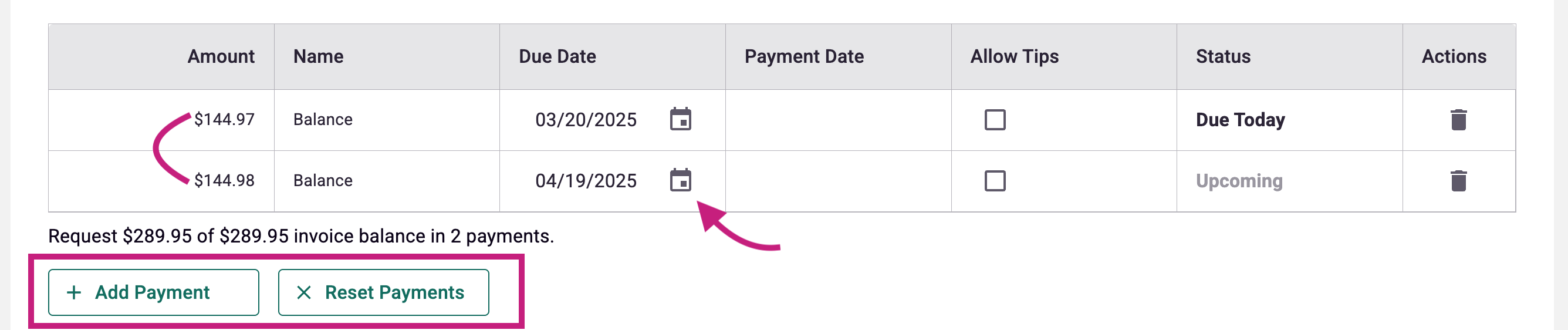
Invoices can be paid in full or split into multiple payments. Here’s how:
- Click "Add a Payment" – It will default to the full amount.
- Adjust the due date if needed (it defaults to today).
- Allow tip options (if applicable).
- To split payments, click "Add Payment" again—it will automatically divide the total evenly.
- Made a mistake? No problem! Click "Reset Payments" to start over.
6. Add Terms & Conditions (Optional)
If you need to include any policies, agreements, or terms, add them here. This is great for outlining deposit policies, cancellation terms, or any special conditions.
💡 Pro Tip: You can require a signature confirmation for extra security. Just un-check the box, and the customer will need to sign before accepting the invoice.
Final Steps: Sending or Saving the Invoice
- Ready to send? Click "Publish & Send." The invoice will be emailed to the customer immediately.
Need to come back later? Click "Save as Draft." You can revisit and edit before sending.
Why Use Quick Invoice?
- Fast & Efficient – No need for a full proposal.
- Easy Customer Management – Pull up existing clients or add new ones.
- Flexible Payment Options – Split payments, discounts, and tips.
- Professional & Streamlined – Keep invoicing simple while maintaining a polished look.
That’s it! Now you can send invoices faster than ever, giving your customers a smooth and convenient experience.