
Invoicing V1
Invoicing V1
This guide will help you navigate through the essential processes of creating and managing Invoices and Proposals within your BloomNation Point of Sale. Below, you'll find all necessary instructions, organized by individual sections, for easy reference.
Table of Contents
- Managing Proposals and Invoices
- Creating an Invoice
- Collecting Payment on an Invoice
- Turning a Proposal Into an Invoice
- Invoices in the CRM
- Understanding Proposal and Invoice Fields
Managing Proposals and Invoices
This is the hub of proposals and invoices! Here you can find all of your past and present proposals and invoices.
There are a variety of actions you can take from here like:
Downloading a Proposal/Invoice
Deleting an Unpaid Proposal/Invoice
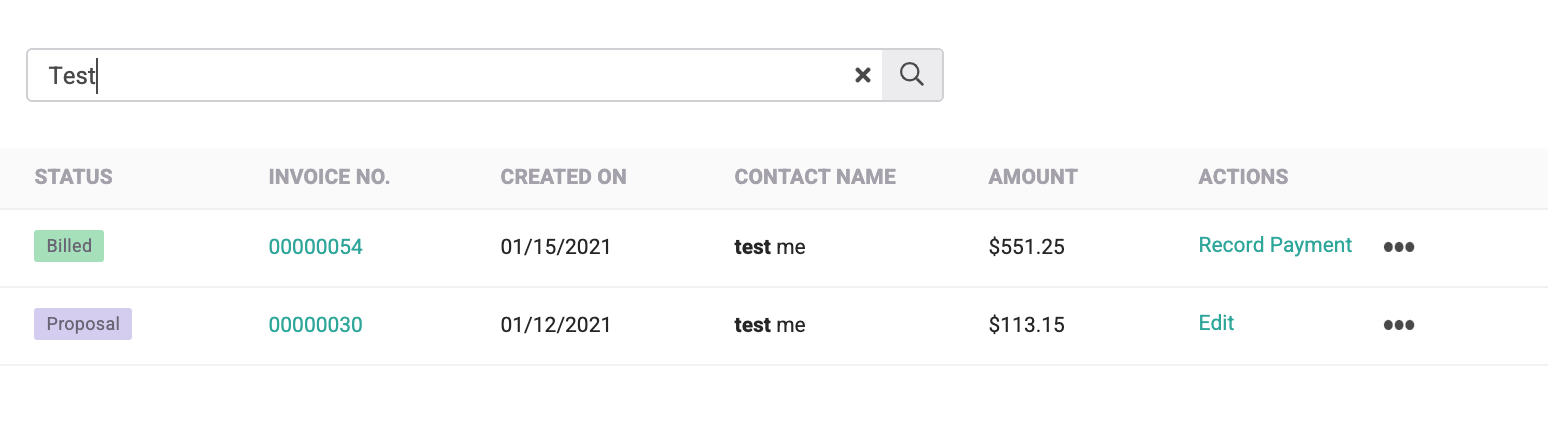
Search Bar
Our search bar is dependent on the name attached to the "Customer Contact" name field. It returns full and partial matches to Customer Record and searches across all invoices and proposal statuses. You can use it from any of the dashboards.
Viewing a Proposal/Invoice
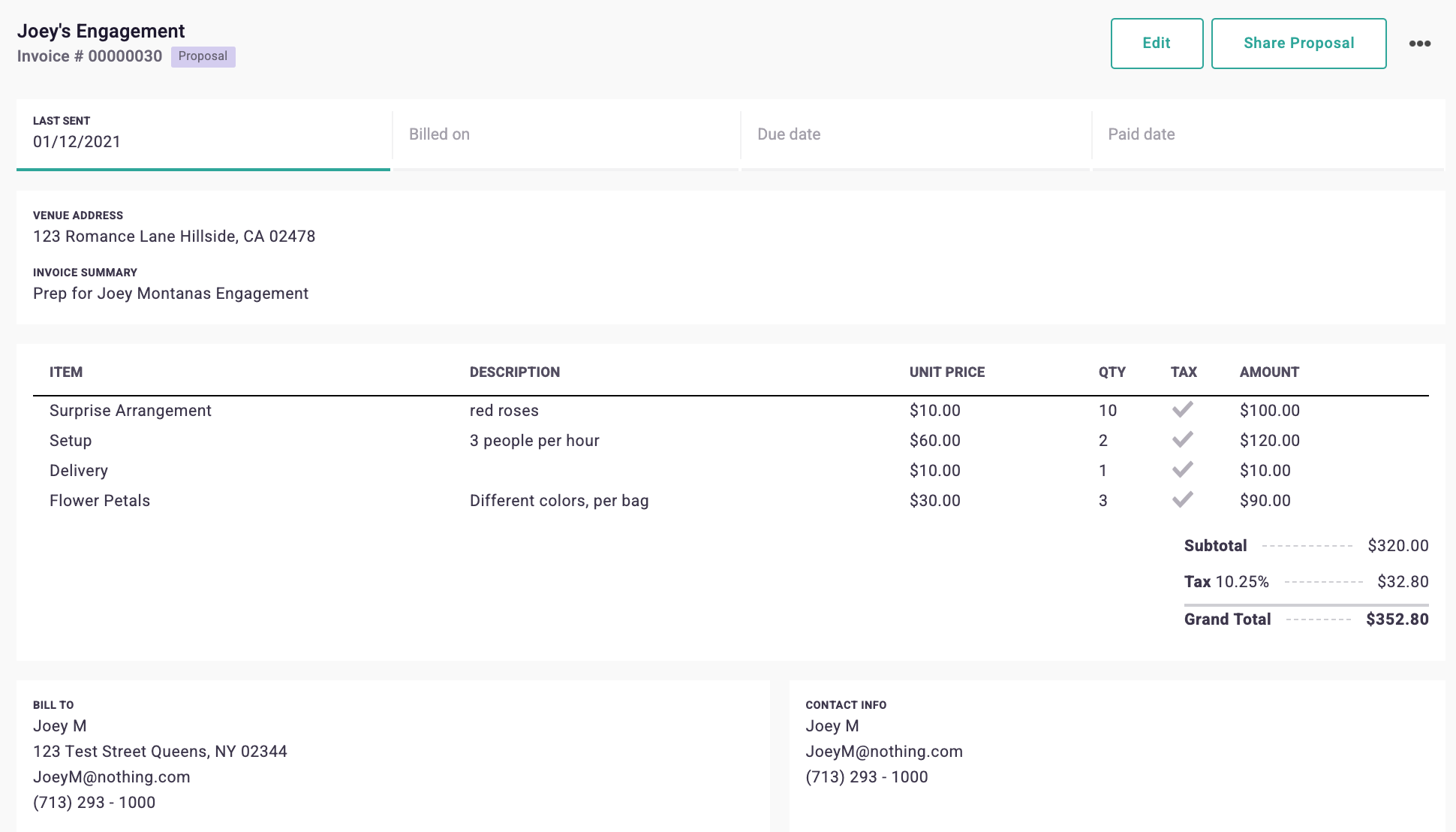
When you view a proposal/invoice it will take you into the Detail Page where you can see all the information associated with that proposal or invoice which include:
- When a proposal was last sent.
- If viewing an Invoice, you will see the last time it was Billed, what the current Due Date is as well as a Date of Payment when the invoice has collected payment.
- Internal notes (only available on the Detail page, not on PDF downloads or print outs)
- All the contents in fields for the invoice/proposal such as venue, line items, terms and conditions, contacts for customer and billing.
- If paid - shows you the payment method
- If paid by Debit Card, Credit Card or ACH you can find the link to the payout
- You can also take action from the Detail Page of a proposal or invoice similar to the dashboard.
How to View:
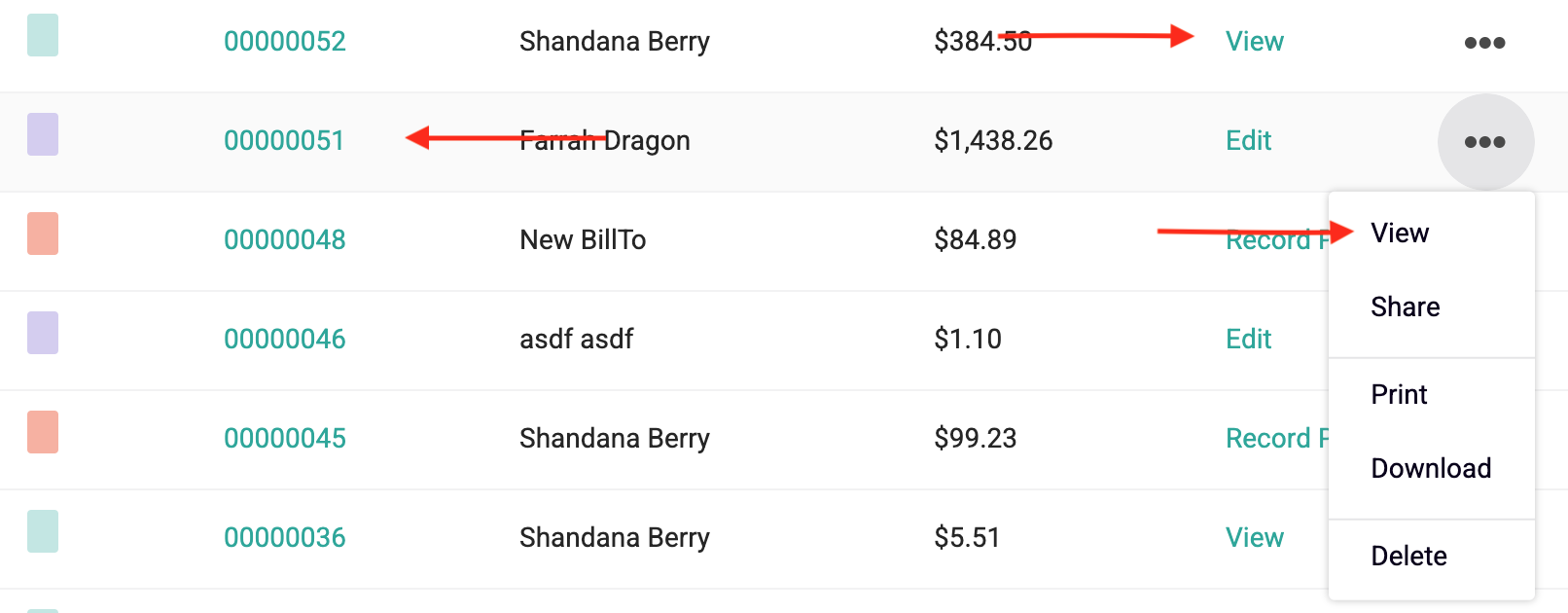
1) Find the invoice/proposal you want to view
2) For Paid Invoices, click the “View” under the action items column
OR
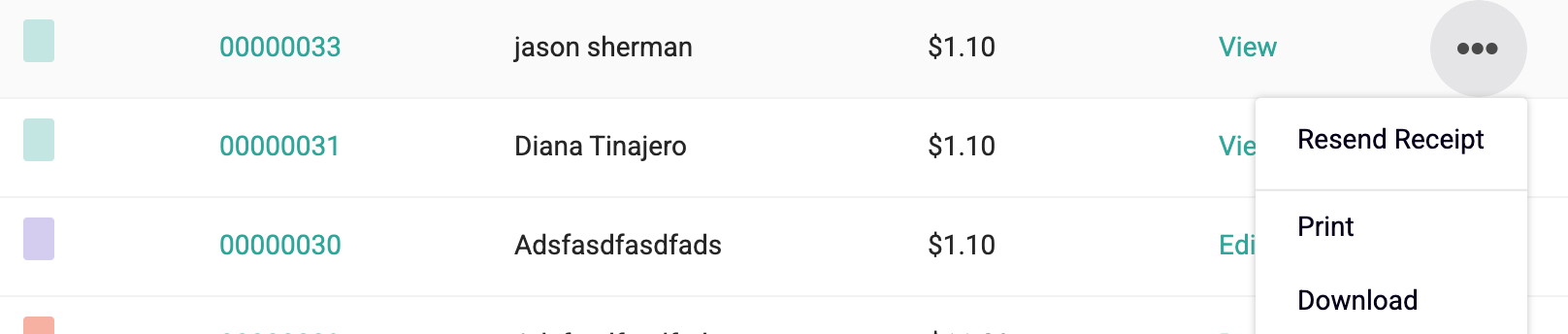
Click the ellipsis menu (3 dots) and then click “View”
OR
Click the Proposal/Invoice Number
Printing a Proposal/Invoice
We set up the invoices and proposals so when you print it, it fits perfectly in a regular envelope! If you populate a Billing Contact Name, Email, and Address you can fold the paper at 1” inch and 5” from the top of the page to fit the address in a size 10 envelope window.
How to Print:
1) Find the invoice or proposal you want to print
2) Click the ellipsis menu (3 dots) and click "Print". This opens a new window and opens your chrome printer window. It does NOT download the PDF.
Downloading a Proposal/Invoice
All downloads are in PDF form and are done with a single click! You can download anything from a new proposal to a 2-year-old paid invoice.
How to Download:
1) Find the invoice/proposal you want to download
2) Click the 3 dots and click download
Creating a Proposal
Proposals are quotes that are shared with your customer. This is a great first step if the customer is still evaluating and ideating with you on an upcoming event or custom order. All proposals can be edited and changed to invoices.
You must share the proposal or it will not save. If you are not prepared to email your proposal to a customer yet, put your contact information into the customer field. When the proposal is ready for sharing, edit the proposal and update the customer name and email when you are ready for them to see it.
How to Create a Proposal
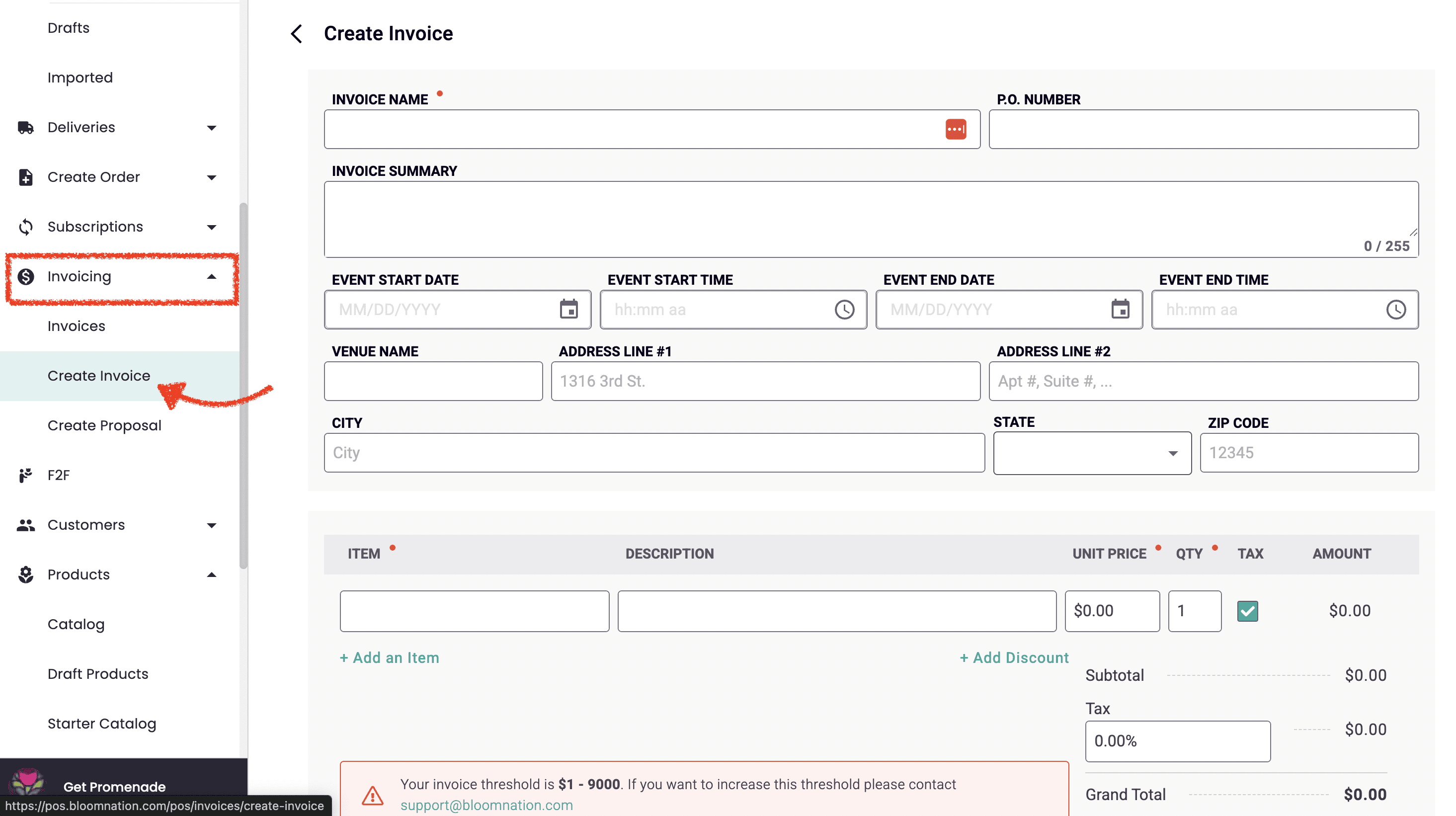
1) Navigate to the Invoicing tab on the Point of Sale
2) Click on the Create Invoice sub-tab
3) Name your Proposal
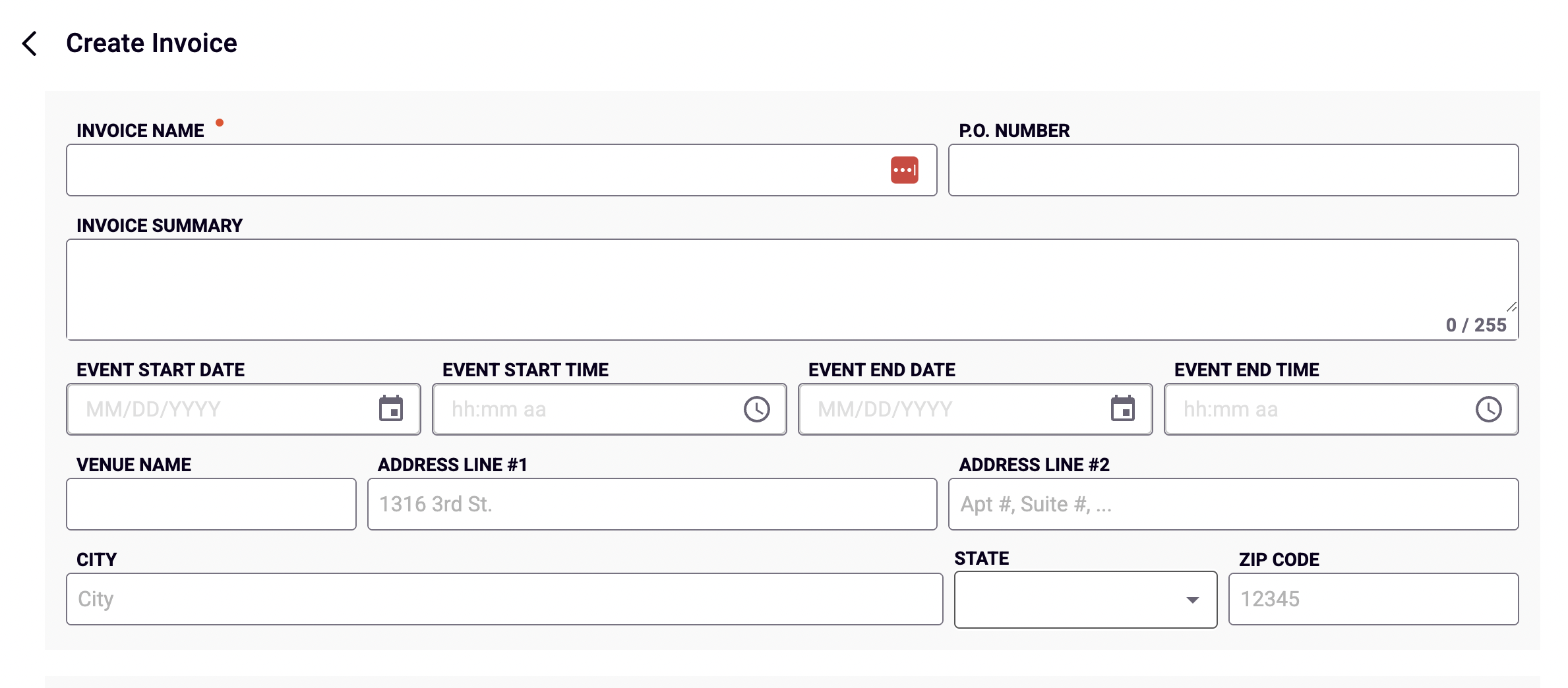
Your customer will see the name of the proposal so name it something relevant to the event or custom order.
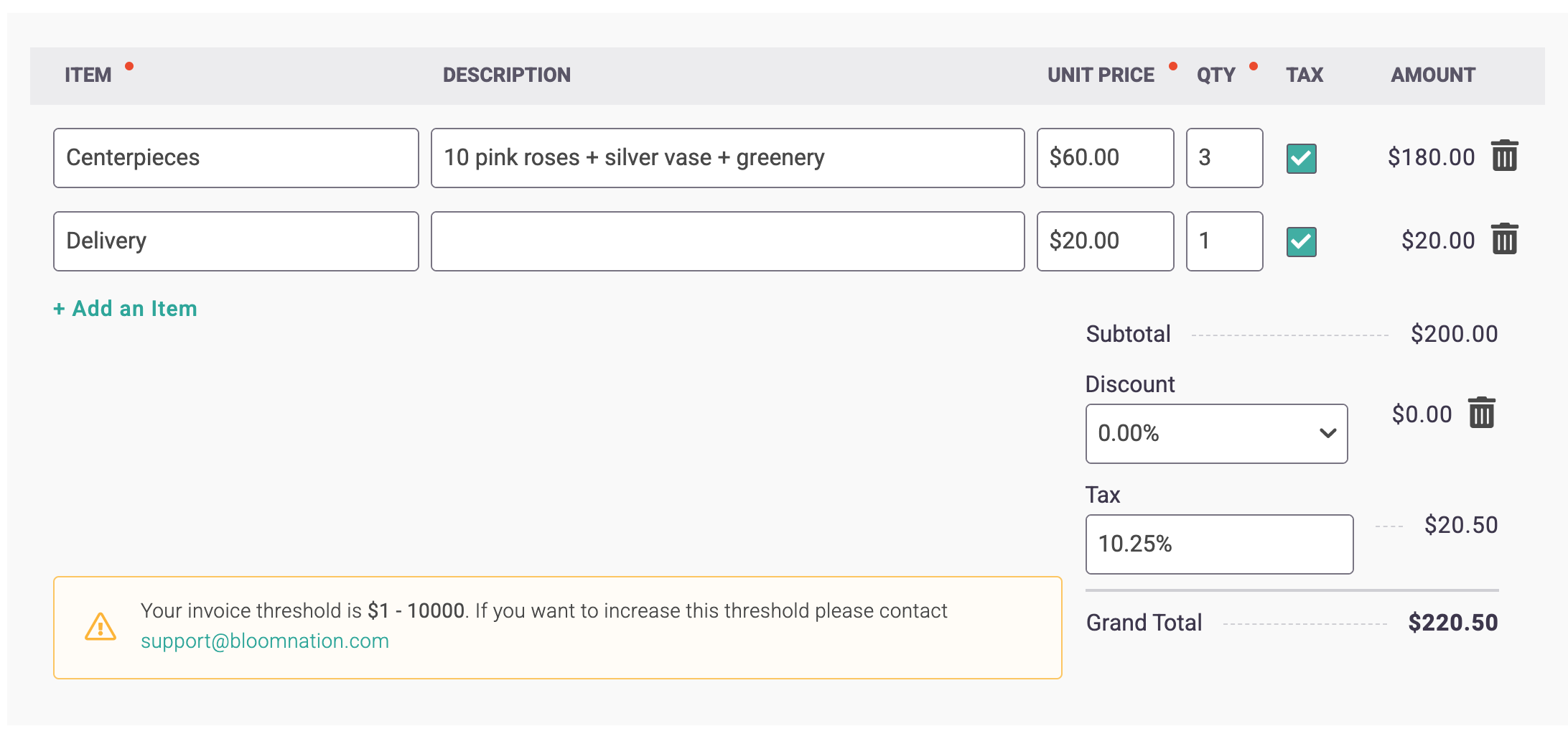
4) Add at least one item and price it
You can’t send an empty proposal so even if the details are not fully worked out, you must add something in. You can always edit it later!
5) Add a new customer or attach an existing customer's record.
If you are collecting details and want to save a draft before you share the proposal with your customer, make yourself the contact name and email. You can always edit it and add the actual customer later!
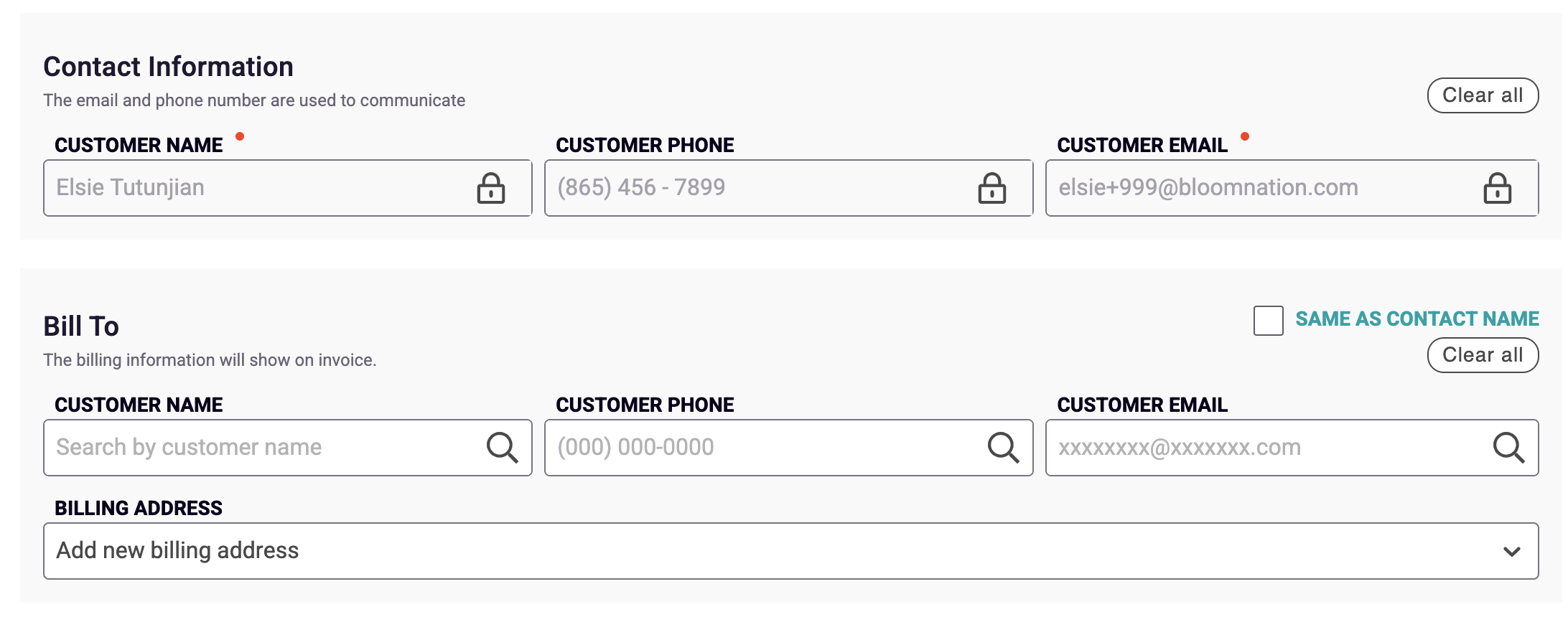
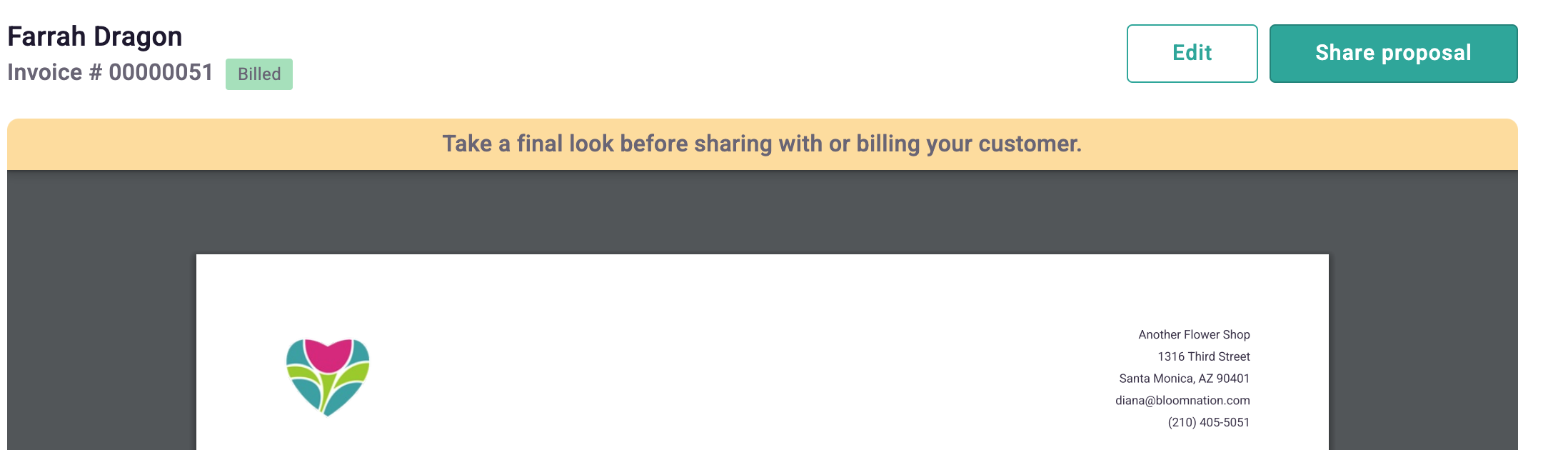
6) Click "Preview & Bill"
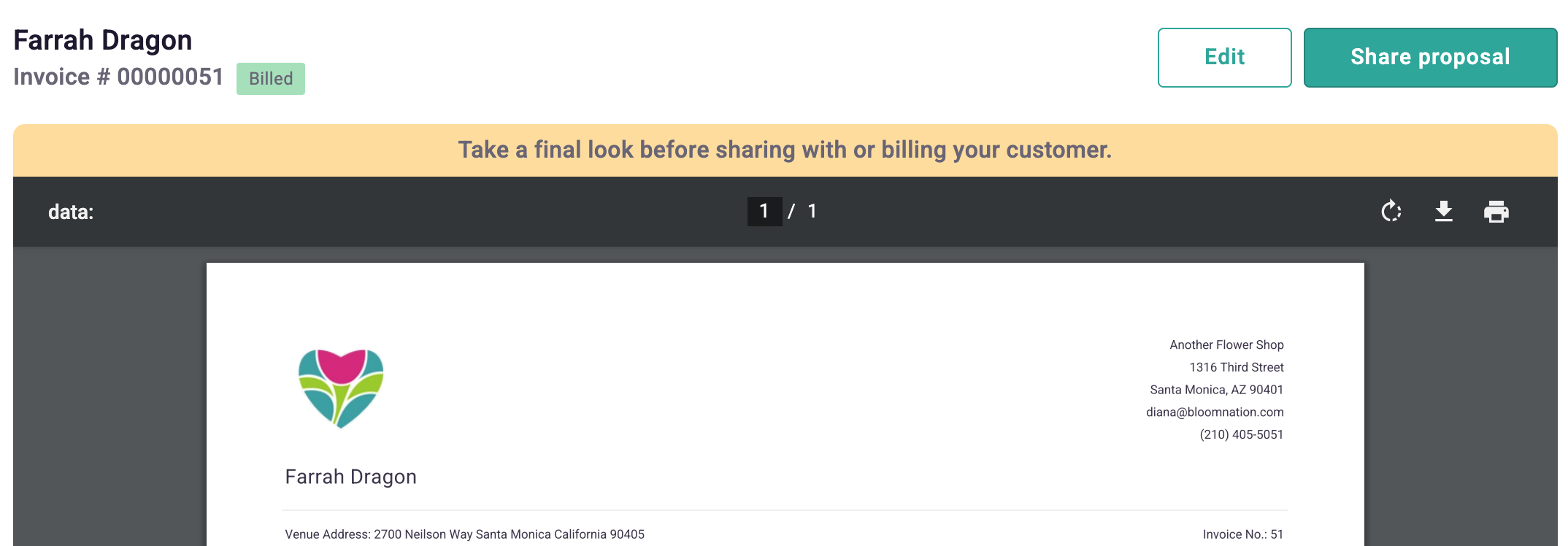
You will be able to preview the proposal in PDF form before you send it. From here you can also PRINT and DOWNLOAD the proposal if you want a hardcopy.
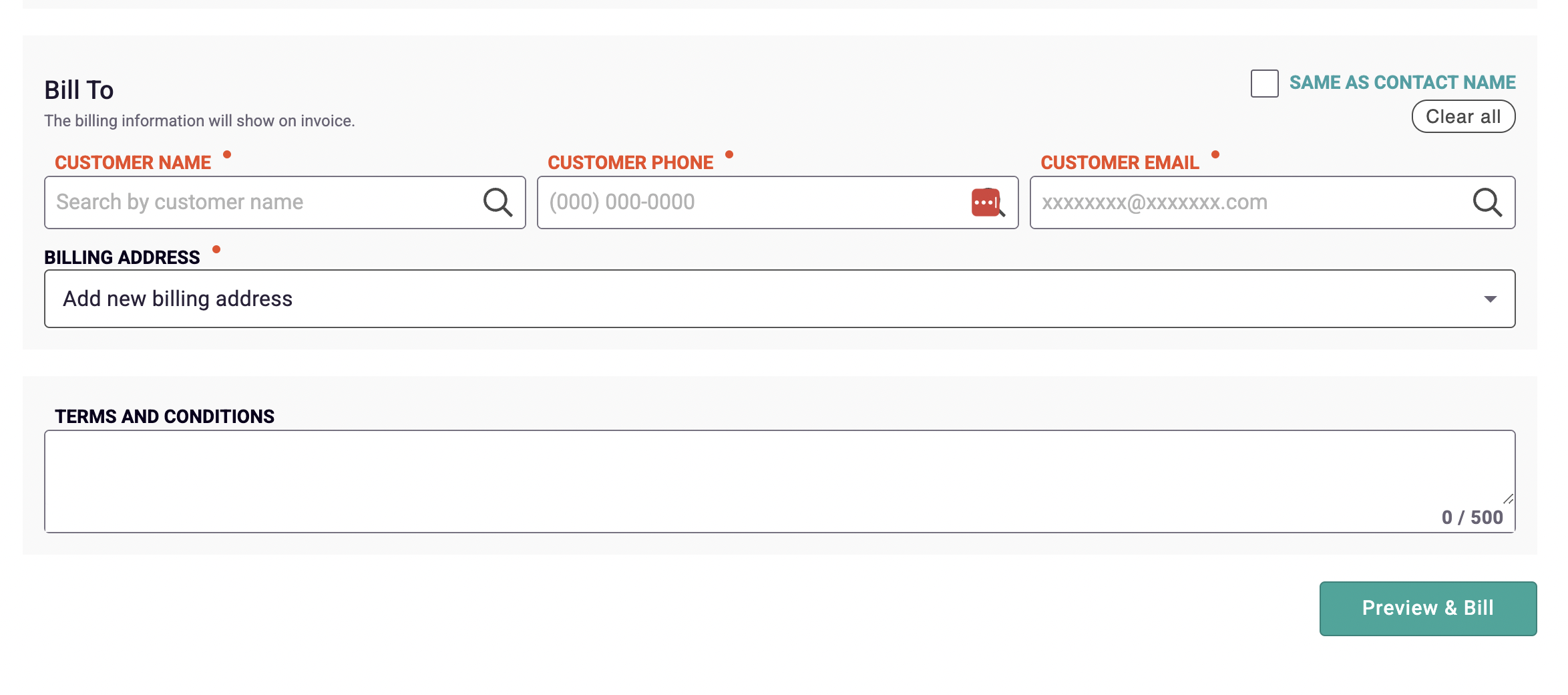
Pro Tip: If you populate a Billing Contact Name, Email, and Address you can fold the proposal at 1” inch and 5” from the top of the page to fit the address in a size 10 envelope window.
7) Click “Share proposal”
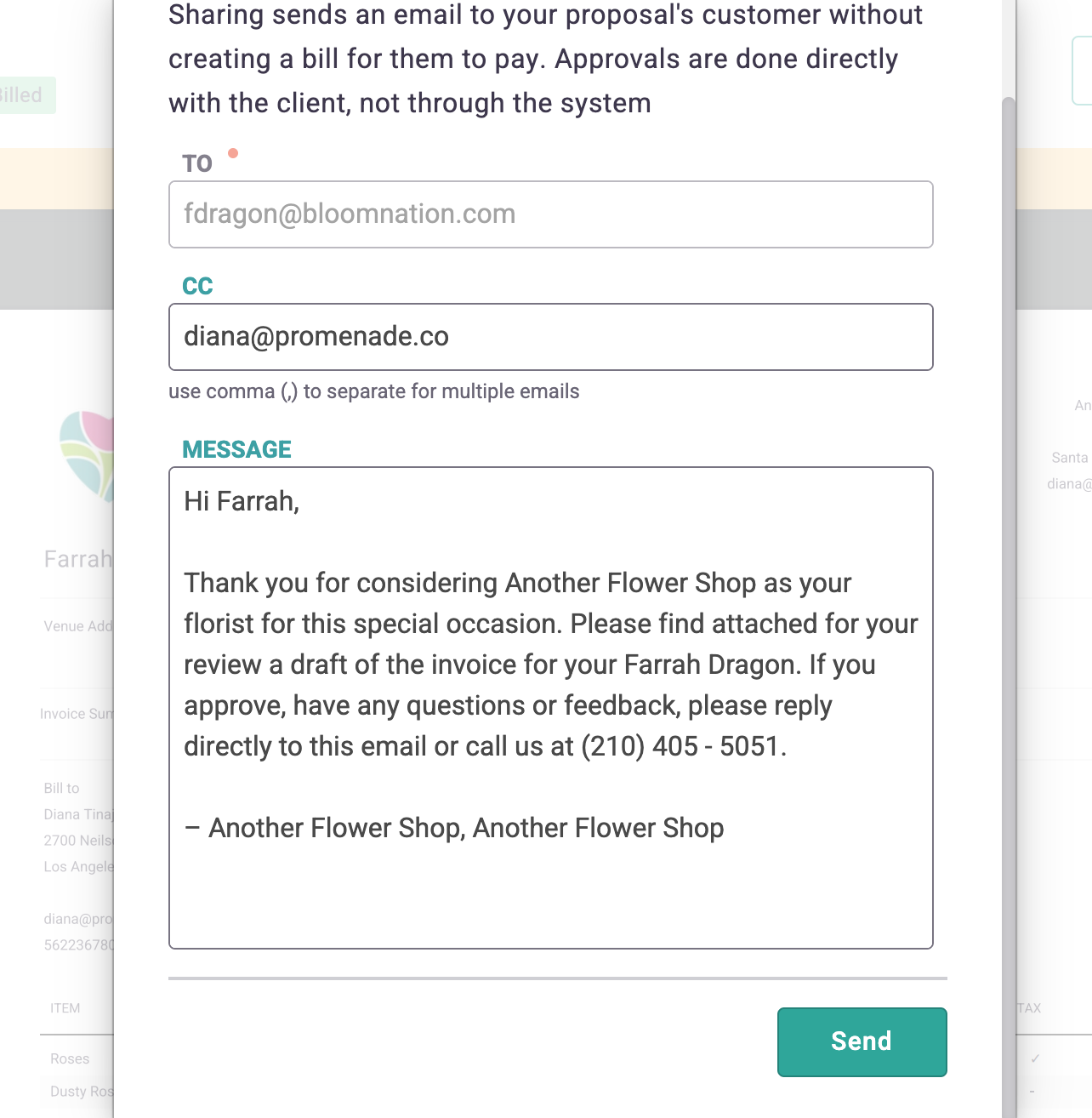
When you share the proposal with a customer, the document is sent as an attached PDF on an email sent from the email address that is associated with your store.
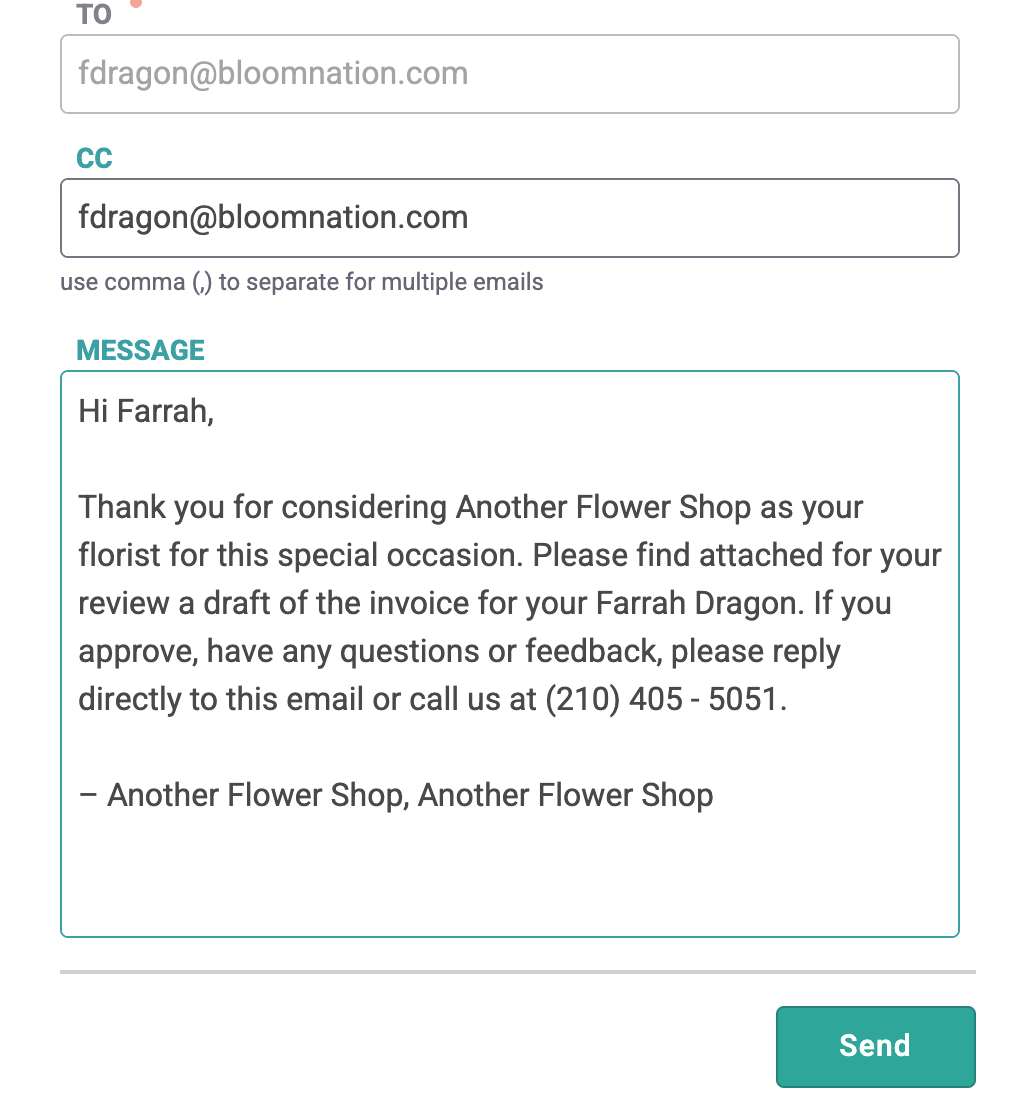
8) You can edit the content of the email and CC (carbon copy) additional email addresses, just make sure they are separated with a comma. Click "Send".
Reminder: After creating a proposal, you can edit and share it again however many times you want. Edits will not be saved unless the proposal is shared again.
Editing a Proposal
A lot of times plans change and proposals need to be updated. Never fear, everything on a proposal can be edited!
1) Go to the Proposals view
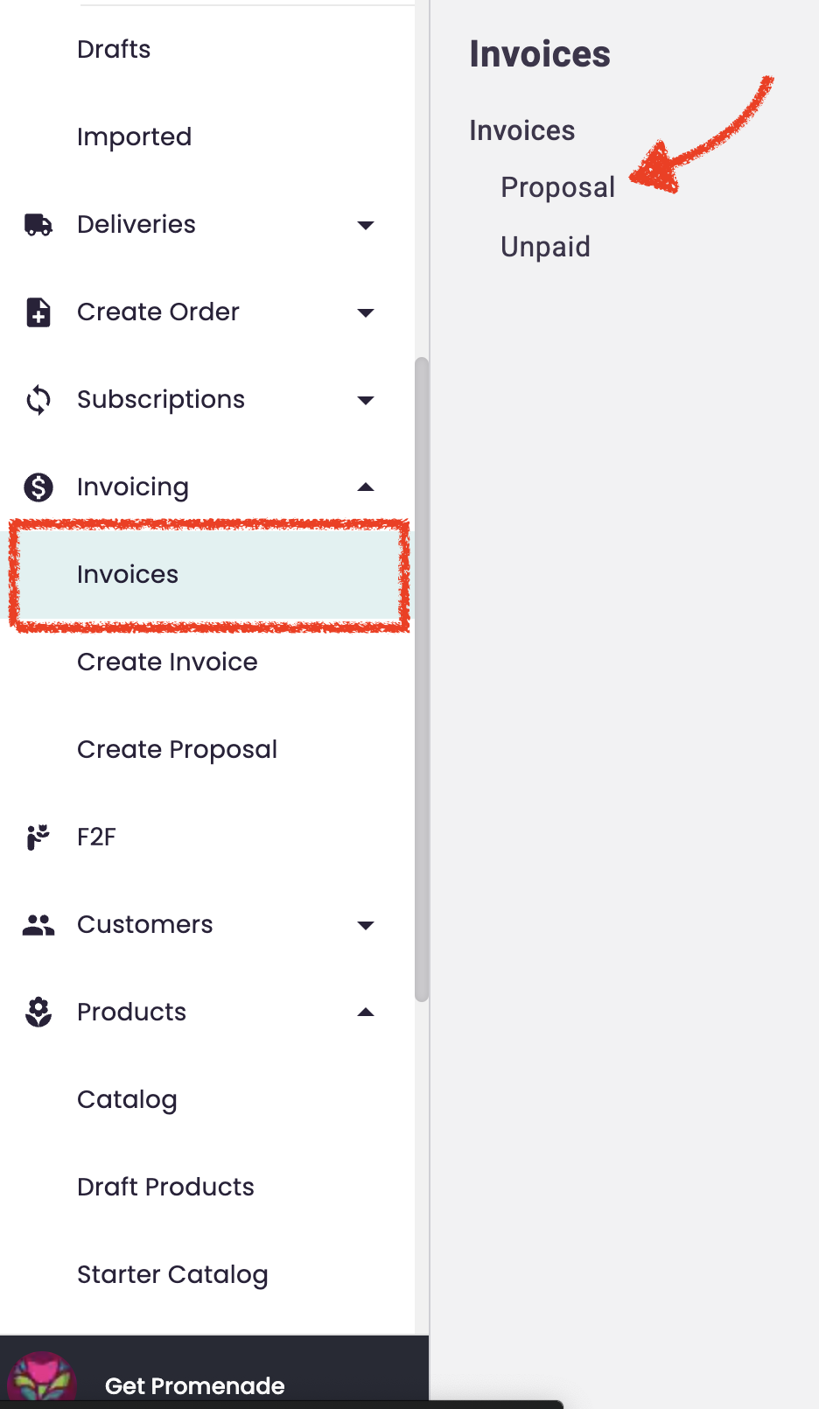
2) Find the Proposal
You can find any Proposal by either searching the customer name in the search bar or scrolling down the list under the Proposals view
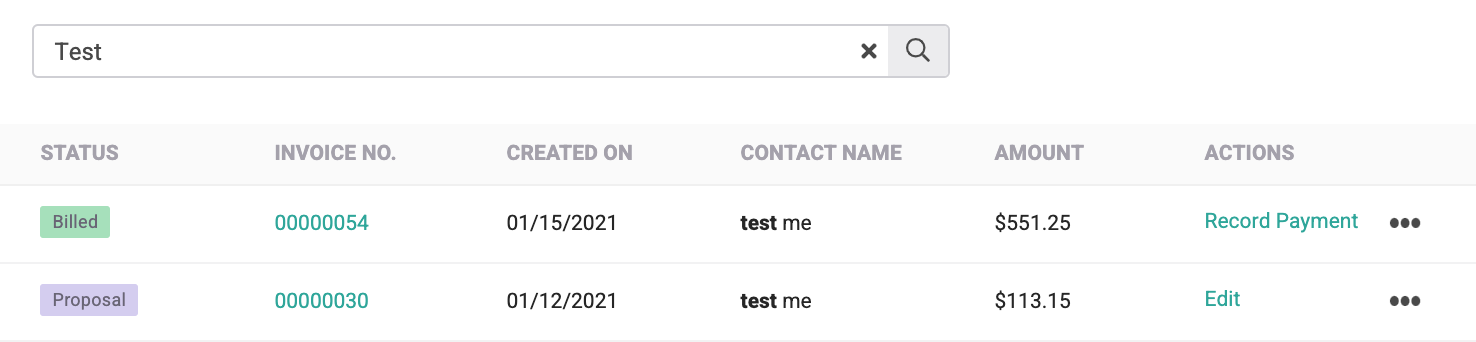
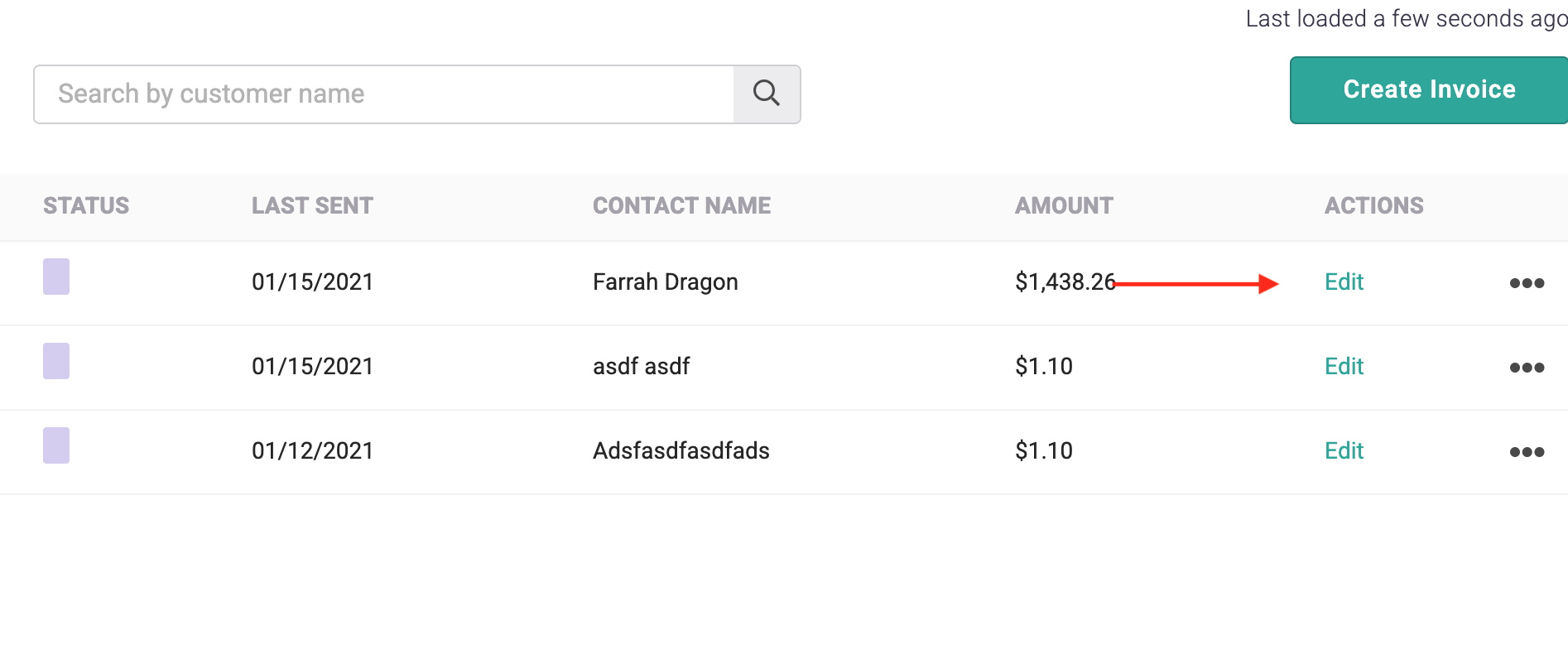
3) Click "Edit" under the Actions Column
4) Edit any of the fields and click "Preview & Share" at the bottom. Remember, you still need a Proposal Name, at least one line item, and a Customer Contact with a valid email address.
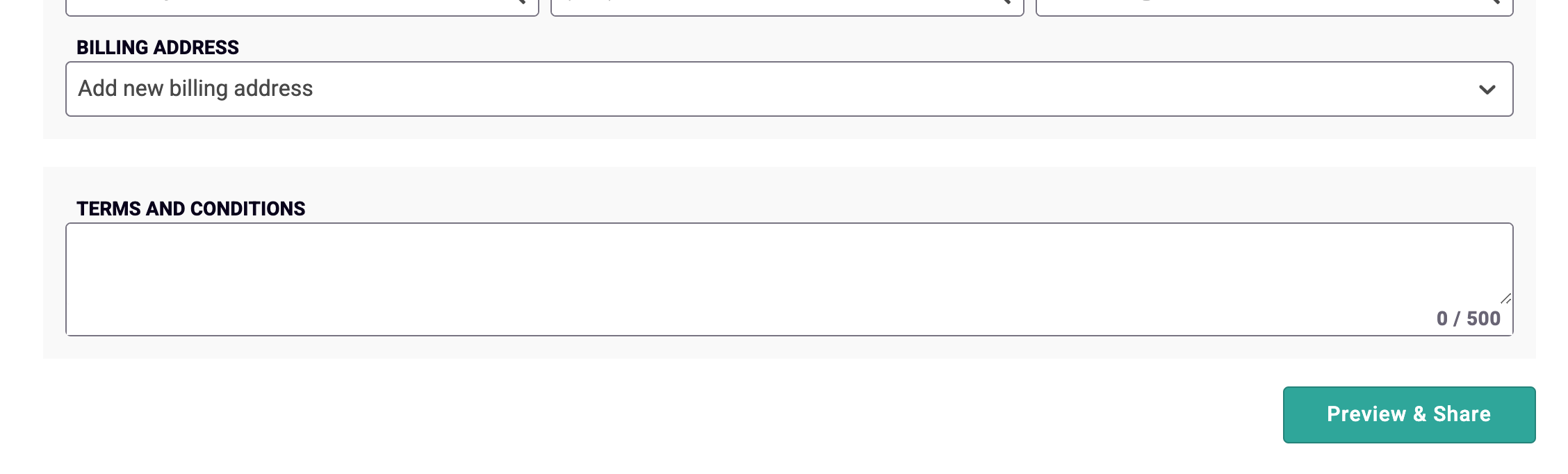
5) You can download, print, and resend the updated proposal from the pdf page. Remember to resend the updated proposal to your customer by reviewing the email content and clicking "Share proposal", reviewing the email addresses and content, and then clicking "Send" in the modal.
Sharing a Proposal
There may be a need to share a proposal again upon a customer's request to the current or new customers. To re-share a proposal built for a different customer than the one originally listed (for example, your name is in the customer field), you must edit the proposal itself so the new customer is attached to the proposal and then resend it. Refer to Editing a Proposal to see how to edit and resend a proposal to a different customer.
How to Share a Proposal from a Dashboard view:
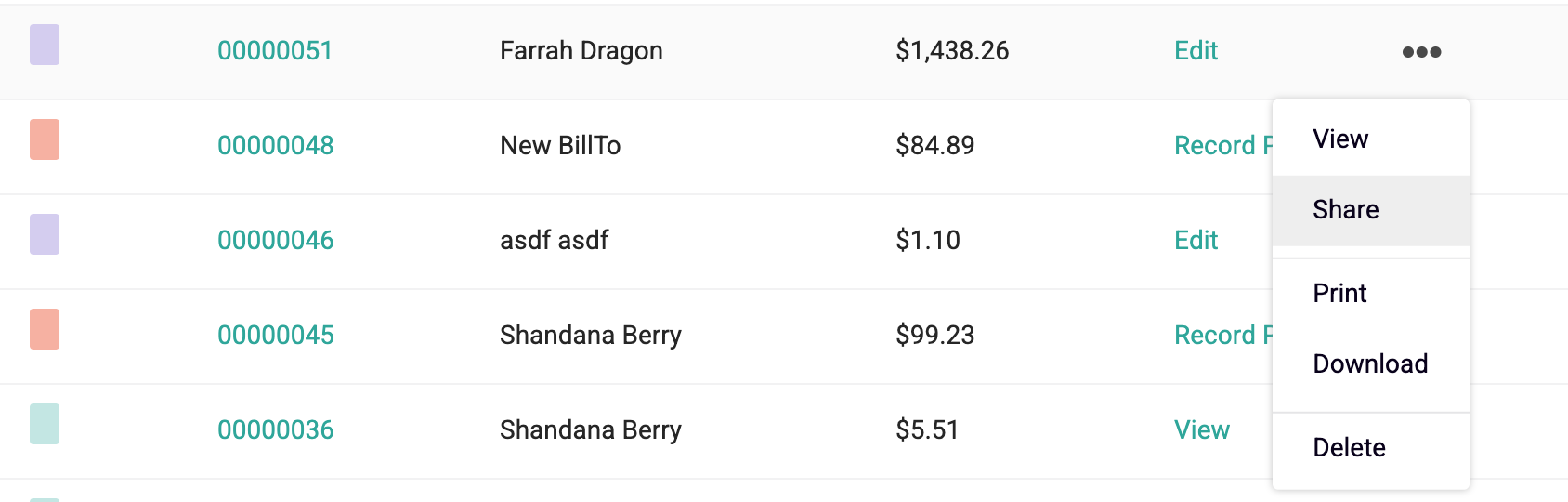
1) Find the Proposal you want to share again on the Main Invoices and/or Proposal Dashboard or through the search
2) Click the ellipsis menu (3 dots) and click “share”
Optional - CC new people and edit the message
3) Click “Send”. An attachment of the proposal in PDF form will be sent along with the message to emails in the To and CC fields.
Re-Sending an Invoice
There may be a time where a customer needs a reminder of their outstanding bill. You can bill the customer again from the dashboard by following the steps below:
How to Resend an Unpaid Invoice:
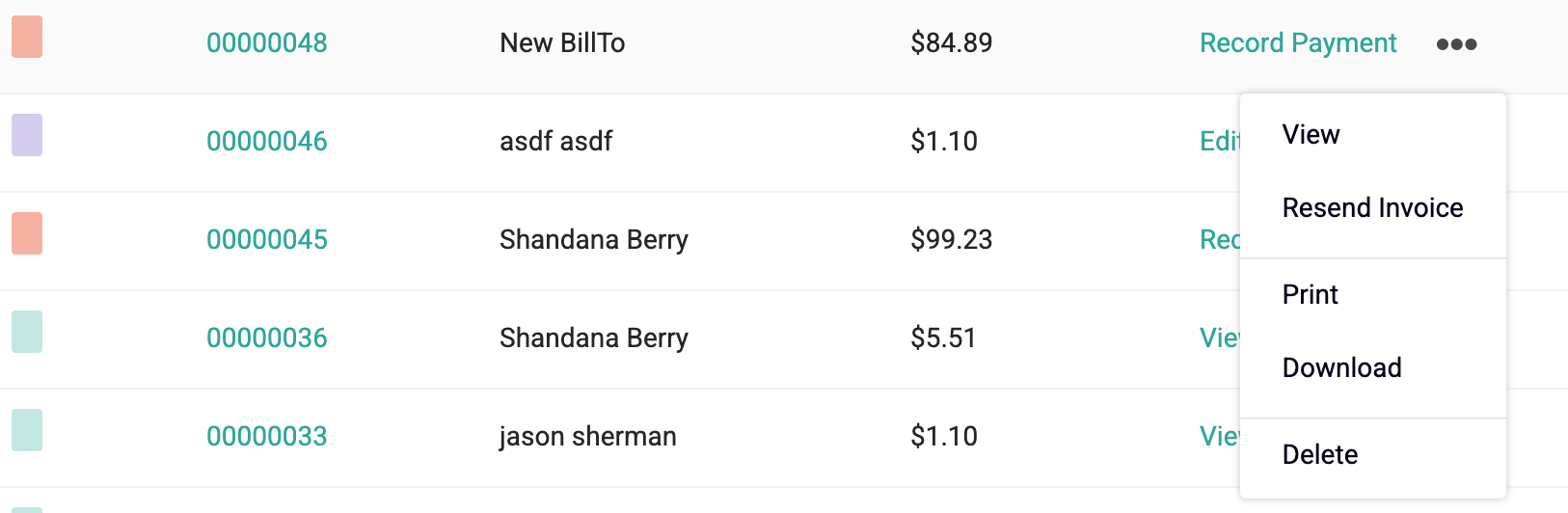
1) Find the Invoice you want to send again on the Unpaid Dashboard View or via Search
2) Click the ellipsis menu (3 dots) and click “Resend Invoice”
3) You have to pick a new Due Date, if your Due Date has not passed yet you can select it again, and click "Next".
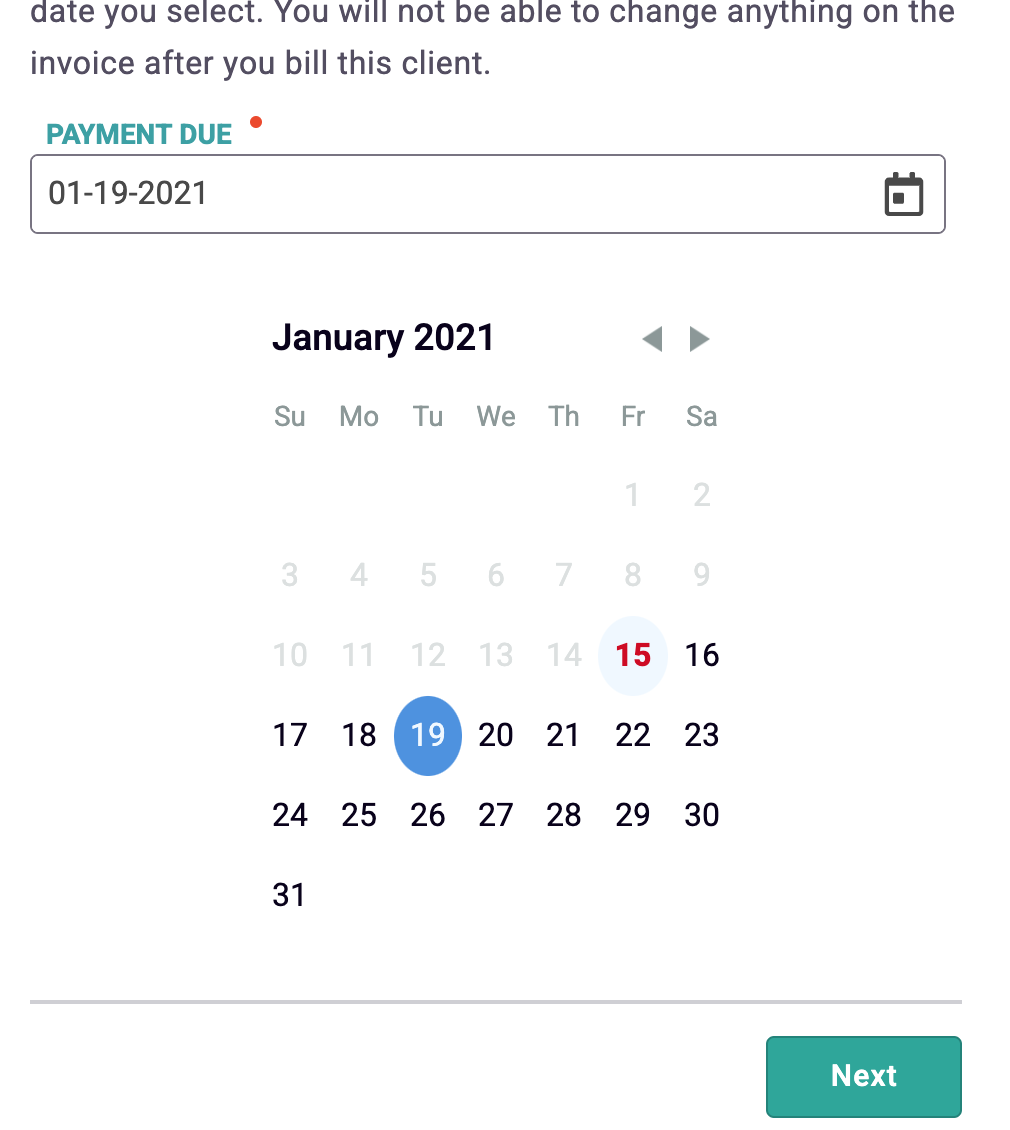
4) Review and edit the copy of the email. If an invoice is approaching its due date this is a great opportunity to remind the customer that they might be subject to a late fee or other terms and conditions they are subject to. Add any other CCs you want to include (separated by commas) and click "Send". The emails associated with that Invoice will now receive the newest email and due date with the same Invoice attached as a PDF.
Note: You cannot re-send a processing invoice but you can resend the receipt of an already paid invoice.
Resend a Receipt for a Paid Invoice
1) Find the Paid Invoice you want to send the receipt on the Invoice Dashboard or via Search
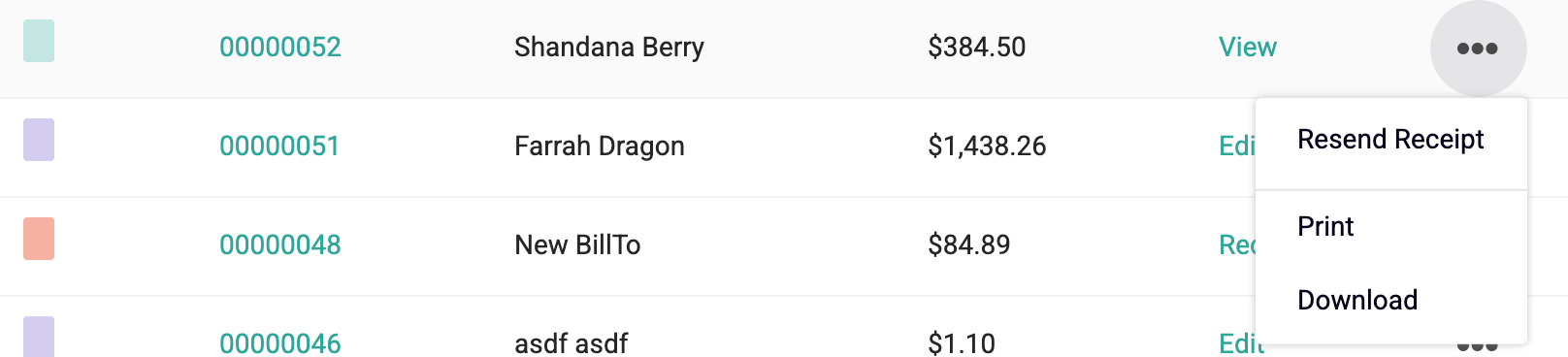
2) Click the ellipsis menu (3 dots) and click “Resend Receipt”
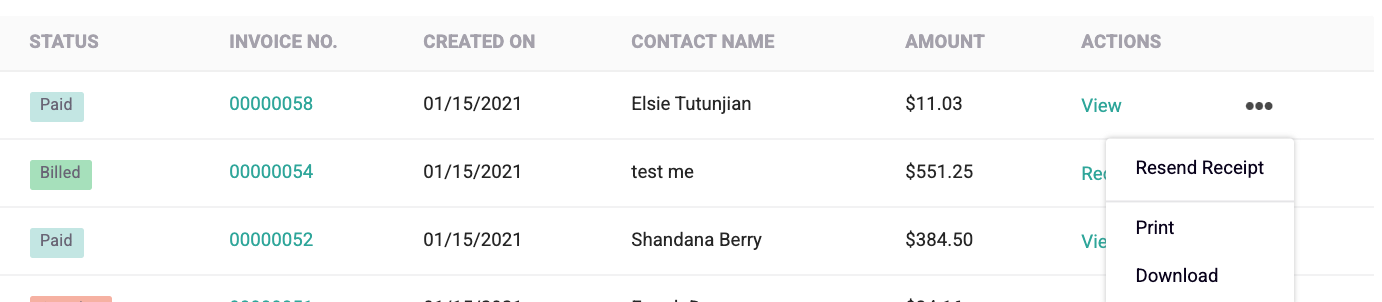
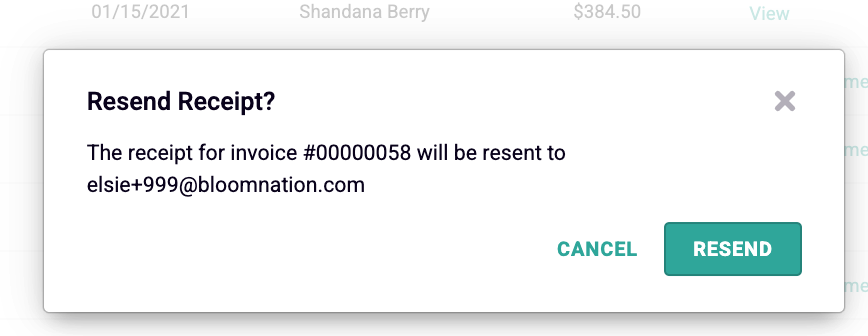
3) Click "Resend". Note that only the Billing Contact will receive the Receipt email which includes the payment confirmation such as amount, payment date, and payment method.
Deleting an Unpaid Invoice/Proposal
If an invoice is being processed or has already been paid you cannot delete it. When you delete a proposal or unpaid invoice, it will be removed from the system and your customer will not be notified.
How to Delete:
1) Find the invoice or proposal you want to Delete
2) Click the ellipsis menu (3 dots) and click "Delete"
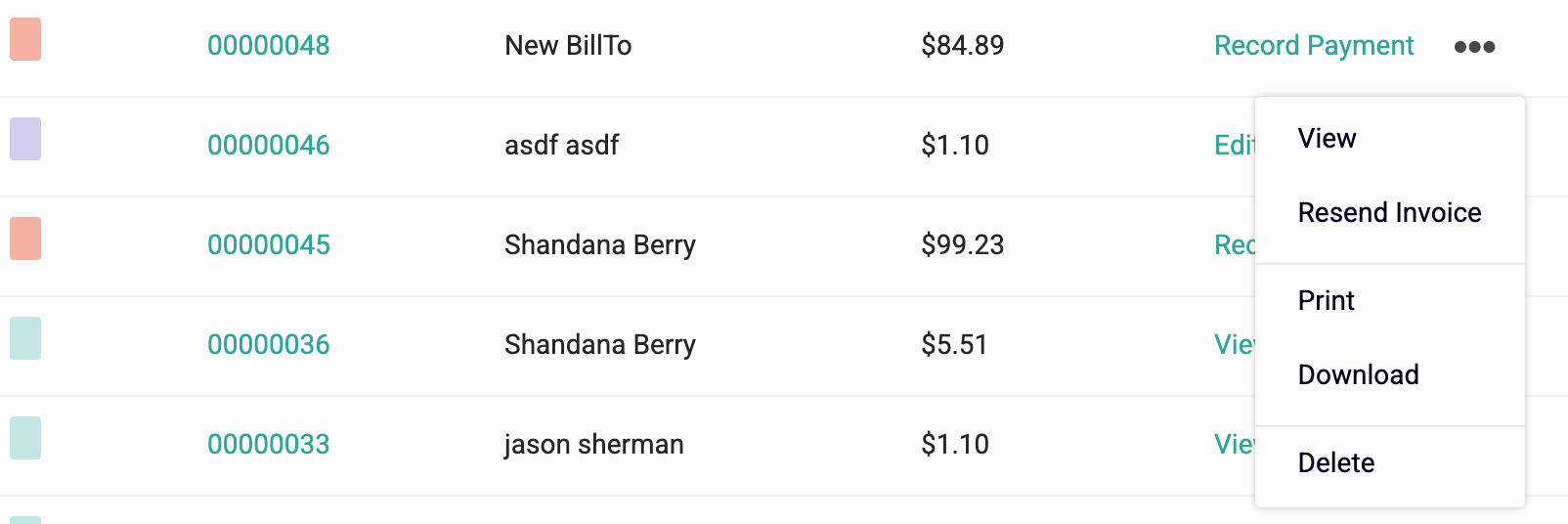
3) Confirm that you want to Delete
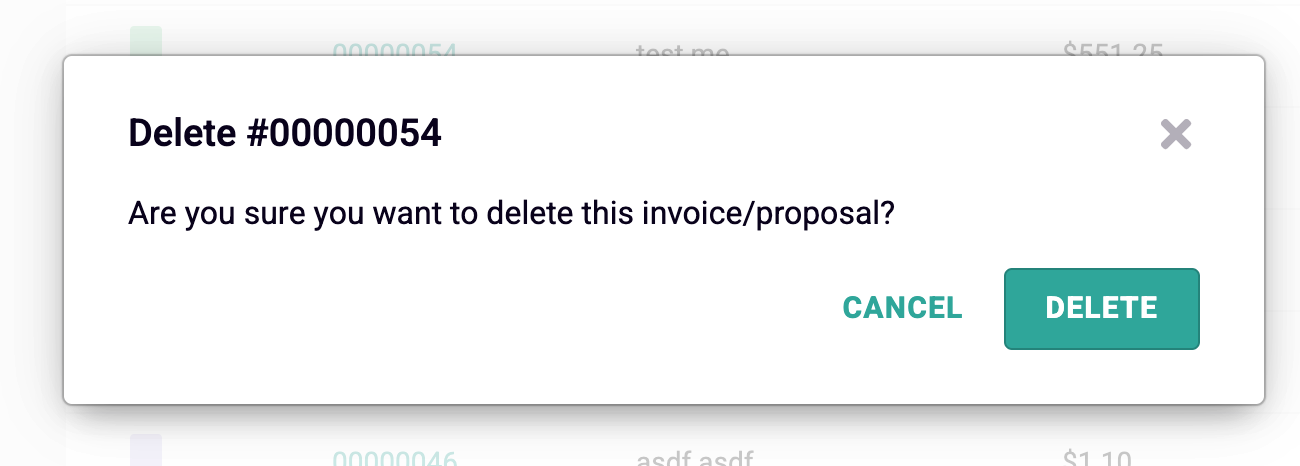
4) This will cause the invoice or proposal to be archived. When you reload the invoice page, you will not see the invoice or proposal again.
Creating an Invoice
Invoices are how you bill a customer for a service outside of your daily arrangements orders. This is the final step for you to collect payment on the services you have provided.
NOTE: At this time there is no way to process partial payments on an invoice. If you intend to accept two payments - say a down payment (or retainer), and completion fee - you must make two separate invoices.
- Go to your PoS > Invoices > Create Invoice
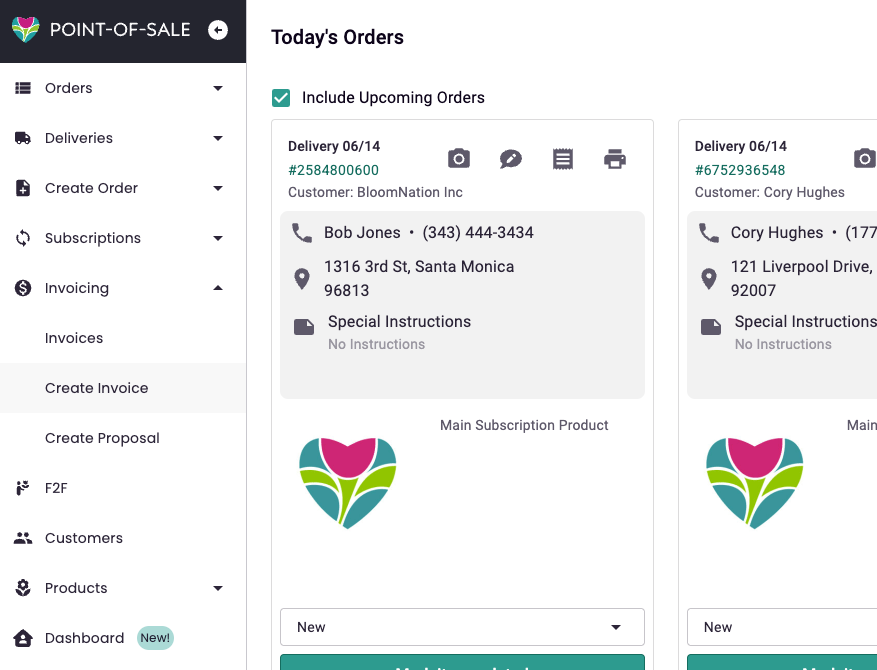
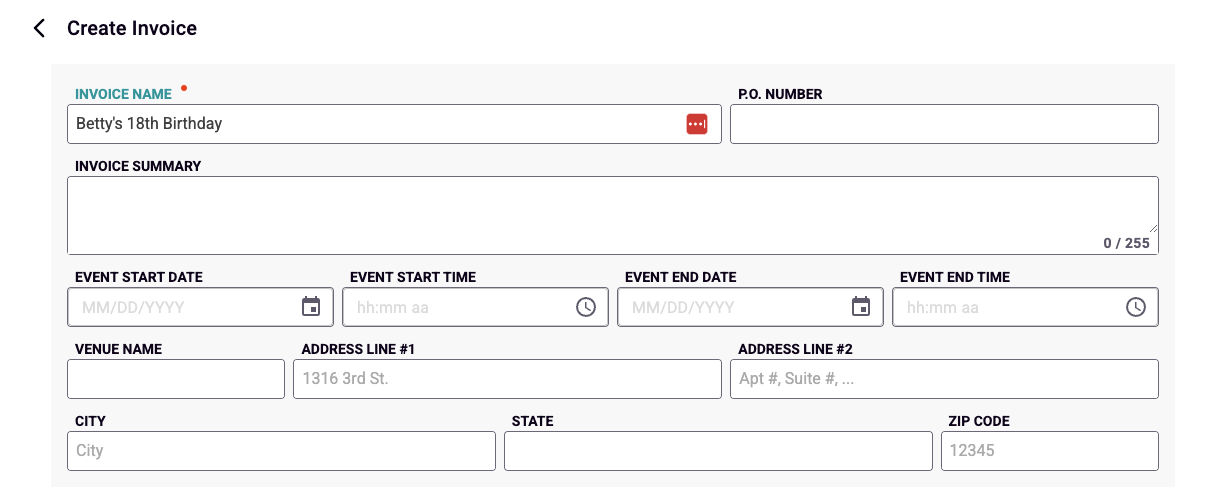
- Add information about the invoice:
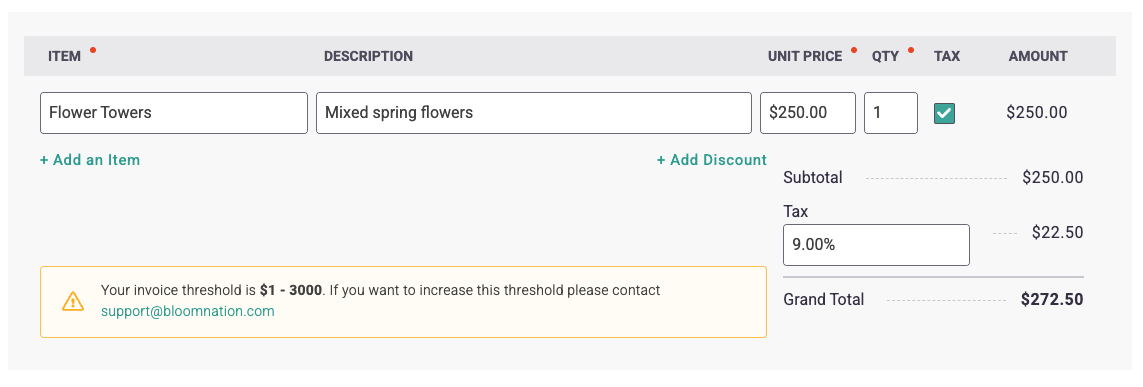
- Add at least one item and price.
- If the customer already exists in your system, you can search their name, phone number or email. If they are a new customer, you can start their profile here.

- If the bill-to information is the same as the Contact Information above, check the “Same as Contact Name” box and select or add the billing address. Otherwise, fill this out with the new information.
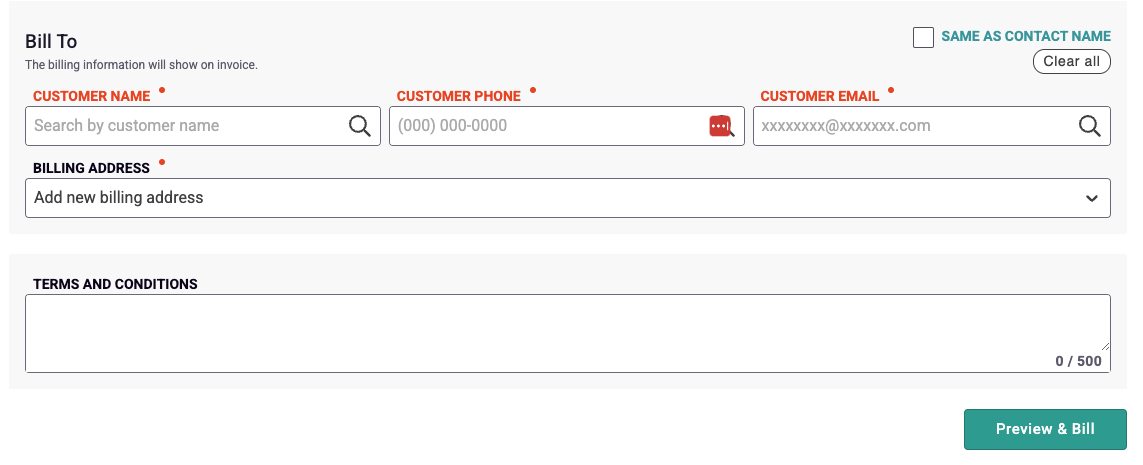
- Once you click “Preview & Bill” you will be redirected to a PDF preview of your invoice. At this point it has not yet been sent. You can review everything on this page to make sure you have entered all the correct information.
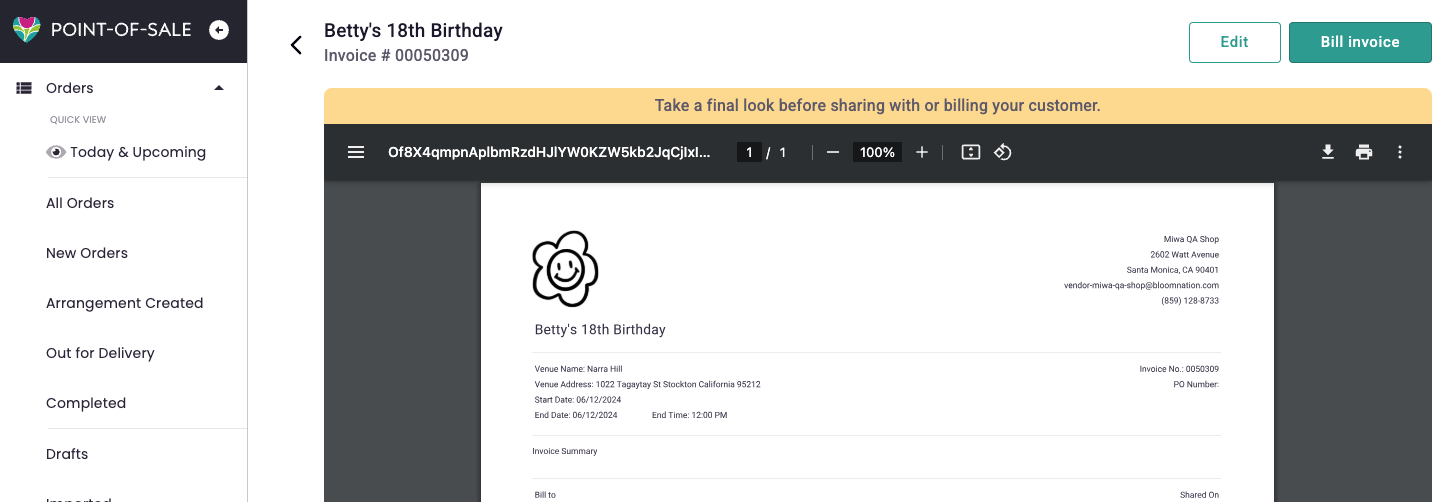
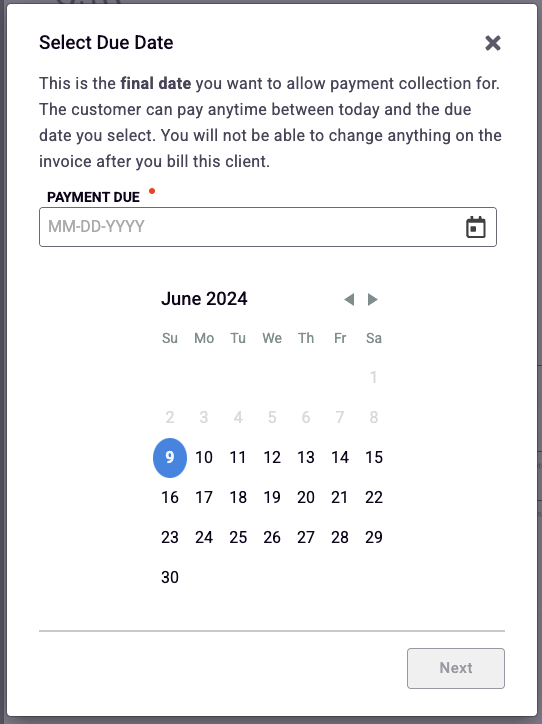
- Click “Bill invoice” and select the due date. This is the final date you want to allow the customer to make a payment and will appear on the Invoice. Payments can still be made after a due date, they will show as “Overdue” to the customer and in your Invoice dashboard.
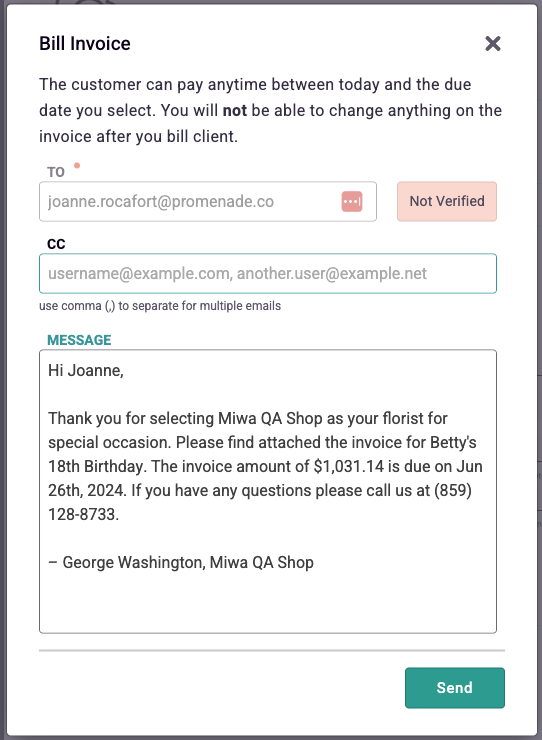
- Click “Next” and edit the text in the email you are going to send your billing customer and click "Send". You can also add additional emails to the Carbon Copy (CC) fields, just make sure they are separated by commas. Once you click "Send", your Invoice has been created and billed! All the email addresses you entered previously will receive the invoice.
Collecting Payment on an Invoice
There are a variety of ways to have a customer pay an invoice. Even if it's something as old-school as cash in an envelope our invoicing system has an option for collecting that cash, notifying the customer that the invoice was paid, and closing the books on that invoice.
At this time there is no way to process partial payments on an invoice so if you intend to accept two payments - say a down payment (or retainer), and completion fee - you must make two separate invoices.
If a customer pays their invoice in Cash, Check, or Other
1) Find their invoice under “Invoice Dashboard” either via Search or the “Unpaid” View.
2) Click “Record Payment” under the actions column.
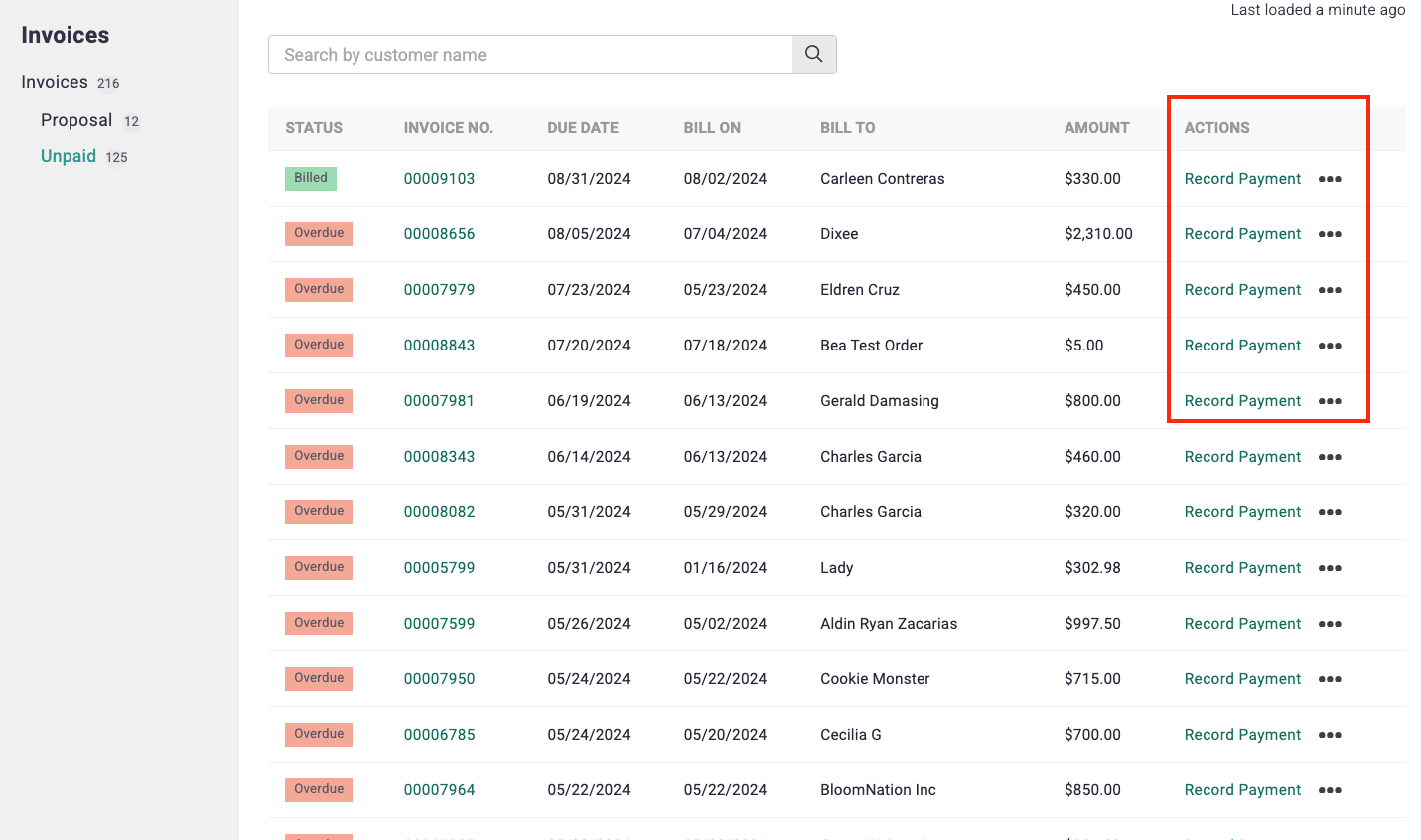
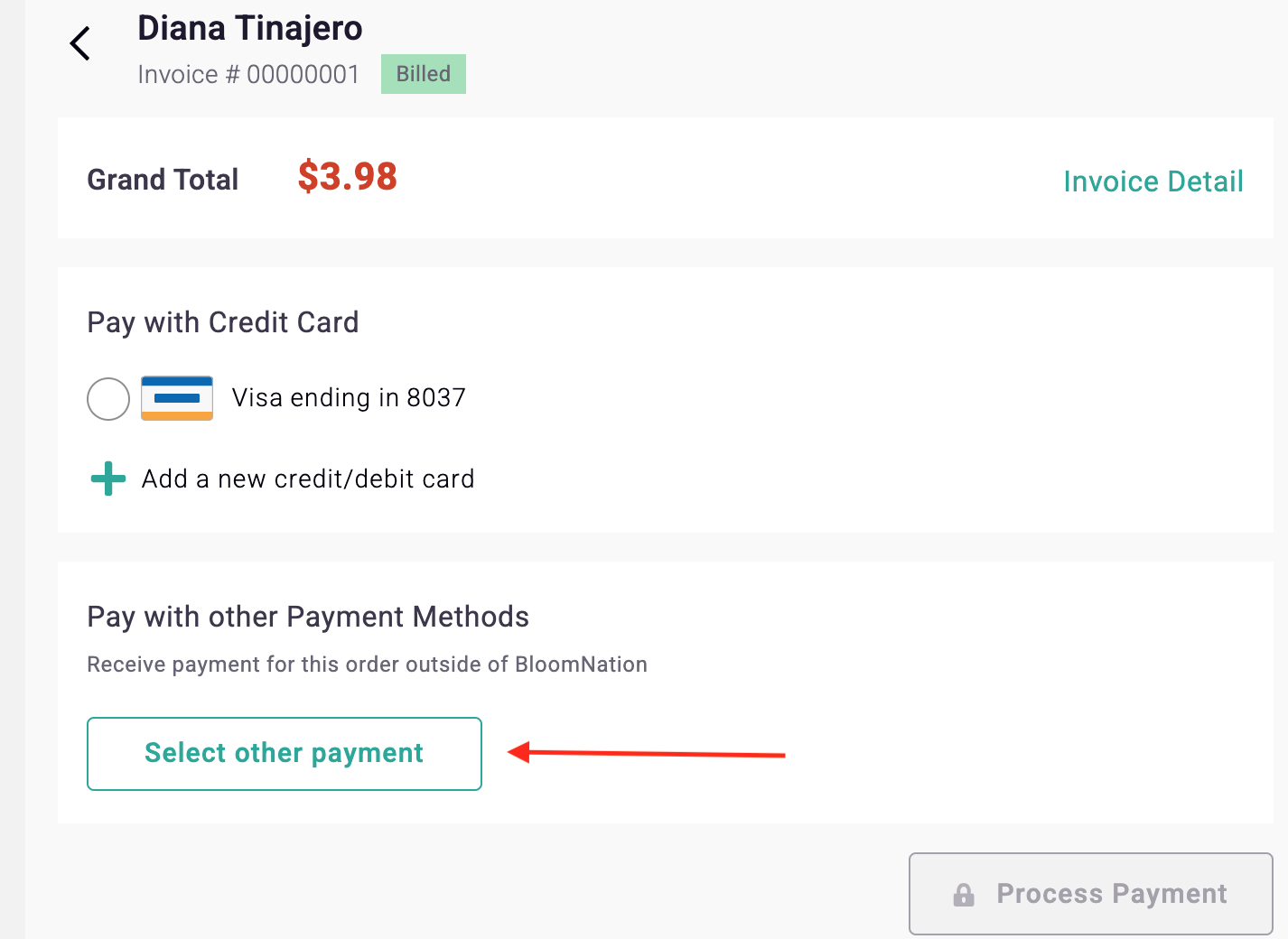
3) Click the button “Select other payment" under the Pay with other Payment Methods section.
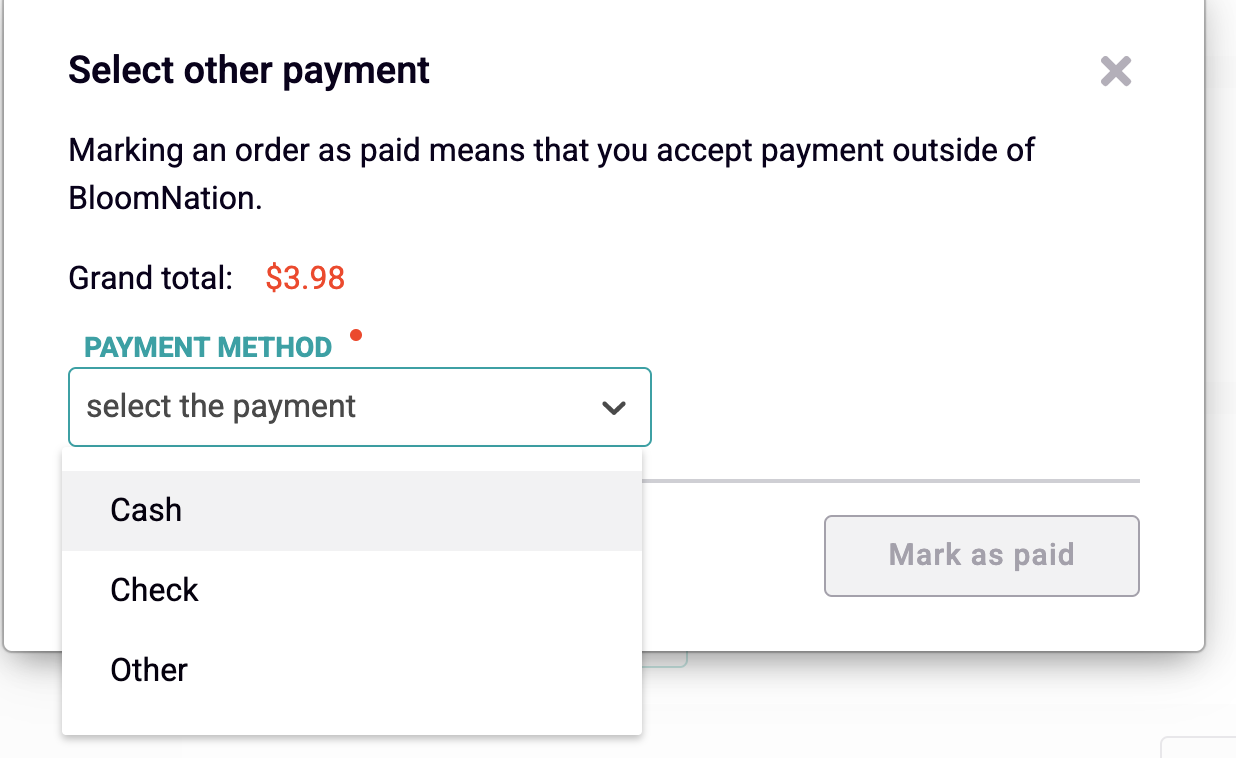
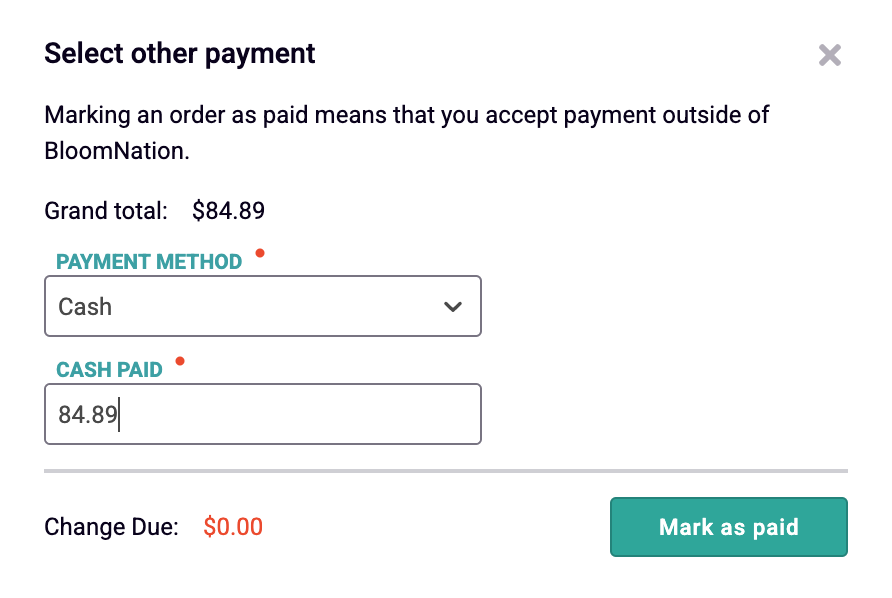
4) Choose from the drop-down what payment method they used. If cash, fill in how much cash was paid. If Other, leave a note on the type of payment method for your records.
5) Click “Mark As Paid”
6) Next you will see a confirmation on what email received the payment receipt. Due to the sensitive nature of this email including name, amount and partial information on the payment method we do not allow carbon copies of this email.
If a customer wants to pay by ACH, Debit, or Credit Card
There are two options for paying with a debit or credit card. Customers can either do it with you or do it themselves on your Premium Website. Please note - there is a processing fee of 2.9% (same as our POS system) for all payments made with ACH, Debit or Credit Card on Invoicing.
You want to be paid using the BloomNation Point of Sale
1) Find the customers invoice under “Invoice Dashboards", via Search, or the “Unpaid” View
2) Click “Record Payment” under the actions column
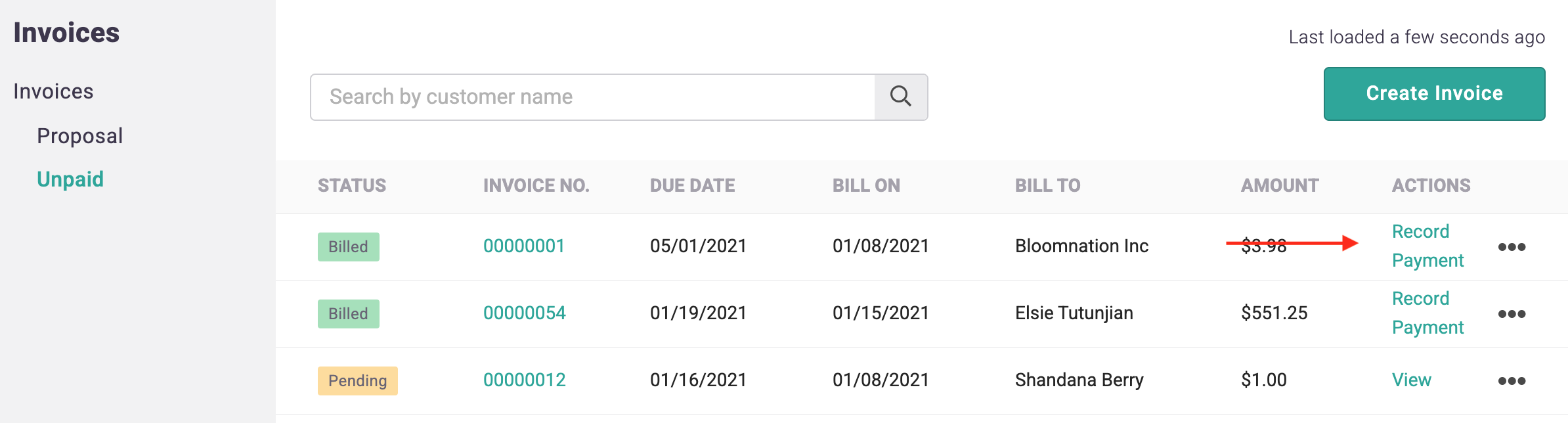
3) Select an existing Credit or Debit Card
or
add a new Credit or Debit Card to associate with the customer. Note you can use this card again if you check the box to add it to their profile.
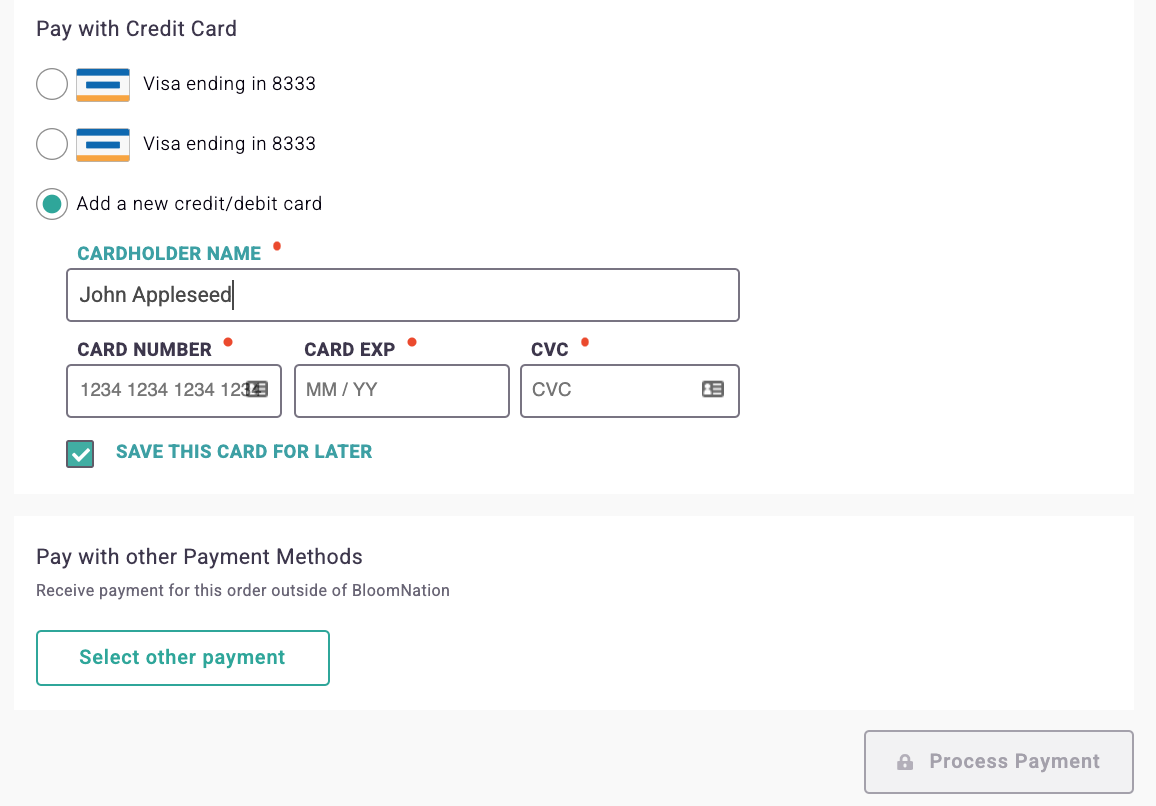
4) Click "Process Payment"
5) Next you will see a confirmation on what email received the payment receipt. Due to the sensitive nature of this email including name, amount, and partial information on the payment method we do not allow carbon copies of this email.
The Customer wants to pay on your Premium Website
No action is needed on your part for the customer to pay by themselves on your Premium Website.
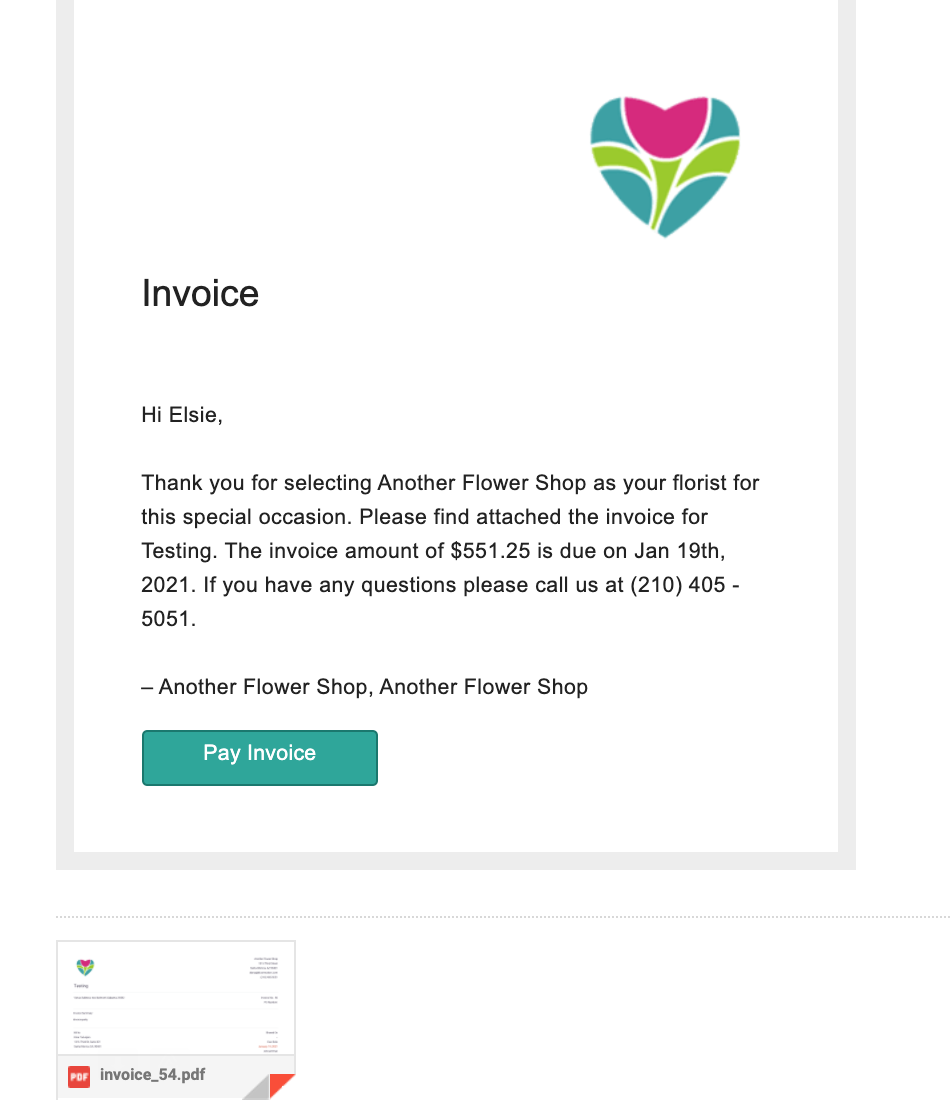
When you bill an invoice to your customer they will receive an email that has a link to their invoice center on your premium website. If they click "Pay Invoice" it takes them to your website where they can log in. If they don't have a login, they will be able to create an account with the same email on record as the Billing Contact.
After they are logged into their Account Management page, if they click "Invoice Center" they can view all their received invoices.
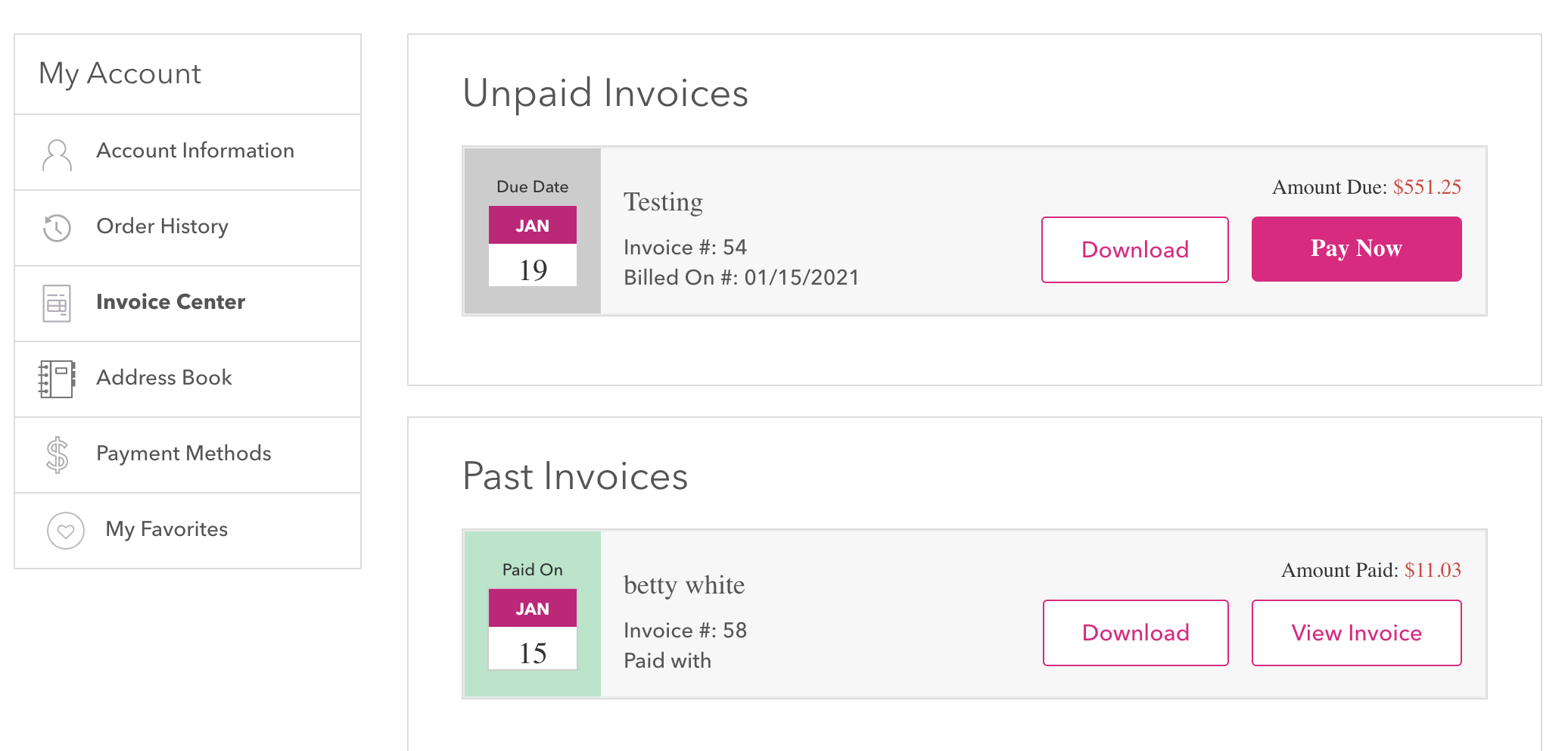
After clicking "Pay Now" it gives them the option of paying with a Debit/Credit Card or linking their ACH Account.
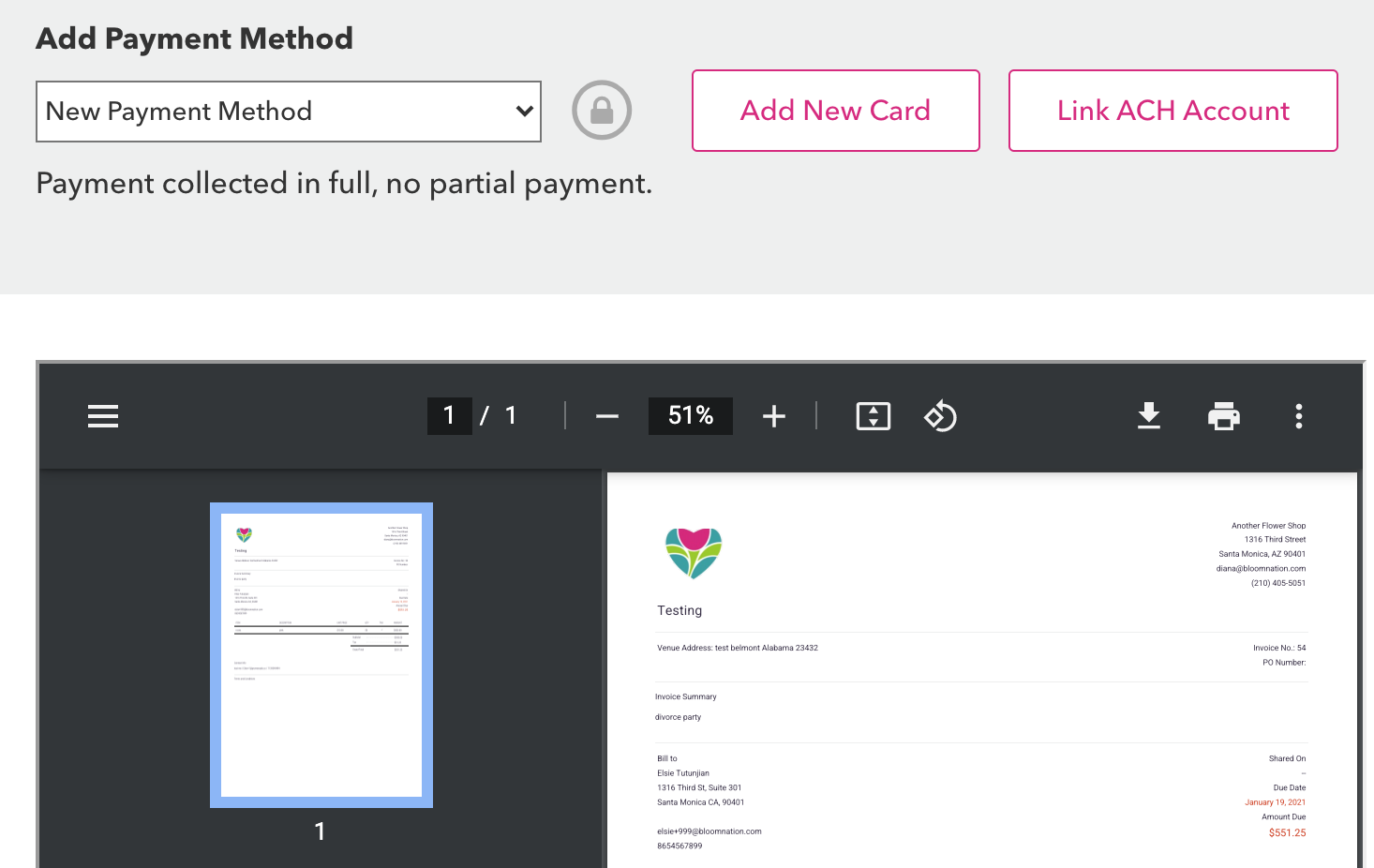
Once they have a payment method, they can select that payment method from the drop-down and click "Pay Invoice".
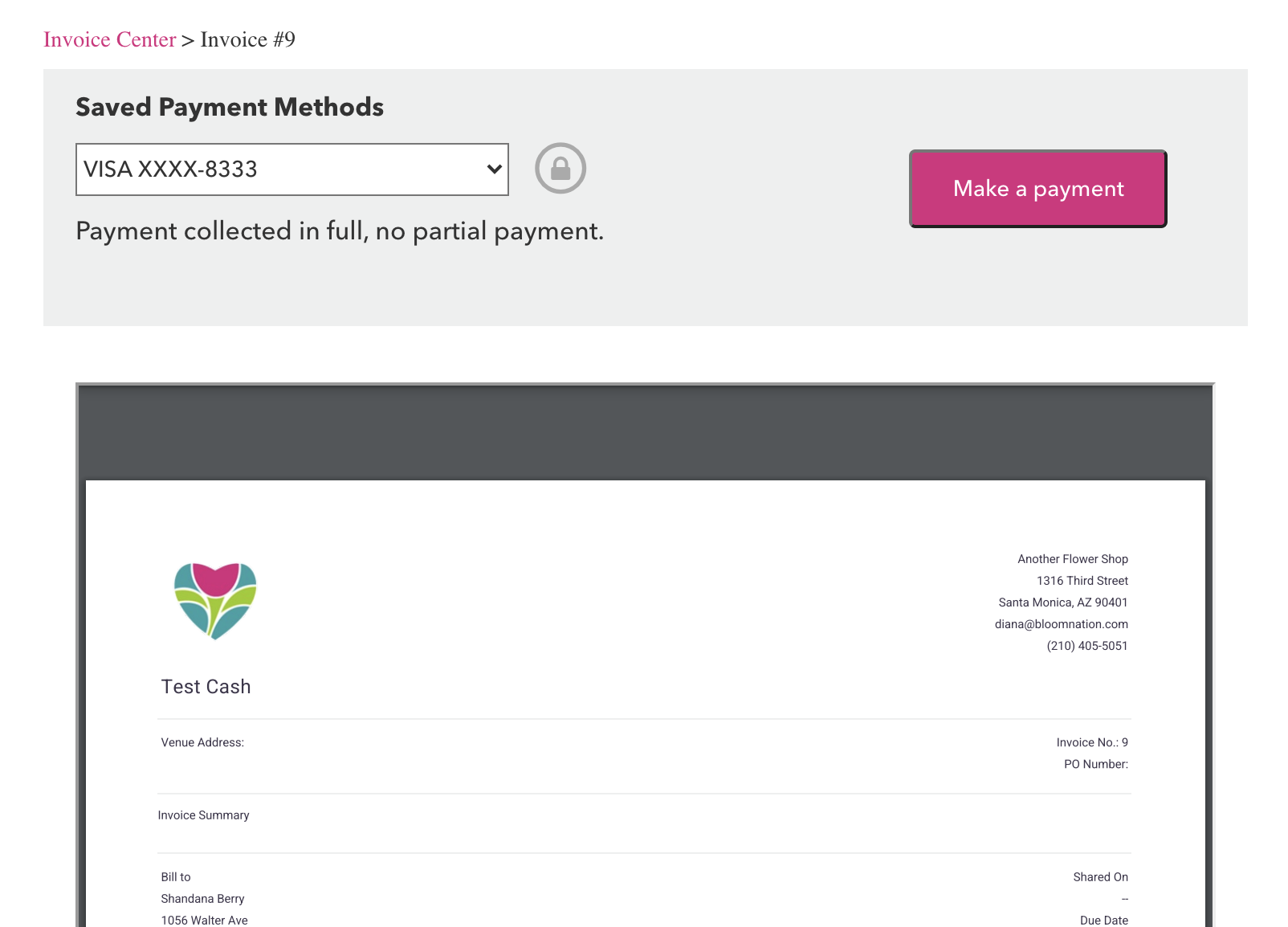
If they are paying with a Credit or Debit card we will process the invoice immediately and the payout will follow along with the normal payout schedule.
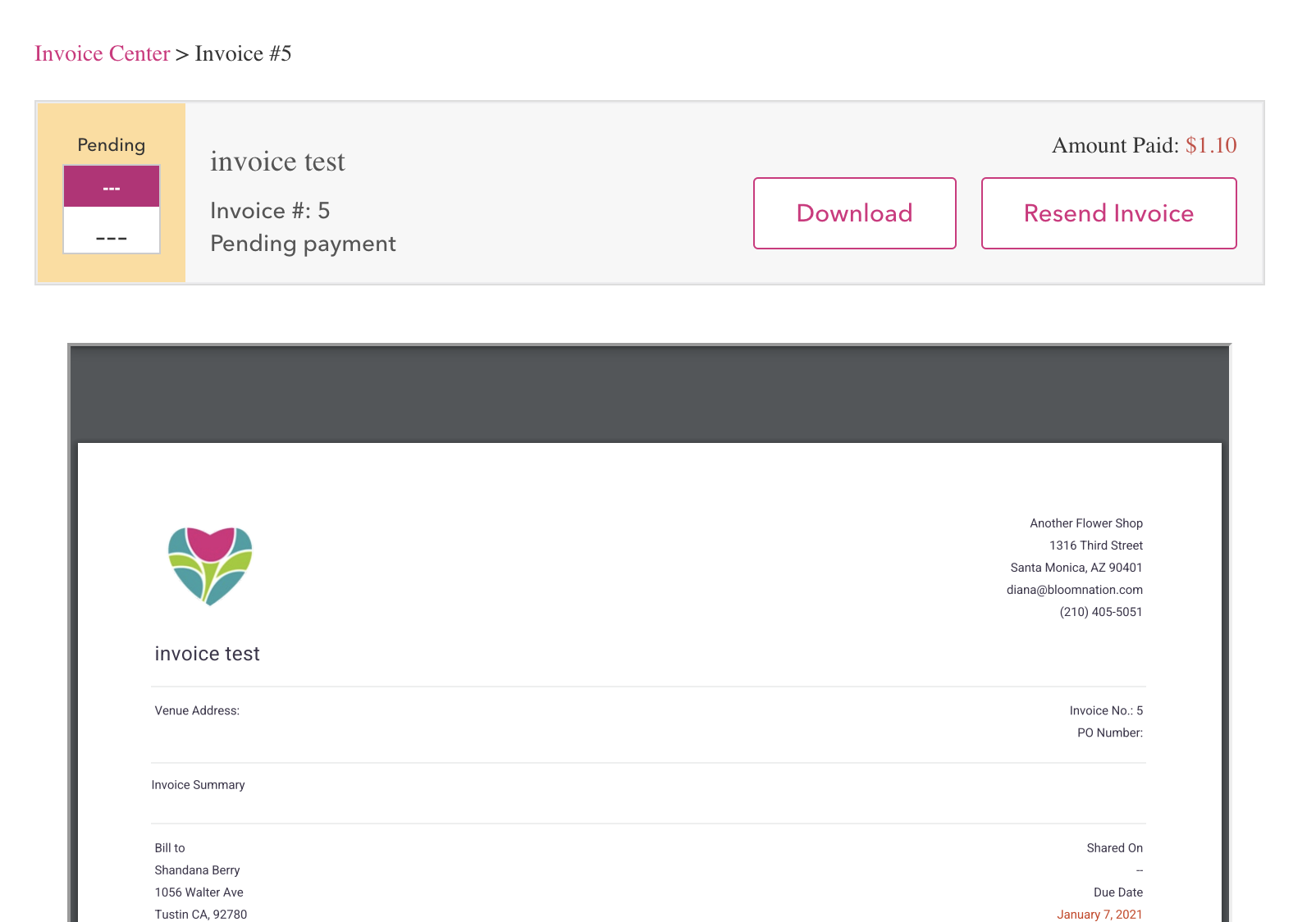
If they are paying with a ACH they will see the status move to Pending. Transactions that are direct with Bank Accounts can require 3 - 5 business days for processing. Once a transaction has successfully been debited from their Bank the Invoice will move to a Paid status and you (the florist) and the Billing Contact will receive a payment confirmation email. If for any reason a bank declines the transaction the invoice will return to a Billed or Overdue status and the customer will be alerted via email to remit payment again.
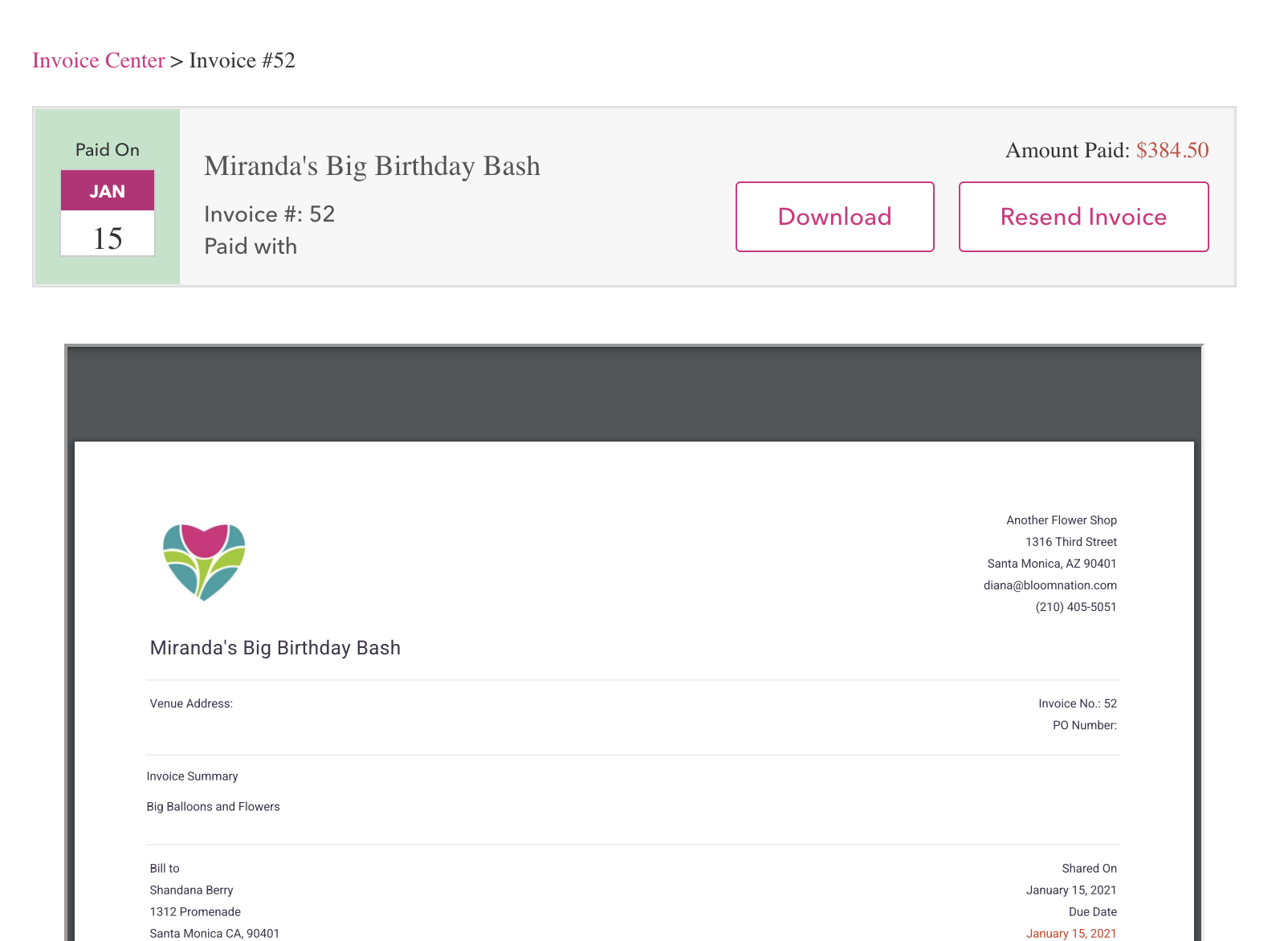
The Invoice Center on your Premium Website is a great way for customers to view, download and print old invoices for their records. Payment methods and payment dates are logged on all paid invoices. They do not host Proposals at this time as those are subject to edits.
Turning a Proposal Into an Invoice
When your client is ready to move forward with selecting you as their service provider for their event or custom order, you can easily turn a proposal into an invoice.
Follow these steps to turn a Proposal into an Invoice that you can collect payment on:
1) Open up the edit page of the proposal you intend to turn into an invoice.
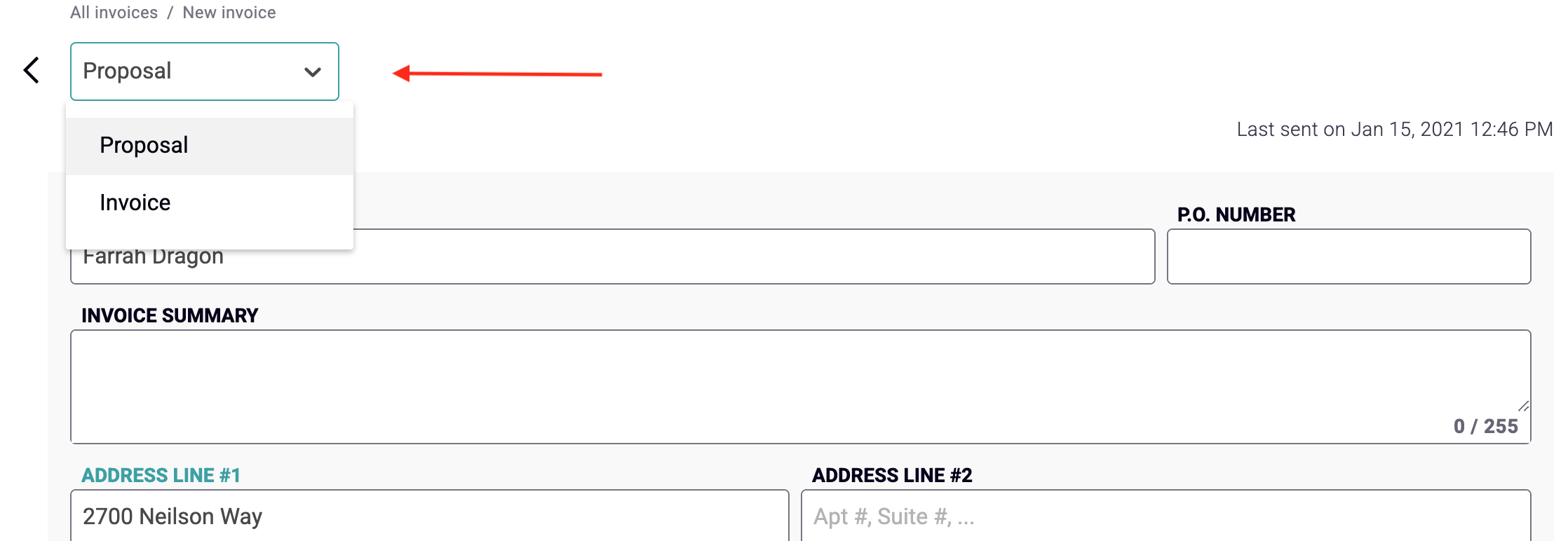
2) In the top left corner where it says “Proposal” in a drop-down, change it and select Invoice.
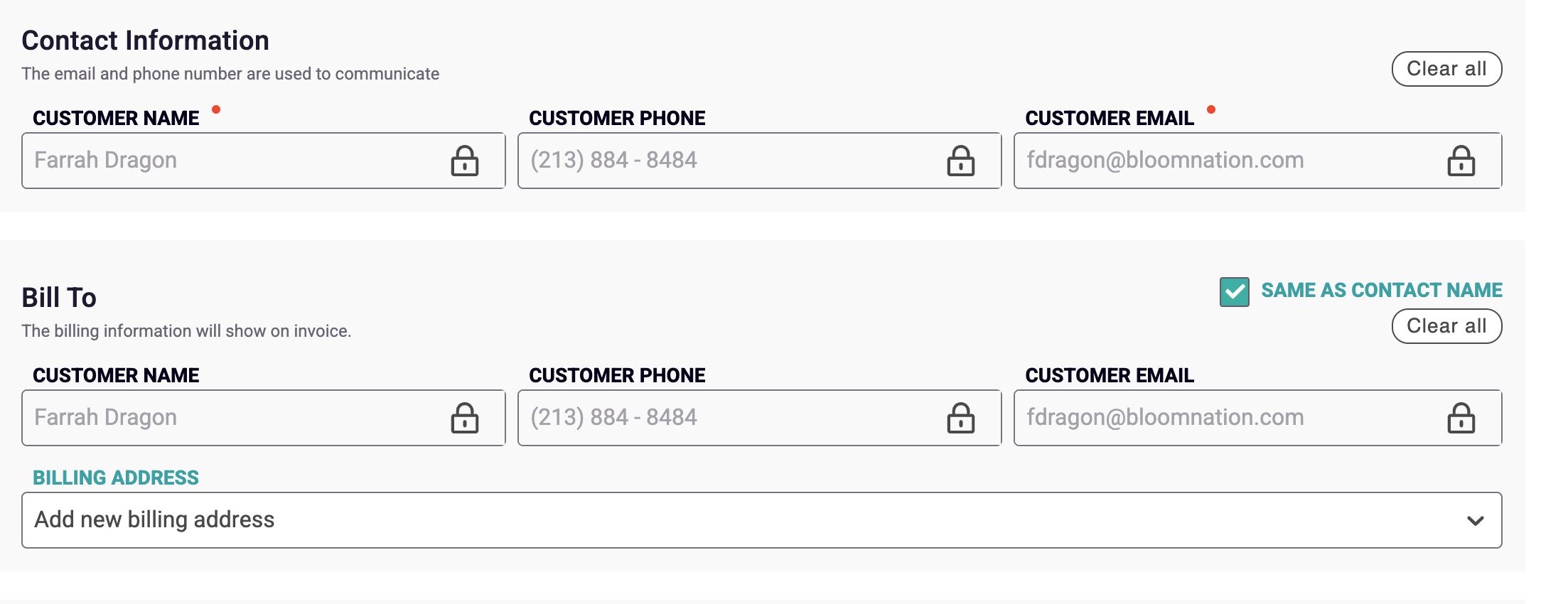
3) If you have not done so, you will need to add a Billing Contact with Billing Name, Phone, Email, and Address to send an Invoice to whoever is going to pay for the Invoice. If the customer and billing contact is the same, simply check the “same as contact name” box and add a Billing Address for that contact.
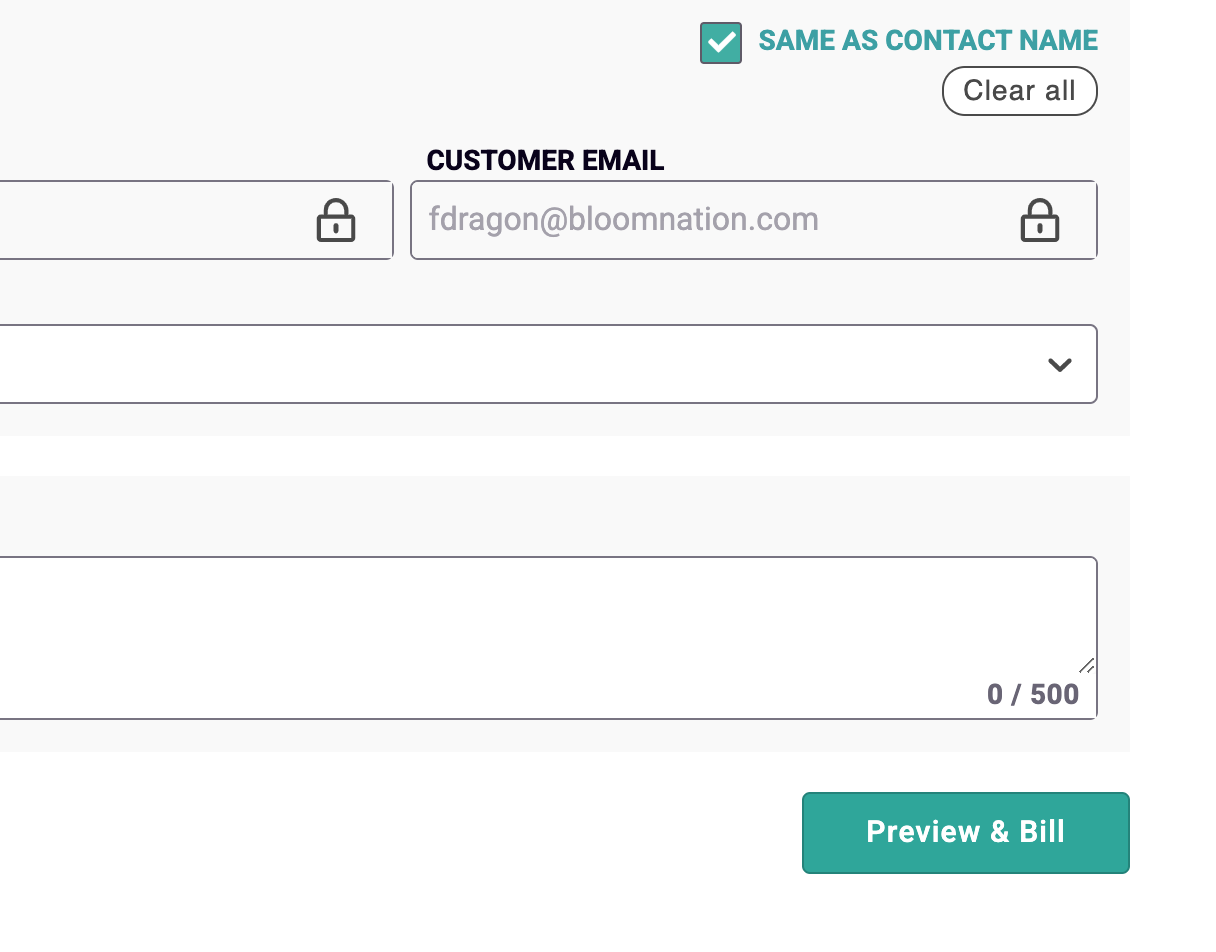
4) Click “Preview & Bill”. Review your Invoice carefully and thoroughly because you will not be able to edit it once the bill is generated.
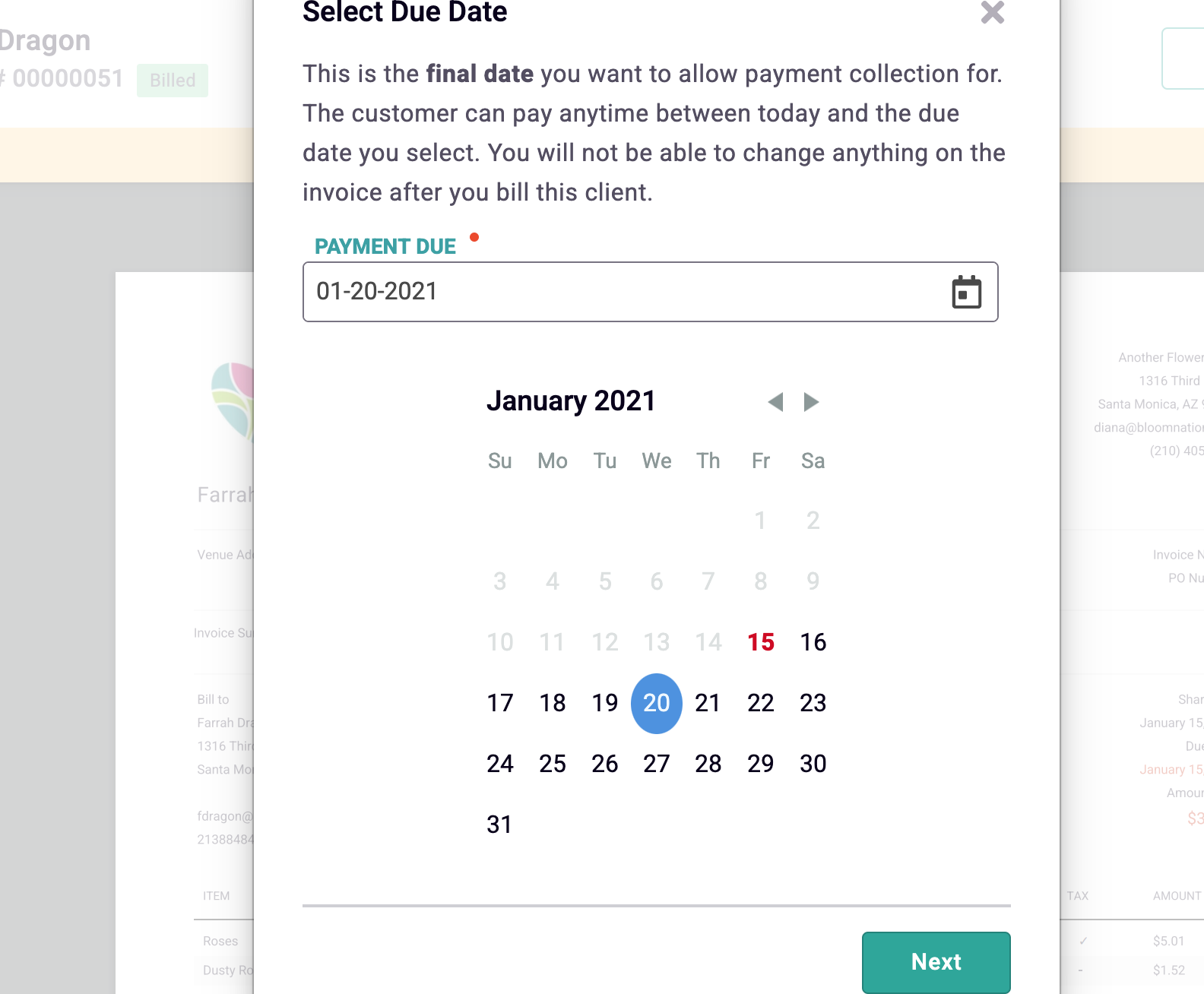
5) Click “Bill invoice” and select the due date. This is the final date you want the customer to make a payment and will appear on the Invoice. Payments can still be made after the due date, they will show as “Overdue” to the customer and in your Invoice dashboard.
6) Click "Next". If you wish, edit the email message that is sent to the Billing and Customer contact. Add additional Carbon Copy (CC) email addresses, just be sure to separate them with a comma. Once the message content is exactly how you like it, you can click "Send". Your Invoice has been created and sent!
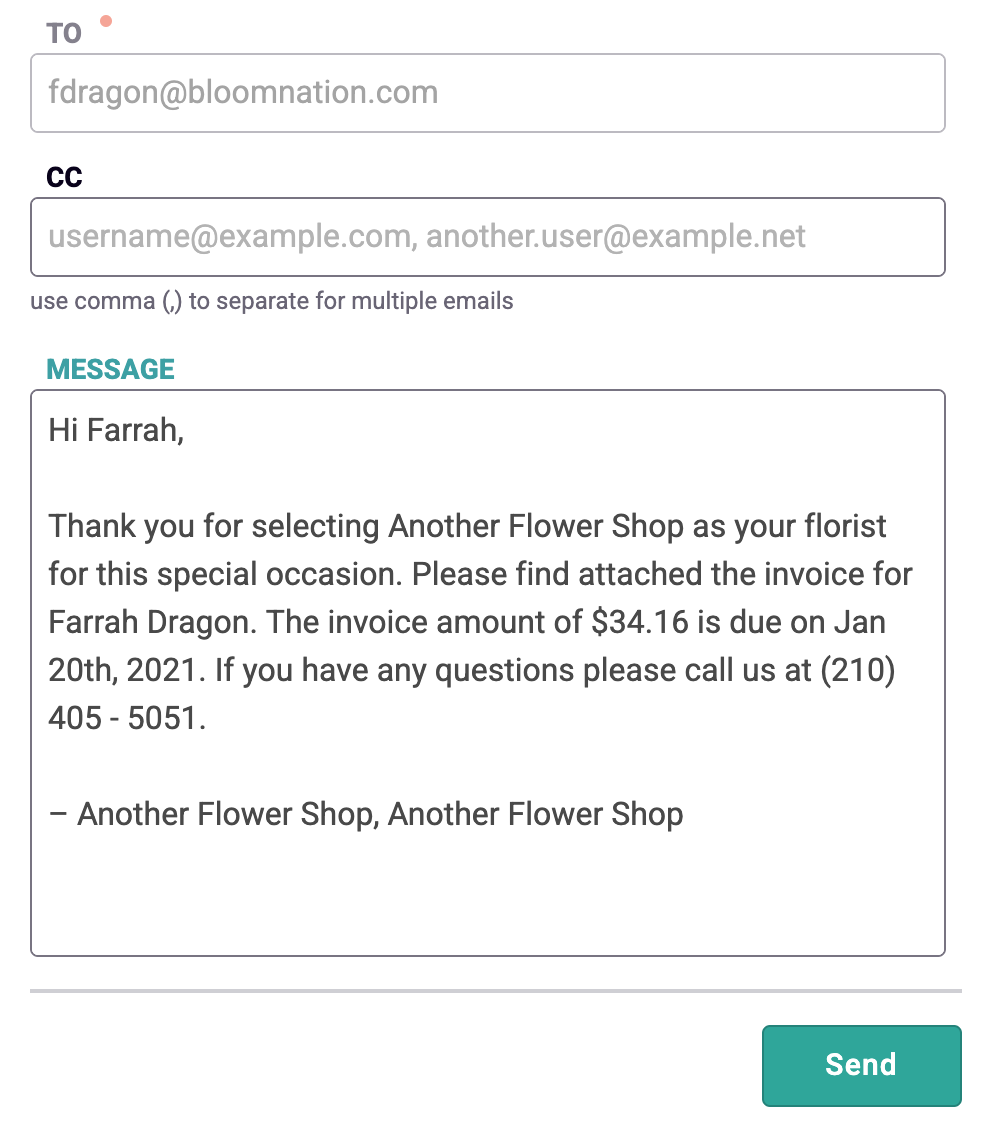
An email with the invoice as an attachment PDF has been sent to the Billing Contact and the Customer Contact. It also generates an invoice that is available for the Billing Contact to login to your Premium Website and pay the invoice directly via Credit, Debit Card or ACH.
** Something to note**
At this time there is no way to process partial payments on invoices so if you intend to accept two payments - say a down payment (retainer) and completion fee - you must make two separate invoices.
Invoices in the CRM
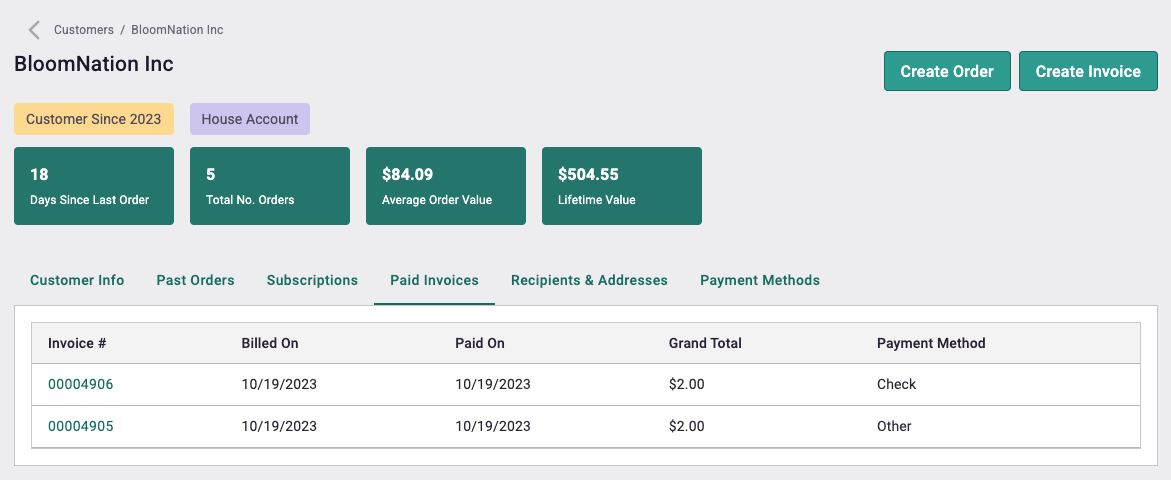
Paid invoices appear on the Customers > Search a customer > customer's profile under a new Tab called "Paid Invoices". This tab only appears for Paid invoices. Proposals and Unpaid invoices can be found on the PoS > Invoicing > Invoices.
You can click on the Invoice # to open the page that has all the details including internal notes associated with the paid Invoice.
Understanding Proposal and Invoice Fields
This describes the purpose and function of each field within the Invoice and Proposal form. The fields within the Invoice and Proposal forms are exactly the same. When you create a Proposal the Billing Contact and Address is not required but when you create an Invoice the Billing Contact and Address are required so you can directly collect payment.
Invoice Title: This will show on the communication and serve as the Name of the Invoice or Proposal. This is a required field.
PO Number: This is an open text field that will be displayed on the Proposal and Invoice to you and the customer digitally and in print. It can be useful for corporate invoices that require financial designation. This is optional.
Venue Address: If there is a specific location for the Event you can enter it here. This is optional.
Invoice Summary: This is an open text field to help you add any description or specifics about the event that is important to you and the customer. This will display on the Proposal and Invoice for yourself and the customer. This is optional
Line Items: This is where you can add the specifics of each item. This is not attached to your catalog and can include anything you need to invoice for including fees or labor. At least one line item is required for Proposals and Invoices. You can also add in a payment processing fee here if you want.
Price: This is where you set the price of a specific line item. A price is required for every item. Negative prices are not accepted, you can use the discount field to populate a discounted % or fixed amount on the entire proposal or invoice.
Quantity: This is where you specify the volume of a specific line item. At least one quantity item is required for Proposals and Invoices.
Tax checkbox: this is where you can apply or remove sales tax to a specific line item
Discount: this can be a percentage or fixed amount discounted to the proposal or invoice. You can use this yourself by clicking “Add discount” button
Tax field: This is where your default tax rate is populated from your store settings but can be overridden if needed
Internal Notes: These are notes for you and will not be viewed by the customer or inserted into the Proposal, Invoice, or any emails. You can only view the content when editing the proposal or viewing the Detail Page
Customer Contact: You can search or add new customer contacts to review a Proposal or attach them to an Invoice. All customer contacts require Name, Phone, and Email. Without an Email Address, a customer cannot receive proposals or invoices.
Billing Contact: You can search or add a new contact to be Billed an Invoice. Use the “Same as Contact Name” checkbox to use the same person in the Customer contact. A Billing Name, Phone, and Email are required for Invoicing but not to share a Proposal.
Billing Address: This is the billing address associated with the Billing Contact. This is required for Invoicing but not to share a Proposal.
Need Assistance?
For additional assistance with Invoices and Proposals, please reach out to our support team by submitting a ticket.