
Tipping
Tipping Overview
With order tipping, customers can show their appreciation for your work by adding a tip during checkout. Tipping is a tax-free and discount-exempt charge available on Premium Sites, POS, and Invoices, and you can manage tipping through your BloomNation Dashboard.
In this Article:
- How Do I Enable and Customize Tipping?
- What Customers See When Tipping is Enabled
- How Tips Are Calculated
- How We Pay Out Tips
- I Have Tipping Enabled But I Don’t See Any Tips
- I Need To Refund An Order, What Do I Do With The Tip?
How Do I Enable and Customize Tipping?
Flexible Tipping Options
You can customize tipping in two different places, depending on how customers are paying:
- Website checkout:
Dashboard > Checkout Settings > Payment Information - Invoices:
Events & Invoices > Settings > Tip Settings
Each location is managed separately, allowing you to configure tipping differently for online orders and invoices.
Available tip modes include:
- Percentage tips – Suggested tips are shown as a percentage of the order subtotal.
- Flat amount tips – Suggested tips are shown as fixed dollar amounts.
- Threshold (Dynamic) – Suggested tips switch from percentage-based to flat dollar amounts once an order reaches a set total.
Note: Card reader tipping is percentage-based and cannot be customized.
Website Checkout Tipping Setup
- Log into your account.
- Navigate to My Website and click Checkout Settings.
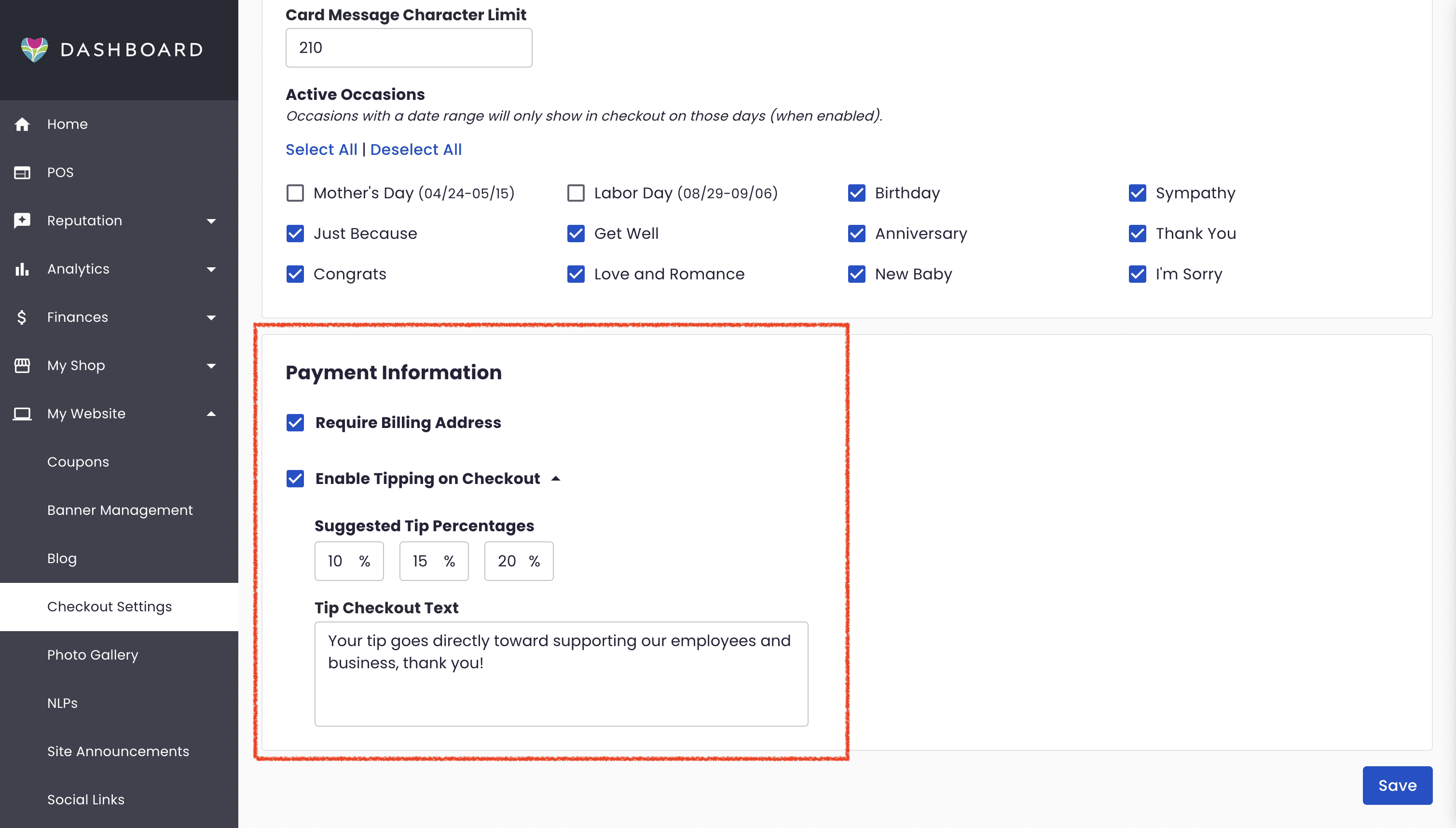
- In the Payment Information section, toggle on Enable Tipping on Checkout.
- Select your preferred Tip Mode.
- Click Save.
You can also customize the Tip Checkout Text shown to customers during checkout.
Note: If you turn on tipping and use hypertickets, please contact Florist Support at floristsupport@bloomnation.com to update your ticket formatting.
What Customers See When Tipping is Enabled
When customers begin checkout, the Tip field appears in the Order Summary and is labeled “TBD” until the payment step.
- Suggested tip options based on your selected Tip Mode
- An option to enter a custom tip amount (minimum $1)
- Your custom Tip Checkout Text
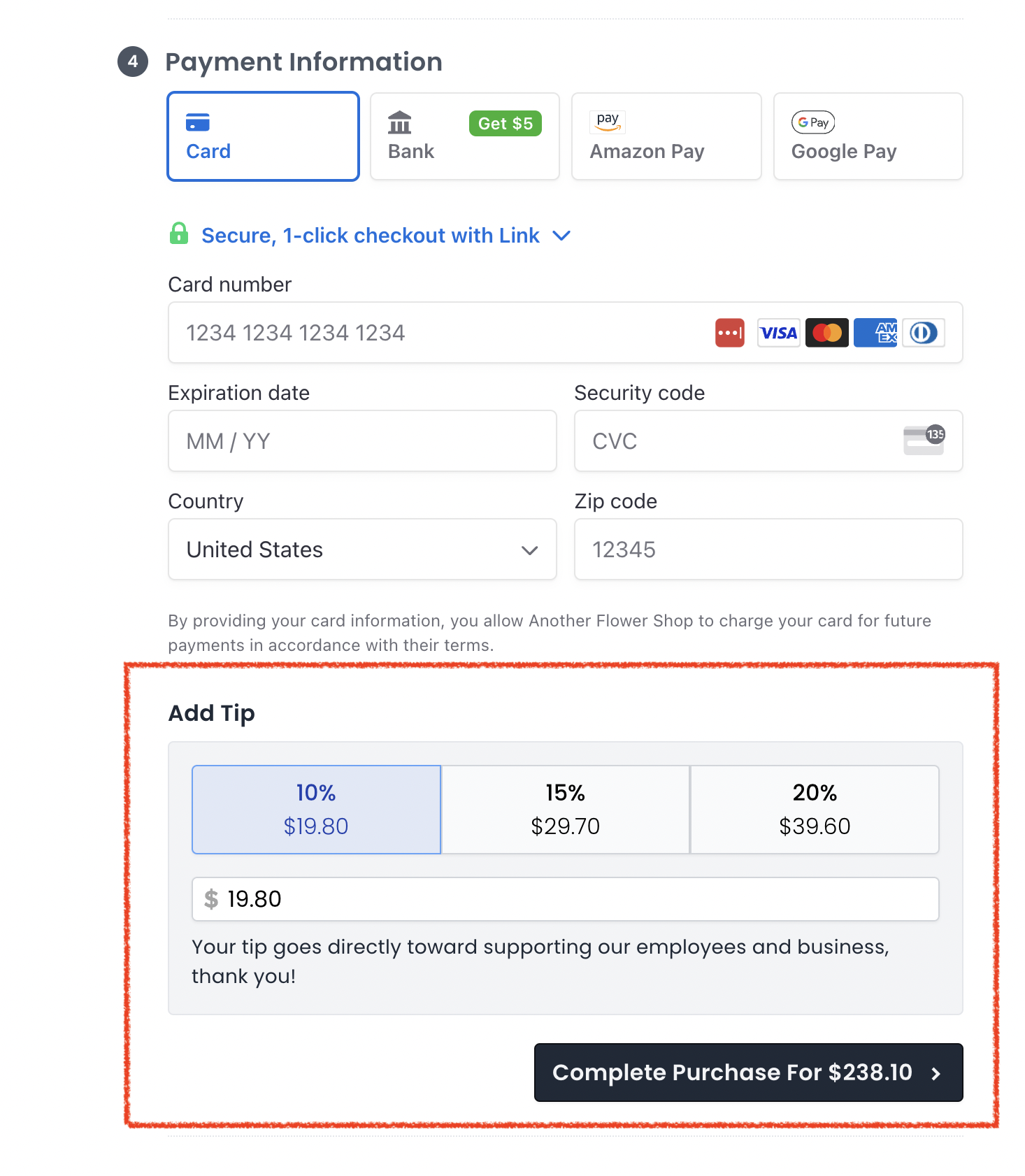
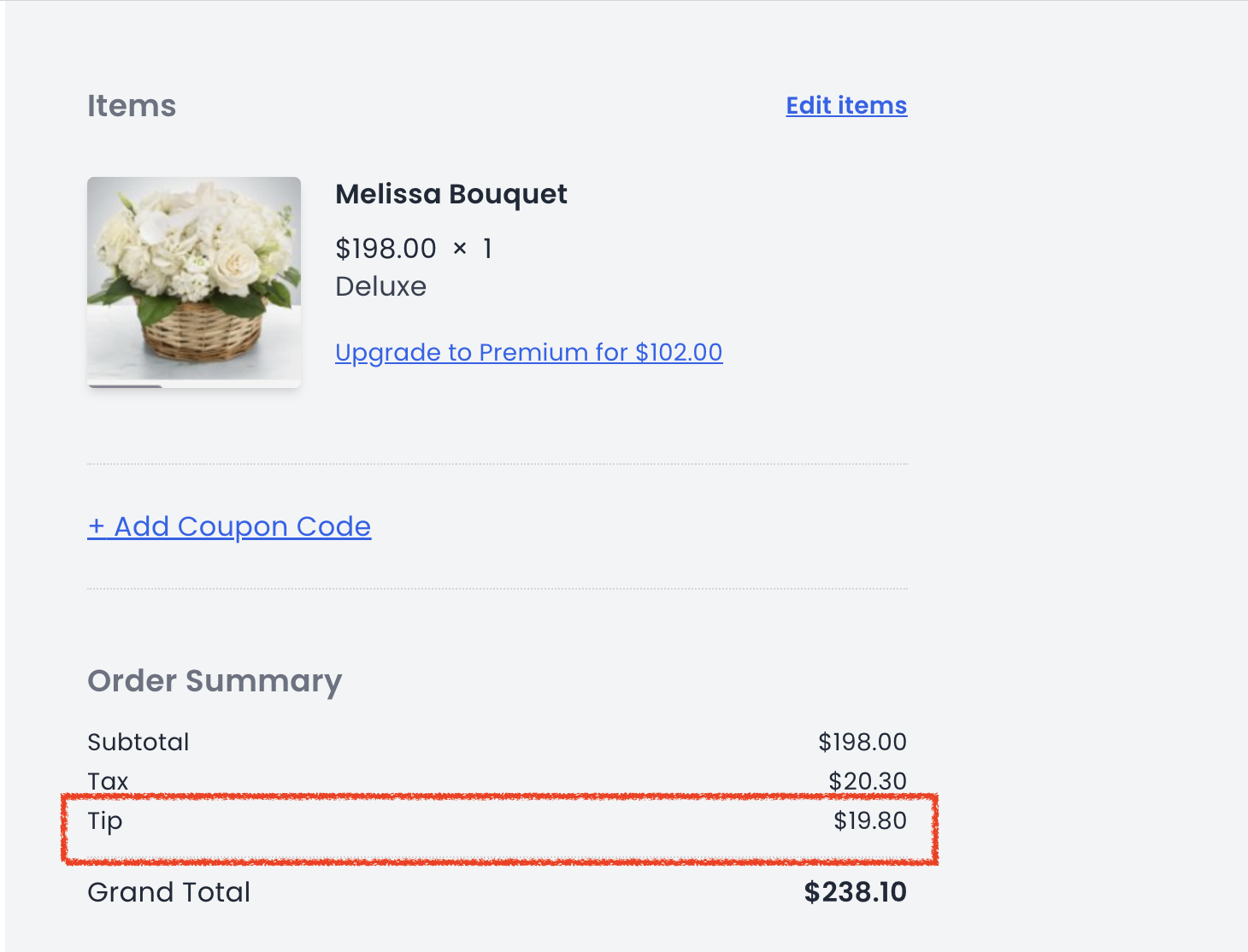
Once a tip is selected, the Order Summary updates immediately and the tip is added to the Grand Total. Customers can adjust the tip before completing their order.
How Tips Are Calculated
Tips are never taxed, and discounts do not apply to tips.
Percentage tips are calculated on the product subtotal before discounts.
Flat amount tips are added as the selected dollar amount.
Threshold (Dynamic) tips automatically switch from percentage-based suggestions to flat dollar amounts once the order reaches the threshold you set.
How We Pay Out Tips
Tips are paid out with the rest of the order. You can track tips in the TIPS column of your Payouts table.
BloomNation does not take revenue share on tips. Credit card processing fees apply to the full order total.
Example:
- Customer Tip = $10.00
- Transaction Fee (2.9%) = $0.29
- Your Payout = $9.71
I Have Tipping Enabled But I Don’t See Any Tips
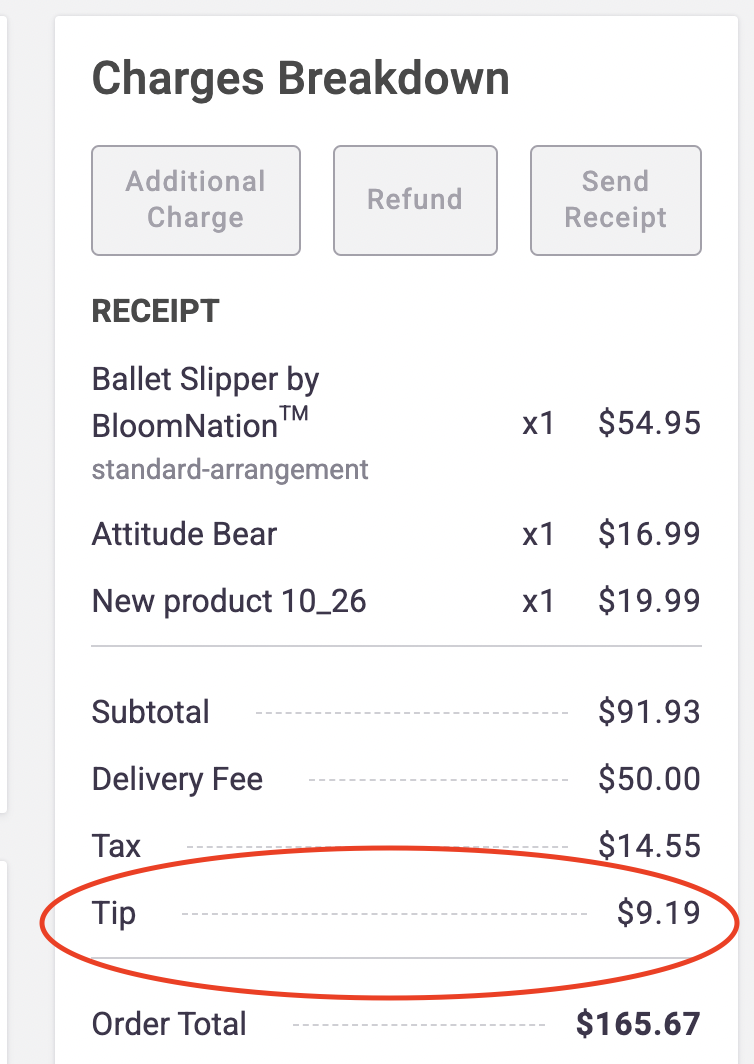
Orders placed on your Premium Site after tipping is enabled will show a Tip line item. If the customer chooses not to tip, the amount will show as $0.
Marketplace orders do not support tipping.
I Need To Refund An Order, What Do I Do With The Tip?
When issuing a refund, you can refund all or part of the tip, just like the rest of the order.
If a full refund is processed, the entire tip is automatically refunded.
For more details, see Processing a Refund .