
House Accounts: Set Up and Manage Accounts
Overview
House Accounts in BloomNation POS let you offer pay-later billing to your regular business customers, like funeral homes, hotels, churches and schools. They order whenever they need flowers and pay on one statement, which makes your shop easy to work with and keeps their business coming back. You set each account's credit limit and billing schedule, then track balances and payments in one place.
Billing types
Every House Account uses one of two billing types. Pick the one that matches how your customer likes to pay.
- Rolling balance: Works like a credit card. The customer has one running balance they can pay down anytime, without waiting for a statement.
- Statement based: The traditional way. Orders are grouped into statements by billing cycle, and the customer pays against each statement.
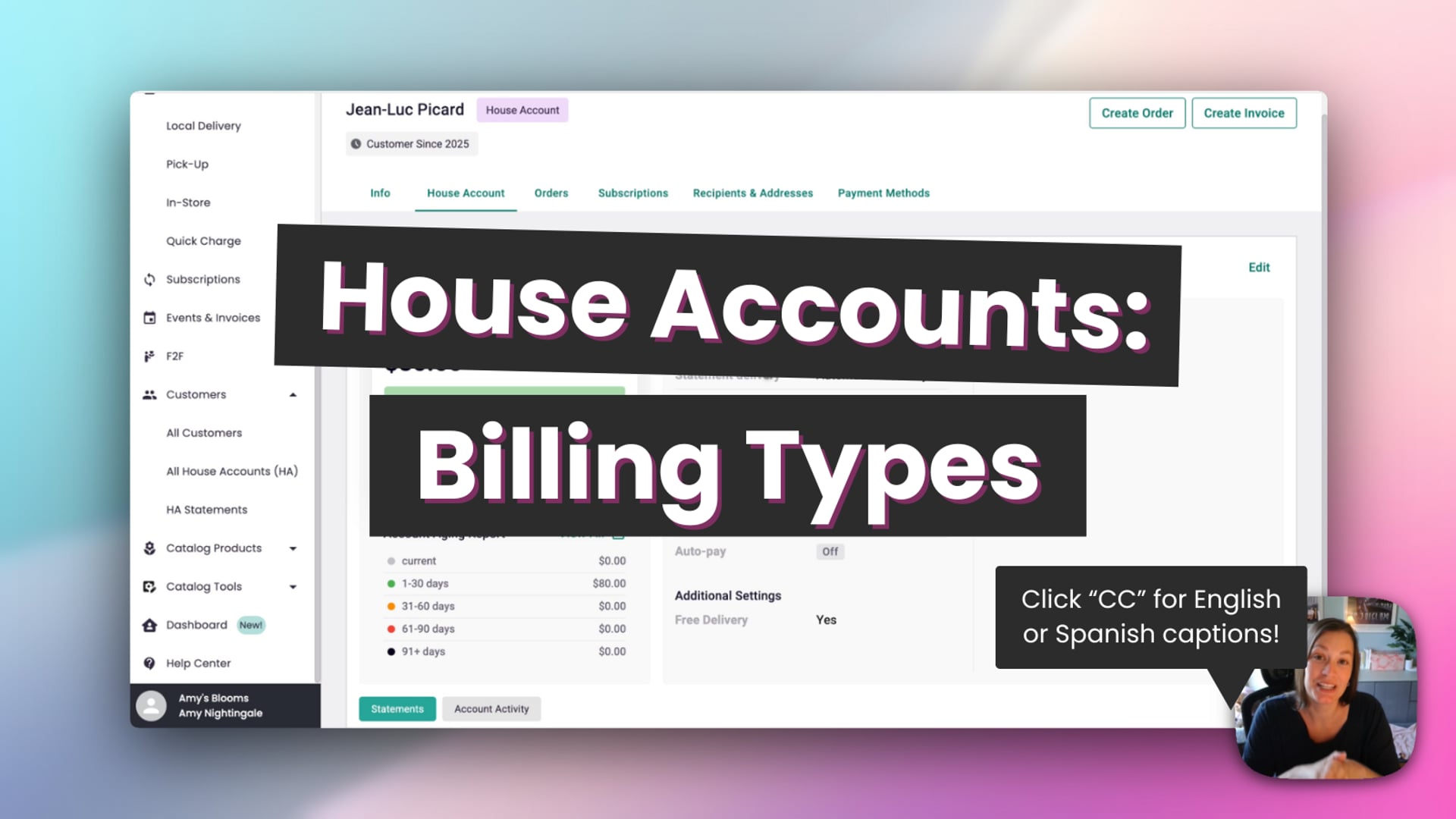 House Accounts: Billing Types
How to create a House Account
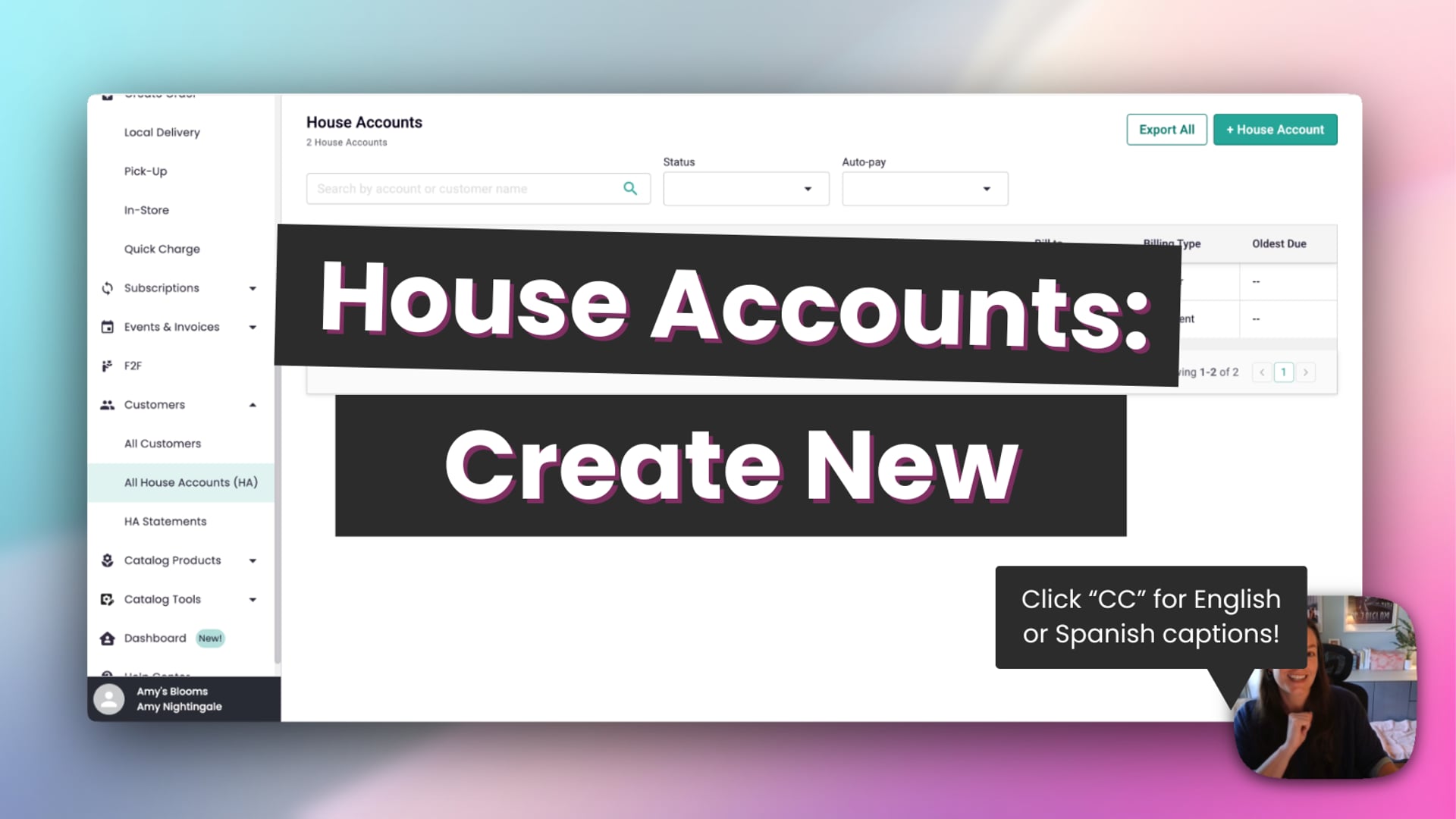 House Account: Create New
- In the POS, go to Contacts → All House Accounts (HA).
- Click + House Account.
- Under Contacts, search for the customer and add them. Every House Account needs at least one customer.
- Enter a House Account Name.
- Choose a Billing Type: Rolling Based or Statement Based.
- Choose Statement Delivery: Manual (you choose when to bill) or Automatic (sent on a set schedule).
- Set any other options you need. See Account settings.
- Click Create Account.
For automatic statement schedules, see House Accounts: Create, Print and Send Statements.
Account settings
Set these when you create an account, or change them later by opening the account and clicking Edit.
- Contacts and Default Bill To: Add several customers to one account, like everyone at a business who orders. The Default Bill To contact receives statements, is responsible for payment and is the only one who can pay or use autopay.
- Credit Limit: The most the account can owe at one time.
- Late fees for this account: Use your shop's late fee, set a custom amount or turn it off. See House Accounts: Late Fees.
- Auto-Pay: Charge a saved card automatically on the due date. See House Accounts: Collect Payments and Issue Refunds.
- Tax Exempt: Don't charge sales tax on this account's orders. Enter the customer's tax ID.
- Free Delivery: Waive delivery fees on this account's orders.
- Email Notifications: Email statements and alerts to the Default Bill To contact. Turn this off if you print and mail statements.
- Notes: Anything your team should know, like preferences or special instructions.
Managing House Accounts
Go to Contacts → All House Accounts (HA) to see every account with its balance, aging and autopay status. Search by account or customer name, or filter by Status (Paid, Unpaid or Overdue) and Auto-pay. Click Export All to download the list.
Click an account to open it. You'll see:
- Outstanding Balance: Everything owed, including new orders not on a statement yet, unpaid statements that aren't due yet and overdue statements.
- Available credit: How much of the credit limit is left.
- Account Aging Report: Balances that are current, 1 to 30, 31 to 60, 61 to 90 and 91+ days past due.
- Billing Information: Billing type, statement schedule, next due date, late fees and autopay.
- Account Users: Every customer on the account, with the Default Bill To marked.
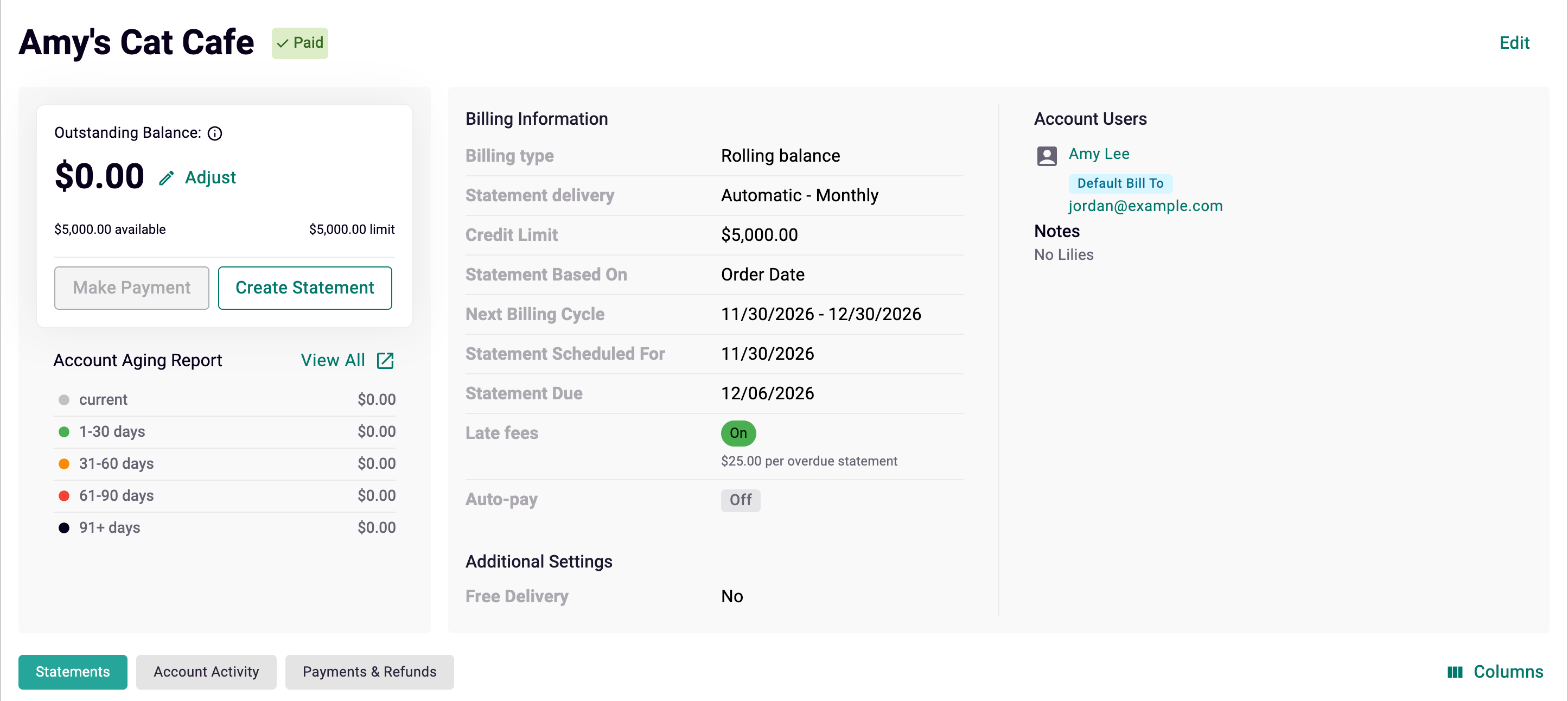
From here you can Make Payment, Create Statement or Edit the account. The tabs at the bottom show:
- Statements: Every statement for the account. See House Accounts: Create, Print and Send Statements.
- Account Activity: A log of orders, statements, payments, refunds, adjustments and user changes, with a filter by activity type.
- Payments & Refunds: Every payment and refund. See House Accounts: Collect Payments and Issue Refunds.
How to adjust a balance
Use an adjustment to correct a balance or give a credit.
- Open the account and click Adjust next to the balance.
- Enter an amount. A positive amount charges the account, and a negative amount credits it.
- Add a note if you'd like.
- Click Add Reconciliation.
Deactivating or deleting a House Account
When a customer stops ordering on account, you can close it out in one of two ways. Deactivating stops new charges but keeps the account and its history on record. Deleting removes the House Account as a payment option entirely.
- Open the account and click Edit.
- Scroll to the bottom of the Edit House Account panel. You'll see the account's status, like Status: Active.
- Click Deactivate House Account or Delete House Account.
- Confirm your choice.
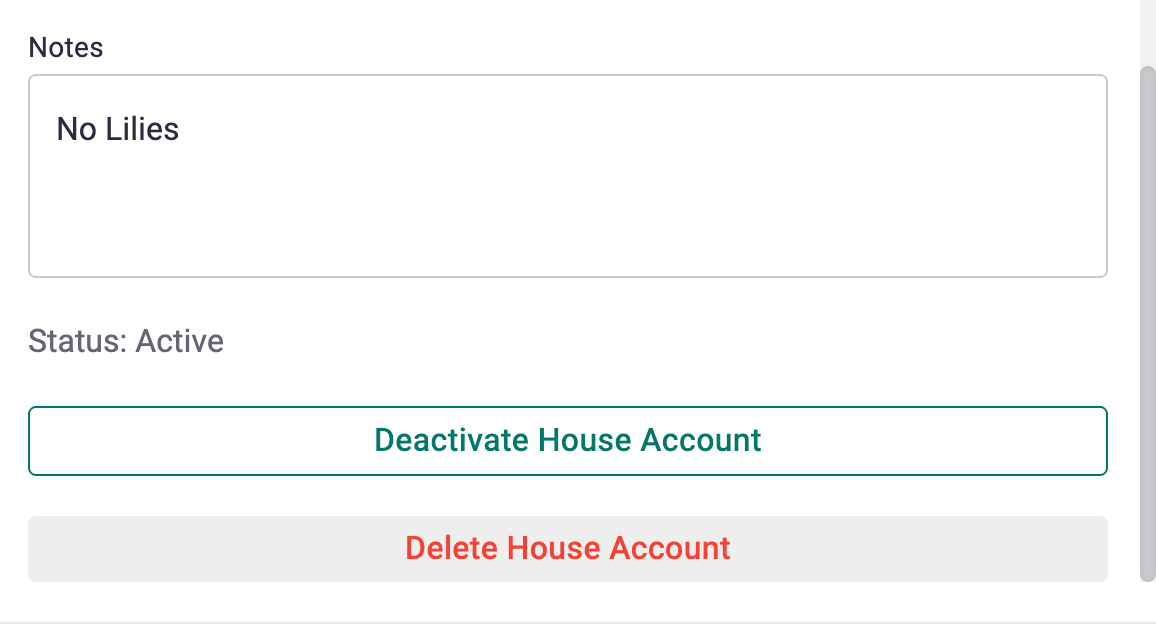
Deactivate
Choose this when you want to stop new charges but keep a full record, like a seasonal client or an account with a balance you still need to collect.
- The account and its history stay visible.
- New orders can no longer be charged to the account, in the POS or on your website.
- Automatic statements and autopay stop.
- You can still collect payment on an existing balance.
Delete
Choose this when you no longer need the account at all.
- The House Account is removed as a payment method, for both you and your customer.
- Its statements can no longer be used to collect payment.
If the account still has a balance, collect it before you delete, or deactivate the account instead.
Shop-wide House Account settings
A few settings apply to all your House Accounts. Find them in the House Account section of POS Settings in your Dashboard.
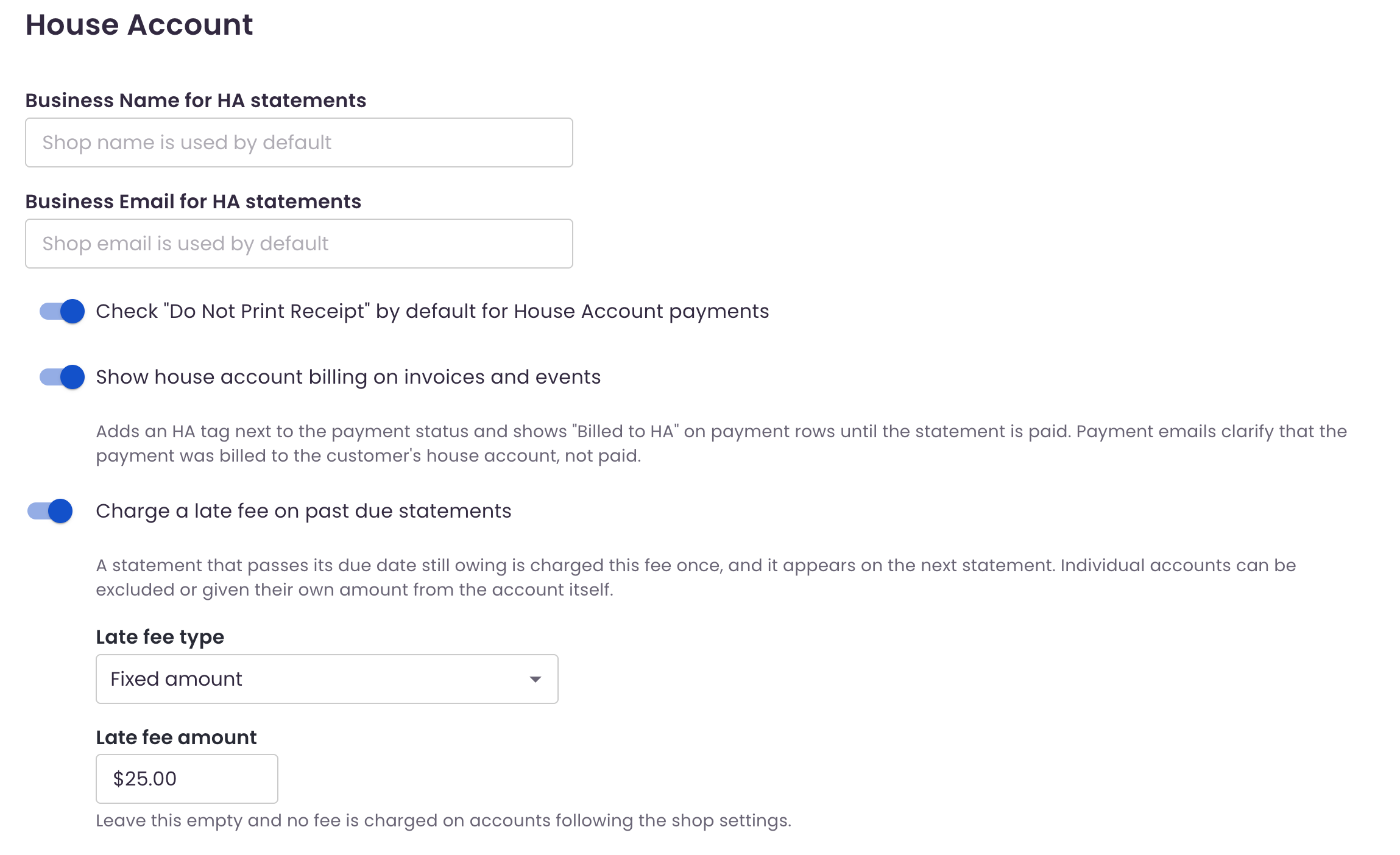
- Business Name for HA statements and Business Email for HA statements: What appears on your statements. Your shop name and email are used if these are blank.
- Check "Do Not Print Receipt" by default for House Account payments: Skip printing receipts unless you choose to.
- Show house account billing on invoices and events: Adds an "HA" tag and shows "Billed to HA" on invoice and event payments until the statement is paid, so it's clear the payment was billed, not collected.
- Charge a late fee on past due statements: See House Accounts: Late Fees.
House Account reports
For a deeper look at trends and balances, use these reports:
- House Account Sales Report: Sales and transactions on your House Accounts over a date range.
- House Account Statement Aging Report: Outstanding balances across all accounts, grouped by days overdue.
Frequently asked questions
Can I link one customer to more than one House Account?
No. Each customer can only be on one House Account.
How do my customers use their House Account?
They sign in to your website with the email on the account and choose Charge to House Account at checkout. They can also view statements and pay online. Share How to Use a House Account With Your BloomNation Florist with them.