
Holiday Report
Overview
Plan your next holiday with real numbers from your last one. The Holiday Report shows how your shop performed in the days leading up to a major holiday, so you can see what sold, which days got busy and how customers chose to get their flowers.
You can break the results down by fulfillment type, by day or by product, and compare one year to another to see how your holiday business is growing.
How to open the Holiday Report
- In your BloomNation Dashboard, go to Analytics > Advanced Reports.
- Under Sales Reports, find Holiday Report and click View.
How to run the report
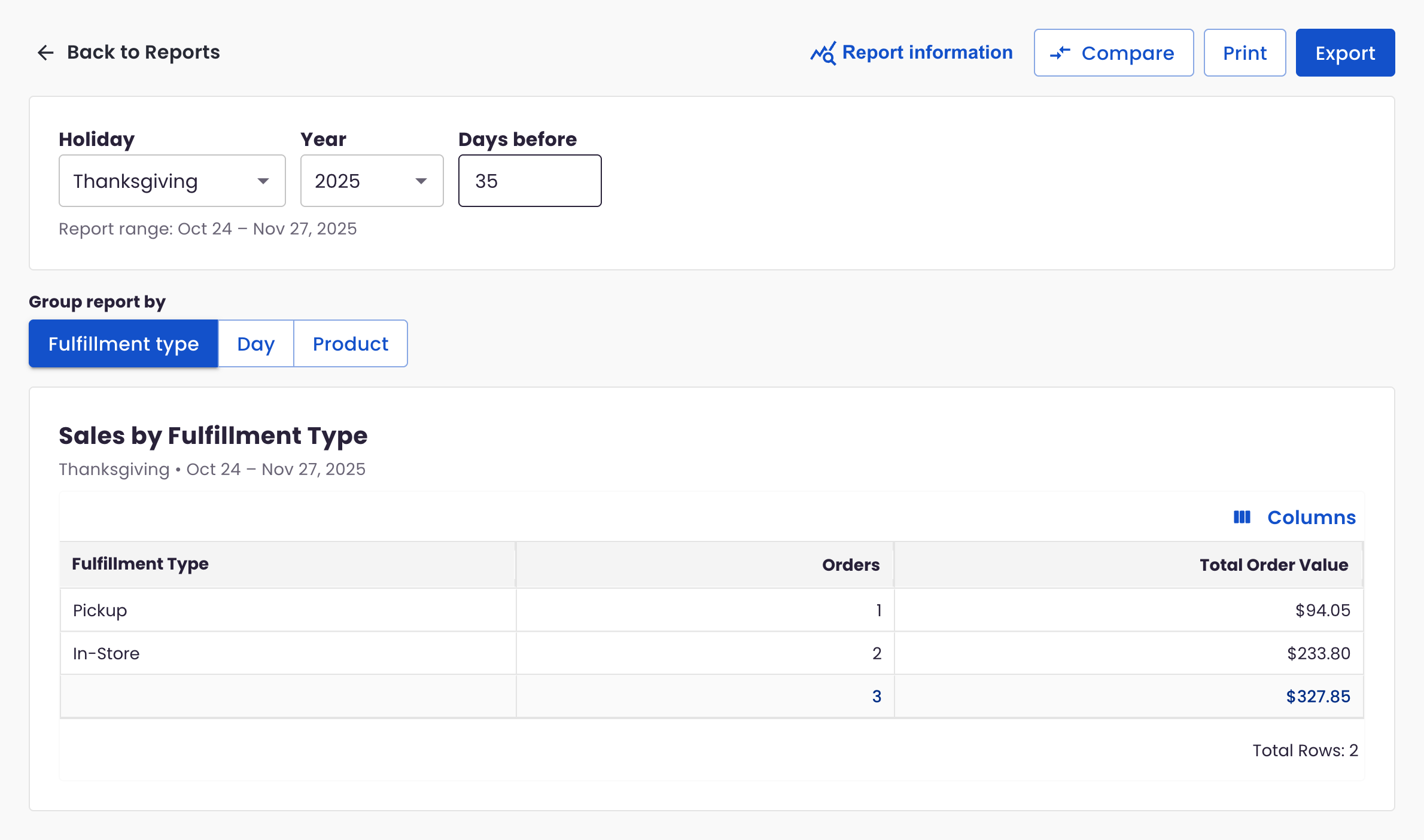
- Choose a holiday from the Holiday menu: Valentine's Day, Easter, Mother's Day, Memorial Day, Father's Day, 4th of July, Thanksgiving or Christmas.
- Choose the Year you want to look at.
- In Days before, enter how many days you want to include. The report covers that many days up to and including the holiday. The default is 14.
- Check the Report range under the filters to confirm the dates.
- Under Group report by, choose Fulfillment type, Day or Product.
What each view shows
Fulfillment type
See how many orders were pickup, delivery or in-store, along with the Orders count and Total Order Value for each. This helps you plan drivers and counter staff for next time.
Day
See your orders day by day, split into Pickup, Delivery, In-Store and Other, with Total Orders and Total Order Value for each day. Use it to spot when the rush really starts.
Product
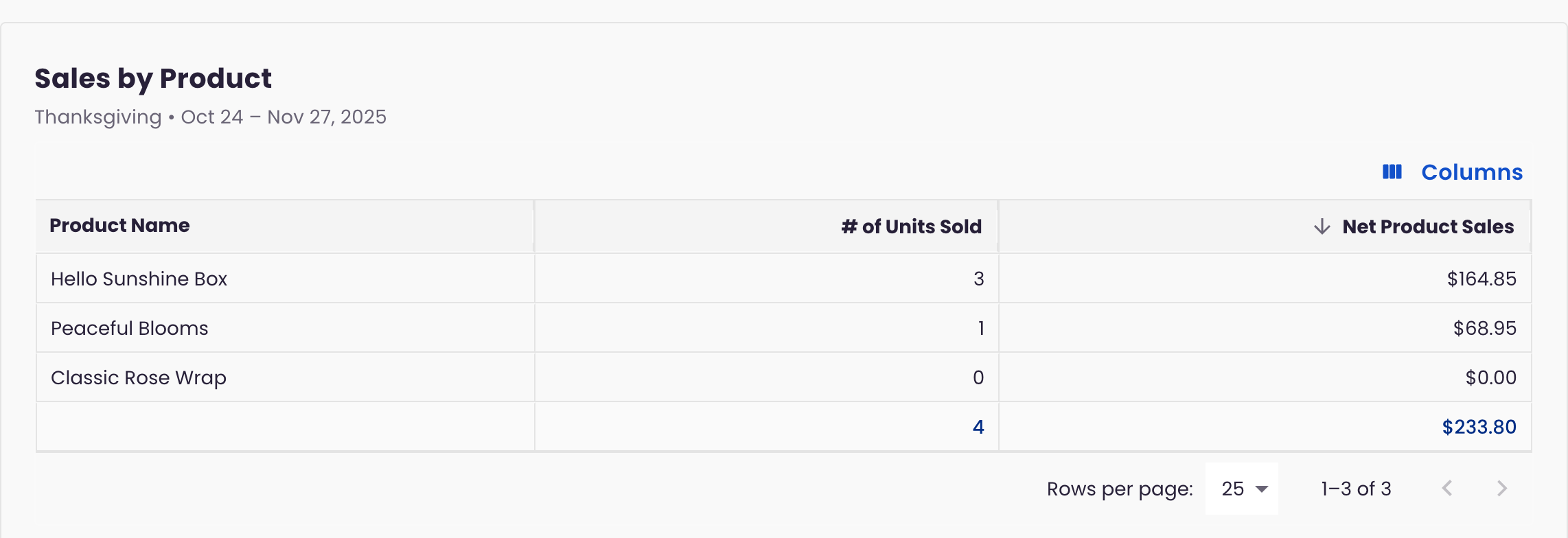
See each product's # of Units Sold and Net Product Sales. Use it to decide which designs to feature, and how much product to order, next time around.
Compare years
Compare a holiday to past years to see how your shop is trending.
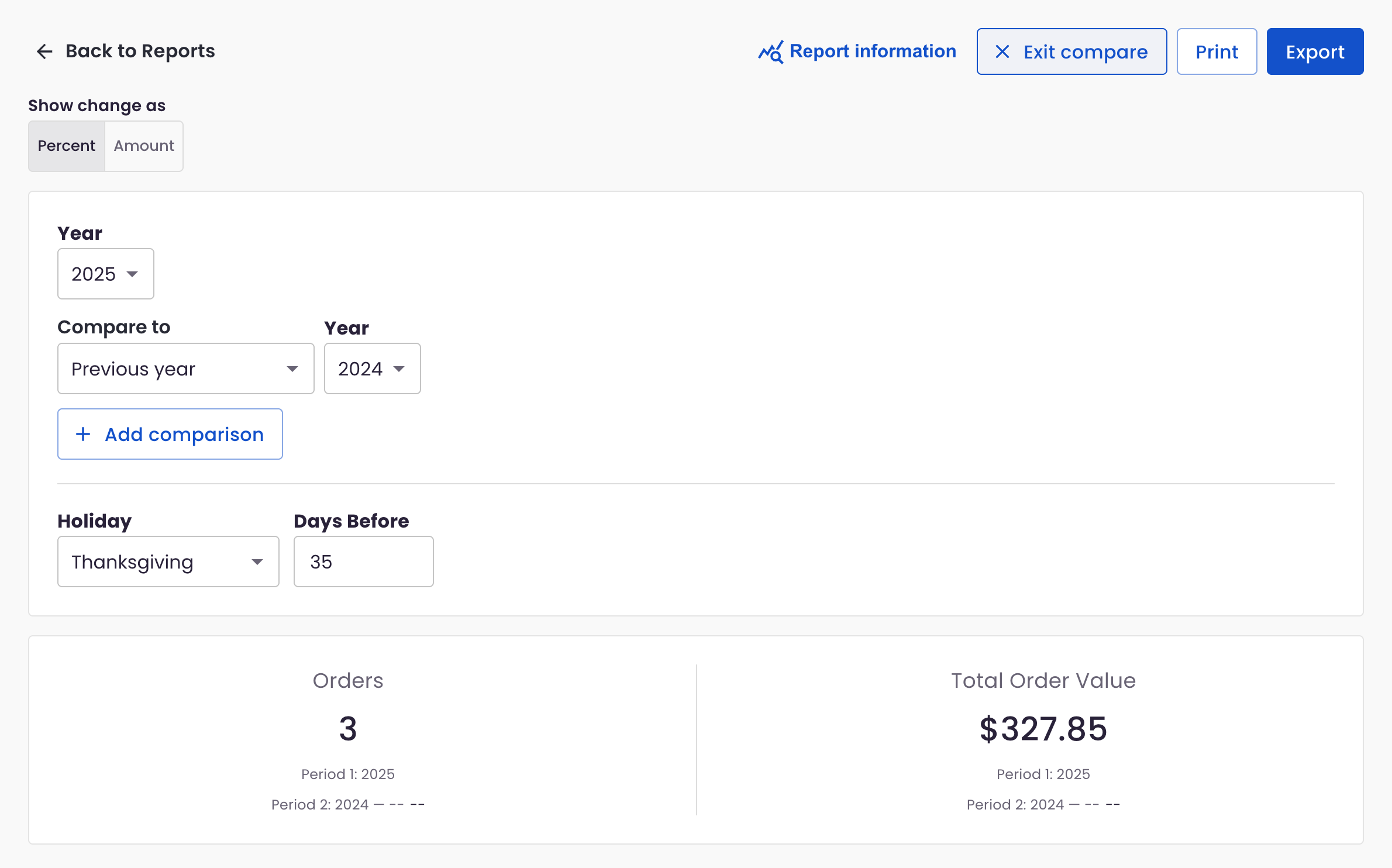
- Click Compare at the top of the report.
- Choose the main Year.
- Under Compare to, choose Previous year or Custom, then pick the year.
- To add another year, click Add comparison.
- Under Show change as, choose Percent or Amount.
Summary tiles at the top show Orders and Total Order Value for each period. Comparisons use the fulfillment type breakdown. To leave compare mode, click Exit compare.
Export, print and columns
- Export downloads the report so you can work with it in a spreadsheet
- Print gives you a paper copy for your planning notes
- Columns lets you show or hide columns in the table
- Report information gives a quick summary of how the report works
Tips
- Run the report a few weeks before each holiday to plan staffing, product orders and pricing
- Use the Day view to see when orders started picking up last year, then schedule promotions a little earlier
- Use the Product view to find your best sellers and make sure they're easy to find on your website
Frequently asked questions
Why don't Net Product Sales and Total Order Value match?
They measure different things. Net Product Sales (in the Product view) is product revenue only: each item's price minus its share of any discount. It doesn't include taxes, delivery and service fees, or tips. Total Order Value (in the Day and Fulfillment type views) is the full order total, including those charges.
Are canceled orders included?
No. Canceled and closed orders are left out of the report.
Need help?
If you have questions, our Partner Support team is here to help.
Phone: (210) 405-5050
Email: support@bloomnation.com