
Product Categories Report
Product Categories Report
The Product Categories Report provides insights into product sales broken down by category type, allowing you to analyze the sales performance of specific product categories over a set period. Updated every hour, this report helps you monitor trends in popular product types and informs stock and marketing decisions.
Accessing the Report
- Log into your BloomNation account.
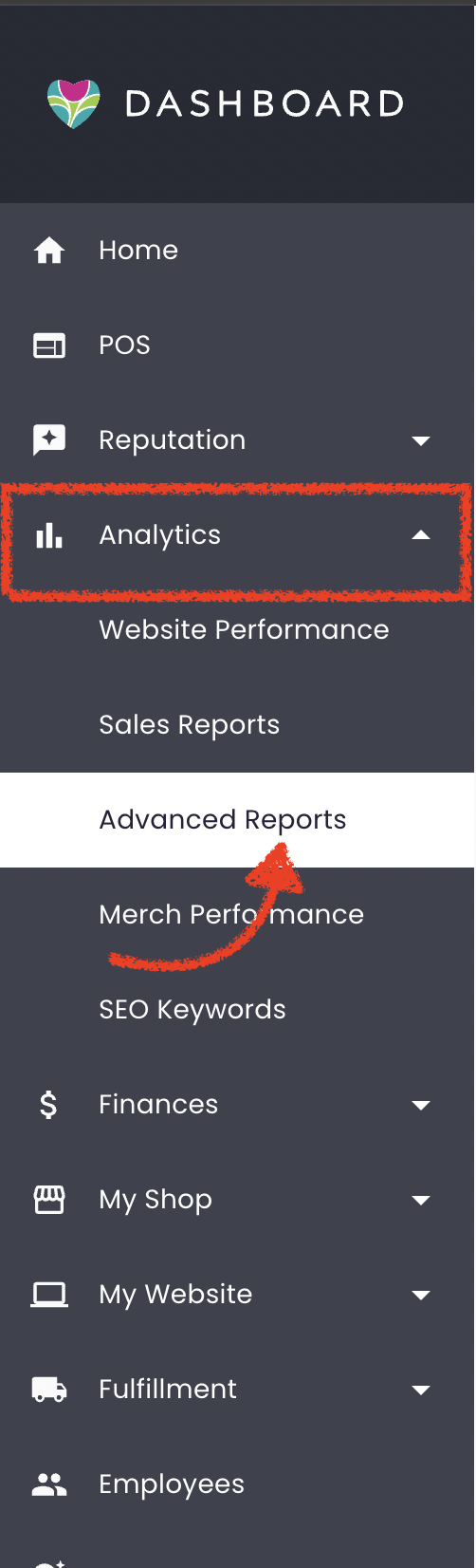
- Navigate to the Analytics tab.
- Select the Advanced Reports sub-tab.
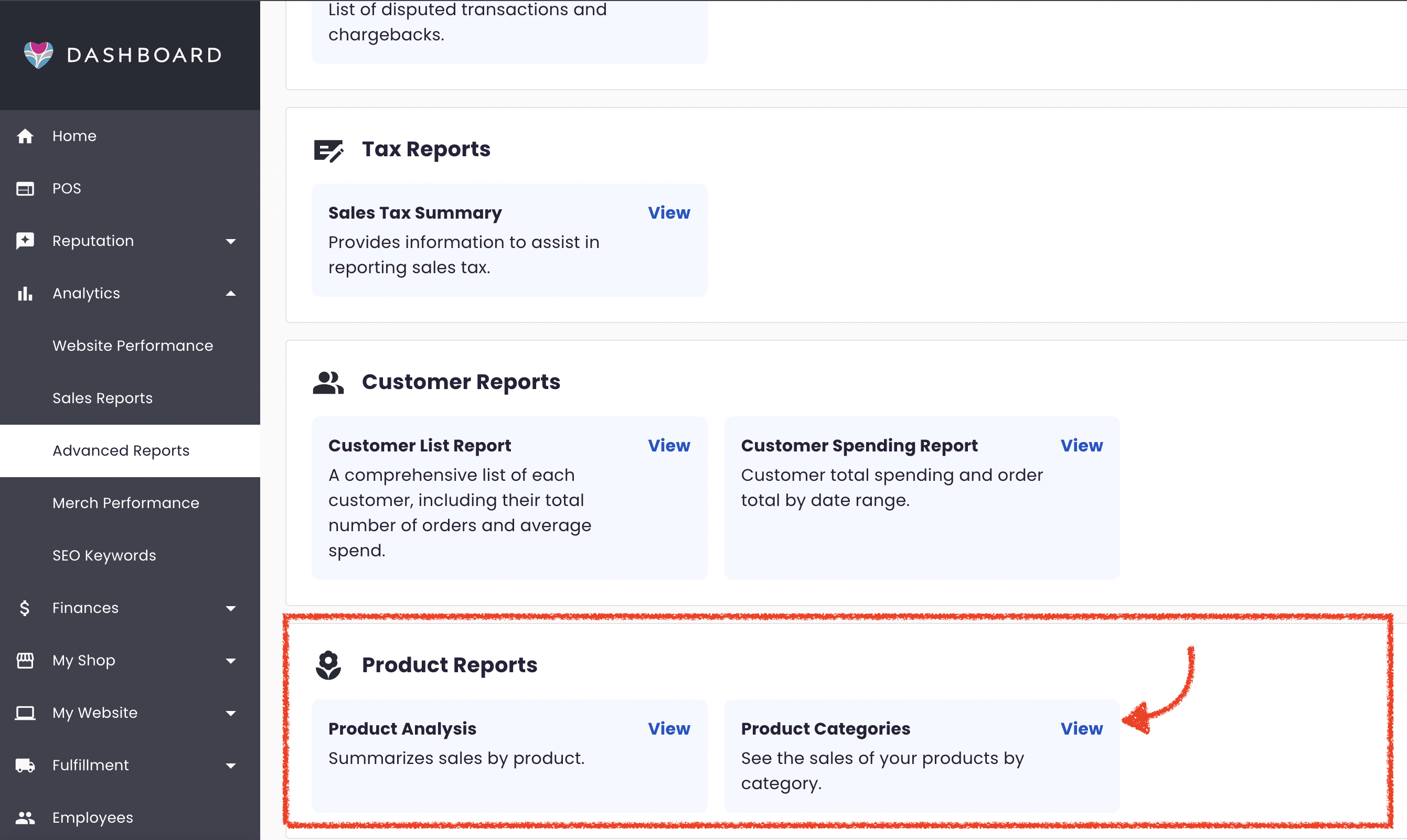
- Under the Product Reports section, click on Product Categories.
Using the Report
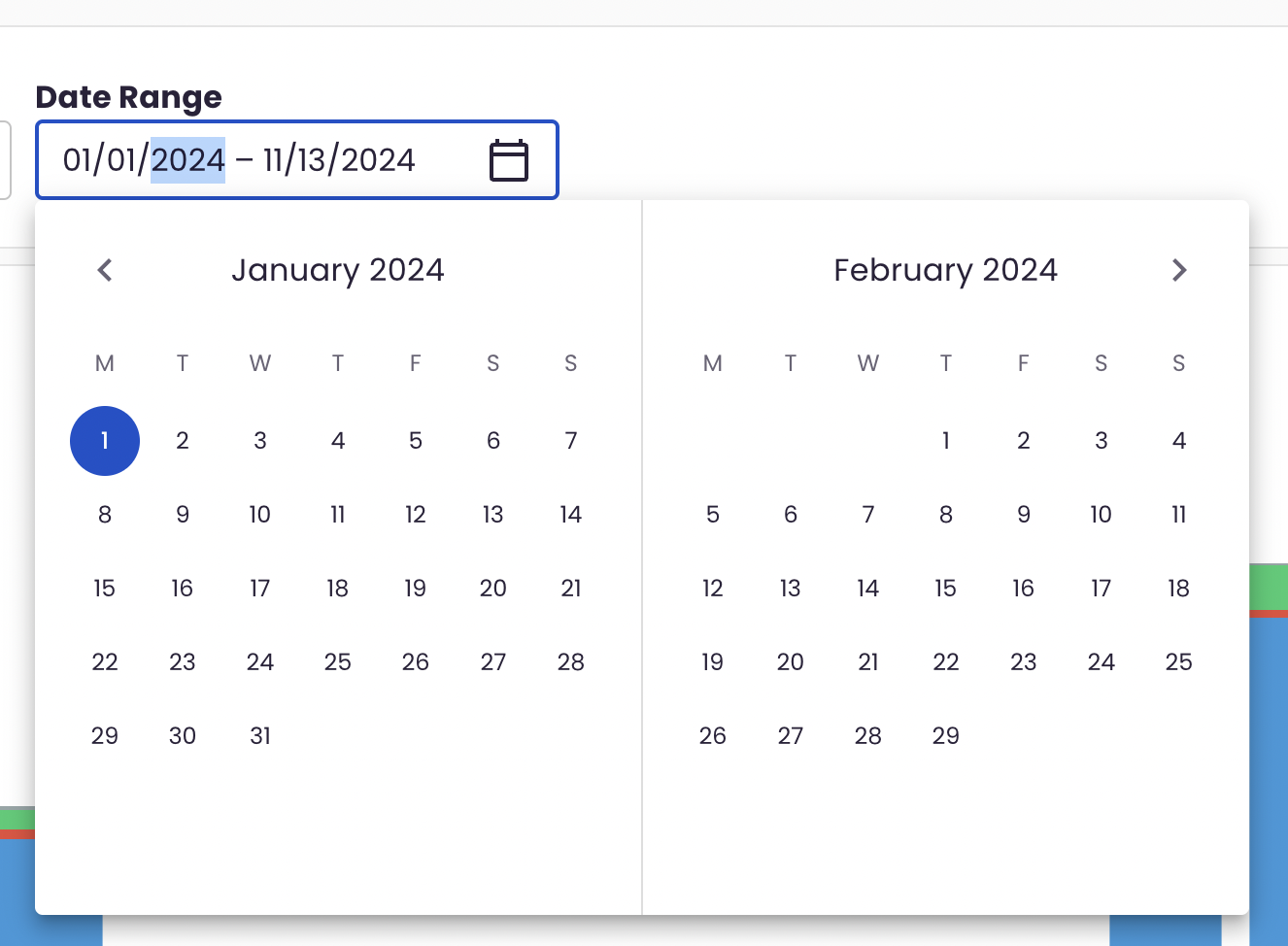
- Date Range Selection: The report loads data for the past week by default. You can select a custom date range by specifying a start and end date.
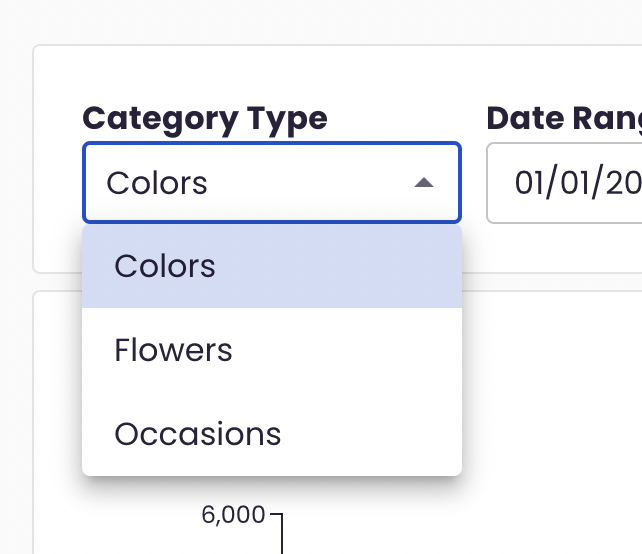
- Category Selection: Choose a specific category type to analyze, such as Flowers, Colors, Occasions, or Specials.
Note: This report includes data only from orders (excluding canceled orders, full refunds, invoices, quick charges, and variable-priced designer choice items).
- Print & Export: Easily print or export the report for further analysis.
Report Visuals and Layout
1. Bar Chart
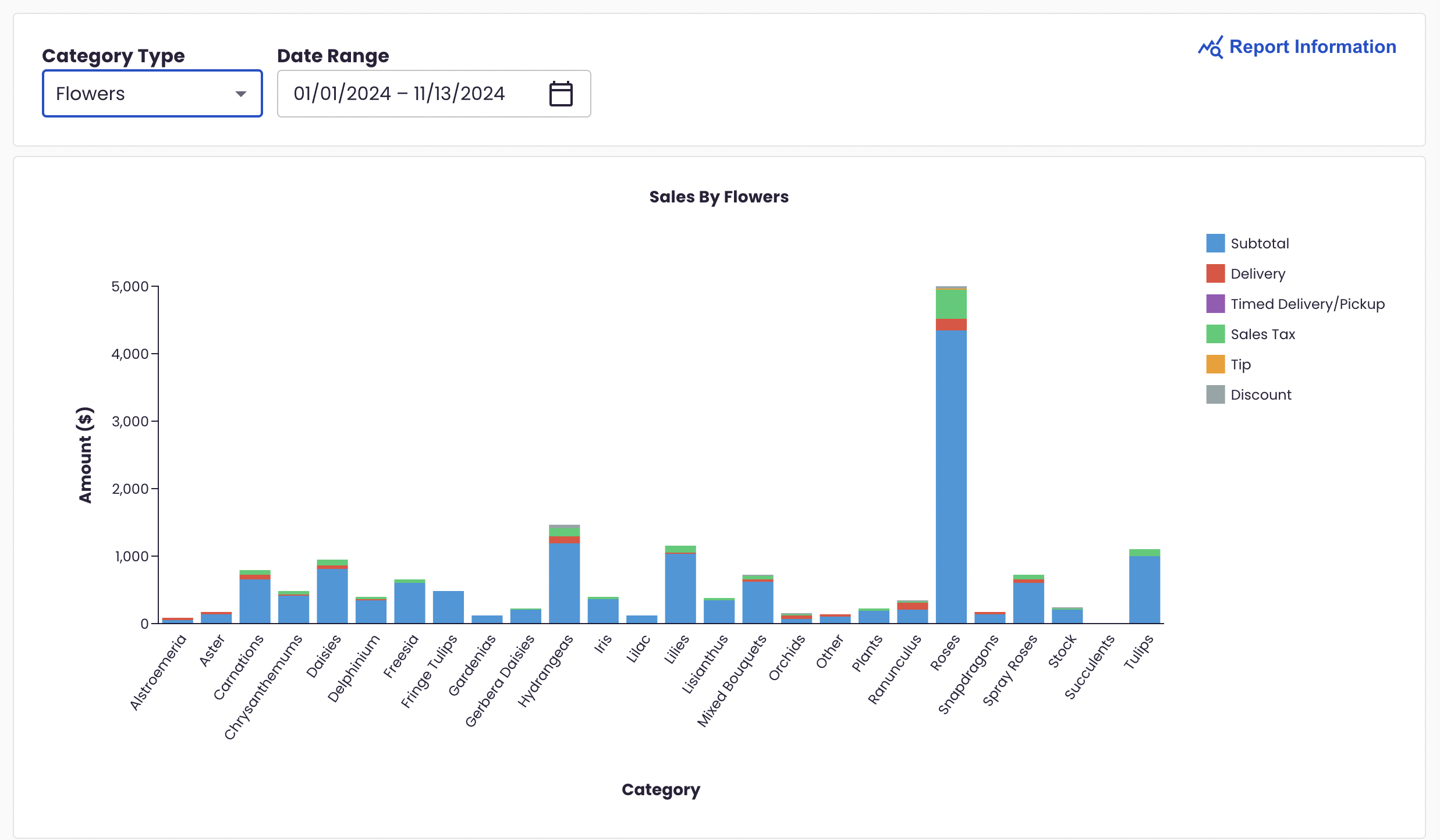
The top section displays a bar chart titled “Sales by [Category]” (e.g., “Sales by Flowers” if the category is set to Flowers). This visualization allows you to view sales data across different types within the selected category.
-
X-Axis: Displays all types within the chosen category in alphabetical order (e.g., all types of flowers if Flowers is selected).
-
Y-Axis: Represents Amount ($), with each bar segmented by:
- Subtotal
- Delivery
- Timed Delivery / Pickup
- Sales Tax
- Tip
- Discount
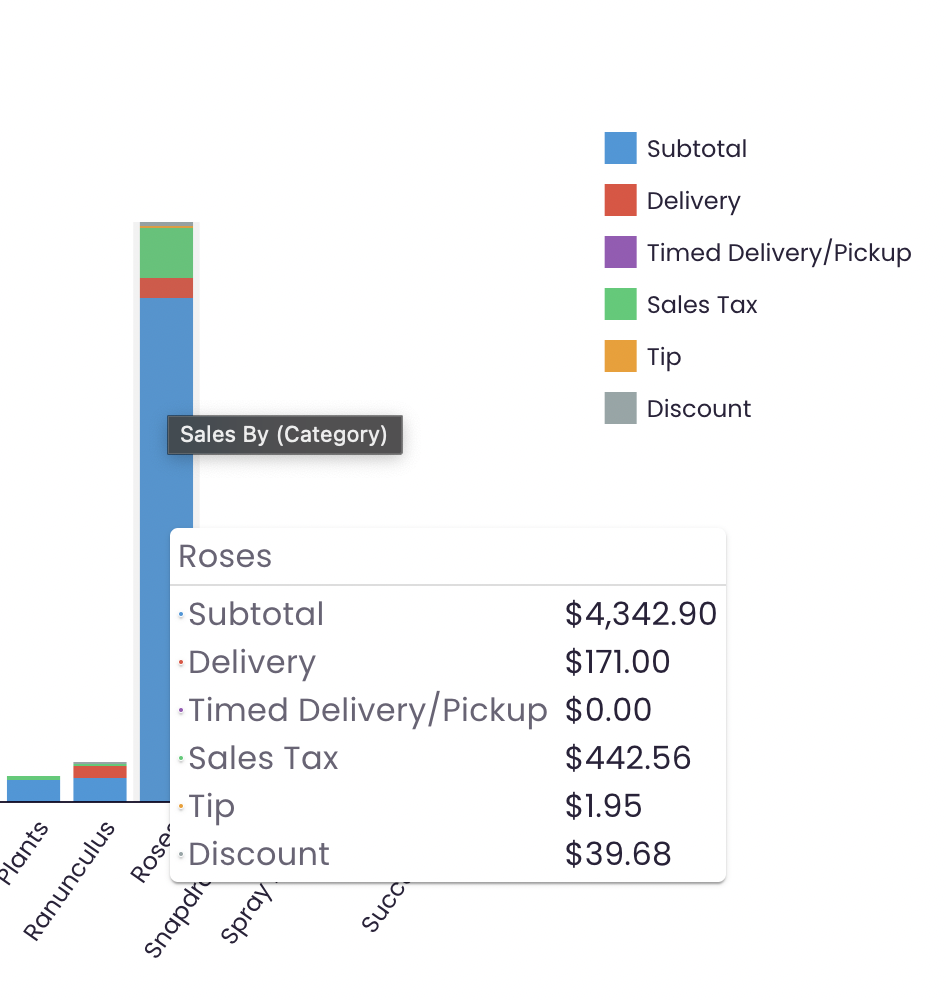
Each bar shows the Grand Total amount. Hovering over a specific bar provides a detailed breakdown, showing the dollar amounts for each segment. For example, if you hover over "Roses" in the Flowers category, a pop-up will display the amounts for Subtotal, Delivery, Timed Delivery/Pickup, Sales Tax, Tip, and Discount specific to Roses within the date range.
2. Table View
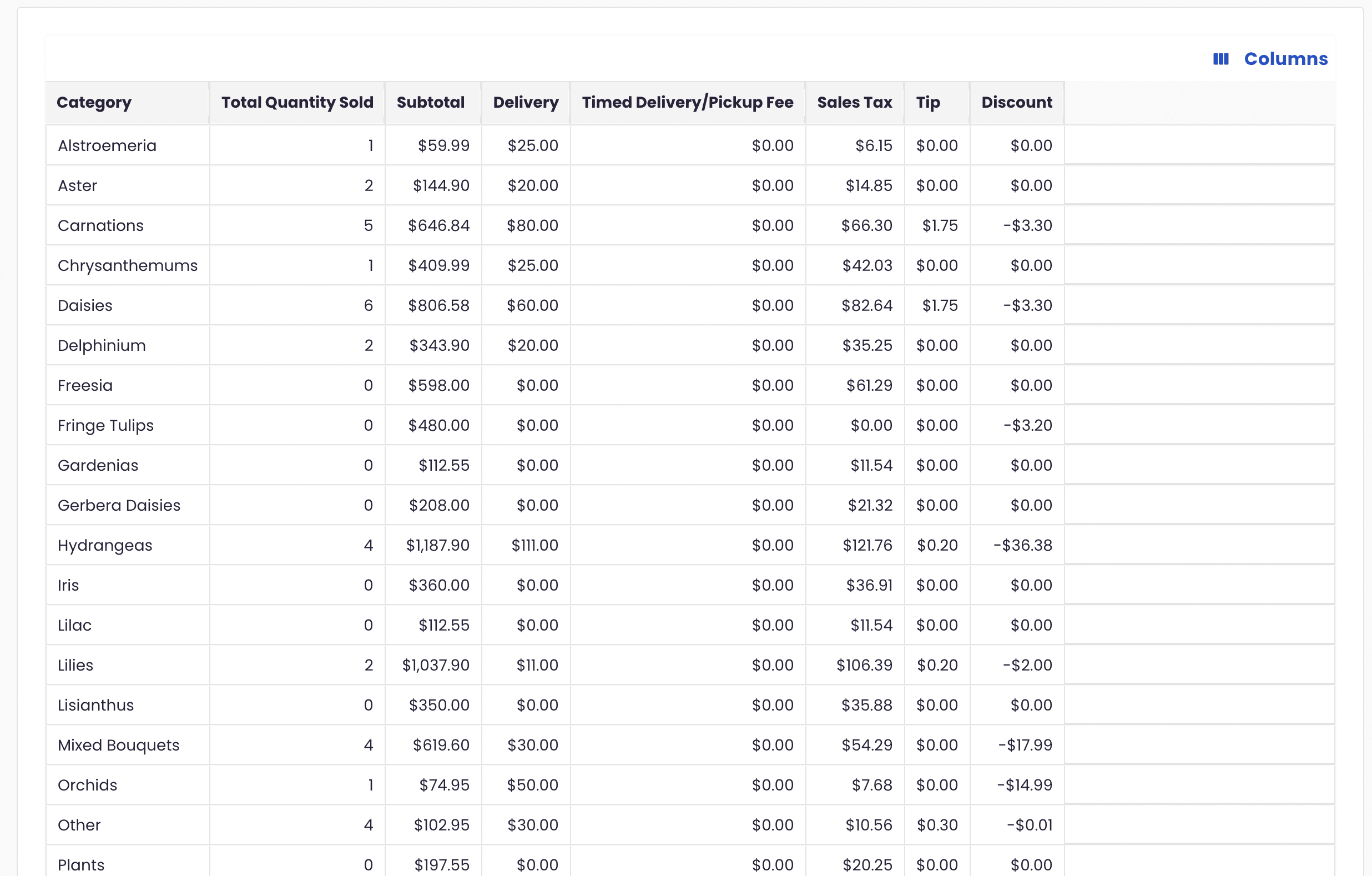
Below the bar chart, a table presents a detailed breakdown by category type, with each row corresponding to a specific type (e.g., "Roses" for the Flowers category).
-
Columns include:
- Category: The specific type within the selected category (e.g., Roses, Tulips).
- Total Quantity Sold: Number of units sold for each type.
- Subtotal: Revenue generated from sales (excluding additional charges).
- Delivery: Delivery fees attributed to each type.
- Timed Delivery / Pickup: Additional fees for specific delivery times or pickups.
- Sales Tax: Tax amount collected.
- Tip: Tips attributed to the category type.
- Discount: Discount amounts applied to the category type.
The table defaults to alphabetical order by Category, but you can sort by any column header.
Customizing Columns
-
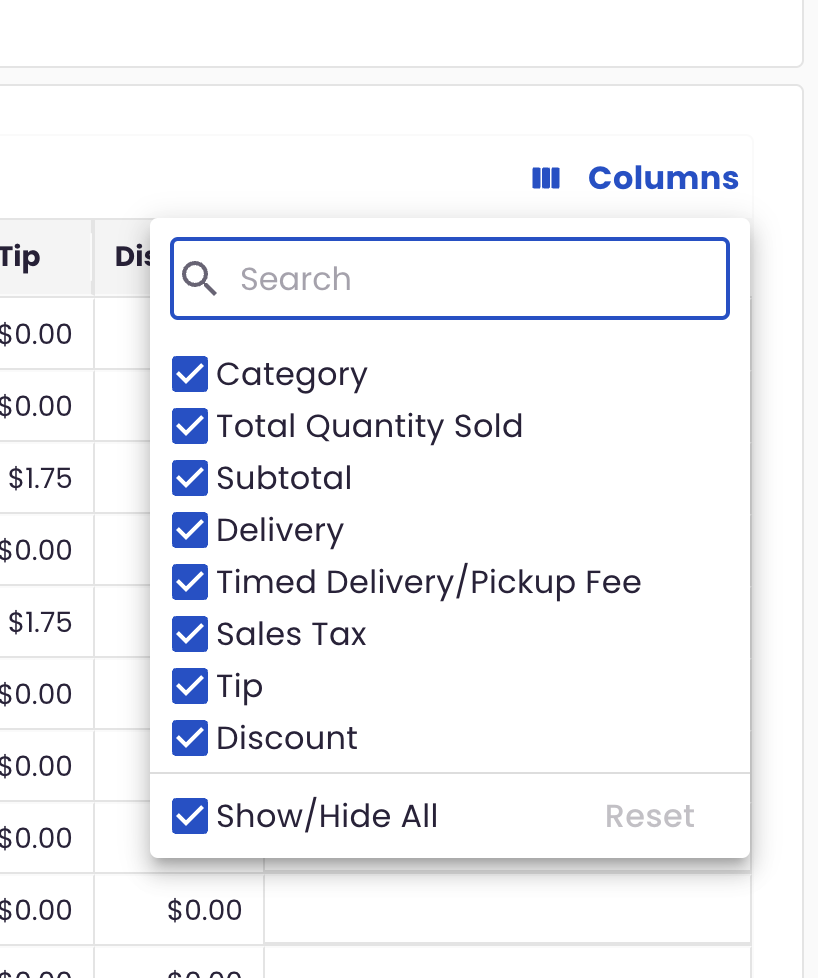
Show/Hide Columns: Click Columns in the top right to toggle visibility. You can check or uncheck columns, Show All, Hide All, or Reset to the default layout.
-
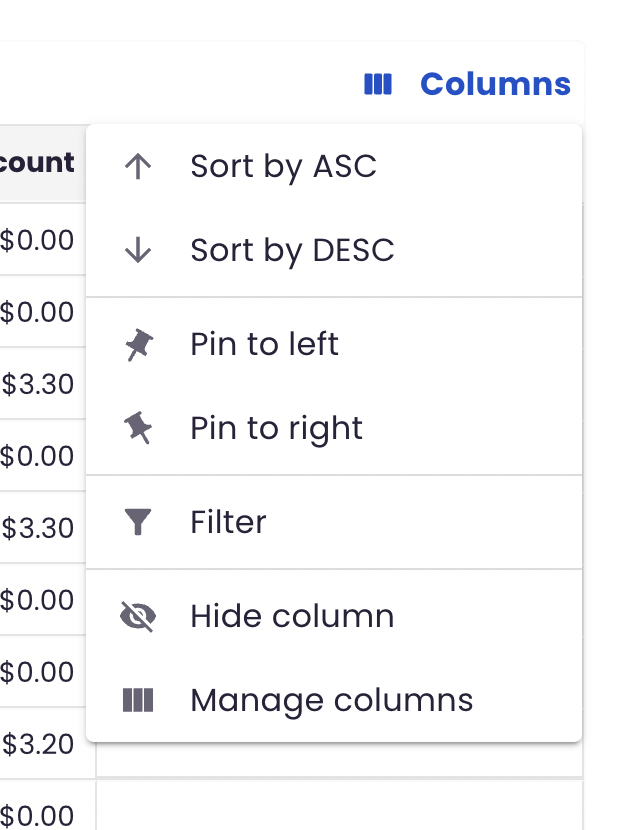
Column Settings: The ellipsis menu on each column offers additional customization:
- Sort by ASC/DESC: Sort the table by ascending or descending values for the selected column.
- Pin Column: Pin the column to the left or right side of the report for easier viewing.
- Filter: Apply filters to focus on specific data ranges or criteria.
- Hide Column: Temporarily remove a column from view.
Quick sorting is also available by hovering over a column header and clicking the up or down arrow to sort in ascending or descending order.
If you need any additional assistance, please reach out to our support team by submitting a ticket here.