
Daily Sales History Report
Daily Sales History Report
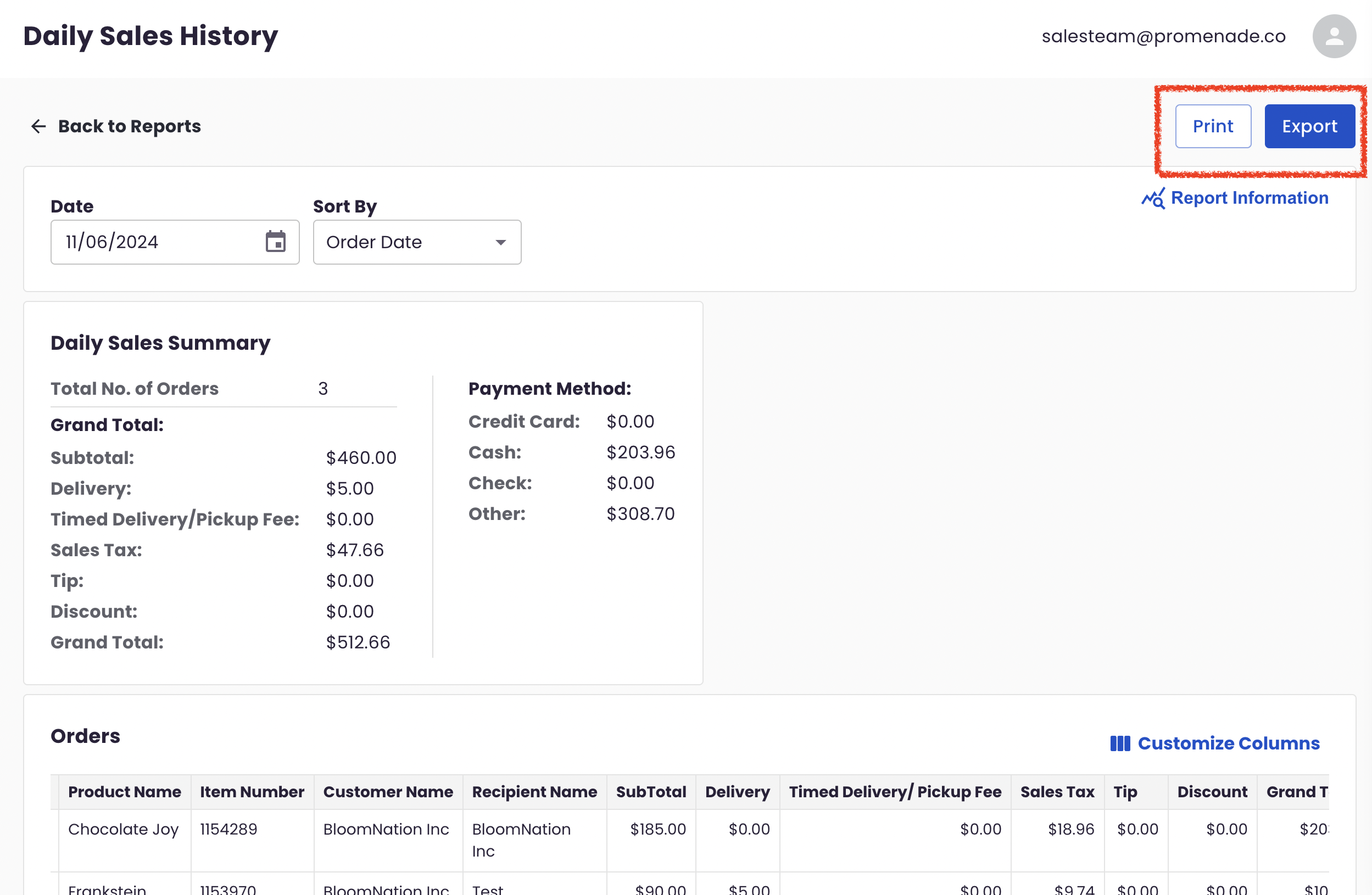
The Daily Sales History Report provides a snapshot of your sales activity for any selected day, showing a breakdown of orders, revenue details, and payment summaries. This report helps you monitor daily trends, compare specific metrics, and analyze payment methods to assess store performance at a glance.
Accessing the Report
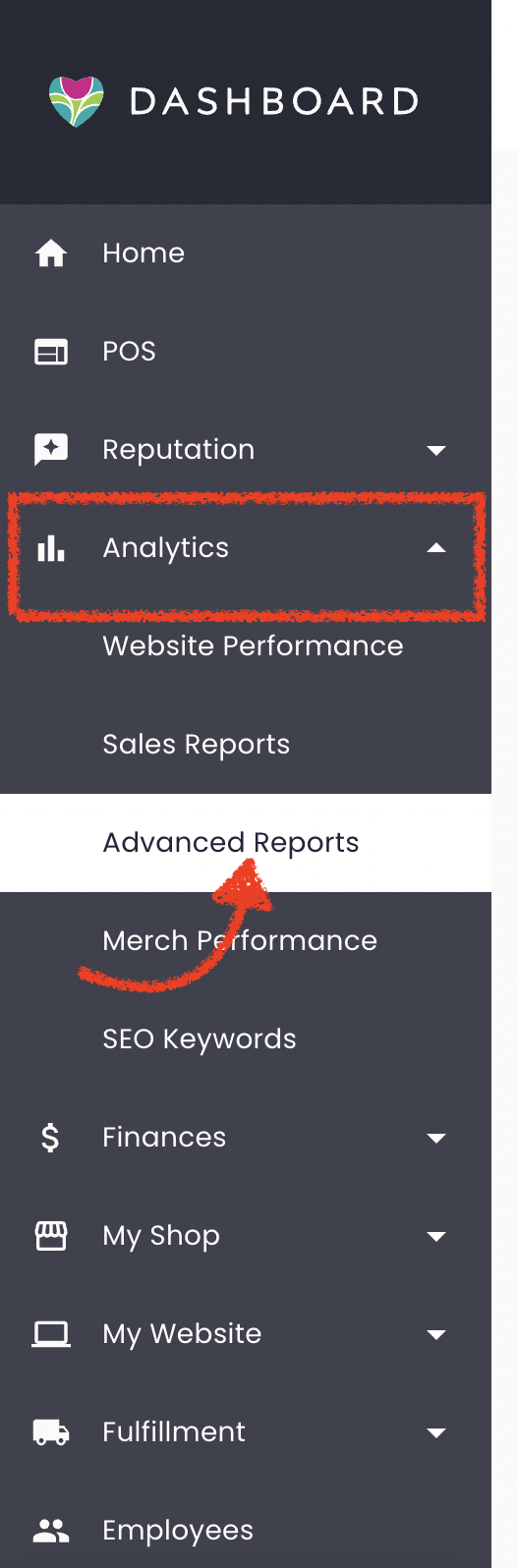
- Log in to your BloomNation account.
- Navigate to the Analytics tab.
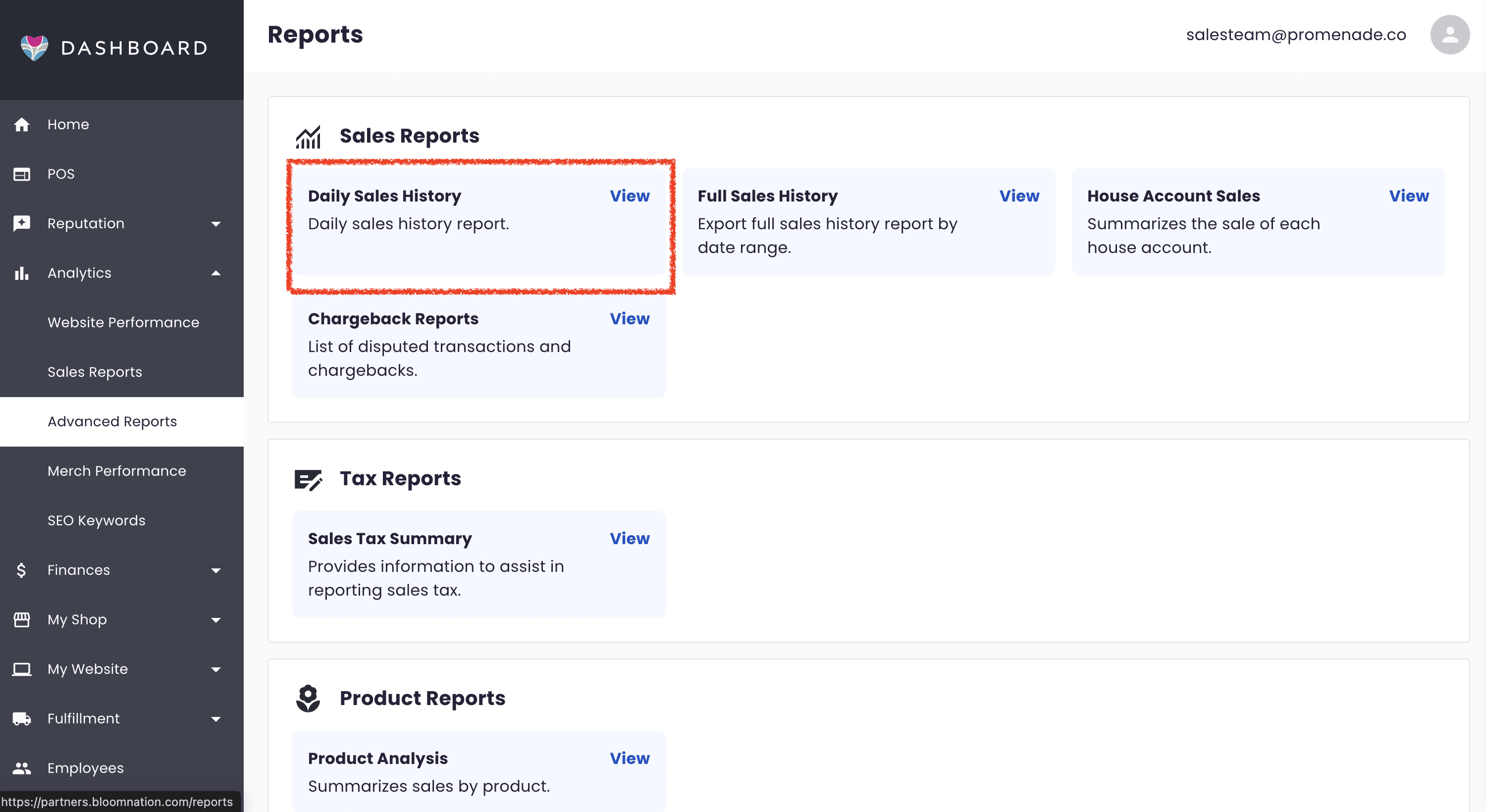
- Click on Advanced Reports.
- In the Sales Reports section, select Daily Sales History.
Using the Daily Sales History Report
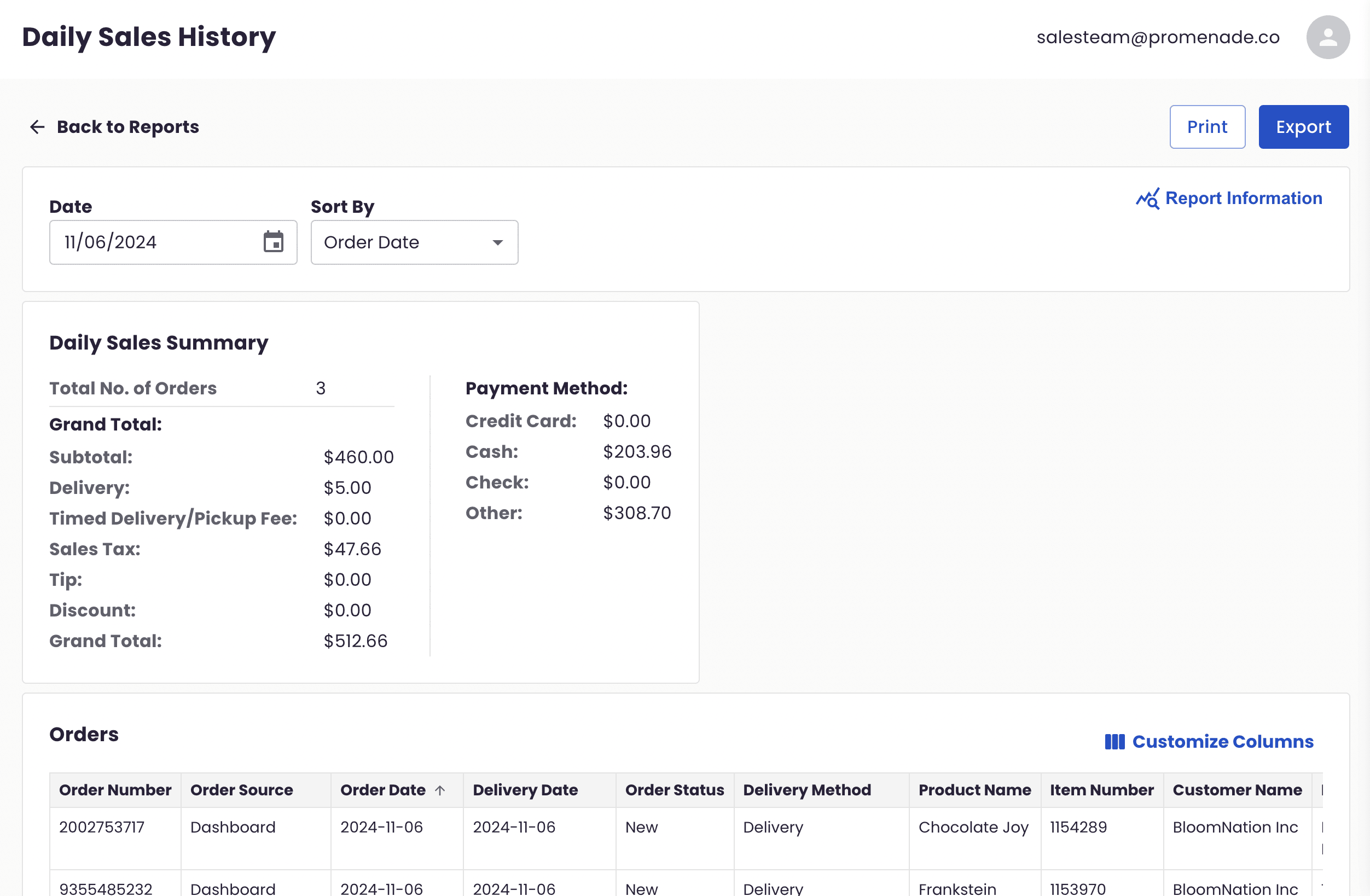
By default, the report loads for the current day’s sales. You can adjust the Date field to select any other day you wish to analyze.
Daily Sales Summary Table
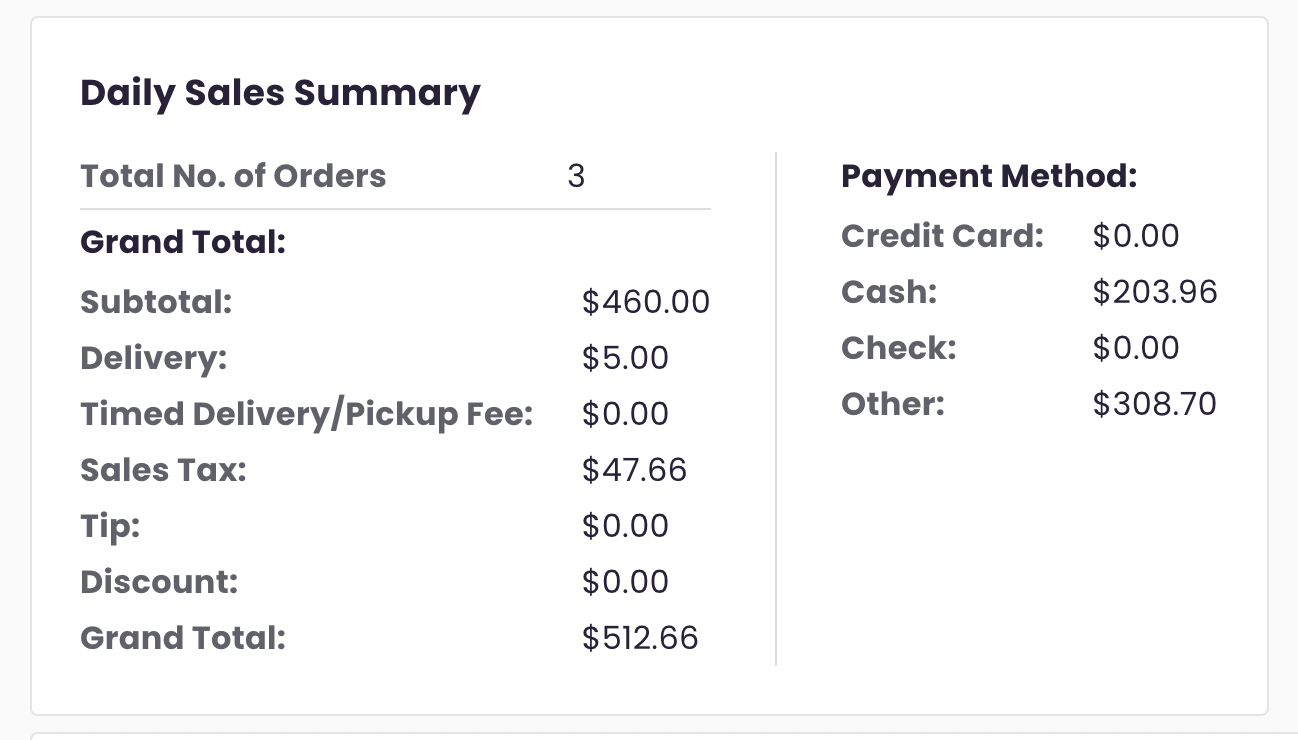
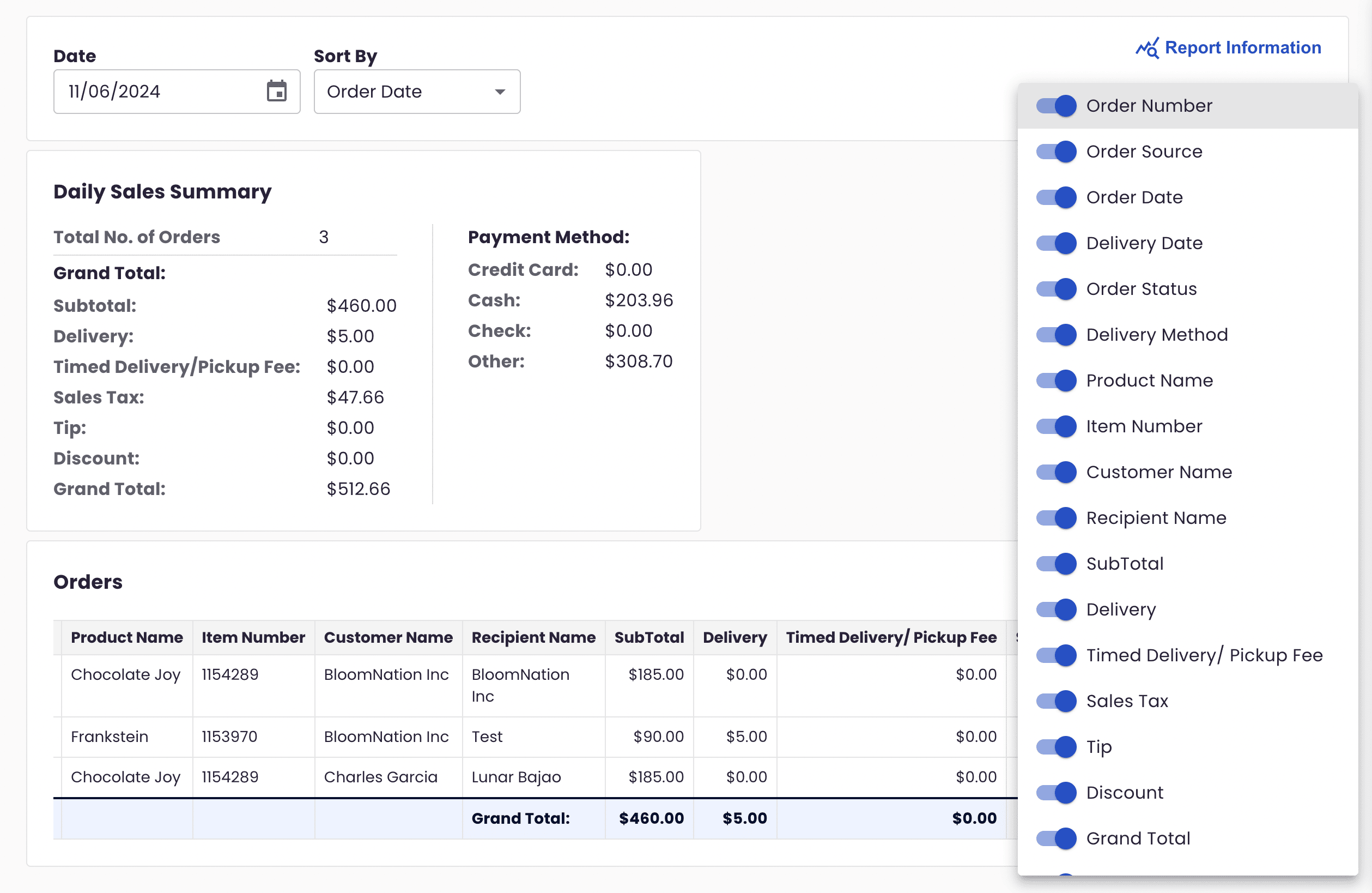
Once you select a date, the Daily Sales Summary table displays the following details:
-
Total Number of Orders: Total orders processed on the selected day.
-
Grand Total Breakdown: Detailed breakdown of revenue components, including:
- Subtotal
- Delivery Fee
- Timed Delivery / Pickup Fee
- Sales Tax
- Tip
- Discount
- Grand Total (final amount including all elements above)
-
Payment Method Breakdown: Summary of amounts by payment method, such as:
- Credit Card
- Cash
- Check
- Other
Orders Table
The Orders table, located directly beneath the Daily Sales Summary, lists individual orders for the selected day. By default, it is sorted by Order Date (the date when the order was placed by the customer). You can also sort the data by selecting from additional columns in the Sort By field:
- Order Source
- Delivery Date
- Delivery Method
- Payment Method


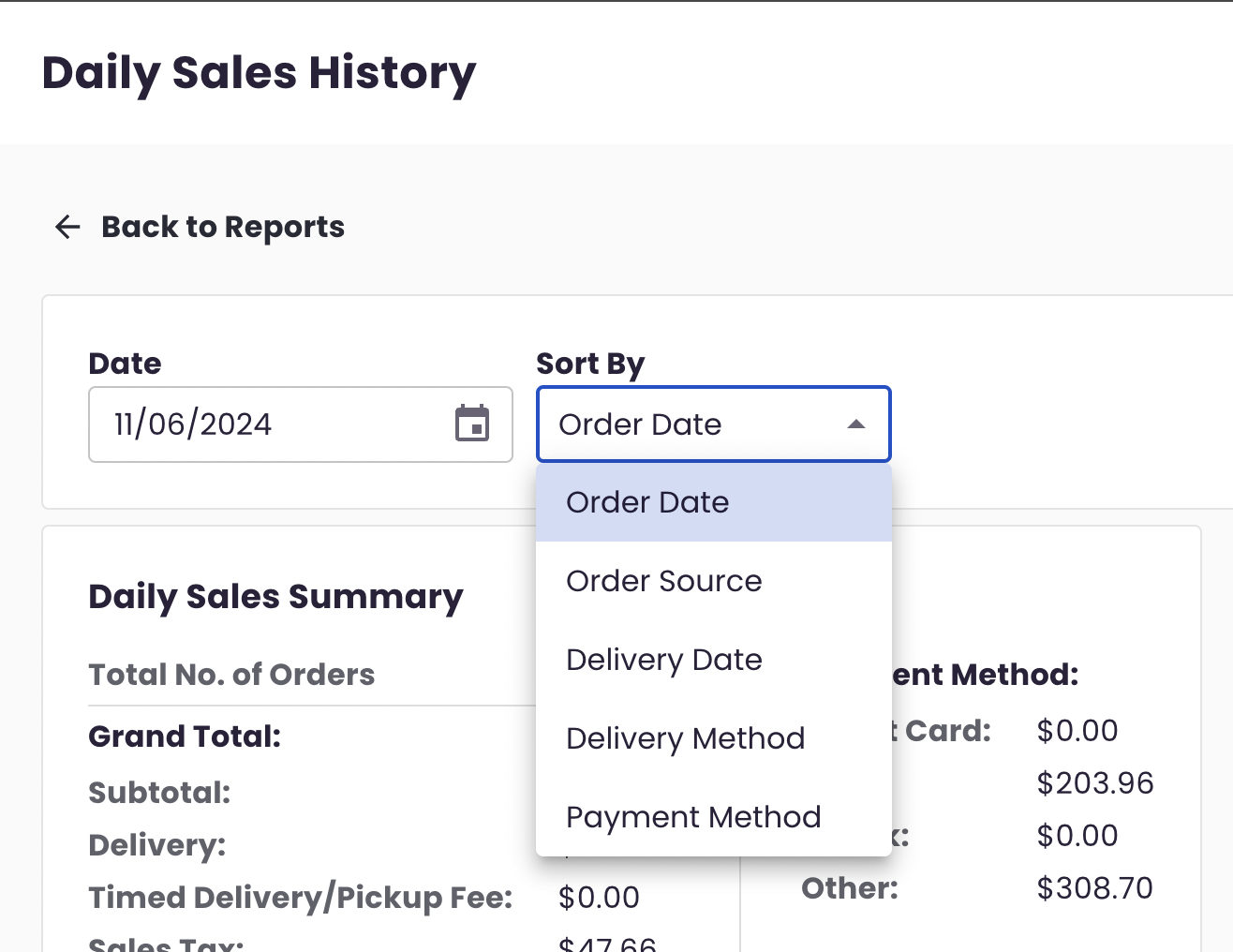


To manually sort by any of the columns above, hover over each column header and click the arrow.
The Orders table includes columns for:
- Order Number
- Order Source
- Order Date
- Delivery Date
- Order Status
- Delivery Method
- Product Name
- Item Number
- Customer Name
- Recipient Name
- Subtotal
- Delivery Fee
- Timed Delivery / Pickup Fee
- Sales Tax
- Tip
- Discount
- Grand Total
- Tax Exempt (Y / N)
- Payment Method
- Order Taker (if applicable)
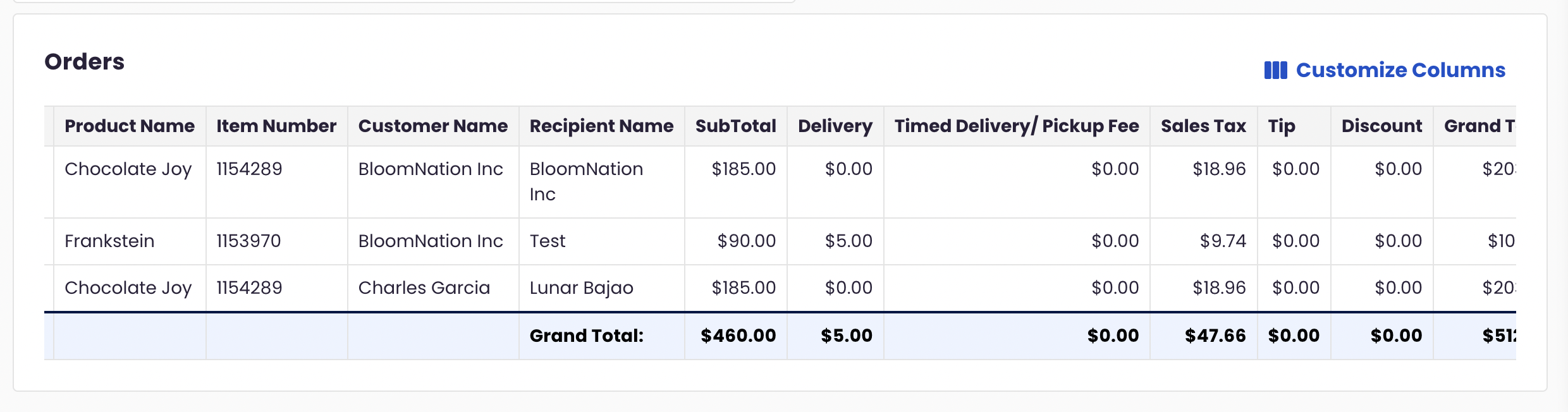
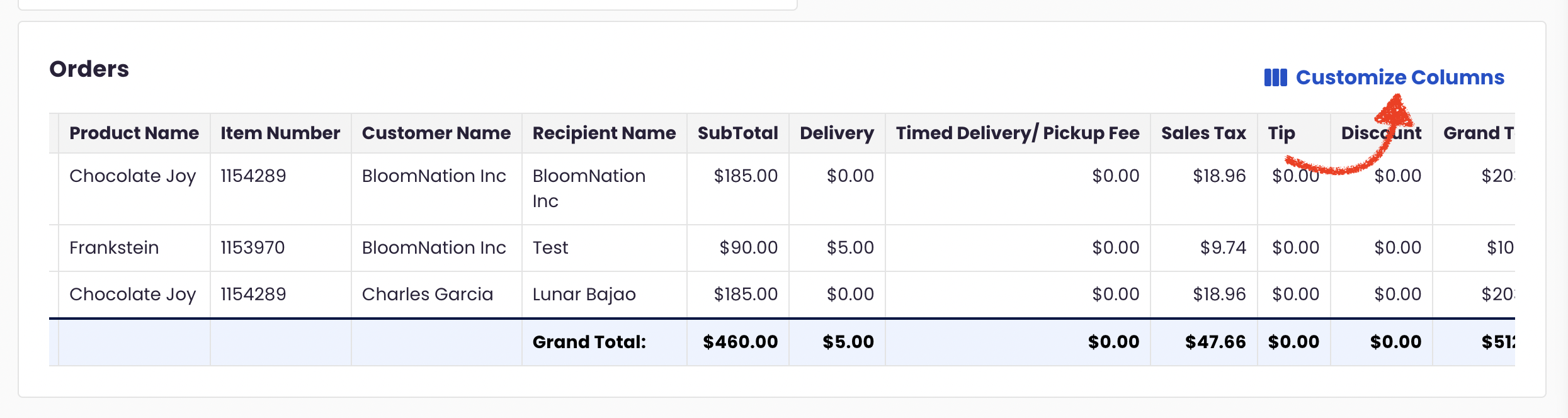
Customize Columns
In the top right of the Orders table, the Customize Columns option allows you to select which columns to display. Simply toggle columns on or off to customize your view.
Exporting and Printing
You can export or print the data presented in this report. Note that exporting or printing will only include the data currently displayed on the screen, meaning any applied filters or hidden columns will be respected in the output.
Additional Information
- Automatic Refresh: New orders or updates are added approximately every hour.
- Exclusions: The report does not include canceled orders.
- Data Included: Both orders and paid invoices are reflected.
Summary
The Daily Sales History Report is a powerful tool for gaining insights into your daily operations, helping you track revenue, evaluate order status, and identify key trends. Use it to better understand your sales performance on a day-to-day basis and make informed business decisions.
If you have any questions about using the Daily Sales History Report or need assistance, please reach out to BloomNation Support for further help.