
Full Sales History Report
Full Sales History Report
The Full Sales History Report provides a comprehensive view of your sales history, allowing you to easily export data for record-keeping, analysis, and reporting purposes.
Accessing the Full Sales History Report
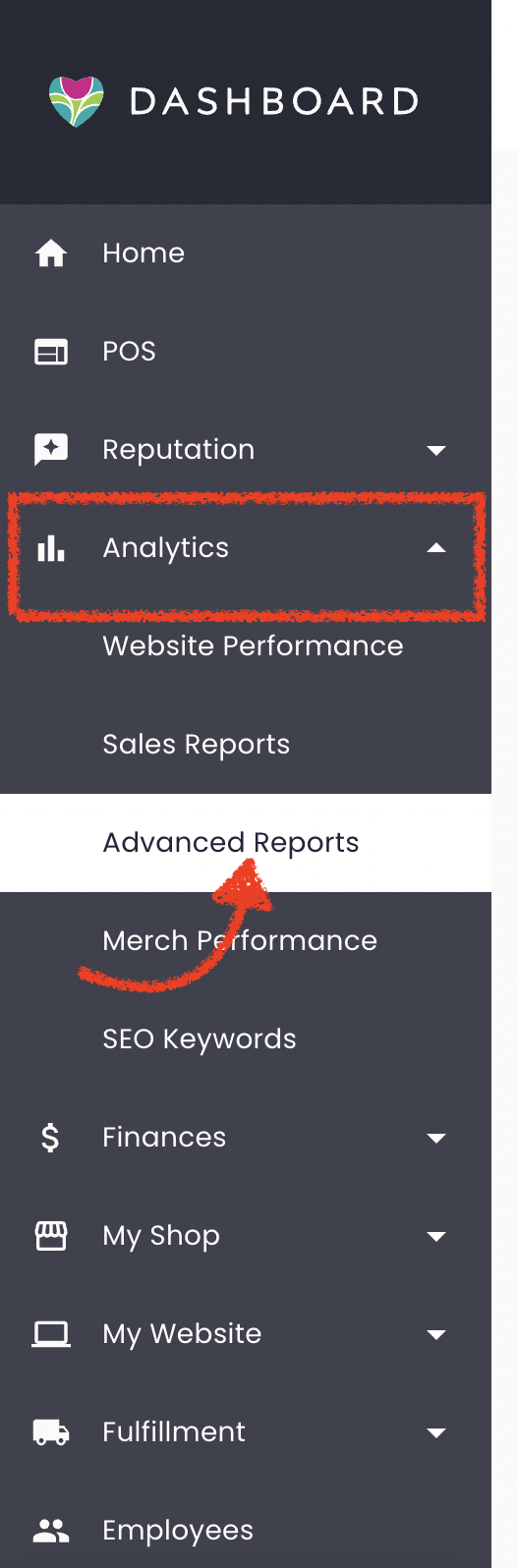
- Log in to your BloomNation account.
- Navigate to the Analytics tab.
- Select Advanced Reports.
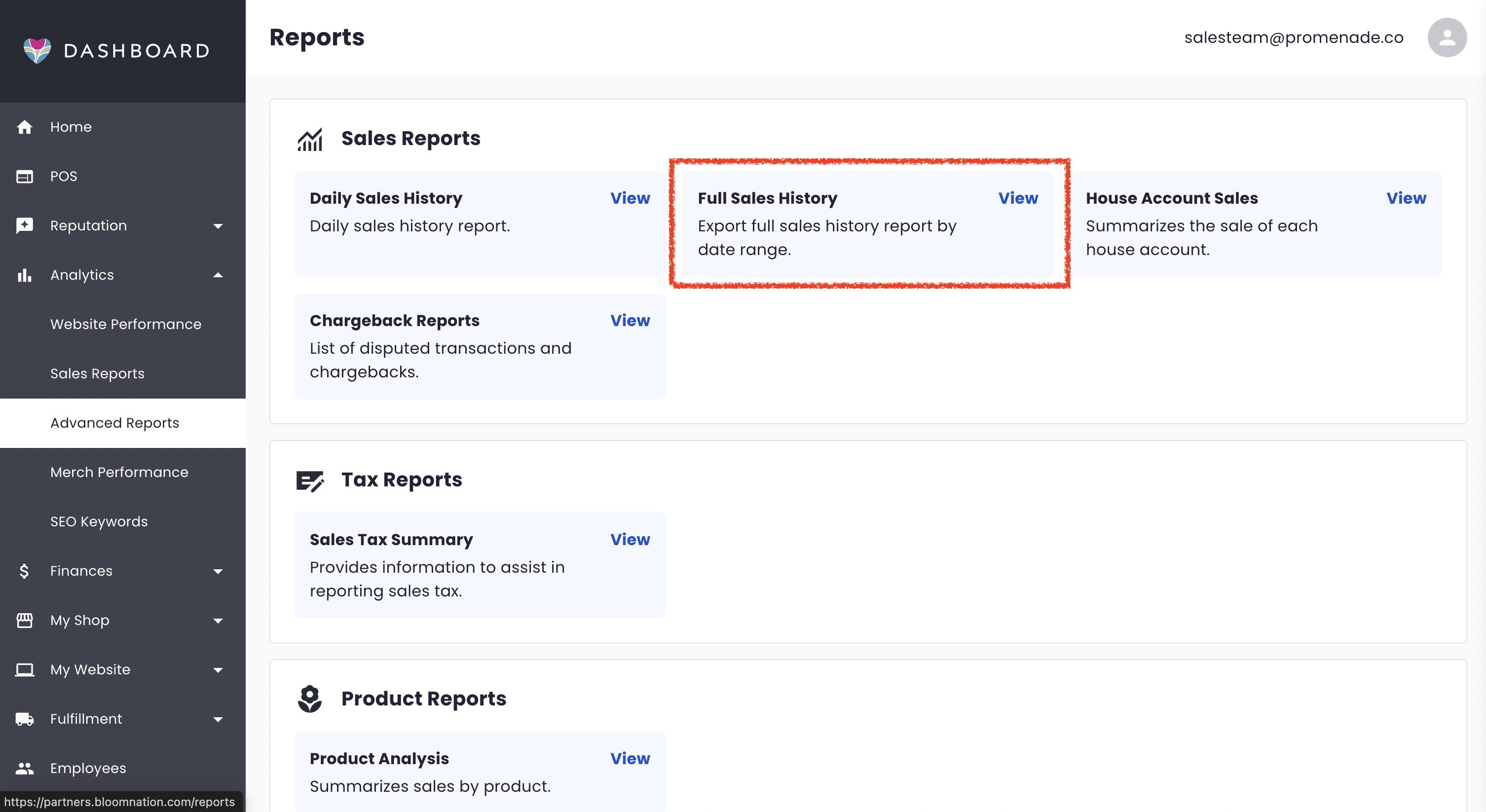
- In the Sales Reports section, click on Full Sales History Report.
Report Overview
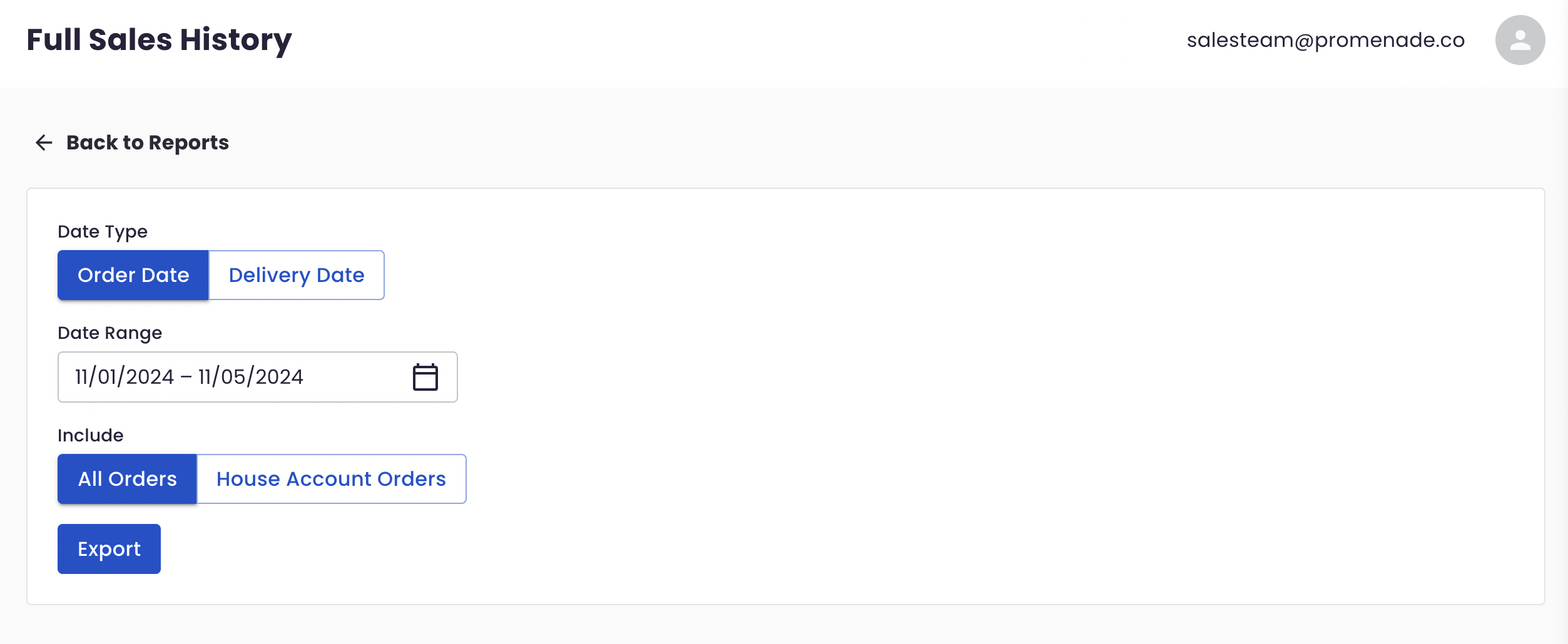
The Full Sales History Report allows you to export detailed sales data based on either Order Date or Delivery Date.
- Order Date: The date the order was placed.
- Delivery Date: The date the order was fulfilled (e.g., delivered, picked up, or prepared for in-store pickup). For in-store orders, this date matches the order date.
What's Included in the Report:
- Full sales data, at the order level, for any specified date range.
- Option to filter data by All Orders or by House Account Orders only.
- CSV download format for ease of use and compatibility with data management tools.
Using Filters and Export Options
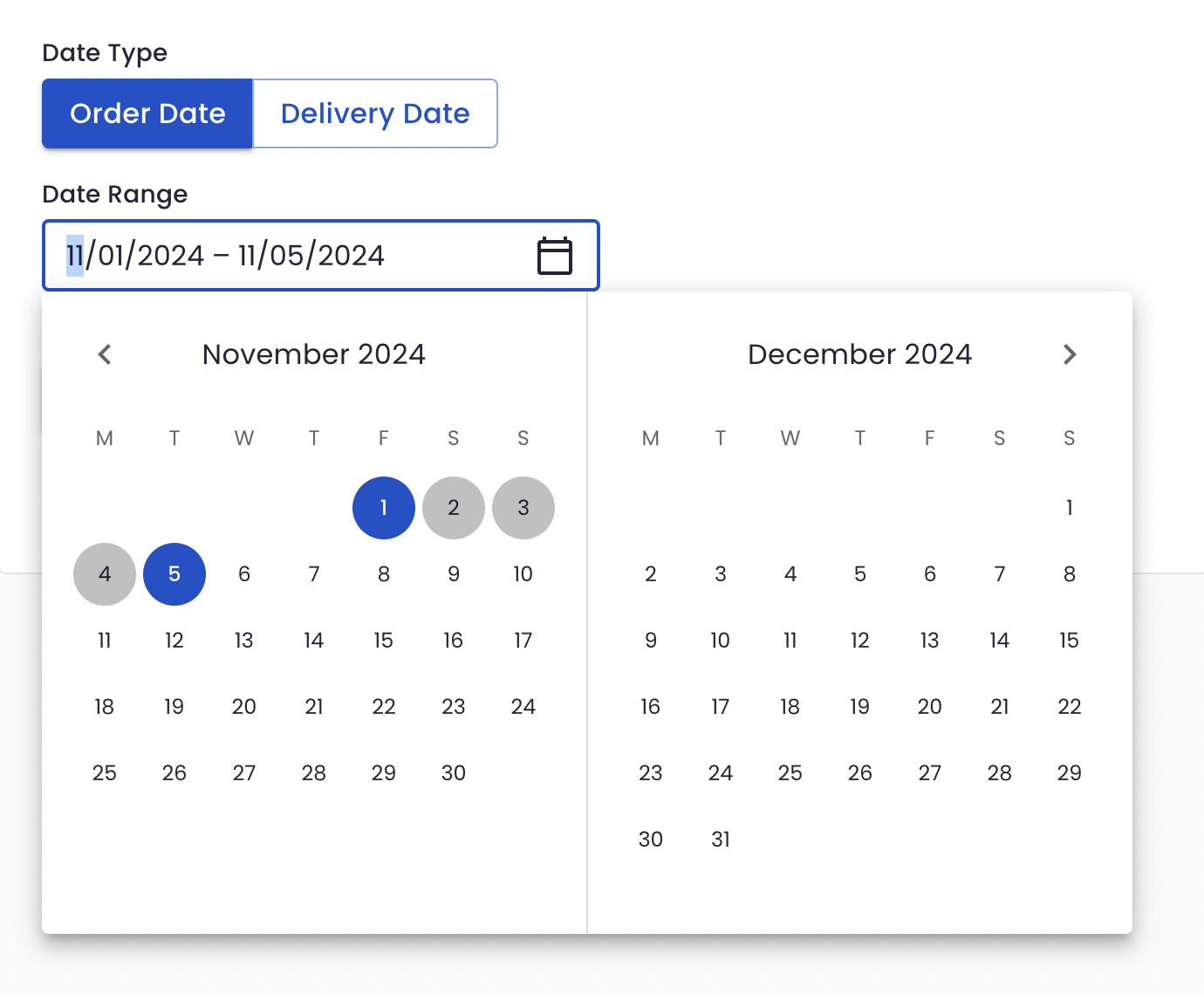
- Date Range: Select a start and end date to define your desired reporting period. For data from a single day, set both the start and end date to the same day.
- Include: Choose between All Orders or House Account Orders only.
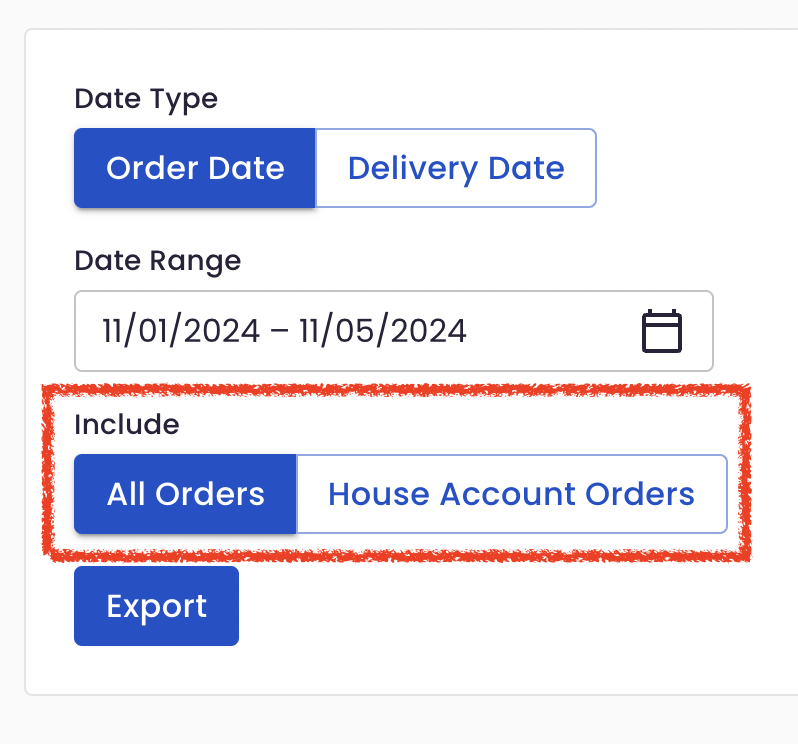
Once you've selected your date range and preferred inclusion options, click Export to download the CSV file with your Full Sales History.
Report Export Details
Your exported CSV file will include the sales data for the selected date range and order type. Use this file to review sales trends, analyze order frequency, or integrate with external reporting tools.
Support
For additional questions or assistance with the Full Sales History Report, feel free to contact our support team. We're here to help!