
Sales Tax by Orders Report
Sales Tax by Orders Report
The Sales Tax by Orders Report provides a detailed view of sales tax amounts associated with individual orders within a specified date range. This report is essential for reviewing tax data on a per-order basis and understanding its contribution to total revenue.
Accessing the Sales Tax by Orders Report
To access the report:
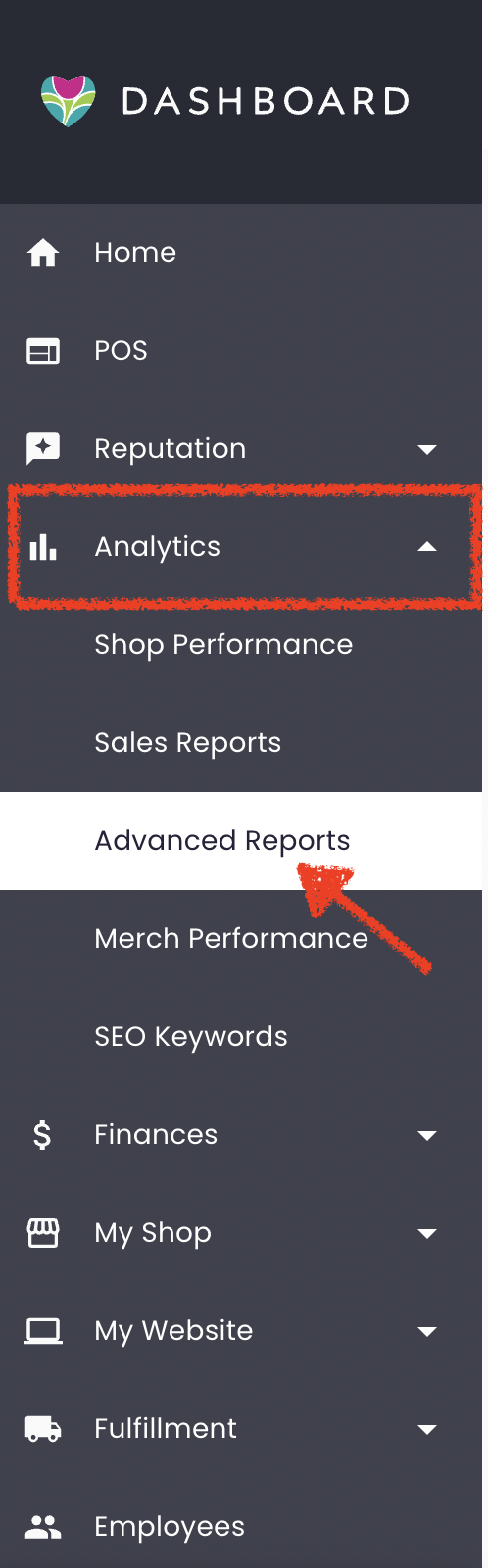
- Log in to your BloomNation account.
- Navigate to the Analytics tab.
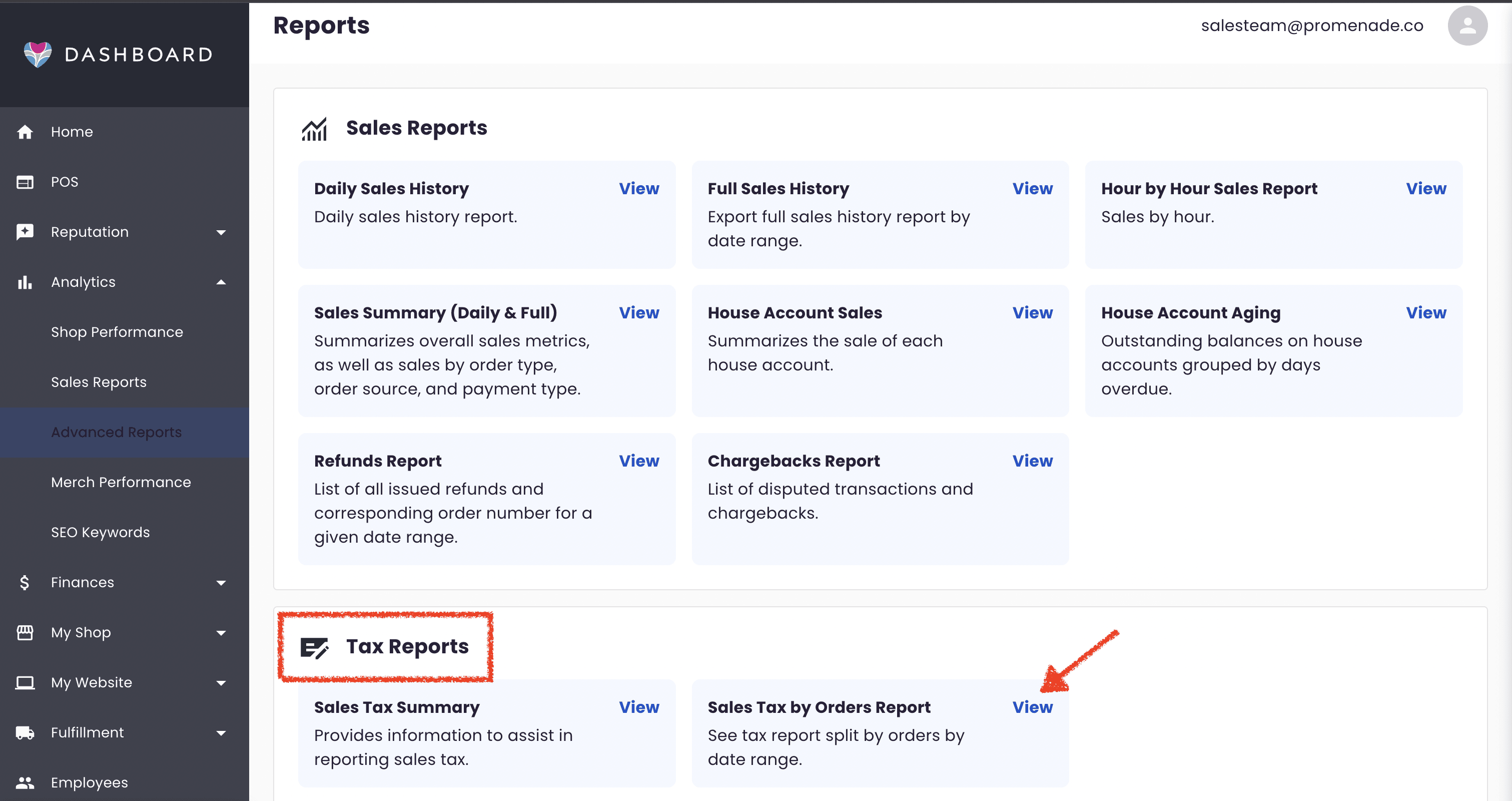
- Select the Advanced Reports sub-tab.
- In the Tax Reports section, click on Sales Tax by Orders Report.
Report Overview
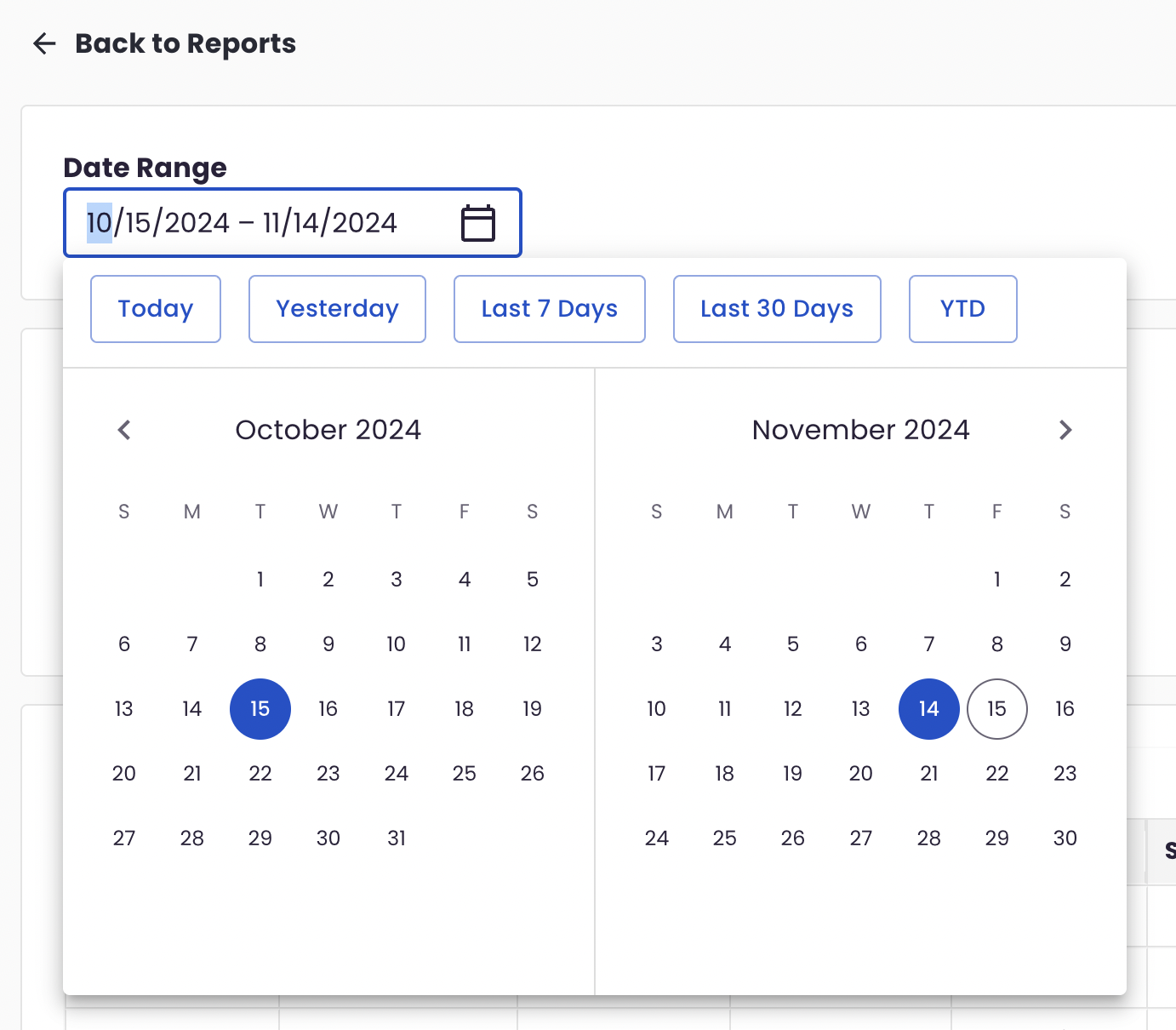
This report includes only data related to orders and is updated approximately every hour to reflect new orders or updates. By default, the report loads data for the past month, but you can customize the date range using the Start Date and End Date fields.
Quick date range shortcuts are available, including:
- Today
- Yesterday
- Last 7 Days
- Last 30 Days
- Year to Date (YTD)
Summary Section
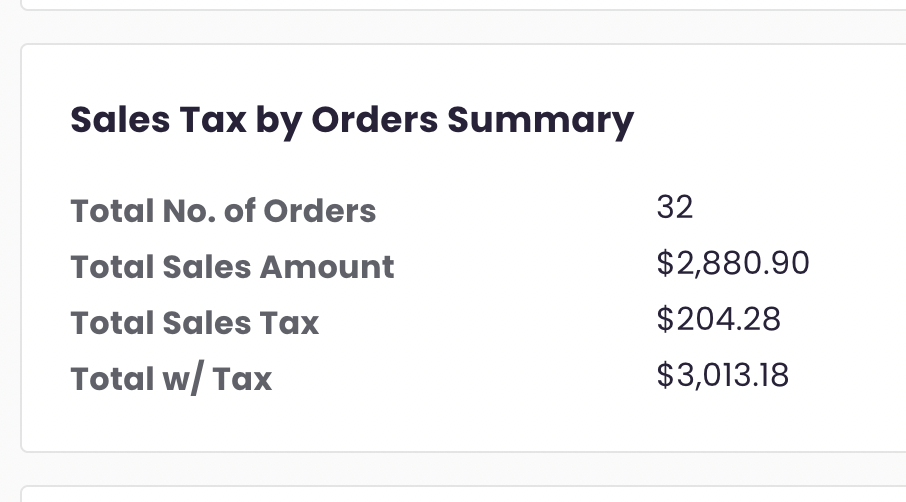
At the top of the report, you’ll find a Sales Tax by Orders Summary for the selected date range. This summary includes:
- Total No. of Orders: The total number of orders in the date range.
- Total Sales Amount: The total order amount before tax.
- Total Sales Tax: The total amount of sales tax collected.
- Total w/ Tax: The total amount including tax.
Report Table
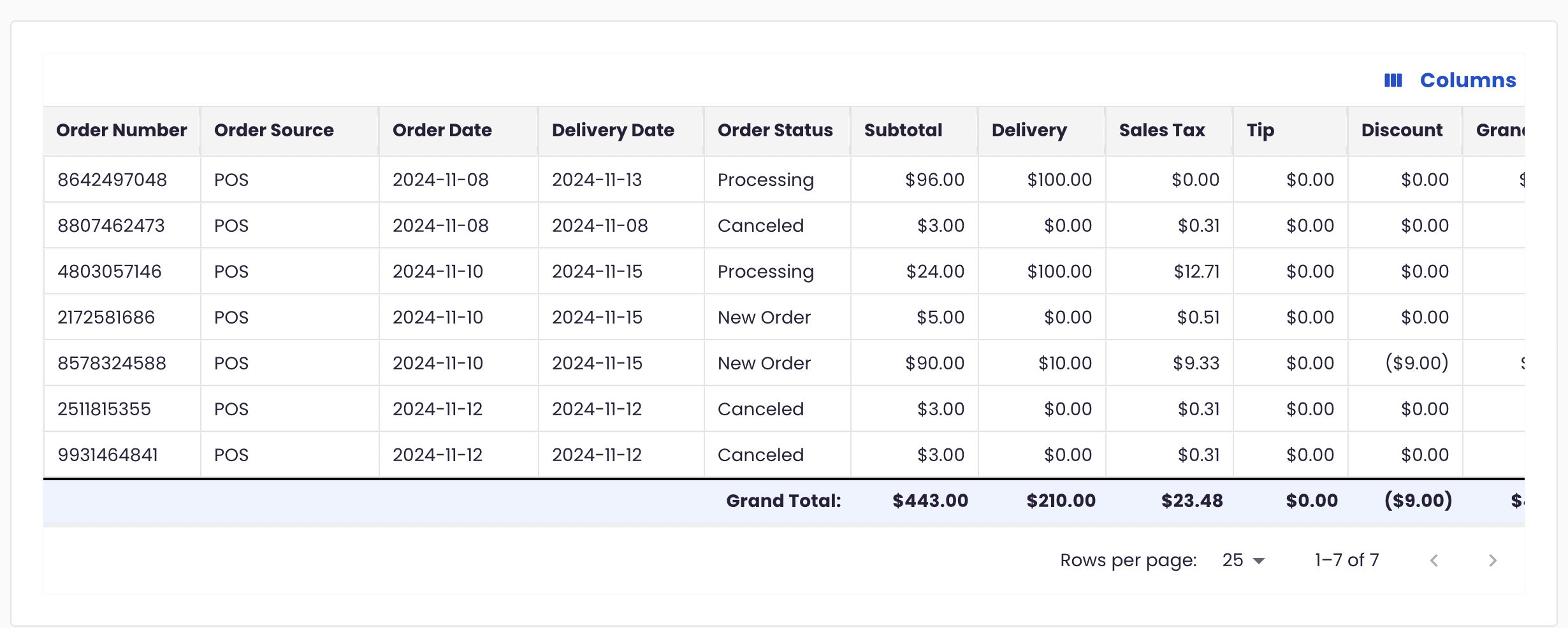
Below the summary, the report table displays detailed data for each order, with the following columns:
- Order Number: The unique identifier for each order.
- Order Source: The source of the order (e.g., POS, Premium Site, Marketplace).
- Order Date: The date the order was placed.
- Delivery Date: The scheduled delivery date, if applicable.
- Order Status: The current status of the order.
- Subtotal: The order amount before fees, tax, and tips.
- Delivery: The delivery fee amount.
- Sales Tax: The amount of sales tax applied to the order.
- Tip: The tip amount included in the order.
- Discount: The total discount applied to the order.
- Grand Total: The total amount after fees, tax, tips, and discounts.
The table is sorted in chronological order by Order Date by default.
At the bottom of the table, you’ll see the Grand Totals across all orders for the selected date range. These totals include:
- Subtotal
- Delivery
- Sales Tax
- Tip
- Discount
- Grand Total
Customizing Columns and Sorting
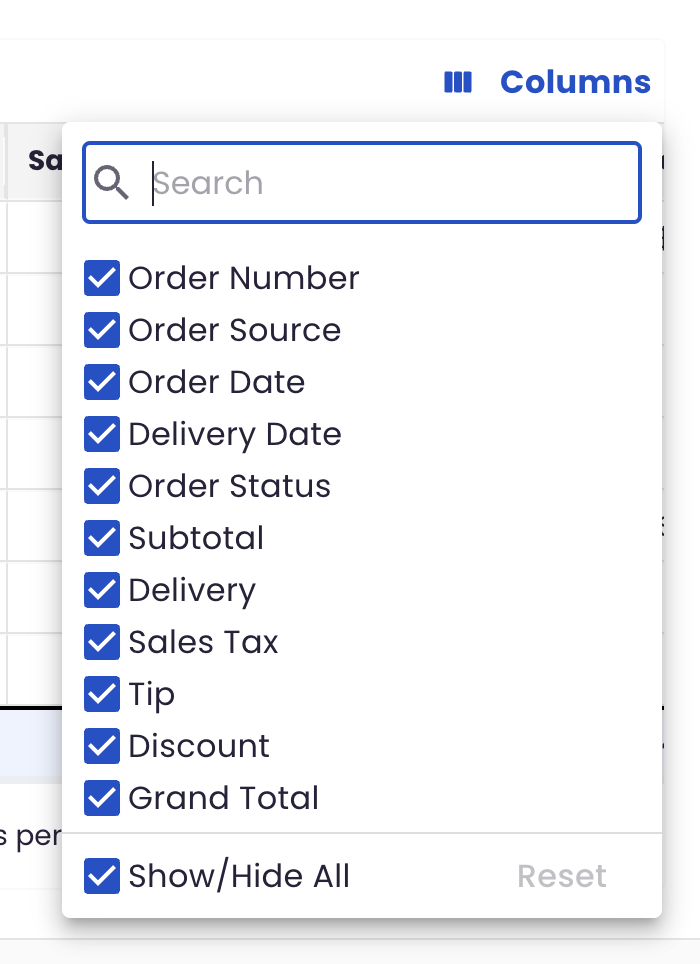
You can customize your view of the report using the Columns dropdown in the top-right corner:
- Show/Hide Columns: Select or deselect columns by checking or unchecking their names.
- Show/Hide All: Quickly display or hide all columns.
- Reset: Restore the default column configuration.
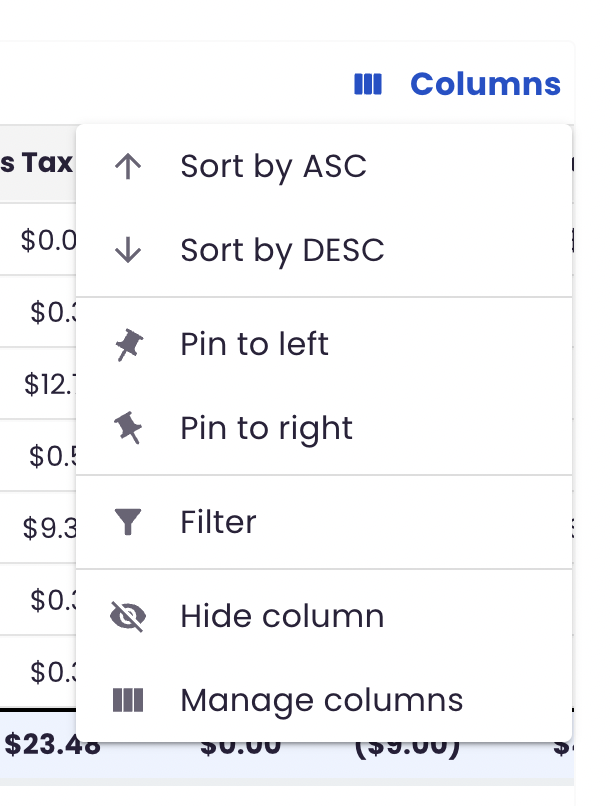
For additional customization, hover over a column header and click the ellipsis (⋯) to:
- Sort data by Ascending or Descending order.
- Pin the column to the Left or Right.
- Apply Custom Filters to refine the data.
- Hide the column.
You can also quickly sort by a column using the up or down arrows that appear when hovering over a column header. Click once to sort ascending and again to sort descending.
Support
If you have questions or need assistance with the Sales Tax by Orders Report, please contact our support team by submitting a ticket here.