
Sales Tax Report
Sales Tax Report
Overview
The Sales Tax Report helps streamline sales tax reporting by providing clear visibility into tax totals, making it easy to obtain the data needed for state tax remittance. The report refreshes hourly and includes updates for any new orders or order modifications, helping ensure your records stay up-to-date.
You can also print or export this report as needed for easy reference.
Accessing the Sales Tax Summary Report
- Log in to your BloomNation account.
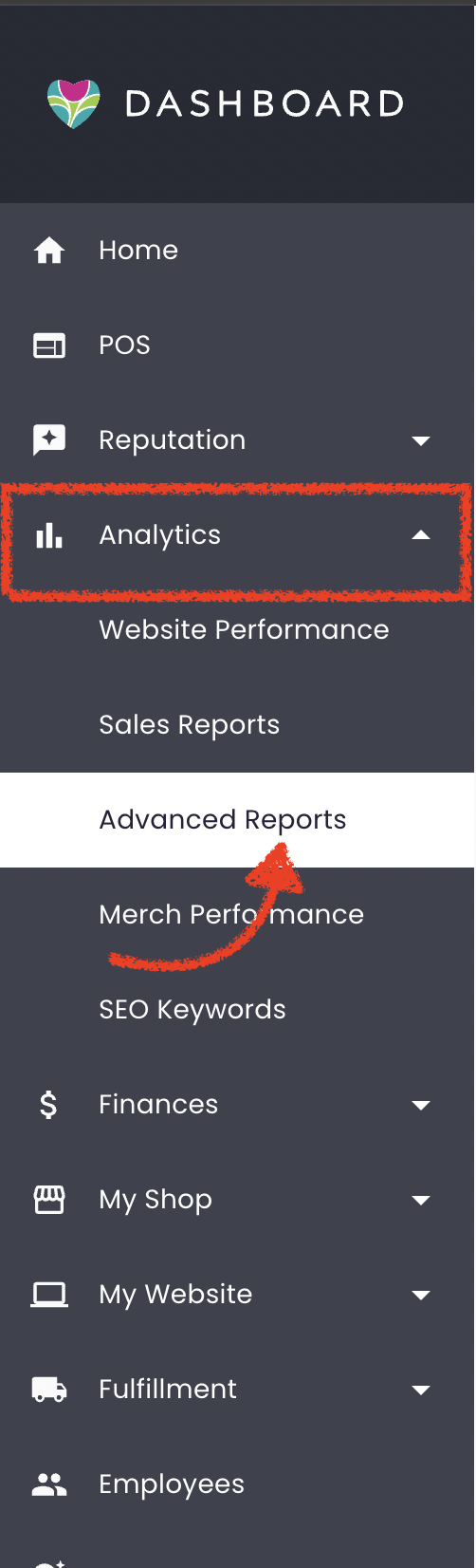
- Navigate to the Analytics tab.
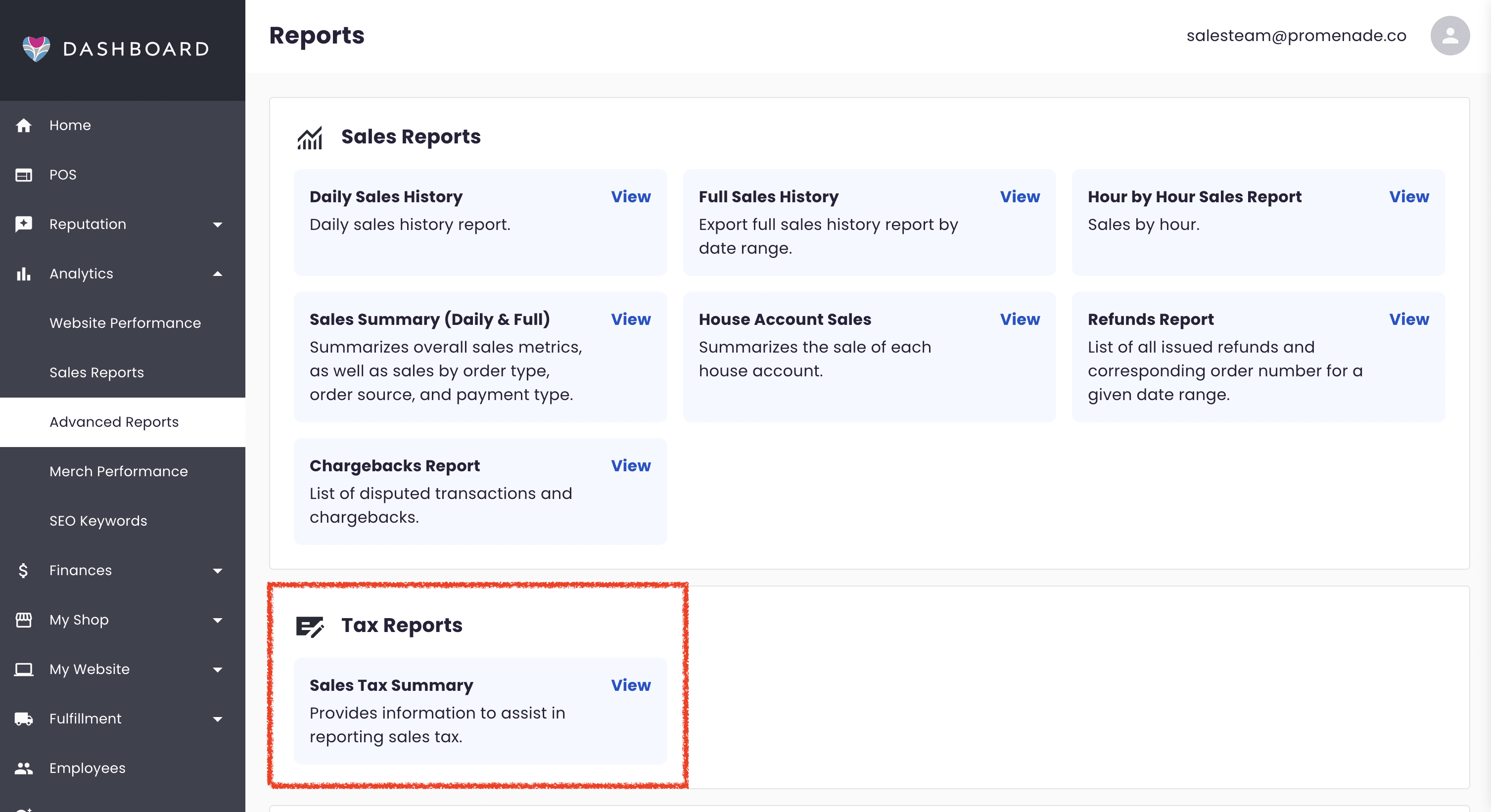
- Select the Advanced Reports sub-tab.
- In the Tax Reports section, click on Sales Tax Summary.
By default, the report opens to display data from the past week.
Using the Sales Tax Summary Report
Setting the Date Range
-
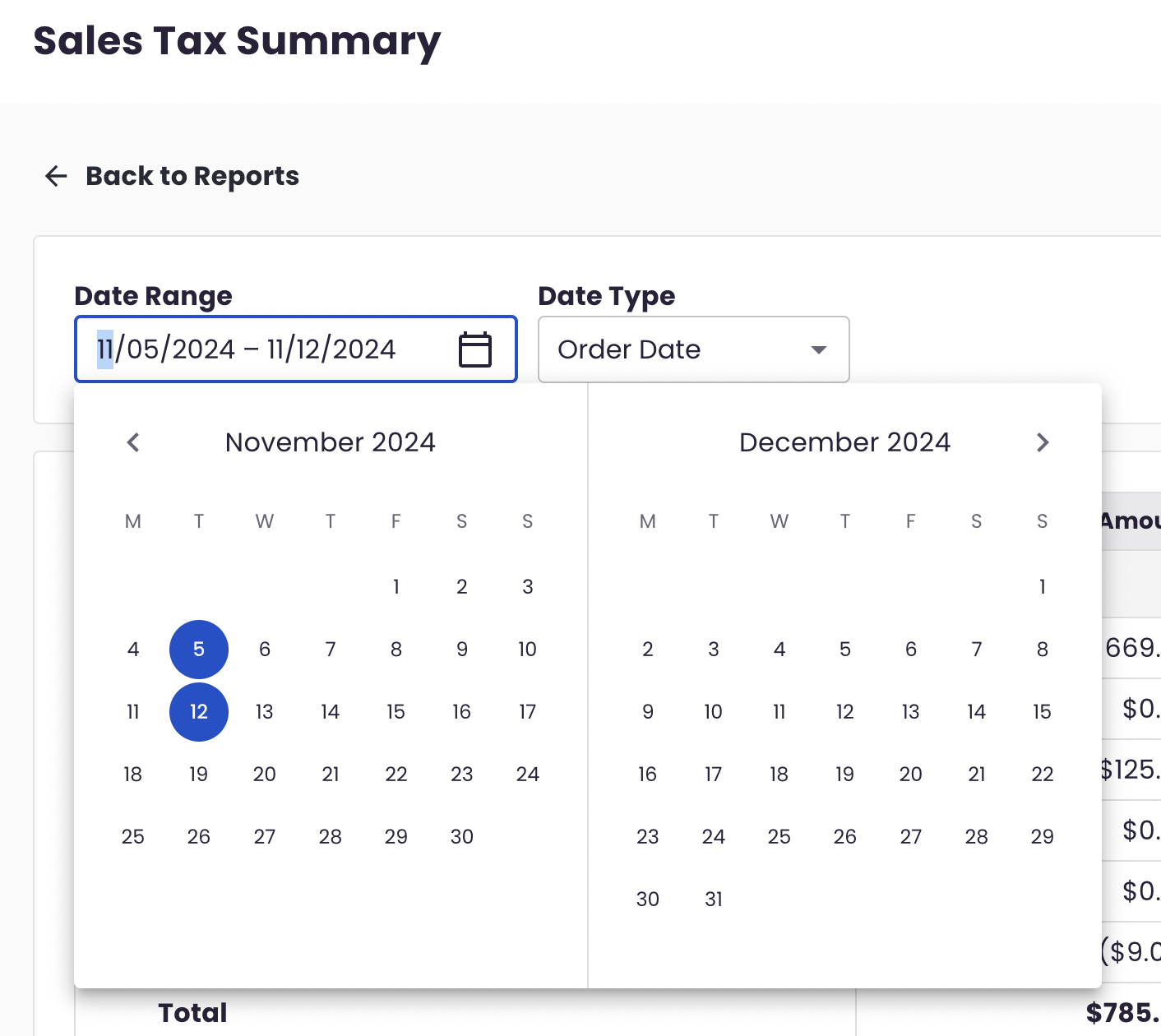
Date Range: Choose a Start and End Date. To view one day, set the Start and End Dates to the same date.
-
Date Type: Choose between Order Date (default) or Delivery Date.
- Order Date refers to when the order was placed.
- Delivery Date refers to the actual fulfillment date (e.g., delivery, pickup, or in-store pickup).
Report Structure
The report is split into two sections: Taxable Customers and Tax Exempt Customers. Each section includes columns for Amount, Sales Tax, and Total w/ Tax.
Taxable Customers
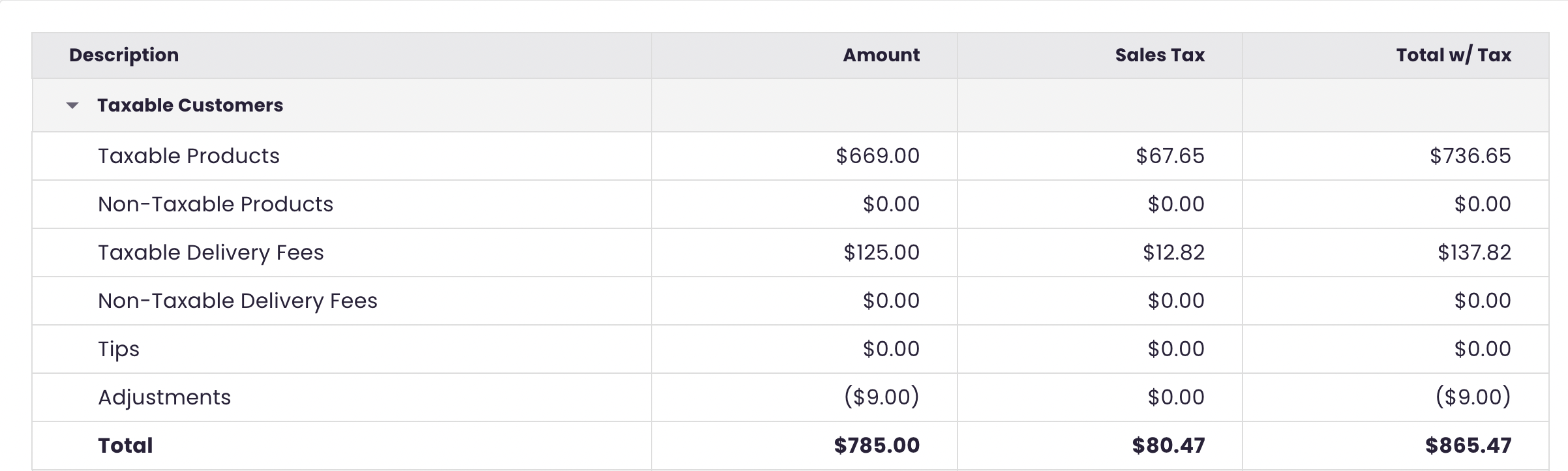
For customers who are subject to paying sales tax, the report includes the following rows:
- Taxable Products: Products subject to sales tax.
- Non-Taxable Products: Products not subject to sales tax.
- Taxable Delivery Fees: Includes any delivery fees, such as timed delivery, for taxable orders.
- Non-Taxable Delivery Fees: Delivery fees not subject to sales tax.
- Tips: Collected tips for taxable orders.
- Adjustments: Net value of order modifications, including canceled orders, full/partial refunds, and additional charges.
- Total: Sum of all rows above for each column.
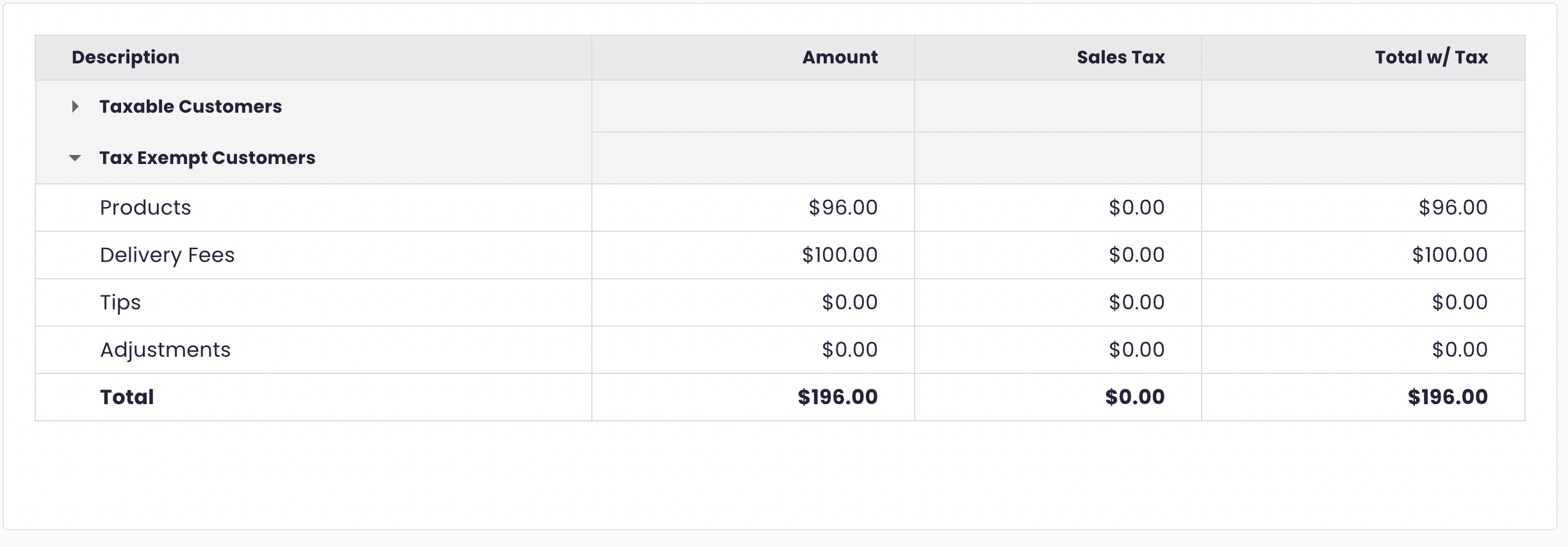
Tax Exempt Customers
For customers exempt from sales tax (e.g., customers with a Tax Exempt ID), the report includes:
- Products: All products purchased by tax-exempt customers.
- Delivery Fees: All delivery fees, including timed delivery, for tax-exempt customers.
- Tips: Collected tips from tax-exempt customers.
- Adjustments: Net value of order adjustments.
- Total: Sum of all rows above for each column.
Note: Sales Tax cells for tax-exempt rows will always display as $0, as these customers are not charged sales tax.
Additional Information
- Any new orders or updates are included when the report refreshes approximately every hour.
- The Adjustments row reflects the net values of canceled orders, full/partial refunds, and any additional charges.
- This report captures data for both orders and paid invoices, covering website, POS, and marketplace orders.
Need More Help?
If you have further questions or need assistance, please submit a support ticket here.