
Sales Summary Report
Sales Summary Report
The Sales Summary Report gives an overview of your shop’s performance across multiple dimensions, allowing you to track sales metrics, orders by type, order sources, and payment types. This report aggregates orders within a selected timeframe and presents key metrics across several categories.
Accessing the Report
- Log in to your BloomNation account.
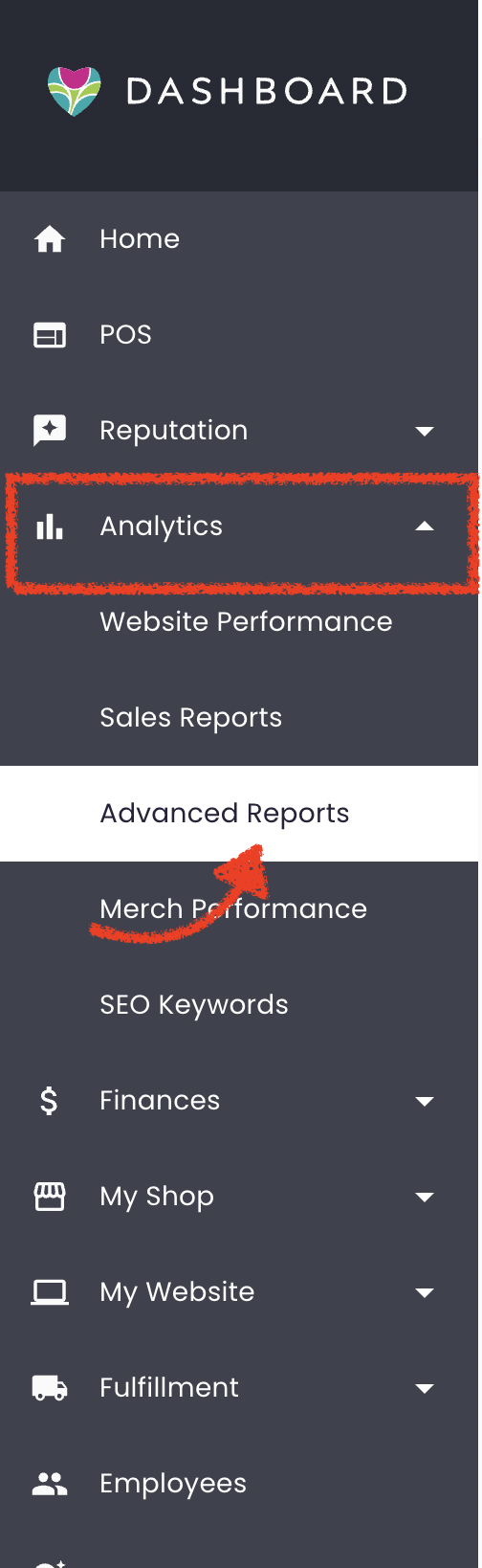
- Navigate to the Analytics tab.
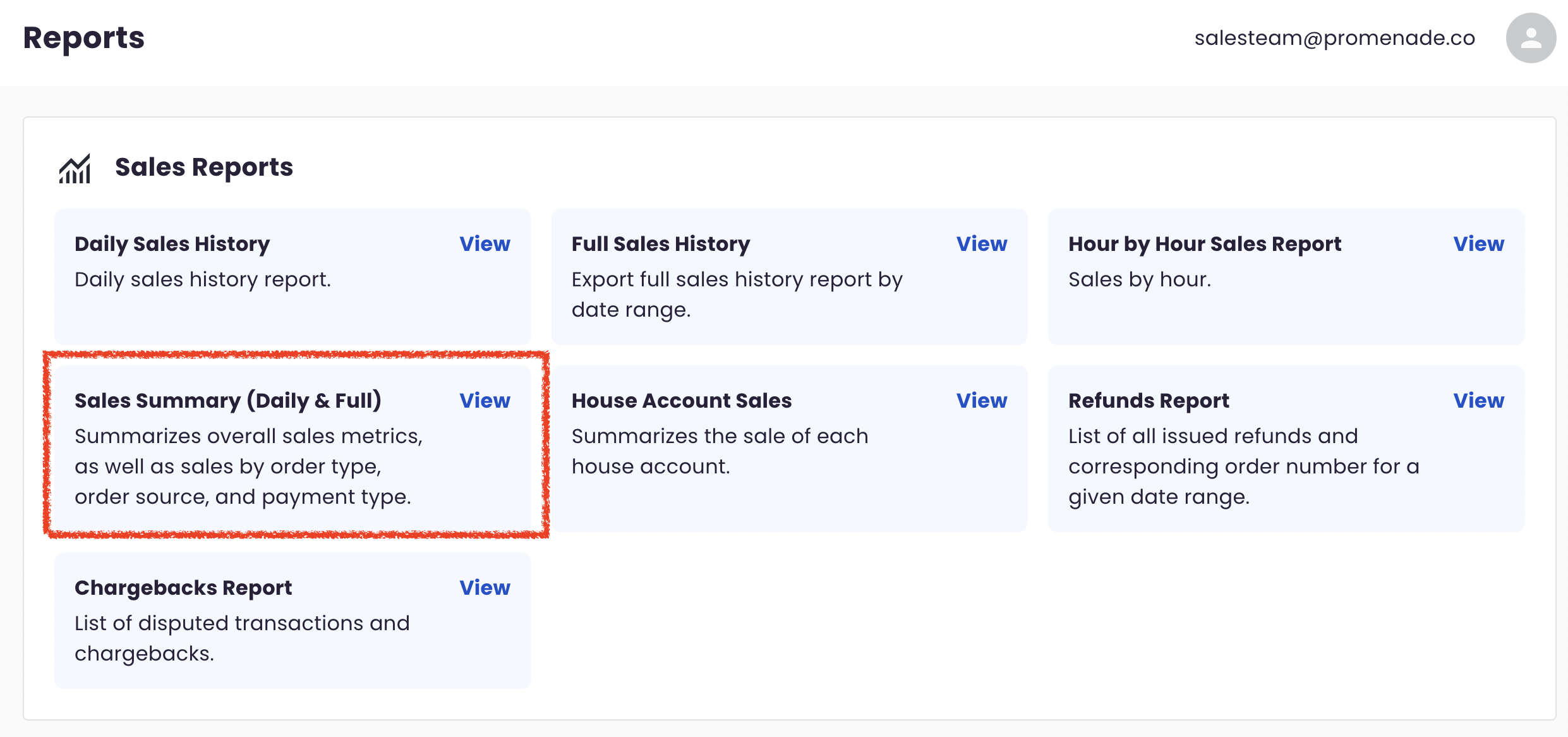
- Under Advanced Reports, locate Sales Reports and click on Sales Summary (Daily & Full).
Using the Sales Summary Report
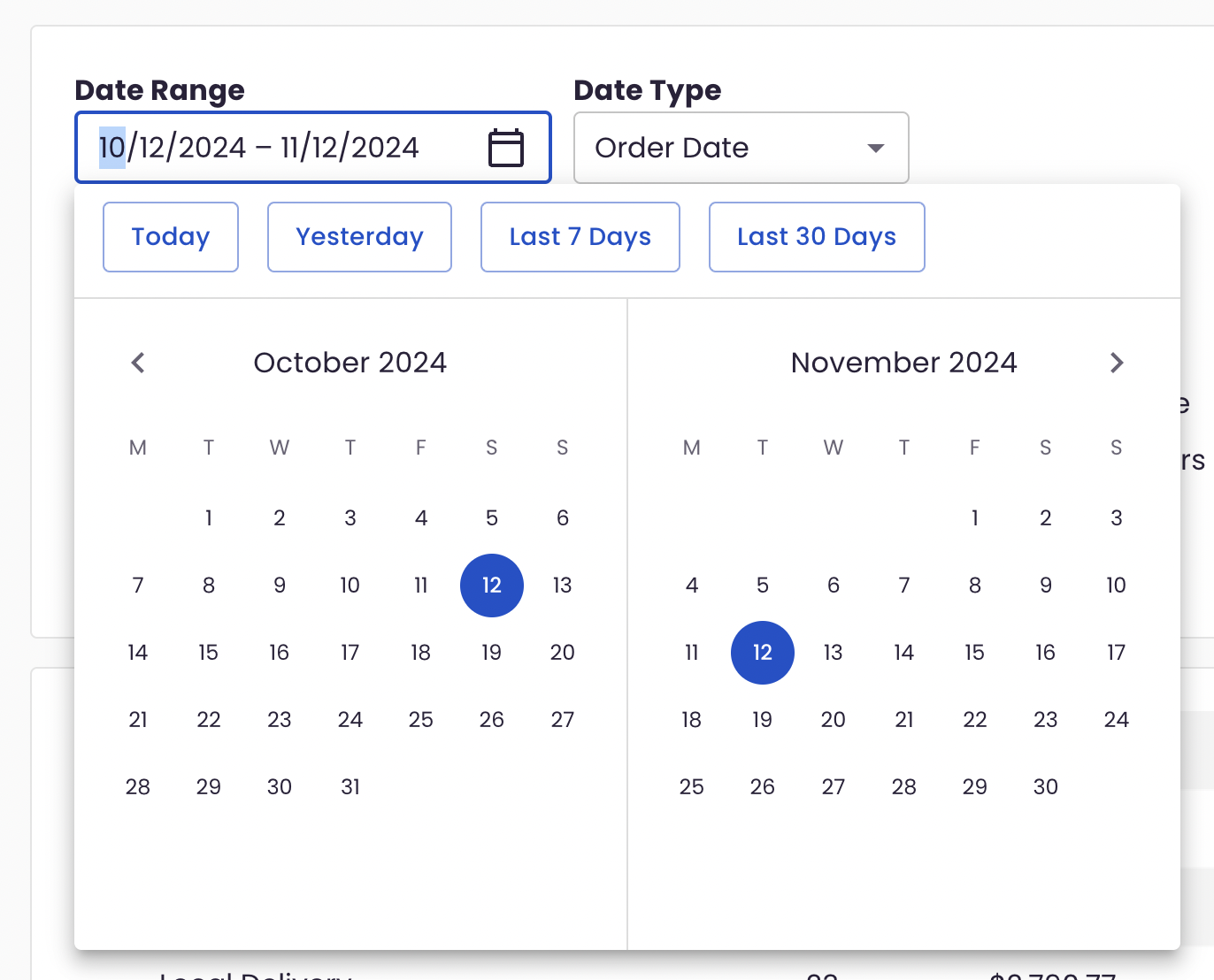
Upon accessing the report, you’ll see an overview of all orders within the selected date range, broken down into segments for clear insights. The default date range is set to the past month, but you can adjust this range as needed. To customize the date range:
- Click into the Date Range field.
- Choose from quick access options: Today, Yesterday, Last 7 Days, or Last 30 Days.
- Select the Date Type (default is Order Date), with options of Order Date and Delivery Date.
Report Display Options
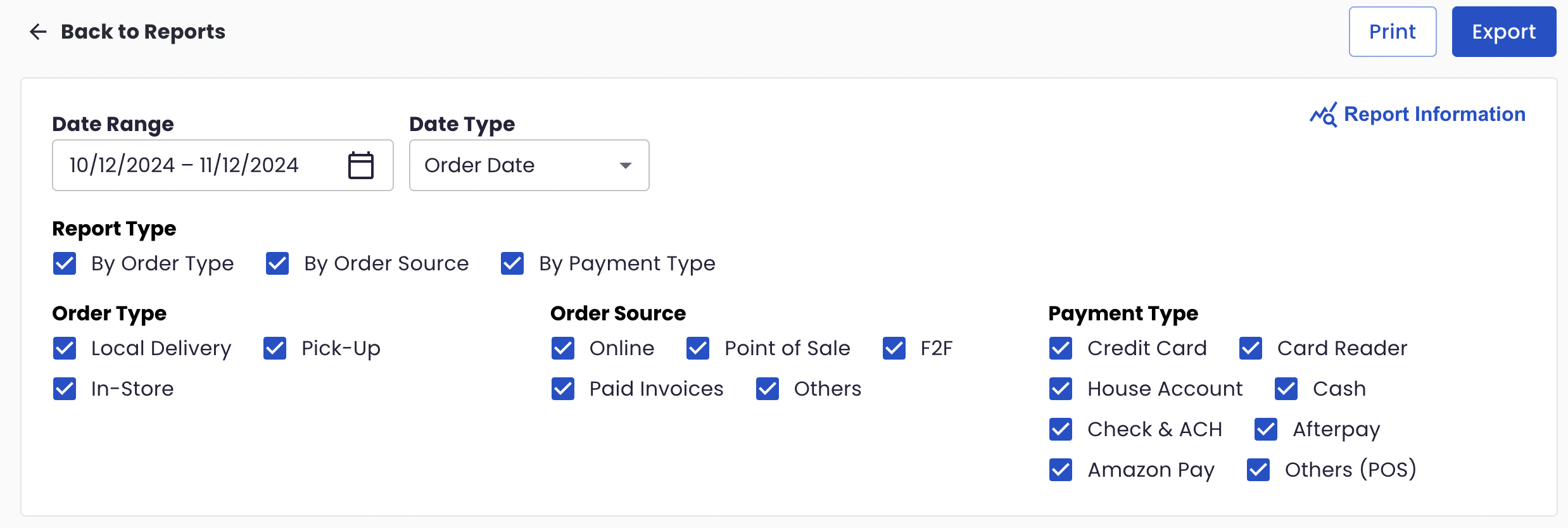
You can select which data segments / aggregations to display by checking/unchecking boxes above the report:
- Report Type: By Order Type, By Order Source, By Payment Type
- Order Type: Local Delivery, Pickup, In-Store
- Order Source: Online, Point of Sale, F2F, Paid Invoices, Others
- Payment Type: Credit Card, Card Reader, House Account, Cash, Check & ACH, Afterpay, Amazon Pay, Others (POS)
Report Sections Overview
The Sales Summary Report is organized into four main sections, offering a holistic view of your sales metrics and order breakdowns. Here’s how each section is structured:
All Orders
The All Orders section provides a summary of all orders for the selected time period, including:
- Order Count: Total number of orders.
- Total Sales: Gross sales amount before any refunds.
- Refunded: Amount refunded within the date range.
- Total Net Sales: Total Sales minus Refunded amount.
- Avg. Order Value: Average value of each order within the time frame.

By Order Type
This segment categorizes orders by their fulfillment type:
- Local Delivery
- Pickup
- In-Store
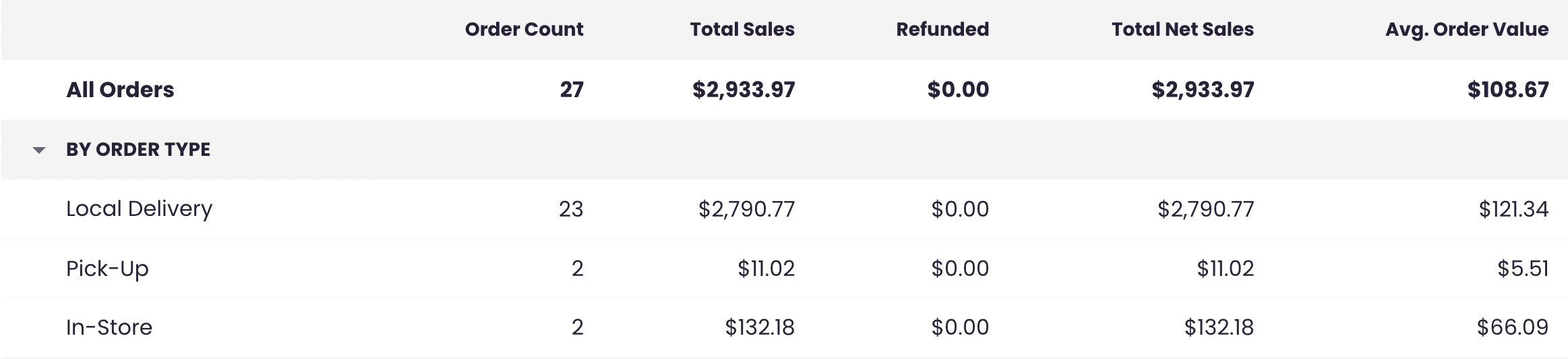


Each of these sub-rows will display the number of orders and sales associated with that order type. The totals across all sub-rows will add up to your total sales in the All Orders section.
By Order Source
The Order Source section shows the origin of each order:
- Online: Orders from your website and BloomNation Marketplace.
- Point of Sale (POS): Orders placed via the Create Order feature on POS.
- F2F (Florist-to-Florist): Orders exchanged between florists.
- Paid Invoices: Orders placed using Invoicing.
- Others: Legacy order sources, relevant for date ranges earlier than 2020.
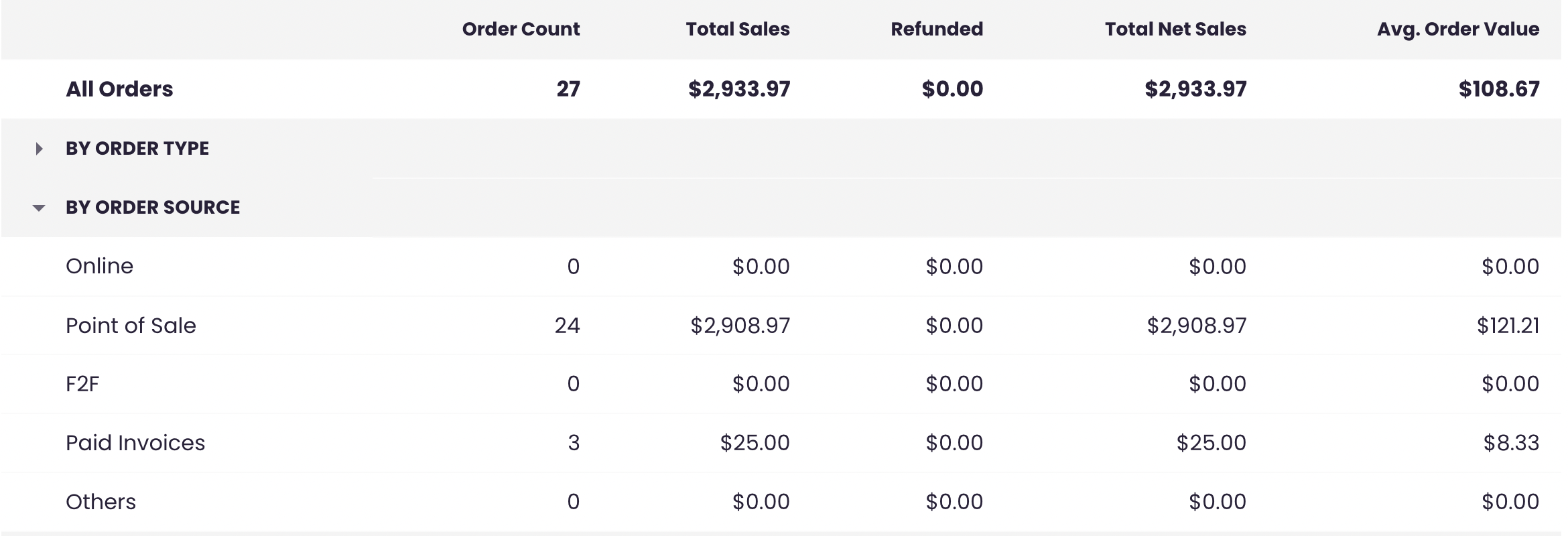
Each of these sub-rows will display the number of orders and sales associated with that order source. The totals across all sub-rows will add up to your total sales in the All Orders section.
By Payment Type
This section categorizes orders by payment method:
- Credit Card: Includes manual card entries, saved credit cards, Apple Pay, Google Pay, and Stripe.
- Card Reader: Payments processed via card readers in POS.
- House Account: Orders charged to a customer’s house account.
- Cash
- Check & ACH
- Afterpay
- Amazon Pay
- Other (POS): Payments processed via POS using the “Other” payment option.
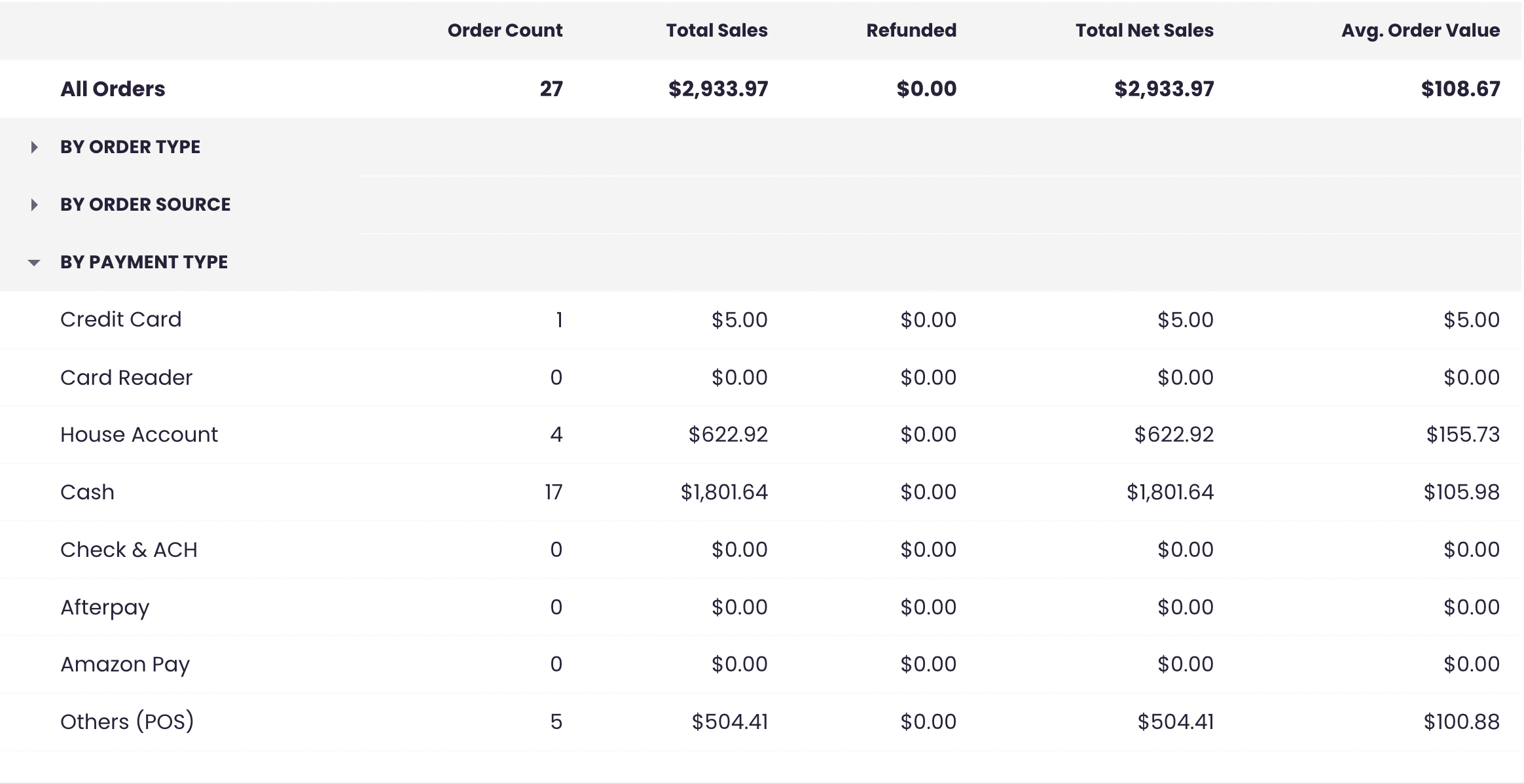
Each of these sub-rows will display the number of orders and sales associated with that payment type. The totals across all sub-rows will add up to your total sales in the All Orders section.
Exclusions in the Sales Summary Report
- Canceled orders, fully refunded orders, rejected F2F orders, and unpaid invoices are excluded from this report.
- Partially refunded orders are included, with the refund amount deducted from the Total Net Sales metric.
Exporting and Printing the Report
You can export or print the report directly from the Sales Summary Report page for offline analysis or record-keeping.
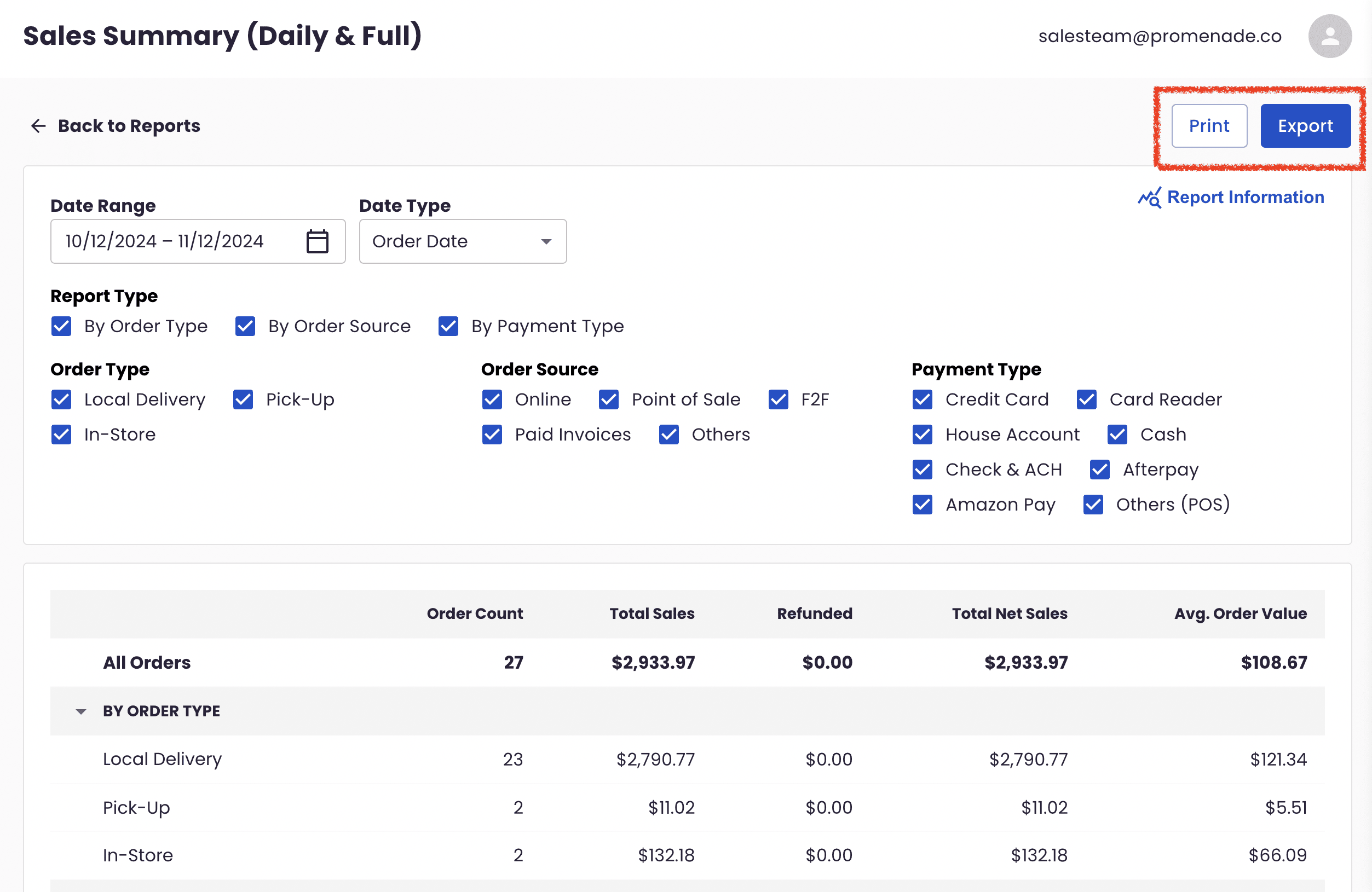
Need Assistance?
For help with interpreting or troubleshooting the Sales Summary Report, please reach out to our support team by submitting a ticket.