
Customer Spending Report
Customer Spending Report
The Customer Spending Report provides insight into each customer’s total spending and order count over a selected date range, helping you track key customer activity and identify top buyers. This report updates every hour, ensuring you have the latest data on active customers. Deleted customers will not appear in this report.
Accessing the Report
- Log into your BloomNation account.
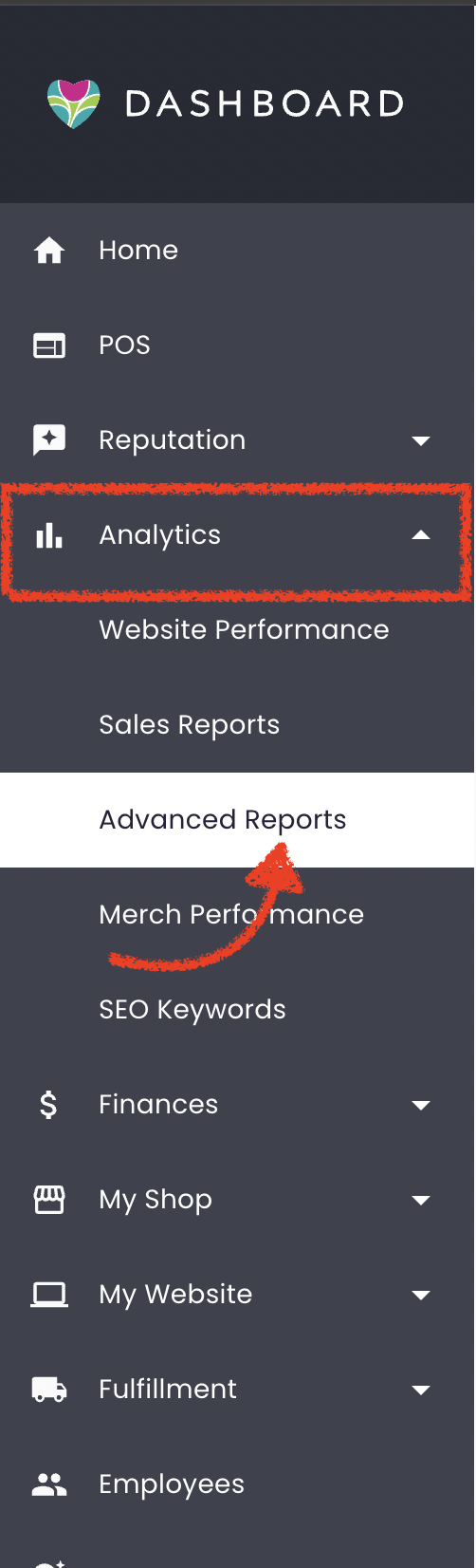
- Go to the Analytics tab.
- Click on the Advanced Reports sub-tab.
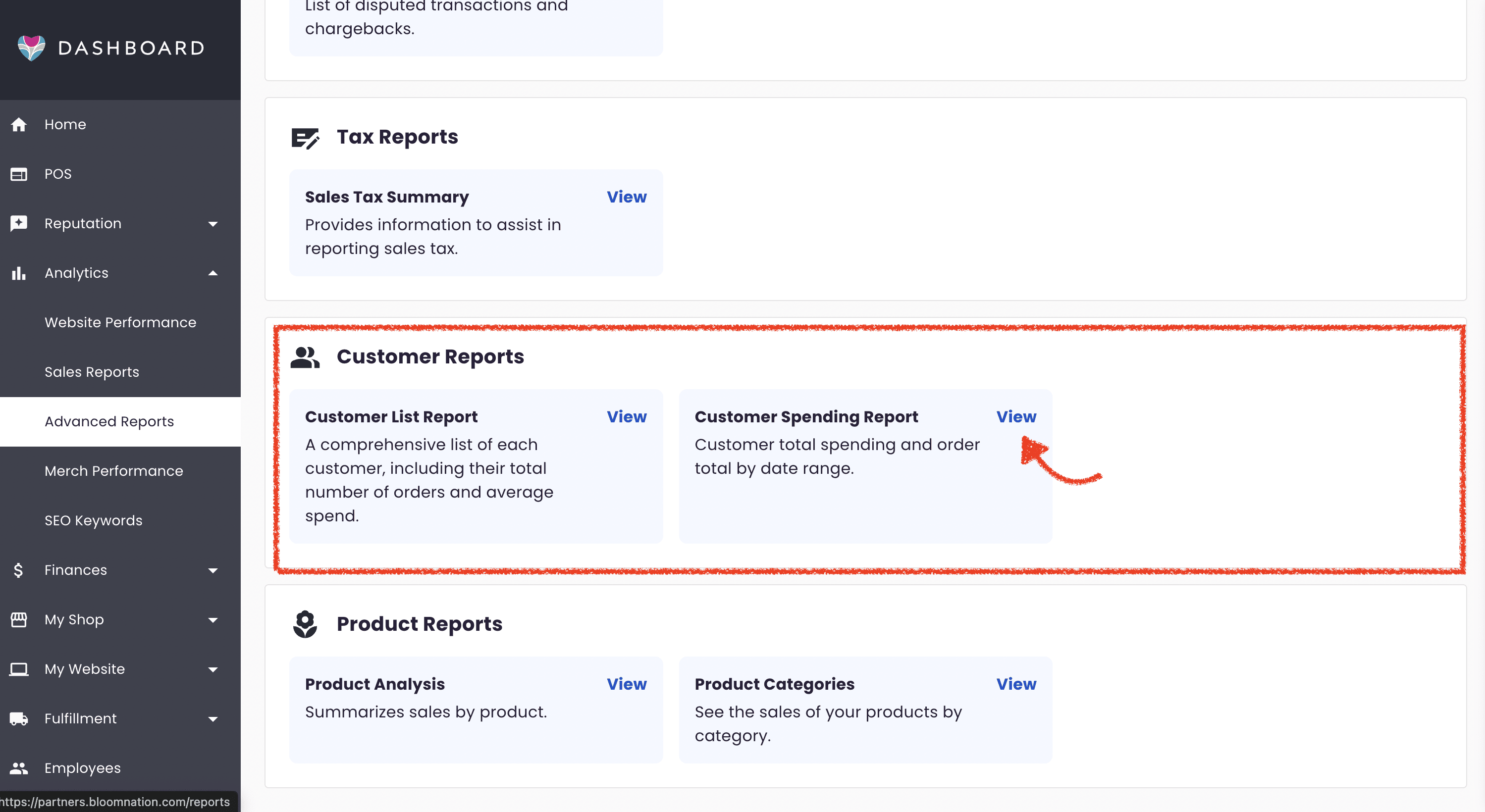
- In the Customer Reports section, click on Customer Spending Report.
Using the Report
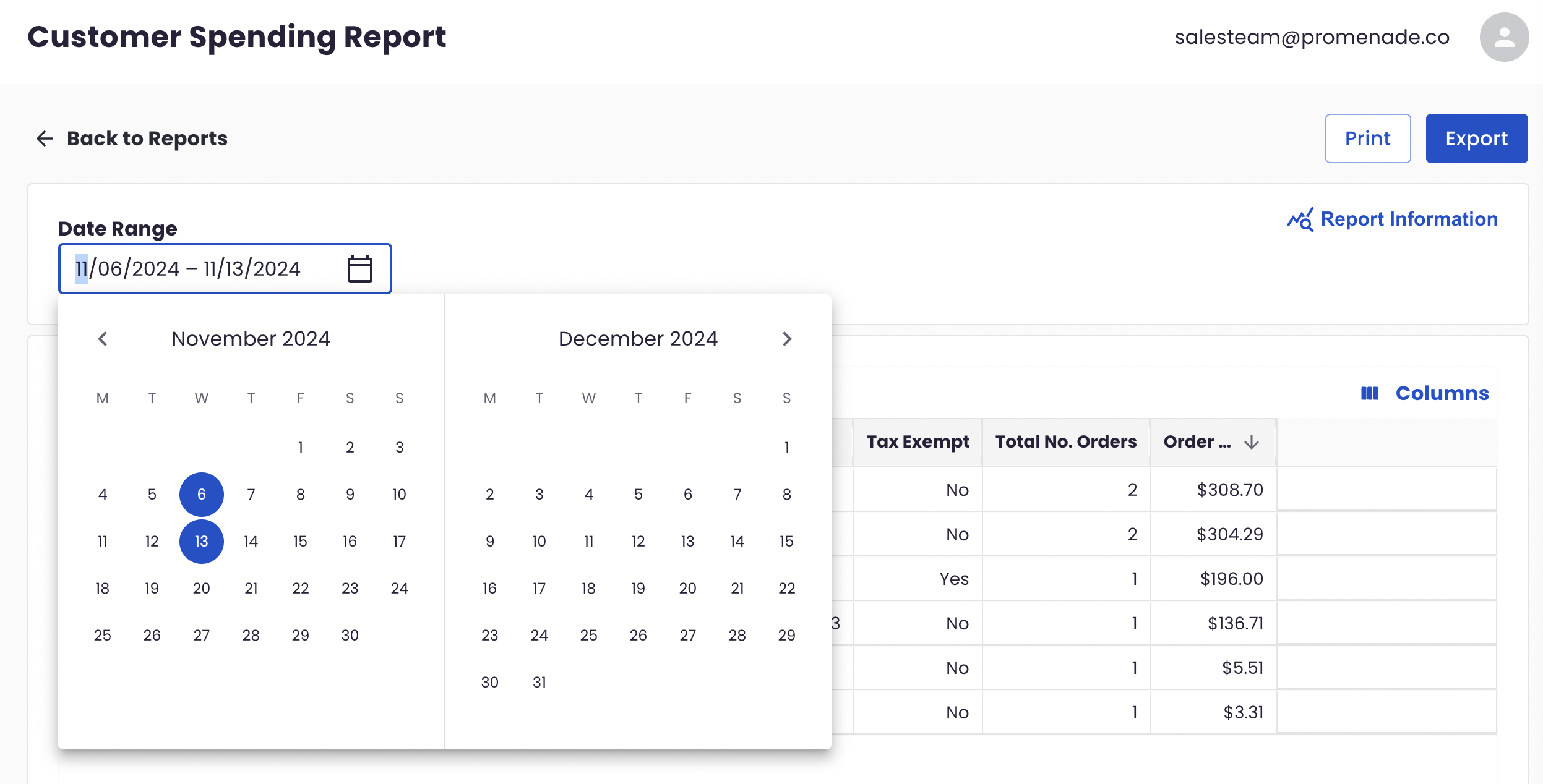
- Date Range Selection: The report defaults to the past week, but you can customize the date range by selecting a specific start and end date (or set the same date to view a single day).
- Print & Export: You can easily print or export the report for external analysis or record-keeping.
Report Columns
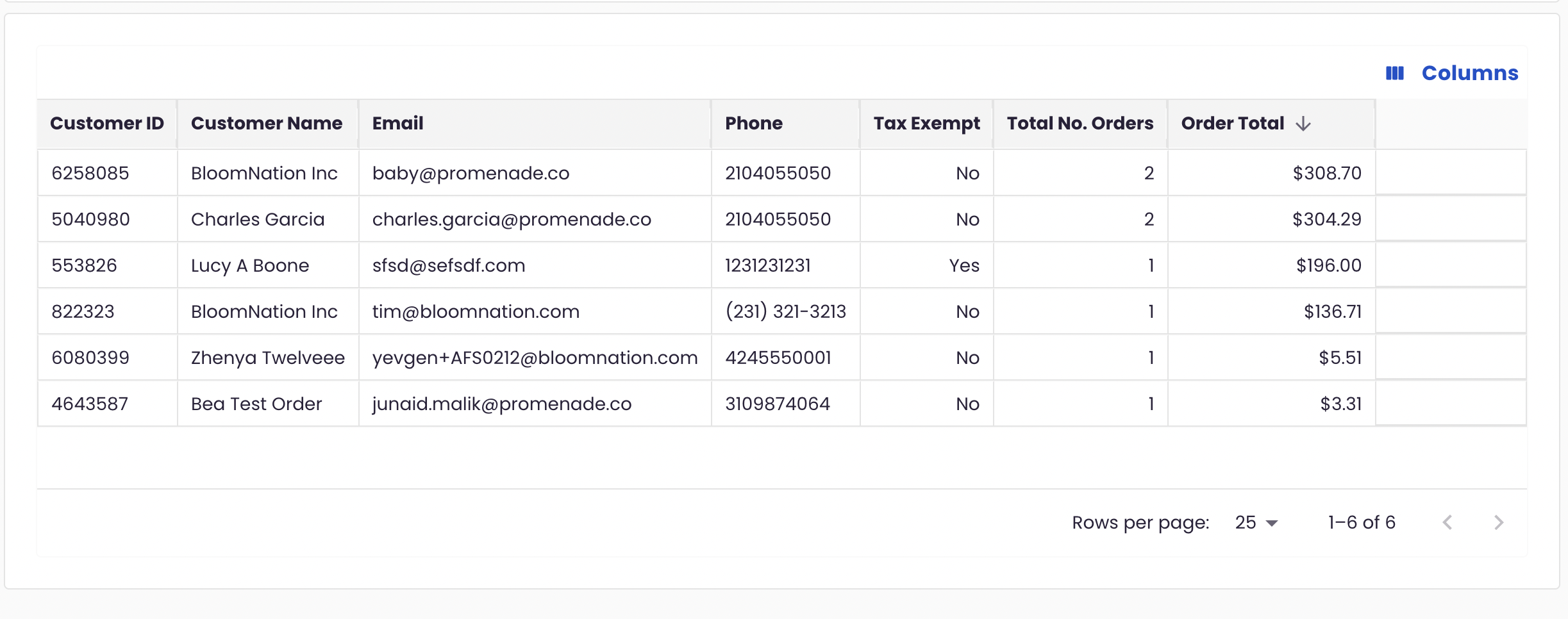
Each column provides key details on customer spending and order activity:
- Customer ID: A unique identifier assigned to each customer.
- Customer Name: The full name of the customer.
- Email: The customer’s email address.
- Phone: The customer’s contact phone number.
- Tax Exempt: Shows “Yes” or “No,” indicating if the customer is exempt from tax.
- Total No. Orders: Displays the total number of orders the customer has placed within the selected date range.
- Order Total: The total spending of the customer within the chosen date range.
By default, the report is sorted in descending order based on Order Total.
Customizing Columns
-
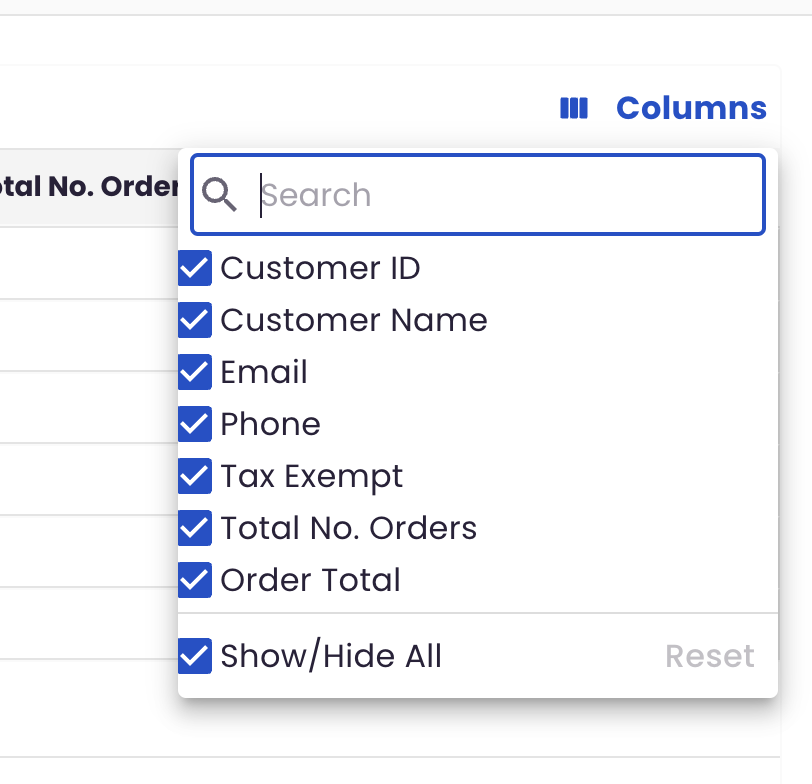
Show/Hide Columns: Click the Columns option in the top right to choose which columns to display. You can toggle columns by checking or unchecking boxes or use Show All, Hide All, or Reset to restore the default settings.
-
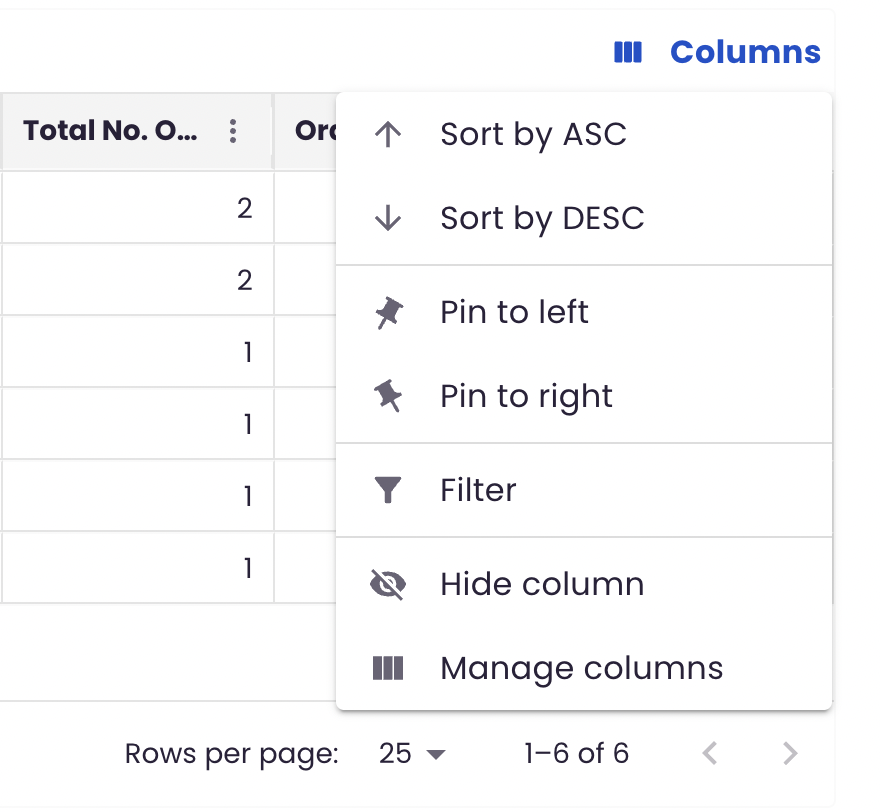
Column Settings: Each column’s ellipsis menu offers further customization:
- Sort: Sort by ascending (ASC) or descending (DESC) order.
- Pin Column: Pin the column to the left or right side of the report for easier viewing.
- Custom Filter: Create filters based on your preferred criteria. For example, filter by specific order totals, dates, or customer IDs to narrow down the data you want to analyze.
- Hide Column: Remove specific columns from view for a more tailored report.
To quickly sort the report, hover over a column header and use the arrows to sort by that column (one click for ascending, click again for descending).
If you need assistance or have questions, please feel free to reach out to our support team by submitting a ticket here.