
Customer List Report
Customer List Report
Overview
The Customer List Report provides a detailed summary of all your active customers. This report is updated hourly to reflect new customers or updates to existing ones, giving you the latest insights into your customer base. Please note that deleted customers are excluded from this report.
As with other reports, you can easily Print or Export this report for record-keeping or analysis.
Accessing the Customer List Report
- Log in to your BloomNation account.
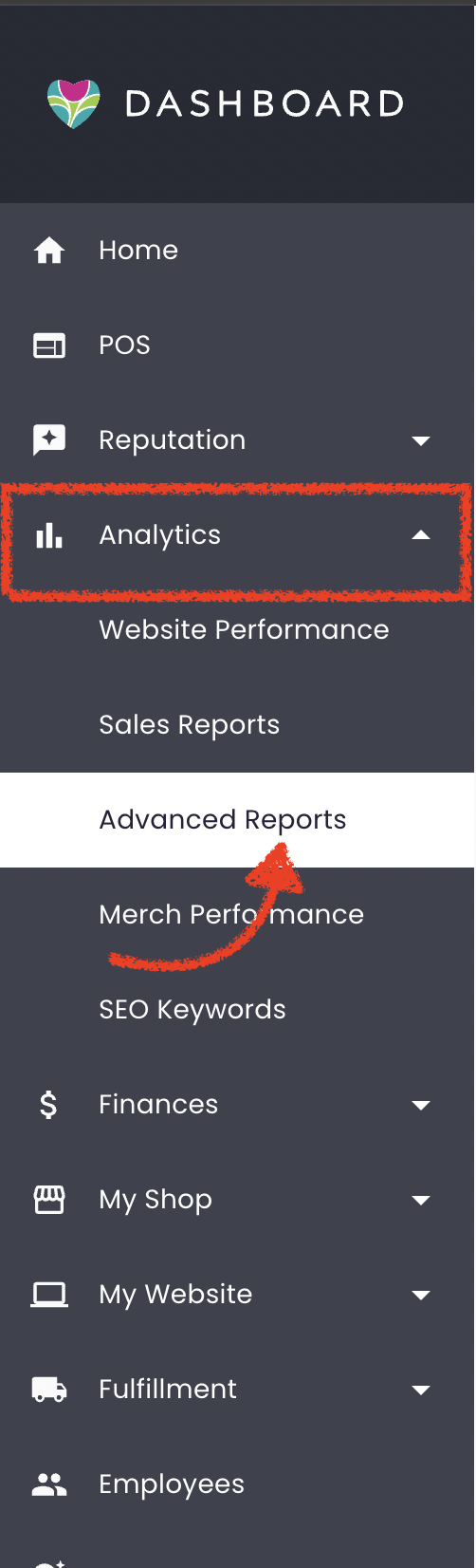
- Go to the Analytics tab.
- Select the Advanced Reports sub-tab.
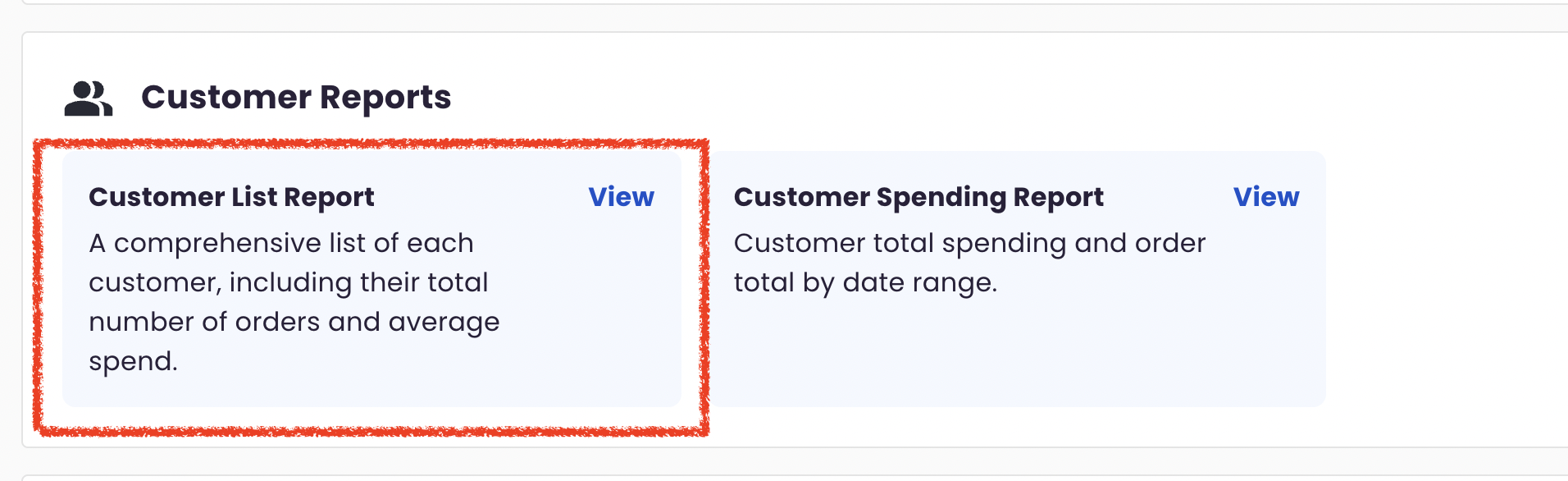
- Under Customer Reports, click on Customer List Report.
Report Details
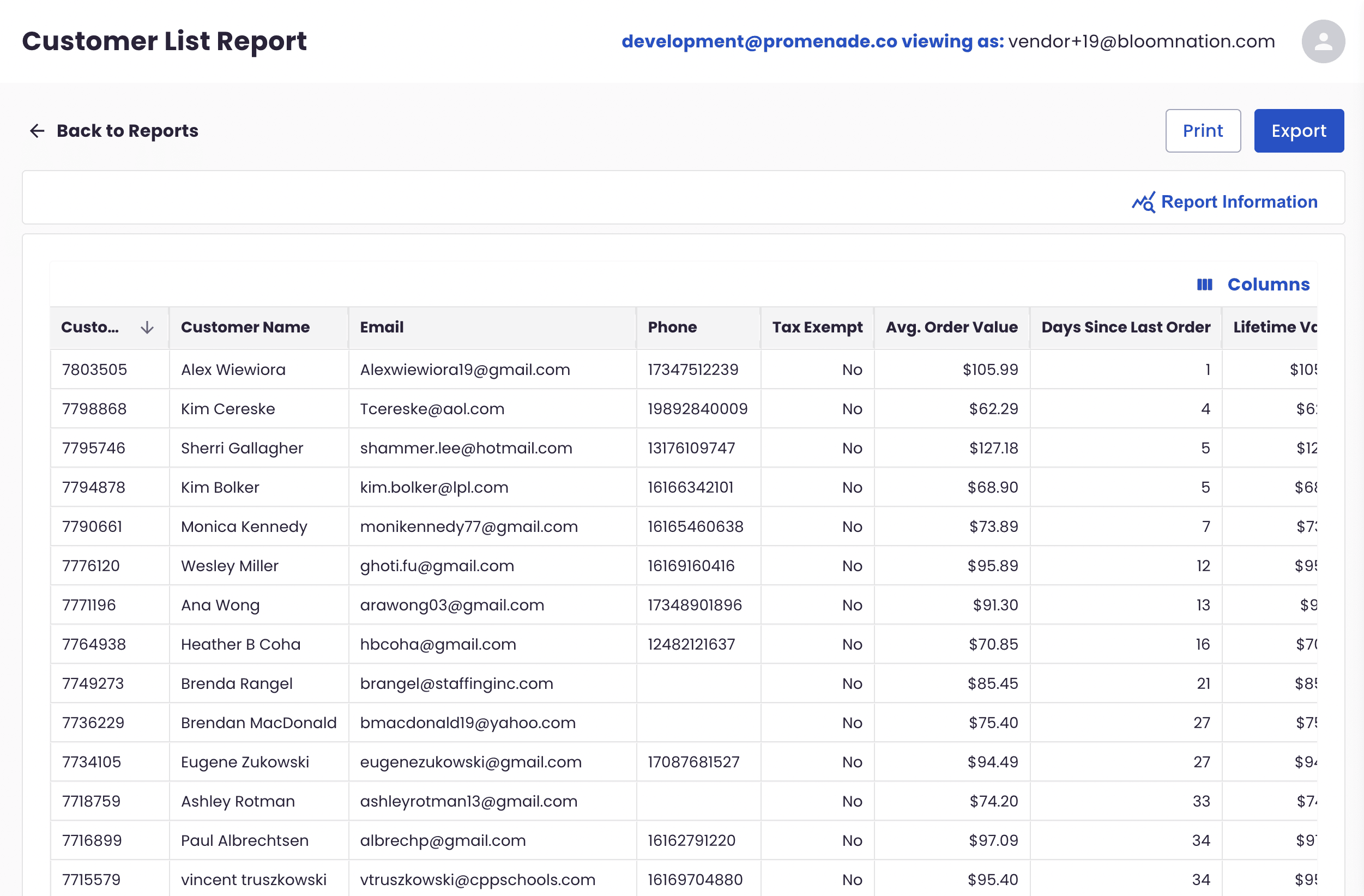
The Customer List Report displays a comprehensive list of customers, including key details about their activity and value to your business. By default, the list is sorted in descending order by Customer ID.
Each row in the report represents one customer, with the following columns available:
- Customer ID: Unique identifier for each customer.
- Customer Name: Full name of the customer.
- Email: Customer’s email address.
- Phone: Customer’s phone number.
- Tax Exempt: Indicates whether the customer is tax-exempt (Yes/No).
- Average Order Value: The average spend per order by the customer.
- Days Since Last Order: Time since the customer’s most recent order.
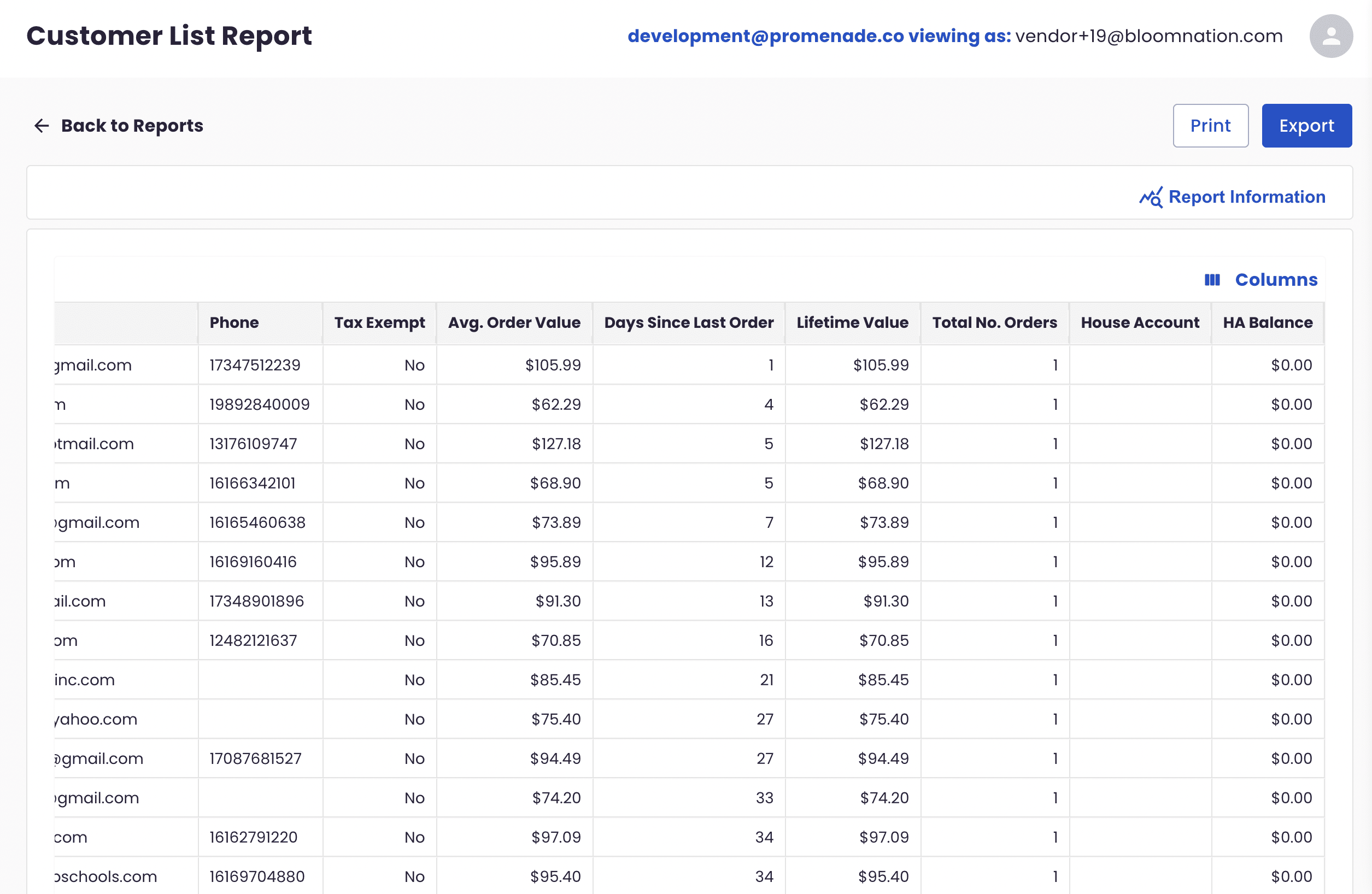
- Lifetime Value: Total value of all orders placed by the customer.
- Total No. Orders: The cumulative number of orders the customer has placed.
- House Account: Displays the House Account ID if the customer has one.
- House Account Balance: Displays the customer's current outstanding balance on their House Account, if they have one.
Customizing Your View
To tailor the report to your specific needs, use the following features:
-
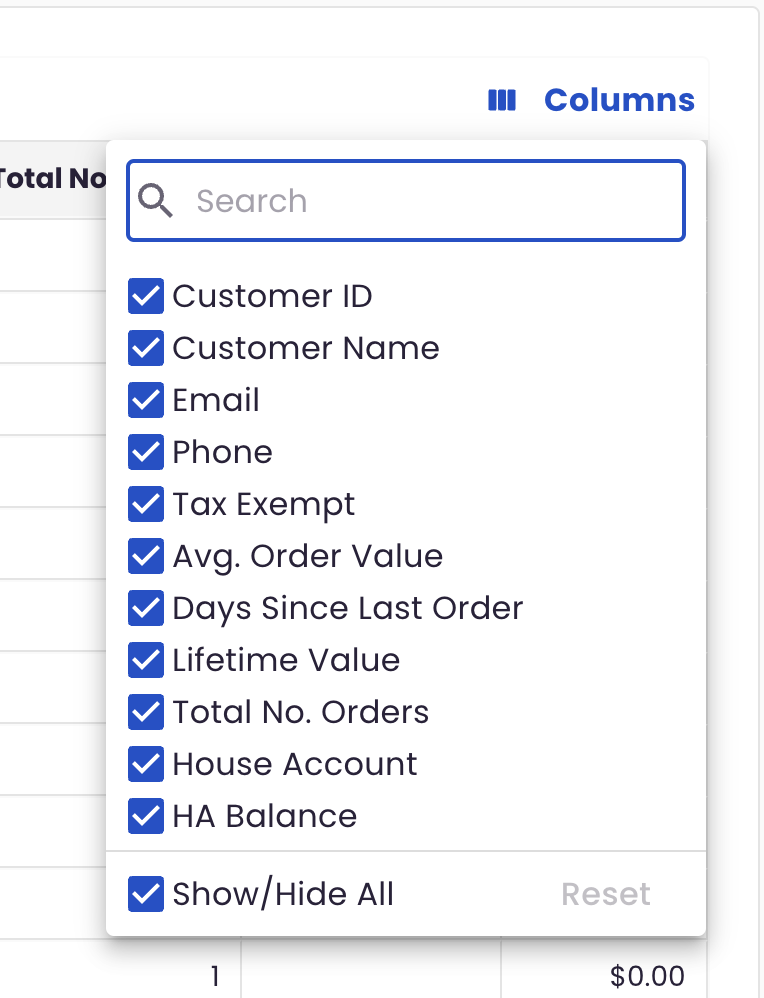
Columns Feature: Click Columns to toggle the visibility of fields in the report. You can also choose Show/Hide All or Reset to default settings.
-
Column Options: Hover over each column header and click the ellipsis (
...) to:- Sort the data in ascending (ASC) or descending (DESC) order.
- Pin the column to the left or right side of the table for easier reference.
- Create Custom Filters based on data in that specific column (e.g., filter by a range of Lifetime Value).
- Hide Column if you want to remove it from view.
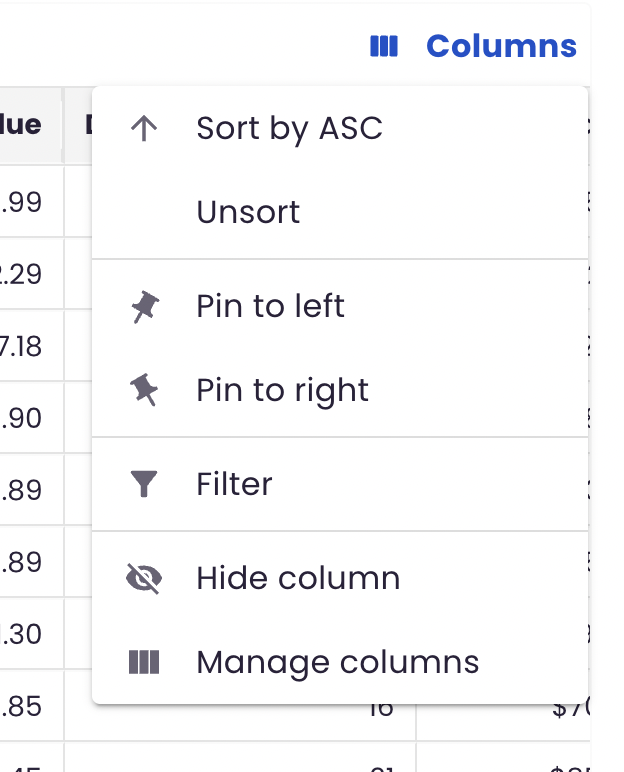
These tools allow you to filter, sort, and organize the report according to your needs.
Need Assistance?
If you have any questions or need help with this report, please reach out by submitting a support ticket here.