
Product Analysis Report
Product Analysis Report Overview
The Product Analysis Report in BloomNation is designed to help florists analyze individual product performance. This report includes essential metrics for tracking top sellers, evaluating inventory needs, and optimizing product listings based on real sales data. The report also offers advanced options to customize data visibility and filter results.
Accessing the Product Analysis Report
To access the Product Analysis Report:
- Log into your BloomNation account.
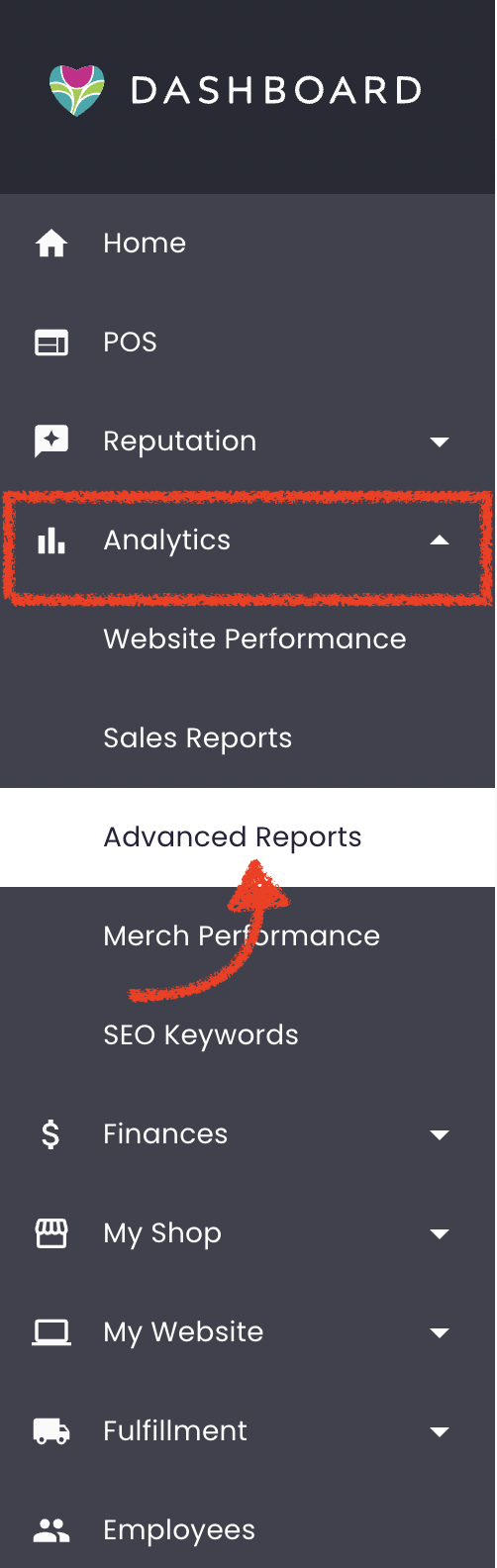
- Go to the Analytics tab.
- Click on Advanced Reports.
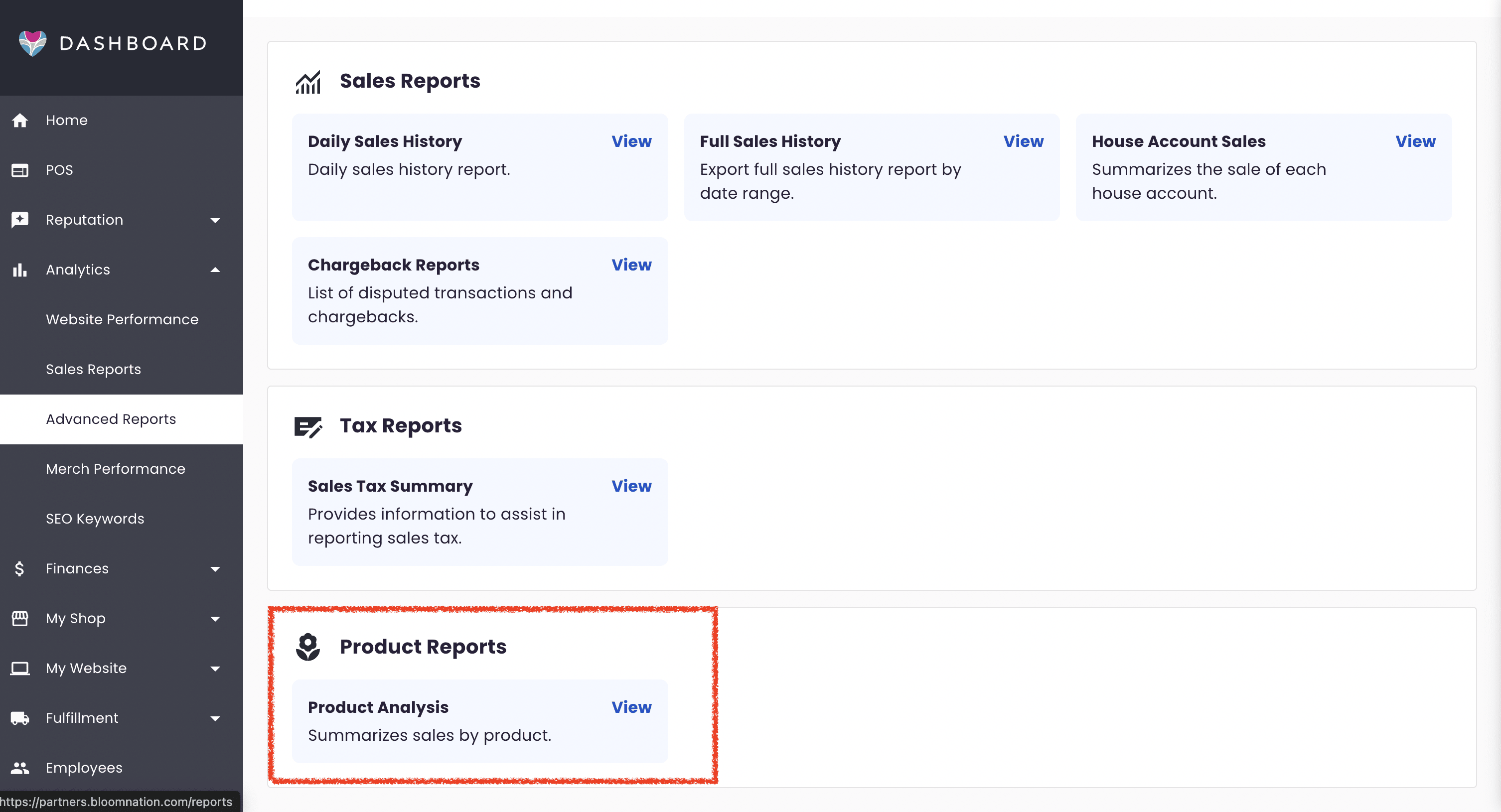
- Find the Product Reports section, then select Product Analysis.
Report Overview
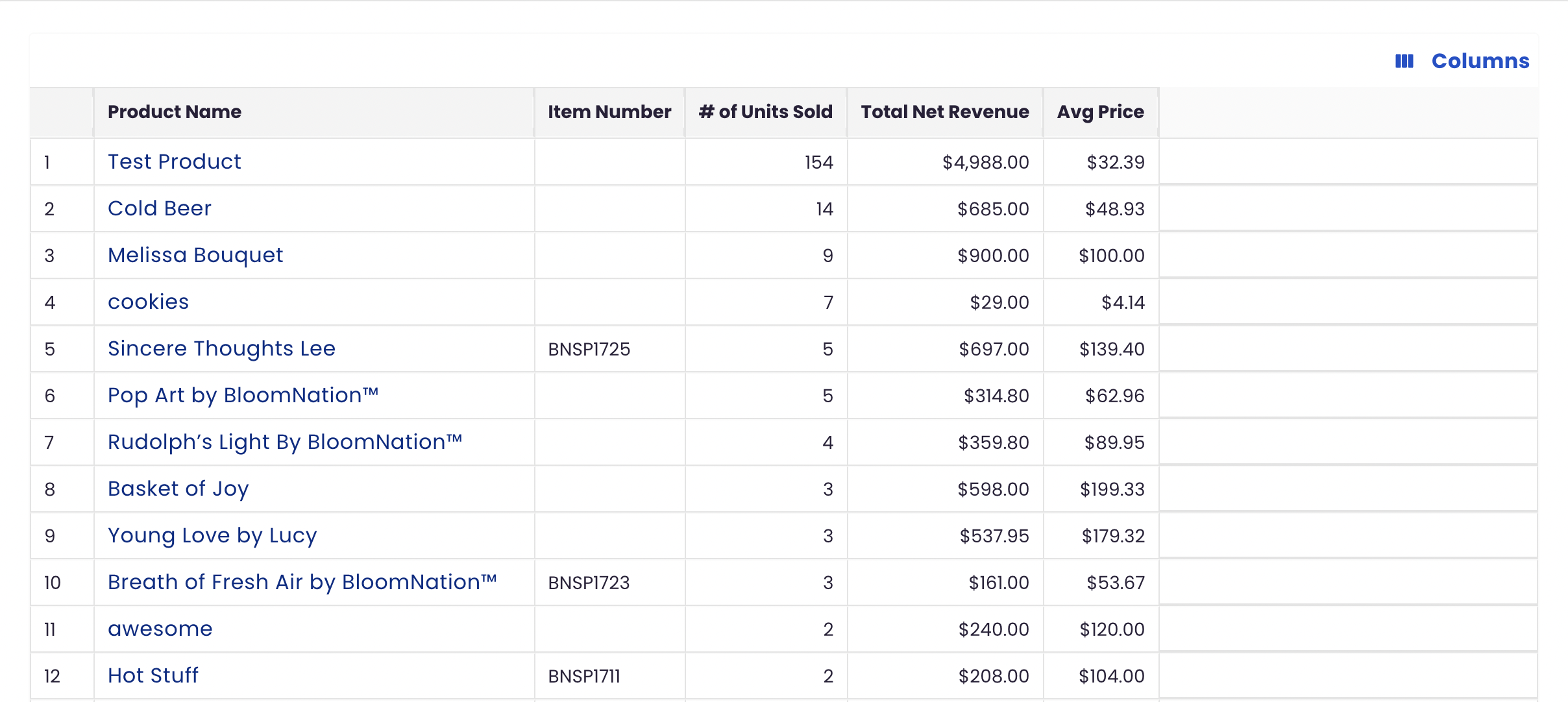
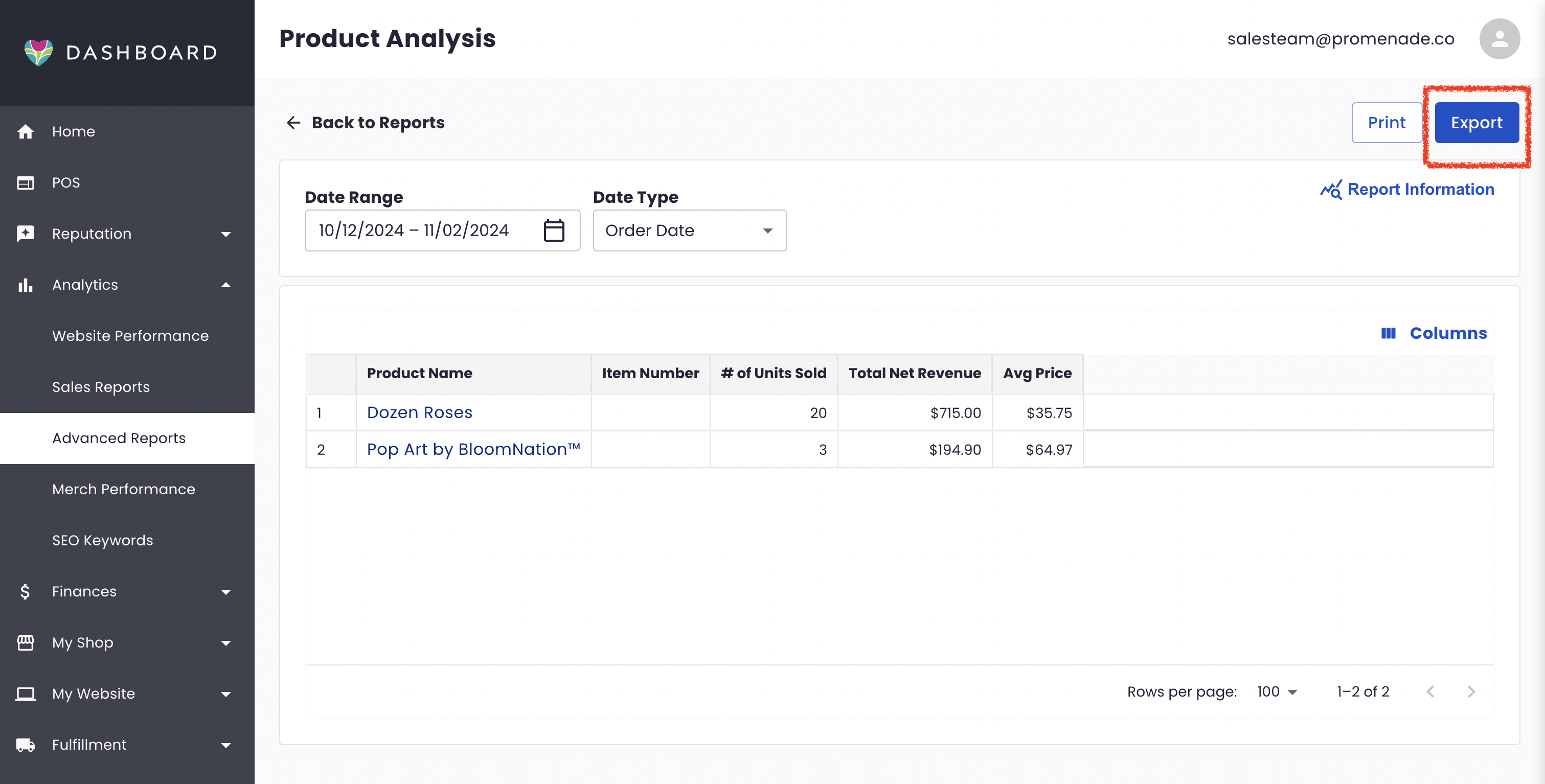
The Product Analysis Report includes the following columns to provide key insights into product performance:
- Ranking: Shows product ranking based on total units sold.
- Product Name: Displays the name of each product and links out to it in your Point-of-Sale > Catalog.
- Item Number: Identifies the unique item number assigned to each product.
- # of Units Sold: The total number of units sold during the selected time frame.
- Total Net Revenue: The net revenue generated after discounts and adjustments.
- Average Price: The average price each product unit sold for.
Notes:
- The report is sorted by # of Units Sold in descending order by default.
- The report accounts for orders placed on your website, Marketplace, and Point of Sale, as well as accepted / pending F2F orders & partial refunds.
- This report excludes canceled orders, fully refunded transactions, rejected F2F orders, invoices (which use custom products), quick charges, variable-priced standard Designer Choice items, and standard custom arrangement items (e.g., “CUSTOM-ARRANG”).
- Gross revenue figures exclude discounts and BloomNation fees (including credit card processing and revenue share fees).
- Order discounts are not deducted from the Total Net Revenue.
- Any new orders or order updates will be included when this report refreshes, which occurs approximately every hour.
Customizing the Report Table with Columns
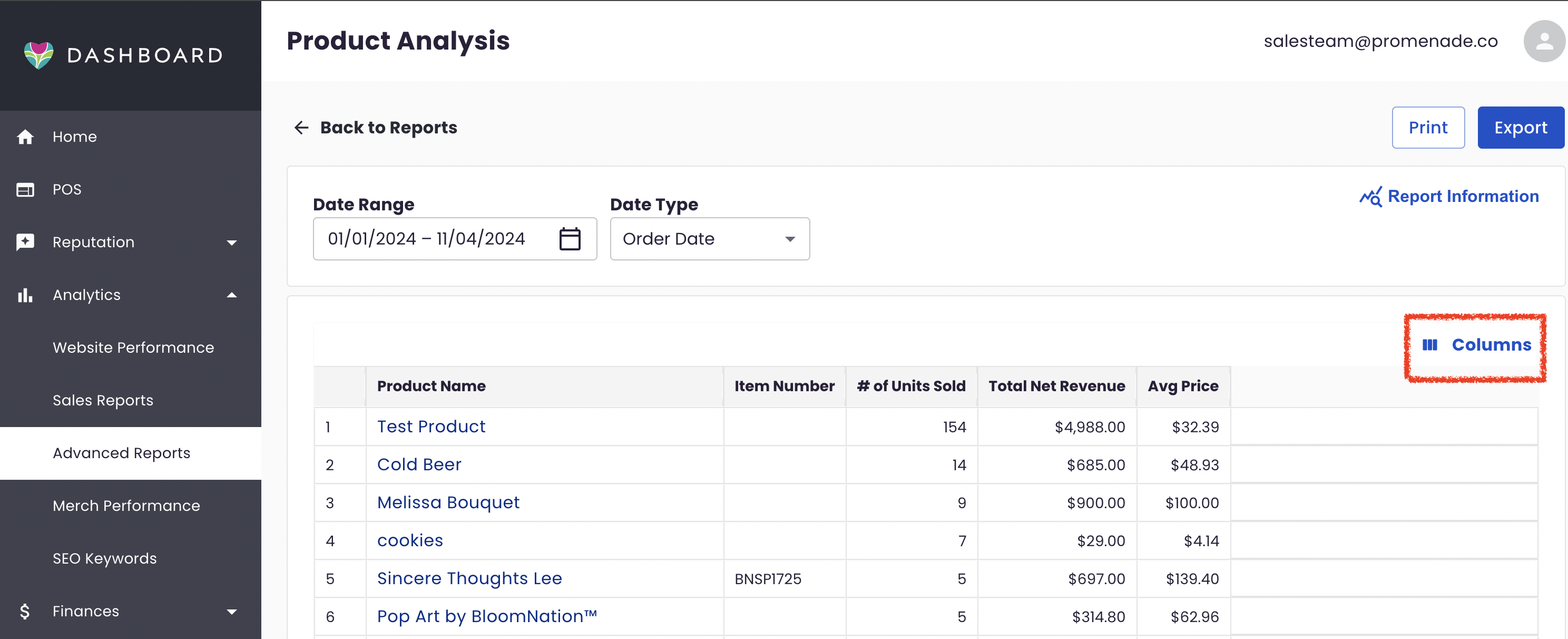
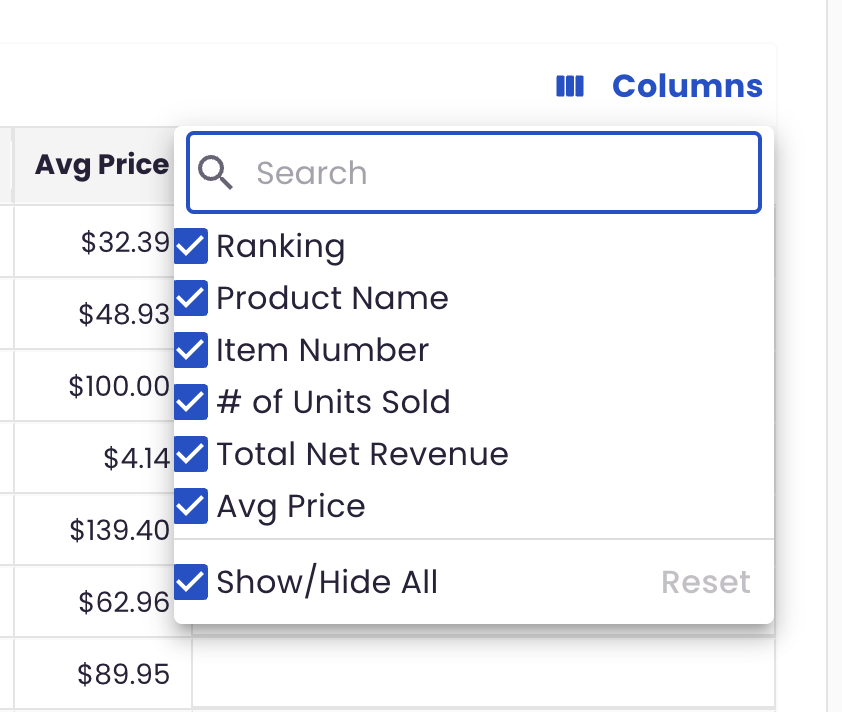
To tailor the data displayed in the table, use the Columns icon in the top-right corner:
- Search for Columns: Use the search feature to locate specific column names.
- Toggle Columns: Check or uncheck columns to show or hide them.
- Show All / Hide All: Use these options to quickly display or hide all columns.
- Reset to Default: Return the table to its default view with all columns visible.
Column-Specific Options
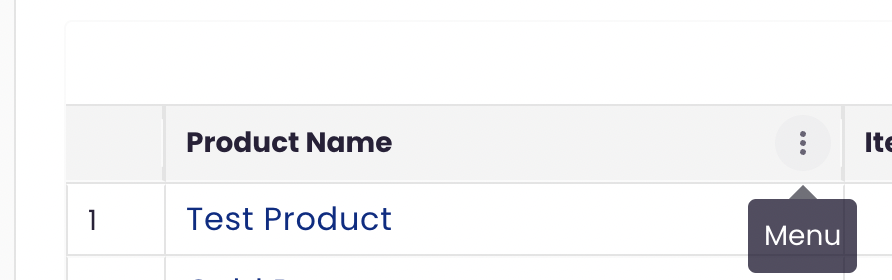
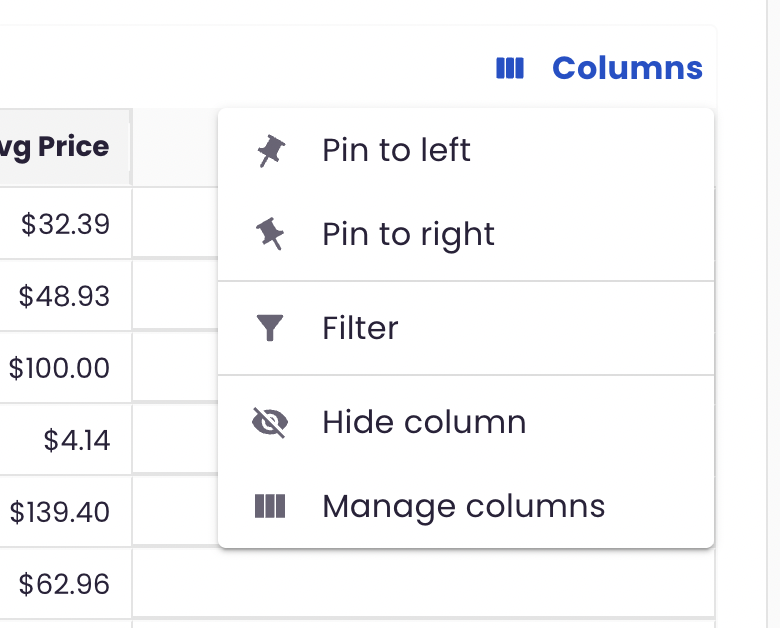
Each column offers additional settings that can be accessed by hovering over the column header and clicking on the ellipsis:
- Pin to Left/Right: Fixes the column to either side of the table for easier viewing.
- Unpin: Removes the column from its pinned position.
- Filter: Applies specific filters (detailed below).
- Hide Column: Temporarily removes the column from view.
- Manage Columns: Adjust the visibility of columns from the Columns settings as described above.
Using Filters
You can filter the Product Analysis Report data using several options:
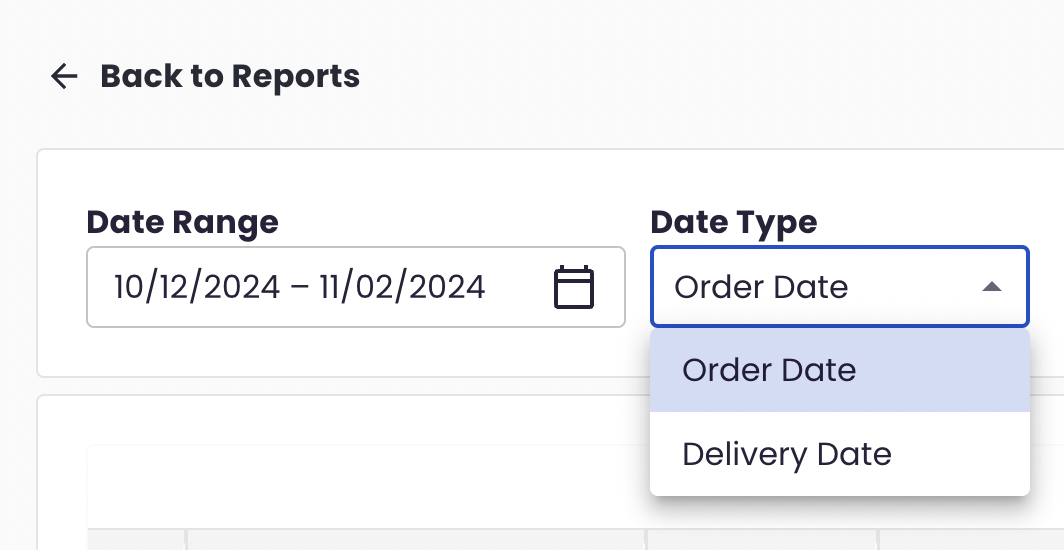
- Date Range: Select a start and end date to define the period you want to analyze. To view data for a specific day, set the same start and end date. You can type the date(s) into the Date Range field.
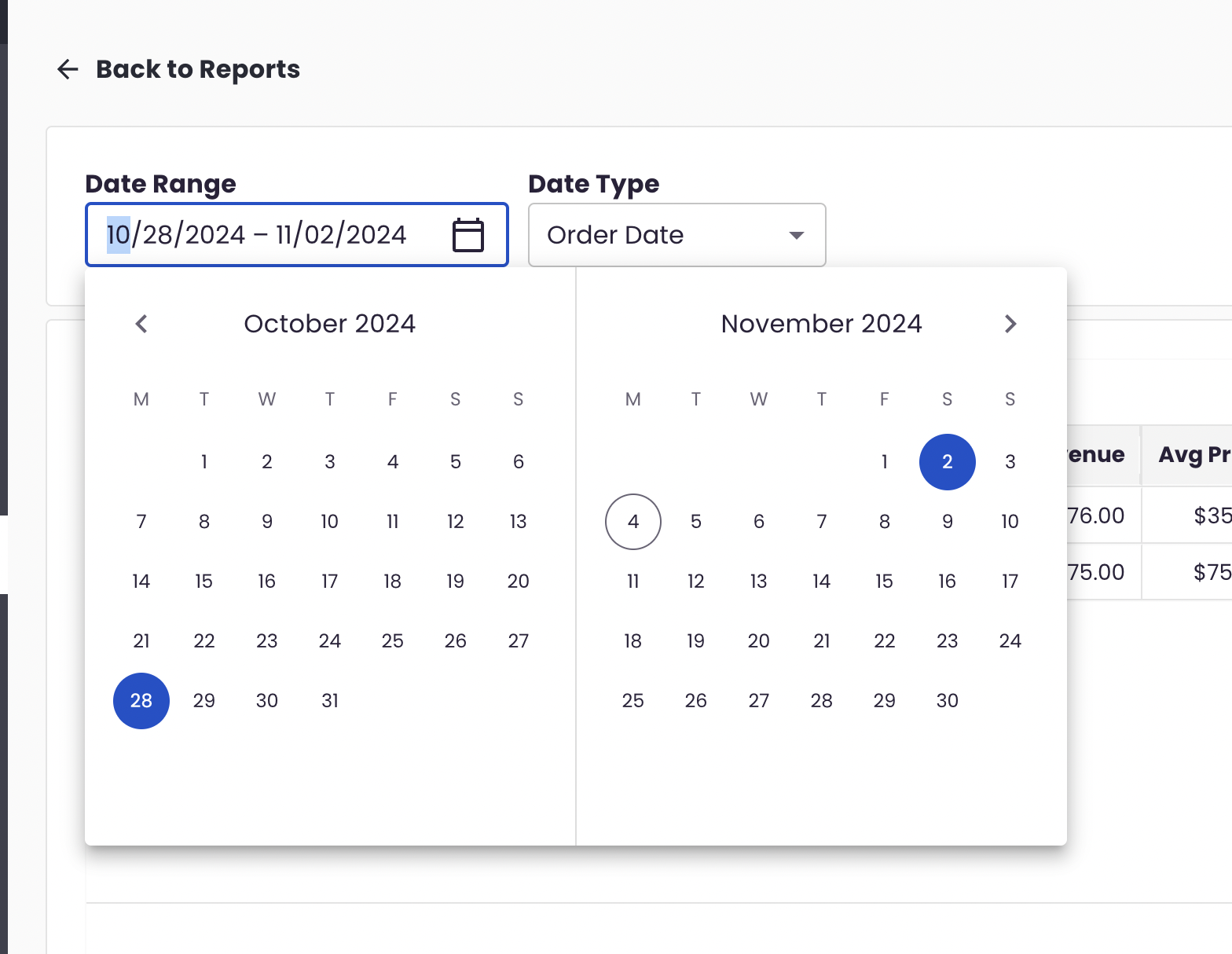
- Data Type: Choose between Order Date (when the order was placed) or Delivery Date (when the order was fulfilled, including delivery, pickup, or in-store pickup). Note that for in-store orders, the delivery date is automatically the same as the order date. By default, “Order Date” is selected when the page loads.
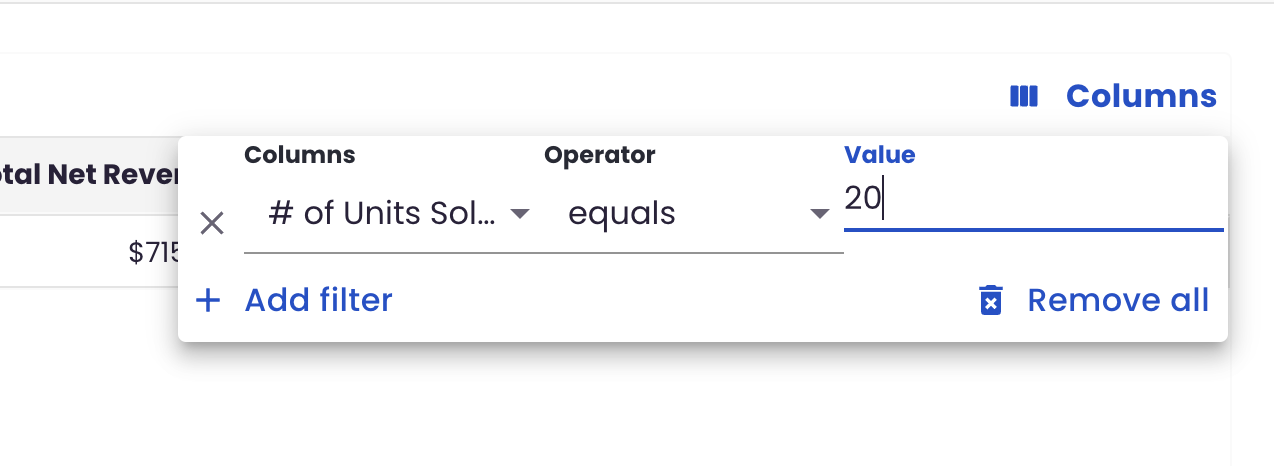
Filters can also be customized directly within each column:
-
Access Filters: Hover over a column header, click the ellipsis icon, and select Filter.
-
Apply Filter Criteria:
- Columns field: Choose the column to filter.
- Operator: Select a condition (e.g., contains, does not contain, equals).
- Value: Input the specific value to filter for.
-
Add Multiple Filters: Click Add Filter to add additional criteria separated by And or Or.
-
Remove Filters: Use the X icon to delete individual filters, or click Remove All (trash icon) to clear all applied filters.
Export Options
For further analysis outside of BloomNation, you can export the Product Analysis Report. Use the Export option to download the report as a CSV file, which can then be opened and manipulated in spreadsheet software like Microsoft Excel or Google Sheets.
Note: The report’s Print and Export options respect any applied filters and column toggles, so only the data currently displayed on the screen—based on your filters and visible columns—will be included in the export or printout.
Summary
The Product Analysis Report provides essential insights into:
- Best-Selling Products: Quickly identify which products are performing best in terms of unit sales.
- Revenue Trends: Track the revenue generated by each product to prioritize high-performing items.
- Product Performance: Use metrics like average sale price to better understand each item’s profitability.
With customizable columns, filters, and export capabilities, the Product Analysis Report is a powerful tool for strategic inventory and sales planning.
For further assistance, please reach out to BloomNation Support team by submitting a ticket.