
Shop Hours & Closures
Shop Hours & Closures
Let your customers know when you're open for both walk-in shopping and online delivery by setting up your "Shop Hours" tab in the BloomNation Dashboard. This ensures smooth operations, helps customers find you, and avoids confusion during busy seasons.
In order to set your shop hours and closures, make sure you log into your account. This will allow you to access and manage your store's settings quickly and easily. Once logged in, navigate to the 'My Shop' > 'Shop Hours' sub-tab.
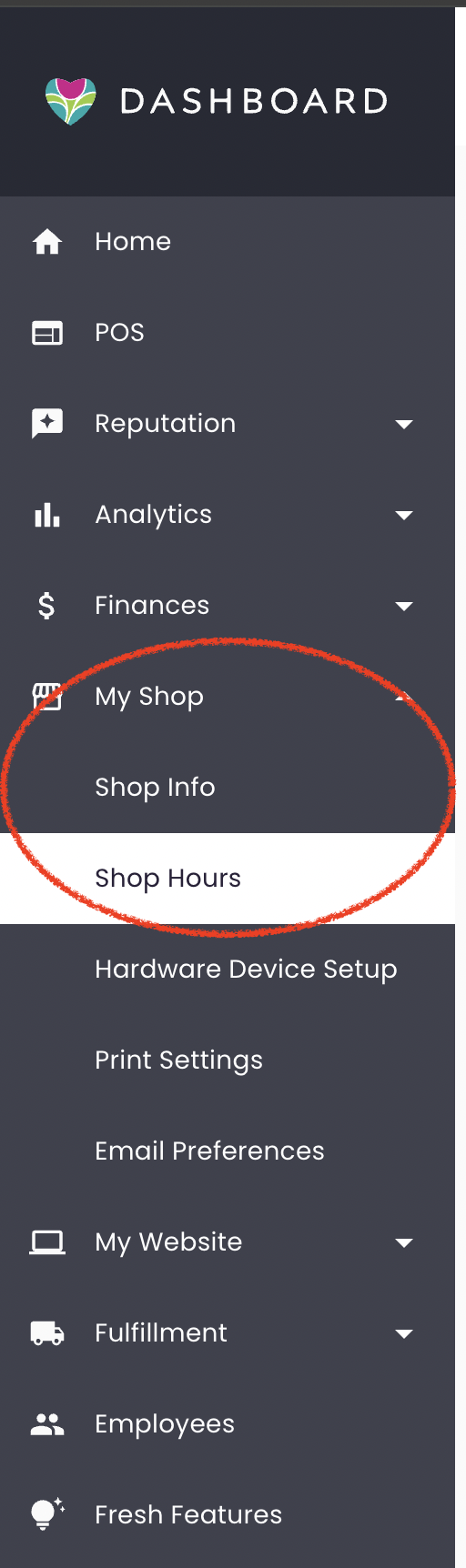
Setting up Your Shop Hours
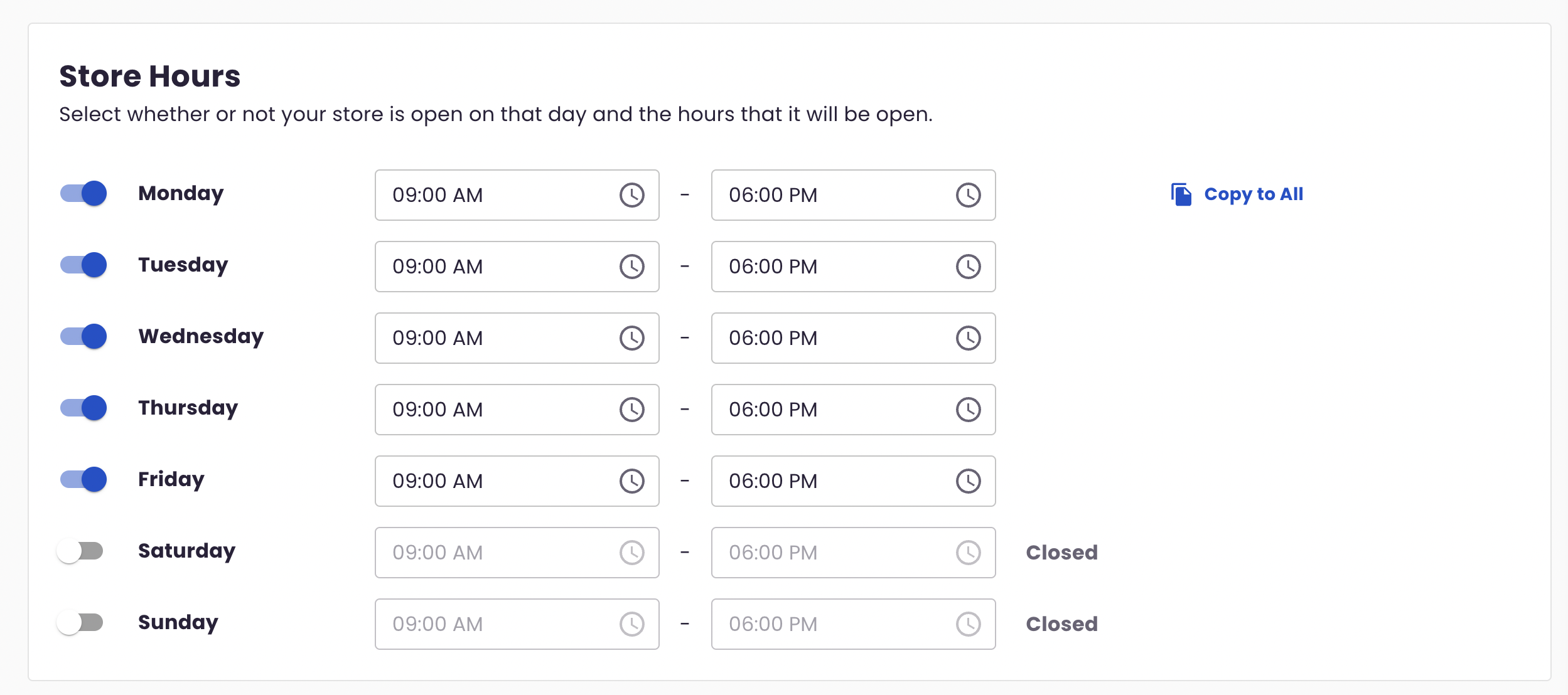
Store Hours
Set the days your store is open (or closed) and the hours it will operate each day, ensuring your customers have accurate information when they visit or place online orders.
- Switch the toggle to “on” or “off” for each day of the week to indicate whether your store is open or closed.
- For each day your shop is open, enter the opening and closing hours.
-
Quick Tips:
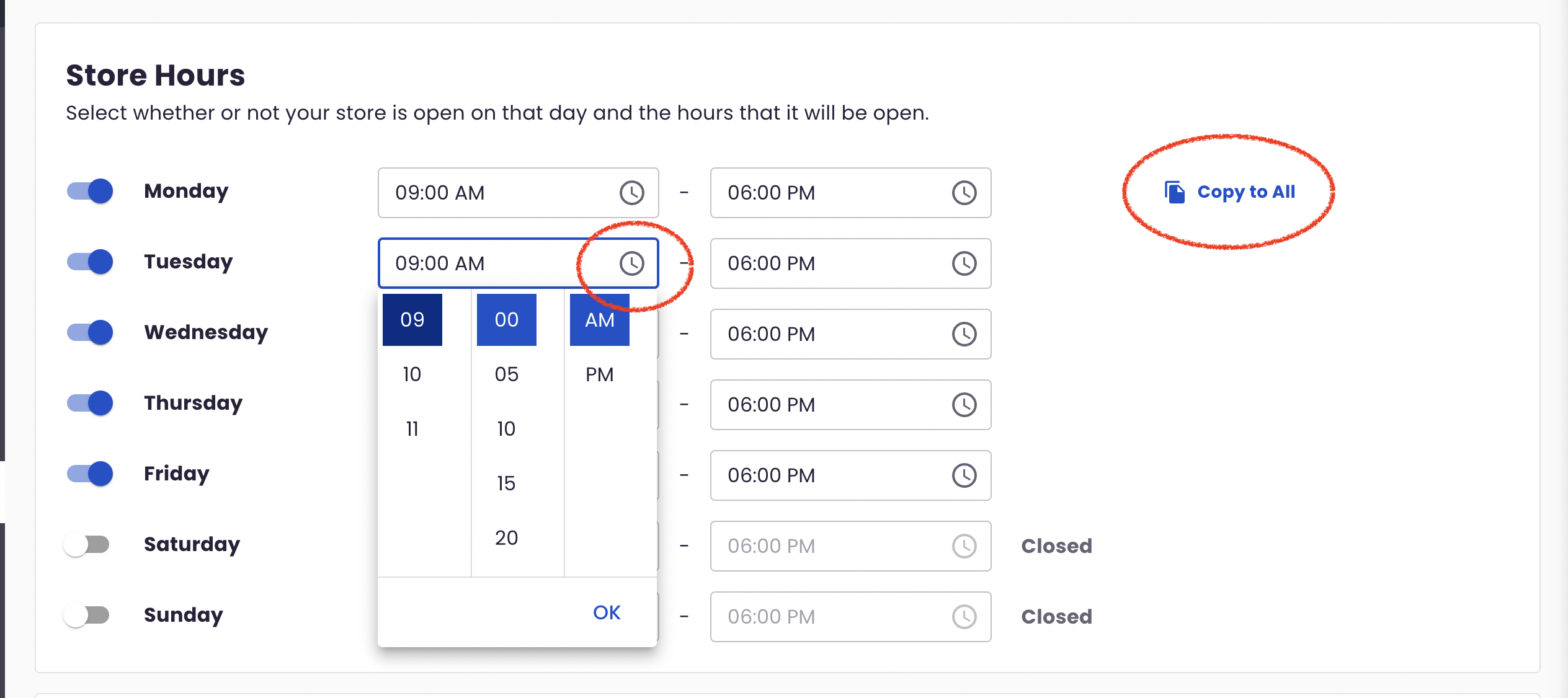
- If your hours are the same for each day, use the ‘Copy to All’ button to quickly apply the hours across all open days, saving you time.
- Click the clock icon to quickly select hours and AM/PM settings for any entry.
Important Notes:
- These hours will also be displayed on your Premium Site.
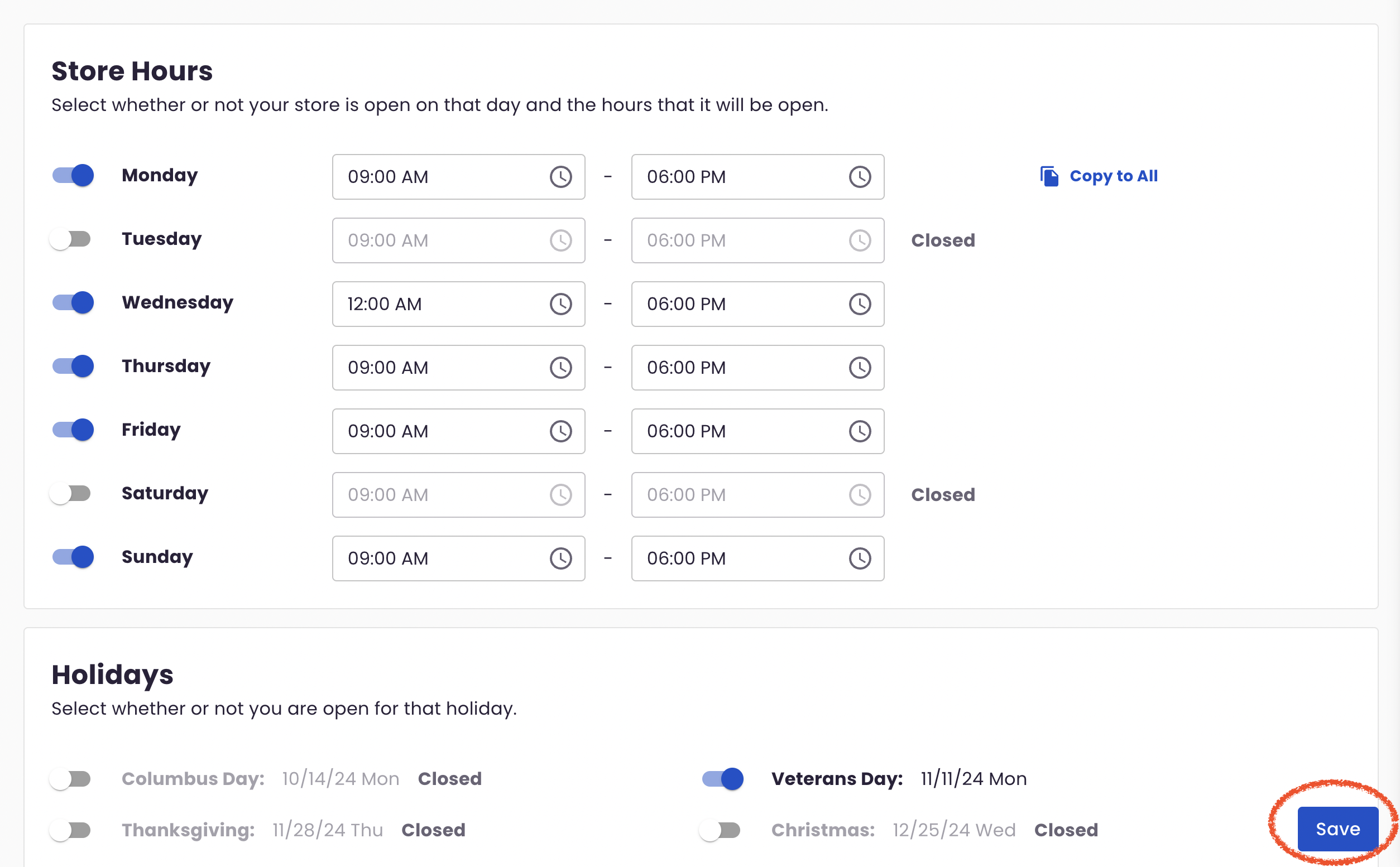
- Remember to click ‘Save’ at the bottom right to confirm your settings!
Holidays
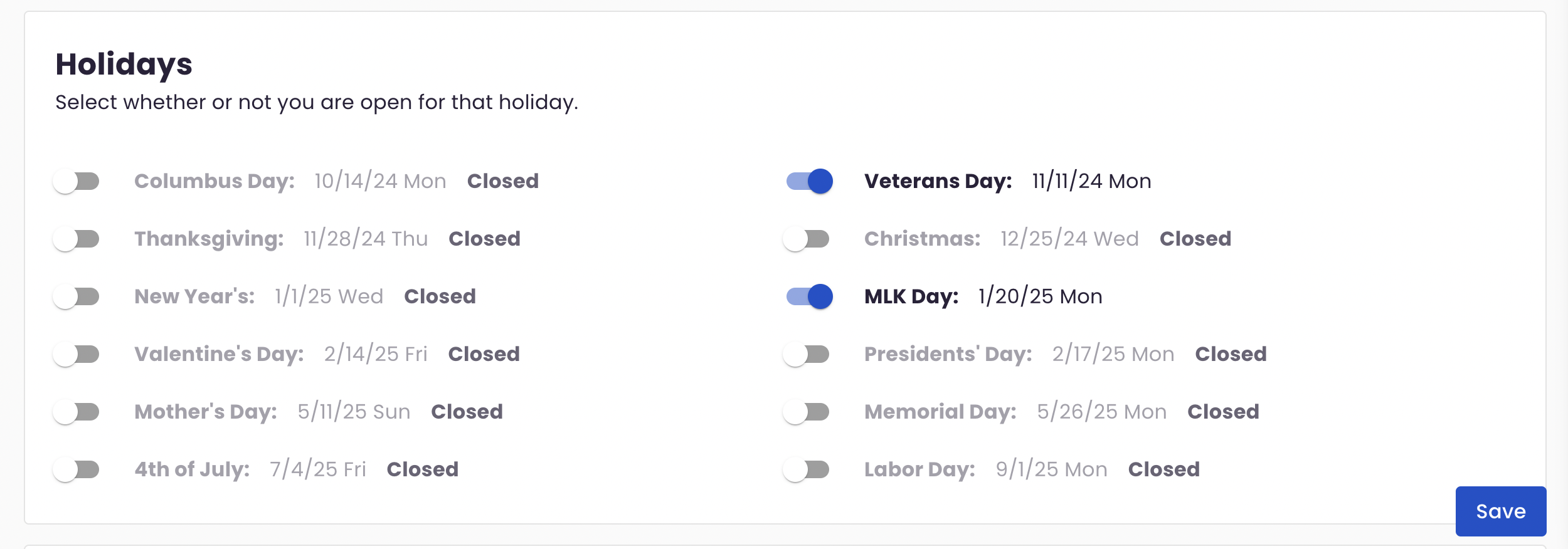
To make holiday management easier, BloomNation allows you to indicate whether your shop will be open or closed for the 12 federal holidays each year.
- Each holiday is listed with the date, and if a holiday has passed this year, it will be listed for the following year.
- Simply toggle “on” or “off” for each holiday, allowing your store to automatically reflect its holiday hours to customers.
This feature helps you avoid the hassle of manually adjusting hours each time a holiday approaches, ensuring your customers always know when you're open for business.
Important Note: Remember to click ‘Save’ at the bottom right to confirm your settings!
Shop Hour Overrides
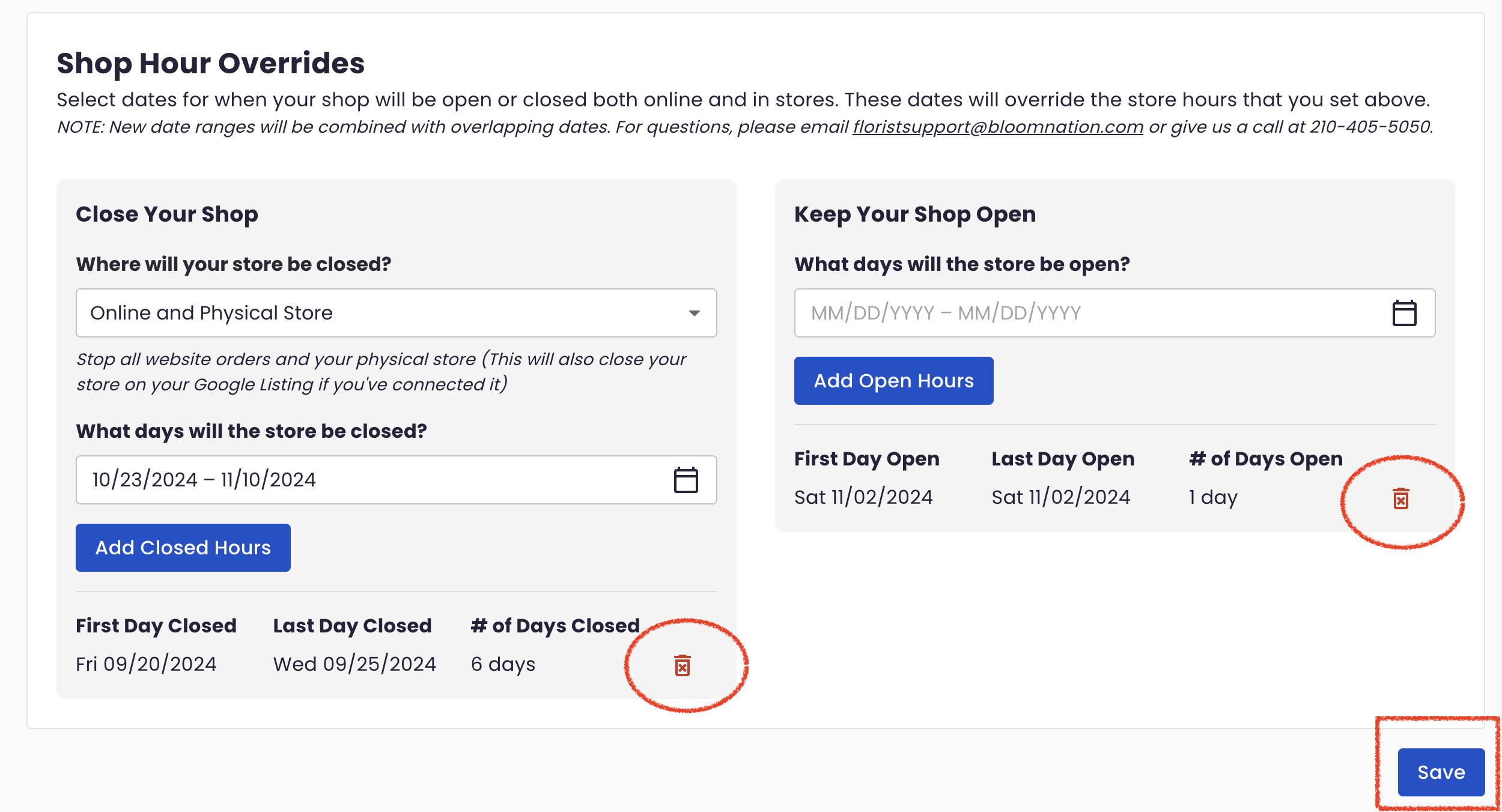
Use Shop Hour Overrides to handle any unexpected changes to your regular schedule without having to update your regular store hours. It’s perfect for special events, unexpected closures, or ensuring your shop remains open during peak days / periods.
You can also choose to close your online store only or both the online and physical store separately. This flexibility helps you control orders without confusing customers about your physical shop’s availability.
Closing Your Shop
-
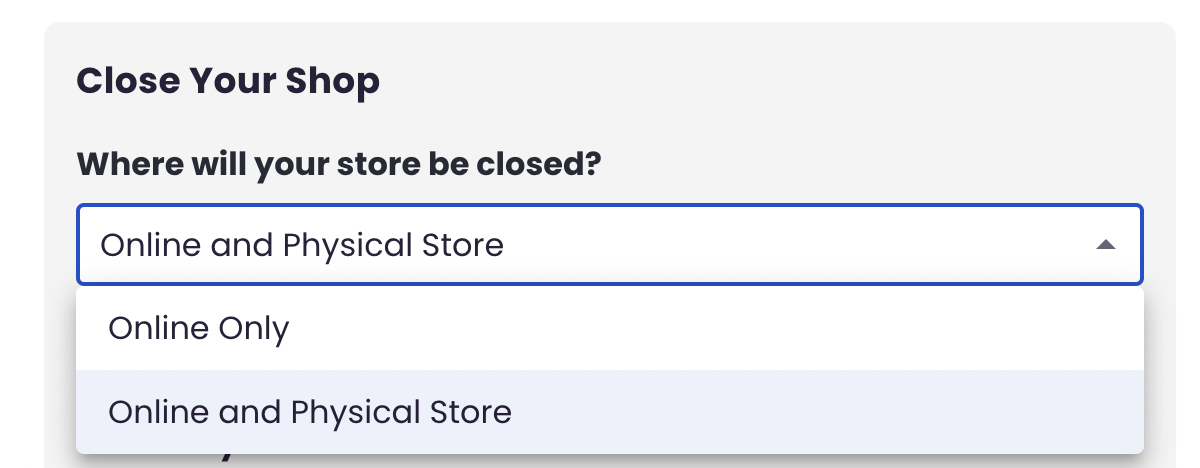
Where will your store be closed?
- Online Only: Stops all website orders but keeps your physical store open.
- Online and Physical Store: Stops website orders and marks your physical store as closed (also updates your Google Local Listing if connected).
-
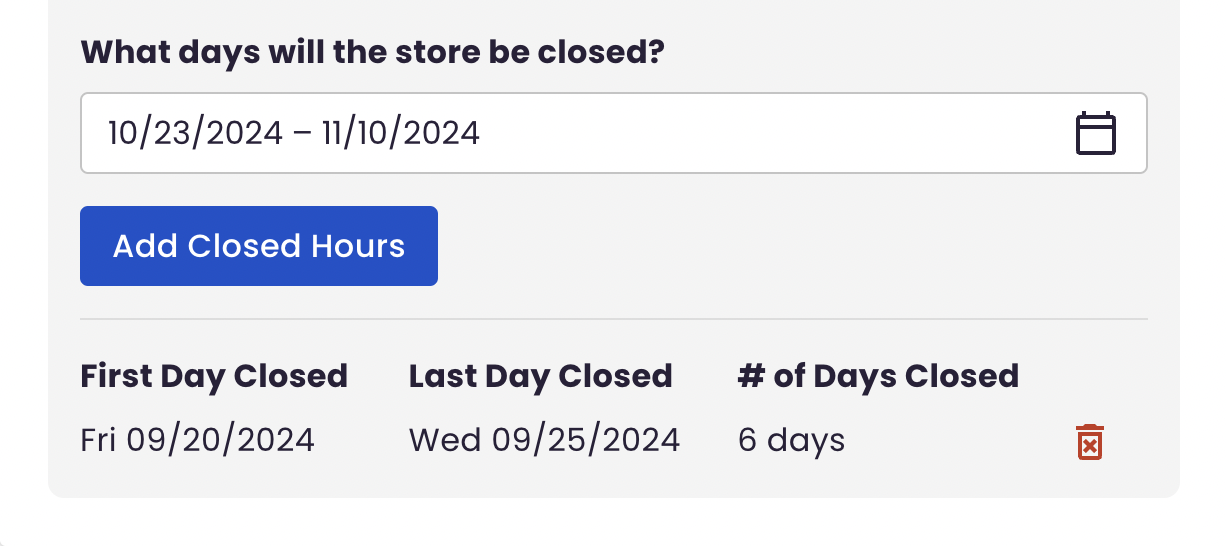
What days will the store be closed?
- Enter the start and end dates of your closure. For single-day closures, enter the same date in both fields.
- Click ‘Add Closed Hours’ and remember to hit ‘Save’ to confirm your updates.
This feature helps prevent unexpected orders during closures while ensuring customers have accurate information.
Keeping Your Shop Open
-
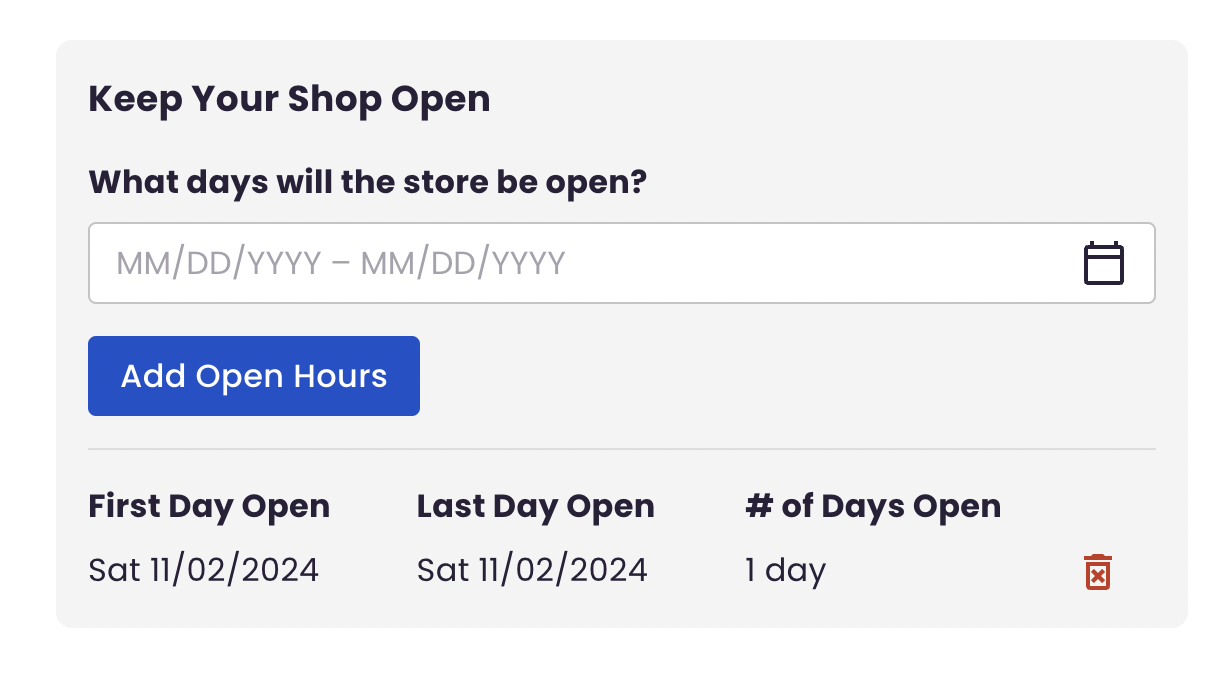
What days will the store be open?
- Enter the start and end dates for your special openings. For single-day overrides, enter the same date in both fields.
- Click ‘Add Open Hours’ and don’t forget to hit ‘Save’!
Overrides provide flexibility for special sales, busy holidays, or extended openings, helping you maximize your business during peak times.
Important Notes:
- To remove any shop closure or opening, simply click the trash icon next to it.
- Remember to click ‘Save’ at the bottom right to confirm your settings!
If you have any questions or need help with editing your shop hours or closures, let our Bloom Experts know by submitting a ticket!