
Holiday Pricing
The especially useful Holiday Pricing tool helps you adjust your product prices by either dollar or percentage. We’ve improved this feature to give you more flexibility around display periods, custom messaging, and how holiday pricing is applied.
New: You can now choose whether holiday pricing applies to your entire catalog or only to specific product categories, giving you more control over which products are affected.
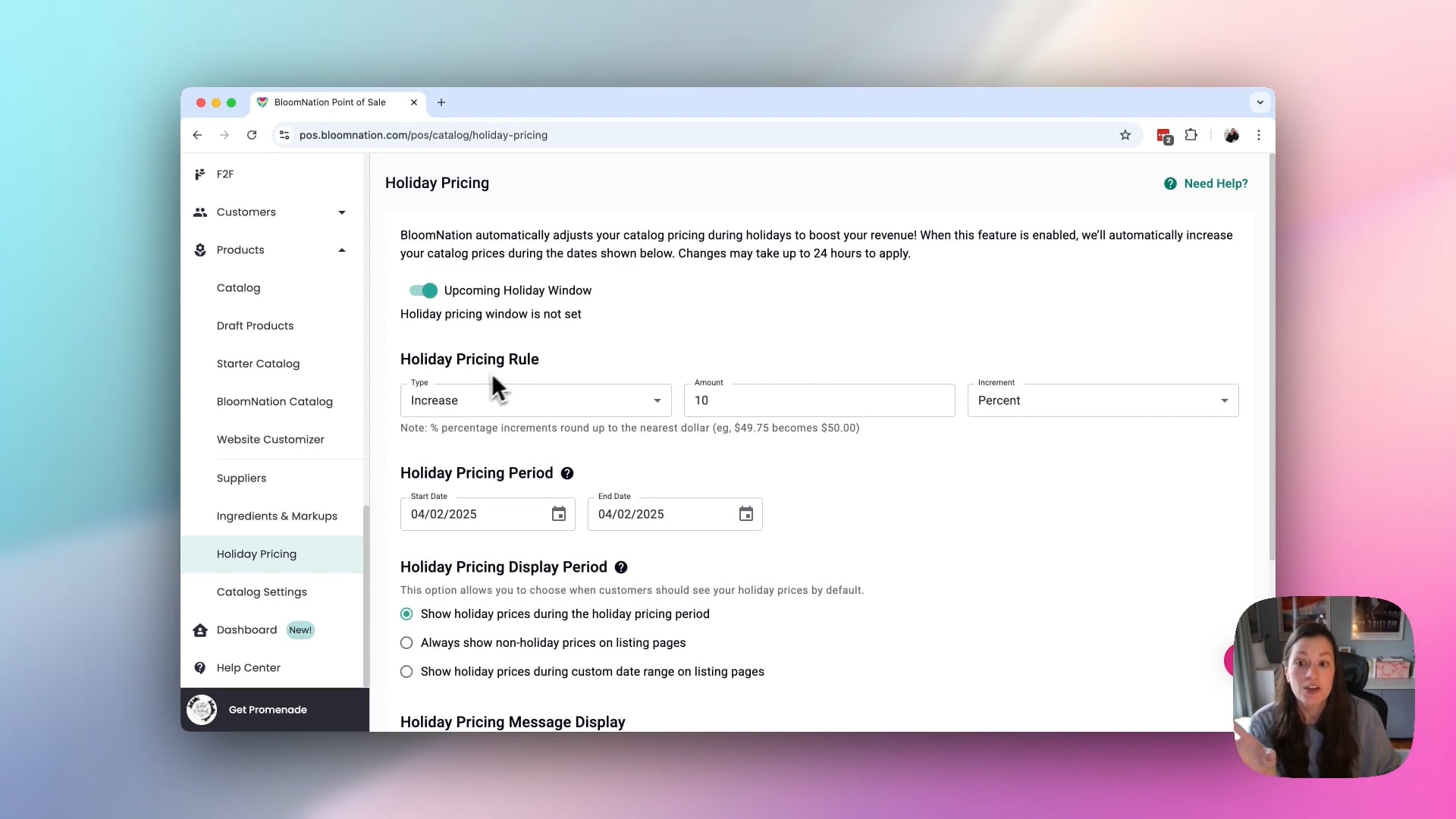 Holiday Pricing
Steps:
-
Log into your Dashboard > POS
-
Click Catalog Tools > Holiday Pricing from the left-hand menu
-
Click the Customize Holiday Window button
-
Set your Holiday Pricing Rule
Choose whether to increase or decrease prices, enter the amount, and select whether the adjustment should be a percentage or dollar amount.
-
Set your Holiday Pricing Period
Choose the start and end dates when holiday pricing should be active.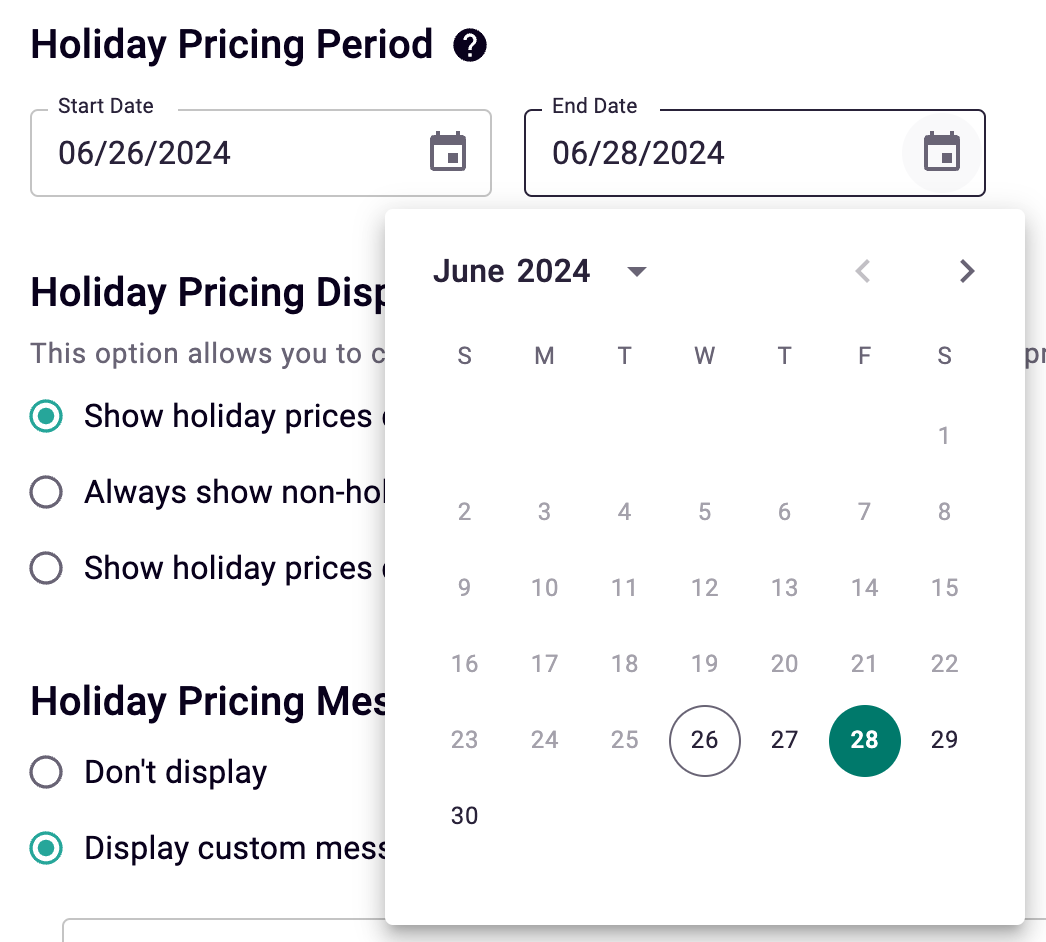
-
Choose which products holiday pricing applies to
Under Holiday Pricing Products, select one of the following:- Whole Catalog – applies holiday pricing to all products.
- Only products tagged to specific categories – applies holiday pricing only to products tagged with selected categories.
When choosing Only products tagged to specific categories, additional options appear so you can select categories under Colors, Flowers, and Occasions.
-
Configure Holiday Pricing Display Period
Choose when customers should see holiday pricing by default.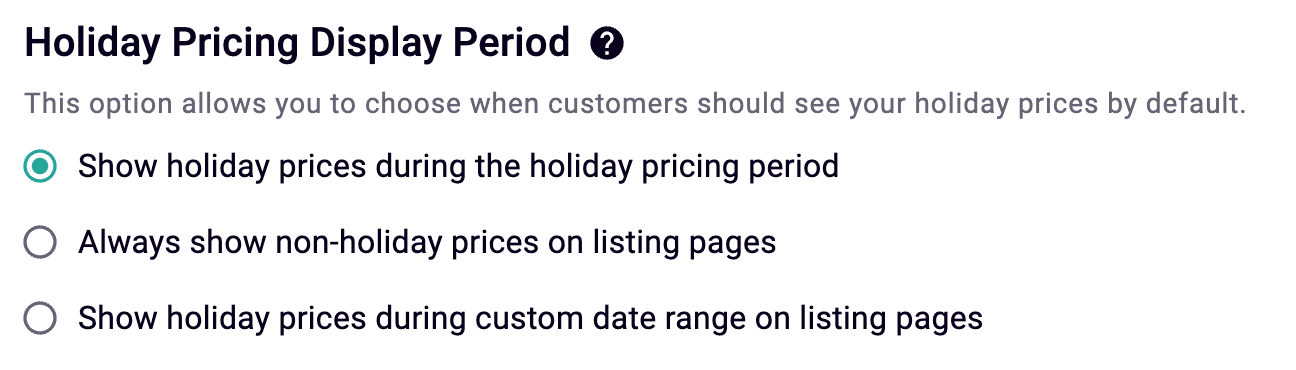
-
Configure Holiday Pricing Message Display
Choose how holiday pricing messages appear on product pages, in the cart, and during checkout.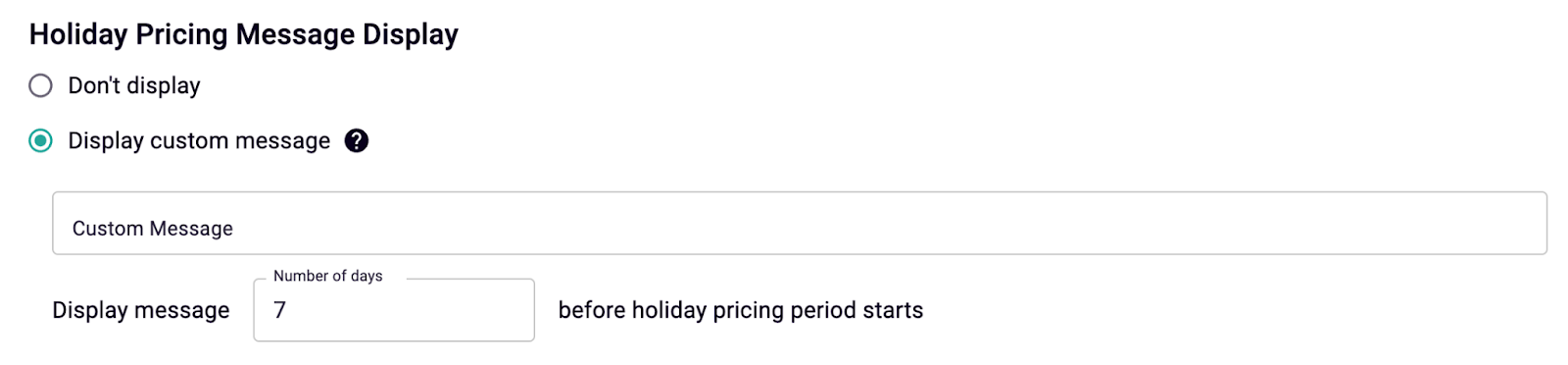
-
Click Save. Price updates can take up to 12–24 hours to fully appear.
Notes:
-
To remove holiday pricing, simply turn off the Holiday Pricing Window toggle.

-
Holiday Pricing does not affect cross-sell items. Cross-sell products must be adjusted individually.
If you need help setting this up, contact our BloomNation Support team at support@bloomnation.com.