
Order Transfers: Move an Order to Another Shop
Overview
Send an order to another one of your BloomNation shops in a few clicks, so the shop closest to the recipient, or the one with room in its schedule, can make it. Order Transfers is part of BloomNation's multi-shop tools. You move the order from the POS, the receiving shop fulfills it, and the payout stays with the shop that took the order.
Transfer an order
-
Open the order in the POS.
-
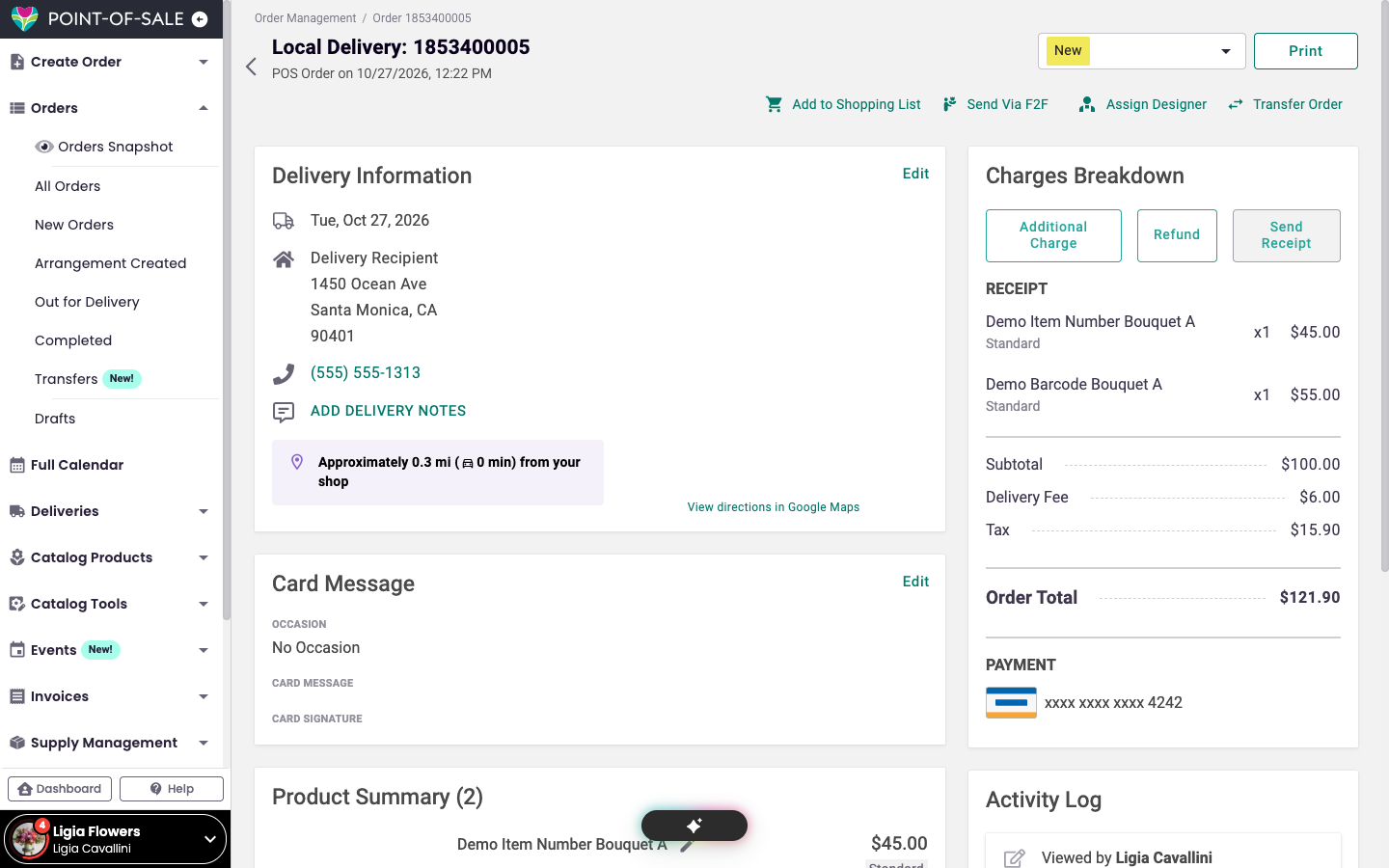
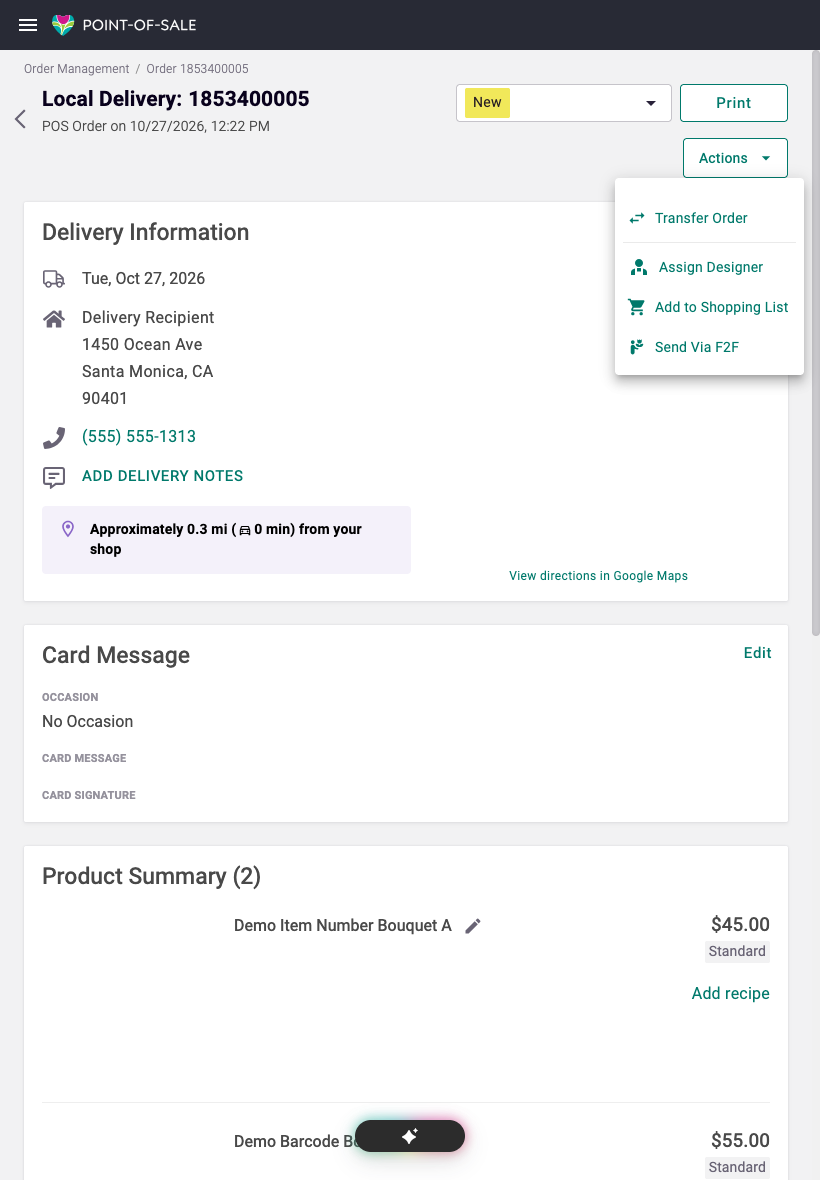
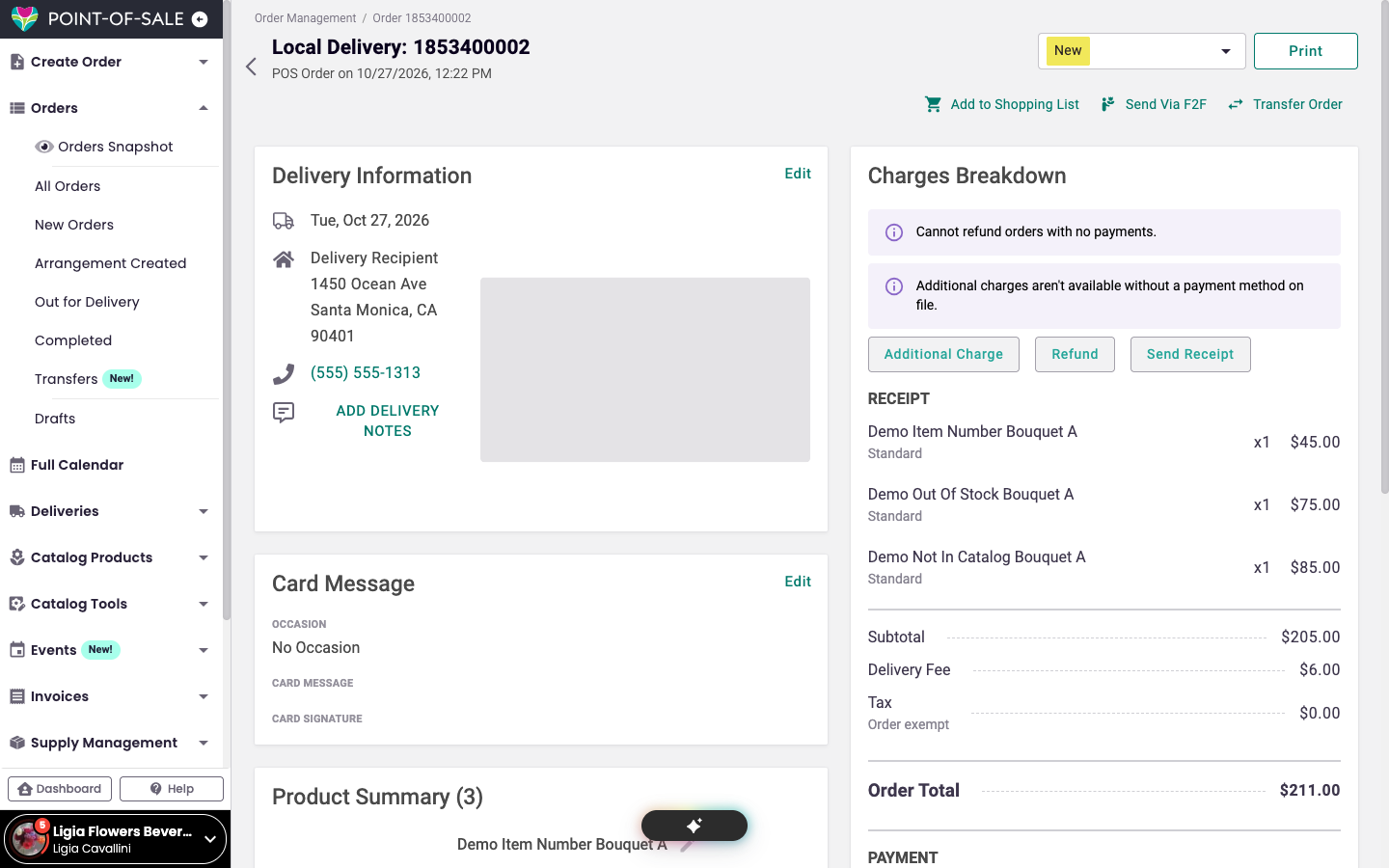
Click Transfer Order at the top of the page. On a tablet, it's in the Actions menu.
-
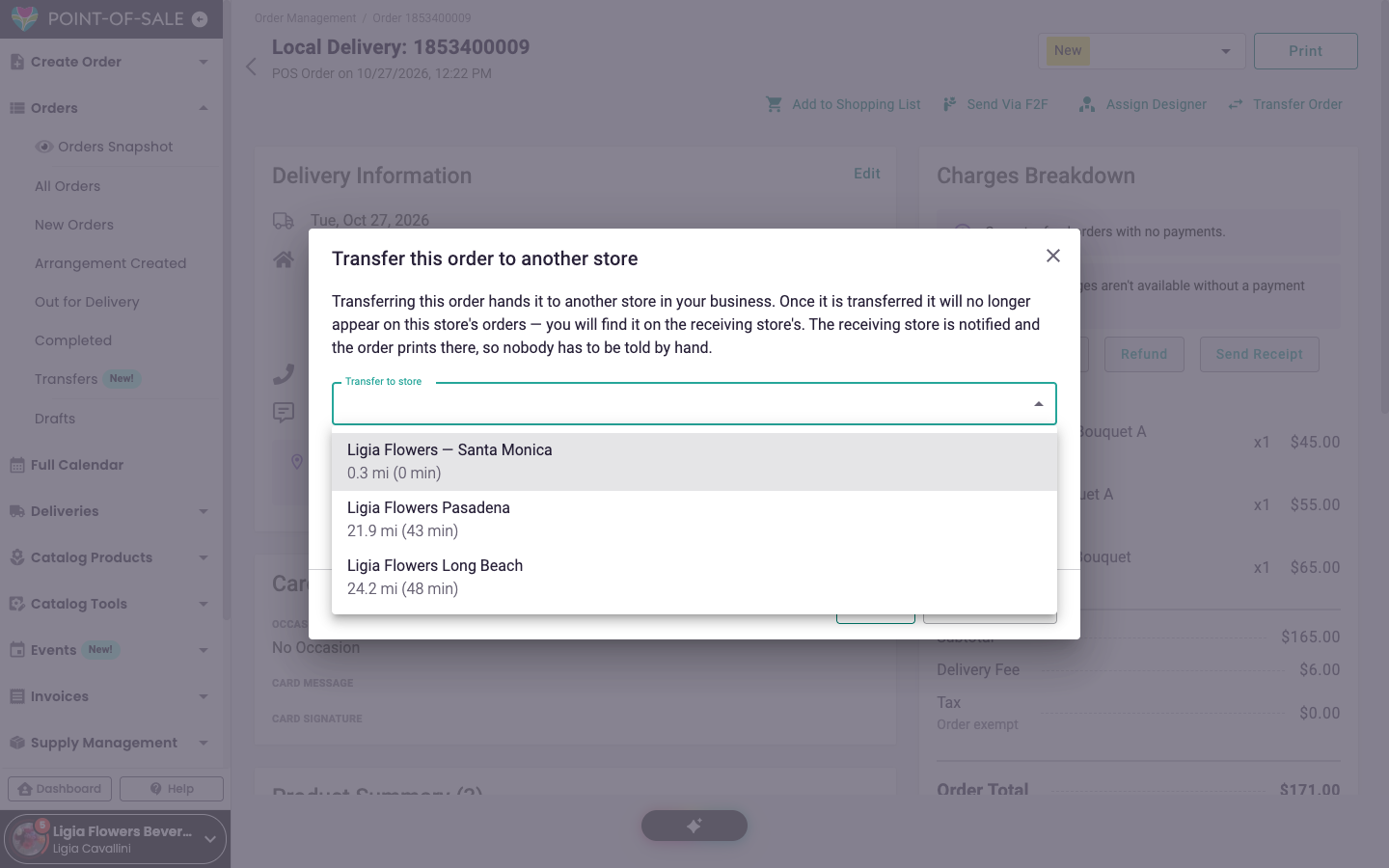
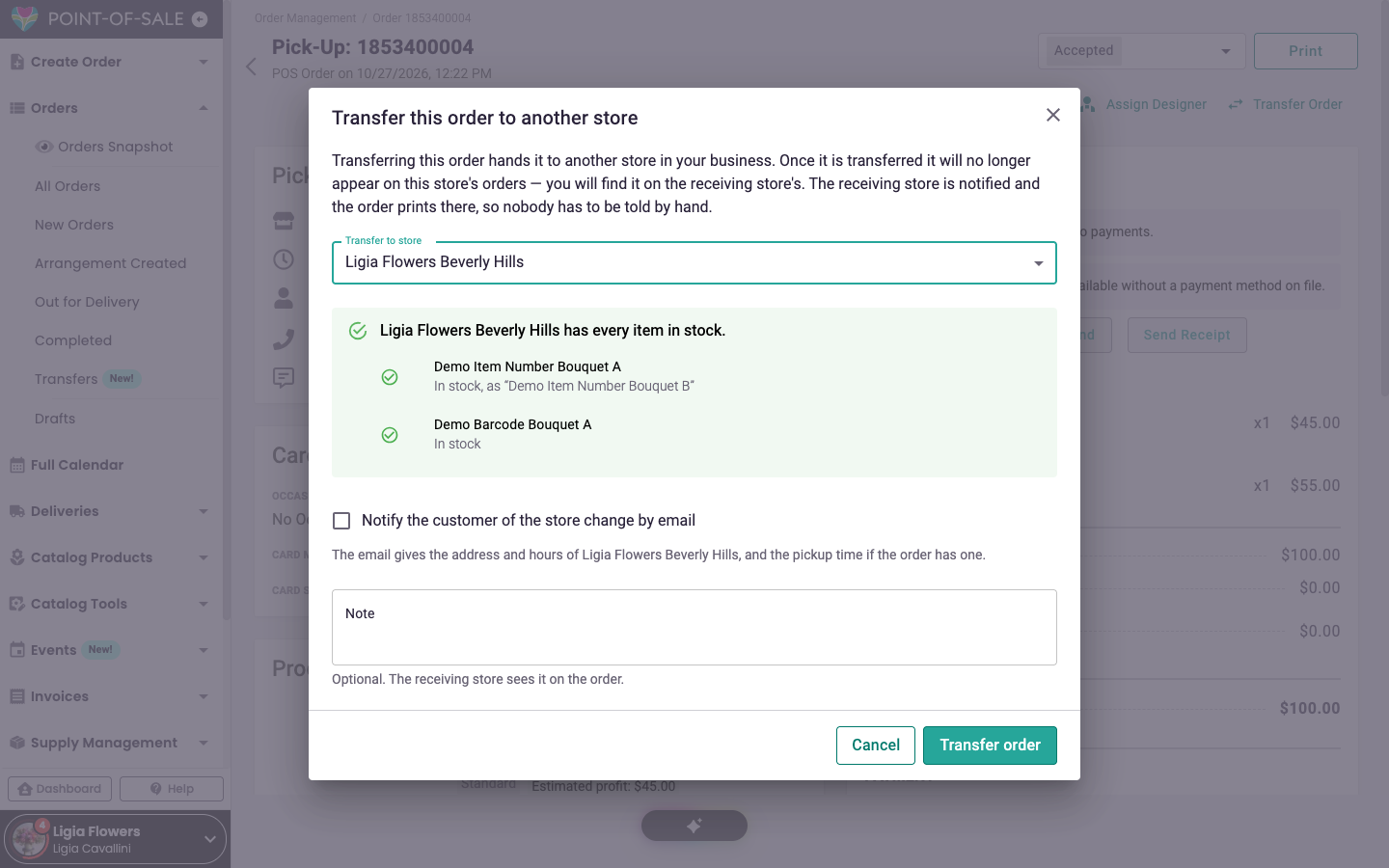
Under Transfer to shop, pick the shop that should take the order.
-
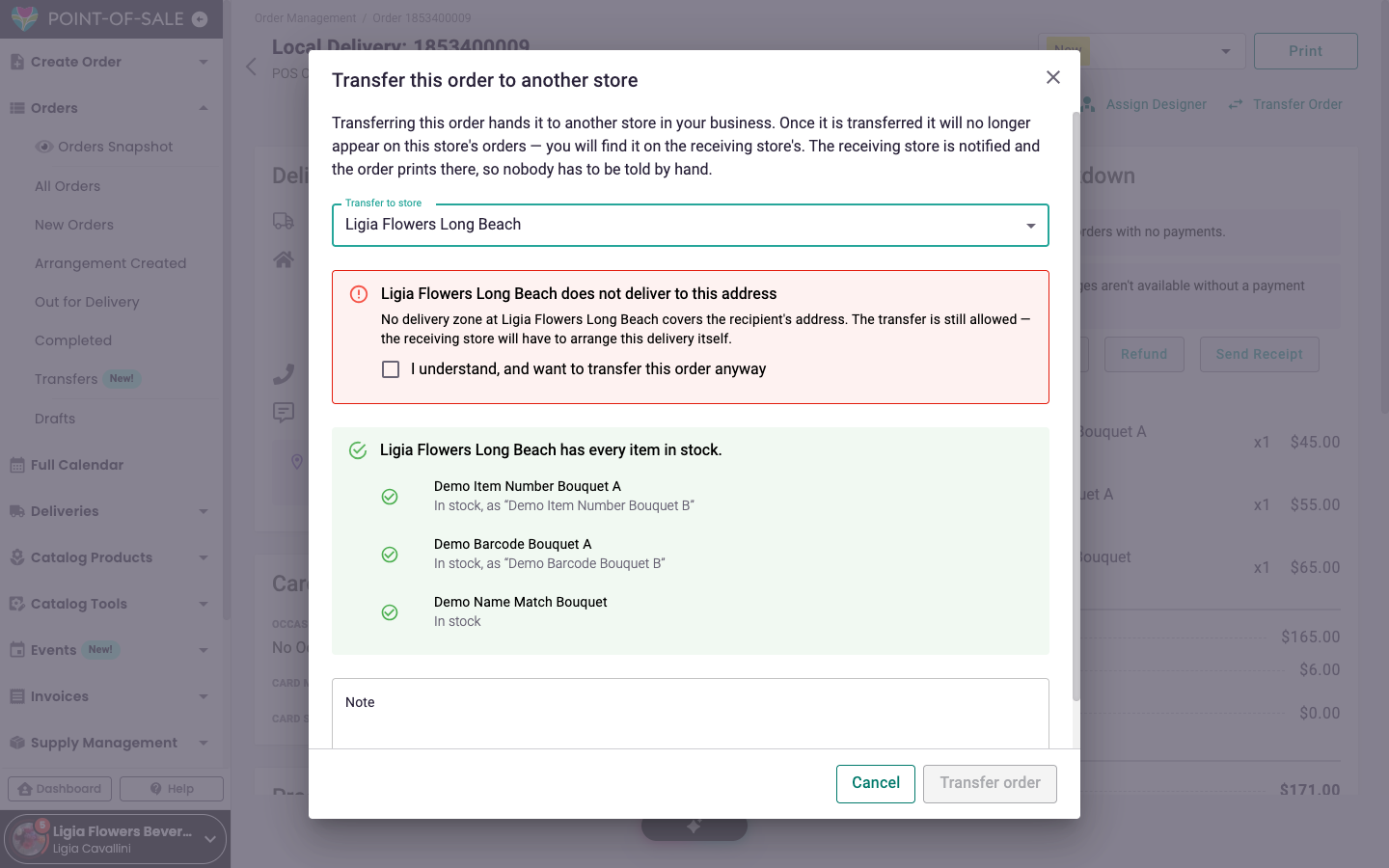
Read the checks that appear. The POS tells you if the new shop is out of an item, doesn't deliver to the recipient's address, or can't meet the delivery or pickup time.
-
If a delivery-area warning appears, check I understand, and want to transfer this order anyway.
-
For a pickup order, check Notify the customer of the shop change by email to let the customer know. The email gives the new shop's address and hours, plus the pickup time if the order has one.
-
Add a Note for the receiving shop, if you like. For example: "Customer moved the pickup to our Santa Monica shop."
-
Click Transfer order.
-
If an item is out of stock at the new shop, click Confirm.
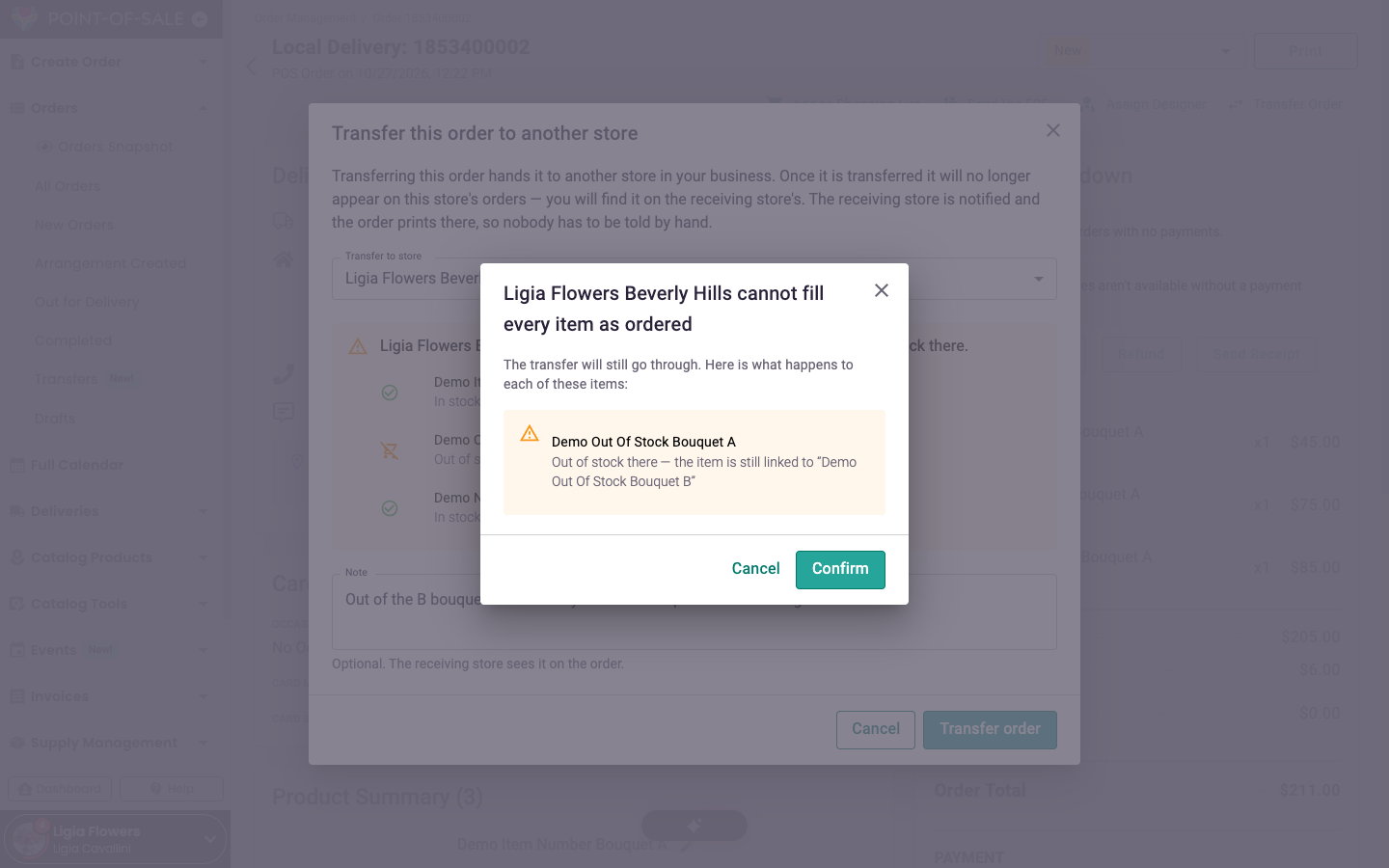
The order leaves your list and shows up at the shop you picked.
Set up order transfers
Order Transfers is available for businesses with more than one BloomNation shop. To turn it on for your shops, email getmore@bloomnation.com.
Let an employee transfer orders
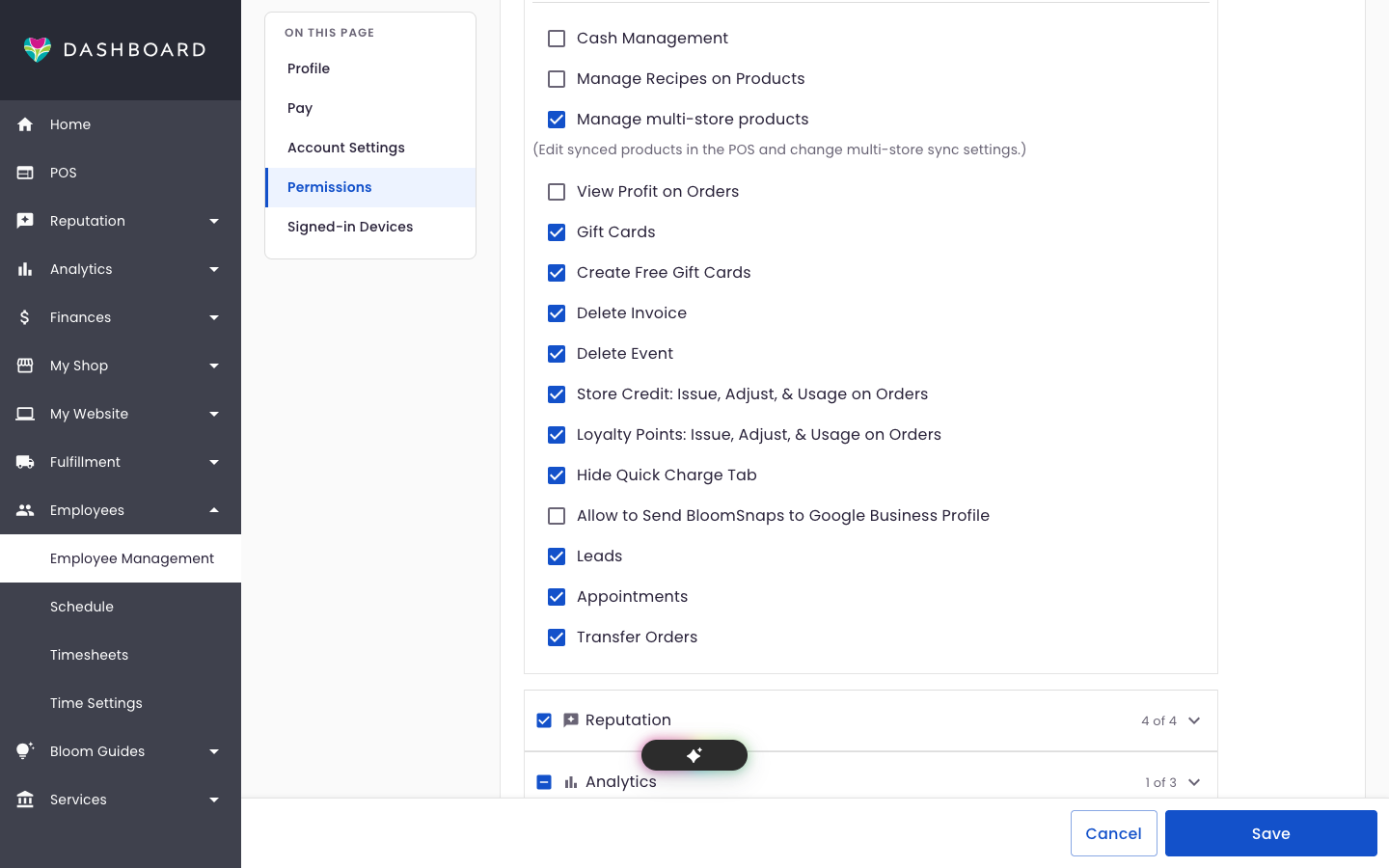
Owners can transfer orders already. To give an employee the Transfer Orders permission:
-
Go to Employee Management and open the employee.
-
Go to Permissions.
-
Under the shop, expand POS and check Transfer Orders.
-
Click Save.
For someone who works at more than one shop, use Copy to other shops to give them the same permissions everywhere.
Choose which shop a transfer starts on
- In the Dashboard, go to My Shop > Multi-shop.
- In the Order Transfers card, pick an option under Which Shop to Send To:
- Staff pick a shop every time (the default)
- Start with the shop closest to the recipient
- Always start with one particular shop
- Click Save.
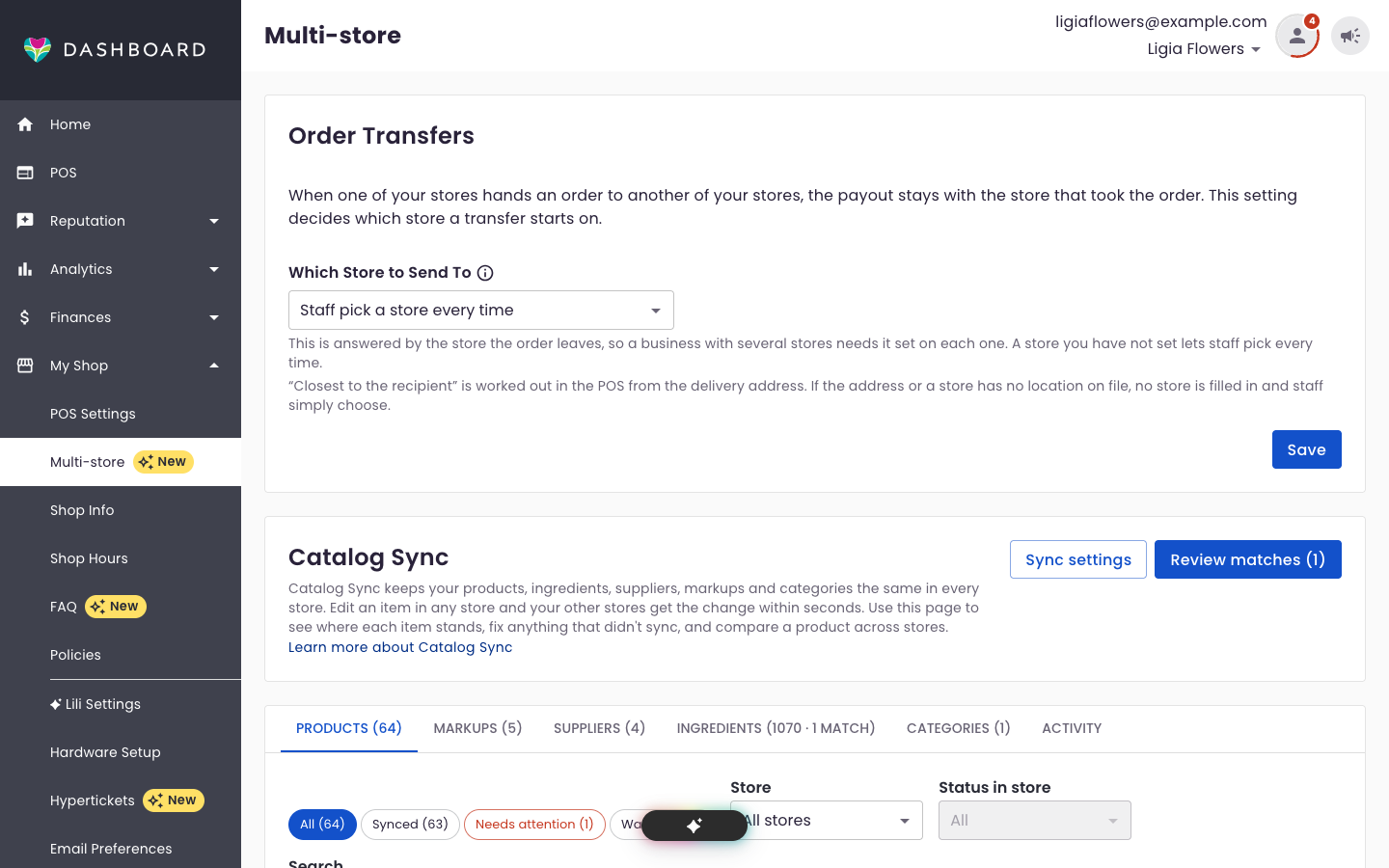
This only fills in the first choice. Staff can always pick a different shop in the POS. Each shop keeps its own setting.
Track transferred orders
-
The receiving shop sees the order on its orders list, gets a new-order notice and works it like any other order.
-
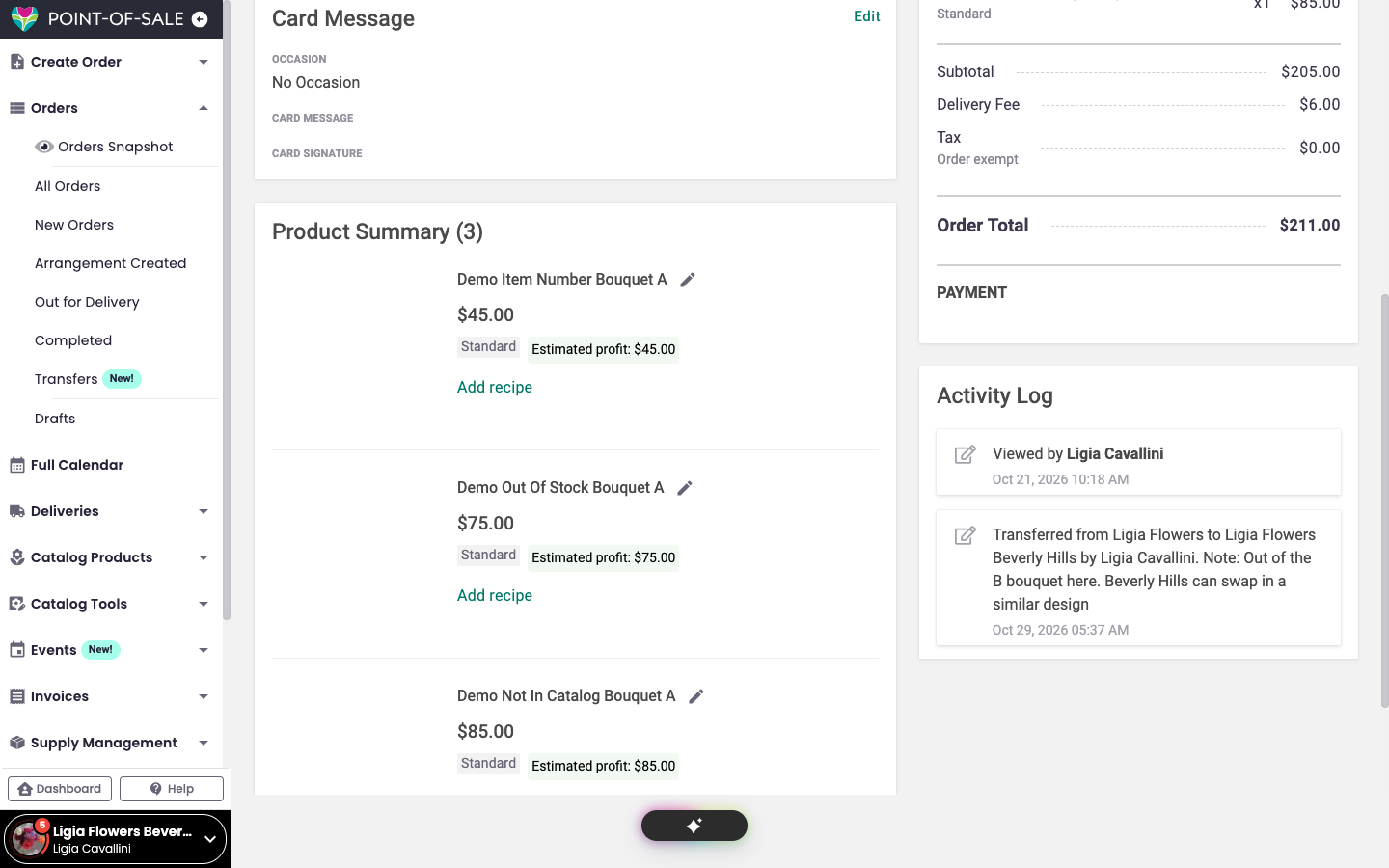
The Activity Log on the order shows who moved it, from which shop to which, and your note.
-
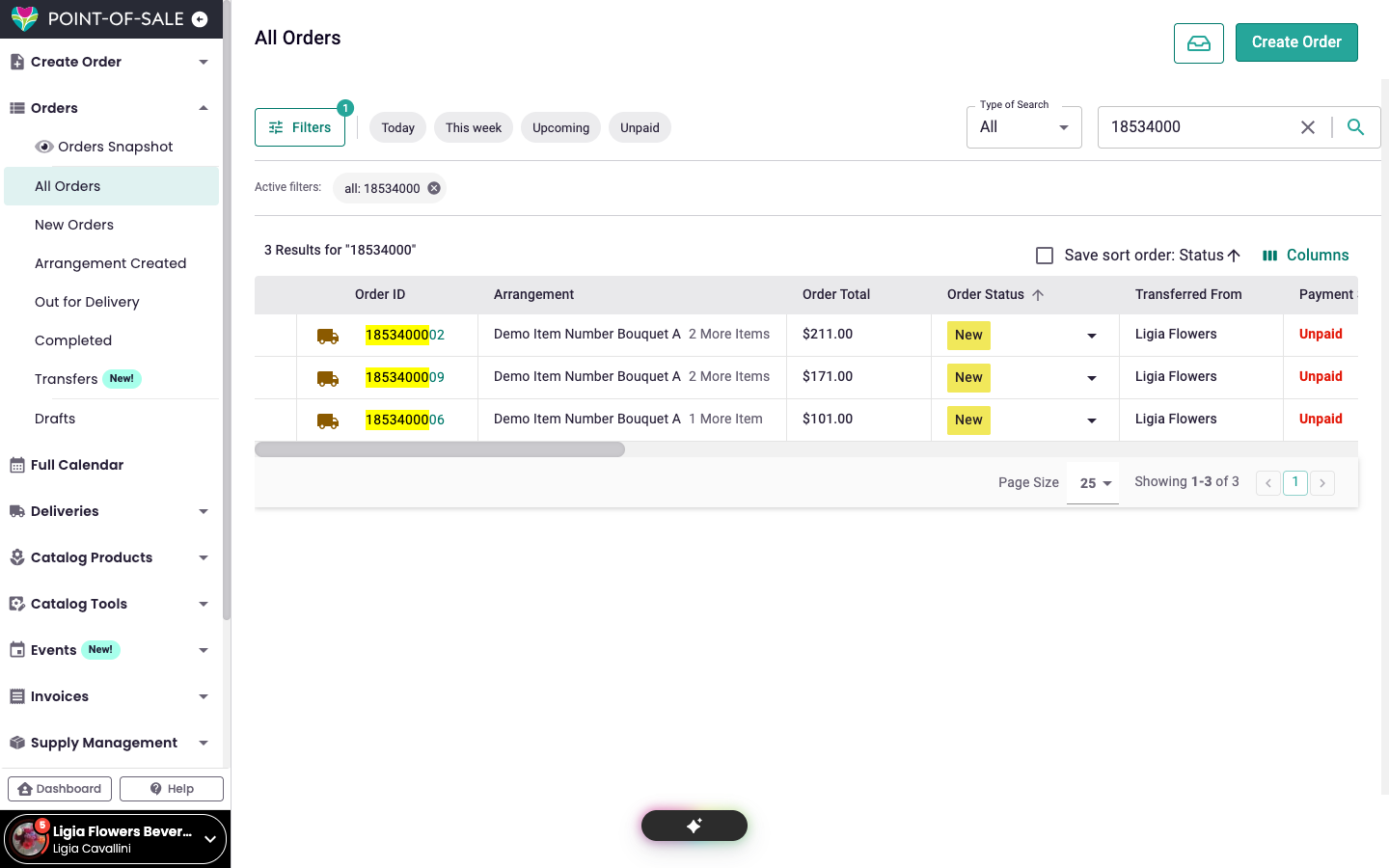
All Orders has a Transferred From column that shows where an order came from.
-
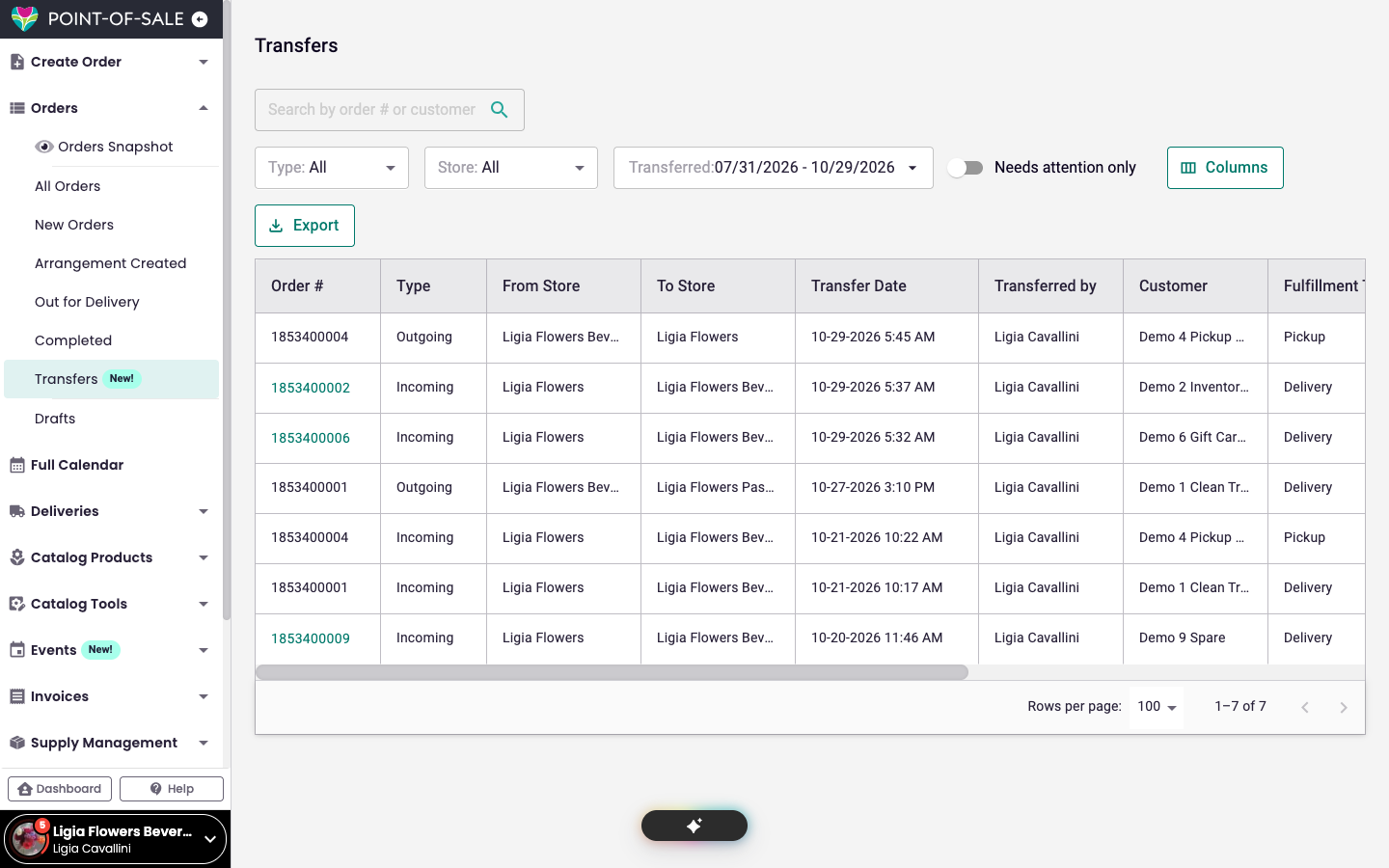
Orders > Transfers in the POS lists every order your shops sent or received, with any warnings and notes. Filter by incoming or outgoing, shop and date, and export the list.
-
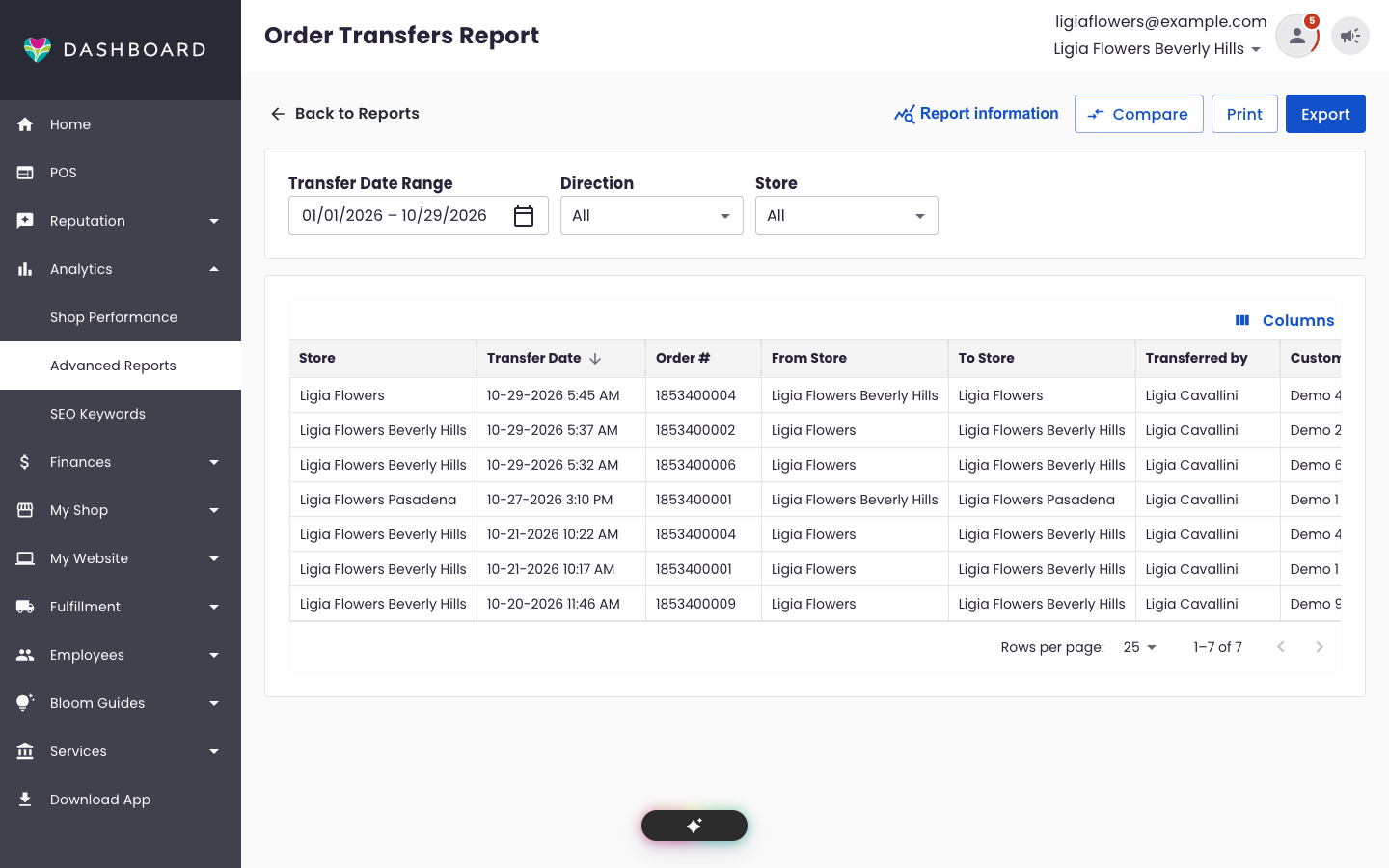
The Order Transfers report in the Dashboard (Analytics > Advanced Reports > Order Transfers) shows the same transfers for any date range, with the note. Each move is its own row, so an order that moved twice has two rows. Export downloads a CSV.
Good to know
- The payout stays with the shop that took the order. If Juniper Lane Flowers takes an order and sends it to Juniper Lane Flowers Pasadena, Juniper Lane Flowers is paid. Refunds come from that shop too.
- Reports follow the money. Sales and payment reports count the order at the shop that took it. Delivery and pickup lists show it at the shop that has it now.
- Gift cards stay with the shop that sold them. Moving the order doesn't change where a gift card can be used.
- The customer keeps access to their order on the website where they bought it.
- You can transfer an order more than once. Each move is recorded.
Frequently asked questions
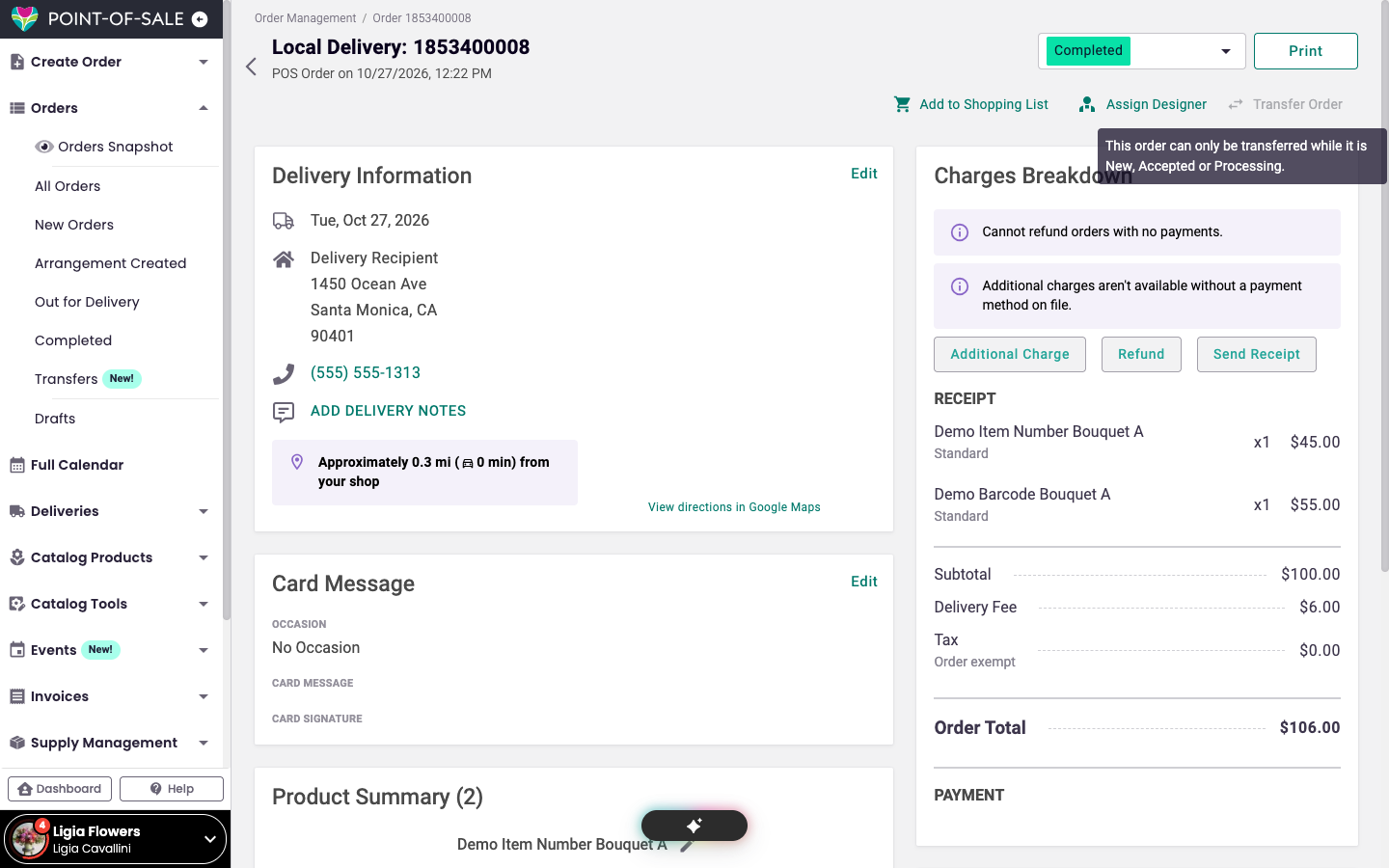
Why is the Transfer Order button grayed out?
The order can't be transferred in its current state. Hover over the button to see why. An order can be transferred while it's New, Accepted or Processing. Event orders, invoice orders and orders paid with a house account can't be transferred.
Why don't I see the Transfer Order button?
Your account doesn't have the Transfer Orders permission, or Order Transfers isn't turned on for your shop. Ask the shop owner to check your permissions, or email getmore@bloomnation.com to turn it on.