
Image Studio: Create a Valentine's Day Banner
Overview
Give your website a Valentine's Day look without hiring a designer. Image Studio creates a holiday banner for you in a few minutes: Lili makes the image and drafts the wording, and you can change anything before you save it.
Image Studio also helps you edit product photos and create Designer's Choice images. This article walks through making a Valentine's Day banner.
How to create a Valentine's Day banner
-
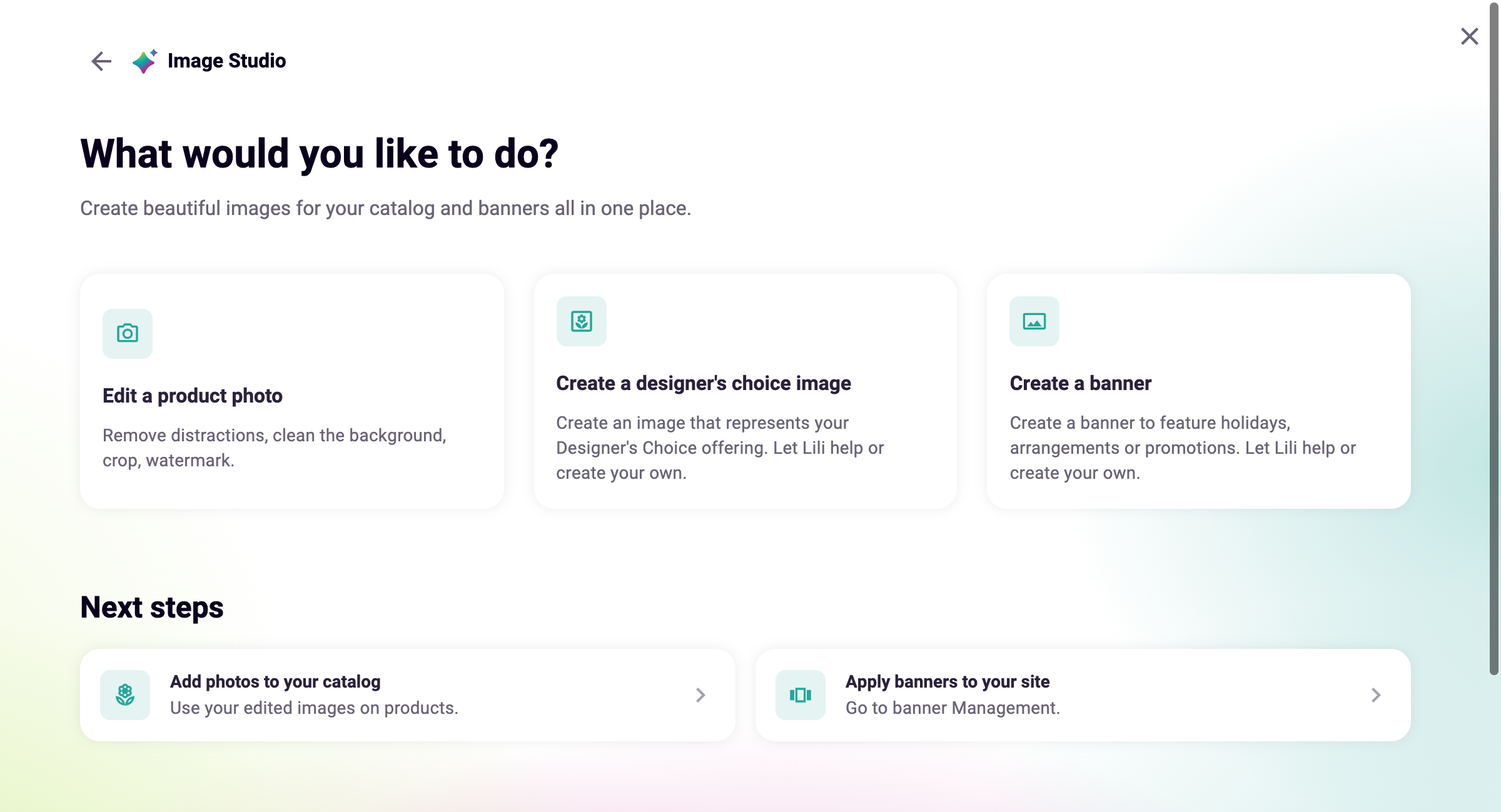
In your BloomNation POS, go to Catalog Tools > Image Studio.
-
Click Create a banner.
-
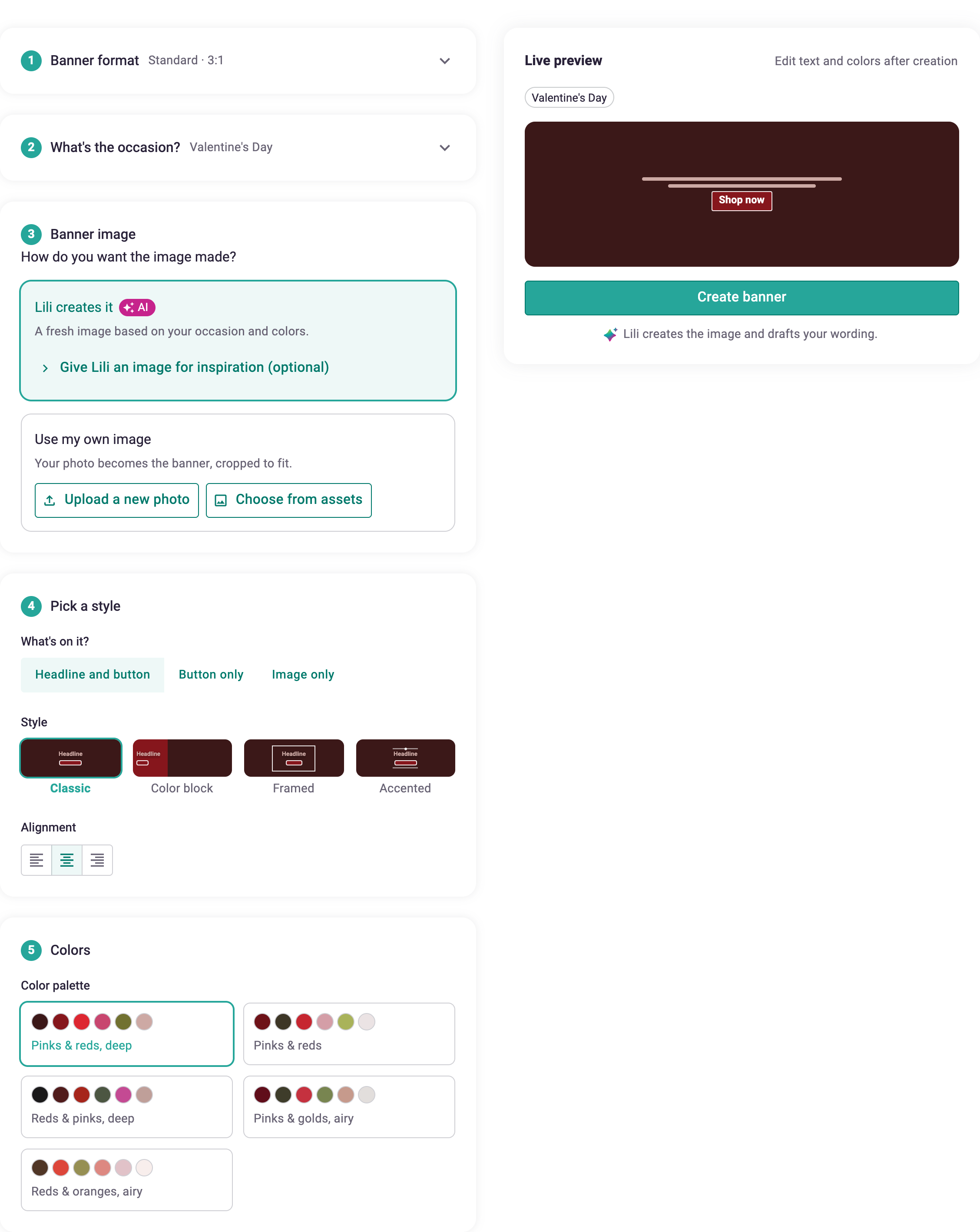
Under What's the occasion?, choose Valentine's Day.
-
Under Banner image, choose how you want the image made:
- Lili creates it makes a new image based on your occasion and colors. To guide Lili, click Give Lili an image for inspiration and add a photo.
- Use my own image turns your photo into the banner. Click Upload a new photo or Choose from assets.
-
Under Pick a style, choose what goes on the banner: Headline and button, Button only or Image only. Then choose a Style and Alignment.
-
Under Colors, choose a color palette. The palettes match the occasion you picked.
-
Check the Live preview, then click Create banner.
Edit your banner
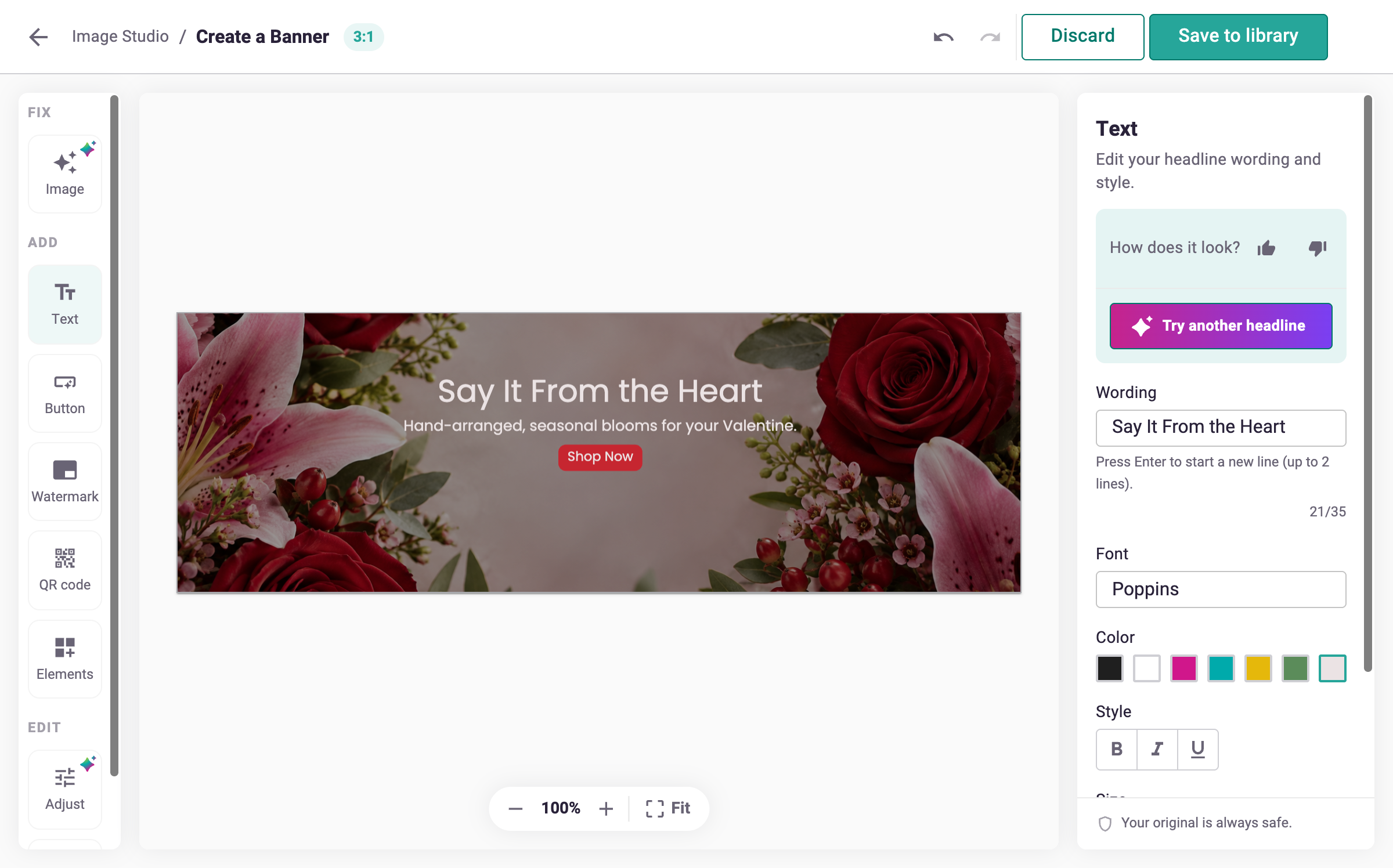
Once Lili finishes, your banner opens in the editor. Use the tools on the left to make it your own. Changes show on the banner right away, and your original is always kept safe.
Image
- Click Try another for a new image
- Turn Show overlay on or off, and adjust its Opacity and Color so your text is easy to read
- Click Choose different style to switch layouts. Your text and button stay editable
Text
- Edit the headline under Wording. Press Enter to add a second line
- Click Try another headline for a new suggestion from Lili
- Change the Font, Color, Style and Size, or click Remove text
Button
- Change the Button label, for example "Shop Valentine's"
- Choose a Style (Filled, Outline or Text) and pick button and text colors
- Turn Show button off if you don't want one
The button is part of the image. You choose where the banner links when you add it to your website.
More tools
You can also add a Watermark, QR code or Elements, and fine-tune the image with Adjust and Filters.
Use the undo and redo arrows at the top if you change your mind.
Save and add the banner to your website
- Click Save to library. Your banner appears under Recently edited on the Image Studio home page.
- To put it on your website, click Apply banners to your site on the Image Studio home page. This opens Banner Management, where you choose the banner and where it links.
To start over without saving, click Discard.
Tips
- Create your Valentine's banner a few weeks early so it's ready when shoppers start looking
- Link the banner to your Valentine's Day collection so shoppers land on the right products
- Keep the headline short. It reads better on phones
- Make a second version with Try another and switch banners halfway through the season
Need help?
If you have questions, our Partner Support team is here to help.
Phone: (210) 405-5050
Email: support@bloomnation.com