
Catalog Sync: Share One Catalog Across Your Shops
Overview
Set up a product once and sell it in every shop you own. Catalog Sync is a BloomNation multi-shop tool that keeps your products, ingredients, suppliers, markups and categories the same across your shops. Edit an item in any shop, and your other shops get the change within minutes.
You stay in control of what's shared:
- What syncs. Share products and ingredients but not markups, for example.
- Where each item goes. Choose which shops carry each item.
- Prices and availability. Share them across shops, or let each shop set its own.
Words to know
- Group: the shops you connect. A shop can be in only one group.
- Synced: linked across your shops, so a change in one shop reaches the others.
- Match: an item Catalog Sync thinks is the same in two or more of your shops, before you link it.
- On sale / off sale: whether a product is turned on (Enabled) in a shop so customers can buy it. It has nothing to do with discounts.
Before you start
You can use Catalog Sync when you run two or more BloomNation shops that you open from the same Dashboard sign-in. To turn it on for your shops, email support@bloomnation.com.
Who can make changes
- Owners can do everything.
- To let an employee change sync settings, run the setup or edit synced items, go to Employee Management, edit the employee and check Manage multi-shop products in the POS permissions. For the Multi-shop page, they need it at every shop in the group.
- Without it, an employee can view the Multi-shop page and synced products, but not change them.
Set up Catalog Sync
Setup has two parts: pick your shops and what to share, then settle which items are the same in more than one shop. Nothing changes in your shops until you click Sync now at the end.
Pick your shops and what to sync
- In the Dashboard, go to My Shop > Multi-shop.
- Click Set up multi-shop sync.
- Under Shops to sync, check every shop you want connected. The shop you have open is always included.
- Turn on the switches for what you want shared. To share products, turn on Sync products across all my shops. See Catalog Sync: Choose What Your Shops Share for what each switch does.
- Click Save. The setup opens on its own.
Walk through the setup
You only see the steps for the switches you turned on.
Before you pick, know what changes in your other shops.
- The version you keep replaces the other shops' versions: its details, photos and recipe, and its prices while Sync product prices is on.
- Products only one shop has are copied to your other shops unless you uncheck them. If the original is on sale, the copy is on sale right away.
- Once the sync starts, it can't be undone.
-
Settings. Check your shops and switches, then click Continue. Catalog Sync scans every shop's catalog for matching items.
-
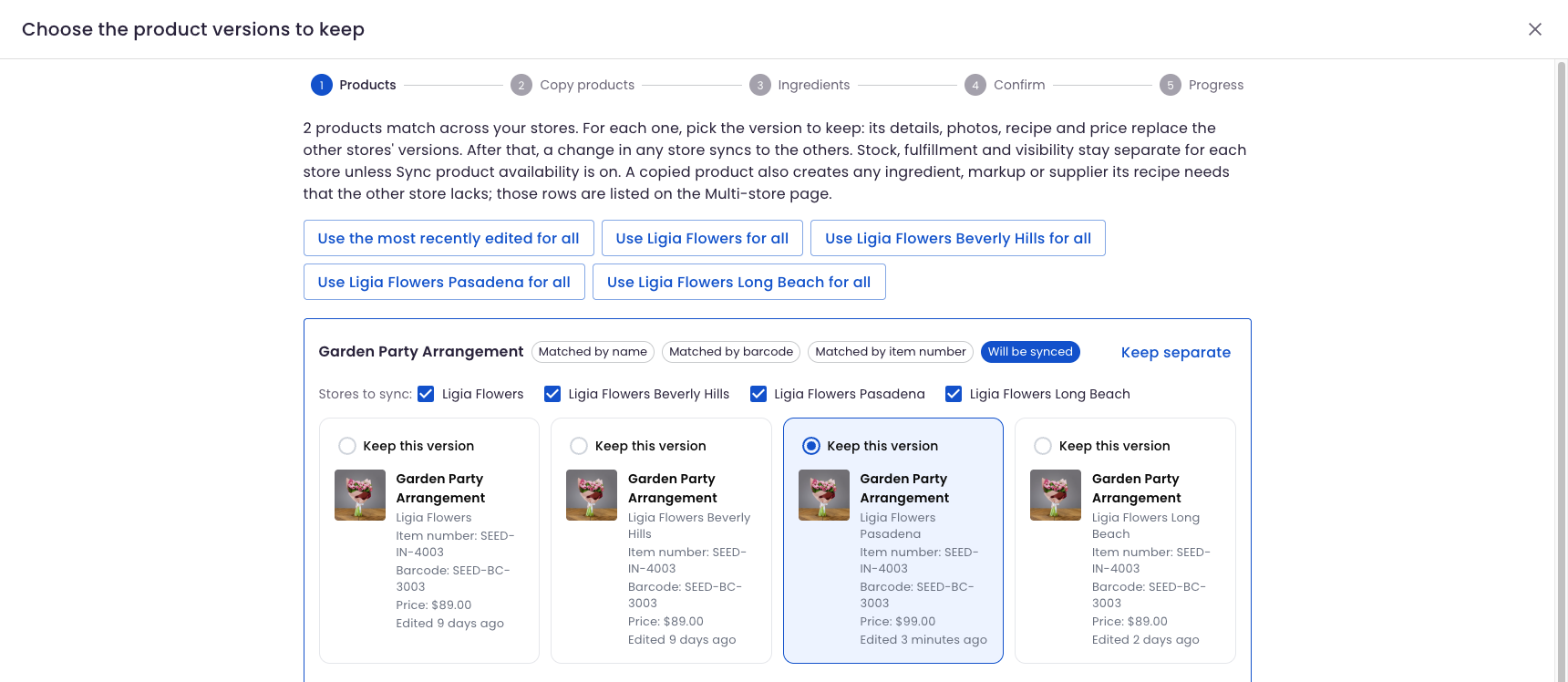
Products. Each card is a product found in more than one shop. Click Keep this version on the copy you want everywhere, or Keep separate if they're different products.
-
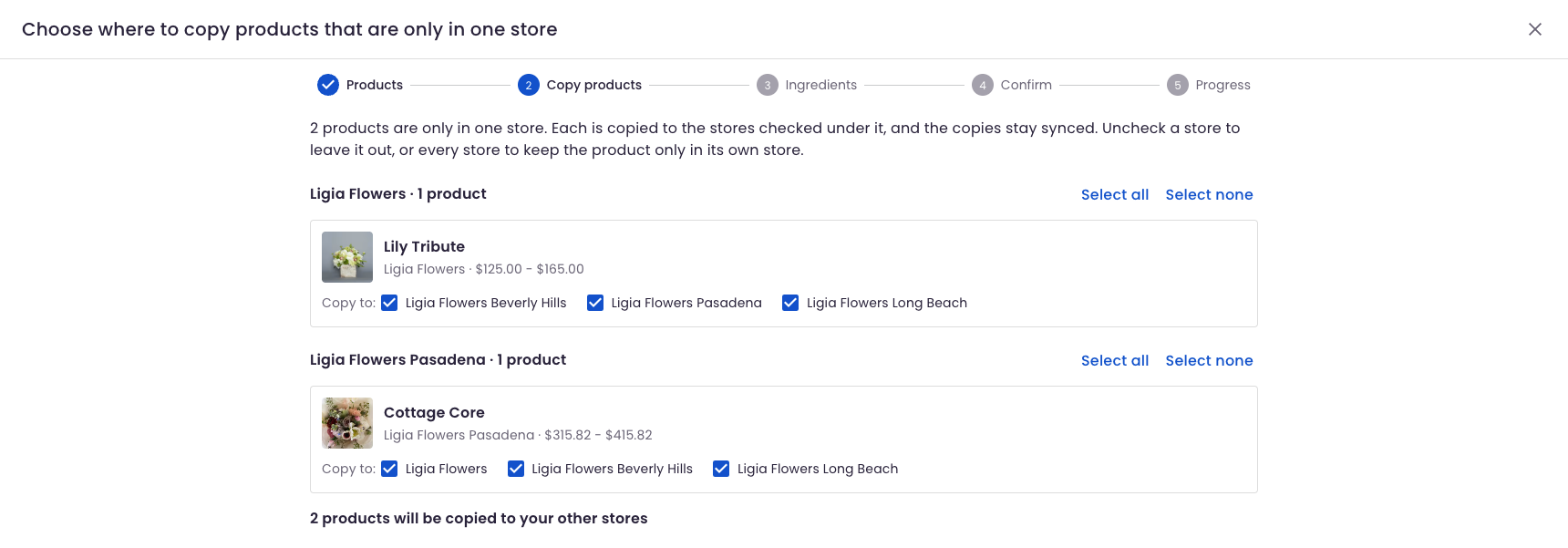
Copy products. Products only one shop has are listed under that shop's name. Each has a Copy to: checkbox for every other shop. Uncheck any shop that shouldn't carry it.
-
Categories. Category groups with the same name are combined, and nothing is removed. Uncheck Combine to keep a group separate.
-
Ingredients, Suppliers and Markups. For each match, choose Keep the version from (shop name) or Keep separate.
-
Confirm. Read the summary, then click Sync now.
Products sync one at a time, so a large catalog takes a while. You can close the window, and your shops keep taking orders while it runs. For more on matches, see Catalog Sync: Review Matches Between Shops.
Stop and come back later
Close the setup any time before Sync now, and nothing changes in your shops. Your sync settings stay saved. To pick up again, click Review matches on the Multi-shop page.
Add a shop later
- Make sure Catalog Sync is turned on for the new shop.
- On the Multi-shop page, open Sync settings and check the new shop under Shops to sync.
- Click Save. The setup opens so you can settle matches with the new shop.
- Click Sync now. Your synced items are added to the new shop.
Frequently asked questions
Will my shops change as soon as I turn Catalog Sync on?
No. Nothing in your shops changes until you click Sync now at the end of the setup.
Can I undo a sync?
No. The Activity tab on the Multi-shop page shows what changed and when, so you can edit things back by hand.
Can each shop charge different prices?
Yes. Turn off Sync product prices. Each shop then sets its own prices, and everything else about the product stays shared.
Is stock shared between shops?
No. Ingredient stock is always separate. Product In Stock settings are separate too, unless you turn on Sync product availability.
Do my Instacart and Uber Eats menus sync?
No. Each shop manages its own Partnerships settings.
How do I stop using Catalog Sync?
Turn every switch off in Sync settings. Your shops keep everything they have, and nothing updates across shops anymore.