
Shop FAQs
Overview
The FAQ feature lets you add questions and answers directly to your BloomNation website. You can write your own FAQs or generate a default set automatically.
FAQs help customers find quick answers about your shop's delivery areas, hours, and policies — and they improve your website's visibility on Google. You can now also add tags to each FAQ to control where it appears across your site.
Video walkthrough
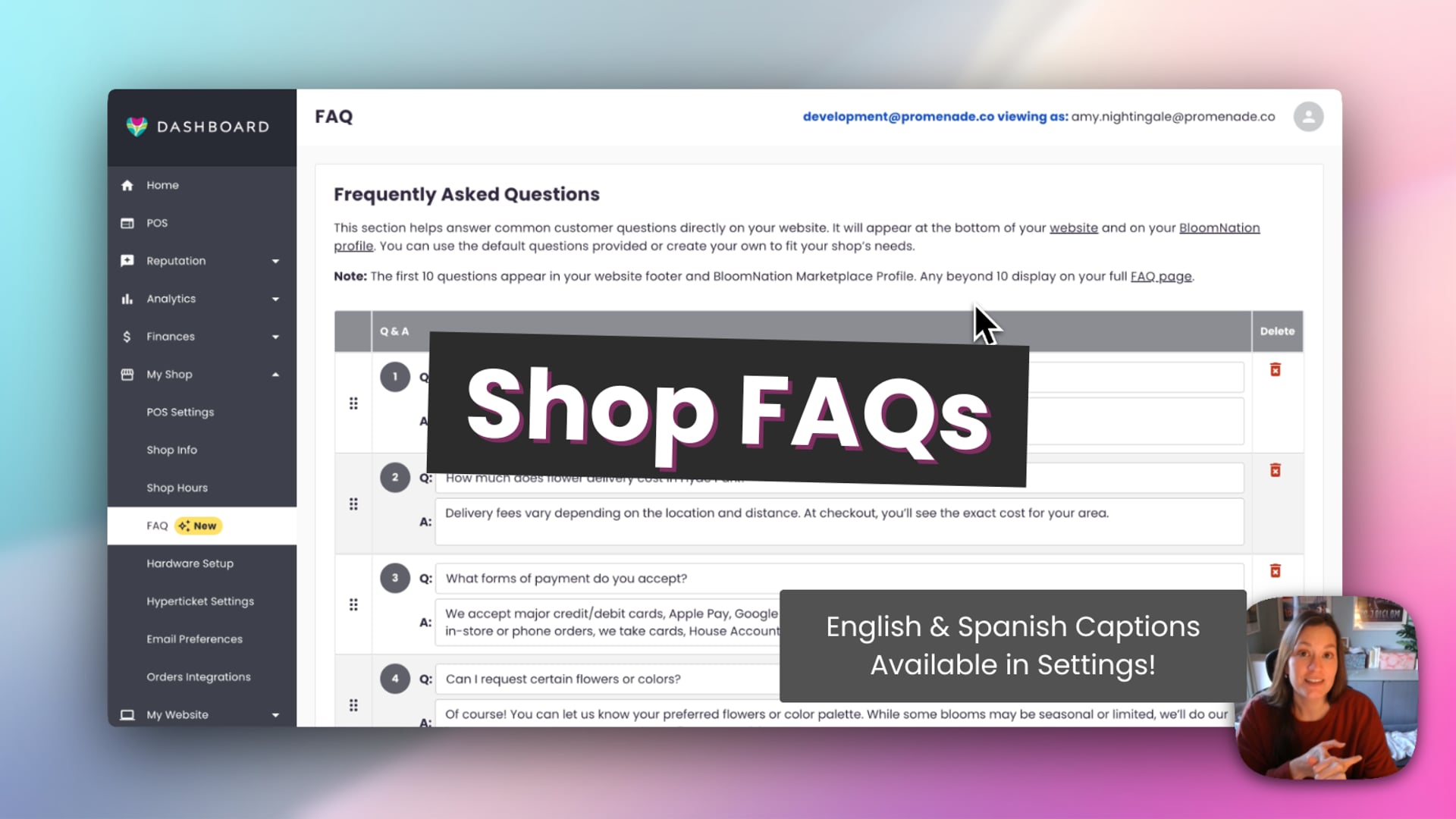 Shop FAQs
How to access FAQs
- Log in to your BloomNation Dashboard.
- In the left-hand menu, go to My Shop → FAQ.
- From here you can view, add, edit, reorder, and tag your FAQs.
How to add or edit FAQs
- Click Add FAQ to create a new question.
- Enter your question and answer in the fields provided.
- Add one or more tags using the Tags selector (see below).
- Click Save to publish.
- To edit an existing FAQ, click the Edit icon, make your changes, and save.
- To delete an FAQ, click the Trash icon.
You can add as many FAQs as you like. Your homepage displays the first 10. The full list appears on your dedicated FAQ page.
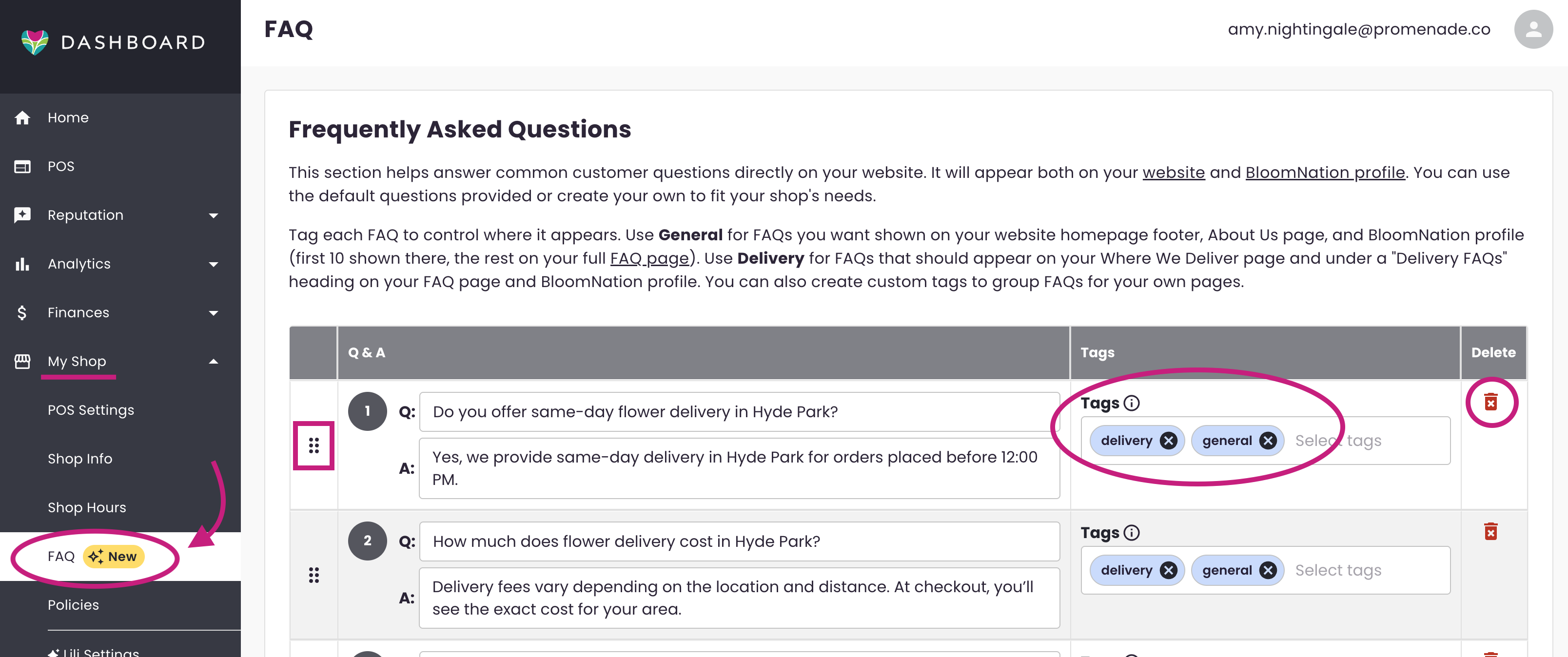
To control which 10 appear on your homepage, use the drag-and-drop handle (six dots) to reorder them.
When you're done making changes — adding, editing, reordering, or tagging — scroll to the bottom of the page and click Save changes to apply them.
FAQ tags
Tags control where your FAQs appear across your website. Every FAQ should have at least one tag.
General
Use General for FAQs you want to appear on your website homepage, your About Us page, and your BloomNation profile.
Delivery
Use Delivery for FAQs about your delivery areas, costs, and policies. These appear on your Where We Deliver page (if you have one) and under a "Delivery FAQs" section on your FAQ page and BloomNation profile.
An FAQ can carry both the General and Delivery tags at the same time.
Custom tags
You can create your own tags to organize FAQs for specific topics — for example, a Wedding tag for questions about wedding services. Custom tags let you pull topic-specific FAQs into custom pages you build in Website Manager.
Default FAQs
If you've been with BloomNation for a while, you may already see a set of questions and answers automatically added to your FAQ section. These cover common topics — like same-day delivery and your city or location — to help with SEO.
Review these carefully and make sure they reflect how you describe your shop. Edit any that need updating, or click the trash icon to remove ones you don't want.
Default FAQs are automatically tagged based on their content. Delivery-related questions are tagged Delivery. All others are tagged General. You can adjust these tags at any time.
Once you've reviewed your defaults, consider adding a few of your own. Questions your customers ask regularly — about your ordering process, specialty arrangements, or local delivery areas — make your FAQ section more useful and help more people find your shop through search.

How to generate default FAQs
If you're new to BloomNation, you may see an empty FAQ section with a Generate FAQs button.
- Click Generate FAQs.
- Review the generated questions and uncheck any you don't want to use.
- Edit answers as needed to reflect your shop's voice or policies.
- Click Save when you're ready to publish.
These FAQs pull from your shop settings — like your hours and delivery zones — so make sure that information is complete before generating. If you update those settings later, delete and regenerate your FAQs to refresh the content.
How FAQs appear on your website
- Homepage: The first 10 FAQs tagged General display near the bottom of your homepage in a collapsible view.
- FAQ page: All FAQs appear on a dedicated FAQ page, accessible via the Read More link or footer link. Delivery FAQs appear under their own heading.
- Where We Deliver page: FAQs tagged Delivery appear in the FAQ section of your Where We Deliver page.
- BloomNation profile: Your FAQs also appear under the FAQ tab on your Marketplace profile.
Tips
- Keep answers short and natural — 60 to 120 words works well for SEO.
- Include your city or delivery area in relevant answers (e.g., "same-day flower delivery in Austin").
- Make sure delivery-related FAQs are tagged Delivery so they appear in all the right places.
- Update your FAQs every few months to keep information accurate.
- Add your own custom FAQs beyond the defaults. You know your customers better than anyone — questions about your ordering process, specialty arrangements, or local delivery areas make your FAQ section more useful and help more customers find you through search.
Frequently asked questions
Why don't I see the FAQ section in my Dashboard?
If your website hasn't launched yet or your domain isn't connected, the FAQ tool may not appear. Once your site is live and connected, you'll see My Shop → FAQ in the menu.
What's the difference between General and Delivery tags?
General FAQs appear on your homepage, About Us page, and BloomNation profile. Delivery FAQs appear on your Where We Deliver page and under a dedicated section on your FAQ page and profile. An FAQ can have both tags.
Do I have to tag my FAQs?
Tagging is not required, but it controls where your FAQs appear. An FAQ without a tag may not display in all the expected places. We recommend adding at least one tag to every FAQ.
What happens if I change my hours or delivery zones?
Your FAQs won't update automatically. Edit the affected answers manually, or delete and regenerate your FAQs to refresh them.
Can I hide or remove the FAQ section from my website?
Yes. If you delete all FAQs, the section disappears from your website automatically. Because FAQs help with SEO, we don't recommend removing them entirely.
Can I show more than 10 FAQs on my homepage?
No. The homepage displays up to 10 FAQs. The rest appear on your dedicated FAQ page.
Do I have to use the default FAQs?
No. You can delete or edit any default FAQ, and add your own at any time.
Related articles
Need help?
If you have questions, our Partner Support team is here to help.
Phone: (210) 405-5050
Email: support@bloomnation.com