
NEW: Cash Management
Managing Your Daily Cash Flow with Cash Management
Cash Management is a BloomNation POS feature designed to help florists track, manage, and reconcile their cash drawer activity easily and accurately throughout the day. With the right hardware connected, you’ll be able to start and end your day with confidence, log every transaction, and keep your team aligned and accountable.
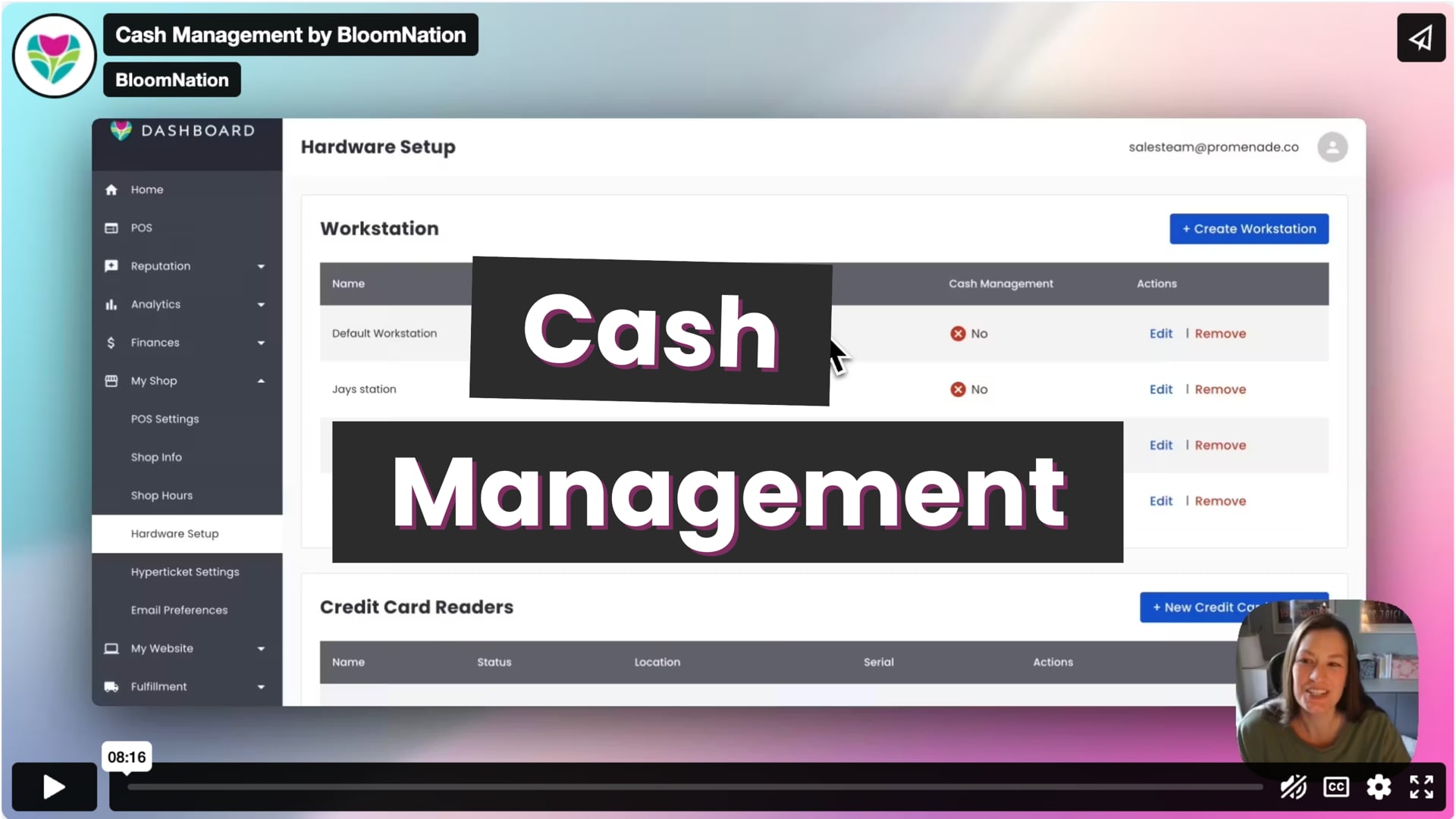 Cash Management by BloomNation
What You Need to Get Started
To use Cash Management, you must have the following:
Required Hardware
-
Receipt Printer
The receipt printer sends the signal that opens the cash drawer.
-
Cash Drawer
Only the BloomNation-approved drawer is officially supported.
Step-by-Step: How to Set Up Cash Management
1. Connect Your Hardware
-
Go to your Dashboard > My Shop > Hardware Setup.
-
Create or edit a workstation.
-
Assign a receipt printer to the workstation.
-
Click the toggle to Enable Cash Management.
2. Set Employee Permissions
-
Go to Dashboard > Employees.
-
Select an employee’s profile.
-
Under the POS section, enable Cash Management access.
Only employees with this permission will be able to open/close drawers and perform pay-ins/payouts.
Daily Workflow
Opening the Drawer (Start of Day)
-
Go to your POS and click the Cash Management section.
-
Click Start Drawer.
-
Select the employee starting the drawer.
-
Enter the starting cash amount in the drawer.
-
Optionally add a note (e.g., “Morning shift start”).
-
Confirm to open the drawer and begin tracking.
You’re now ready to process cash sales.
Throughout the Day
Processing Cash Sales
Cash sales will:
-
Automatically open the drawer.
-
Be added to your cash sales total for the day.
Pay-Ins and Payouts
Use this to track non-sale cash movement, like:
-
Giving drivers petty cash
-
Returning change or tips
-
Making change runs
To log a Pay-Out or Pay-In:
-
Click the Pay In / Pay Out button.
-
Select the employee.
-
Enter the amount and a description.
-
Click Complete.
All entries are logged in the drawer’s session.
Closing the Drawer (End of Day)
-
Click End Drawer.
-
Use the Cash Counter to log your bills and coins, or enter a total manually.
- The system will calculate your actual vs. expected total.
-
Select the employee ending the drawer.
-
Optionally add notes (e.g., “Close out by Alex”).
-
Click Confirm End Drawer.
If your drawer total is off, the system will log the discrepancy but still allow you to close the drawer.
Viewing History & Reports
Drawer History
-
Go to the Cash Management tab in POS.
-
View a list of your drawer sessions (default is last 7 days).
-
See:
-
Start/End times
-
Starting cash
-
Cash sales
-
Pay-ins/Payouts
-
Drawer total and discrepancies
-
Advanced Drawer Reports
-
Go to Dashboard > Analytics > Advanced Reports.
-
Open the Cash Drawer Report for a summary of all drawer activity across all workstations.
-
Filter by date, adjust visible columns, or export to CSV.
Note: For individual order breakdowns, use the Sales Report.
Frequently Asked Questions
Can I use Cash Management without a receipt printer?
No. A receipt printer is required because it sends the signal to open the drawer.
What if my drawer total is off at the end of the day?
That’s okay! The system will log the difference and let you close the drawer. You can review logs to investigate any discrepancies.
Can I use a third-party cash drawer?
We only support the BloomNation-approved cash drawer.
Need Help?
If you need assistance setting up your hardware or using the feature, reach out to our support team:
-
Phone: (210) 405-5050
-
Email: support@bloomnation.com
We’re here to help make sure your cash flow is smooth and secure—every day.