
Configuring Multiple Hardware Devices in your BloomNation PoS
Multi-Hardware Device Configuration in the BloomNation PoS
Managing multiple devices in your shop is now easier than ever with BloomNation's new Hardware Setup feature. You can now configure and manage both Card Readers and the brand-new Workstations (separate collections of configured devices) directly from your BloomNation Dashboard. This new capability allows you to streamline operations by assigning devices to Workstations, ensuring that all your equipment is working smoothly across different points of sale.
Table of Contents
- Accessing Hardware Setup
- Workstations Overview
- How to Create a Workstation
- Managing Card Readers
- Managing Receipt Printers
- Additional Assistance
With this setup, you'll be able to configure devices, test them to make sure they’re functioning correctly, and manage all your hardware from one place. The Workstations feature is designed to make managing multiple devices more efficient, whether you’re operating a single register or have multiple work areas in your shop.
Accessing Hardware Setup
To access the Hardware Setup page:
- Log into your BloomNation account.
- Navigate to My Shop in the Dashboard.
- Click on Hardware Setup.
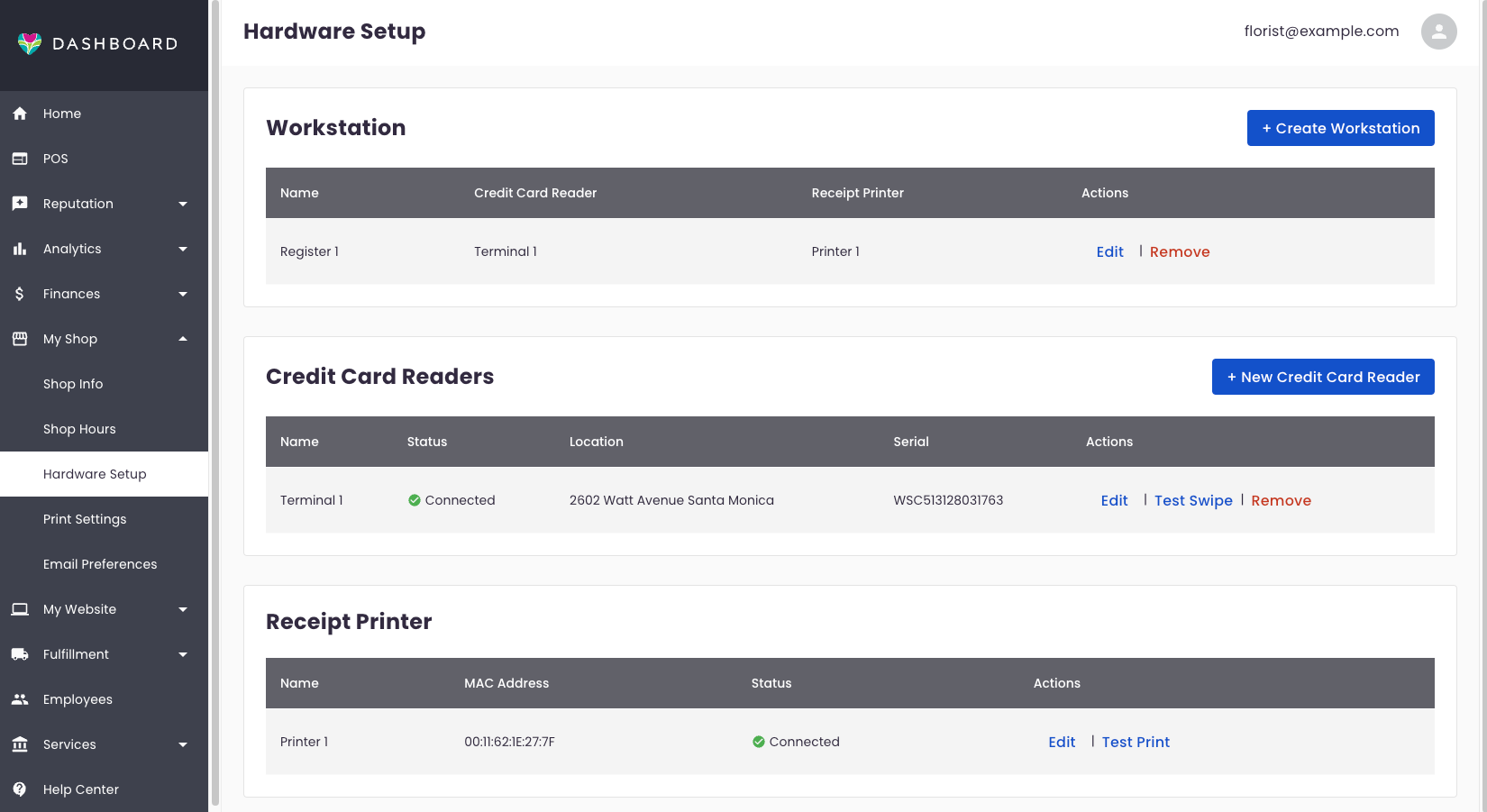
From here, you’ll be able to create and configure new workstations, add card readers, and manage all your hardware devices.
Workstations Overview
A Workstation in BloomNation is a new feature that allows you to create specific device setups for different areas of your shop. This can include a combination of card readers (terminals) and receipt printers, providing you with flexibility in how you organize and run your operations. For example, you can assign one workstation for the front counter and another for a separate part of your store.
Why Workstations Matter:
Having multiple Workstations allows you to manage multiple points of sale more efficiently. By assigning specific devices to different locations, your team can operate more smoothly, improving overall customer service and shop efficiency.
How to Create a Workstation
Before creating a workstation, make sure that your devices, such as card readers and printers, are properly set up. For assistance with device setup, you may need to coordinate with a BloomNation team member to ensure everything is configured correctly.
To set up a new workstation:
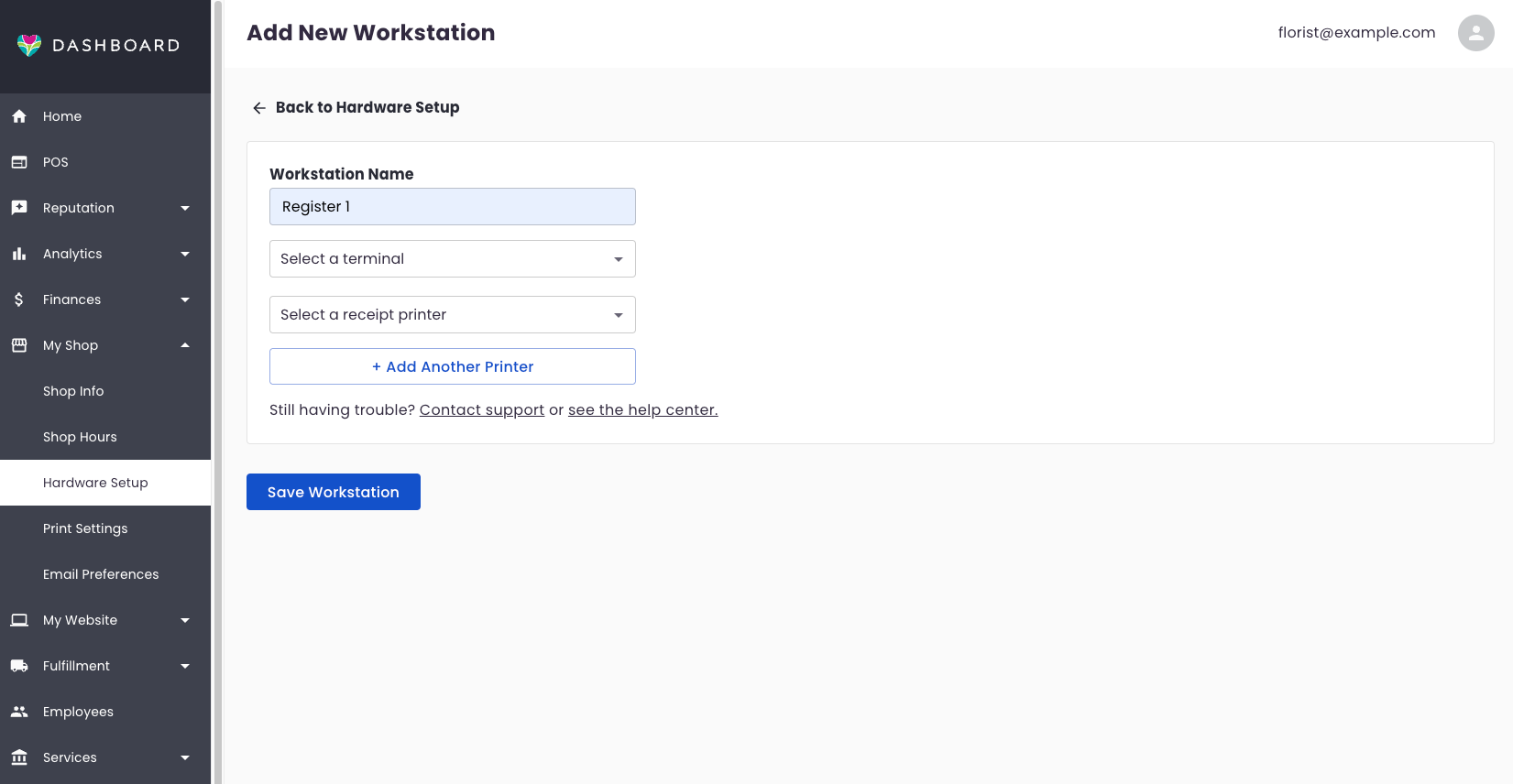
- From the Hardware Setup page, click the Create Workstation button.
- Enter a Workstation Name (e.g., "Front Counter").
- Assign a Card Reader (optional) and a Receipt Printer (optional) to the workstation.
- Click Save Workstation.
Once a workstation is created, you can:
- Edit: Change the workstation name or update the assigned devices (card reader, receipt printer).
- Remove Workstation: Delete the workstation setup while keeping the individual device configurations intact for future use.
Managing Card Readers
Setting up and managing card readers (terminals) is easy with the BloomNation Dashboard. Card readers are essential for processing payments, and once they're set up, they can be quickly assigned to any workstation.
Setting Up and Pairing Card Reader
-
Charge the Card Reader
- Use the provided USB cable to connect the reader to a power outlet or an optional Ethernet dock.
- Note: The reader does not include a charging cube. Using a laptop USB port may not charge the device effectively.
-
Power On the Reader
- After the reader is fully charged, hold down the power button on the right-hand side until the screen turns on. You’ll see a purple or rainbow background with the word “Stripe” displayed.
-
Connect to WiFi and Generate a Pairing Code
- Swipe left from the right edge of the reader screen to reveal the Settings button, then tap it.
- If prompted, enter the admin PIN:
07139to access the Settings menu.- Note: The Settings menu displays Admin options at the top of the screen.
- In the Settings menu, select Network to set up WiFi.
- Choose your shop's WiFi network and ensure it matches the network used by your BloomNation Dashboard.
- Once WiFi is set up, return to the Settings menu and select Generate Pairing Code to create the code needed for registration.
-
Start Registration on the Dashboard
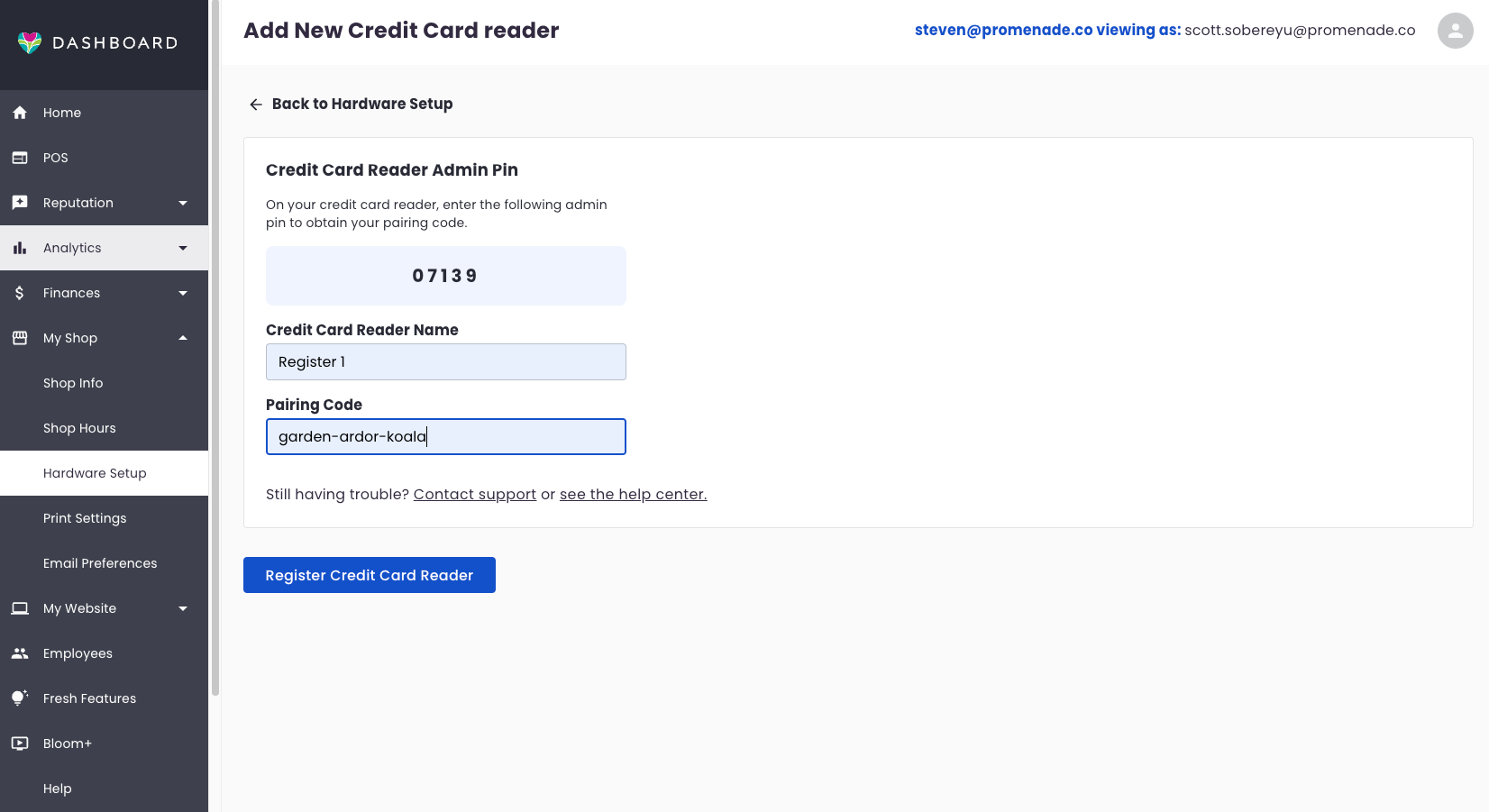
- On the BloomNation Dashboard, navigate to the Hardware Setup page.
- Click the New Credit Card Reader button.
- Enter a name for the card reader (e.g., "Front Desk Reader").
-
Complete Registration
- Enter the pairing code generated on the card reader into the Pairing Code field on the Dashboard.
- Click Register Credit Card Reader on the Dashboard.
- The card reader will complete the registration process and apply any necessary updates automatically.
Additional Information
- The battery % of the card reader is displayed at the top-right corner.
- To close the Settings menu, tap the back arrow in the top-left corner.
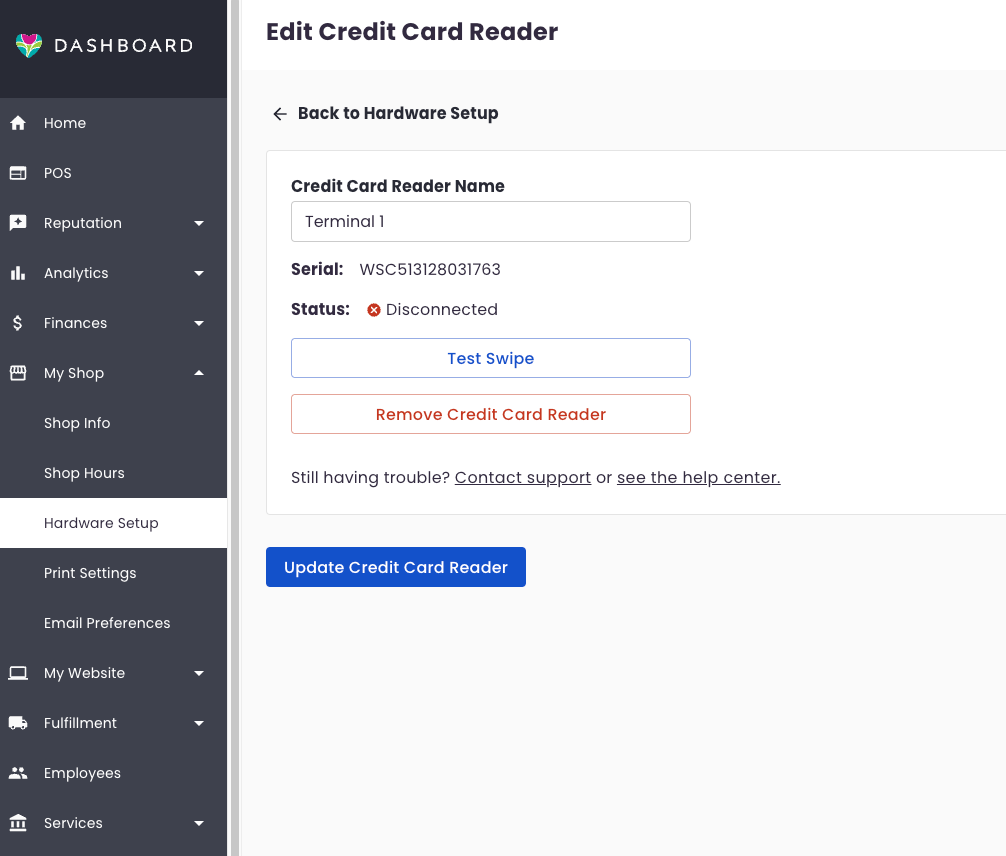
After setting up the card reader, you can:
- Edit: Update the name of the card reader.
- Test Swipe: Run a test swipe with a credit or debit card to ensure the payment integration is working correctly.
- Remove Card Reader: Remove the card reader if needed (e.g., for reassignment or replacement).
Managing Receipt Printers
While the process for setting up Receipt Printers remains unchanged, this step is crucial for printing receipts directly from your Point of Sale system. Please reach out to your BloomNation Support Representative for assistance in setting up receipt printers.
Once your receipt printer is configured, you can:
- Test Print: Run a test print job to ensure the printer is properly connected and working as expected.
The ability to manage multiple PoS devices—such as Workstations, Card Readers, and Receipt Printers—within your shop allows you to optimize your operations and improve service speed for customers. By configuring and testing these devices directly from your BloomNation Dashboard, you can ensure a smooth transaction process, helping your team work more efficiently and deliver an excellent customer experience.
Need Help?
If you have any questions or need assistance with configuring your hardware, please submit a support ticket here.