
PoS Wireless Receipt Printer and Cash Register Setup
What You'll Need
- PoS Cash Drawer
- PoS Receipt Printer
- Power cables for the printer Interface cable (such as a phone cable) to connect the cash drawer to the receipt printer
- Android or Apple Smartphone
Unboxing Your Equipment
- Unbox the Cash Drawer: Carefully open the box containing your PoS Cash Drawer and remove all packaging materials. Verify that the interface cable, cash box, and key are present. Hold onto the key as you will need it to lock and unlock the cash drawer.
- Unbox the Receipt Printer: Open the box for your PoS Receipt Printer and remove all packaging material. Make sure you have the printer, power cable, and any other accessories.
Steps
- Place the Printer: Find a suitable location near a power outlet and place the printer there.
- Plug in the Printer: Take the power cable and plug one end into the printer and the other end into a power outlet.
- Locate the Interface Port: On the back of the receipt printer, find the port labeled for connecting cash drawers. This is typically a RJ12 (phone jack) port. NOTE: The cable has a specific orientation. Be sure to plug the side of the cable with a picture/ label of a printer into the printer.
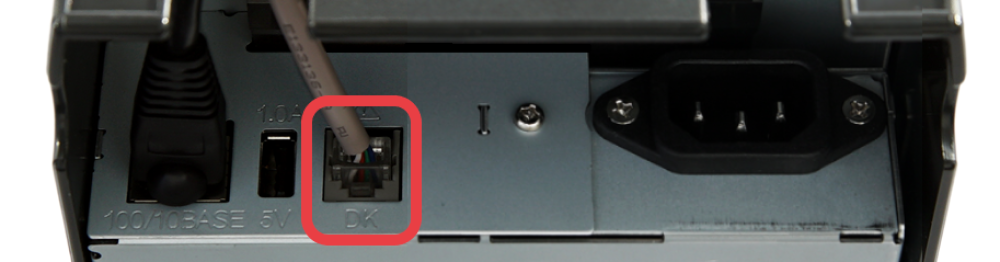
4. Connect the Cable: Take the interface cable from the cash drawer and connect it to the port on the printer. Ensure that the cable is plugged in properly, The end with a picture of a cash box should plug into the cash box, and the end with a picture of a printer should plug into the printer.
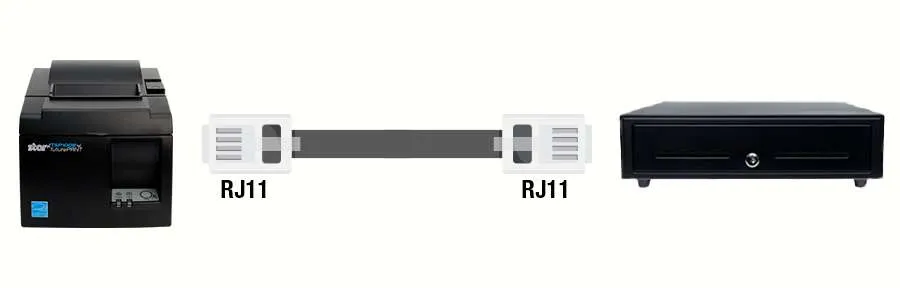
5. Secure the Connection: Make sure the cable is secure and won't easily come unplugged.
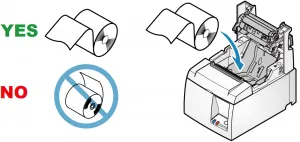
6. Load the paper: Open the top of the printer and insert the included roll of 3 inch thermal receipt paper as depicted in the diagram
7. Turn On the Printer: Locate the power button, usually situated on the front or side, and turn on the printer. You should see lights indicating it's powered on.
8. Let your Customer Service Representative know you’re ready: They’ll schedule a meeting with one of our technicians to work with you to finish the setup process