
Customer Loyalty Program
Customer Loyalty Program
Overview
Reward your repeat customers and keep them coming back!
With BloomNation’s Customer Loyalty Program, you can easily set up a points-based rewards system that lets customers earn discounts for future purchases. Whether they shop in-store or online, their points automatically track toward rewards—helping you boost repeat business and customer satisfaction.
The program is flexible, simple to manage, and built right into your POS and website.
How It Works
- Customers earn points for every purchase (both in POS and online).
- Once they reach a set number of points, they unlock a reward—for example, 200 points = $10 off.
- Rewards appear as discounts that can be applied at checkout.
- You decide how quickly customers earn points and how generous your rewards should be.
How to Set Up Your Loyalty Program
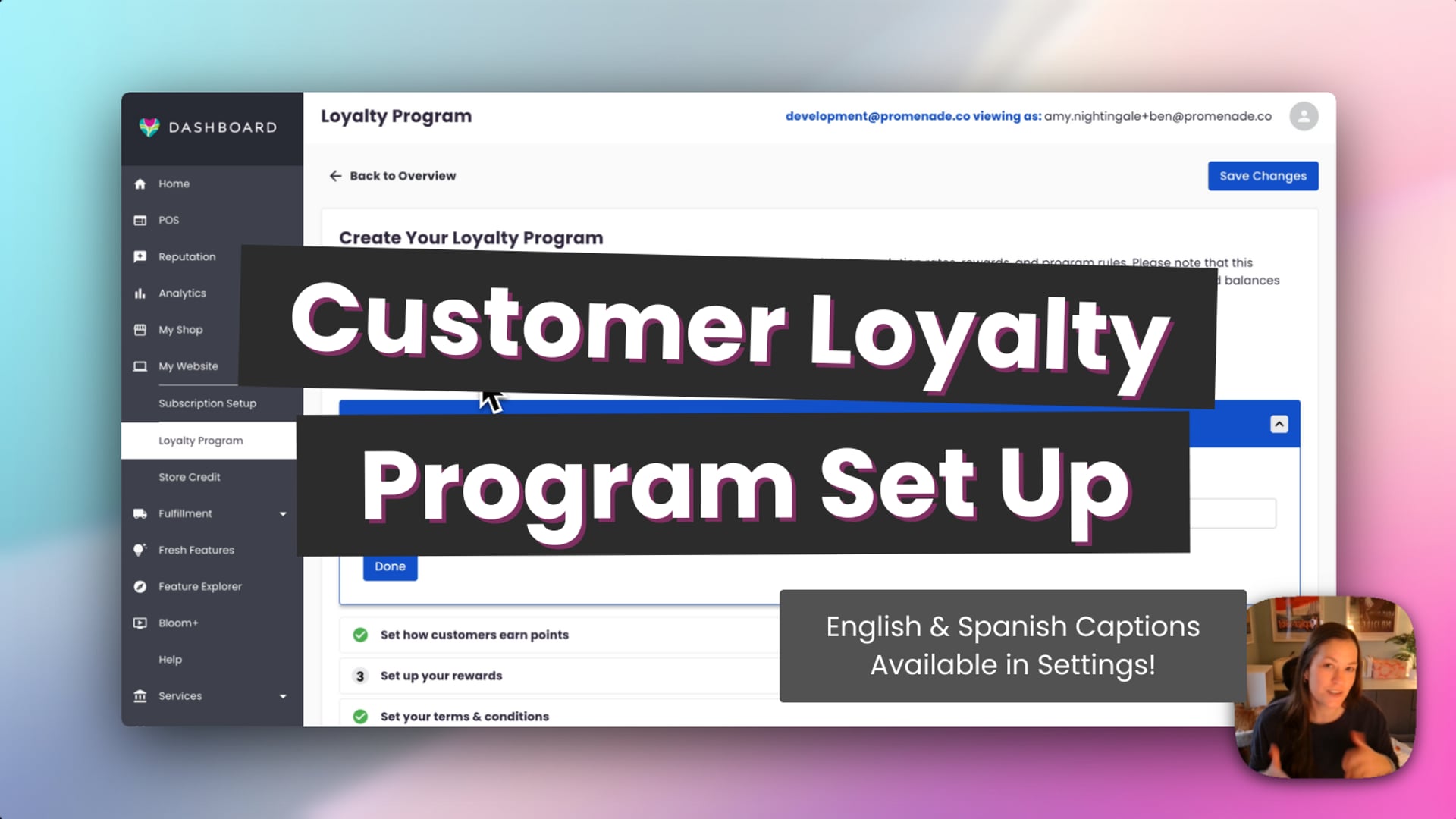 Customer Loyalty - Set Up Program
Step By Step:
-
Go to Dashboard → My Website → Loyalty Program.
-
If you haven’t set up Loyalty yet, you’ll see a Create Loyalty Program prompt. Click it to begin.
- If you see an information modal instead, your account doesn’t have Loyalty yet. Click Request Upgrade to contact our team.
-
At the top of the setup page you’ll see two toggles:
- Enable Loyalty Program – Turn this on to begin setup.
Tip: If you ever want to discontinue your Loyalty Program, return here and toggle this off. Turning this off pauses the loyalty program. Customers will not earn or redeem points, but their balances will be saved. - Enable Website Enrollment – Allow customers to enroll from your website.
Recommended: Leave this on so customers can self-enroll online. Turning this off limits signups to POS only; you will need to manually add customers.
- Enable Loyalty Program – Turn this on to begin setup.
-
Complete the four guided steps (click Done after each step to continue):
-
Step 1: Name Your Point System
- Enter the singular and plural names so they display correctly across your site and emails (e.g., Singular: Point, Plural: Points; or a branded name like Bloom Point(s)).
-
Step 2: Set How Customers Earn Points
-
Two fields:
- If customer spends → enter a dollar amount.
- Customer will earn → enter the points awarded.
-
Example: If a customer spends $5, they earn 10 points.
-
-
Step 3: Set Up Your Rewards
- Define how points convert into savings at checkout.
- Points needed and Reward value (e.g., 100 points = $10).
- Minimum Spend (optional): Require a minimum order subtotal before rewards can be redeemed (e.g., must spend at least $50).
- Automatically Apply Rewards at Checkout (checkbox): Automatically applies available rewards during checkout. Customers can remove a reward if they want to save it for later.
- Allow Customers to Use Multiple Cash Rewards Together (checkbox): Lets customers stack rewards in a single order (e.g., two $10 rewards = $20 off).
-
Step 4: Set Your Terms & Conditions
- Review and edit the default Terms & Conditions text to match your shop’s policies and local requirements.
- This text appears to customers and in related emails.
-
-
Click Save Changes to publish your program.
Website banner: When Loyalty is enabled, a Loyalty banner is automatically added to your website homepage to promote the program.
Managing & Redeeming Points
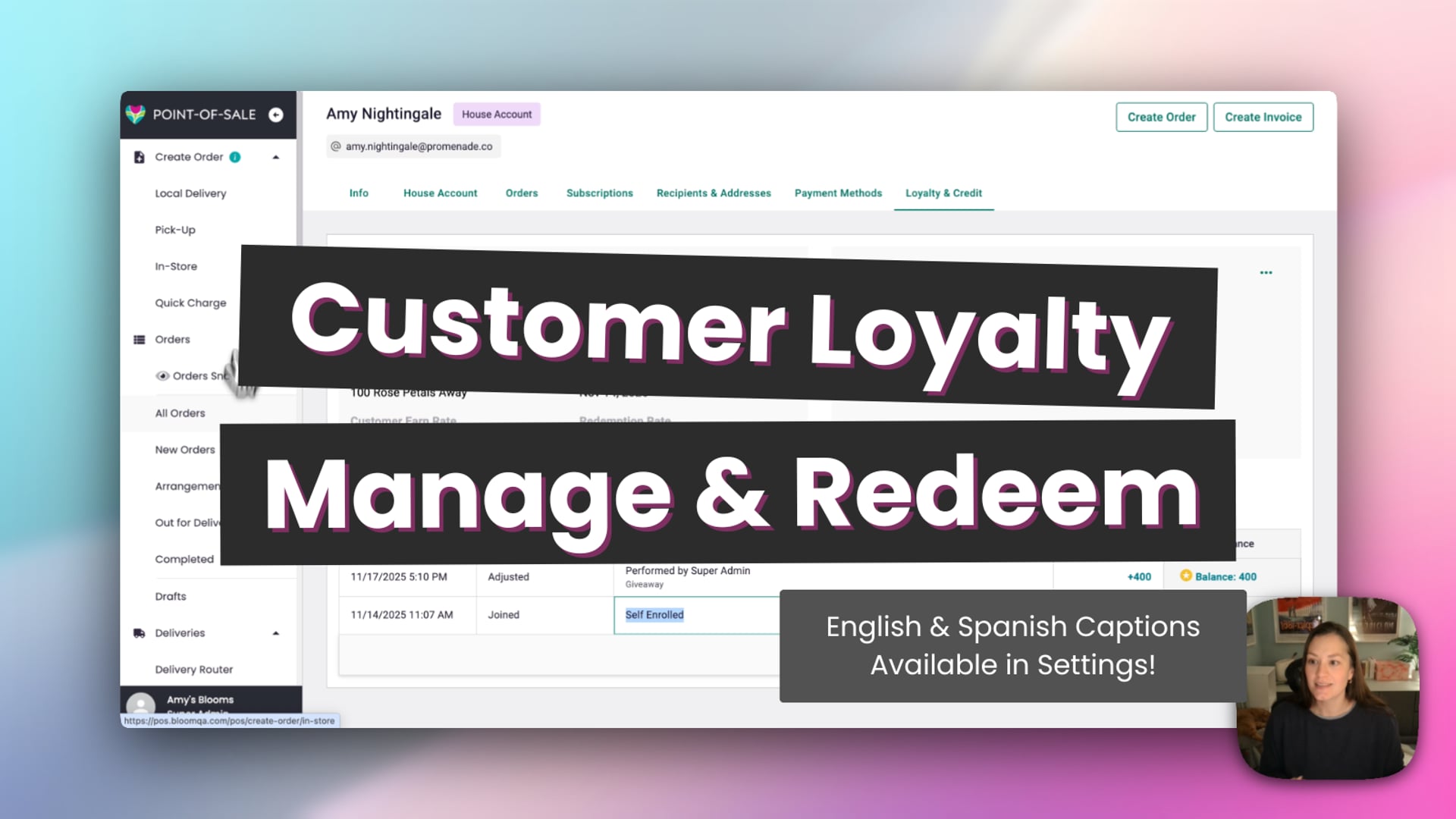 Customer Loyalty - Redeem Rewards
How Customers Earn and Redeem Points
Earning Points
- Customers earn points on the order subtotal only (tax, tips, and delivery are excluded).
- Points are rounded down to the nearest whole number (e.g., $20.99 = 20 points).
- Points are tracked automatically when the customer’s email address is entered on their order.
Redeeming Rewards
-
Customers must be logged into their account to redeem rewards.
-
Rewards appear as a discount during checkout.
-
If auto-apply is enabled, rewards automatically apply when available; customers can remove them before placing the order.
-
Coupons and loyalty rewards cannot be used together on the same order.
-
Note:
- For website orders, rewards apply only to the subtotal (not tip, tax, or delivery).
- For POS orders, rewards apply to the entire order total.
Managing Loyalty in POS
You can check your customers’ loyalty balances directly from your POS. Open a customer profile and go to Loyalty & Credit.
View Program Details
- See the customer’s enrollment date, total points, and available rewards.
- Check how many points remain until their next reward.
- Review their earn and reward rates (from your dashboard settings).
Manage Points & Rewards
- Adjust Points: Add or remove points manually, with a reason saved in the activity log.
- Transfer Points: Move points between enrolled customers (e.g., family members).
- Unenroll Customer: Remove a customer from the program (e.g., fraud prevention or at their request). This permanently deletes their points and rewards.
- View Activity History: See purchases, redemptions, refunds, transfers, and manual adjustments.
Refunds & Adjustments
- If an order that earned points is refunded, those points are automatically deducted.
- If rewards earned from that order were already used, the customer’s balance may go negative.
- You can manually correct balances by adjusting or restoring points as needed.
Customer Experience
-
Customers can enroll when creating an account, checking out, or visiting your Loyalty Program page.
-
In their account, they can view:
- Current point balance
- Available rewards
- Activity history (purchases, redemptions, refunds)
-
Guests can earn points using their email address but must create an account to redeem rewards.
FAQs
Can customers use coupons and rewards together?
No. Coupons and loyalty rewards can’t be combined on the same order. If you're not seeing the ability to redeem Loyalty Points in your POS, check for and remove any customer level coupons.
Do customers have to log in to earn points?
Customers can earn points as long as their email is used at checkout, but they must log in to redeem rewards.
How do I pause or stop my Loyalty Program?
Go to Dashboard → My Website → Loyalty Program and toggle Enable Loyalty Program off. Customers won’t earn or redeem points while paused, but their balances will be saved.
The Loyalty Program is a simple but powerful way to thank your best customers and keep them coming back for more