
Delivery Management & Delivery Router
Delivery Management is BloomNation's tool for building delivery routes and managing drivers — fully integrated with BloomNation orders. Everything happens inside your BloomNation POS, no third-party apps needed.
 Delivery Management
New: customer delivery tracking & SMS updates
If you use Delivery Router, customers can now receive delivery progress updates and track their delivery on the order receipt page. Learn how customer delivery tracking works →
New: edit in-progress routes
You can now edit routes that are already in progress (after they’ve been sent to a driver). To enable this, turn on Allow Editing In-Progress Routes in your Dashboard: Fulfillment > Delivery Settings.
Important: If you edit a route in progress, the driver’s screen does not auto-refresh. Please notify your driver to refresh their page, or re-send the route link after saving changes.
Quick navigation
- Getting started
- Create routes (map view)
- Edit & optimize a route
- View routes & status pins
- Driver experience
- POS integrations
Getting started
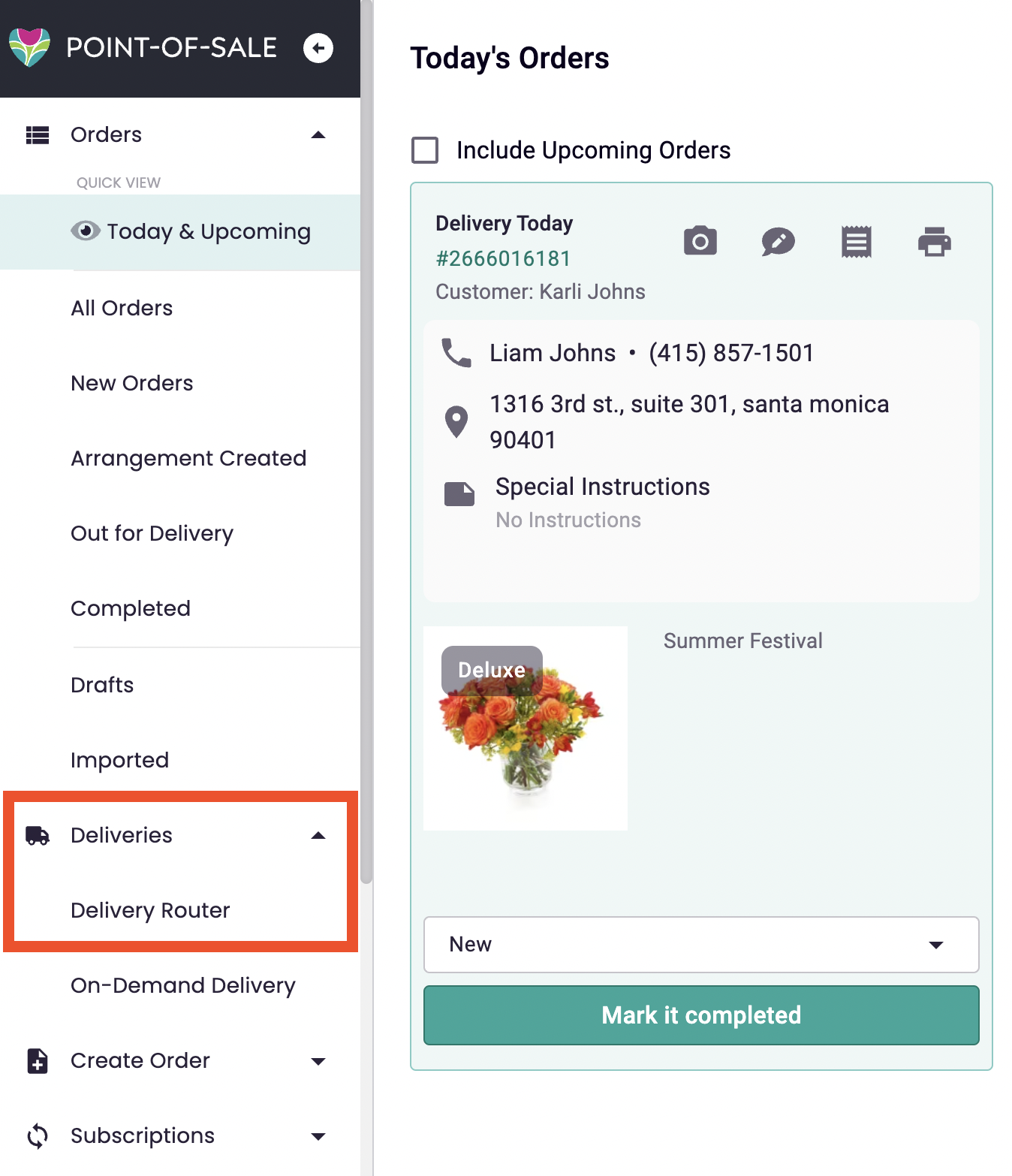
- Log into your dashboard > POS > Deliveries > Delivery Router
- This opens the BloomNation Delivery Route Manager.
- Not to be confused with Deliveries > On-Demand Delivery
- This opens the third-party delivery request form.
1) Create routes (map view)
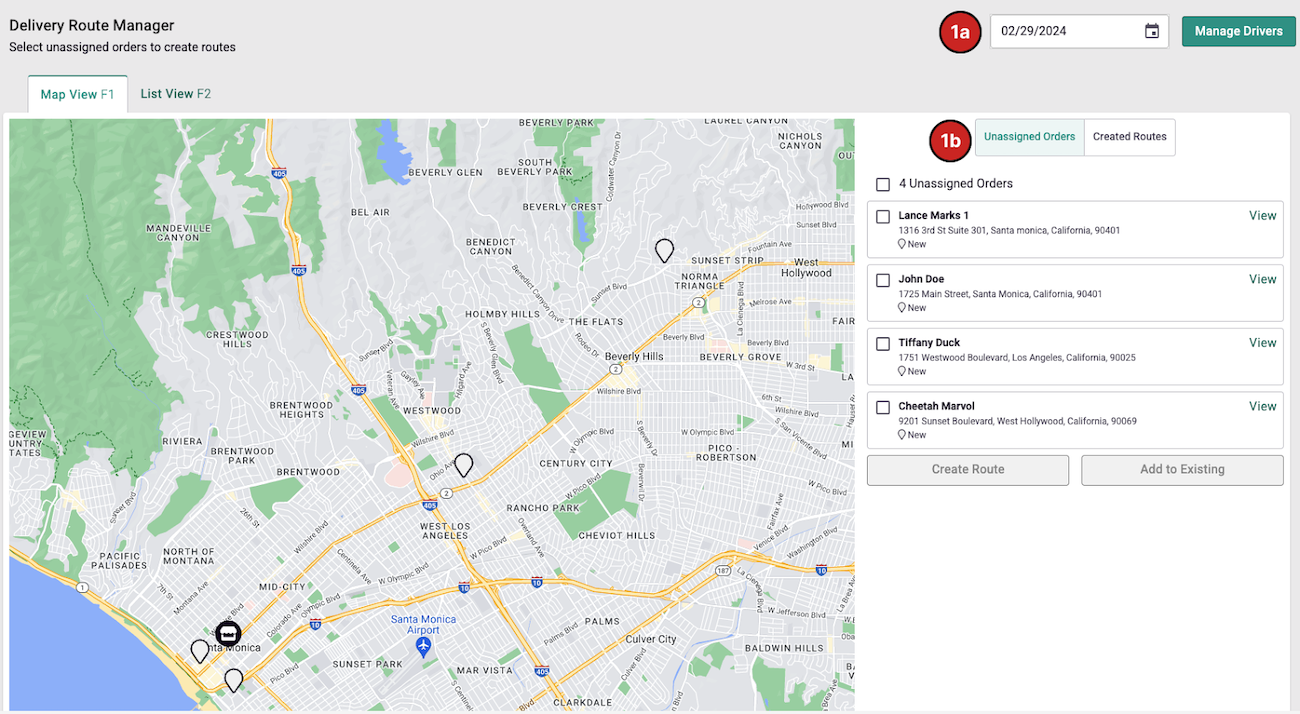
Once you’re in the Delivery Route Manager, you’ll land on the Map View.
-
Select a delivery date to see unassigned orders for that day.
-
Under Unassigned Orders, select orders by:
- Checking the boxes, or
- Clicking pins on the map
-
Assign selected orders to a route:
- Click Create Route to make a new route, or
- Select Add to Existing to add them to an existing route
-
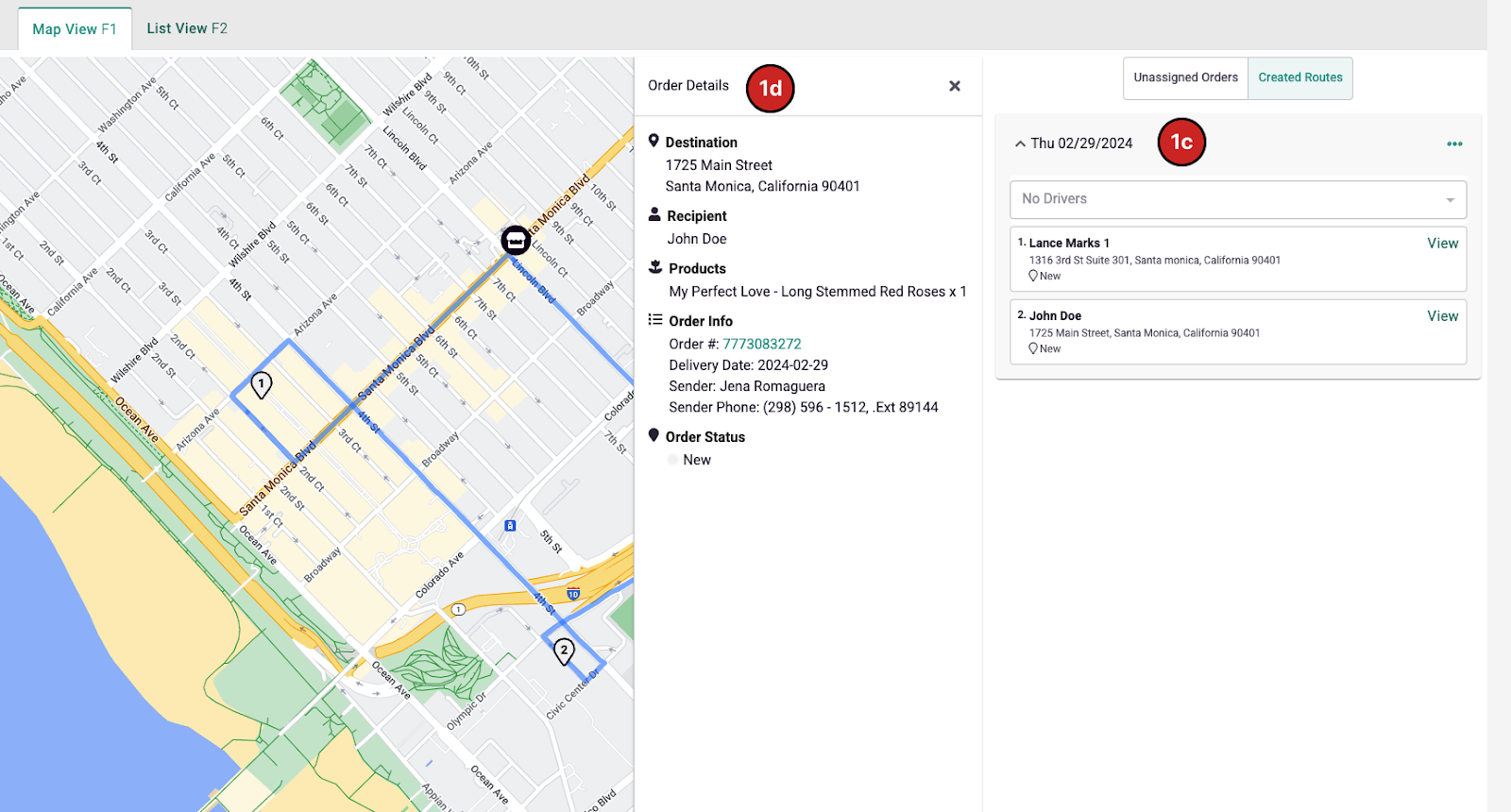
Created routes appear in the Created Routes section with basic details.
-
Click View to open the Order Details panel. Clicking the Order ID opens full Order Details.
-
Expand a route accordion to see orders, stop numbers, and driving directions on the map.
2) Edit & optimize a route
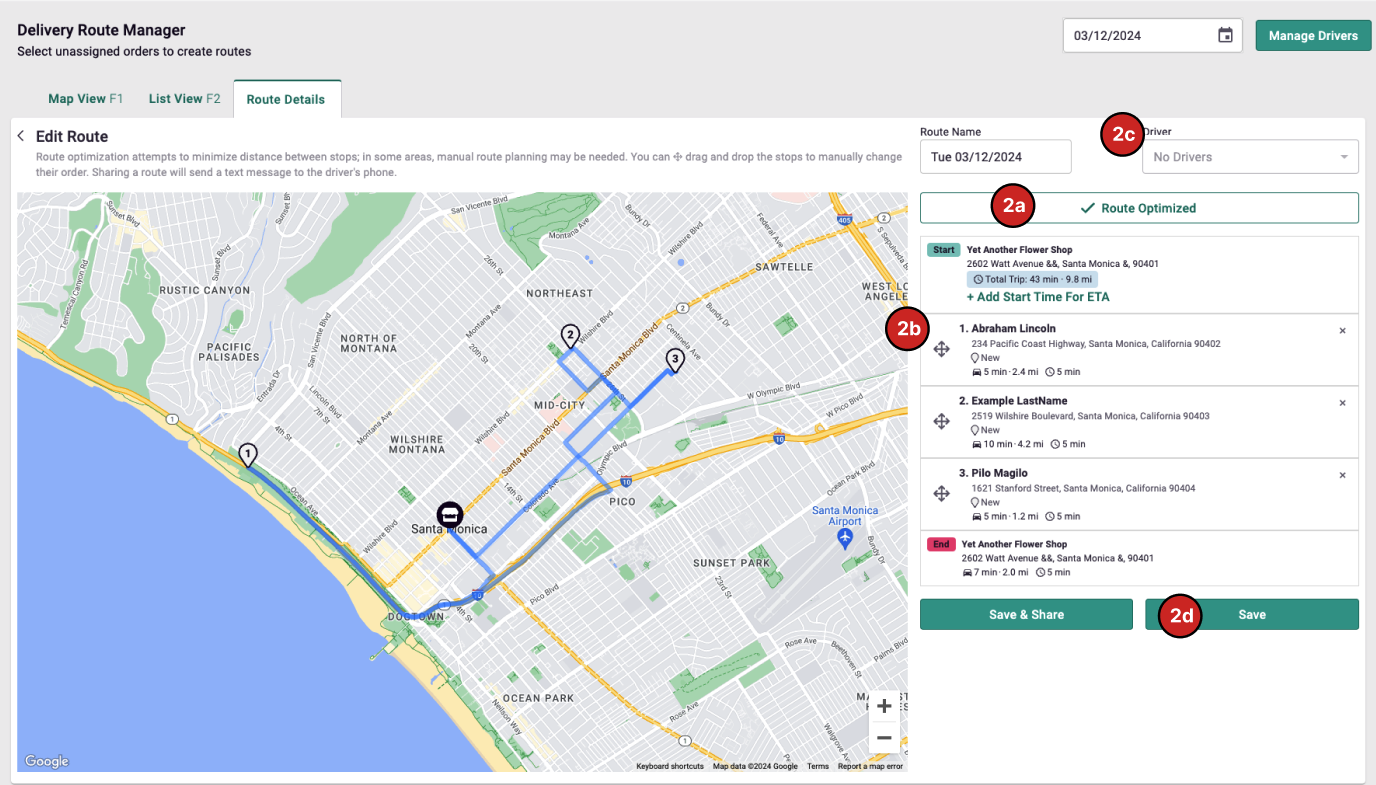
You can edit a route by clicking the 3-dot icon > Edit.
-
Routes are initially optimized using a traveling-salesman method. To re-apply the recommended order, click Optimize Route.
-
Adjust the stop order by dragging the handle on each stop and dropping it into a new position.
-
Add Start Time to calculate ETAs between stops.
- Car icon — estimated drive time & distance from the previous stop
- Clock icon — allotted layover time for the delivery
-
Assign a driver using Manage Drivers. This opens Dashboard > Employee Management to populate the Driver dropdown.
-
Save the route after you’re done optimizing.
-
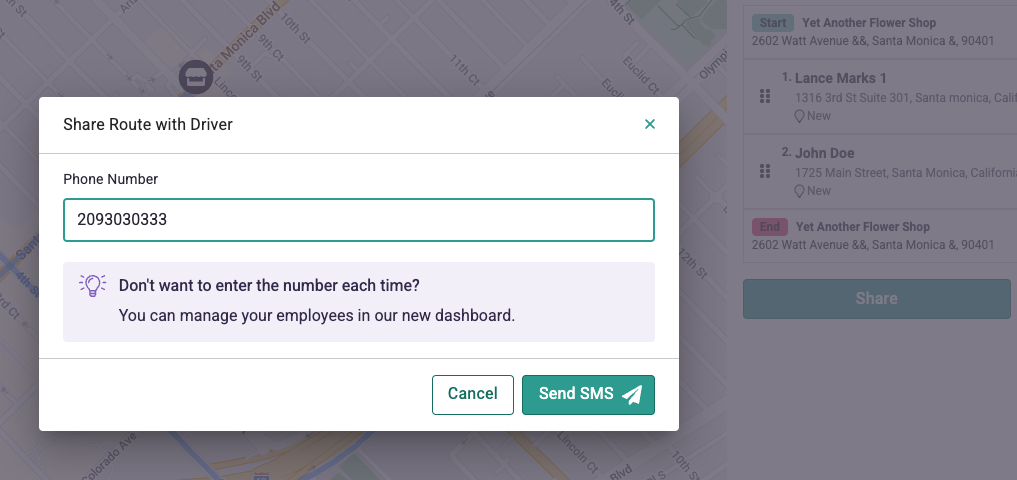
Save & Share opens a popup to enter your driver’s phone number and send the Driver Experience link. If you selected a Driver, their number will auto-fill.
3) View routes & status pins
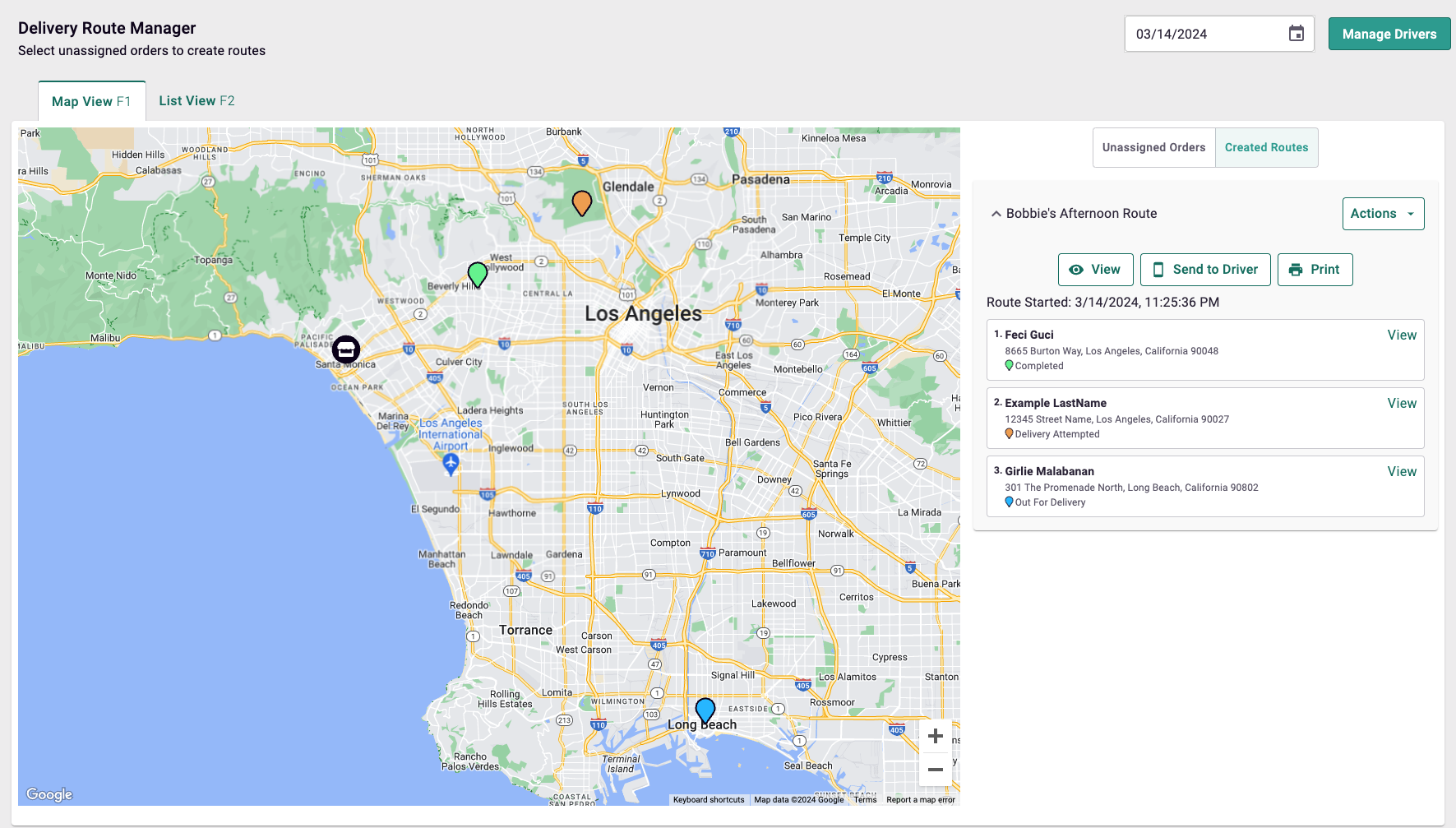
View a route by expanding its accordion in Created Routes.
Important (in-progress route editing)
- When Allow Editing In-Progress Routes is enabled, you can edit routes that have already been sent to a driver.
- Driver refresh required: driver pages do not auto-refresh. After you save changes, ask the driver to refresh their route page or re-send the link.
- Enable here: Fulfillment > Delivery Settings.
-
Route details refresh server-side approximately every minute for status updates as drivers report progress.
-
Pin color correlates to order status:
- White — New / not assigned
- Blue — Out for delivery
- Green — Completed / Delivered
- Orange — Attempted
Driver experience
1) Start the route
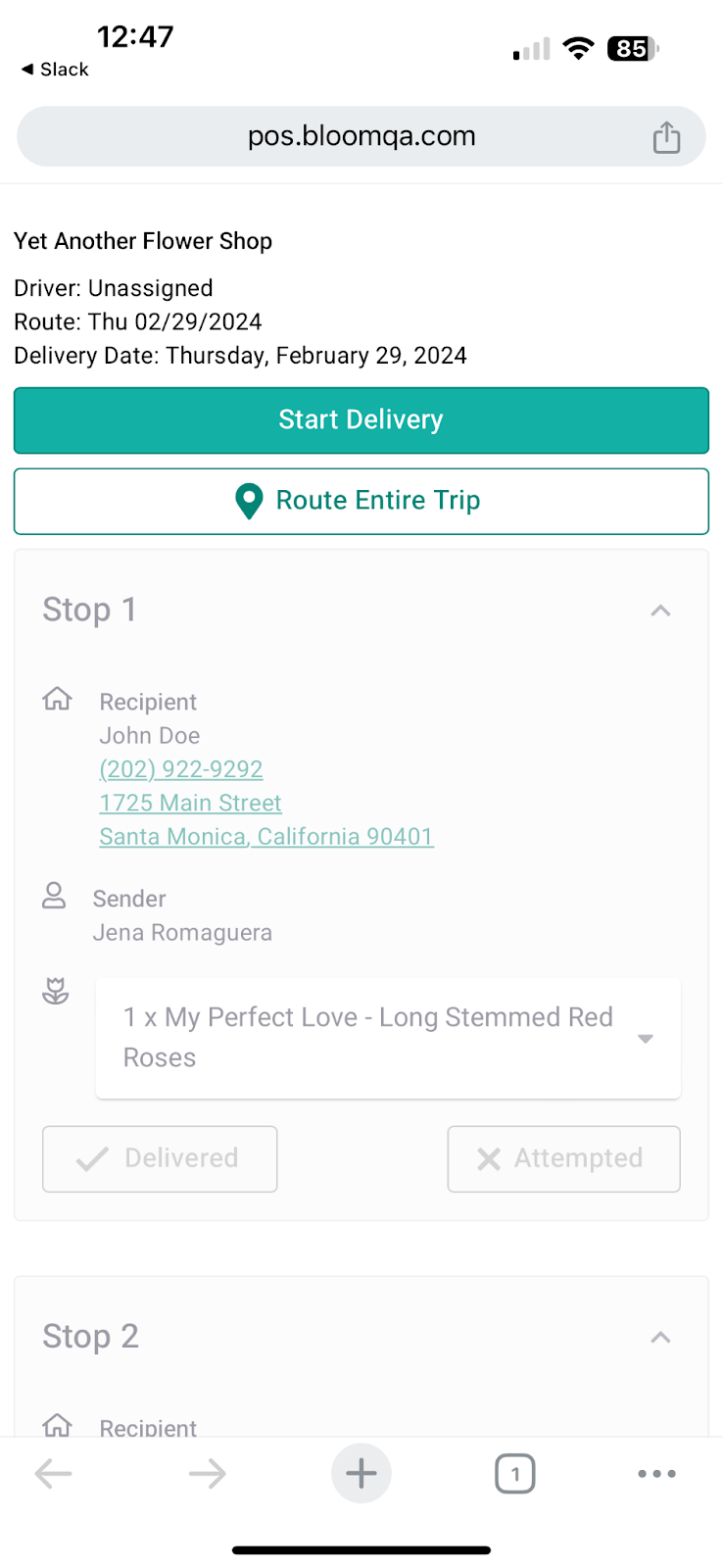
Once the driver receives the Driver Experience link, they can start the route.
- Only routes for today or a past date can be started by the driver.
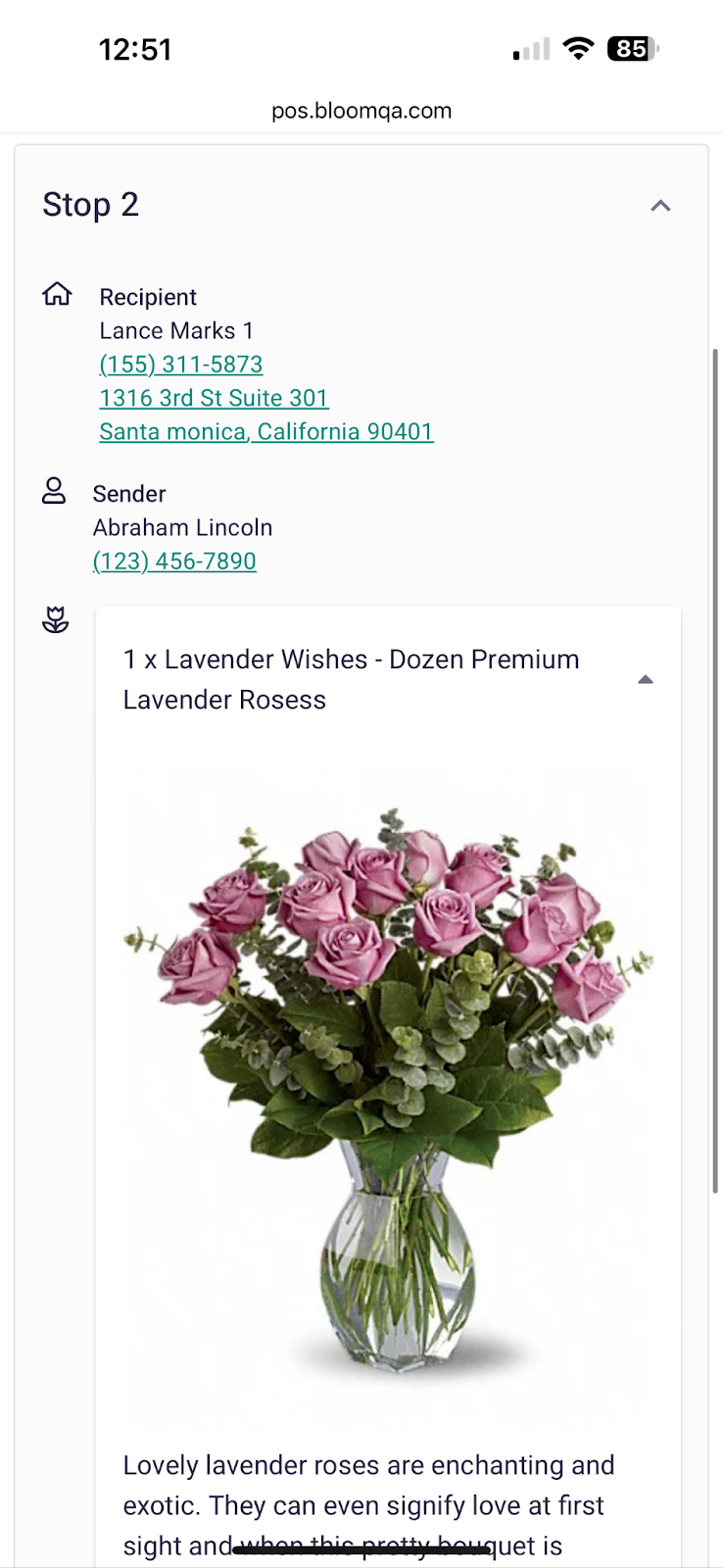
2) View order details
- Customer and recipient information
- A link to open Google Maps from the driver’s current location to the delivery address
- Products on the order, including photos and descriptions
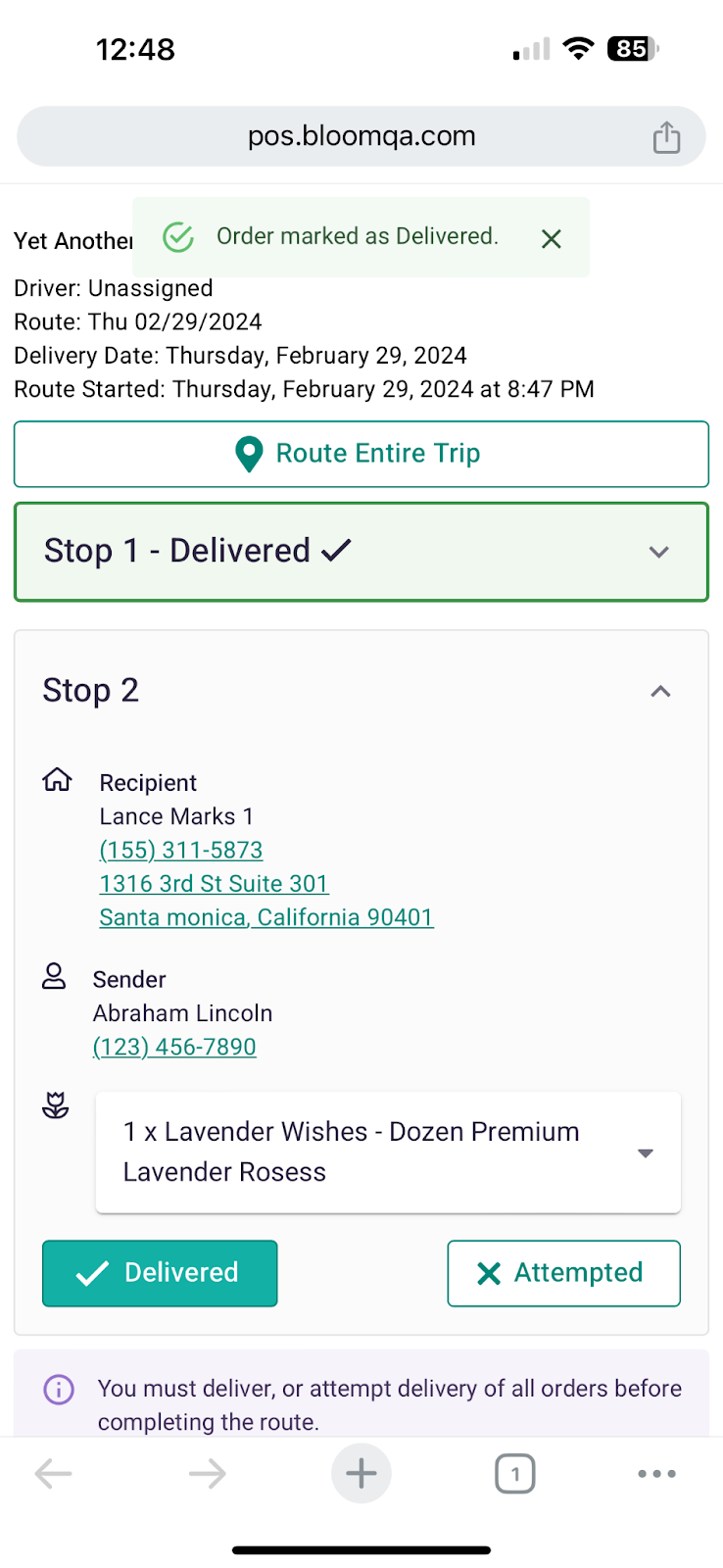
3) Mark orders delivered or attempted
Drivers can mark Delivered or Attempted per order.
- Orders marked as Attempted can later be updated to Delivered if completed on a later pass.
- When an order is marked Delivered or Attempted, customers may receive delivery notifications based on your delivery settings.
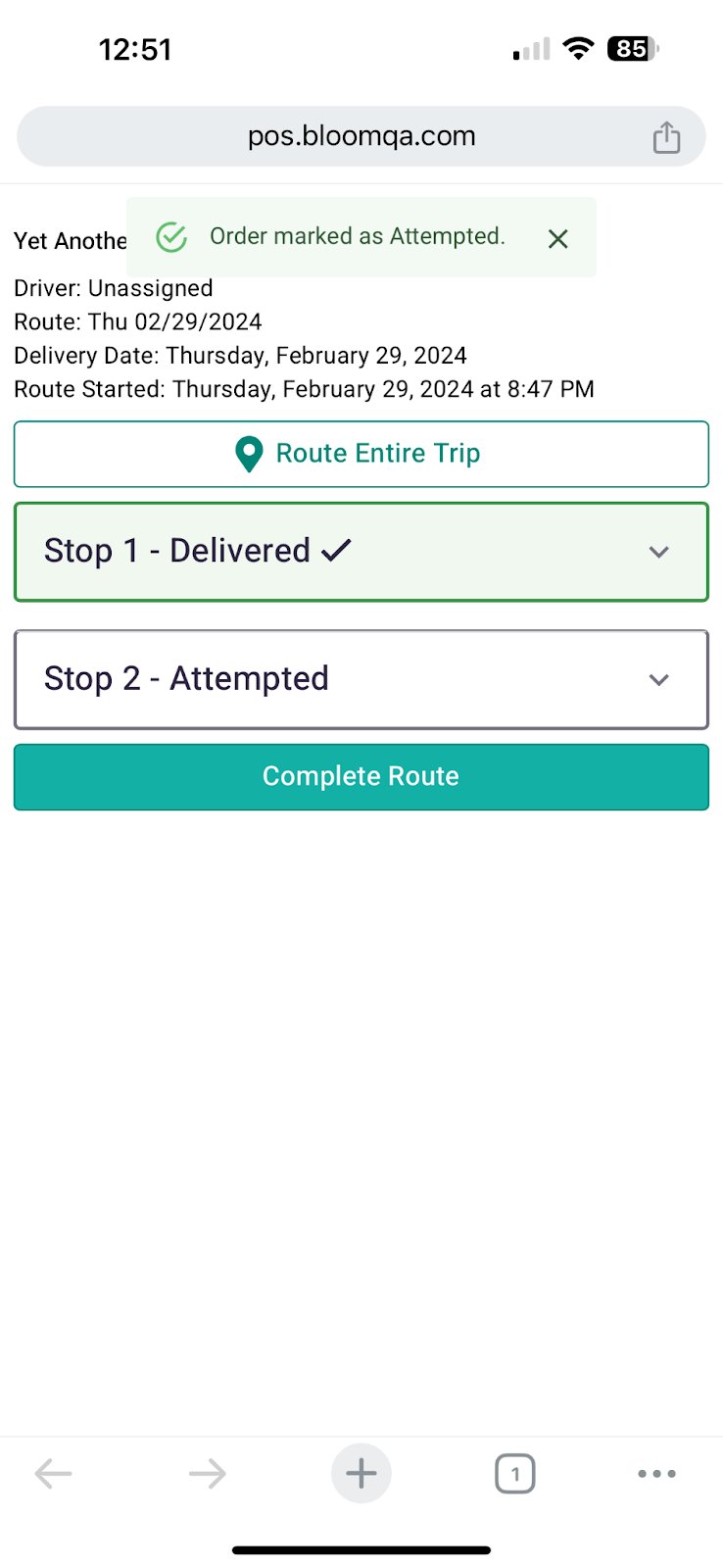
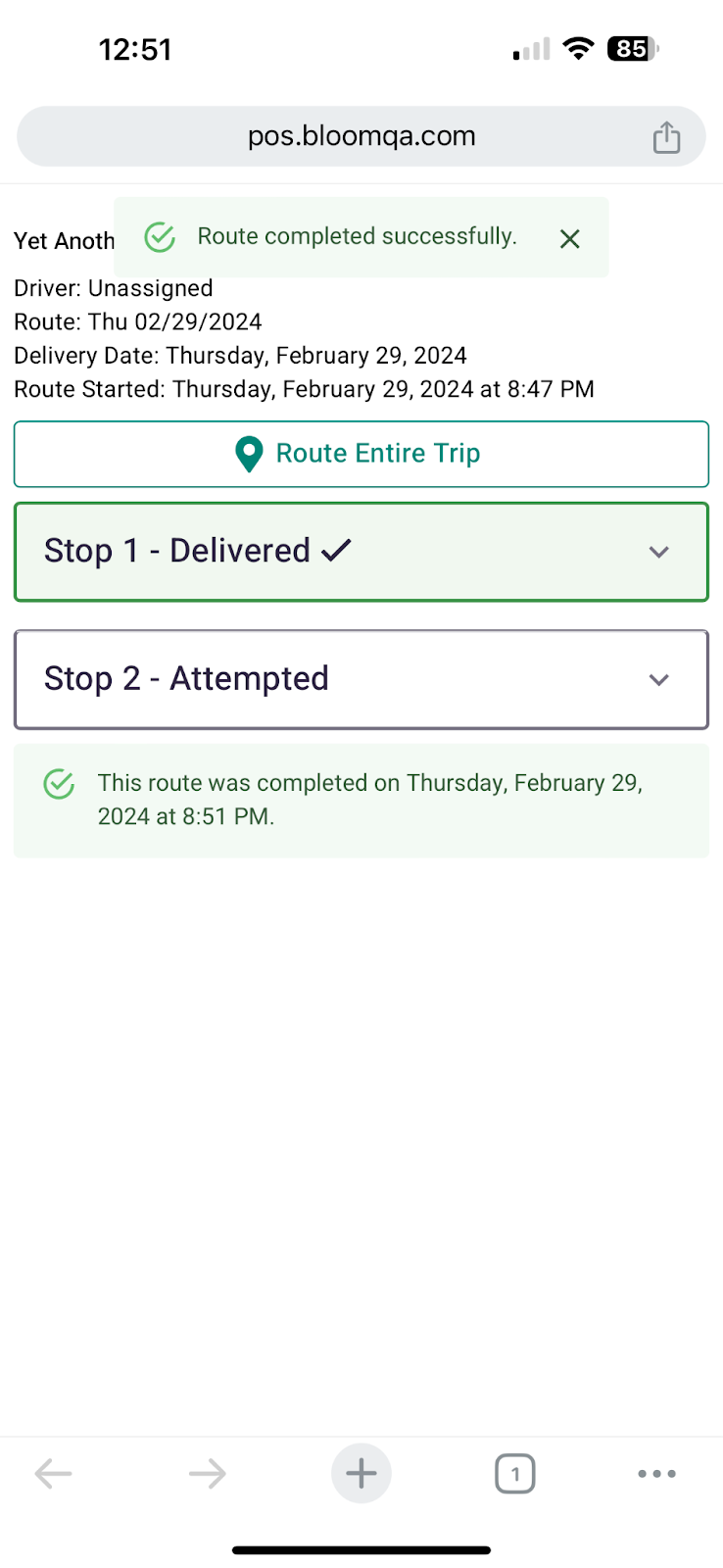
4) Complete the route
- To complete a route, every order must be marked Delivered or Attempted.
5) Route the entire trip
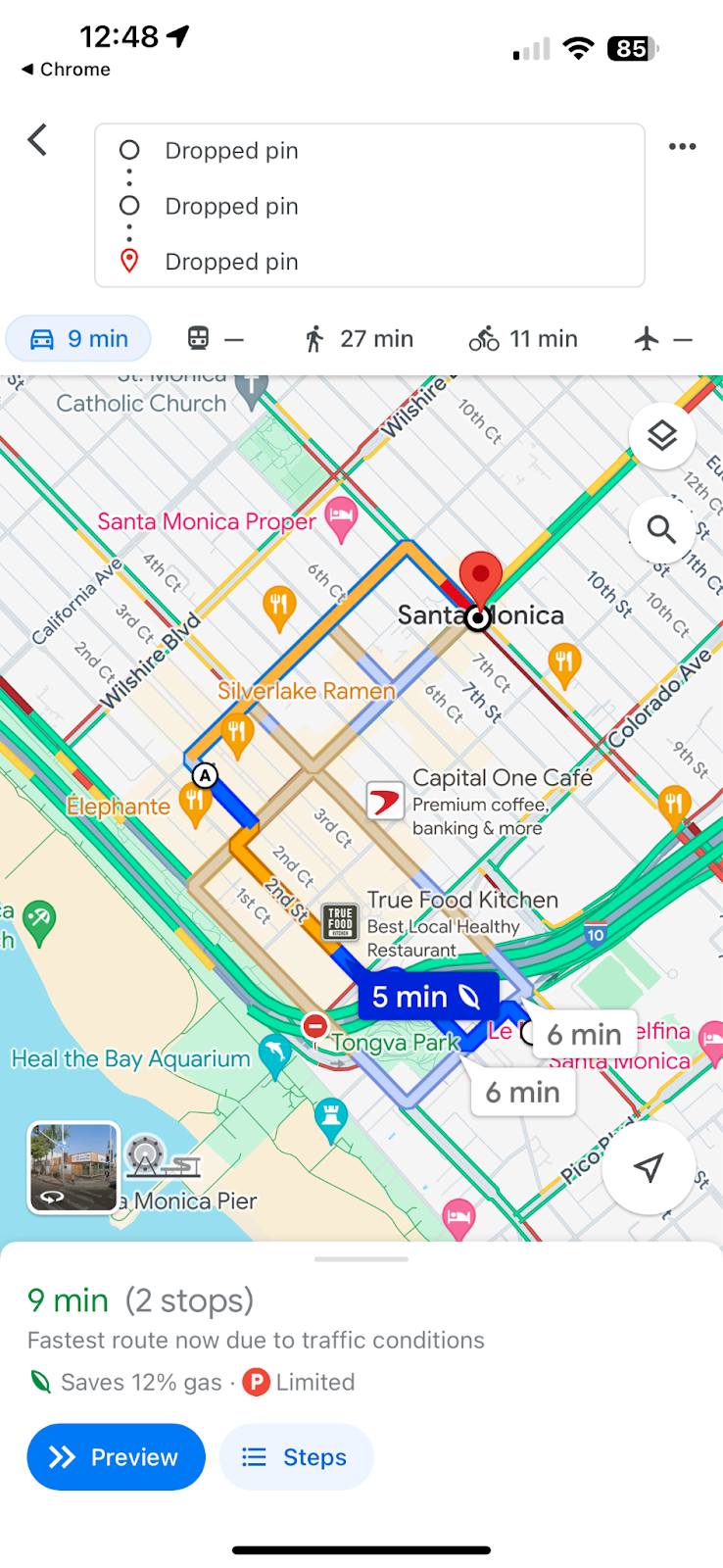
Tapping Route Entire Trip In Google opens Google Maps with all stops, starting from the driver’s current location. Google has a limitation of 10 stops that it can map at once.
Tapping Route Entire Trip In Bing opens Bing Maps with all stops, starting from the driver’s current location. Bing Maps has no limitations on how many stops can be on a route.
Other BloomNation POS components integrated with Delivery Management
Order Management > Order Details
-
Timeline updates
- Order details automatically get Timeline updates as status changes (Out for Delivery, Delivered, Attempted)
-
Map display
- Map displays delivery address
- Map zooms/centers to show both the shop and delivery address
- Pickup orders display shop location
-
Delivery route information
- Unassigned orders do not display route info
- Orders assigned to a route display the route & driver name, plus a link to view details in Delivery Management