
Delivery Management: Tracking and SMS Notifications
Customer delivery tracking & notifications
If you use Delivery Router, you can give customers clearer delivery updates — including a delivery tracker and SMS progress updates.
These updates are designed to reduce “Where’s my order?” calls while keeping you in control. Delivery tracking and SMS updates can be managed in POS Settings.
What customers will see
Customers can track delivery progress from their order receipt page when an order is placed on a delivery route.
Delivery tracker on the receipt page
The receipt page shows a Delivery Tracker with four stages:
- Order placed (with date)
- Out for delivery
- Delivery up next (with an estimated delivery window)
- Delivered (with the delivery time)
If the order has a timed delivery window, the tracker shows the timed delivery window instead of a calculated estimate.
Live delivery map
During active delivery stages, customers may also see a map showing:
- The driver’s approximate last known location
- The delivery destination
Once an order is marked Delivered, the live map is removed.
Customer Notifications
Out-for-delivery email
When an order enters an active delivery route, customers receive an out-for-delivery email confirming the order is on the way. This email includes a link to the receipt page for live delivery updates.
Note: The out-for-delivery email and receipt-page delivery tracker require the order to be placed on a route using Delivery Router.
Delivery Router Settings
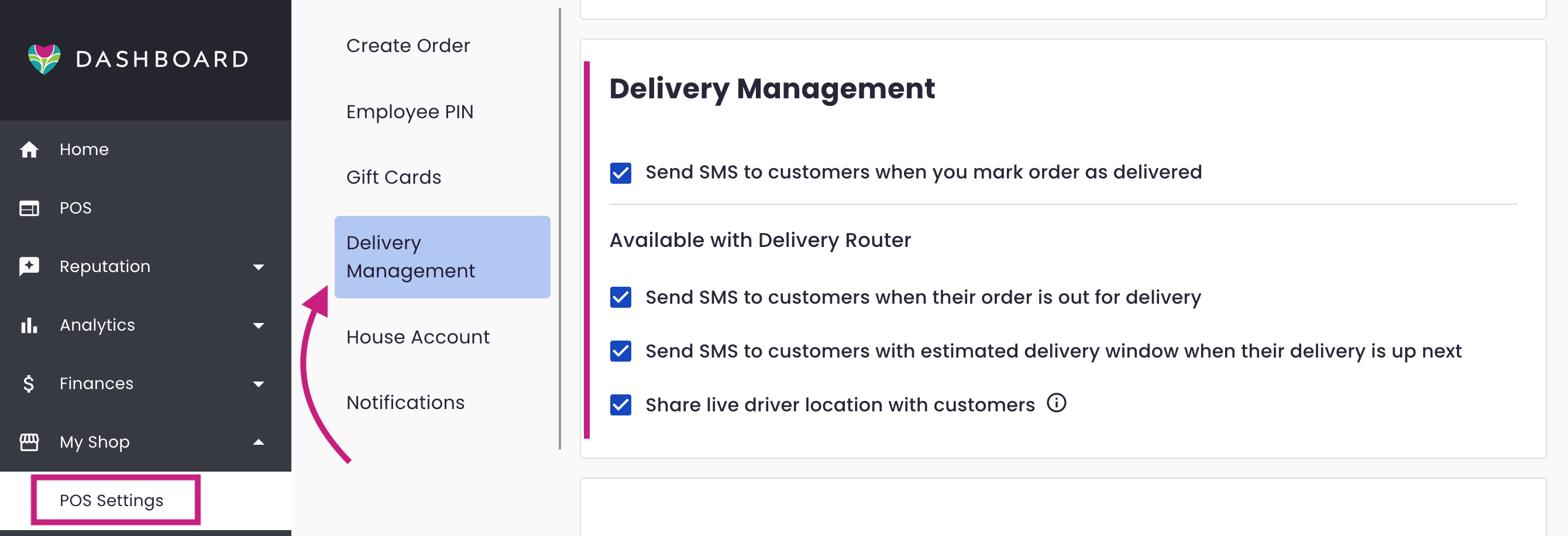
Delivery-related SMS messages are managed from POS Settings in your BloomNation dashboard.
[] Send SMS to customers when you mark an order as delivered
Sends a delivery confirmation SMS when an order is marked delivered.
- Applies to any order marked as delivered anywhere in the system
- Does not require Delivery Router
[] Send SMS to customers when their order is out for delivery
When enabled, customers receive one SMS when the driver starts their route. The message sent depends on where the order falls on the route.
- Requires Delivery Router
- Only one message is sent per order when the route starts
SMS examples
If the order is the first stop on the route:
Your [Flower Shop Name] order is scheduled to be delivered next!
Track here: [Link to order tracking page]
If the order is the second stop on the route:
Your [Flower Shop Name] order is 2 stops away!
Track here: [Link to order tracking page]
If the order is the third stop or later on the route:
Your [Flower Shop Name] order is scheduled to be delivered today!
Track here: [Link to order tracking page]
[] Send SMS to customers with estimated delivery window when their delivery is up next
When enabled, customers receive an SMS when their delivery is up next.
- Includes an estimated delivery window
- The estimate is calculated dynamically based on route progress and drive time
- Requires Delivery Router
[] Share live driver location with customers
Controls whether customers see the driver’s approximate location on the receipt-page map.
- Requires Delivery Router
- Only applies while the order is actively on a route
Where to update these settings
Go to your BloomNation dashboard > My Shop > POS Settings > Delivery Management .
If you use Delivery Router, these options appear under Available with Delivery Router.
Frequently asked questions
Will every customer see a live map?
Not always. The map appears when an order is actively on a route and live location sharing is enabled. It is removed once the order is marked delivered.
Do SMS delivery updates include a “delivered” text?
No. Delivery progress SMS messages are separate from the delivery confirmation SMS. To send a delivery confirmation text, enable Send SMS to customers when you mark an order as delivered.
Do I need Delivery Router for delivery tracking?
Yes. The receipt-page Delivery Tracker, live map, and delivery progress SMS messages require the order to be placed on a route using Delivery Router.