
Orders Snapshot View
Manage Your Orders with the Orders Snapshot View
Stay on top of your workflow with the Orders Snapshot view in your BloomNation POS! This powerful tool gives you a clear, organized look at your orders by day, week, and month, making it easier than ever to plan ahead, manage fulfillment, and keep operations running smoothly. With intuitive navigation, filtering, and color-coded order types, you can quickly find the information you need.
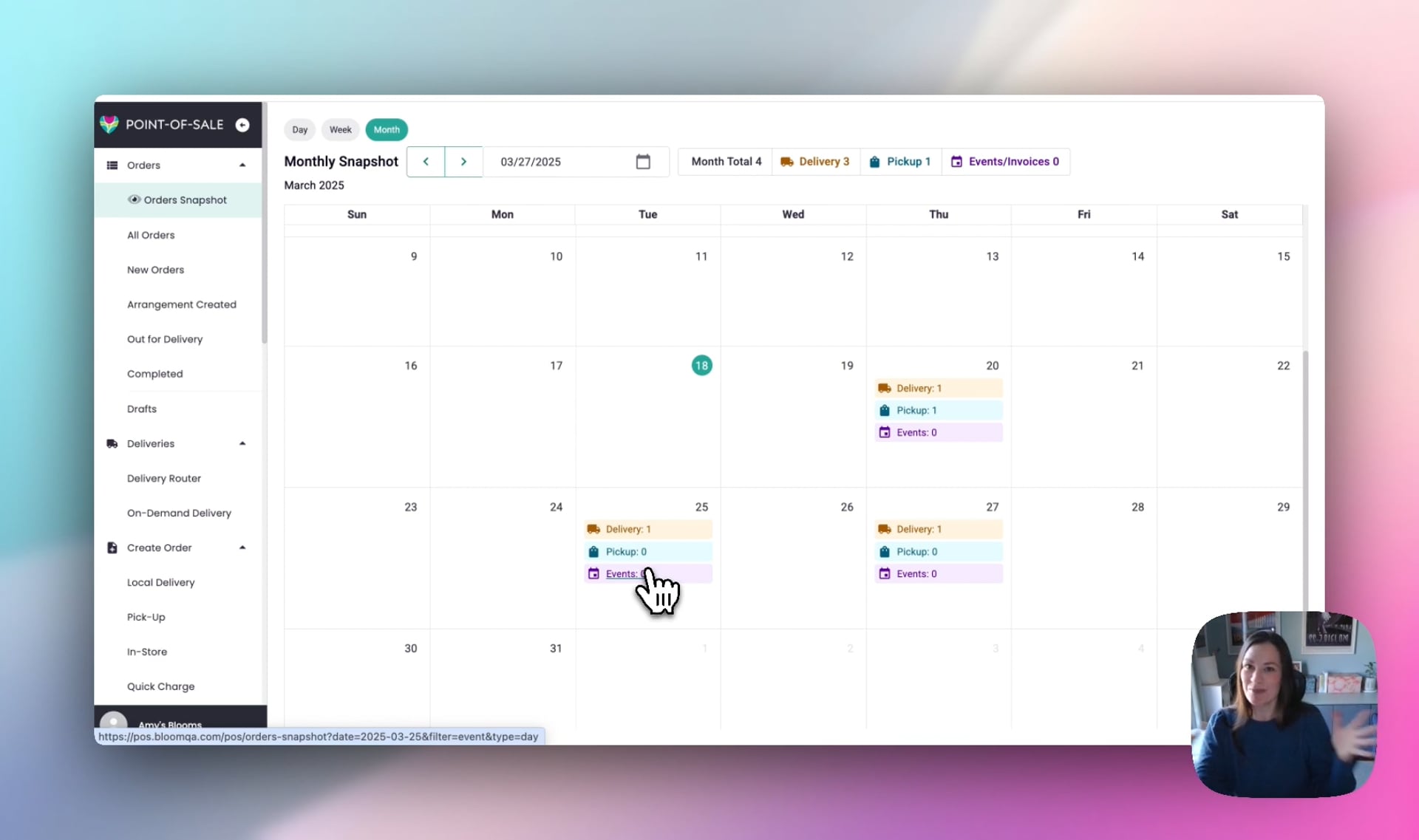 Orders Snapshot Walkthrough
Using the Orders Snapshot View
- Log into your BloomNation POS
- Go to Orders Snapshot to open your new, enhanced order view.
The Orders Snapshot offers three easy-to-use views (Day, Week, and Month) to help you stay organized:
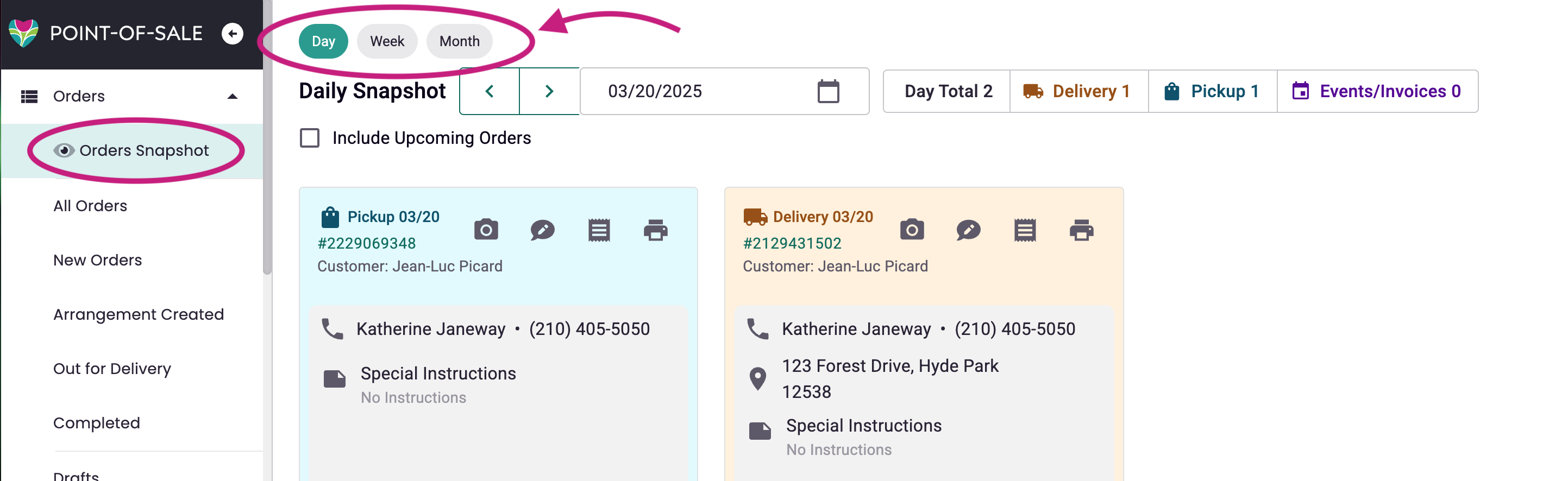
Day View (Your Go-To for Daily Operations)
- See all orders scheduled for the selected day at a glance.
- A "Today" badge highlights current-day orders for quick identification.
- Use the arrows or date picker to move between days.
- Need to see what's ahead? Toggle the Upcoming Orders checkbox to include future orders.
Week View (Your Weekly Planning Assistant)
- Get a high-level view of all pickups, deliveries, and events for the week.
- Plan staffing and logistics with a clear breakdown of daily order totals.
- Click on any order to view the order details.
Month View (Big-Picture Planning Made Simple)
- A full calendar-style layout shows your order volume across the entire month.
- See busy days at a glance and plan ahead for peak times.
- Click on any date to drill down into its orders in the Day View.
Quickly Spot Order Types with Color Coding
Orders are color-coded for easy recognition:
- Delivery - Orange
- Pickup - Blue
- Events & Invoices - Purple
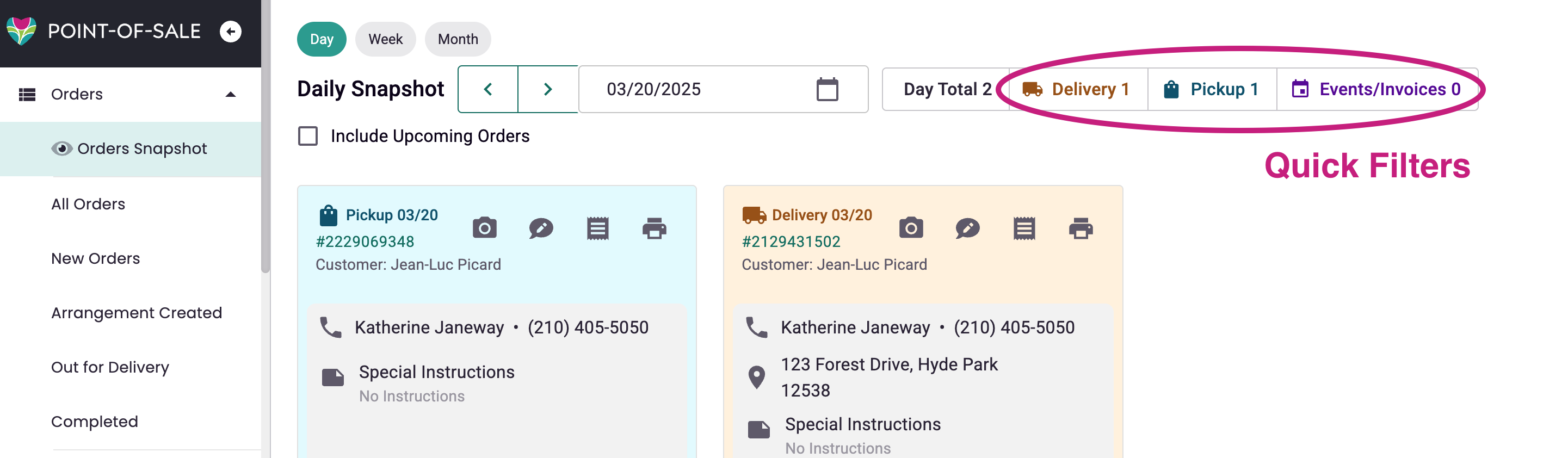
Filter to Find What You Need Faster
- In any view, you can quickly filter by fulfillment type (Delivery, Pickup, or Events) to focus on just those orders.
Frequently Asked Questions
Q: How do I jump back to today’s orders?
A: Click on the Today button or select today’s date in the date picker.
Q: Can I view orders for upcoming days?
A: Yes! Use the date picker or arrows to navigate to future dates. You can also check the Upcoming Orders box in the Day View to see future orders at a glance.
Need Assistance?
If you have questions or need further assistance, feel free to reach out to our Support Team by submitting a ticket here.