
Time Tracking
Time Tracking
With BloomNation's Time Tracking system, you can keep track of your employee's hours worked, help them clock in and clock out, and streamline your business all from the Dashboard and Point of Sale.
Video Overview
 Time Tracking
Employee Management
On each employee profile there are settings to keep track of that pertain to the new Time Tracking system.
Pay
-
Pay Type – Here you can select how the employee is paid, hourly rate, or a salary rate.
- Hourly
- Salaried
-
Base rate – Here you input what the employee pay rate is so that the system can calculate their salary.
-
Classification – Some employees need to be classified as exempt from tax in your state. This setting lets you state whether this is necessary or not. Check your local and federal statutes for direction here.
- Non-exempt
- Exempt
-
Payroll ID – The Payroll ID is a required field if you are exporting your payroll to ADP. Otherwise, you can leave it blank.
-
Holiday Pay Eligible – This toggle lets you decide if the employee is eligible for holiday pay.
Account Settings
Here are some new settings that are important for the Time Tracking system:
- Time Tracking – This toggle allows the employee to use the Time Tracking system.
- Employee PIN – Employees that use the Time Tracking system must have a unique pin for login.
- Dashboard access – Employees will not be able to see their own timesheets in the dashboard unless they have dashboard access.
Permissions
The new permissions for the Time Tracking system are below:
-
Employee Management
-
Schedule – Employees can be allowed to see their own or everyone's schedules. They can also be given permission to manage the schedule here.
- View own
- View All
- Manage All
-
Timesheets – Employees can also be allowed to view their own timesheets or manage other timesheets here.
- View own
- Manage All
Schedule
The schedule is the home base for an employee manager in the BloomNation system. Here you can set up your employee hours for the week, manage time off, and look at conflicts. You are also empowered to see when you might need more help based on orders and plan accordingly. There are a couple of main areas here: the calendar, the filters, the shift buttons, and the workload.
New Shift
Click on the New Shift button or click on a plus button on an employee row to open the New Shift popover.
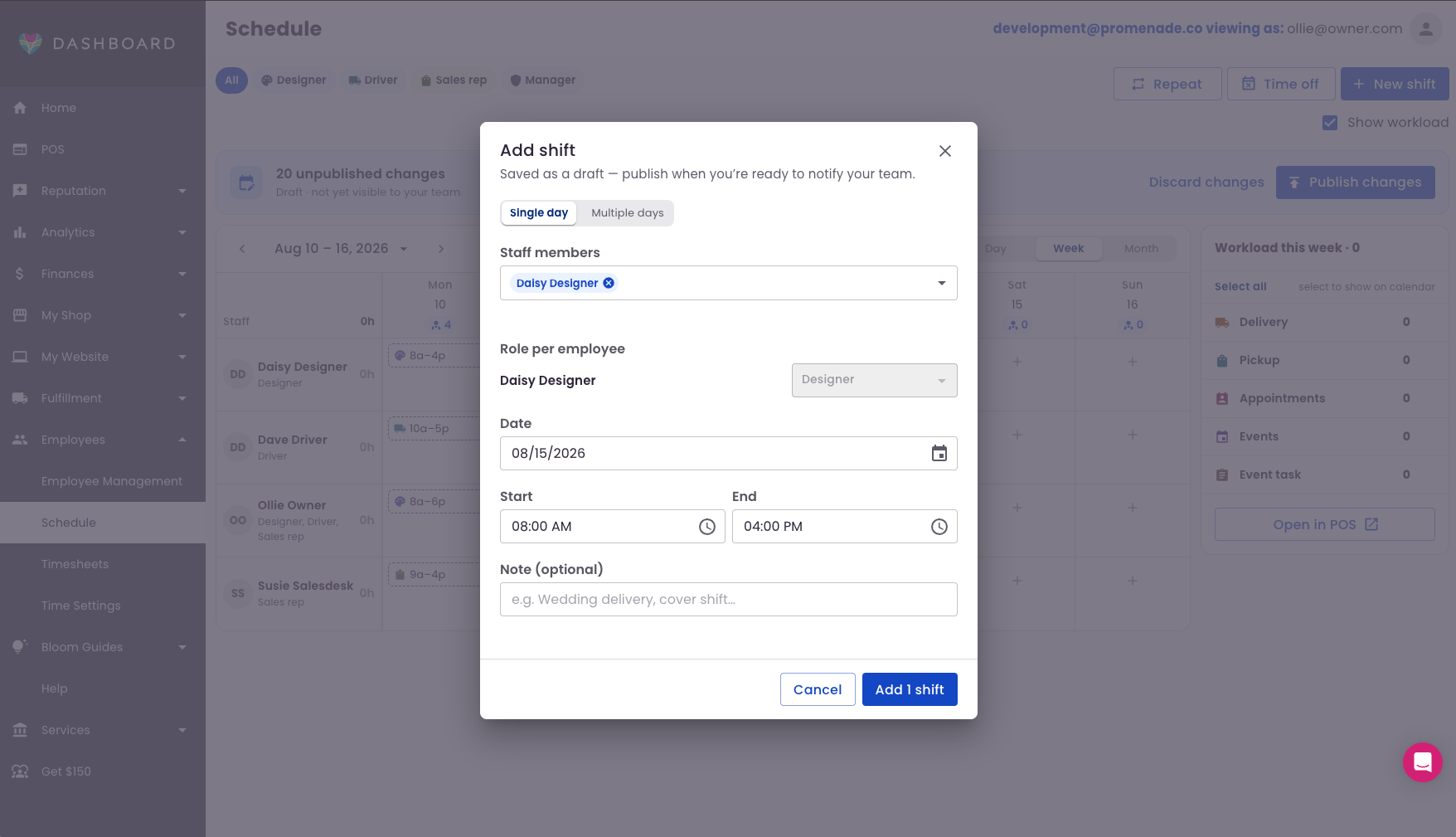
- Single Day/Multiple Days – This lets you set a shift for a single day or for multiple days. If someone works the same hours multiple days per week, then this tool will let you schedule them for all those days at the same time.
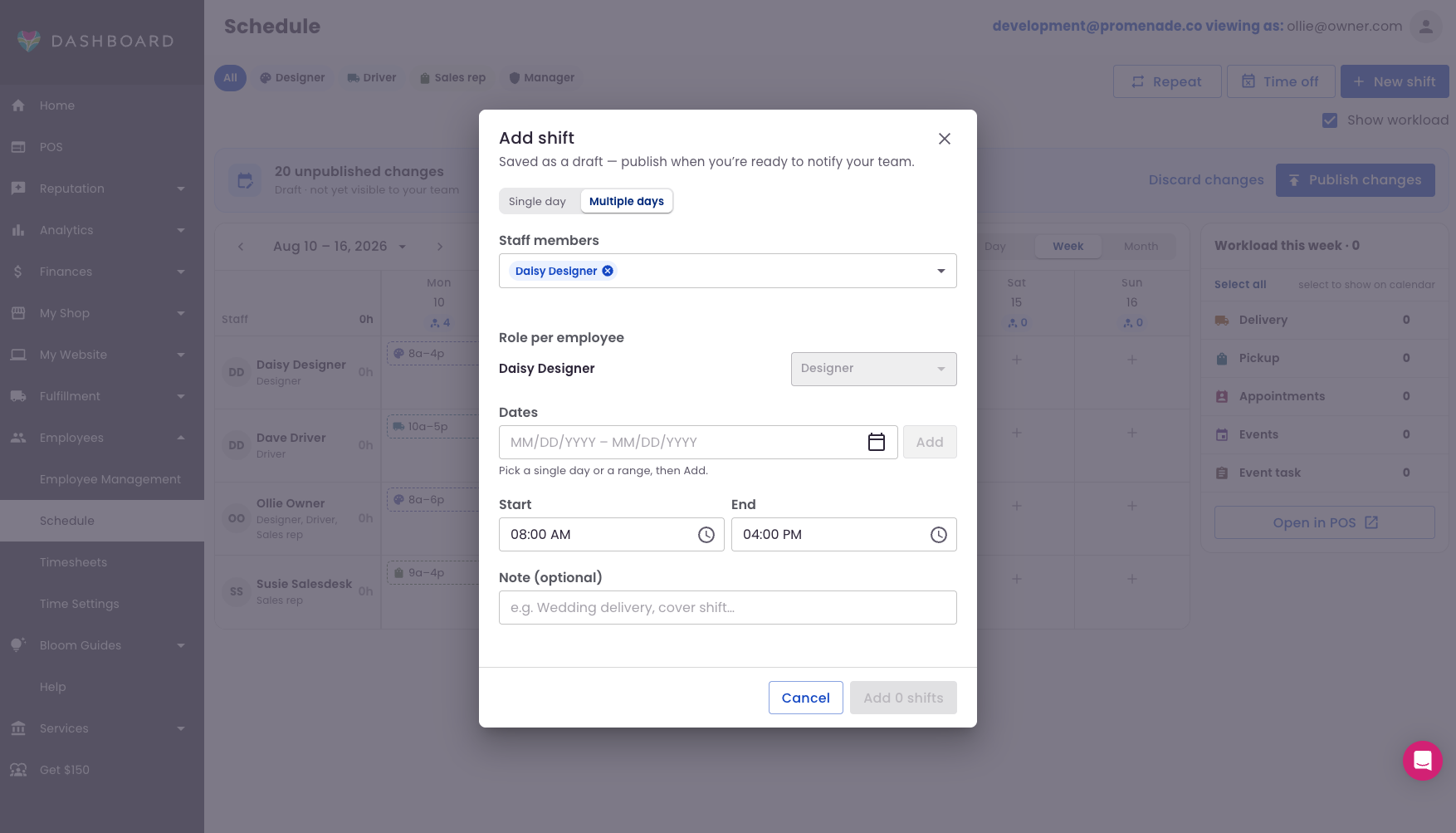
- Staff Members – This field lets you apply this shift to multiple employees. If you have employees that work the same schedule, choose all of them, and the shifts will get created for all of them.
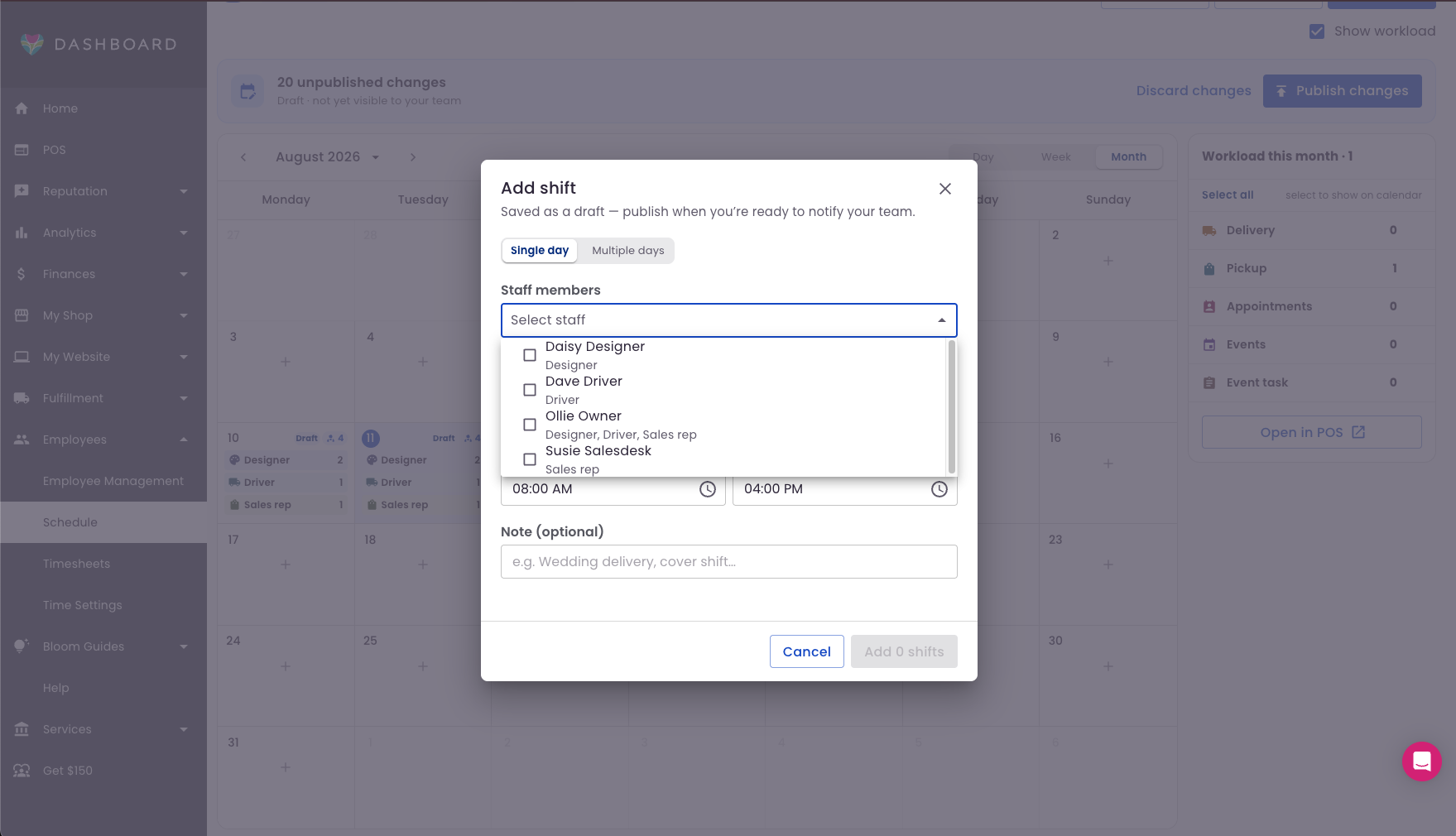
- Date Picker – On a single day, the picker allows you to grab a single day for the shift. If you selected multiple days, you can select a range and then add them to the shift on the popover. Be sure to click the Add button when the dates are selected. This allows you to pick another range on the shift if you like.
- Start/End – Select the time that the shift starts and ends here.
- Note – If there is a note that you need to add to this shift, you can write it here.
Time Off
Click on the time off button to put a reminder in the calendar that an employee will be unavailable for a number of days.
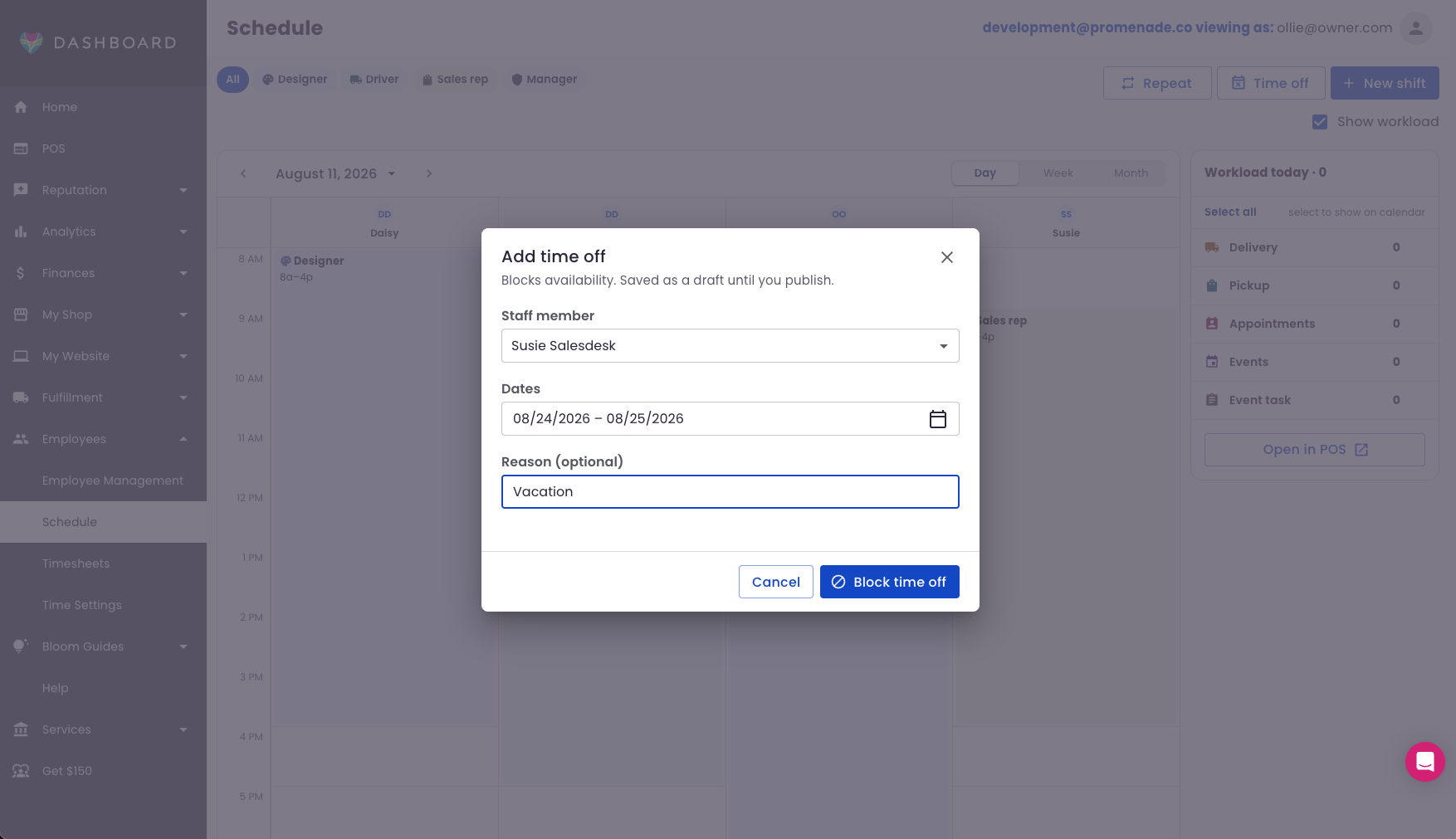
- Staff Member – This lets you select which employee is unavailable.
- Dates – Here is where you select what days the employee is unavailable.
- Reason – This optional field is where you would put what the reason for the time off is.
Repeat
The Repeat button is a powerful tool to move your schedule forward and save you time in case things are mostly the same.
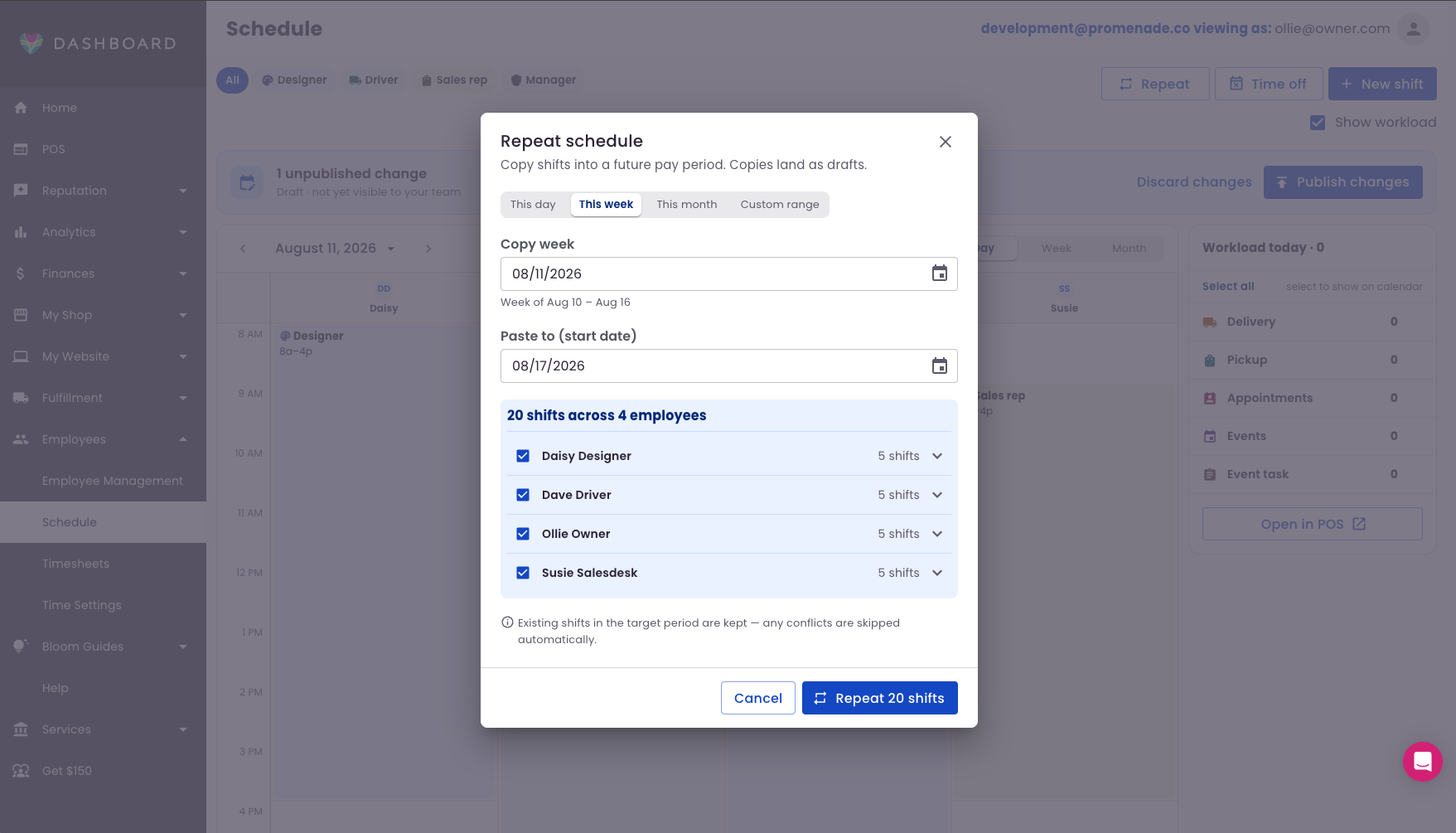
- This day/week/month/custom – Here you select if you are copying a day/week/month/custom amount of time at once.
- Copy Date – This is where you would copy from, whether it was a day's worth or a month's worth of shifts.
- Paste to – This lets you select where the shifts get pasted to.
- Shift selector – In the shift selector, you can look at the employees and their shifts that you are set to copy over. You can select employees to copy or not copy. You cannot select individual shifts to copy here.
- Scenarios – Check out the video below if you want to see a couple of common repeat scenarios.
Role filters
The role filters will show only the employee roles selected. If an employee has more than one role, they will show on either role when the filter is selected.
Calendar View
The calendar will show the shifts scheduled in the timeframe selected.
- Timeframes – The calendar can show Day, Week, or Month. If you are in the Day View, you will see the shifts by hour. Any deliveries or pickups scheduled for a certain time will show up during their window if they are selected in the workload filter. If you are in the week view, you can see the shifts by day. Clicking on the workload will allow you to see workload totals per day. If you are in the month view, your total shifts by role will be shown in the day on the calendar.
- Date selector – You can use the date selector to choose what days/weeks/months to look at in the calendar.
Saving the Shifts
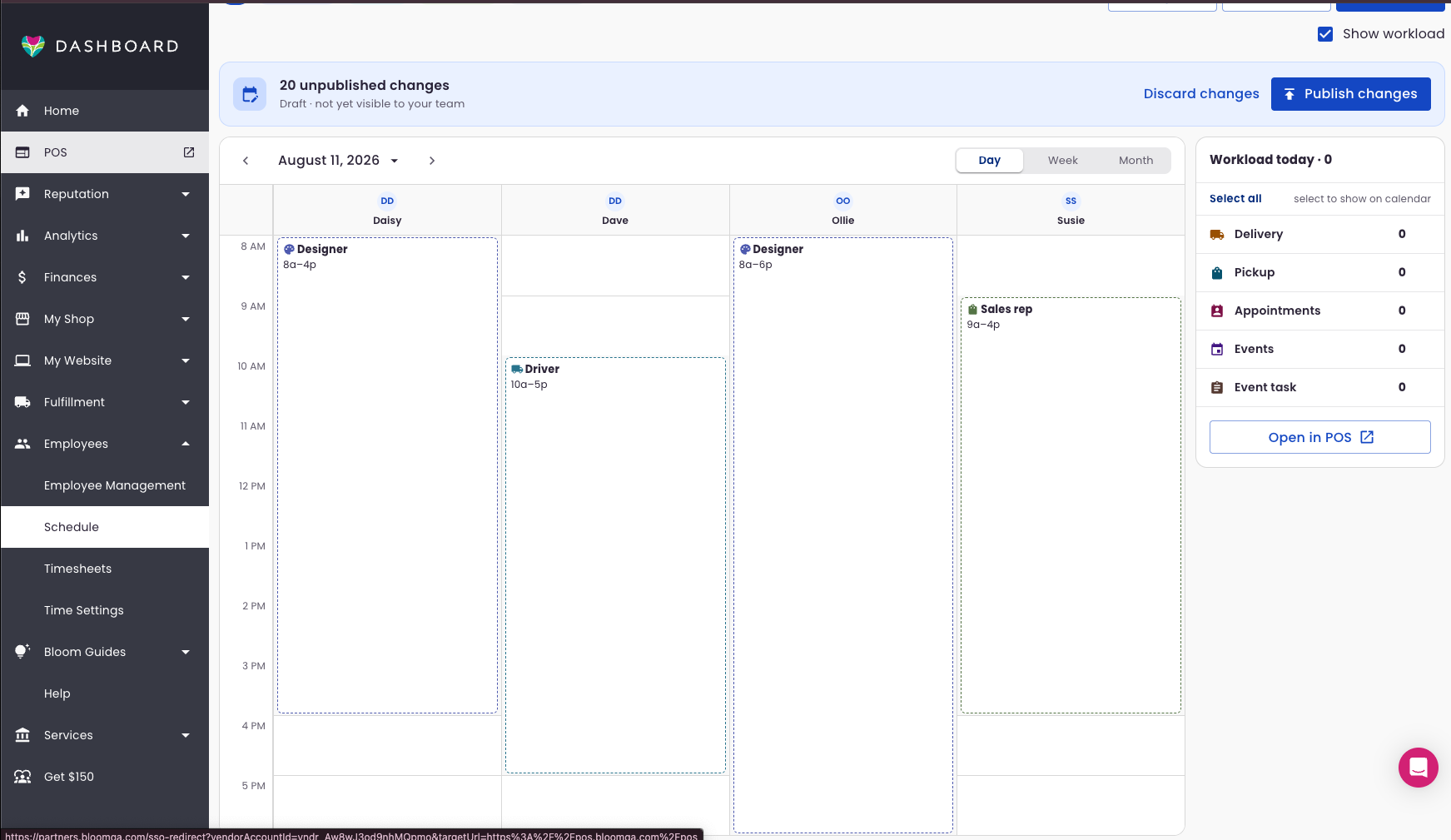
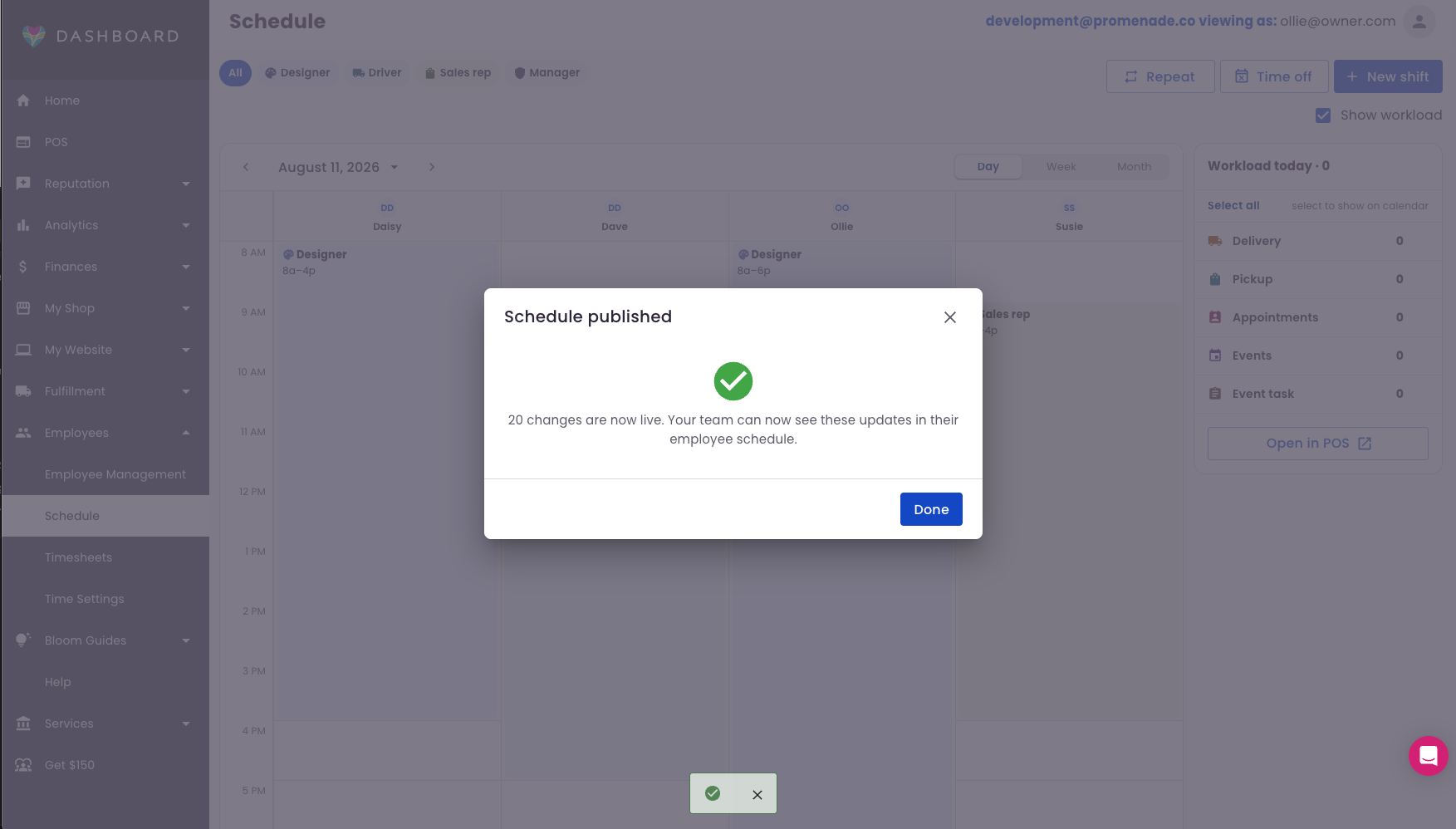
When changes have been made to the schedule, you can save the changed shifts by clicking the Publish changes button. When you press that button, the list of changes are shown per employee. You can choose some to publish and some to leave as a draft. Once the shifts are published, your employees will be notified via their notification settings.
Timesheets
The Timesheets menu is where you go to look at pay periods by employees. In here you will see the total number of hours that were worked by each employee in each pay period.
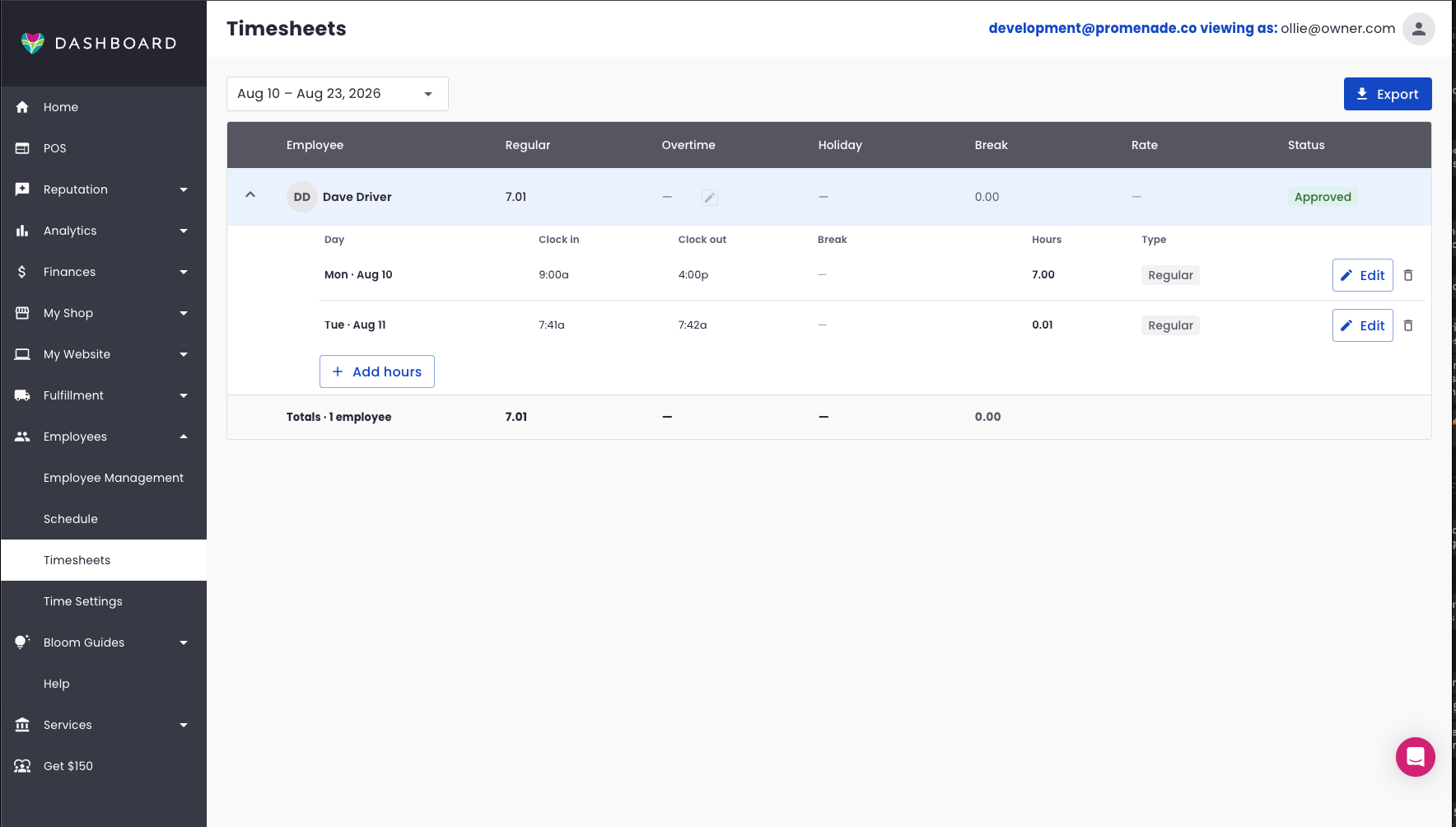
Pay Period selector
This lets you pick which pay period to examine.
Export
Our system allows you to export timesheets to four different options. If you want to export to ADP, every employee needs to have an employee ID.
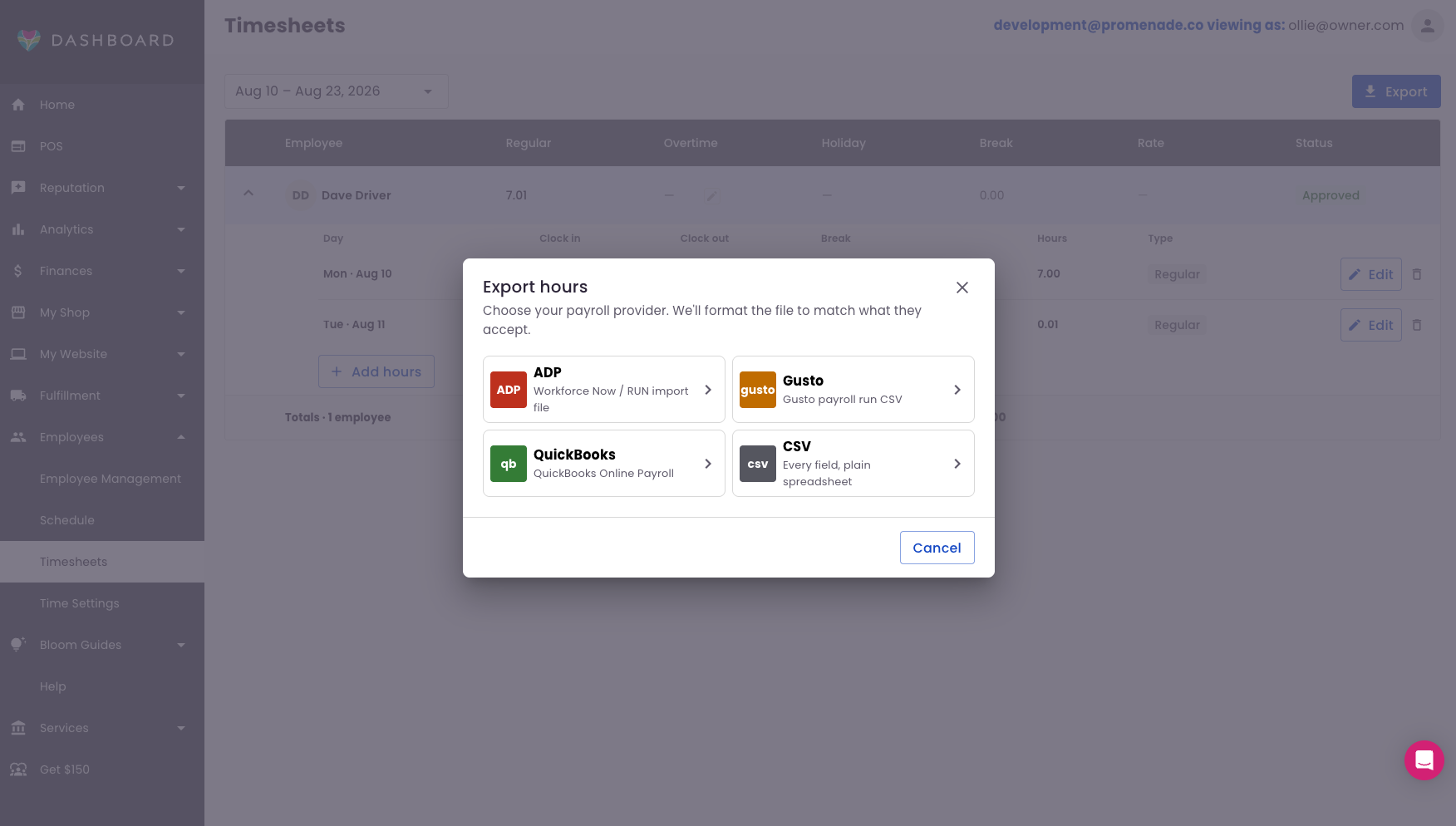
- ADP
- Gusto
- QuickBooks
- CSV
Employee View
When you look at an individual employee, you can take a look at all of the shifts they have worked. Each shift can be edited and new shifts can be added here. Time input here will be a part of the timesheet for the pay period.
-
Edit Time – In the edit menu, you can change the details of a shift.
- Hours – You can change the hours worked here.
- Add Segment/Break – You can add a new segment or a break using these buttons.
- Reason – This field is mandatory so that changes can be tracked with the audit trail.
-
Delete Time – If you want to delete a tracked shift, you can click the delete button.
- Audit Trail – Deletion is tracked in the audit trail.
-
Add Hours – This is where you add a shift if the employee didn't clock in. You can also use this in case you need to do backdated hours.
- Hours – You can change the hours worked here.
- Add Segment/Break – You can add a new segment or a break using these buttons.
- Reason – This field is mandatory so that changes can be tracked with the audit trail.
Time Settings
This menu tab has the settings for your Time Tracking.
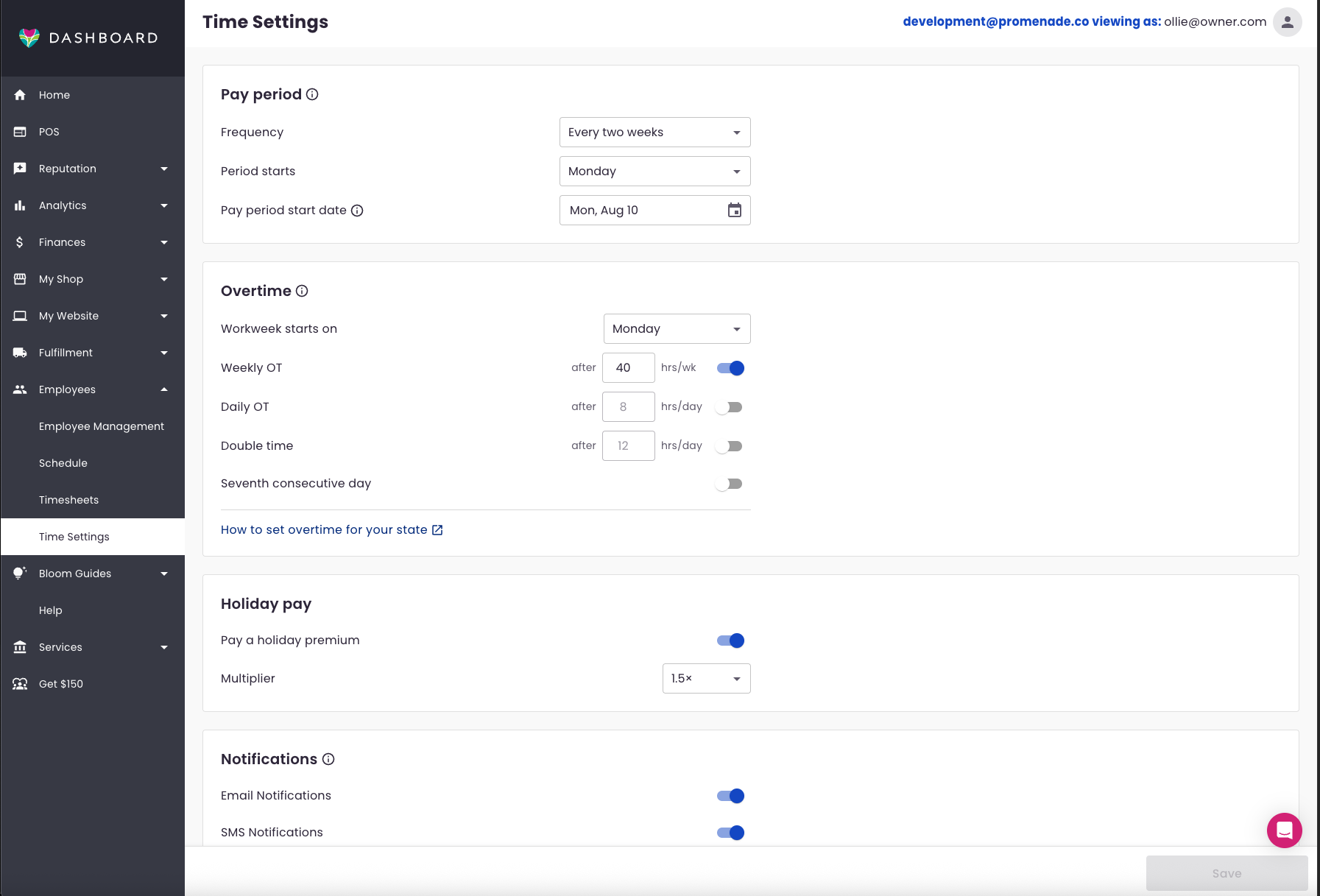
Pay Period
-
Frequency – The frequency of your pay period is set here. The options are below:
- Weekly
- Every two weeks
- Twice a month
- Monthly
-
Period Starts – You can choose which day of the week the pay period starts, or what day if you have a twice a month period.
-
Pay Period Start Date – This is where you choose the first day of a pay period. We do not recommend changing this often.
Overtime
These settings are for choosing how overtime is paid out for your shop.
- Workweek Starts On – You can choose which day the workweek starts on so that time over 40 hours can be calculated.
- Weekly Overtime – Set what triggers overtime pay here.
- Daily Overtime – Set what triggers overtime pay here.
- Double Time – Set what triggers double time pay here.
- Seventh Consecutive Day – Turn on Seventh Consecutive Day pay here.
Holiday Pay
If you pay a premium for holiday work, you can set that here, and decide the multiplier.
- On/Off
- Multiplier
Notifications
This is where you can set whether or not you send email and SMS notifications to your employees about their timesheets.
- Email Notifications
- SMS Notifications
Clocking In/Out
On the POS, employees can clock in and clock out on the lower left corner of the screen. If they click on their Profile, then select Time Clock, they will be prompted to input their employee PIN. They can then clock in or clock out. If the person who needs to clock in isn't signed in, they can still clock in. They just need to select Done instead of Make me the active user.