
POS Hardware: Barcode Scanner
How to Use Barcode Scanning & Printing
The Barcode Scanning & Printing feature helps you quickly manage your product catalog and ingredients. You can use barcodes to easily find products, build orders faster, and organize your shop with printed labels.
This guide will walk you through how to:
- Create barcodes for products and ingredients
- Scan barcodes to speed up order building and inventory management
- Print barcode labels for use in your shop
How to Enable Barcode Scanning
Note: Barcode scanning requires compatible hardware. BloomNation offers the recommended barcode scanner for purchase. To order hardware and activate barcode scanning on your account, please contact your BloomNation Account Manager or our Support Team.
What You Can Do with Barcode Scanning
- Find products or ingredients instantly
- From the Catalog section, scan a barcode to open the product or ingredient details screen.
- Speed up order entry
- Scan product barcodes while creating an order to quickly add items.
- Simplify recipe building
- When editing a product recipe, scan ingredient barcodes to add them immediately. Scanning the same barcode again will increase the quantity.
- Print barcodes for your shop
- Create and print barcode labels to use on product displays, back-of-house sheets, or packaging.
How to Create Barcodes
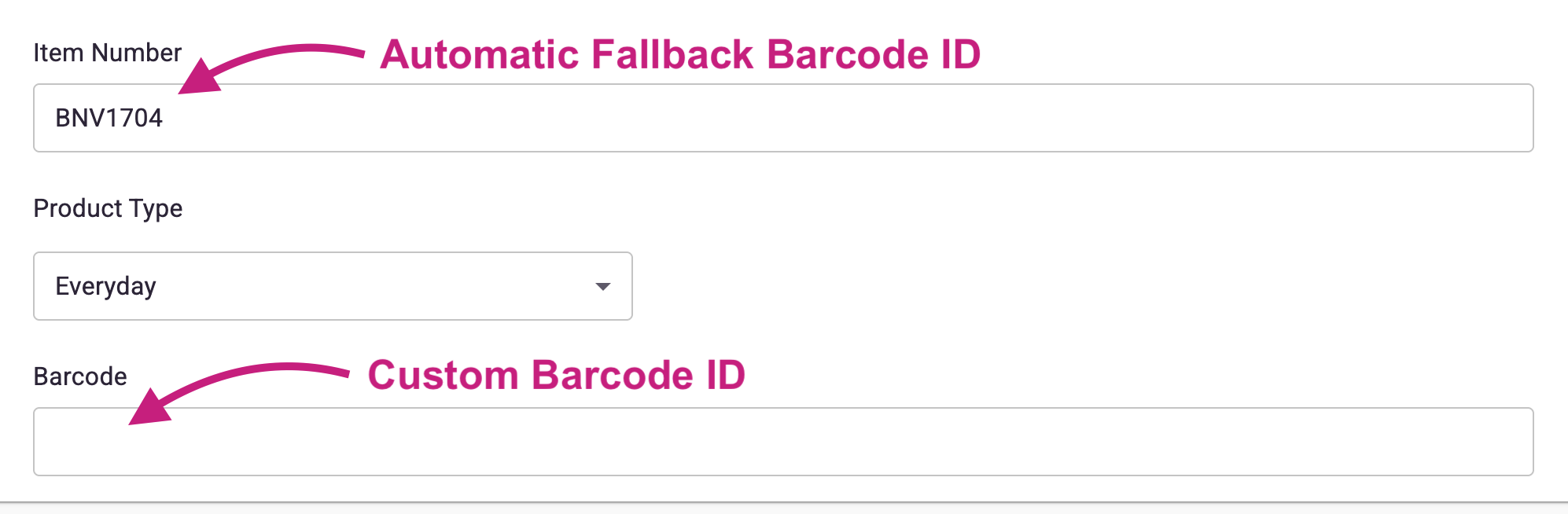
Barcodes are automatically created for all products and ingredients in your catalog using each item's unique item ID. This means you do not need to manually create barcodes — they are ready to use right away!
- If you prefer to use a custom barcode value instead of the auto-generated item ID, you can edit the barcode field and enter your own unique value.
- For products that offer upgraded versions (such as Standard, Deluxe, Premium), barcodes for each version are also automatically generated. These include a version suffix so you can easily scan and differentiate between product tiers.
How to Scan Barcodes
You can scan barcodes from multiple places in your BloomNation POS:
- Order Screen: Scanning a product barcode automatically adds it to the current order.
- Catalog Screen: Scanning a product barcode opens the edit screen for that product.
- Recipe Editor: Scanning an ingredient barcode adds it to your recipe. Scanning again increases the quantity.
- Ingredient Screen: Scanning an ingredient barcode opens the edit screen for that ingredient.
- Error Handling: If the barcode doesn’t match any product or ingredient, you’ll receive a message letting you know it was not found.
How to Print Barcode Labels
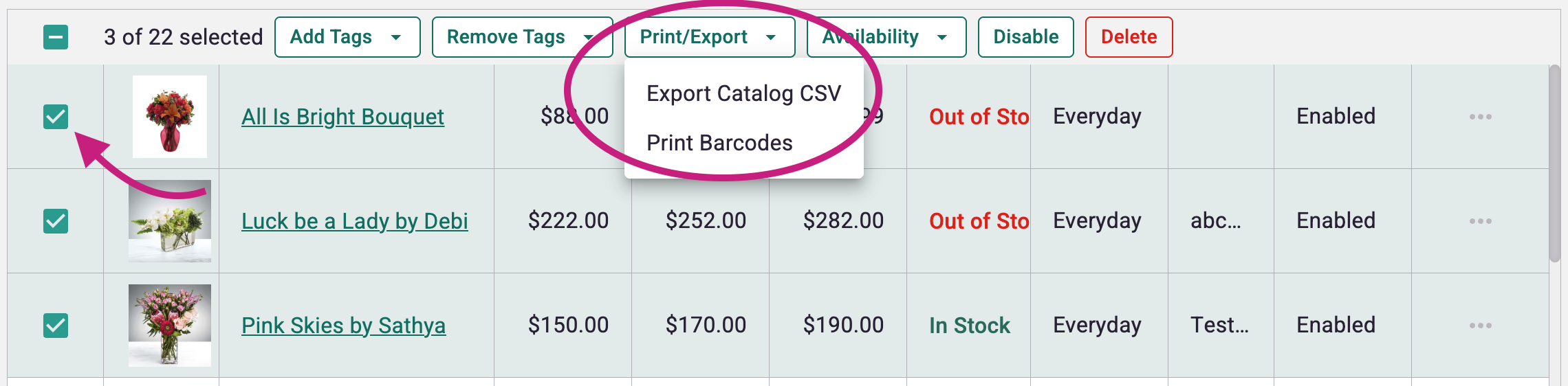
- Select products or ingredients from the catalog.
- Click Print Barcodes.
-
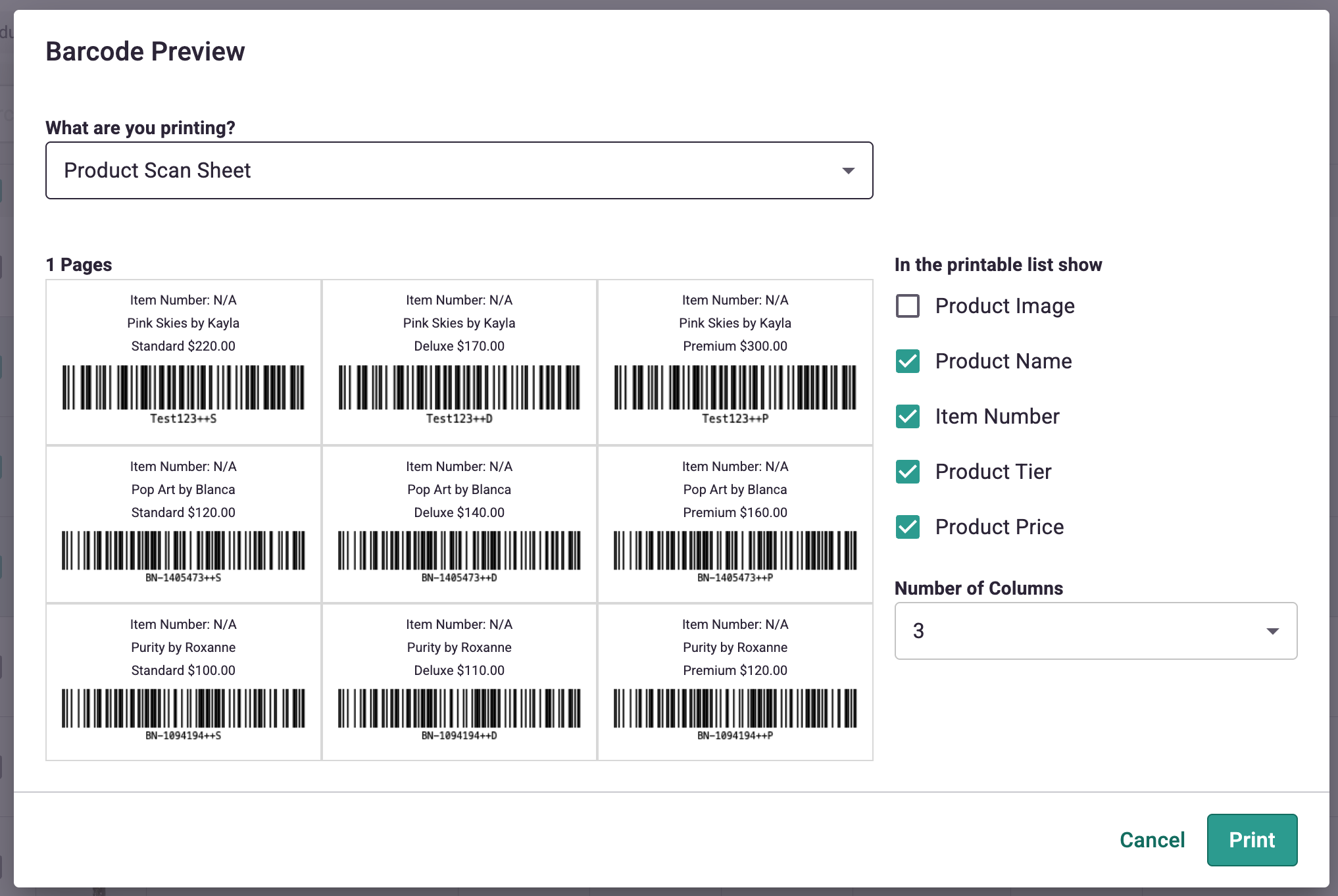
Customize your labels:
- Choose what to display (Product Name, Item Number, Tier, Price).
- Add product images (optional, available in 1-2 column layouts).
- Adjust the number of columns (1-3).
-
Choose from four pre-built Avery Easy Peel label templates.
- Available pre-formatted templates: 5161/8161, 5160/8160, 5167/8167, 5195/8195
-
Click Print to generate your labels
Need a different label format?
You can also export your barcode data as a CSV file and upload it to Avery's Label Builder for full customization.
Common Questions
What if I haven’t created barcodes yet?
BloomNation automatically generates a default barcode using your product’s unique ID, so you can start scanning right away.
What barcode scanner should I use?
Contact BloomNation to purchase the recommended barcode scanner. We'll get it all set up for you!
What happens if a barcode isn’t recognized?
You’ll see an error message letting you know that no product or ingredient was found.
Next Steps
If you’d like to get started with barcode scanning and printing:
- Contact your Account Manager or BloomNation Support for purchasing options.
- Start organizing and streamlining your shop!