
NEW: Gift Cards
Selling and Managing Gift Cards with BloomNation
Learn how to create, configure, and accept gift cards in your shop.
Gift cards are a great way to bring in new customers, boost repeat business, and offer flexible gifting options. BloomNation's gift card functionality supports both digital and physical gift cards:
- Digital Gift Cards: No extra setup is required. These are delivered automatically via email and can be redeemed both online and through your POS.
- Physical Gift Cards: BloomNation does not provide physical gift cards, but if your shop already uses custom-printed cards from a third-party supplier, you can set them up in BloomNation to sell and redeem. Physical cards can be redeemed through your POS only.
Watch the demo below, and go to the Gift Cards section in your POS to get started.
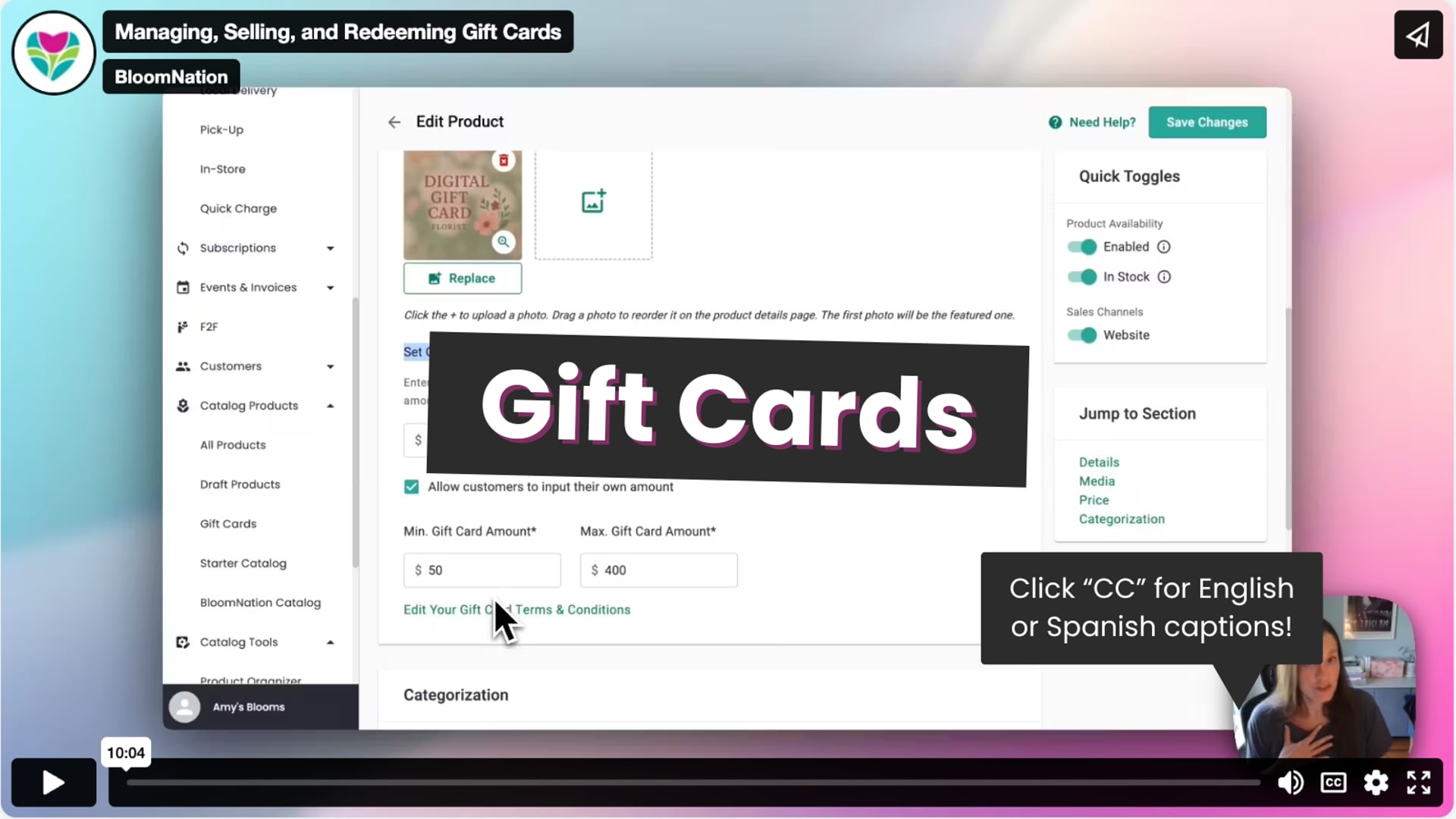 Managing, Selling, and Redeeming Gift Cards
Getting Started
Enabling Gift Cards in Your Dashboard
If gift cards are available for your shop:
-
Log into your Dashboard.
-
Go to My Shop > POS Settings.
-
Scroll to the Gift Cards section.
-
Toggle Enable Gift Cards to "Yes".
-
(Optional) Toggle Enable Promotional Gift Cards to allow issuing gift cards without a purchase (great for charitable donations).
Creating a Gift Card Product
-
Go to your catalog and select Create New Product.
-
Choose Gift Card as the product type.
-
Choose whether it's a digital or physical gift card.
-
Upload an image and add a description.
-
Set up to 4 preset denominations (e.g., $25, $50, $75, $100).
-
(Optional) Allow customers to enter a custom amount.
Digital cards are sent via email and include a scannable barcode. Physical cards require delivery or pickup.
Accepting Gift Cards
Online Orders
-
Customers can enter a gift card code during checkout.
-
If the card covers the full amount, the order is completed.
-
If the card only covers part of the total, they’ll be asked to pay the rest with another method.
In-Store Orders (POS)
-
Select Gift Card as a payment type.
-
Enter or scan the gift card code.
-
If needed, use Split Payment to combine with another payment method.
Managing Gift Cards
-
View all issued cards in the Gift Cards section of POS.
-
Track redemptions, adjustments, and history for each card.
-
Adjust balances or issue promotional cards manually.
-
Deactivate or resend cards anytime.
Note: Customers cannot reload their own gift cards. Only the shop can adjust balances.
FAQs
Can customers use coupons with gift card orders?
No. Orders containing gift cards are not eligible for coupon use.
Can I issue free gift cards for promotions or donations?
Yes! Enable "Promotional Gift Cards" in your POS settings to issue gift cards without a purchase.
Can I sell gift cards through the BloomNation Marketplace?
Not at this time. Gift cards are only available through your storefront and POS.
Who Can Use Gift Cards?
Gift cards are available to florists on select BloomNation packages. If you're interested in using gift cards, please contact us at getmore@bloomnation.com or call (210) 405-5050 to learn more about upgrading your package.
Need help setting up or using gift cards? We’re here for you!
-
Email: support@bloomnation.com
-
Phone: (210) 405-5050