
Sign up for a Gmail Account
Updated
Our most successful florists make sure they never miss an order, payout notification, or critical update from BloomNation. Between wholesale flower orders, customer inquiries, payroll, and random spam, it's easy for important messages to get lost in the noise!
If your inbox is drowning in hundreds of emails a day, we recommend creating a brand-new, dedicated email account just for your BloomNation shop. If you don't have a preferred email provider, here are instructions for how to do that through Gmail.
- 1. Start the Process: Navigate to the Google Account Sign-Up Page.
- 2. Select Account Type: Click Create account and choose For my personal use.
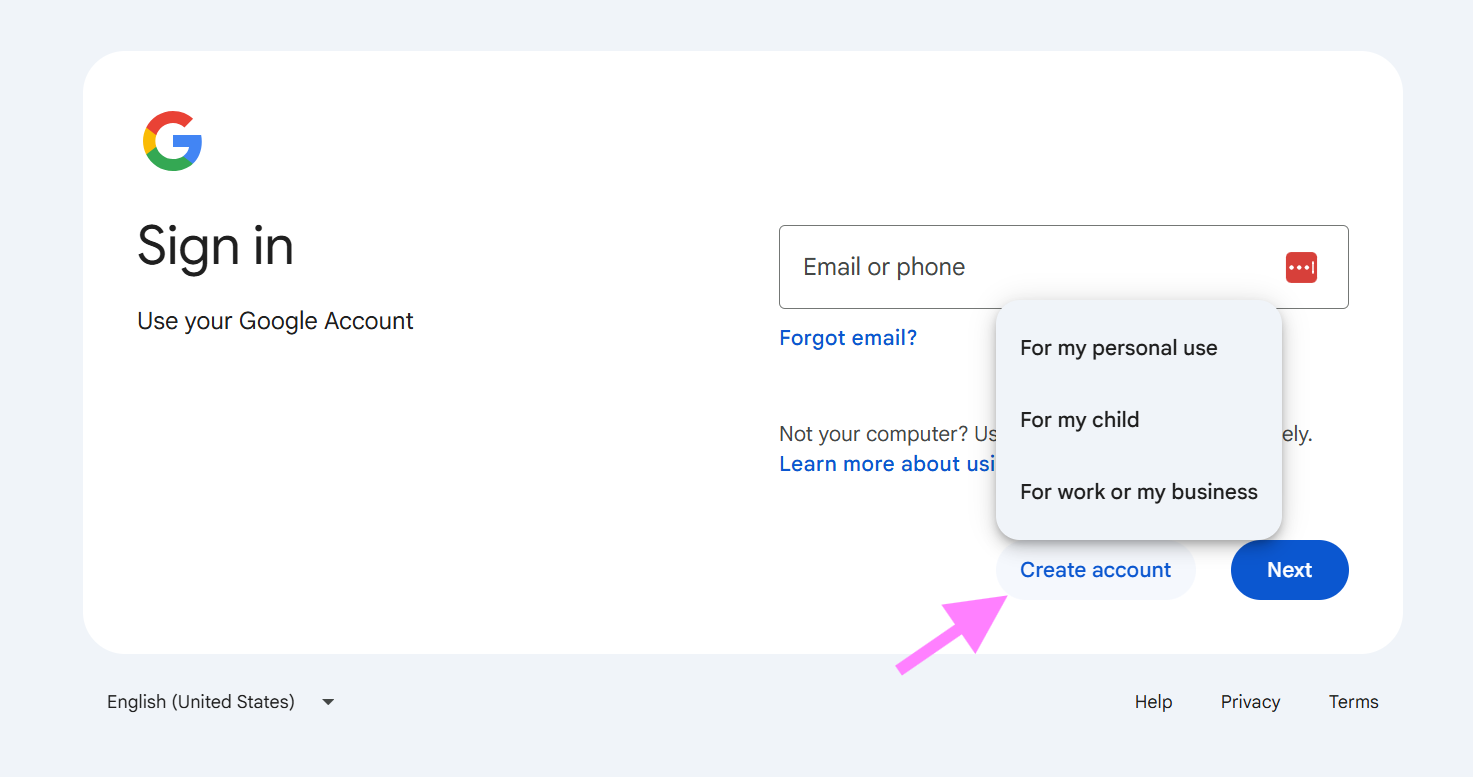
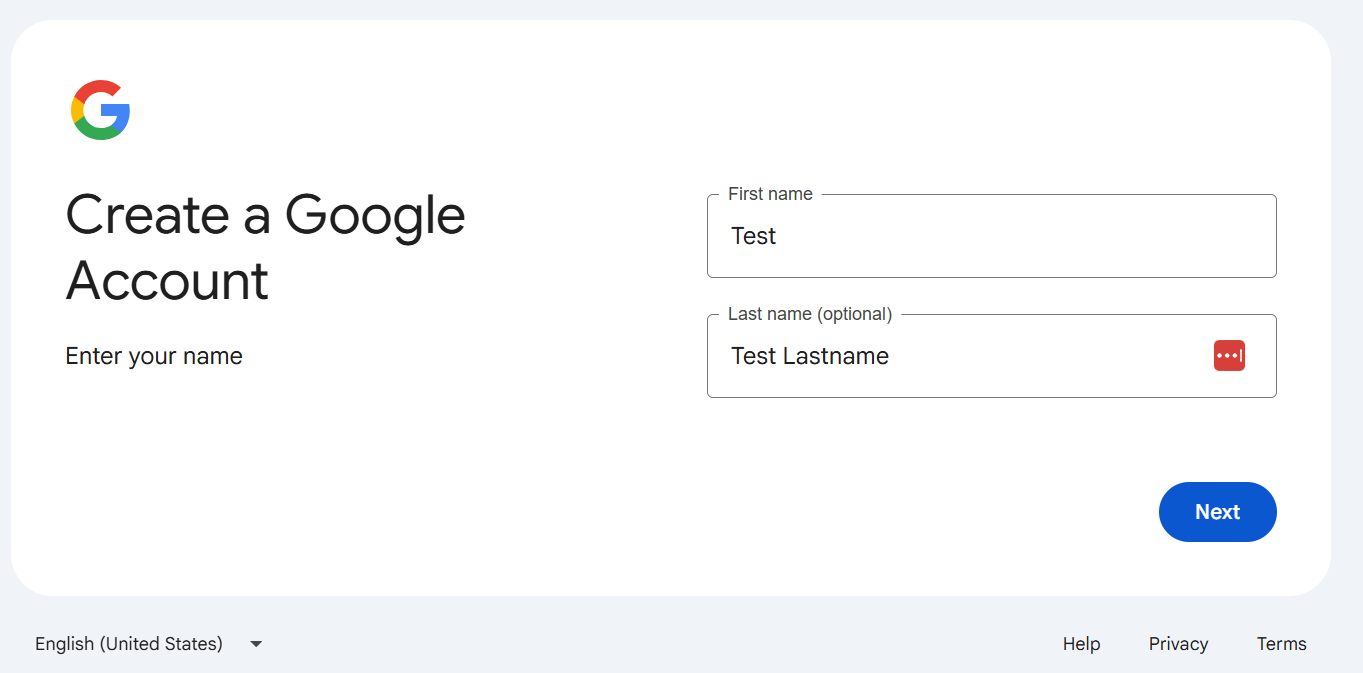
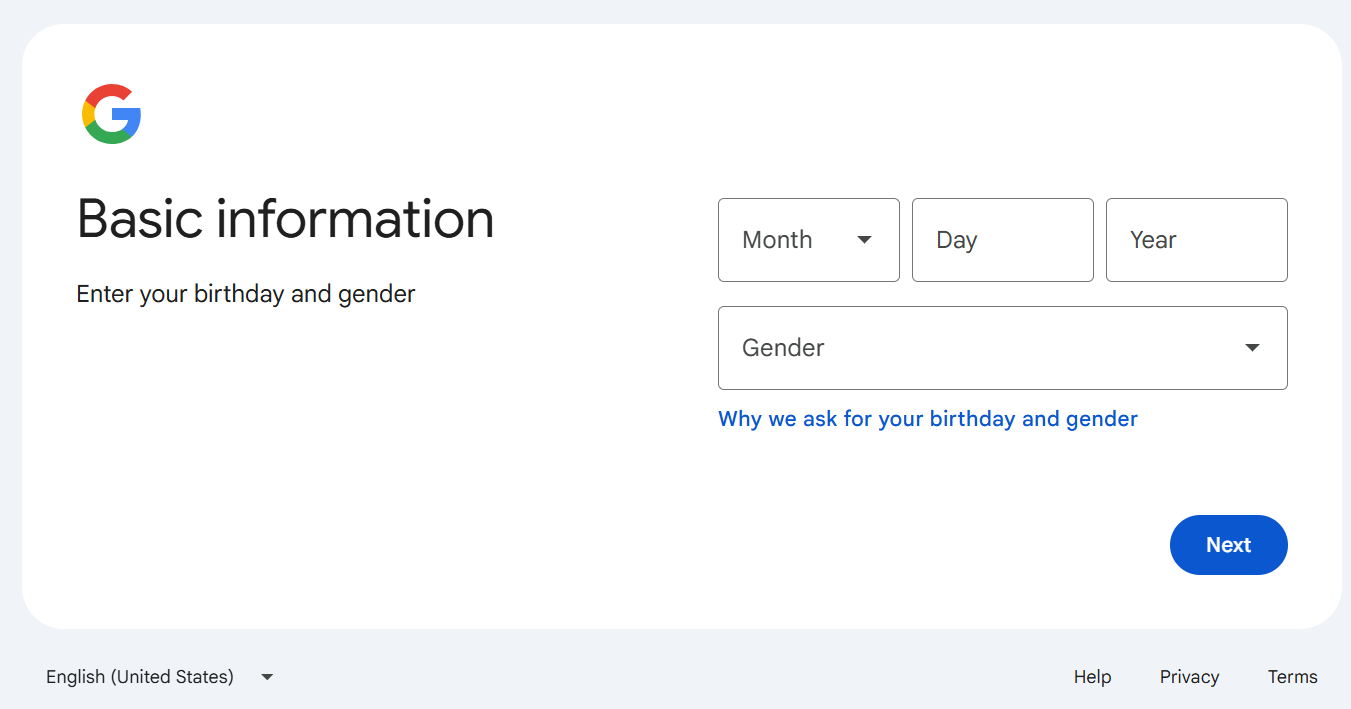
- 3. Enter Details: Input your first and last name, date of birth, and gender, then click Next.
- 4. Choose a Username: Create a unique username or choose from Google's suggestions. This will become your new
@gmail.comemail address.
💡 Tip: Try something like YourShopName.BloomNation@gmail.com. If it's taken, Google will offer a few close suggestions. - 5. Create a Password: Set a strong password and confirm it.
- 6. Verify Identity: Enter your phone number when prompted and input the 6-digit verification code you receive via SMS.
- 7. Add Recovery Info (Optional but recommended): Add a recovery email address so Google can contact you if you ever get locked out.
- 8. Agree to Terms: Review the privacy and terms, then click I agree.
Once finished, you can log in to your new inbox at Gmail. Email us at support@bloomnation.com from your old email address to authorize us to update to your new email address, and you're all set!