Using the Catalog Search Bar
Updated Ver en español
If at any time you need to search for designs in your catalog, use the search bar in the top left corner of your catalog. Please note for simple searches, it will only look for product names and item numbers, which is one reason why it is important to keep those names simple and descriptive.
Use the upgraded search to quickly search or filter down your products to your desired view.
Simple Search
- To find a specific product, type the product name or item number and press enter.
Filtered Search
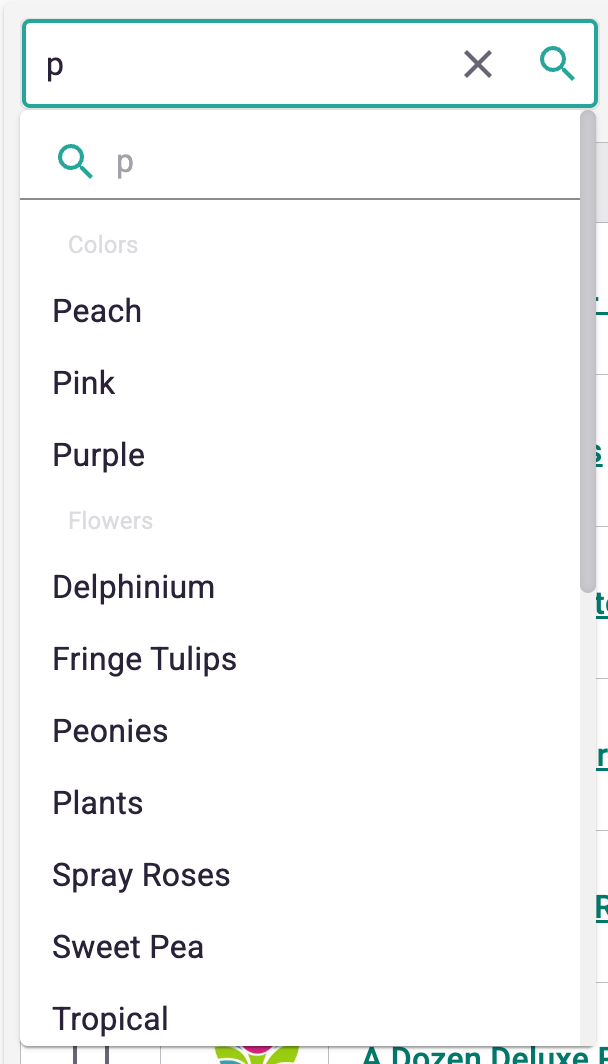
- If you're unsure of what you're looking for or want to see products for a specific occasion, color, or flower type, type the category name in the search bar. The search will return options for you to choose from.
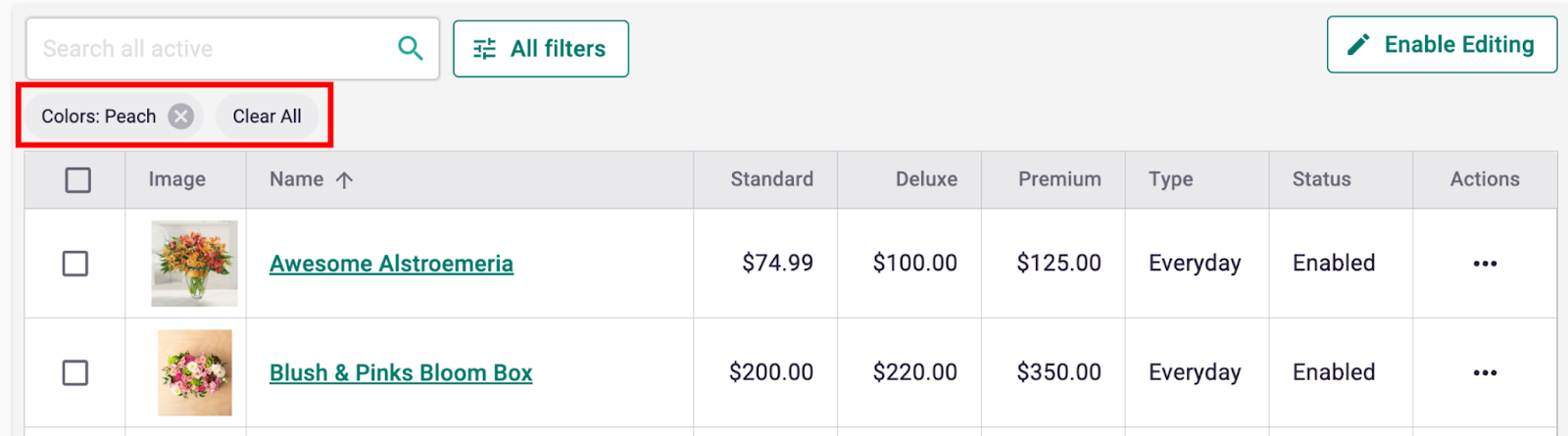
- Selecting a category will filter your product list to show items within that category. You can see which filters are applied by the chips that appear under the search bar. To return to the original product list, click the "clear all" button.
- To further narrow down your products, click on one of the category chips or the "All Filters" button next to the search bar to access all available filters.
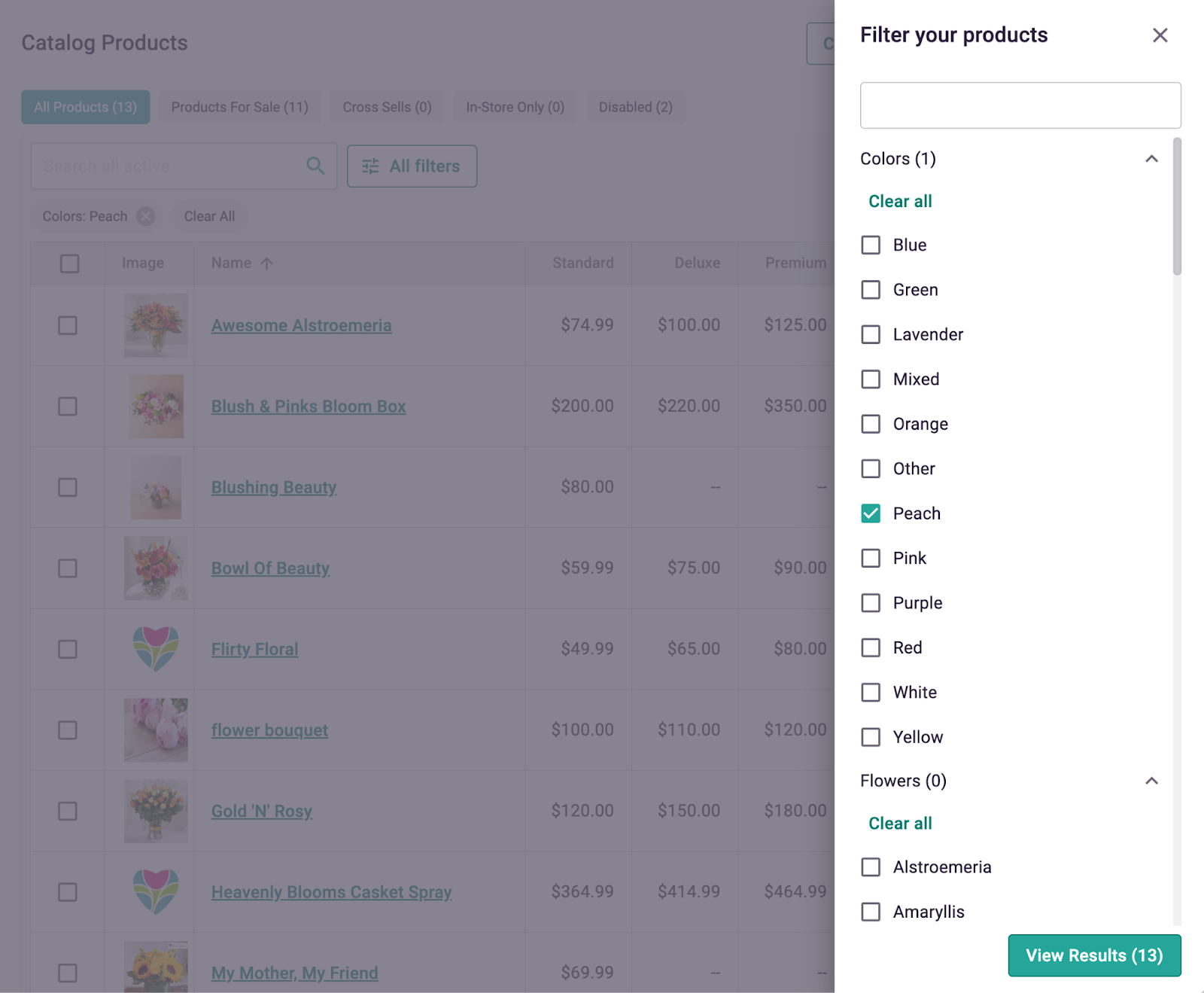
- Note: You can use the search bar within the "All Filters" section to find and apply specific filters.