
Using Promenade Jobs to build your team
Welcome to Promenade Jobs
With Promenade Jobs, getting your candidates for your small business' open jobs is a snap! Simply create a free account for your shop, write up a job posting, and then publish it. Once posted on Promenade Jobs, your job is syndicated to nationwide job boards such as ZipRecruiter, Google job search, and 100+ more. Here's how:
1. Create an Account
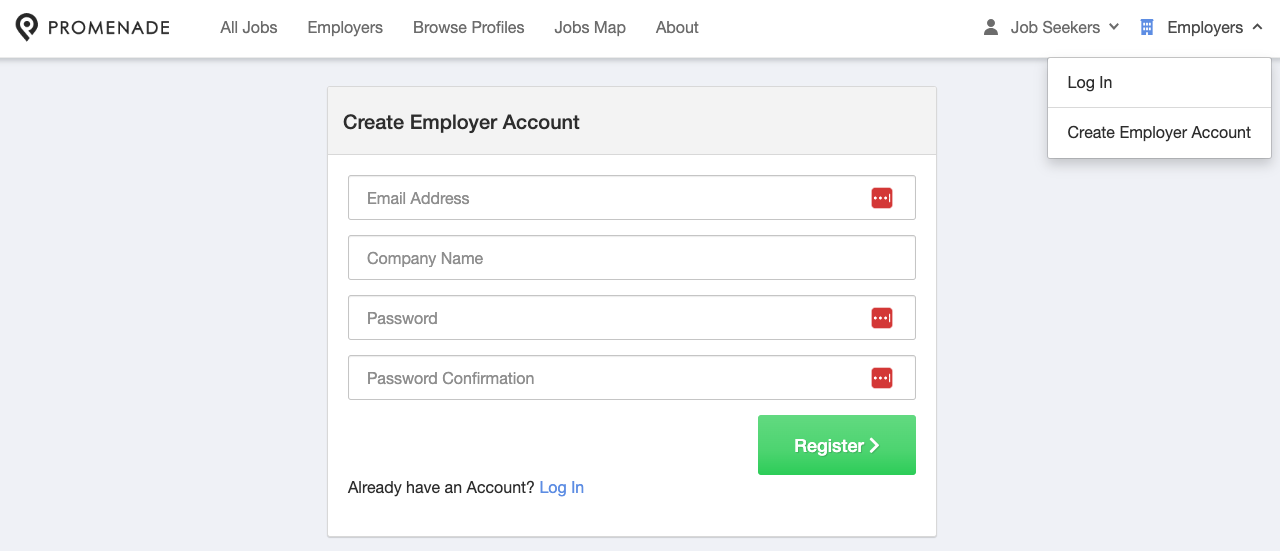
Go to https://jobs.promenade.co/. In the upper right navigation, under Employers, click Create Employer Account. Fill out your email, company name, and password and click Register.
On the next screen, fill out the rest of your company information, including your company description. Before you save this information, please take a moment to upload your logo image. Click Update at the bottom of the screen to save your profile.
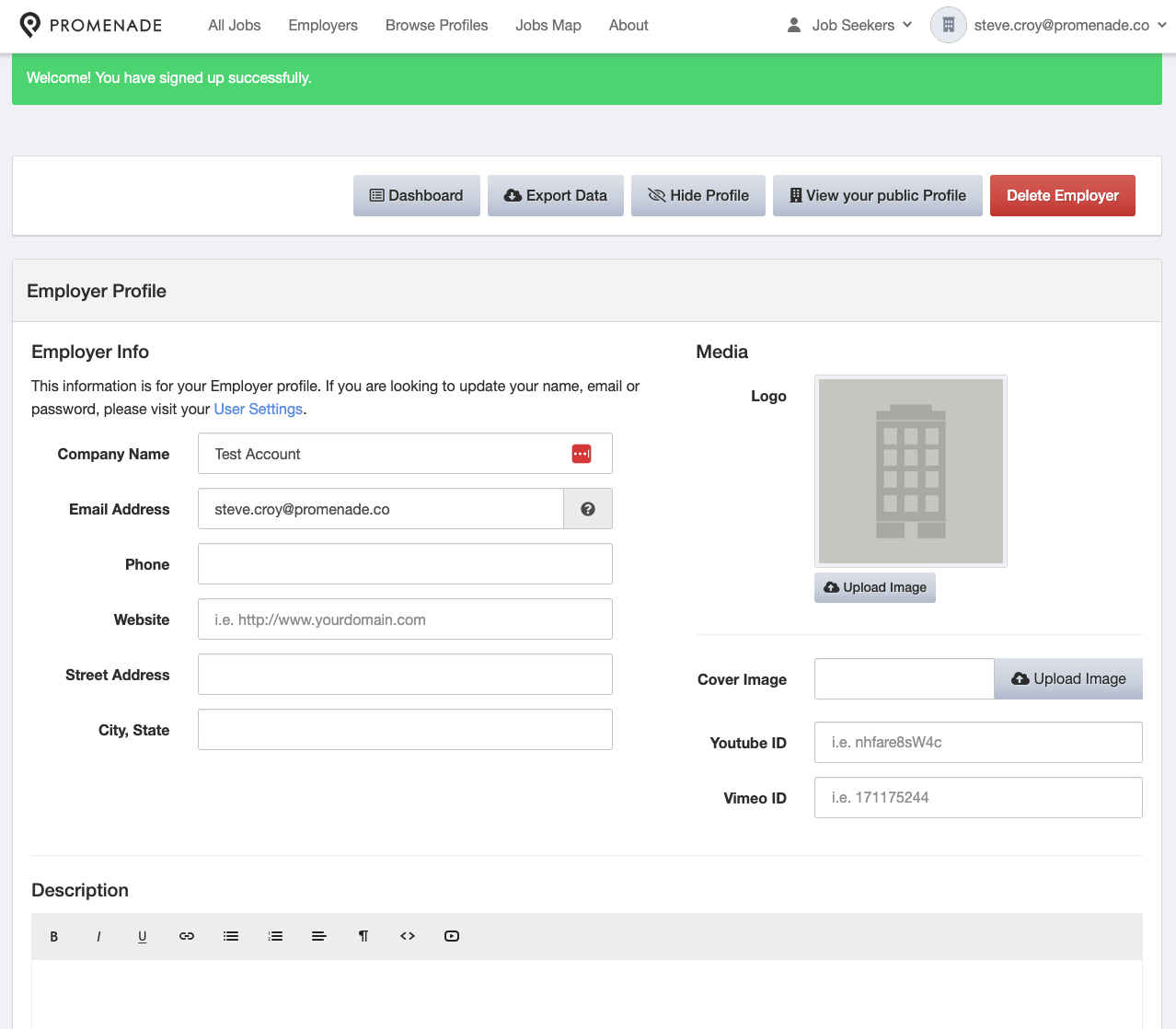
Please note that your Promenade Jobs account is not linked with any of your other accounts with Promenade or BloomNation.
2. Post a Job
Now that your profile has been created, you can post a job! To start either click Post a Job on the Promenade Jobs homepage, or Purchase more job posting credits from your Promenade Jobs Employer Dashboard. You'll be greeted with this screen, where you'll click Post Job to proceed.
Note that until the very last step of the process, where you pay for the posting, your job posting will be saved as a draft which you can later revisit.
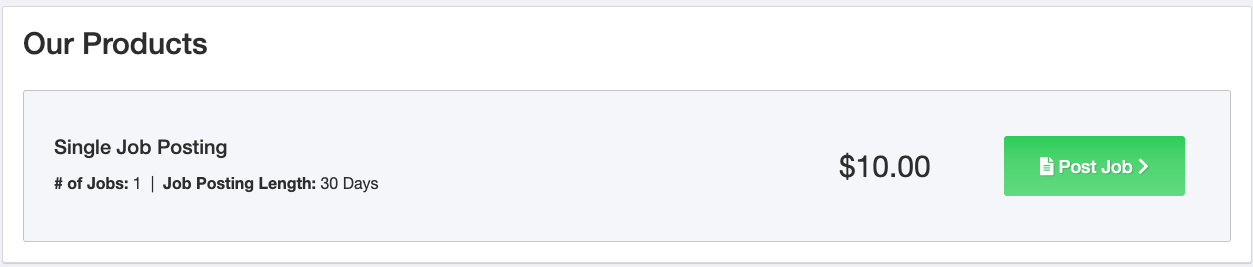
At the time of this writing, we are offering one Job Posting product, which allows you to have a job posting live for 30 days. We occasionally offer discounts and specials on job postings, so check with your Customer Success representative for more information!
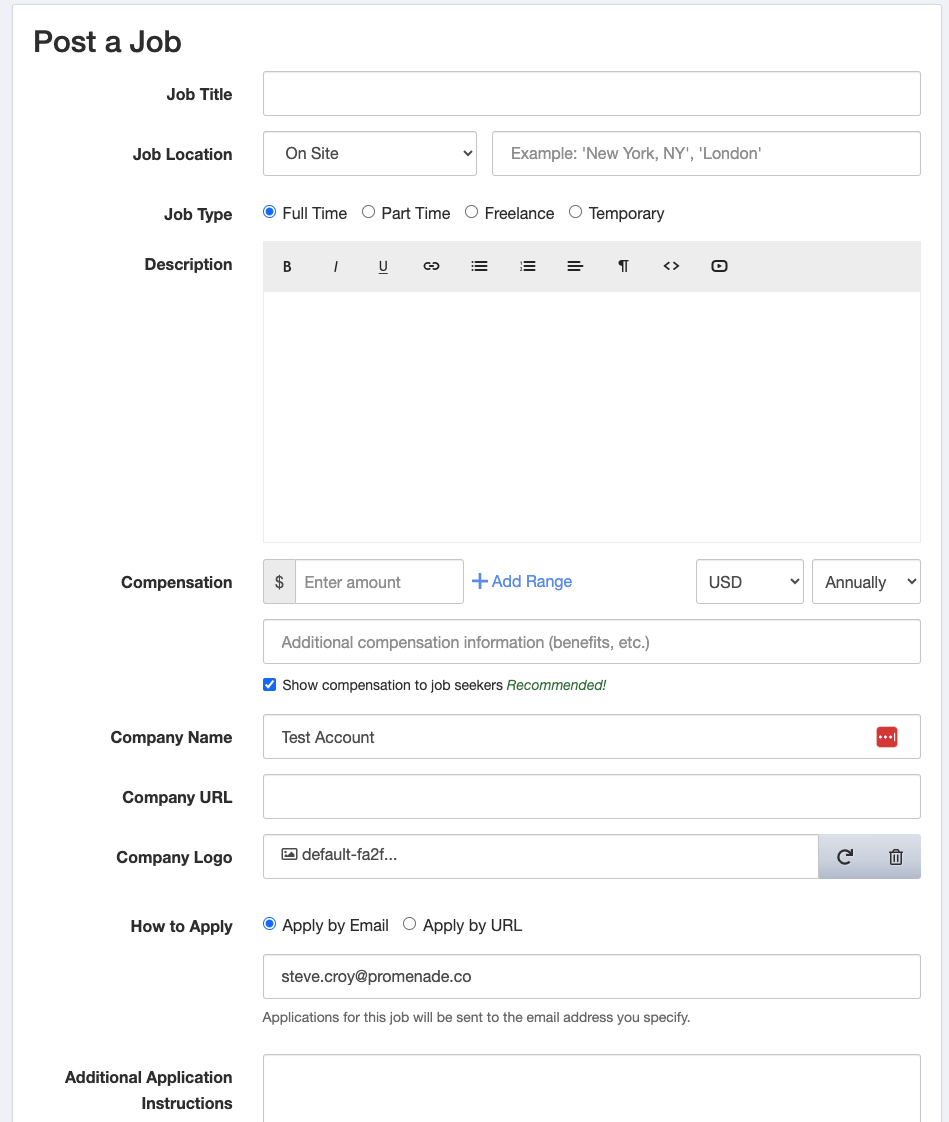
On this next screen, you'll fill out information about the job posting. Fill out as much information as possible—the more information you provide, the more likely you'll find a candidate that matches your needs.
Important: Under How to Apply, unless you have a separate and dedicated careers page on your company's website, select Apply by Email so all applications are sent directly to the email of your choice.
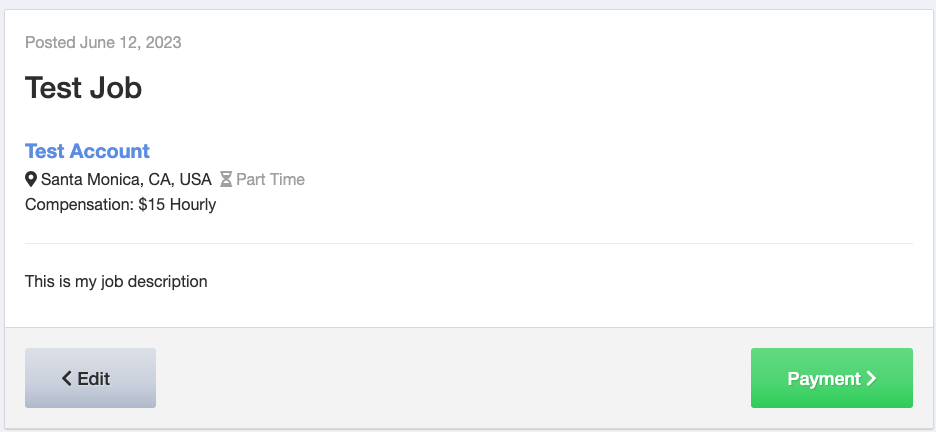
After clicking to Preview the job posting, you'll be presented with this screen, which will show you the view candidates will have of your job posting. If you need to Edit the posting further, click Edit, otherwise click Payment.
On this final screen you can enter your payment information, and if you have one, a promo code
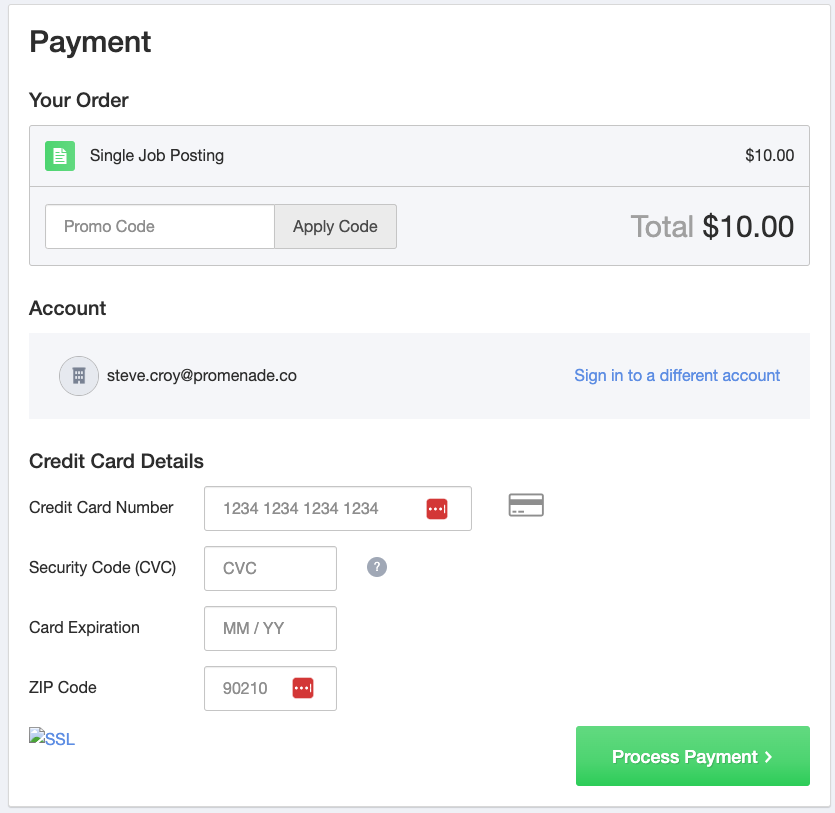
Once you hit Process Payment, that's it! Your job will be posted on Promenade Jobs, will begin syndicating to national career sites, and you'll begin receiving candidates.
If you need to edit your job posting after its posted, including to add Applicant Screening Questions, go to your Dashboard (in the upper right navigation, under Employers, click Dashboard), look for your job at the bottom of the screen in the Your Jobs section and click the job posting's name.
3. Review Candidates
If you set up the job posting for Apply by Email, then you'll receive candidate applications as they are entered. However, if you ever want to review all the candidate applications for a particular role, it's simple to do so via your Promenade Jobs dashboard. To access your dashboard, first log in to Promenade Jobs, then in the upper right navigation, under Employers, click Dashboard.
Once on your dashboard, look to the bottom for the Your Jobs section. It should look like this:

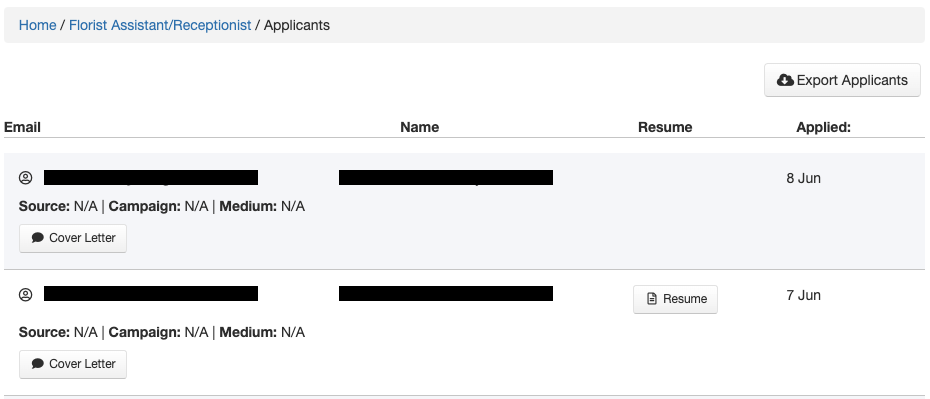
From here you can view all your Draft and Published (Live) job postings, and make changes to postings if necessary. You can also see how many candidates have applied for your job posting. Clicking on the Applies link will display a list of applicants, allowing you to review their cover letters, resumes, or export all applicants for a more in-depth review.
4. Hire the best
Congratulations! You've posted a job, received and reviewed candidate, and have hopefully made an offer to an excellent candidate. We're glad that Promenade Jobs could help you build your team!
Once you've made an offer and are ready to close out the job posting, you'll need to go to the Your Jobs section of your dashboard again. Once there, click the title of the job posting to edit it, then look for the Unpublish button. Clicking that will take you through removing your job posting from being live.