
Setting Up Your Google Analytics Account
What is Google Analytics 4 (GA4)?
Google Analytics 4 (GA4) is a free tool from Google that tracks how visitors use your BloomNation website. It shows real-time metrics, conversion rates, and helps you understand how customers interact with your shop online.
This enables:
- Track real-time site metrics: page views, sessions, conversion rates.
- Create custom reports for your shop.
- Understand how visitors navigate your website and make improvements.
- Understand how visitors find your site (search, advertising, direct traffic, referral traffic, etc)
Configuring Google Analytics for your site
Step 1: Create a GA4 account
-
Go to analytics.google.com.
-
Follow the on-screen instructions:
- Sign in with your Google account.
- Click Start measuring to begin.
- Enter your business details and website URL.
- Accept terms and conditions.
- Click Create to finish your GA4 property setup.
Step 2: Get your GA4 Measurement ID
- Once your account is set up, click Admin (lower left corner).
- Under Property, select Data Streams.
- Click your website stream.
- Your Measurement ID (starts with "G-") is shown in the upper right (e.g., G-XXXXXXX).
Need extra help? Check this Google guide for step-by-step screenshots.
Step 3: Add your GA4 Measurement ID to BloomNation
- Log into your BloomNation account.
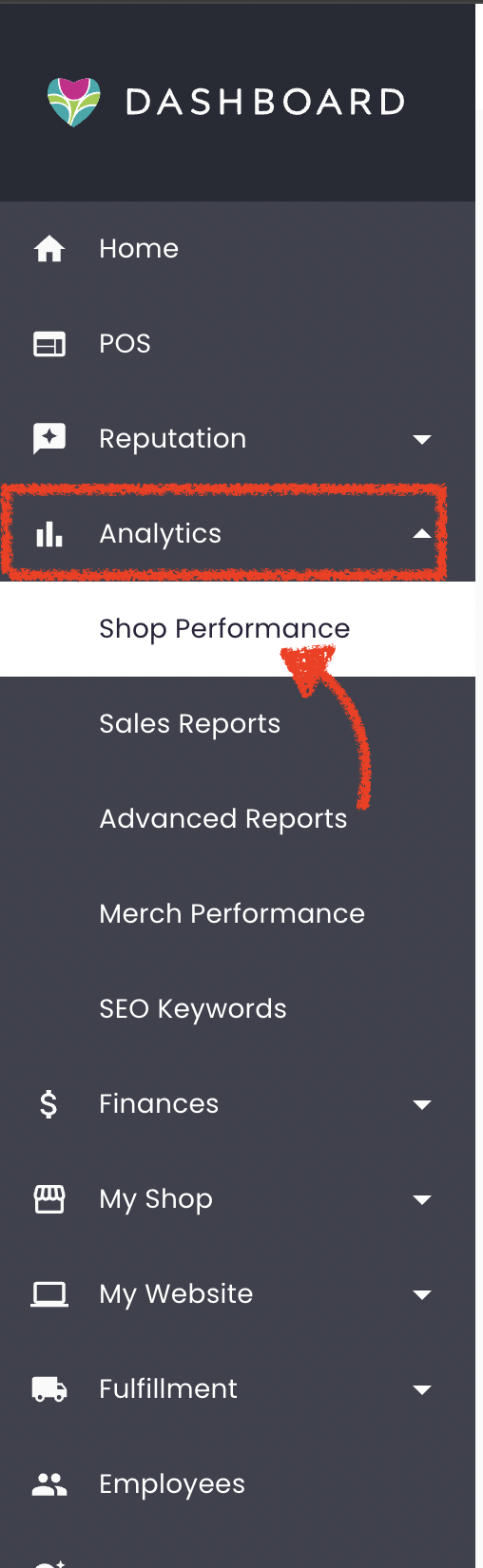
- Navigate to Analytics > Shop Performance > Website Performance.
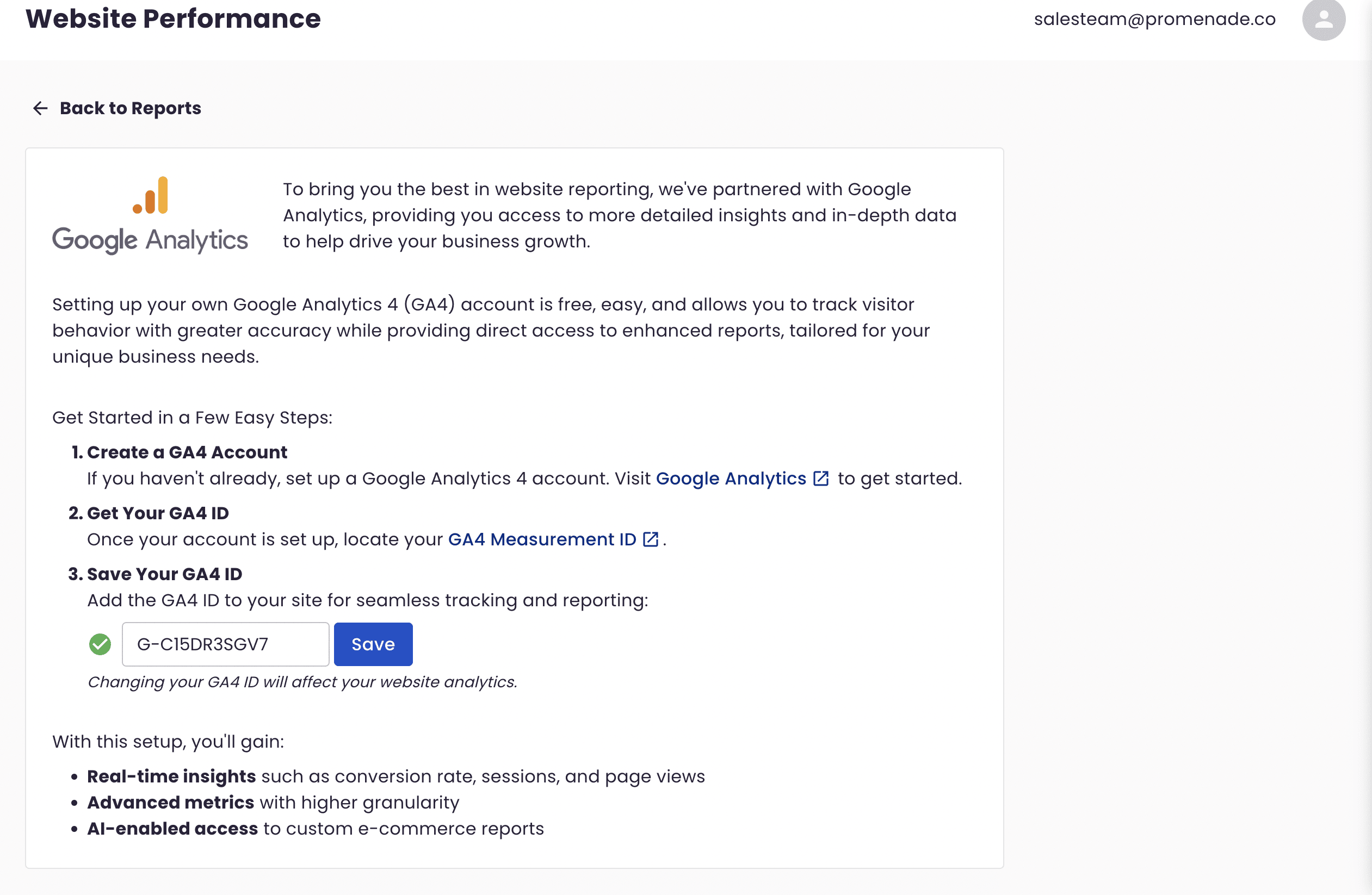
- Paste your GA4 Measurement ID (G-XXXXXXX) into the field.
- Click Save.
- Look for a green checkmark confirming successful integration.
FAQs
Where do I find my GA4 Measurement ID?
After creating your GA4 property, look in Data Streams under Admin. The ID is shown in the stream details.
How long does setup take?
Most shops can finish in 5–10 minutes. The hardest part is creating your Google Analytics account if you don't already have one.
How do I know if tracking works?
Google Analytics will show activity in real time after integration. You can also check for a green checkmark in your BloomNation account.
How long does it take for my traffic to show up in Google Analytics?
It can take up to 30 minutes for traffic to populate in Google Analytics once the code is properly installed.
Troubleshooting & tips
- If you don’t see data in GA4 after 24 hours, double-check your Measurement ID and make sure it is entered correctly.
- GA4 property is required; Universal Analytics (UA) IDs will not work.
- Contact BloomNation support if you have connection problems.
Need more help?
For additional guidance, refer to Google Analytics Help Center or contact our Support Team for assistance.