
Change Your Dashboard and POS Language
Change Your Dashboard and POS Language
Overview
You can translate your BloomNation Dashboard and POS into another language using our built-in language settings. This feature is powered by Google Translate and is currently available in beta.
Language settings can be applied at both the account level and the employee level, giving you flexibility for your entire team.
For account level changes, go to Account Settings.
For employee level changes, go to Employee settings.
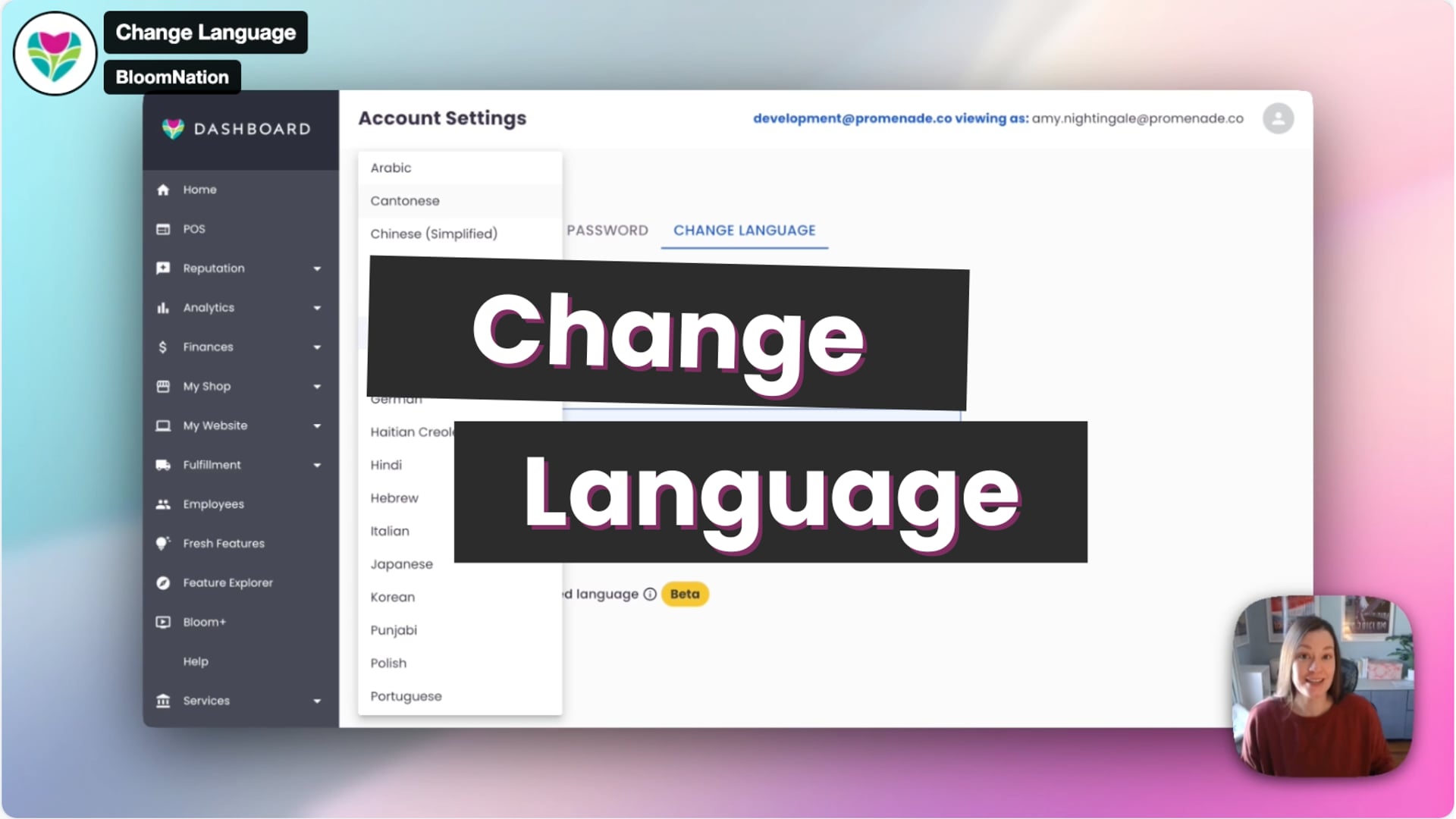 Change Language
How to Access Language Settings
- Log in to your BloomNation Dashboard.
- Click the account icon in the upper-right corner.
- Select Settings.
- Click Account Settings.
- Select Change Language.
Preferred Language vs. Translation
The first option you’ll see is Preferred Language.
This setting does not change any text on its own. It simply tells BloomNation which language you prefer. To actually translate the interface, you’ll need to enable one or more translation toggles.
Translate Your Dashboard & POS (Beta)
You can choose to translate:
- Your Dashboard
- Your POS
You can turn both on, just one on, or leave both off — it’s completely up to you.
Once enabled, most text across the interface will be translated into your preferred language.
Important: All translations are powered by Google Translate.
- Some phrases may appear longer or formatted differently.
- Occasionally, translations may not be exact.
If anything doesn’t look right, we recommend turning translation off.
Save or Revert Your Changes
After adjusting your settings, click Change Language to apply them.
If you want to turn translation off later:
- Toggle off Dashboard and/or POS translation
- Click Change Language again
Your interface will return to English.
View Original Text While Translated
When translation is enabled, you can hover over translated text to see the original English version. This can be helpful if something looks unclear or unexpected.
Employee-Level Language Settings
Language settings can also be applied per employee.
- Go to Employees from the Dashboard menu.
- Select an employee.
- Scroll to the Preferred Language section.
From there, you can:
- Select the employee’s preferred language
- Choose their translation options.
Each employee’s language settings are independent and can be customized as needed.
Need Help?
If you have questions or run into any issues, our Support Team is here to help.
Phone: (210) 405-5050
Email: support@bloomnation.com